
AI Assistant Chat Playback
AI Assistant Chat Playback is a troubleshooting tool that lets you replay any user conversation with the AI Assistant. It provides visibility into the assistant’s reasoning process — from how it interpreted the user’s query, to which plugins it considered and executed, to how it generated the final response.
Use Chat Playback when the AI Assistant delivers an unexpected response and you need to understand why. Common scenarios include:
- The assistant not serving expected knowledge articles, files, or forms
- The assistant serving the wrong type of resource (for example, a form instead of a KB article)
- A software provisioning request failing
- Ticketing actions like creating a ticket or adding a comment not completing
- The assistant citing irrelevant or incorrect resources
- A response that took noticeably longer than expected
- The assistant selecting the wrong plugin when multiple plugins could match
Chat Playback is scoped to a single conversation. You can look it up two ways:
- Conversation ID — loads the full conversation so you can step through every turn.
- Trace ID — jumps straight to the single turn tied to that trace. Use this when you already have a trace ID from a log entry and only need to inspect that one interaction. See Finding a Trace ID.
You cannot search by user email or browse user conversation histories.
Chat Playback can replay conversations from the last 30 days only. Conversations older than 30 days are not available for playback.
Access Requirements
Chat Playback displays sensitive conversation data including user queries and plugin arguments. Access is restricted to users with one of the following roles:
A Super Admin assigns these roles through Moveworks Setup. Only grant access to users who have a legitimate troubleshooting need.
All access to Chat Playback is logged. The system records which user accessed a conversation and when. These logs are available for compliance review.
How to Use Chat Playback
Choose a lookup method and enter the ID
At the top of the Conversation Transcript panel, use the dropdown to choose how to look up the interaction, then paste the ID and press Enter:
- Conversation ID — loads the entire conversation. The full transcript appears on the left so you can step through every turn.
- Trace ID — jumps directly to the single turn tied to that trace. Use this when you already have a trace ID from a log entry (see Finding a Trace ID) and only need to inspect that one interaction.
Conversation transcripts are available within ~10 minutes after a conversation is completed.
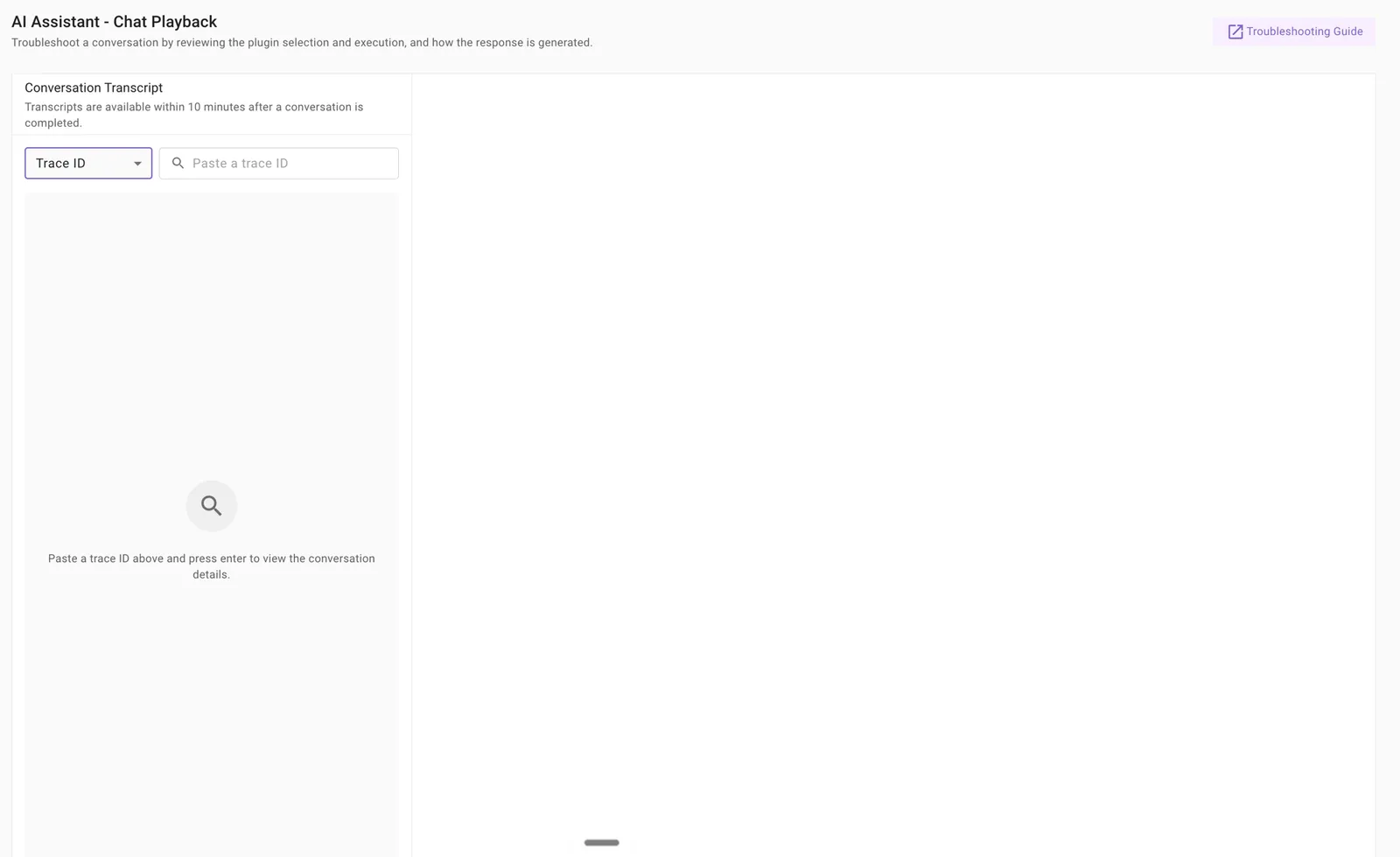
The interaction will begin loading. You will see the conversation transcript on the left and the Reasoning panel on the right.
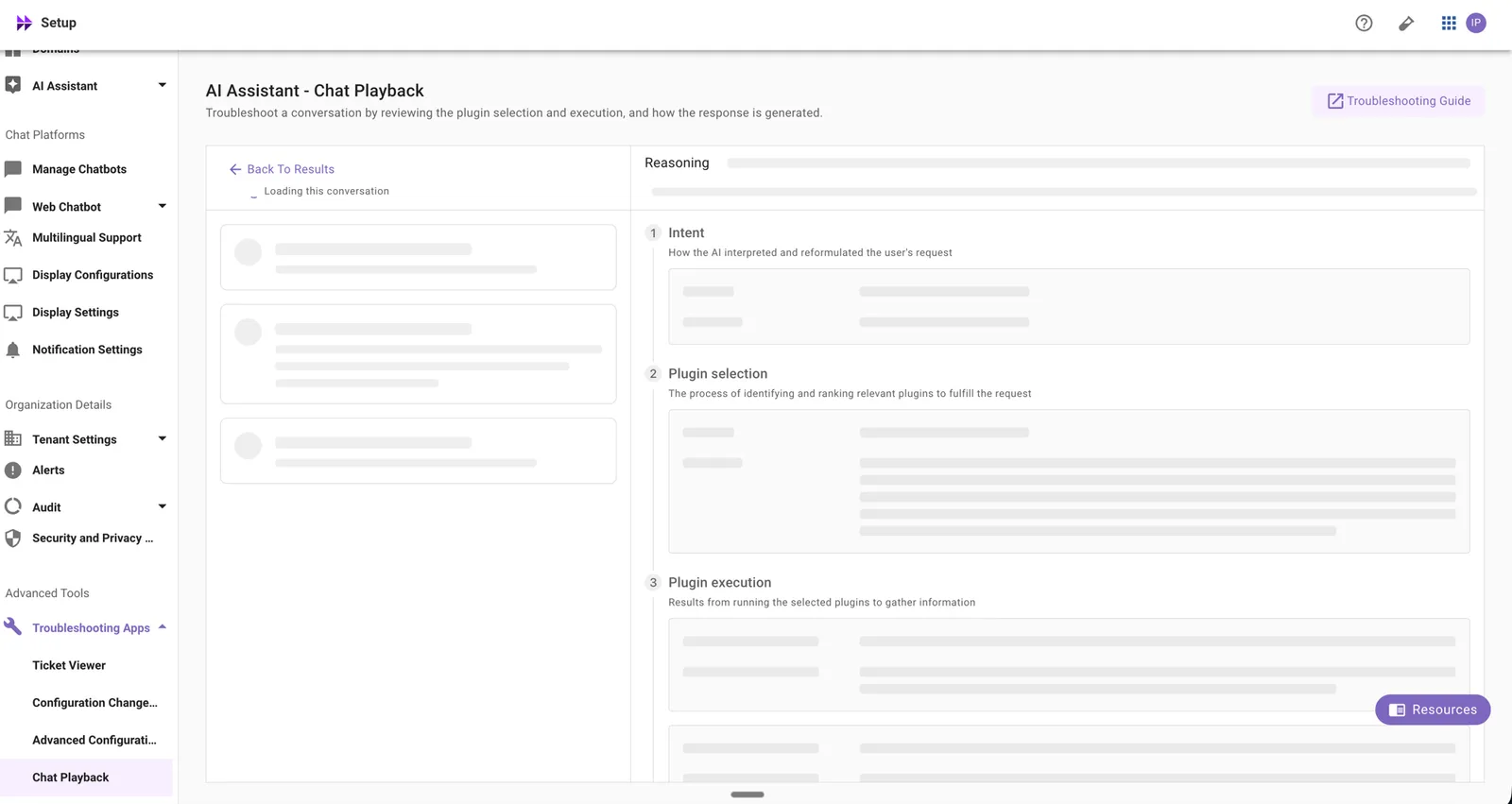
Select a user message
Click any user message in the transcript on the left. The reasoning panel on the right updates to show how the assistant processed that specific turn. Each turn is reasoned about independently, so you can step through a long conversation message-by-message.
Review the reasoning steps
The reasoning panel breaks the assistant’s processing into four numbered steps so you can pinpoint where an issue occurred: Intent, Plugin selection, Plugin execution, and Response generation. Each step shows a duration (for example, 13.6s) so you can see which phase took the most time.
Finding a Trace ID
A trace ID identifies a single turn of a conversation. You can copy one from either logs view and paste it into Chat Playback’s Trace ID lookup to jump straight to that turn.
From Built-in Plugin Logs
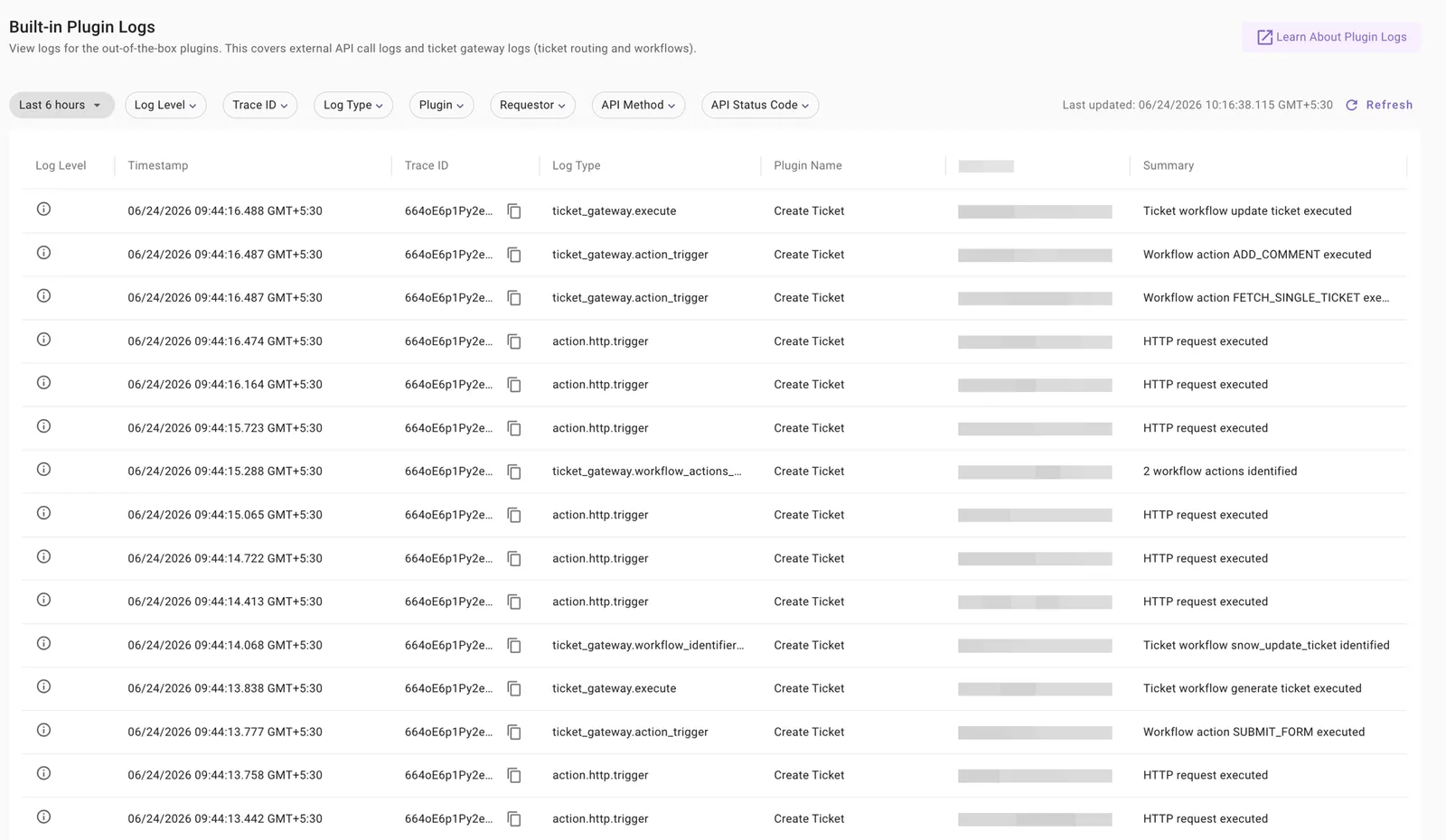
Built-in Plugin Logs cover the out-of-the-box plugins, including external API call logs and ticket gateway logs (ticket routing and workflows). Each log entry has a Trace ID column with a copy button.
- Open Built-in Plugin Logs in Moveworks Setup.
- Find the log entry you want to investigate. Narrow the list with the Trace ID, Plugin, Log Type, Requestor, or time-range filters.
- Copy the value in the Trace ID column.
- In Chat Playback, set the lookup dropdown to Trace ID, paste the value, and press Enter.
From Agent Studio Logs
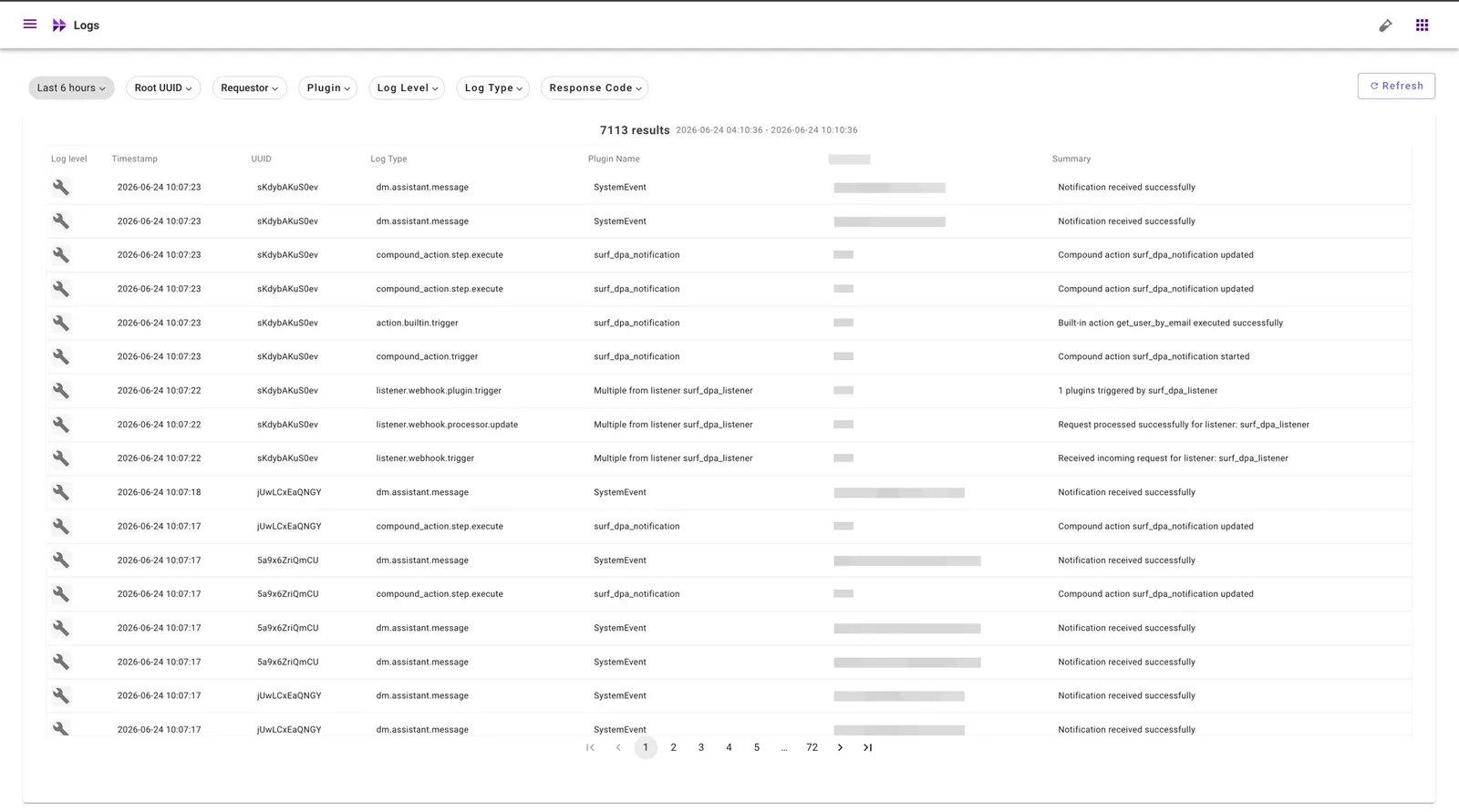
The Agent Studio Logs view lists log entries with a UUID column, filterable by Root UUID.
- Open the Logs view in Agent Studio.
- Locate the entry for the turn you want to inspect. Filter by Root UUID, Plugin, Log Type, Requestor, or time range to narrow the results.
- Copy the UUID from that entry.
- In Chat Playback, set the lookup dropdown to Trace ID, paste the UUID, and press Enter to open the conversation history for that turn.
What You Can See
Chat Playback surfaces the AI Assistant’s reasoning process in four steps. Each step maps to a phase of how the assistant processes a user query. Select any user message in the conversation transcript on the left to see the corresponding reasoning breakdown on the right.
Reading the timing indicators
Every reasoning step shows a duration next to its title — for example, 13.6s next to Plugin execution. This is the wall-clock time that step took to run for the selected user message. Use timings to:
- Spot which step is the slowest contributor to a slow response. Plugin execution times are usually the largest, since they include calls to your connected systems.
- Identify integrations that are responding slowly. If Plugin execution is consistently long for a specific plugin, the bottleneck is typically the downstream system, not Moveworks.
- Distinguish a slow response from a failed one. A 30-second plugin execution that ultimately succeeds is a performance issue; a failed execution shows an error code regardless of timing.
Step 1: Intent
How the AI interpreted and reformulated the user’s request.
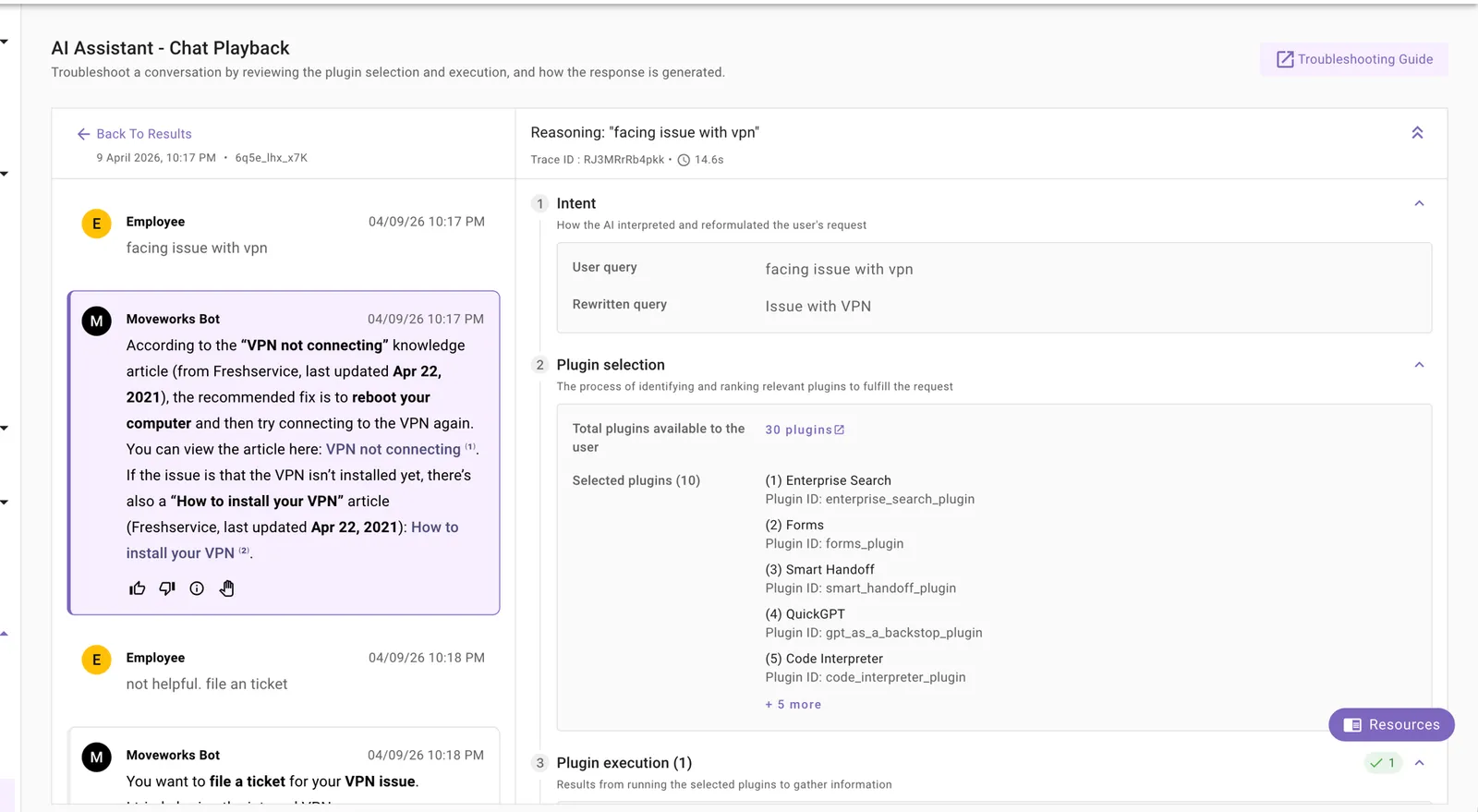
Step 2: Plugin Selection
The process of identifying and ranking relevant plugins to fulfill the request.
Before escalating, check two things you can verify yourself:
- Is the plugin in “Total plugins available to the user”? If not, the issue is access — review the plugin’s access groups and confirm the user is in the right group.
- Is the plugin published and enabled? A draft or disabled plugin will not appear in selection.
If the plugin is available and published but still not selected, contact Moveworks Support with the conversation ID. The assistant’s selection scoring is not visible in Chat Playback today, so Support has additional tools to investigate.
Step 3: Plugin Execution
Results from running the selected plugins to gather information.
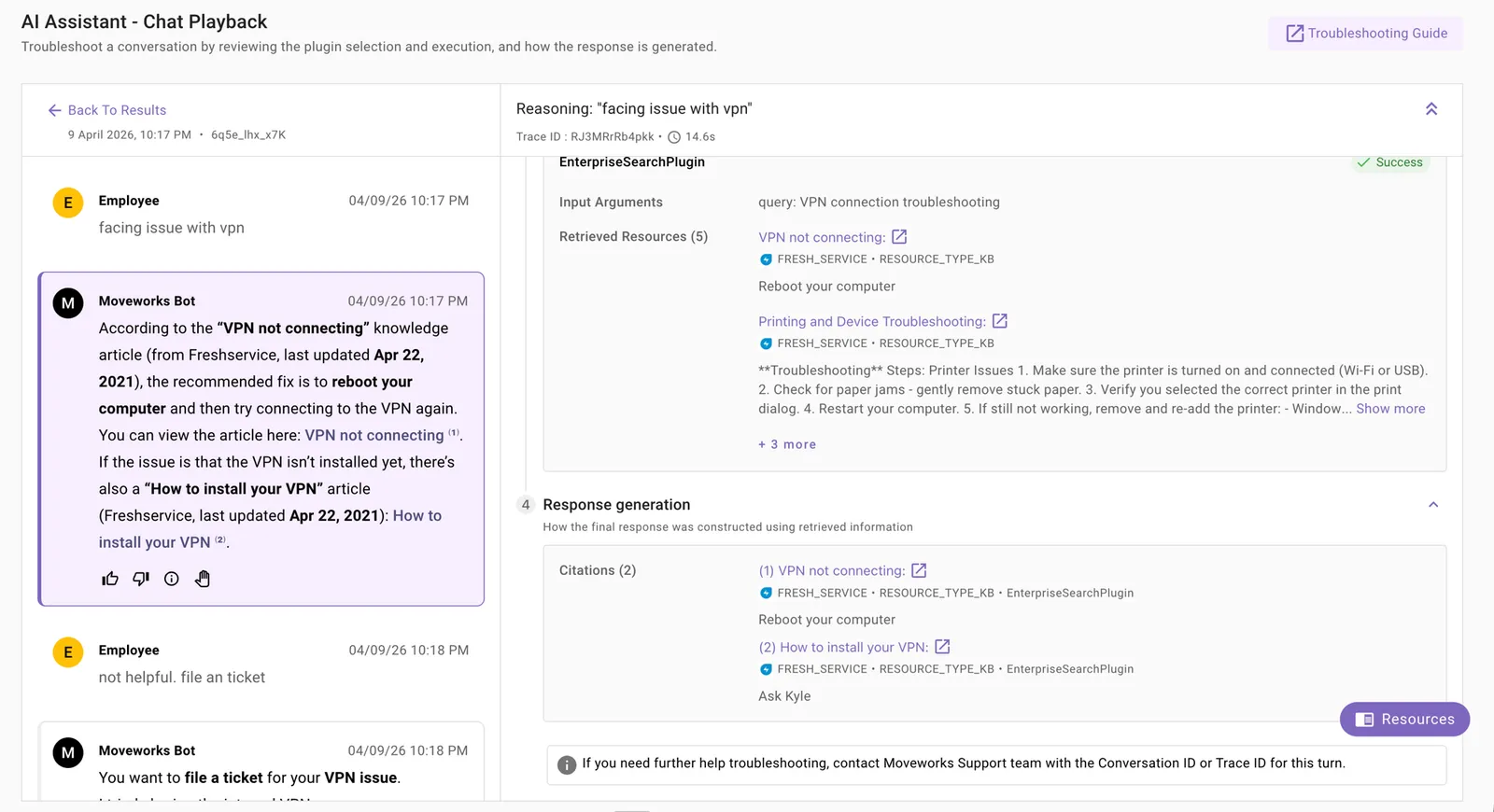
Step 4: Response Generation
How the final response was constructed using retrieved information.
Plugin Error Codes
When a plugin execution fails, Chat Playback displays one of the following error codes. Each row below includes the specific things to check before escalating.
PLUGIN_ERROR_INTERNAL_ERROR
An unexpected error occurred while running this plugin.
A general execution failure inside the plugin runtime.
What to check:
- If the failure is intermittent for an action plugin, look up the Trace ID in Built-in Plugin Logs. A 5xx response from your connected system shows up here.
- If the failure is consistent for the same plugin and query, escalate to Moveworks Support with the conversation ID and Trace ID.
PLUGIN_ERROR_INVALID_ARGUMENTS
The plugin received invalid or unrecognized arguments.
The assistant passed arguments the plugin could not process — typically a value that does not match the expected type, format, or allowed values.
What to check in the plugin configuration:
- Slot definitions — open the plugin in Moveworks Setup and review each input slot. Confirm the type (string, number, enum, date, etc.) matches what the connected system actually expects. An enum slot with values that have drifted from the source system is a common cause.
- Validation rules — if a slot has a regex or allowed-values list, check whether the value the assistant passed (visible under Input Arguments in Chat Playback) would actually pass that validation.
- Required vs. optional — if a required slot is being filled with a placeholder or empty value, the slot’s extraction prompt may need to be made more specific so the assistant knows when to ask the user for the value instead of guessing.
- Source-system contract — for action plugins, confirm the API endpoint still accepts the field names and formats configured in the plugin. If your downstream system was upgraded recently, the contract may have changed.
If the slot configuration looks correct and the input arguments still don’t match what the system expects, escalate to Moveworks Support with the conversation ID, the Input Arguments shown in Chat Playback, and what the correct arguments should have been.
PLUGIN_ERROR_UNCLEAR_ENTITY
The plugin could not resolve which entity was requested.
The assistant could not confidently resolve which specific entity (person, ticket, application, etc.) the user meant. This usually happens when the user’s query is ambiguous, or the assistant has not seen enough examples of how this entity is referred to in your environment.
What to check:
- Was the query genuinely ambiguous? If the user asked something like “open the ticket” without specifying which ticket, this error is expected behavior. The fix is user education, not configuration.
- Is the entity name a common word or acronym? Names that overlap with everyday vocabulary (for example, an app called “Mail” or “Connect”) are harder to disambiguate.
The fix for repeated PLUGIN_ERROR_UNCLEAR_ENTITY errors is usually to add demonstrations — example utterances that teach the assistant how your users phrase requests. Demonstrations cannot be added self-serve in Moveworks Setup today.
When escalating, send Moveworks Support:
- The conversation ID
- The user query and the entity that should have been resolved
- 3–5 example phrasings your users commonly use for the same intent (for example, “open my Jira ticket about the VPN issue”, “show me the VPN ticket”, “pull up VPN incident”)
Support will add the demonstrations to your tenant. Self-serve demonstration management is on the roadmap.
PLUGIN_ERROR_MISSING_ARGUMENTS
The plugin was missing required arguments to complete this action.
A required slot was not filled because the assistant could not extract the value from the user’s query.
What to check:
- Did the user actually provide the value? Re-read the user query — if the value is genuinely missing, the assistant should have asked a clarifying question. If it didn’t, the slot’s extraction prompt or required-flag may need tightening.
- Slot extraction configuration — open the plugin and review the description and prompt for the missing slot. A vague description (for example, just “the ID”) gives the assistant little to anchor on. Specific descriptions (“the Jira ticket key, e.g.
PROJ-123”) extract better. - Slot type alignment — if the user gave the value in a different format than the slot expects (e.g., user typed a name but slot is an ID), the extraction can fail silently. Consider an upstream lookup plugin or a different slot type.
PLUGIN_ERROR_NO_RESULTS_FOUND
The plugin could not find any results matching the request.
The plugin executed successfully but found nothing matching the query. This is the most common error and usually indicates a content gap rather than a plugin bug.
Self-serve checks, in order:
- Does the content exist in the source system? Search the source system directly (for example, your knowledge base or ticketing tool) using the same terms. If it’s not there, the answer is content authoring, not Moveworks configuration.
- Is the content ingested? Open the relevant content connector in Moveworks Setup and check the last sync time and the number of indexed items. A connector that has not synced recently, or shows zero indexed items for the expected source, is likely the cause.
- Does the user have permission to see the content? Moveworks honors source-system permissions. If the article exists and is ingested but is restricted to a group the user is not in, the assistant will not return it. Reproduce the search as the affected user in the source system to confirm.
- Is the content scope wide enough? If users are asking about a topic that is not currently covered by any connected source, expand the bot’s content coverage — for example, add the relevant Confluence space, SharePoint site, or knowledge base section to your content connectors. Check the Knowledge & Content Connectors catalog for sources you have not yet connected.
- Is the content too new? Newly published articles are not searchable until the next ingestion sync. Check the connector’s sync frequency.
If all five checks pass and the content is still not surfacing, escalate to Moveworks Support with the conversation ID and a link to the specific article that should have matched.
PLUGIN_ERROR_ACTION_ERROR
The plugin failed while attempting to complete the requested action.
The downstream action (for example, creating a ticket) failed. The connected system returned an error.
What to check:
- Copy the Trace ID and look it up in Built-in Plugin Logs to see the exact API request and the response from the connected system.
- Common causes: expired credentials on the integration, a required field on the source-system side that is not mapped, or a permissions change in the connected system.
PLUGIN_ERROR_TIMEOUT
The plugin execution timed out.
The plugin took too long to respond. The Step duration on Plugin execution will show the timeout limit.
What to check:
- Is the connected system experiencing a broader slowdown? Check its status page.
- For search plugins, an overly broad query can time out — review the Input Arguments to see if the query was reasonable.
- If timeouts are recurring against the same integration, escalate to Moveworks Support and to the owner of the connected system.
PLUGIN_ERROR_CONFIG_ERROR
The plugin is not configured correctly.
The plugin has a configuration issue that prevents it from running at all.
What to check:
- Open the plugin in Moveworks Setup and re-validate the connection (credentials, base URL, required fields).
- Confirm the plugin is published, not in draft.
- If the connection was working previously, the credentials may have rotated on the source-system side.
Real-World Scenarios
The walkthroughs below show how to use Chat Playback end-to-end for the most common reports.
Scenario 1: User says “the bot didn’t find the right knowledge article”
A user reports that they asked about VPN access and the assistant returned an unrelated article.
- Get the conversation ID from the user (or from your bot’s feedback log).
- Open Chat Playback and paste the conversation ID. Wait for the transcript to load.
- Click the user’s message about VPN access in the transcript.
- Read Step 1 (Intent). Does the Rewritten query still mean “VPN access”? If the rewritten query lost that meaning (for example, became “remote access” without keeping “VPN”), the assistant misinterpreted intent — escalate with the conversation ID.
- Read Step 2 (Plugin Selection). Is your knowledge plugin in Selected plugins? If not, but it is in Total plugins available to the user, the plugin was not picked as relevant — escalate with the conversation ID.
- Read Step 3 (Plugin Execution). Look at Retrieved Resources:
- If the right article is in the retrieved list but a different one was cited in Step 4, this is a citation/ranking issue — escalate.
- If the right article is not in the retrieved list, this is a content or permissions issue. Walk through the
PLUGIN_ERROR_NO_RESULTS_FOUNDself-serve checks above.
- Read Step 4 (Response Generation). Confirm which resources the assistant actually cited.
In most cases, this scenario resolves at step 6 — either the article is missing from ingestion, the user lacks permission, or no article exists for the topic.
Scenario 2: User says “the bot tried to create a ticket but it didn’t work”
- Open Chat Playback with the conversation ID.
- Click the user message that triggered the ticket creation.
- Step 3 (Plugin Execution) is where the answer lives. The action plugin will show a
Failedstatus with an error code. - Copy the Trace ID from the plugin execution panel.
- Look up the Trace ID in Built-in Plugin Logs to see the exact request payload and the response from your ticketing system. The error response from the connected system tells you what to fix (missing required field, expired token, etc.).
- Match the error code to the Plugin Error Codes section above for additional checks.
Scenario 3: User says “the bot took forever to respond”
- Open Chat Playback with the conversation ID and click the slow turn.
- Look at the step durations. Most slow responses are dominated by Step 3 (Plugin Execution).
- In Step 3, check which plugin ran longest. A 20-second execution for a knowledge search against a connected system points at the connected system’s search performance, not the assistant.
- Check Step 1 (Intent) duration if intent took unusually long — this can indicate a very long user query or unusual conversation context.
- If step durations are within normal range but the user perceived slowness, the issue may be elsewhere (network, client rendering). Escalate with the conversation ID if the wall-clock time in Chat Playback is high.
Scenario 4: User says “the bot picked the wrong plugin”
For example, the user asked to create a ticket but the assistant served a knowledge article instead.
- Click the user message in Chat Playback.
- Step 2 (Plugin Selection) shows what was considered. Confirm whether the correct plugin even appeared in Selected plugins.
- If it did not appear:
- Verify the plugin is in Total plugins available to the user (access check).
- Verify the plugin is published and enabled.
- If both pass, the assistant did not score the plugin as relevant for this phrasing. Escalate to Moveworks Support with the conversation ID and 3–5 example phrasings your users commonly use for this intent — these will be added as demonstrations.
- If it did appear in Selected plugins but a different plugin executed in Step 3, escalate with the conversation ID.
Troubleshooting Guide
Use the following table to map what you observe in Chat Playback to the corrective action. The Self-serve action column lists what you can do without contacting Support; Escalate is the fallback when self-serve checks pass.
What Is Not Available
To protect Moveworks intellectual property and maintain privacy, the following are not visible in Chat Playback:
- Internal reasoning or orchestration logic
- Custom bot instruction details
- Confidence scores for considered plugins
- Enterprise Search tab logs from the Moveworks web app
When to Escalate to Moveworks Support
After working through the self-serve checks above, escalate to Moveworks Support when your investigation requires insight into:
- How the assistant interpreted the query beyond what the rewritten query shows
- Why an expected plugin was not selected when access and publish status are correct
- Adding or modifying demonstrations (not self-serve today)
- Issues with plugin arguments where the slot configuration is correct
- Tone, style, or conversational behavior of the assistant
- Any behavior that cannot be explained from the data visible in Chat Playback
When escalating, always include:
- The conversation ID
- The specific user message you investigated
- Which step (Intent / Selection / Execution / Response) showed the issue
- The Trace ID, if the issue is in plugin execution
Chat Playback is designed to help you identify what happened during a conversation. For issues that require understanding the assistant’s internal decision-making logic, Moveworks Support has access to additional diagnostic tools.
Governance
Privacy-Preserving Design
Chat Playback follows a privacy-preserving approach. You can view all operational details necessary for troubleshooting — including the user query, rewritten query, and plugin arguments — while other user PII and full conversational content remain protected.
Session-Bound Access
All debugging is scoped to a single conversation session. You cannot search across sessions, browse user histories, or view all conversations for any user. This ensures that access is limited to the specific interaction being investigated.
Audit Logs
Every access to Chat Playback is recorded with:
- The user who accessed the conversation
- The conversation ID that was viewed
- The timestamp of access
These logs are available for compliance and security review.
SIEM Event Structure
When a user accesses a conversation in Chat Playback, the following event is emitted to your SIEM integration:
You can use this event to monitor and alert on Chat Playback usage within your organization’s security tooling.