For AI agents: a documentation index is available at the root level at /llms.txt and /llms-full.txt. Append /llms.txt to any URL for a page-level index, or .md for the markdown version of any page.
Logo
DeveloperAcademyCommunityStatus
  • Service Management
    • Overview
    • Concierge & Ticketing Capabilities Overview
    • Forms
    • Forms - Integration Specific Guides
    • Live Agent Chat / Handoff
    • Triage
    • Approval Mirroring
    • Ticket Interception
    • Generic Ticketing Integration: Ticket Gateway
  • Administration
    • MyMoveworks
    • Organization Information
    • Roles and Permissions
    • MyMoveworks SSO
  • Moveworks Setup
    • Accessing Moveworks Setup
    • First-Time Login via Magic Link
    • Moveworks Setup Modules
    • Moveworks Setup: Module How To Guides
    • Plugin Management
    • Monitor Alerts
    • Audit Logs
    • DSL Fields Defaults
    • Data Crawling View
    • API Playground
    • Setup Homepage
    • Troubleshooting Hub
    • Security and Privacy Settings
    • Configuration Delete
    • Advanced Config Editor
    • Identity configuration
    • Onboarding Stage
  • Security
    • Security
    • Hyperlink & Button Expiry
    • Attachment Handling
    • Moveworks Subprocessors
  • Provision Management
    • Overview
    • Access Software
    • Access Groups
    • Access Account
  • Access Requirements
    • Overview
    • Update Set Modules
    • Ticketing Systems & ITSMs Access
    • Identity and Access Management Systems Access
    • Multi-Factor Authentication (MFA) Systems Access
    • Knowledge Access Requirements
    • Email Distribution List Systems Access
      • Microsoft 365 & Azure AD Groups Access Requirements
      • Microsoft Exchange Online Access Requirements
      • Creating a Microsoft App Registration for Moveworks
      • Google Group (GSuite) Access Requirements
    • Facilities Management Access
    • Live Agent Chat Access
    • HR Information System Access
    • Expense Management Access
    • Calendar Management Access
  • Core Platform
    • User Identity
    • Moveworks On-Prem Agent
    • Approvals Engine
    • Entity Catalog
    • Configuration Languages
    • Moveworks Data Objects
    • SIEM
  • Employee Experience Insights
    • Overview
    • Breaking Down the Dashboard
    • Understanding Industry Benchmarks
    • Apps & Services
    • Impact Module
    • EXI Common Use Cases
    • Configure EXI
    • Ticket Backpolling
  • Knowledge Studio
    • Overview
    • Knowledge Studio Configuration
    • AI Powered Recommendations
    • Inspecting & Verifying Sources
    • Publishing Articles
    • Creating Knowledge Articles
    • Resolving IT Tickets Guidance
DeveloperAcademyCommunityStatus
On this page
  • Moveworks Microsoft Graph Access - via App Registration Only Method
  • Follow the below mentioned steps to create an app and provide appropriate permissions
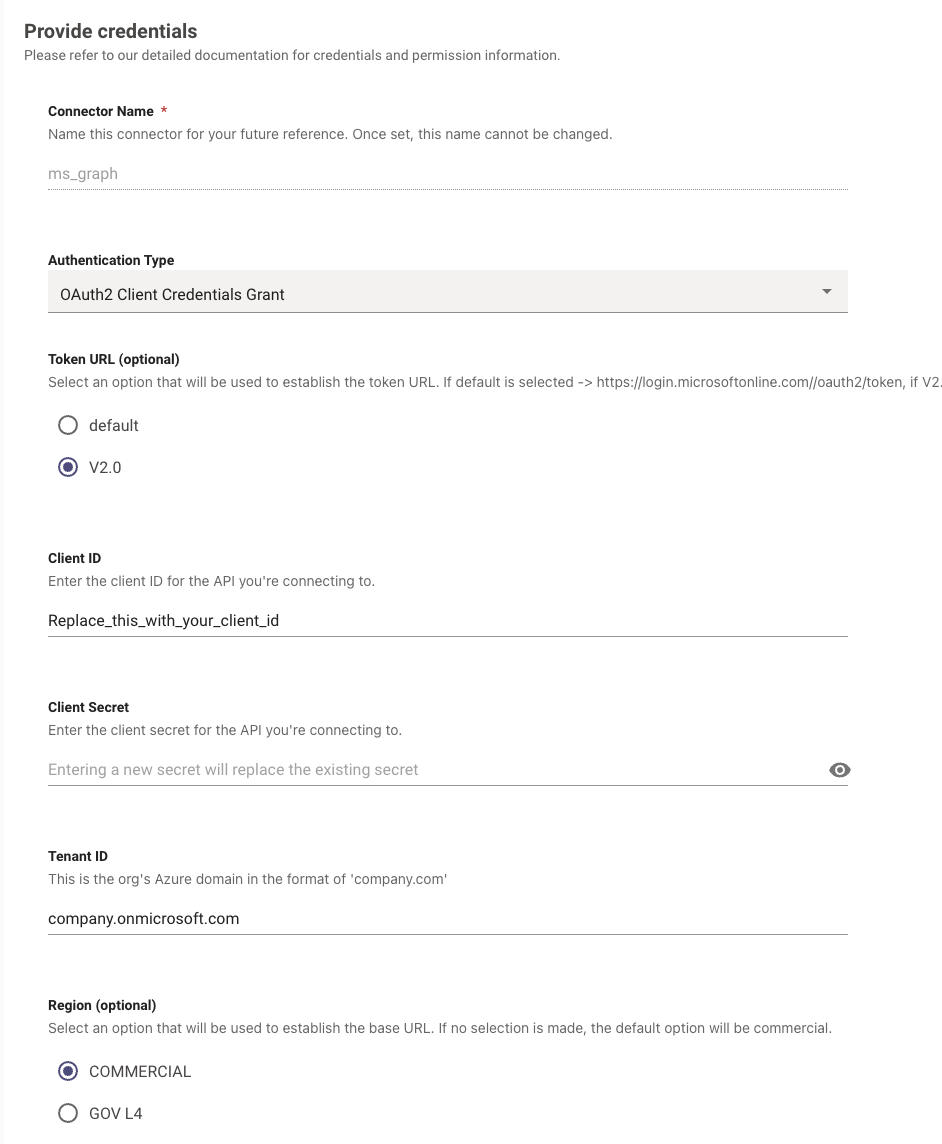
  • Creating the Connector in Moveworks Setup
Access RequirementsEmail Distribution List Systems Access

Creating a Microsoft App Registration for Moveworks

||View as Markdown|
Was this page helpful?
Edit this page
Previous

Google Group (GSuite) Access Requirements

Next
Built with

Moveworks Microsoft Graph Access - via App Registration Only Method

This guide will walk you through the process of setting up a Microsoft App Registration for Moveworks for purposes of accessing the Microsoft Graph API. You will need to capture the following information for configuring Moveworks

  1. Microsoft Graph App ID
  2. Microsoft Graph Secret

Follow the below mentioned steps to create an app and provide appropriate permissions

  1. Navigate to https://portal.azure.com and select Create an App registration
  2. Type a name for the App Registration
  3. Add the required application permissions, this is typically User.Read.All, but clarify with your Implementation team if other permissions are needed.
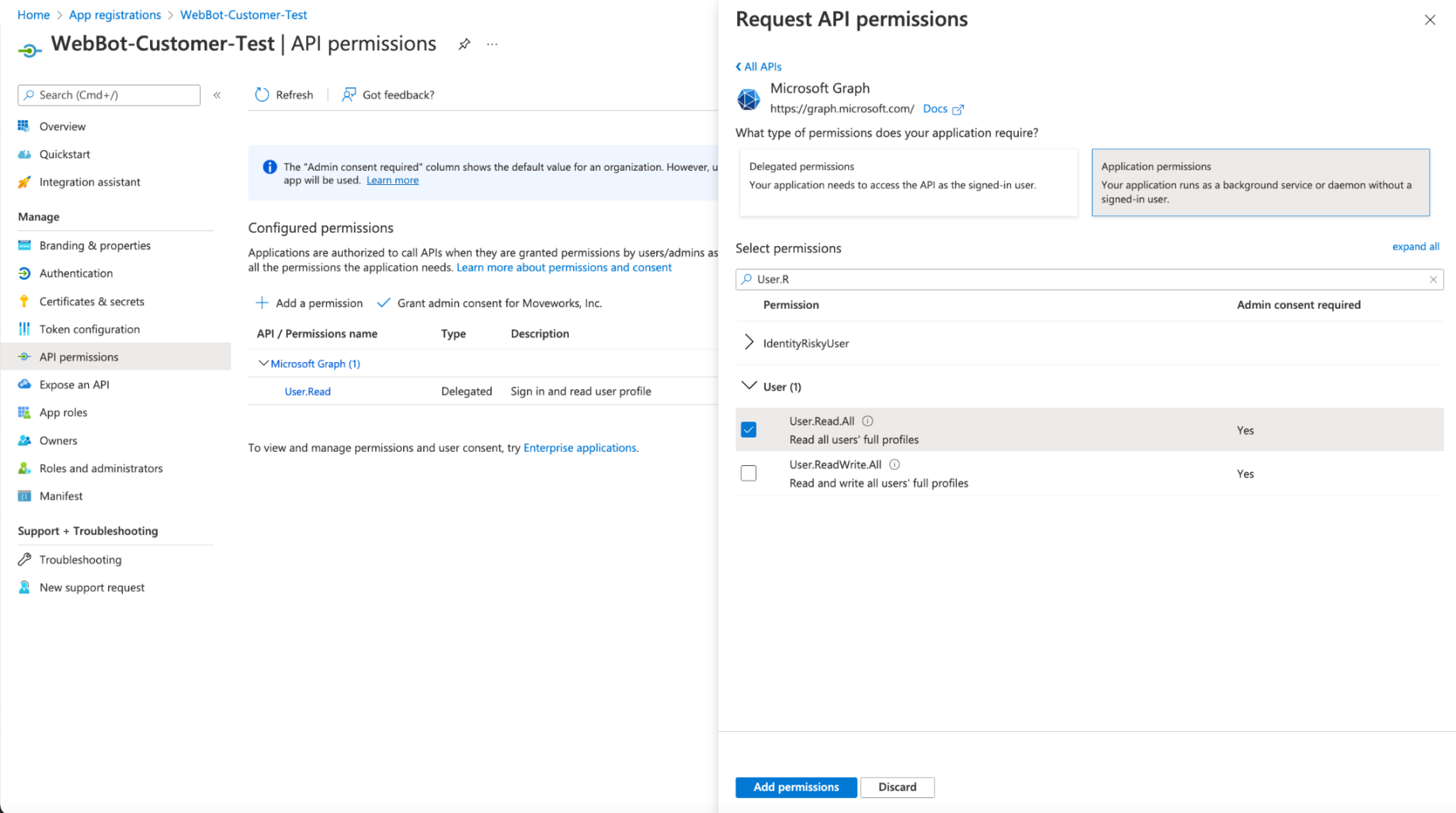
    Note: It is required that the permissions are granted as Application Permissions

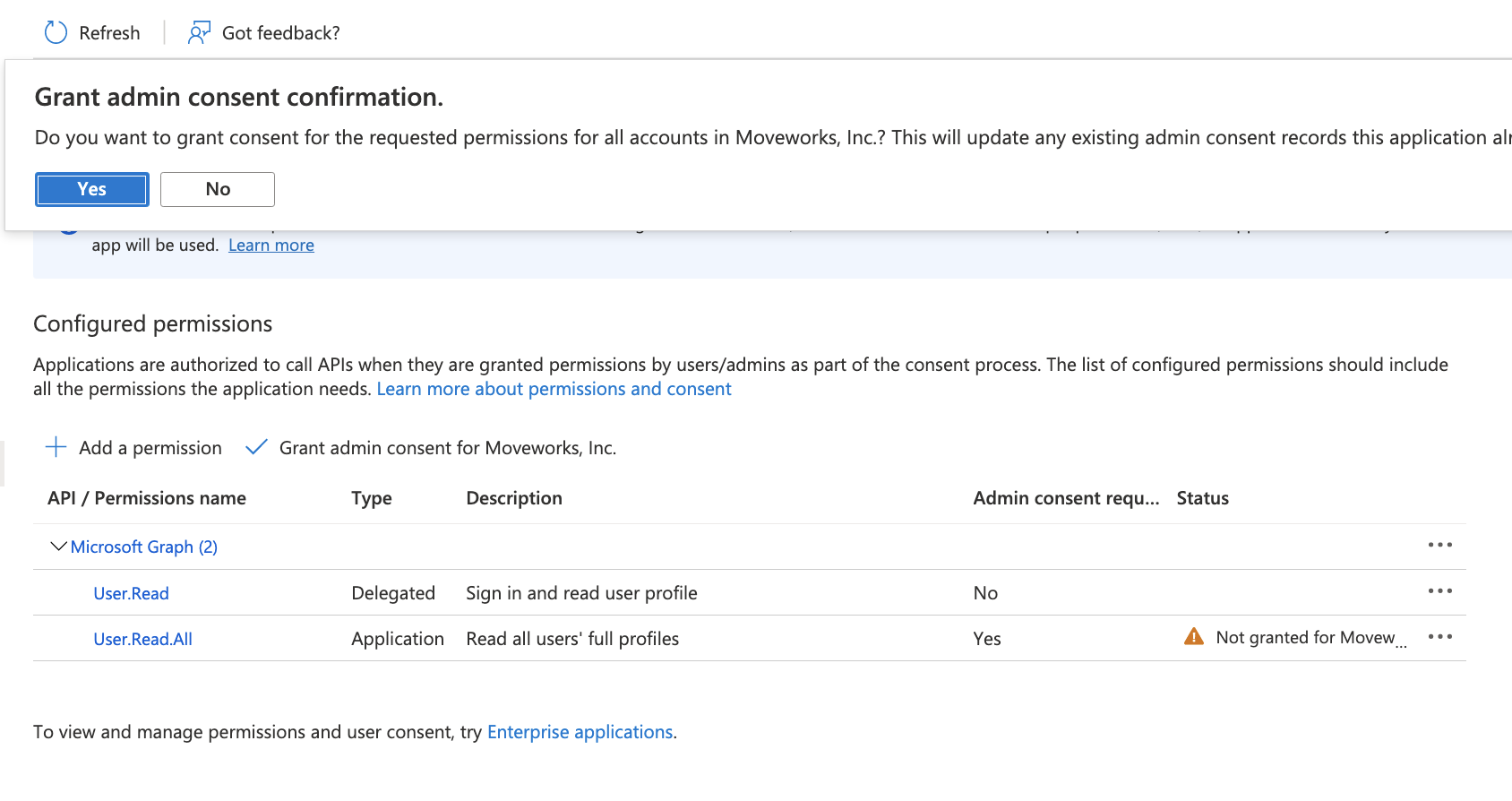
  4. Once you have added the permission, Select Grant Consent, and make sure you click Yes, and consent to the permission.
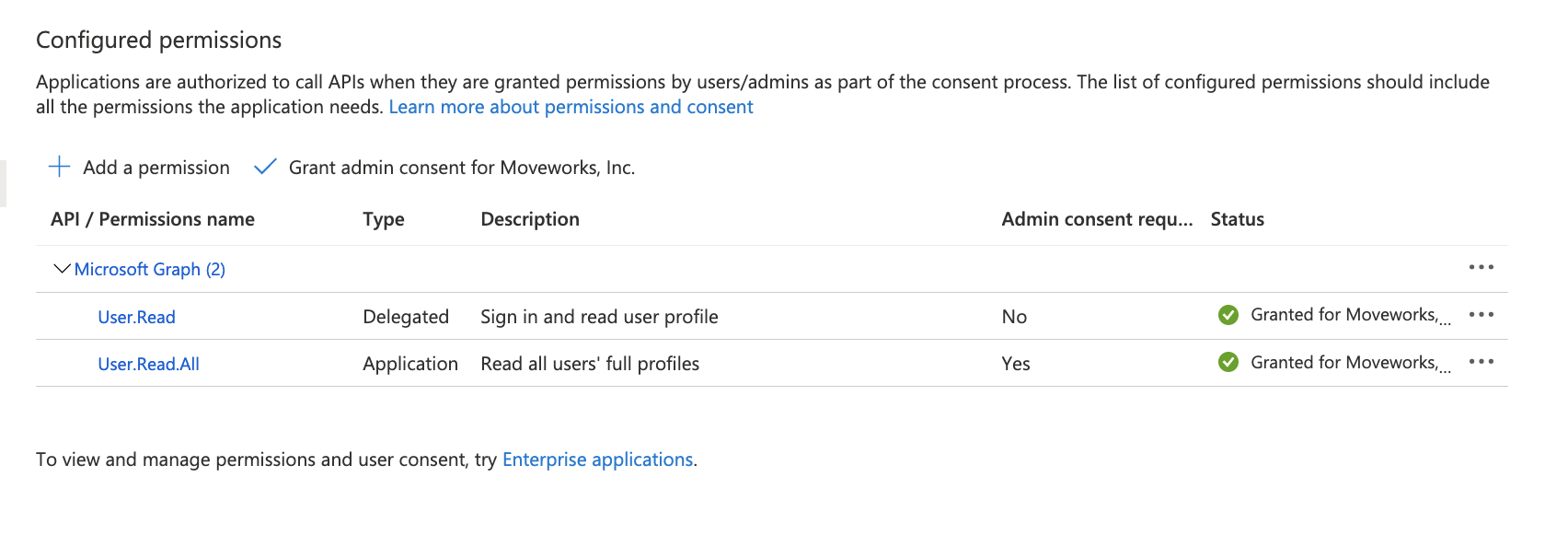
  5. After adding consent, you should see green check marks for the application permissions you selected.
  6. Create a new secret
  7. Once you have the App ID, and secret, complete the steps below to create the connector in Moveworks Setup.

Creating the Connector in Moveworks Setup

  1. Navigate to Connectors and Select Microsoft Graph:
    1. Go to Moveworks Setup (or the admin portal) > Core Platform > Manage Connectors > System Connectors.
    2. Click on Create New, search for and select the Microsoft Graph Connector.
    3. Click Next: Add Creds.
  2. Enter Connector Name and Base URL:
    1. Provide a descriptive Name for the connector (e.g., ms_graph_groups or ms_graph_files).
    2. Set the Base URL for the Microsoft Graph API, which is typically https://graph.microsoft.com/v1.0/.
    3. Configure OAuth 2.0 Client Credentials:
    4. Select OAuth2 as the Authentication Type.
    5. Choose Client Credentials as the OAuth2 Grant Type.
    6. Input the Client ID, Client Secret, and Tenant ID you previously obtained from your Azure AD App Registration. Client ID is your App ID that you created in the steps above.
  3. Save the Connector and Validate: