
Configuration Delete
Overview
The Configuration Delete feature in Moveworks Setup allows admins to remove configurations that are no longer needed. This is useful when you disable a content system, migrate to a new ticketing provider, or simply need to clean up unused configurations.
You can delete configurations for the following modules directly from the Moveworks Setup UI:
Deleting a configuration is irreversible. To restore a deleted configuration, you must complete the full setup process again. Review all warnings carefully before confirming a deletion.
File Ingestion and Knowledge Ingestion configurations are not available for self-service deletion. If you need to remove these, contact your FDE or the Moveworks support team.
Deleting an Enterprise Search Configuration
How to Delete
- In Moveworks Setup, navigate to the Enterprise Search configuration page.
- Locate the configuration you want to remove and click the Delete button.
- A confirmation dialog will appear. Review the warnings carefully before confirming.
What the Confirmation Warning Includes
Before deletion is confirmed, you will see a warning that states:
- Deleting the configuration will mark the connector’s content as non-serving.
- All ingested content from this connector will be removed from the index within a few hours.
- Deleting the Enterprise Search configuration does not remove Resource Permission or User Identity configurations. You must remove those separately if desired.
- For ServiceNow integrations, deletion will stop user criteria ingestion for knowledge base articles and files by disabling the setting in the mirror permissions configuration.
- This action is irreversible. To restore the configuration, you must complete the Enterprise Search setup process again and wait for ingestion to finish.
What Happens Automatically After Deletion
When you confirm the deletion, the system will:
- Trigger a full mirroring and processing job to purge previously ingested data.
- Mark all content ingested from the connector as non-serving immediately.
- For ServiceNow integrations, stop ACL mirroring for content.
Ingested content is marked as non-serving immediately upon deletion, but the data purge completes within a few hours. No notification is sent to end users about the deletion.
Deleting a Ticket Workflow Configuration
Ticket Workflow and Routing Condition deletion is only available through the new ticketing journey. In Moveworks Setup, navigate to Ticketing Configuration, then click through to the Routing & Workflows step to access workflow and routing condition management.
How to Delete
- In Moveworks Setup, navigate to Ticketing Configuration and proceed to the Routing & Workflows step.
- Locate the workflow you want to remove and click the Delete button.
- If the workflow is not referenced in any routing conditions, a confirmation dialog will appear. Review the warnings carefully before confirming.
What the Confirmation Warning Includes
- This action is irreversible. To restore the workflow, you must set it up again from scratch.
If the Workflow Is Referenced in Routing Conditions
If the workflow is currently used in one or more routing conditions, the system will block the deletion and display a message:
Workflow can’t be deleted — You cannot delete this workflow because it is currently used in one or more routing conditions. To delete this workflow, first remove it from all routing conditions where it is referenced.
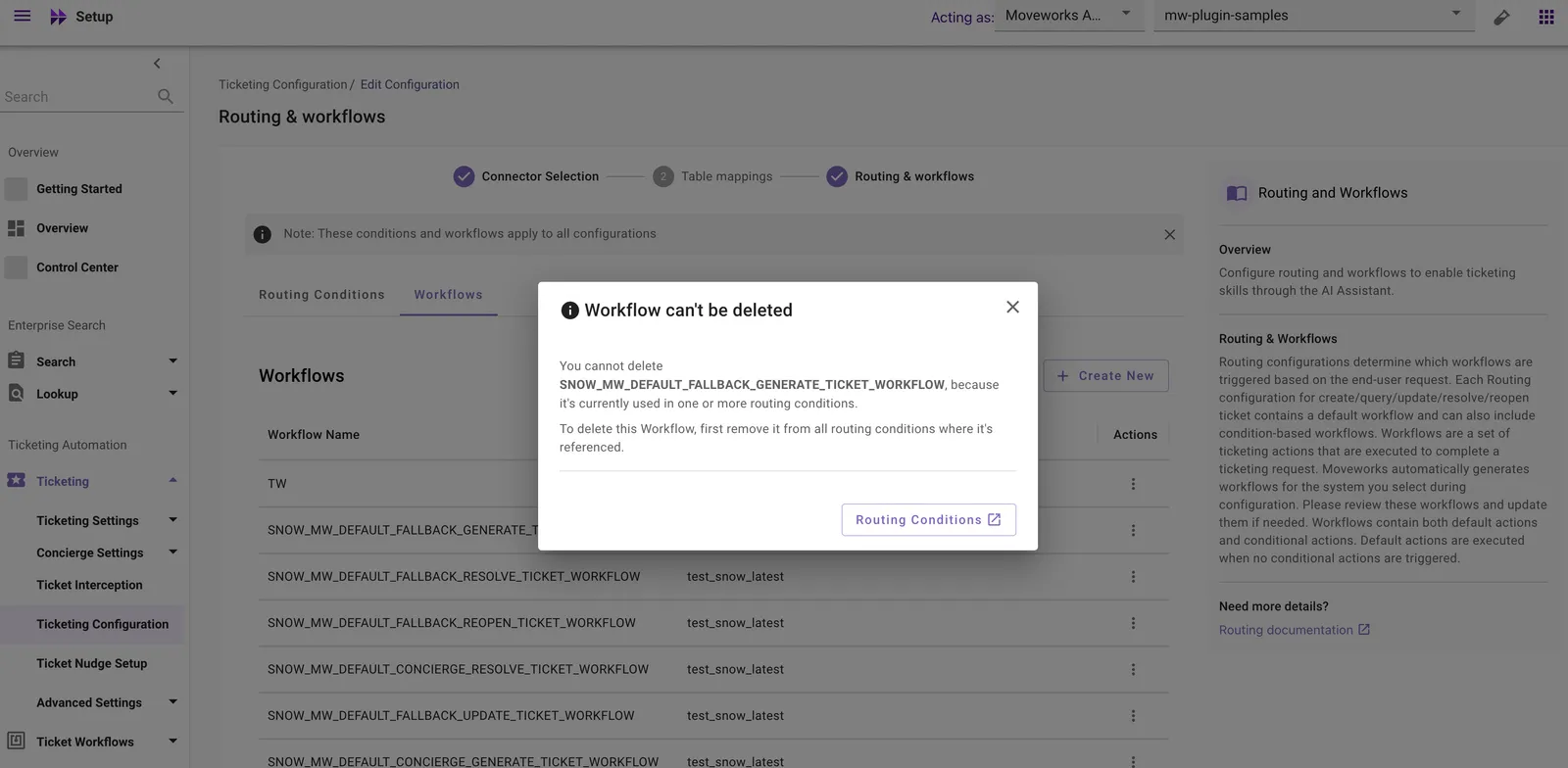
The dialog provides a link to the Routing Conditions page so you can navigate there and remove the references before retrying the deletion.
When a workflow that is not referenced in any routing conditions is successfully deleted, you will see a confirmation message:
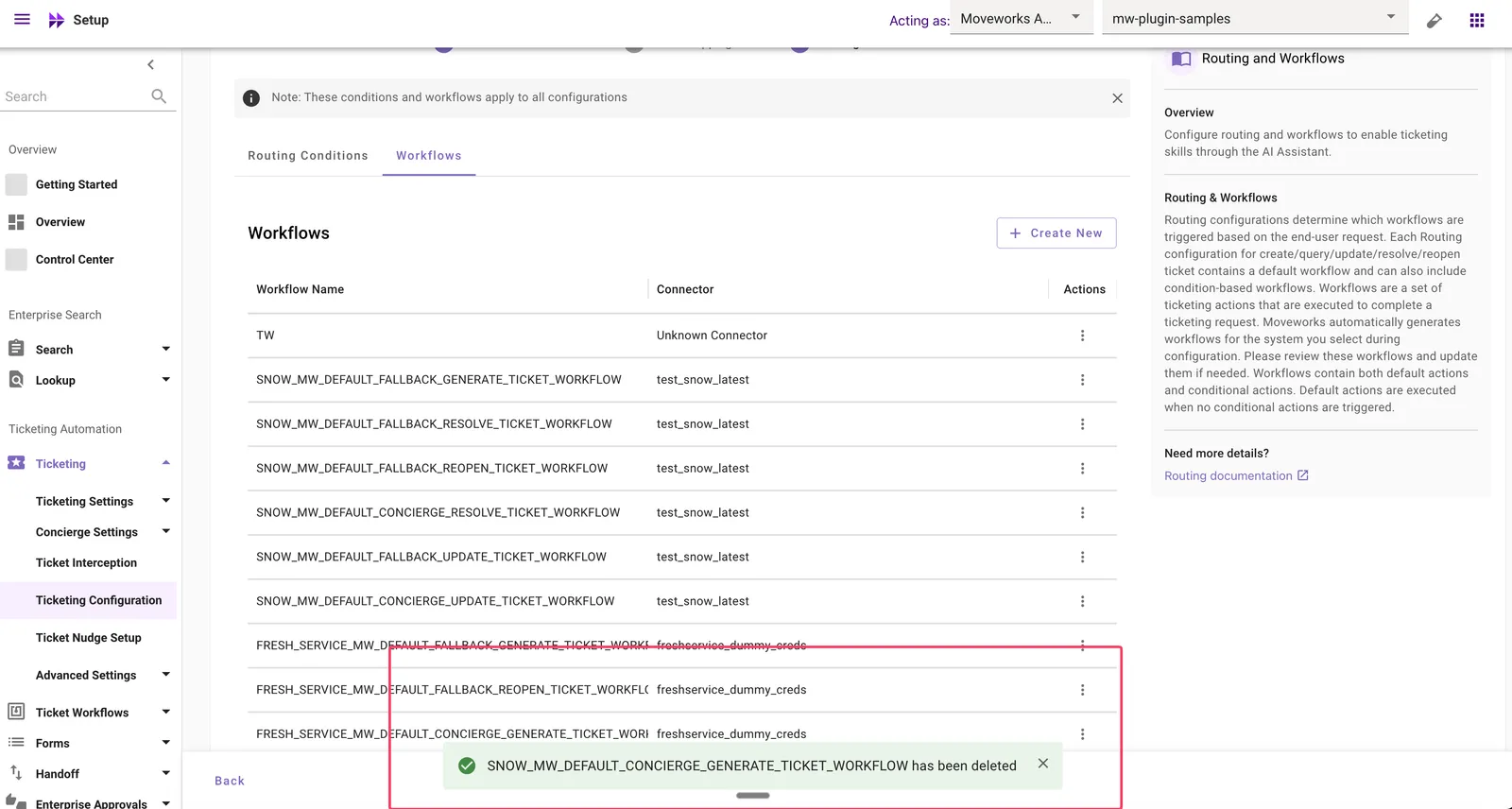
The system will not automatically delete routing conditions that reference the workflow. You must manually remove the workflow from all routing conditions before it can be deleted.
Deleting a Rich Ticket Filing Configuration
Rich Ticket Filing form deletion is only available through the new ticketing journey. In Moveworks Setup, navigate to Ticketing Configuration, then click through to the Routing & Workflows step to access form management.
How to Delete
- In Moveworks Setup, navigate to Ticketing Configuration and proceed to the Routing & Workflows step.
- Locate the form you want to remove and click the Delete button.
- If the form is not referenced in any Smart Handoff configurations, a confirmation dialog will appear. Review the warnings carefully before confirming.
What the Confirmation Warning Includes
- This action is irreversible. To restore the form, you must set it up again from scratch.
If the Form Is Referenced in Smart Handoff Configurations
If the Rich Ticket Filing form is currently used in one or more Smart Handoff configurations, the system will block the deletion and display a message:
Form can’t be deleted — You cannot delete this form because it is currently used in one or more Smart Handoffs. To delete this form, first remove it from all Smart Handoffs where it is referenced.
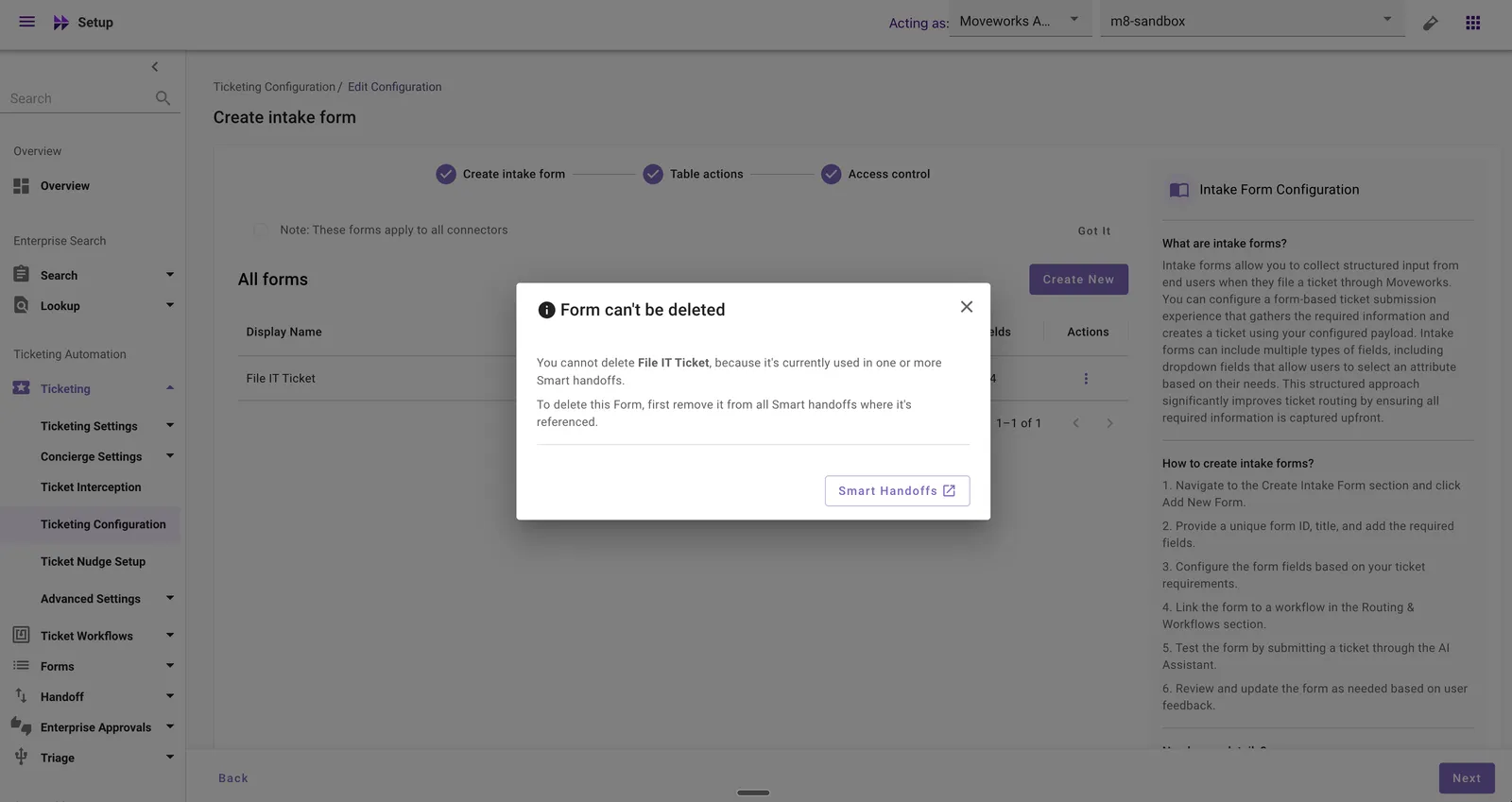
The dialog provides a link to the Smart Handoffs page so you can navigate there and remove the references before retrying the deletion.
When a form that is not referenced in any Smart Handoff configurations is successfully deleted, you will see a confirmation message:
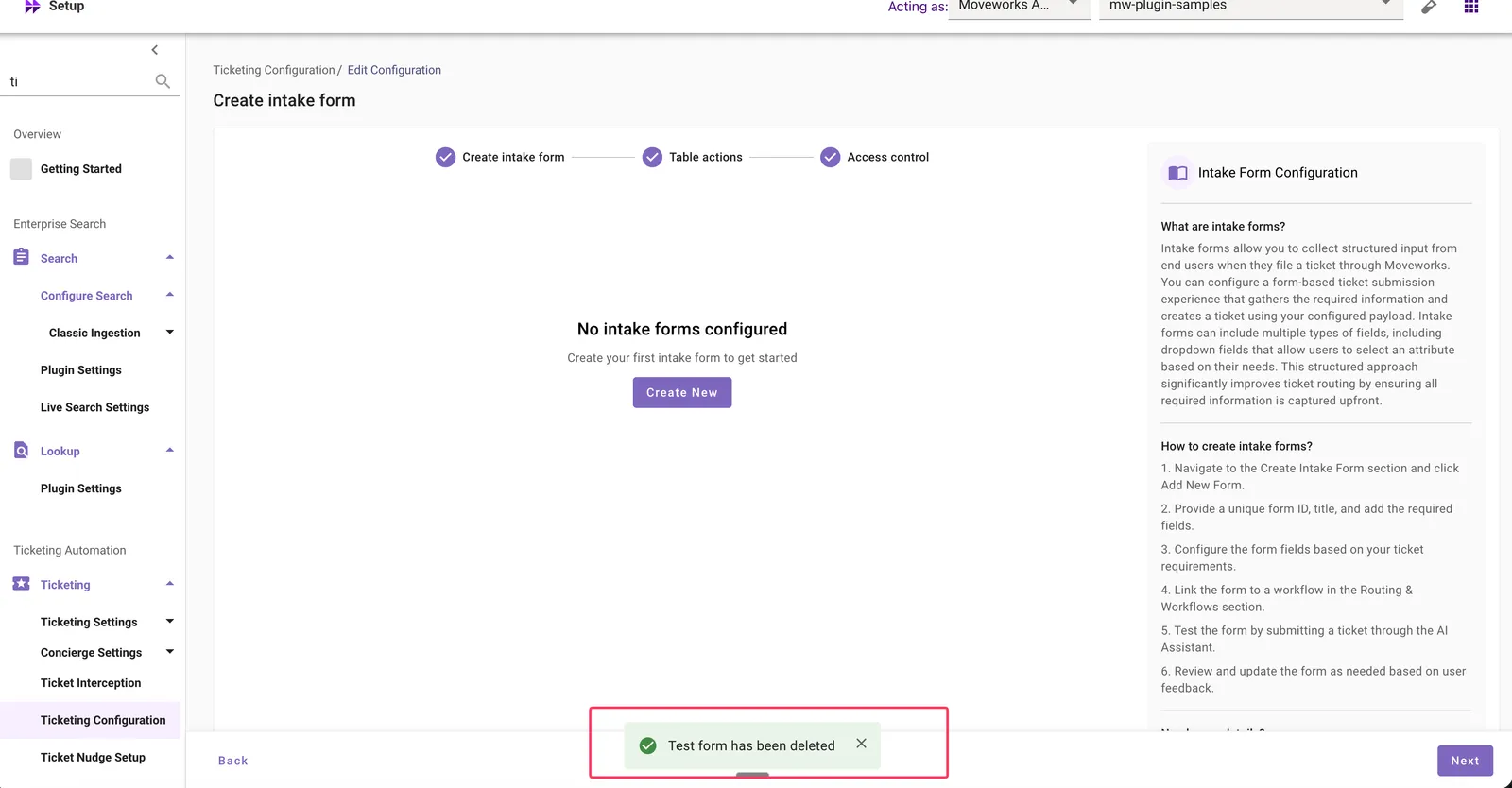
The system will not automatically delete or modify handoff configurations that reference the form. You must manually remove the form from all Smart Handoff configurations before it can be deleted.
Deleting an SSO Configuration
Available only for non-live orgs: Configuration Deletion is not available for live organizations. If your organization is already live, contact Moveworks Support for assistance.
How to Delete
-
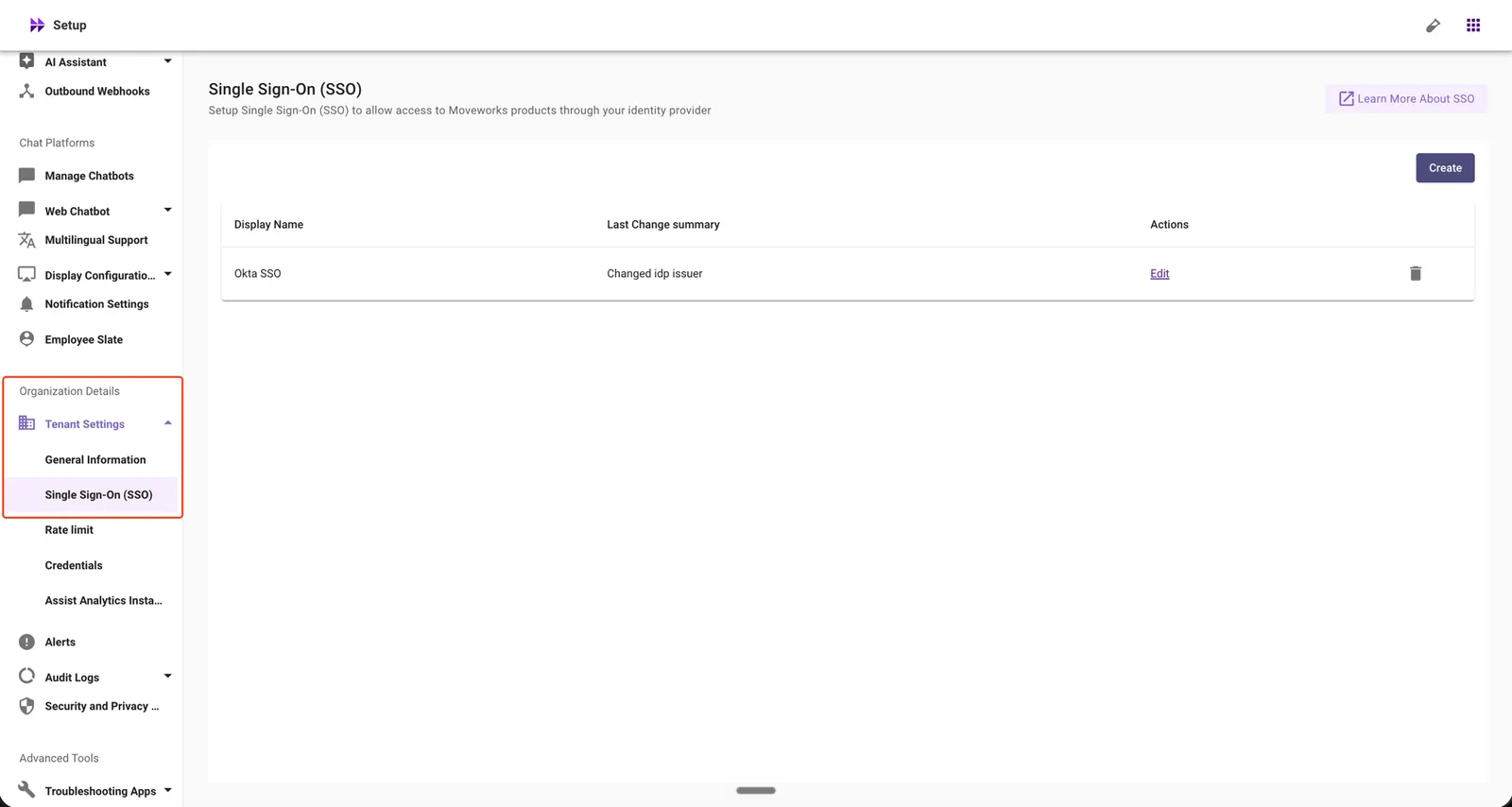
In Moveworks Setup, go to Organization Details → Tenant Settings → Single Sign-On (SSO).
-
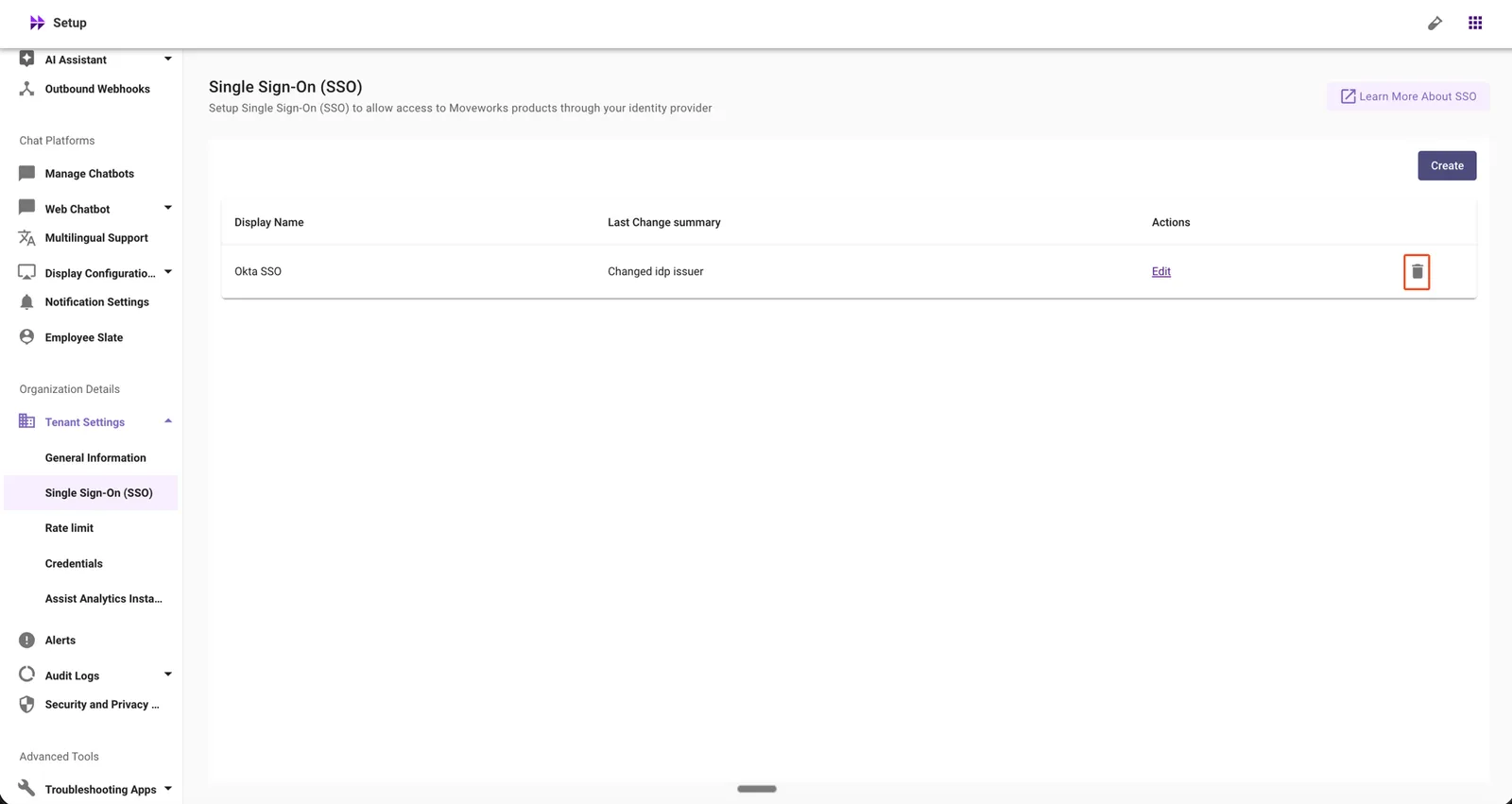
Click the delete icon for the SSO configuration you want to remove.
-
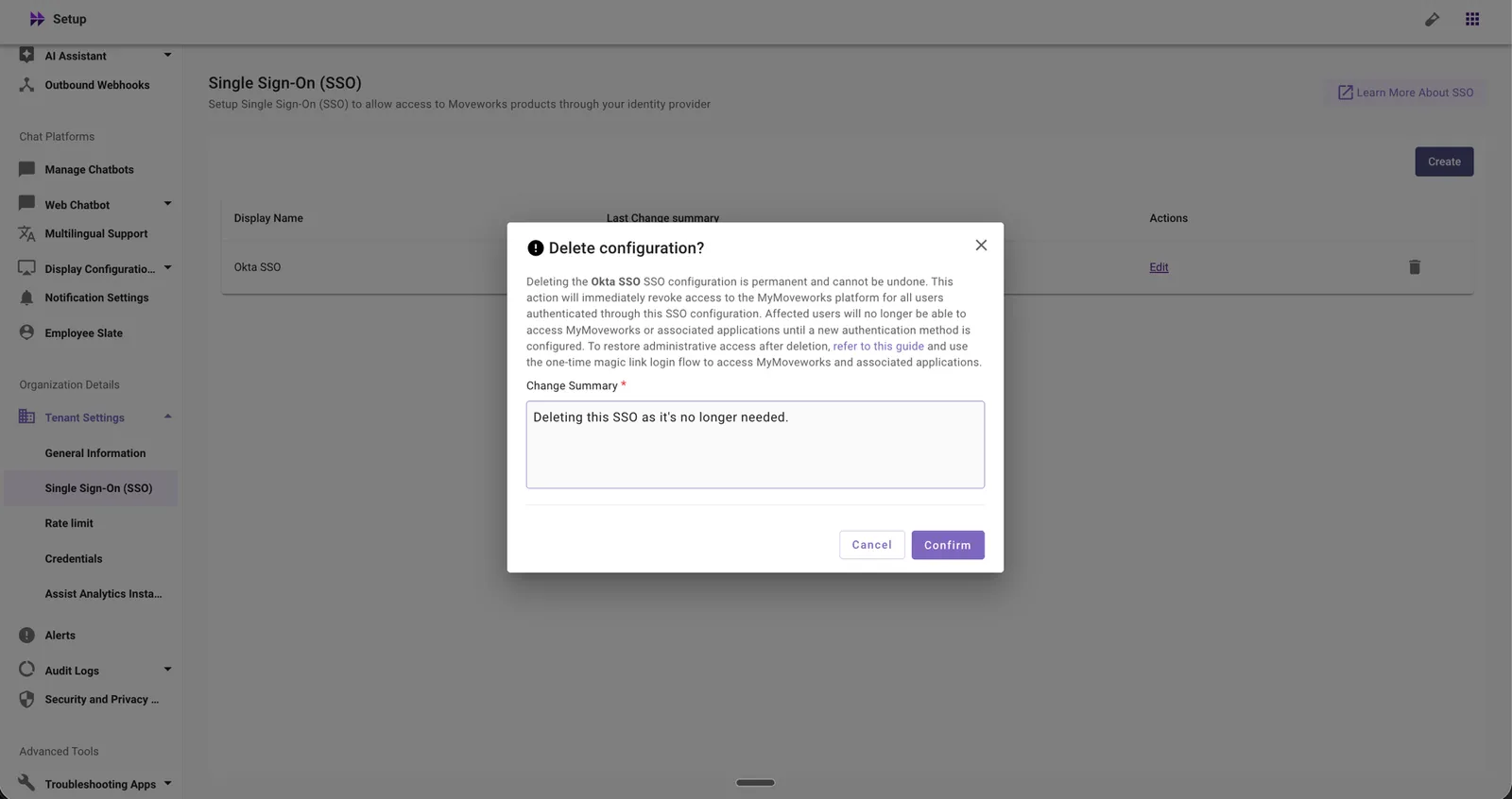
Review the warning message and enter a change summary.
-
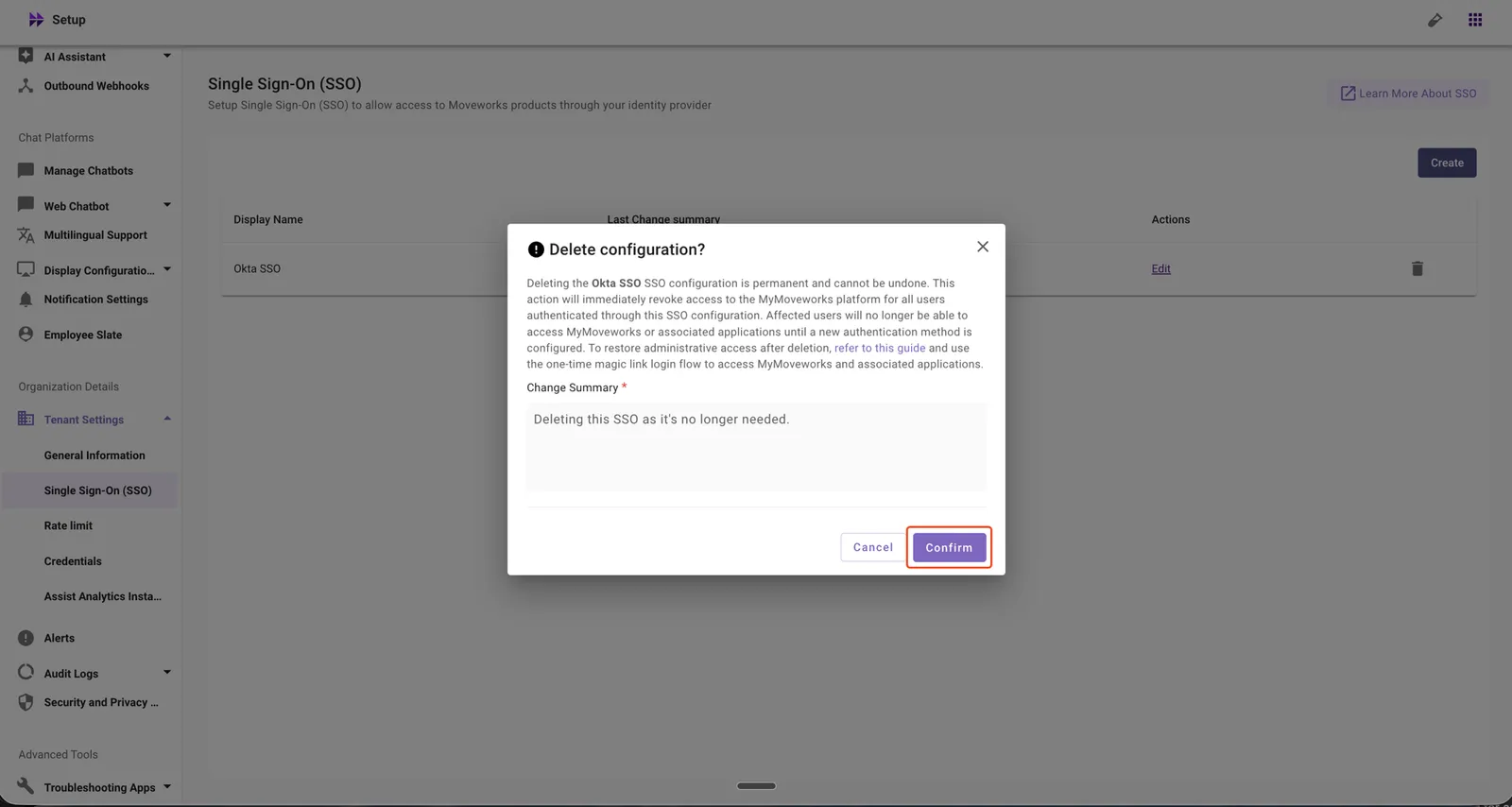
Click Confirm to complete the deletion.
What the Confirmation Includes
Before deletion is confirmed, you will see a warning that states:
- Access to MyMoveworks will be revoked for all admins.
- Deleting SSO disables login through that Identity Provider for all admins.
- To regain access, use the magic-link route.
- This action is irreversible. To restore the configuration, you must set up the SSO configuration again.
What Happens Automatically After Deletion
When you confirm the deletion, the system will:
- Revoke MyMoveworks access for all admins immediately.
- Disable login through the associated Identity Provider.
- Remove the SSO configuration from Moveworks Setup.
Deleting a User Identity Configuration
Available only for non-live orgs: Configuration Deletion is not available for live organizations. If your organization is already live, contact Moveworks Support for assistance.
The delete flow differs based on which version of the identity configuration journey your organization is on.
New Configuration Journey: Identity Configuration
How to Delete
-
In Moveworks Setup, go to Core Platform → User Identity → Identity Configuration.
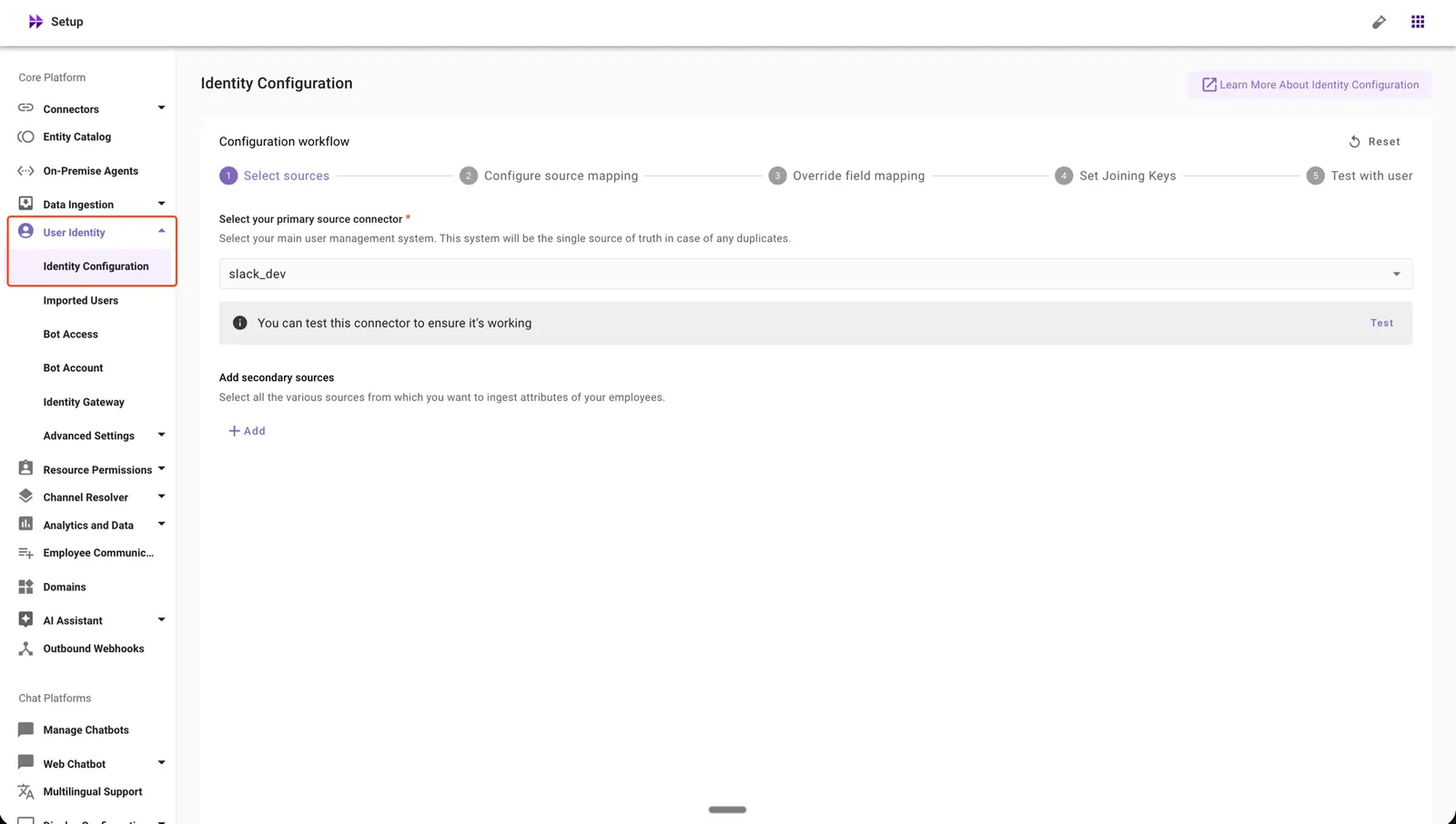
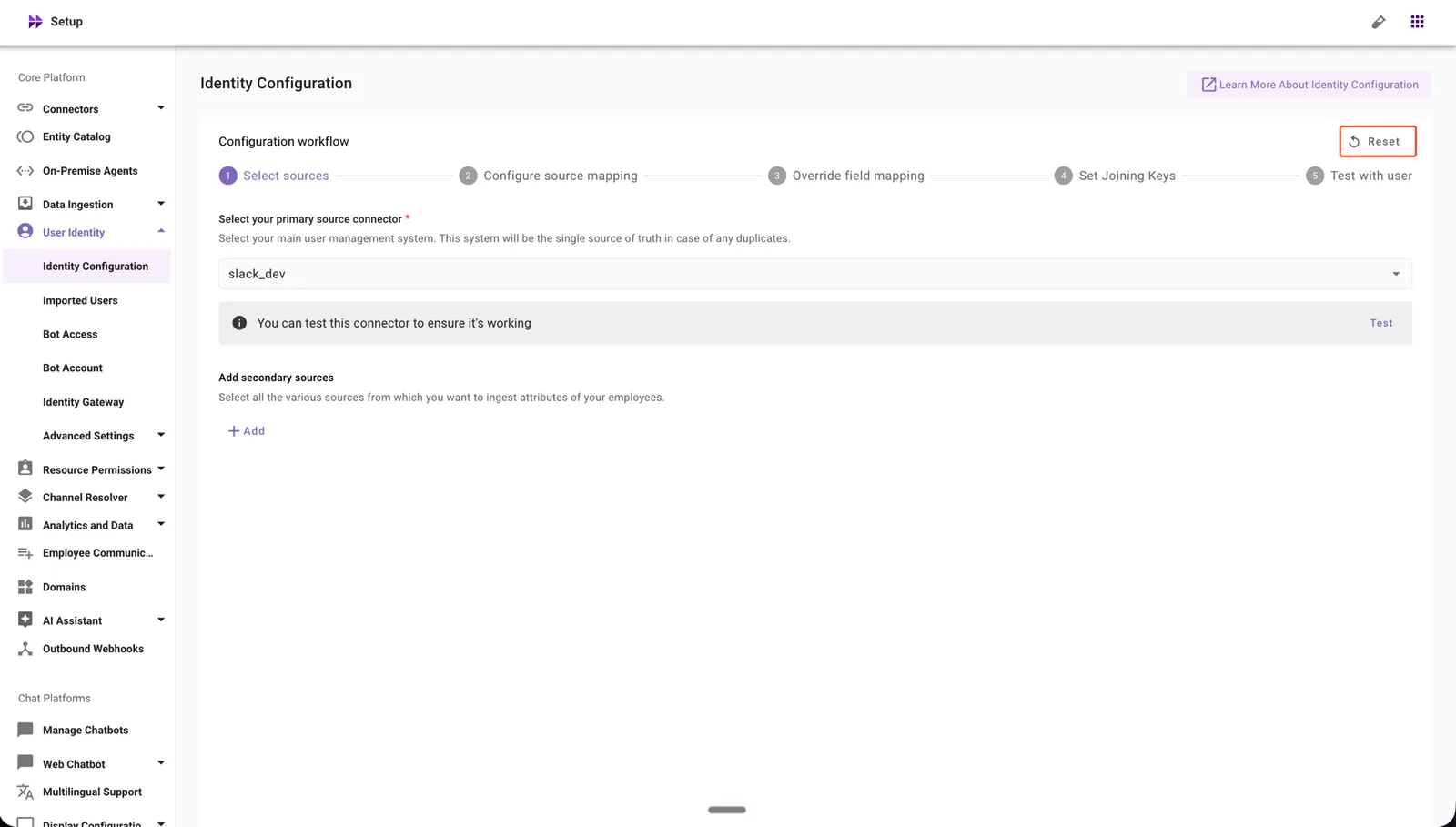
-
Click Reset to delete the Identity Configuration.
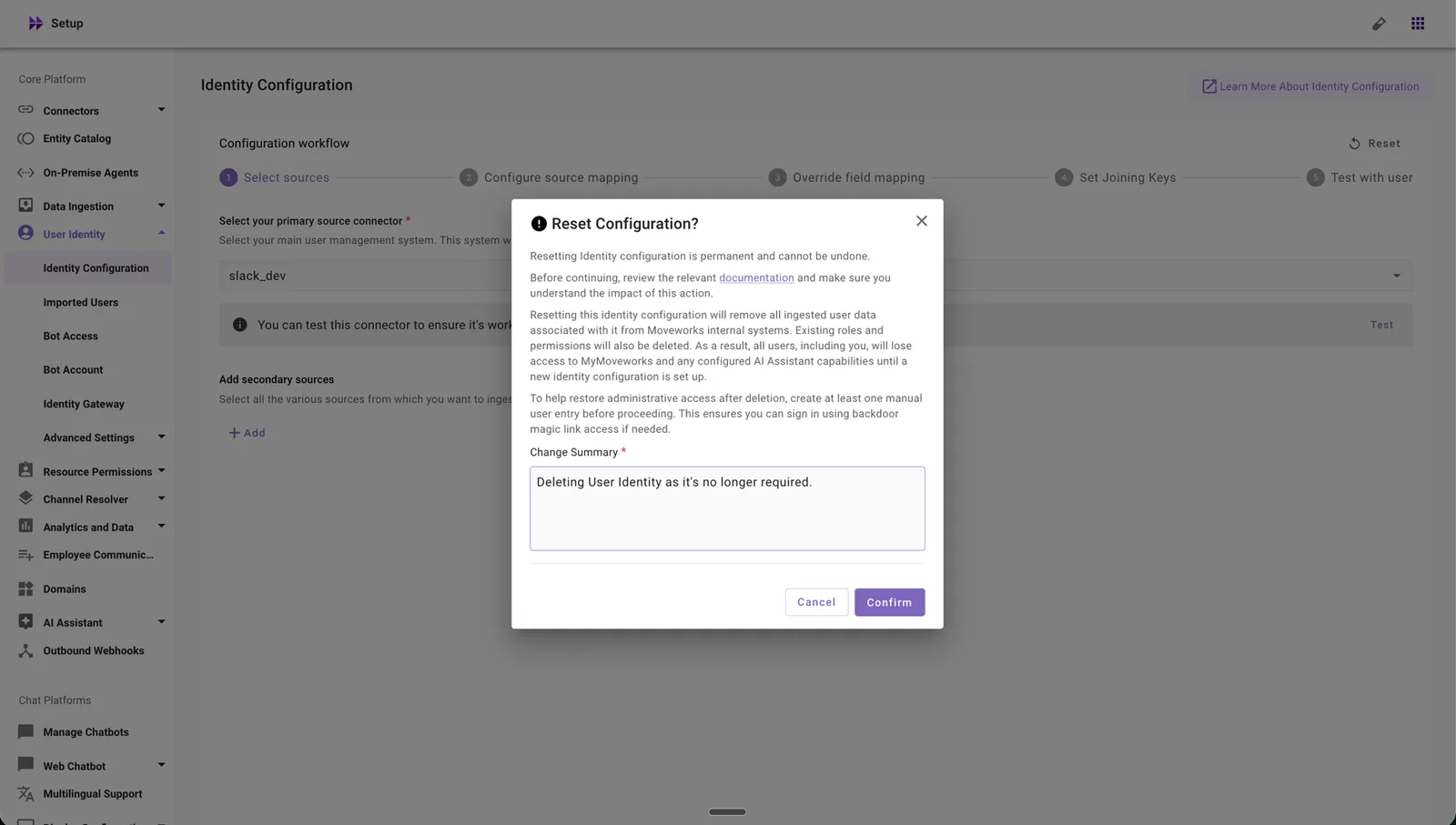
-
Review the warning message and enter a change summary.
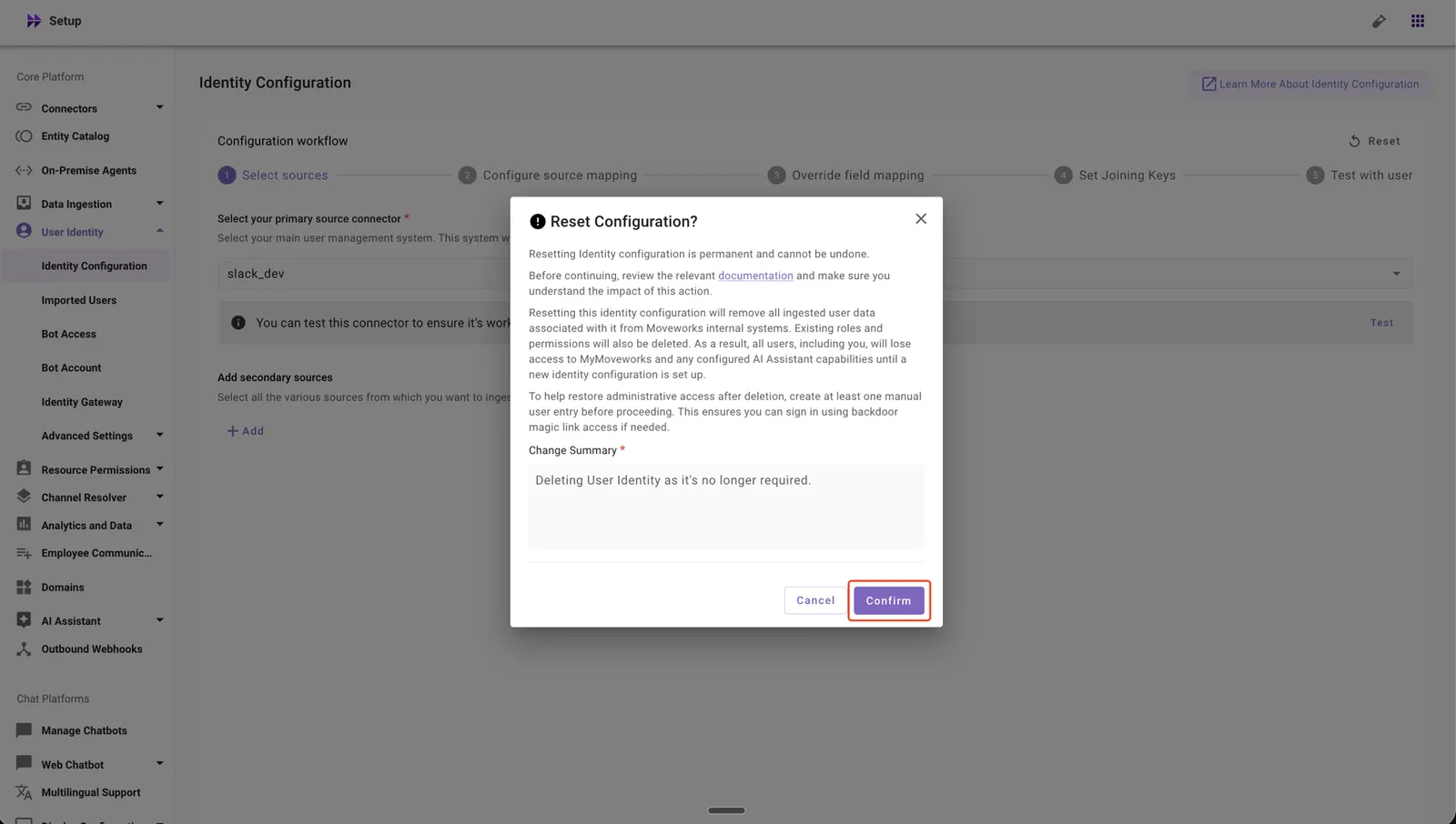
-
Click Confirm to complete the deletion.
Old Configuration Journey: Import Users
How to Delete
-
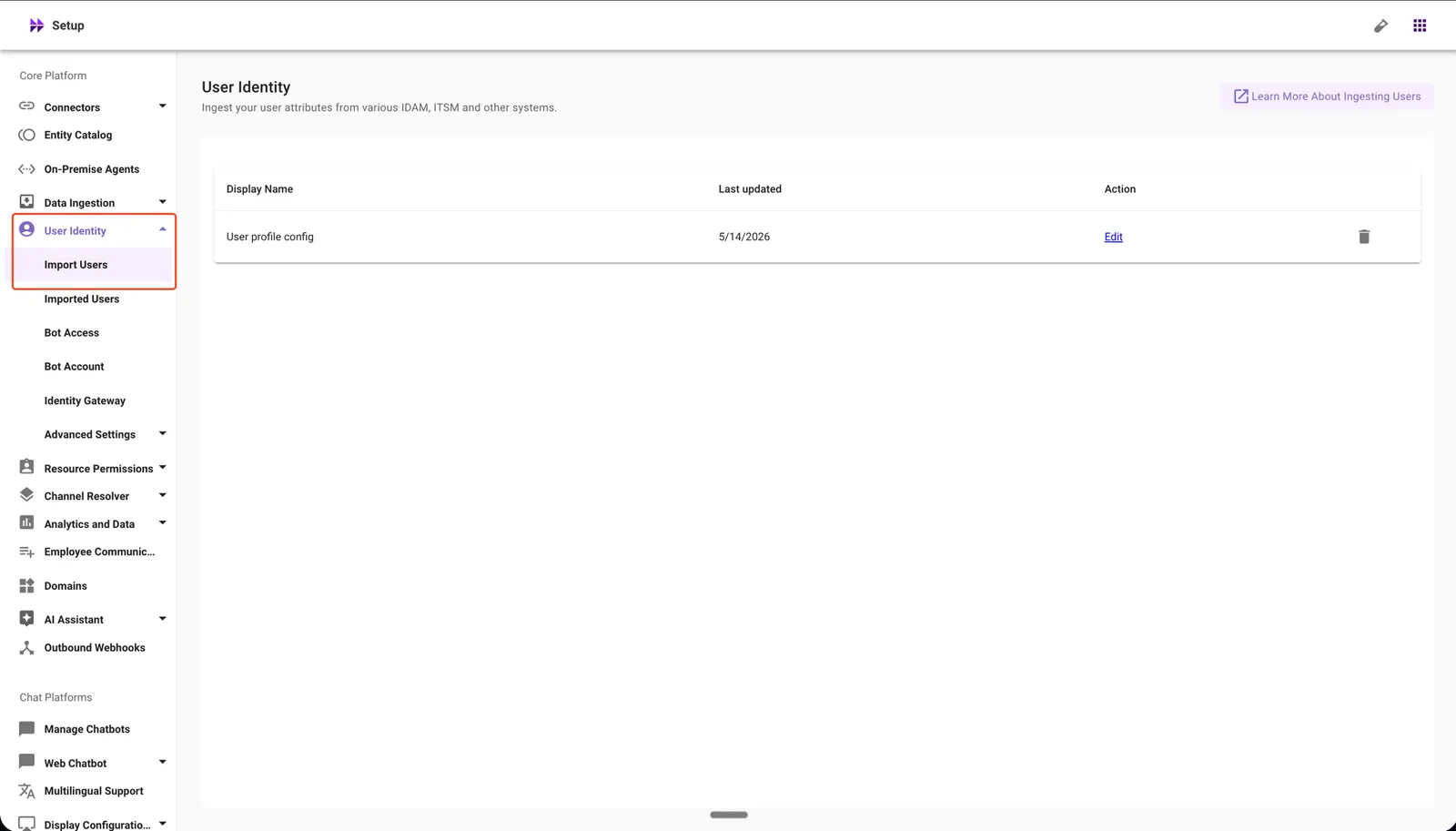
In Moveworks Setup, go to Core Platform → User Identity → Import Users.
-
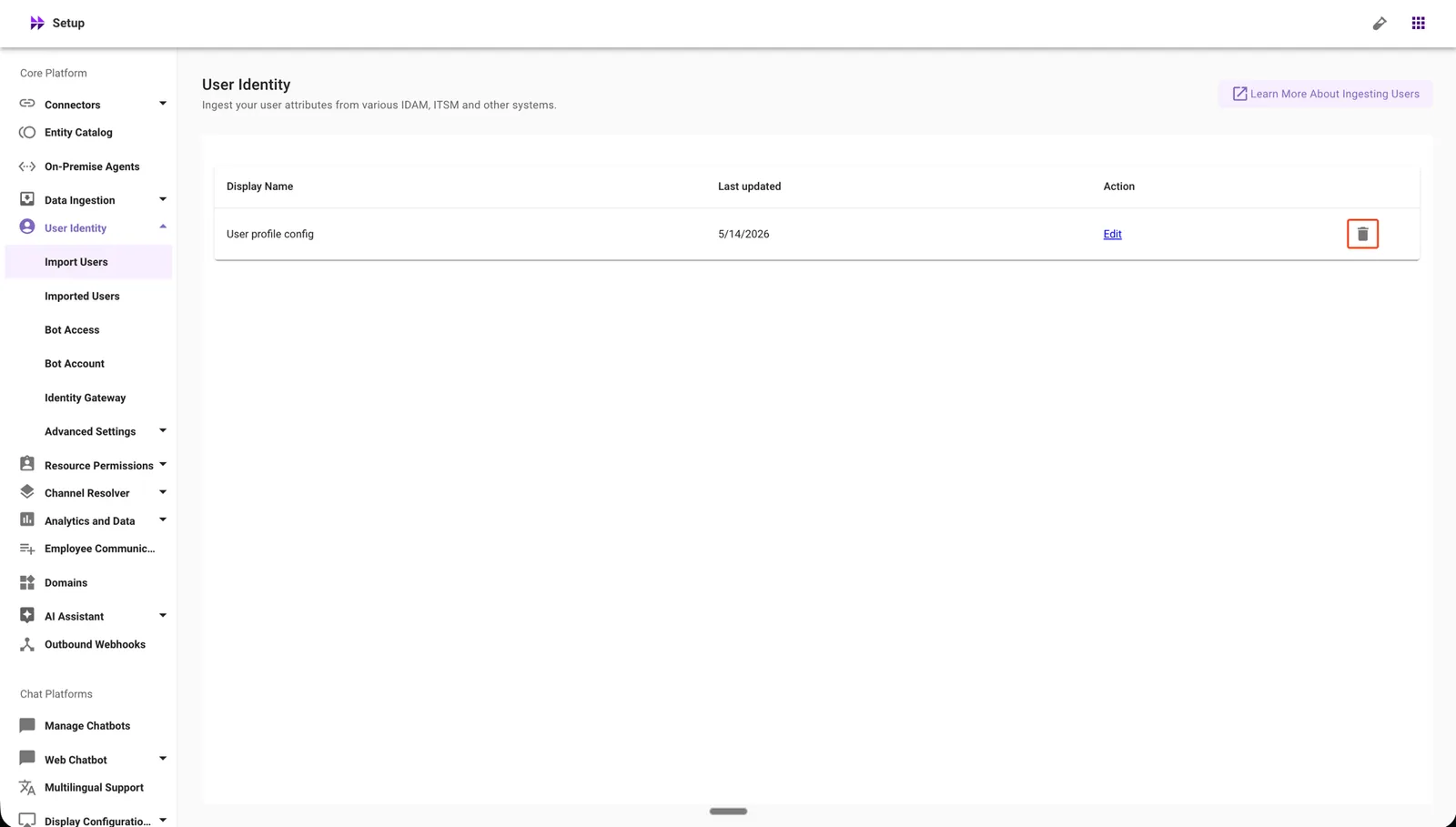
Click the delete icon for the User profile config you want to remove.
-
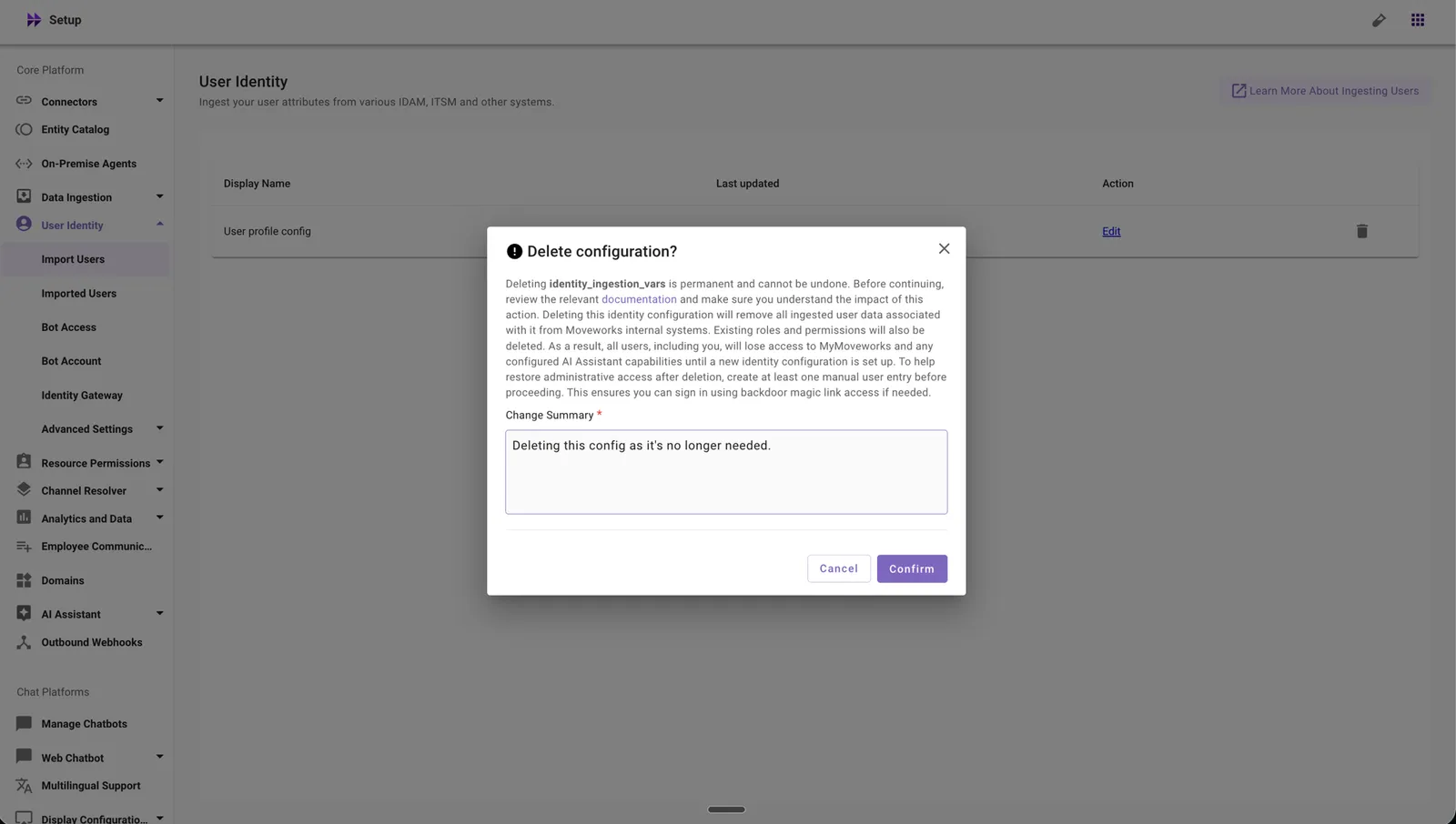
Review the warning message and enter a change summary.
-
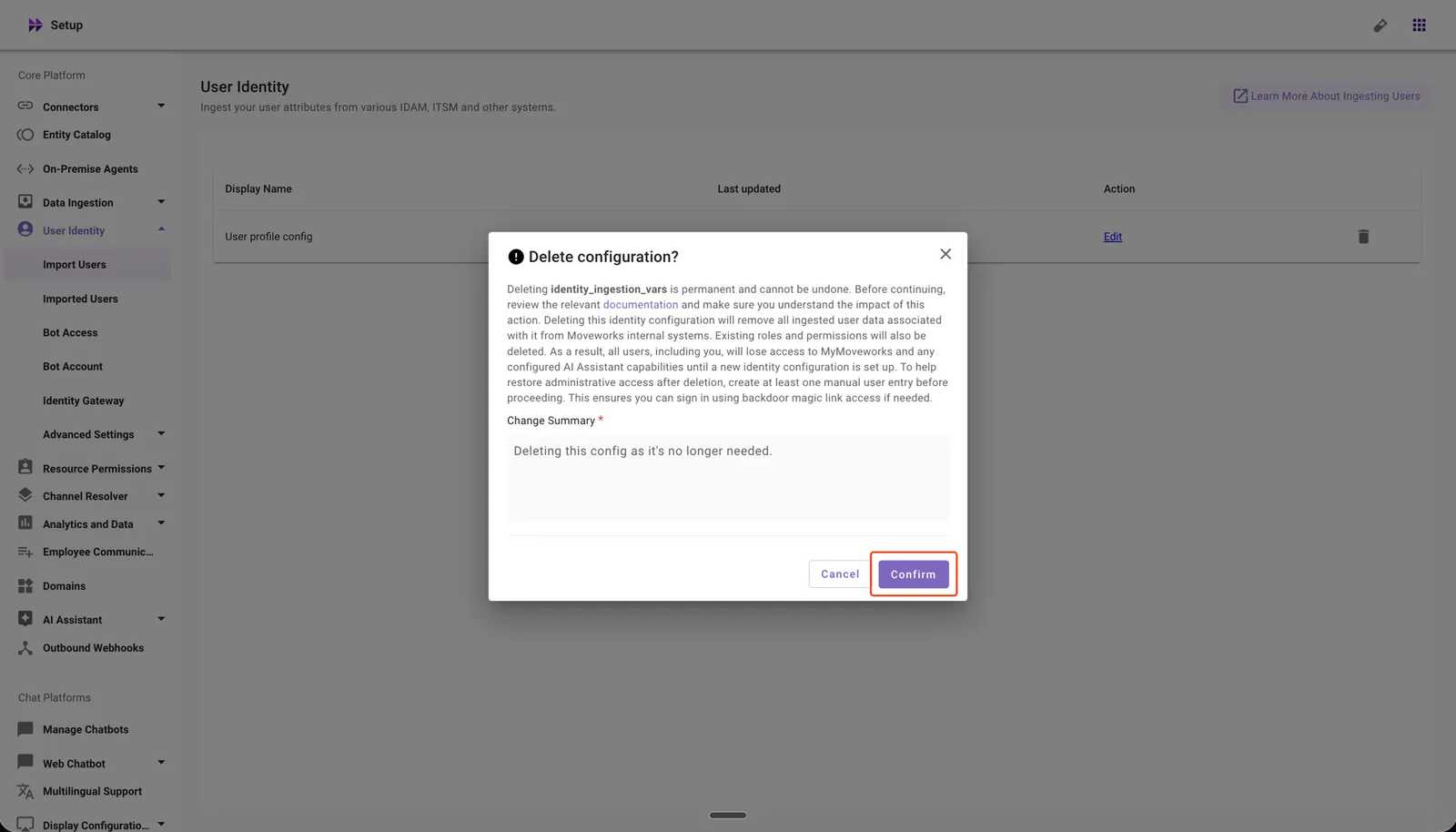
Click Confirm to complete the deletion.
What the Confirmation Includes
Before deletion is confirmed, you will see a warning that states:
- Review the User Identity configuration documentation before you proceed to understand the full impact.
- All ingested users will be removed immediately. Their roles, permissions, and other associated data will be purged within 24 hours.
- Manual users will be temporarily removed at the time of deletion and automatically restored within 1 hour.
- All admins will lose access to MyMoveworks and Moveworks Setup as soon as the configuration is deleted.
- The AI Assistant will stop functioning for your organization until a new Identity configuration is set up and users are re-ingested.
- To regain access to Moveworks Setup, use the magic-link route. Make sure at least one manual user exists — otherwise, no one will be able to sign in.
- This action is irreversible. To restore user identity, you must set up the Identity configuration again from scratch and re-ingest your users.
What Happens Automatically After Deletion
When you confirm the deletion, the system will:
- Remove all ingested users immediately.
- Temporarily remove manual users and automatically restore them within 1 hour.
- Purge associated user data — including roles, permissions, and other attributes — within 24 hours.
- Revoke MyMoveworks and Moveworks Setup access for all admins immediately.
Deleting a Chatbots Configuration
- Available only for non-live orgs: Configuration Deletion is not available for live organizations.
- Default Web Chat not supported: Deleting the default Moveworks Web Chat configuration is not supported through Moveworks Setup.
Reach out to Moveworks Support for assistance in either case.
How to Delete
-
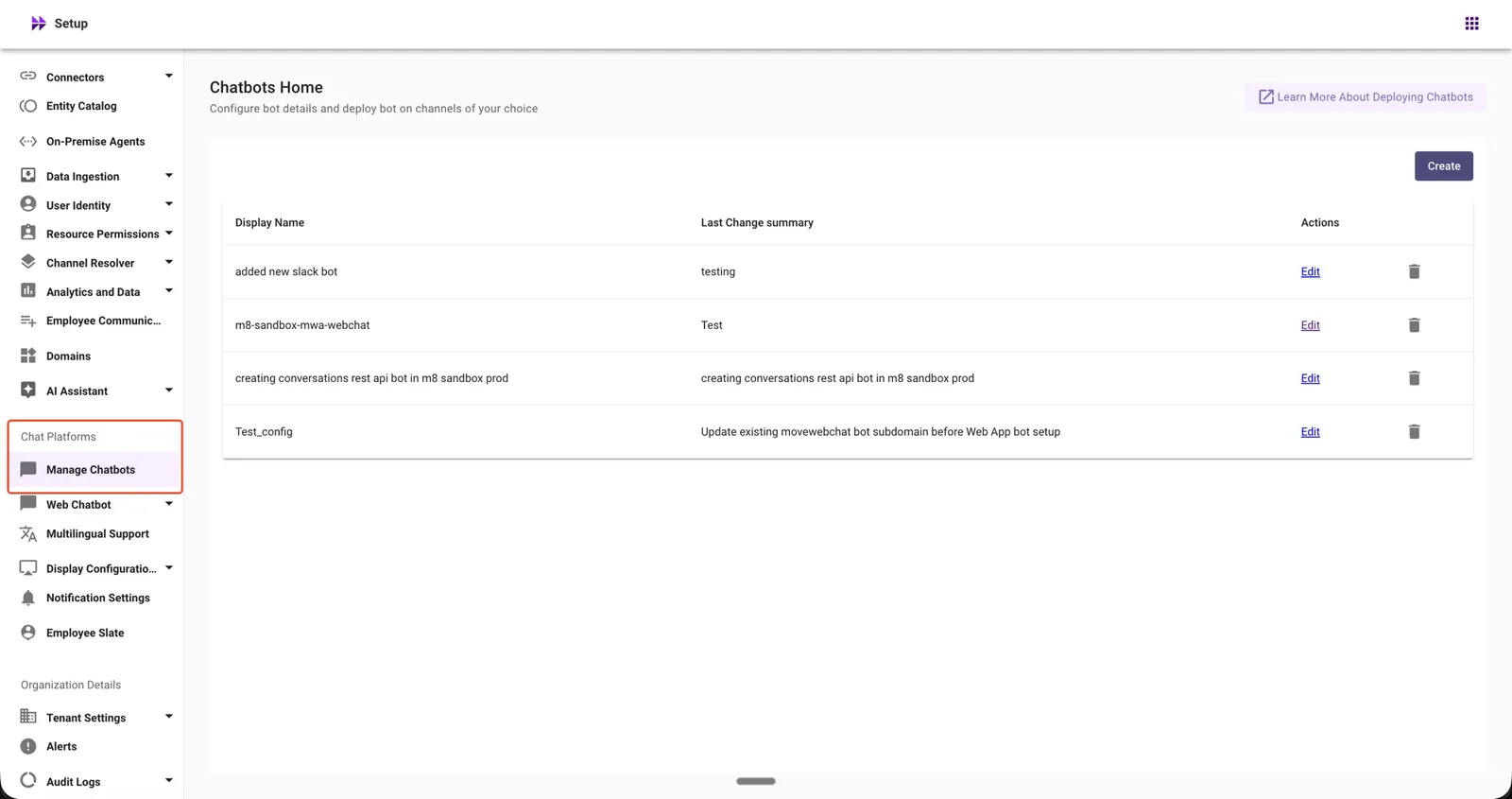
In Moveworks Setup, go to Chat Platforms → Manage Chatbots.
-
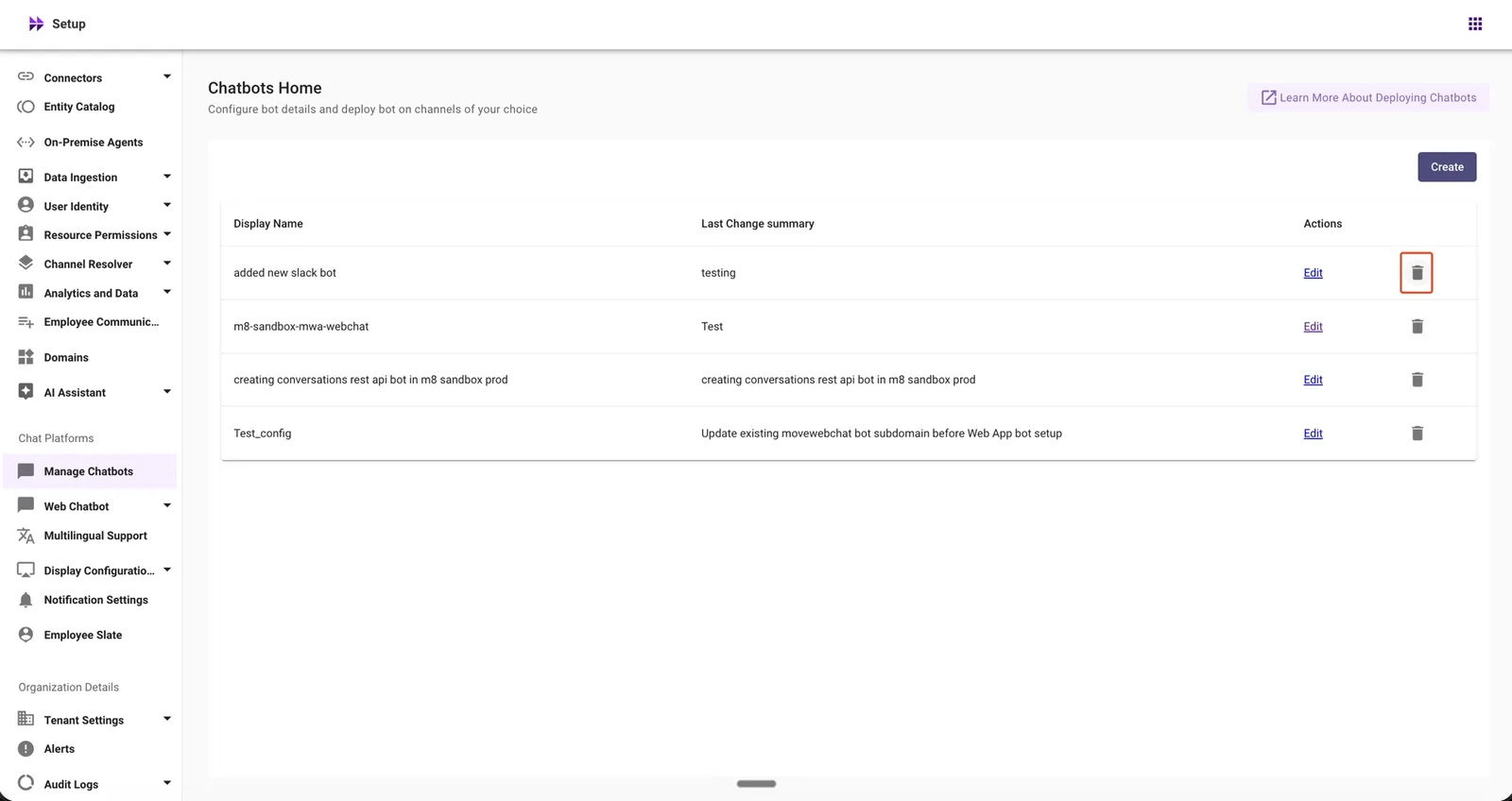
Click the delete icon for the Chatbot configuration you want to remove.
-
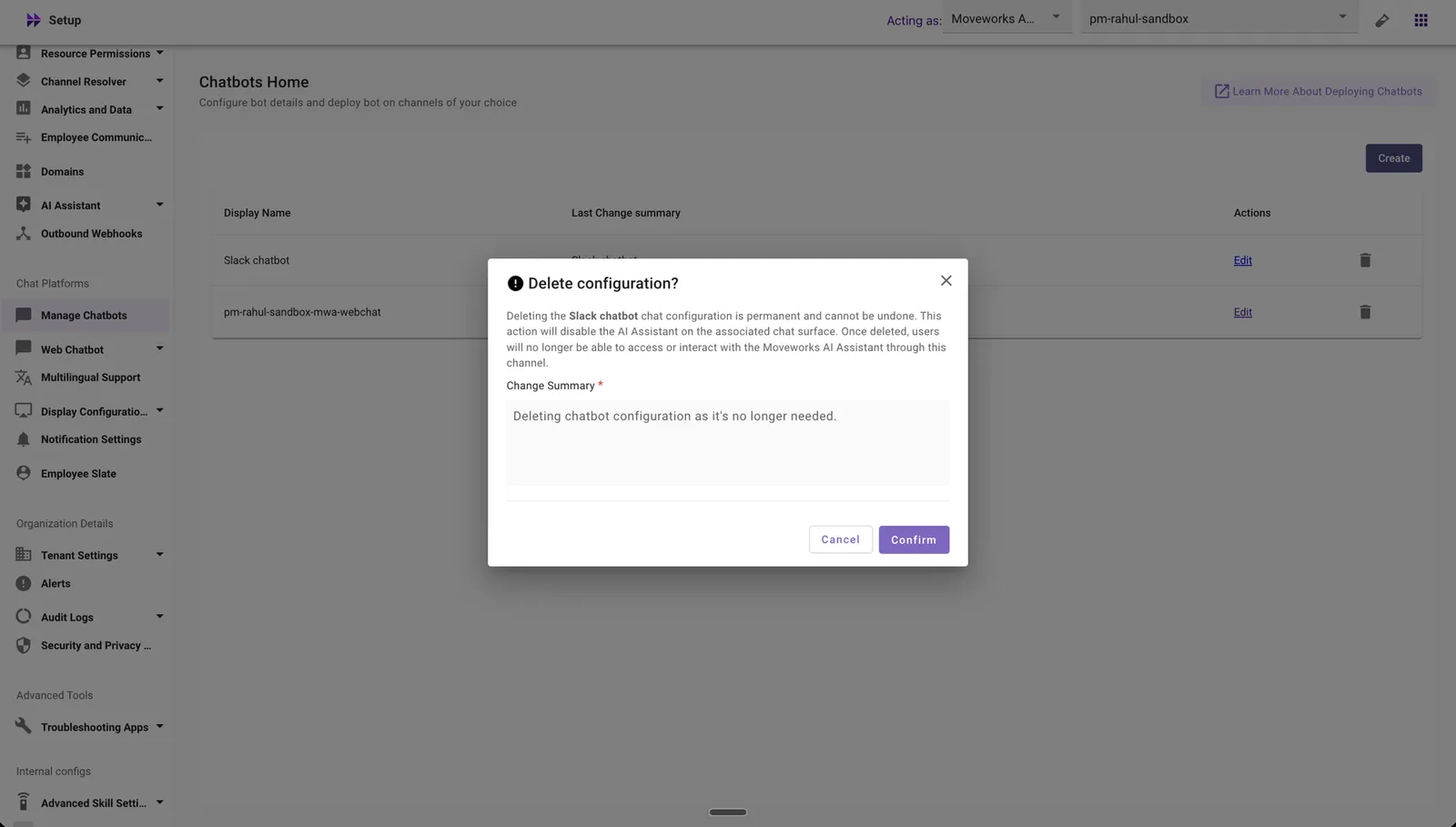
Review the warning message and enter a change summary.
-
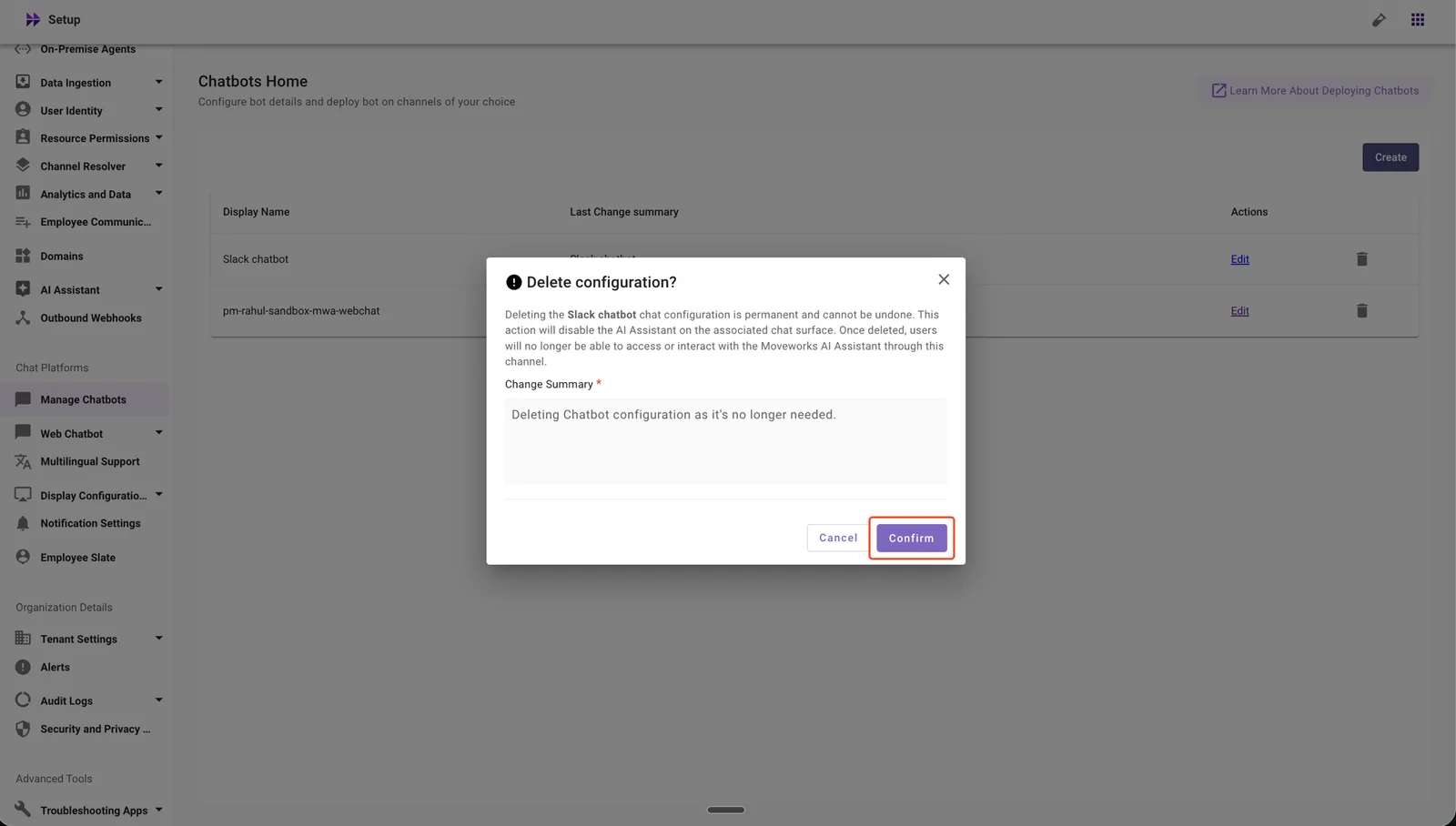
Click Confirm to complete the deletion.
What the Confirmation Includes
Before deletion is confirmed, you will see a warning that states:
- Deleting the Chatbot configuration removes the chat surface for this platform.
- Users will no longer be able to interact with the AI Assistant through this chat platform.
- This action is irreversible. To restore the configuration, you must set up the Chatbot configuration again for this platform.
What Happens Automatically After Deletion
When you confirm the deletion, the system will:
- Remove the chat surface for this platform immediately.
- Disable user access to the AI Assistant on this chat platform.
- Remove the Chatbot configuration from Moveworks Setup.
If the Chatbot Is Referenced by a Notification Route
If the chatbot you want to delete is currently used by a Notification Route in Notification Settings, the deletion will be blocked and the error dialog will list NotificationOrgConfig as the referencing configuration:
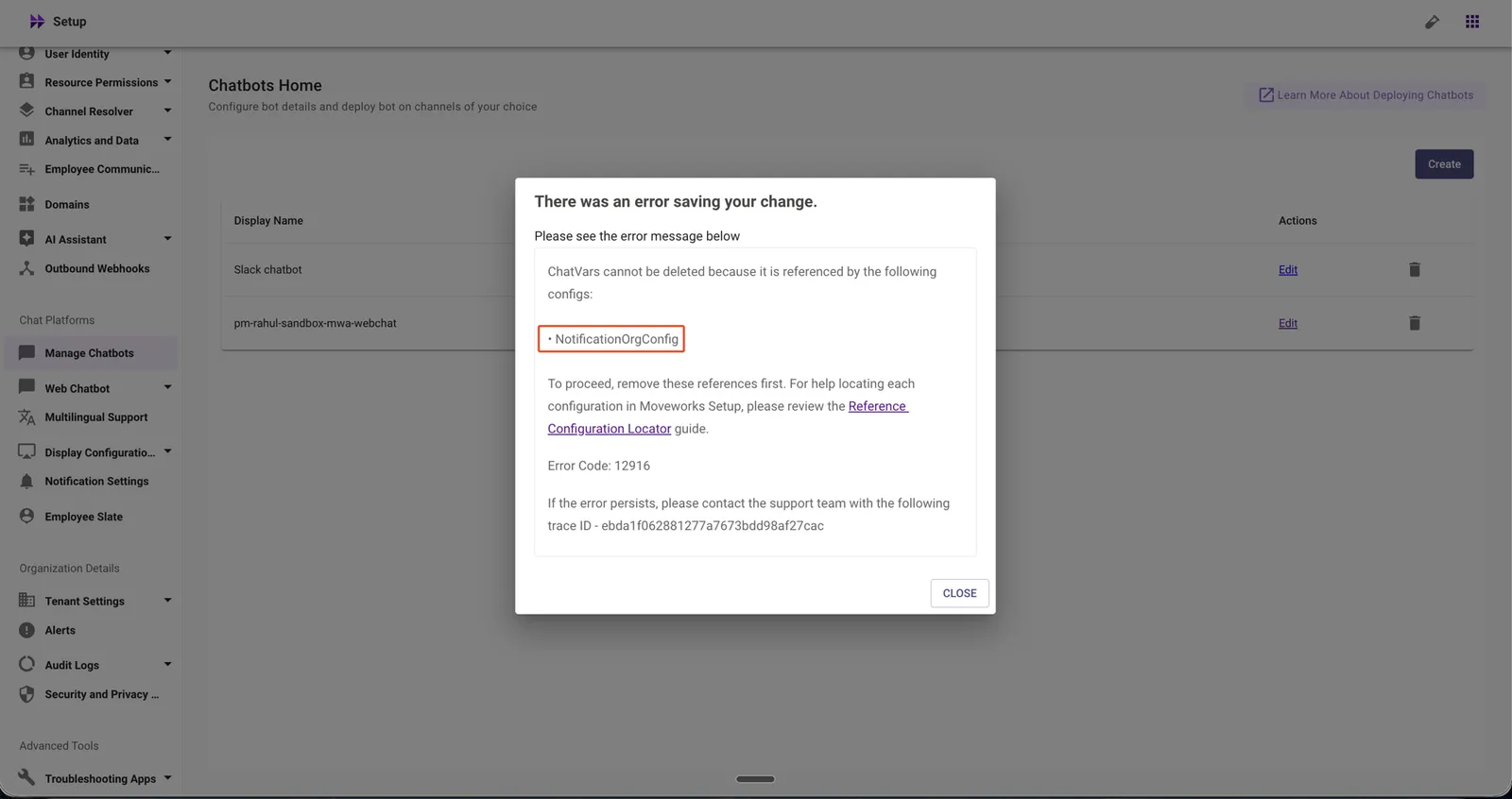
Refer to NotificationOrgConfig in the Reference Configuration Locator for the steps to clear the notification route before retrying the deletion.
Deleting a Software Access Configuration
How to Delete
-
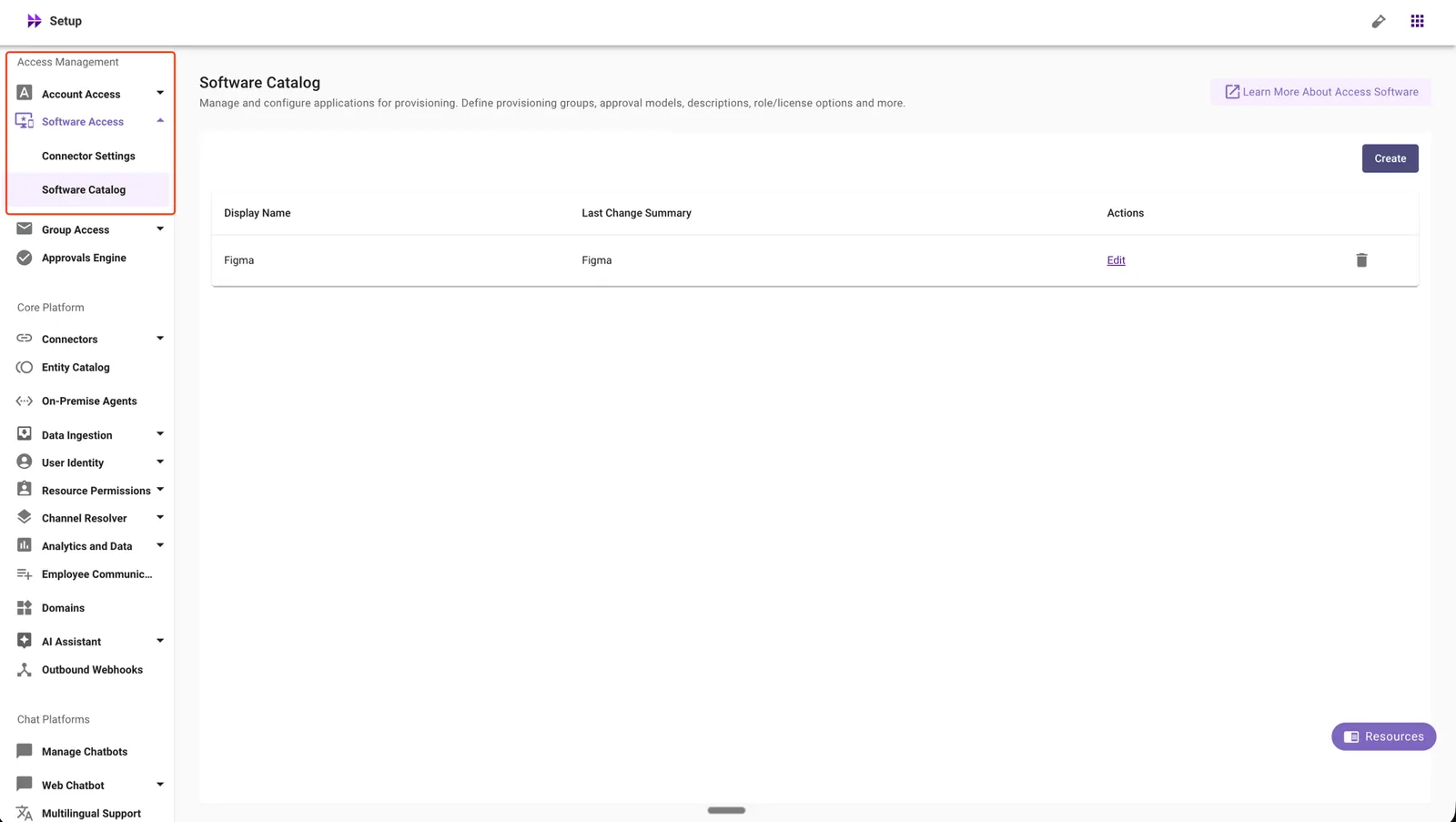
In Moveworks Setup, go to Access Management → Software Access → Software Catalog.
-
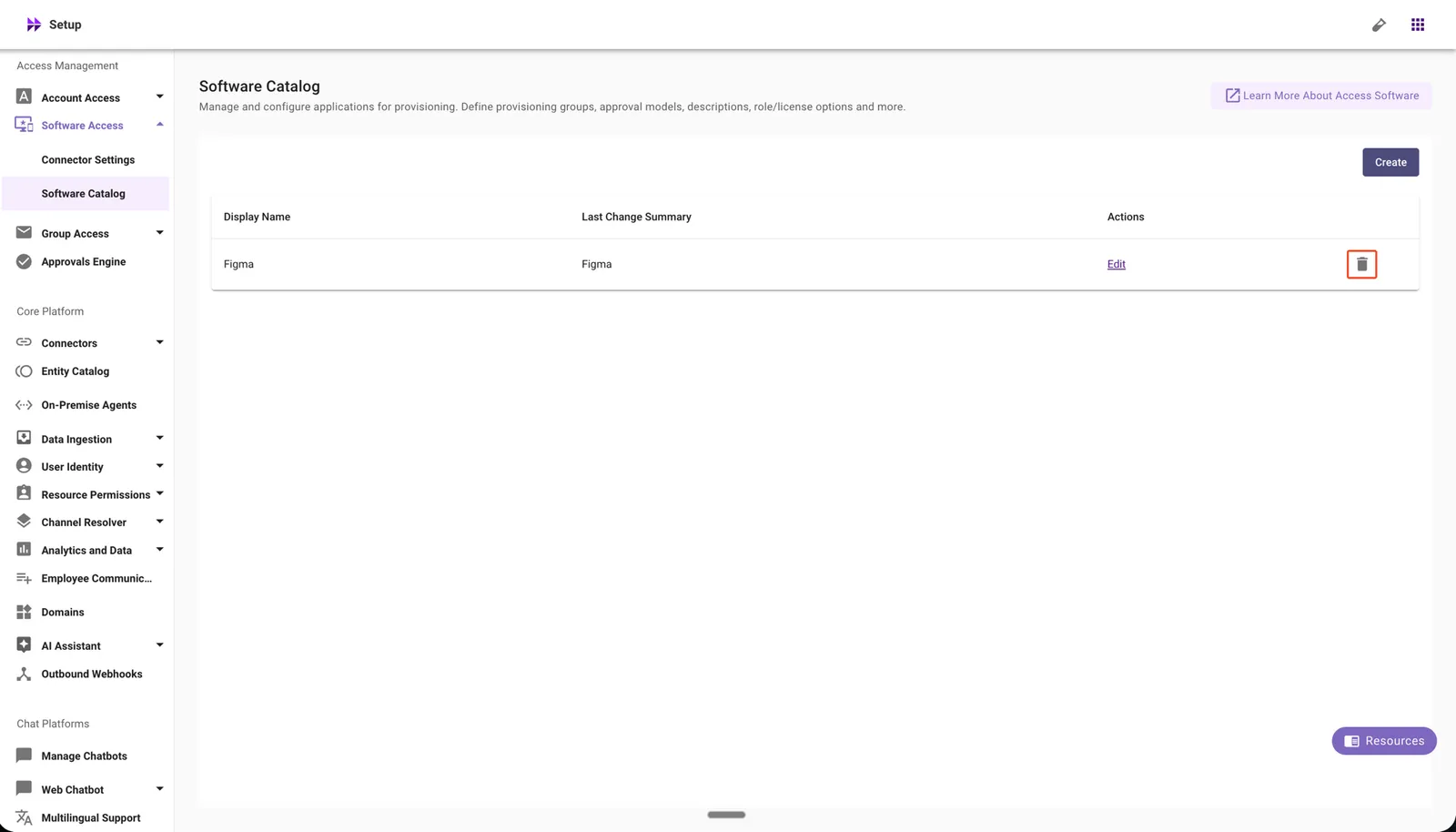
Click the delete icon for the Software Catalog configuration you want to remove.
-
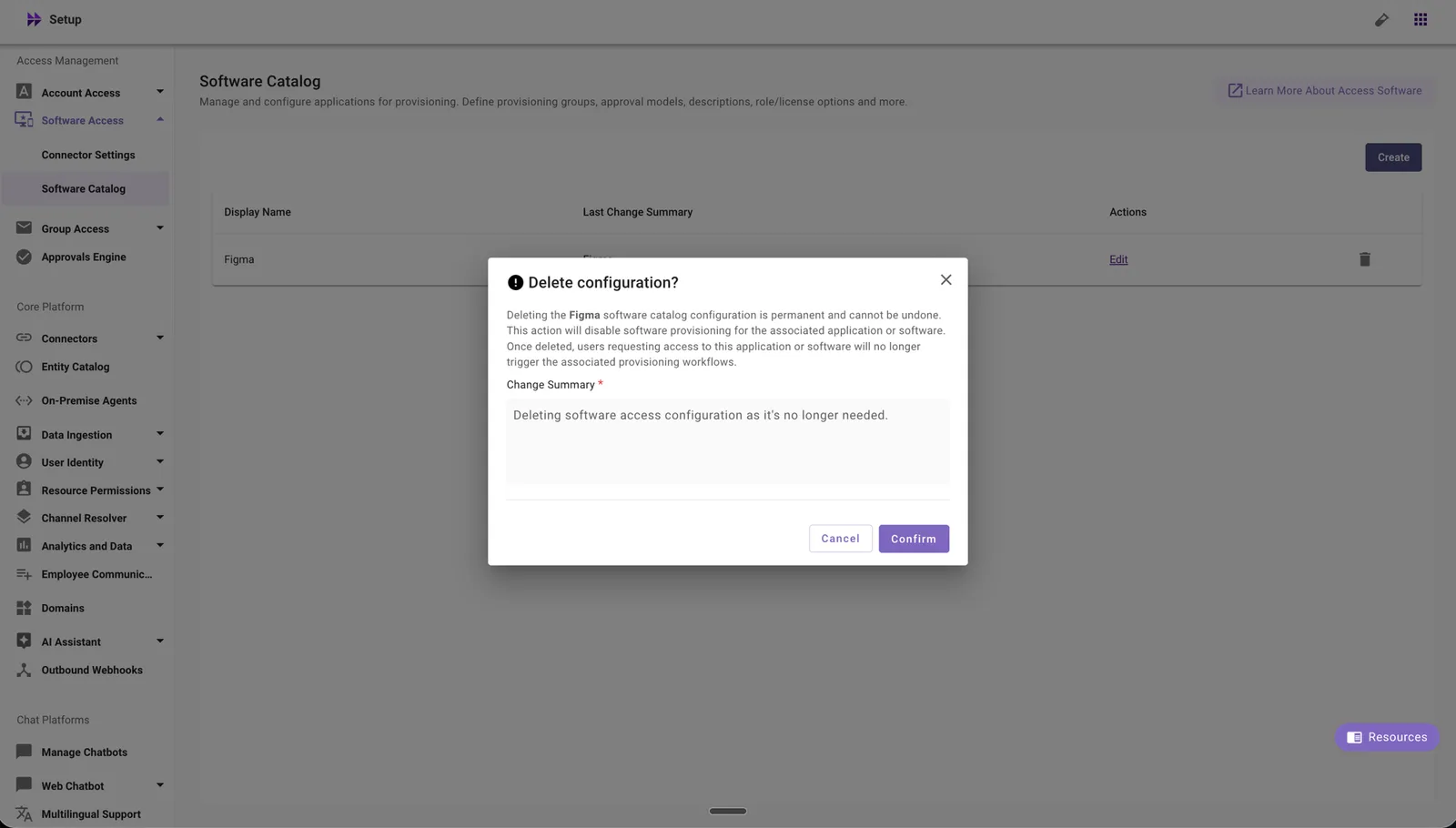
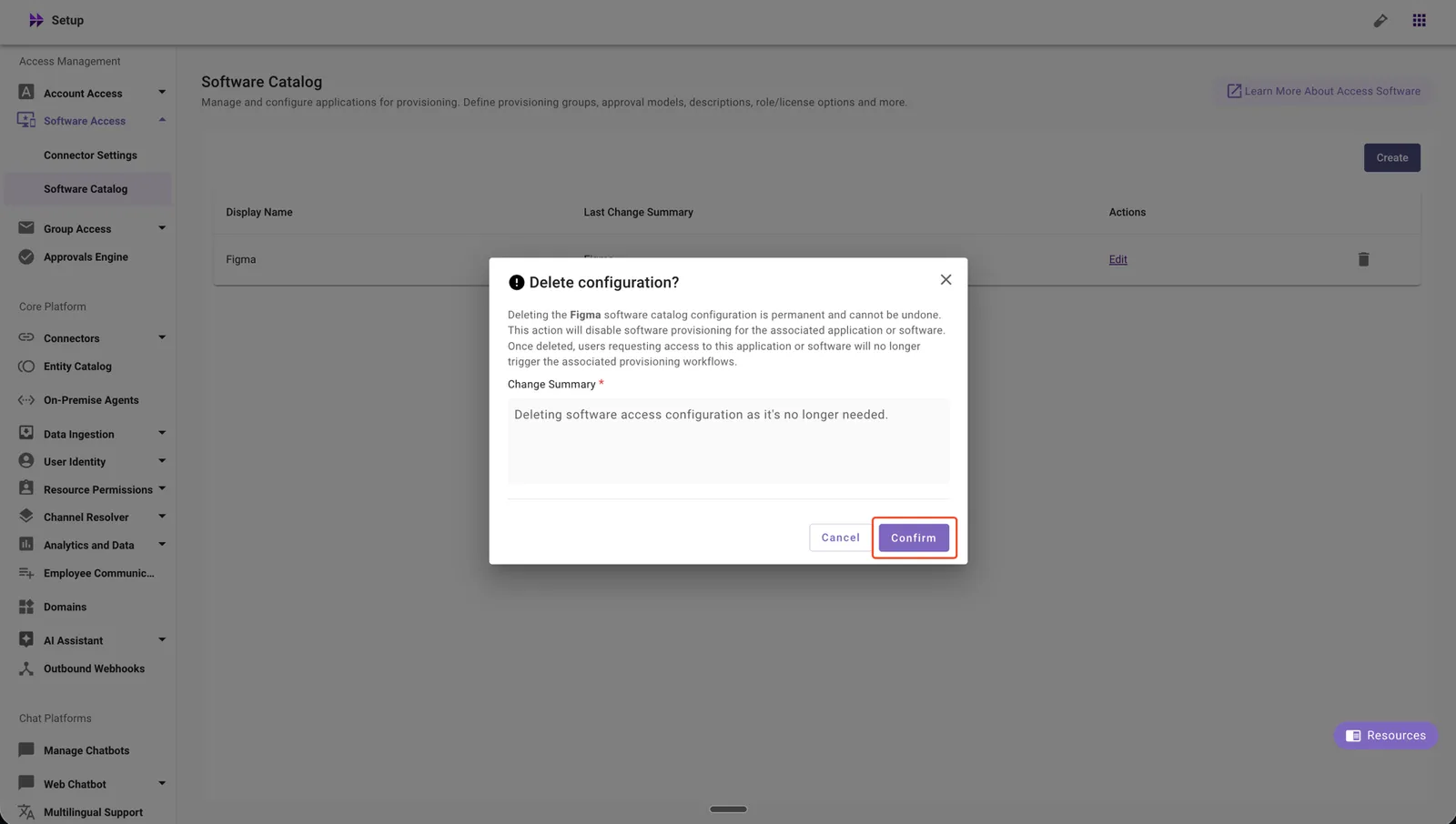
Review the warning message and enter a change summary.
-
Click Confirm to complete the deletion.
What the Confirmation Includes
Before deletion is confirmed, you will see a warning that states:
- Deleting the Software Access configuration stops software provisioning for the associated software entity.
- Users will no longer be able to request provisioning of this software through the AI Assistant.
- This action is irreversible. To restore the configuration, you must set up the Software Access configuration again.
What Happens Automatically After Deletion
When you confirm the deletion, the system will:
- Stop software provisioning for the deleted software entity immediately.
- Disable AI Assistant provisioning requests for this software.
- Remove the Software Access configuration from Moveworks Setup.
Deleting a Channel Resolver Configuration
How to Delete
-
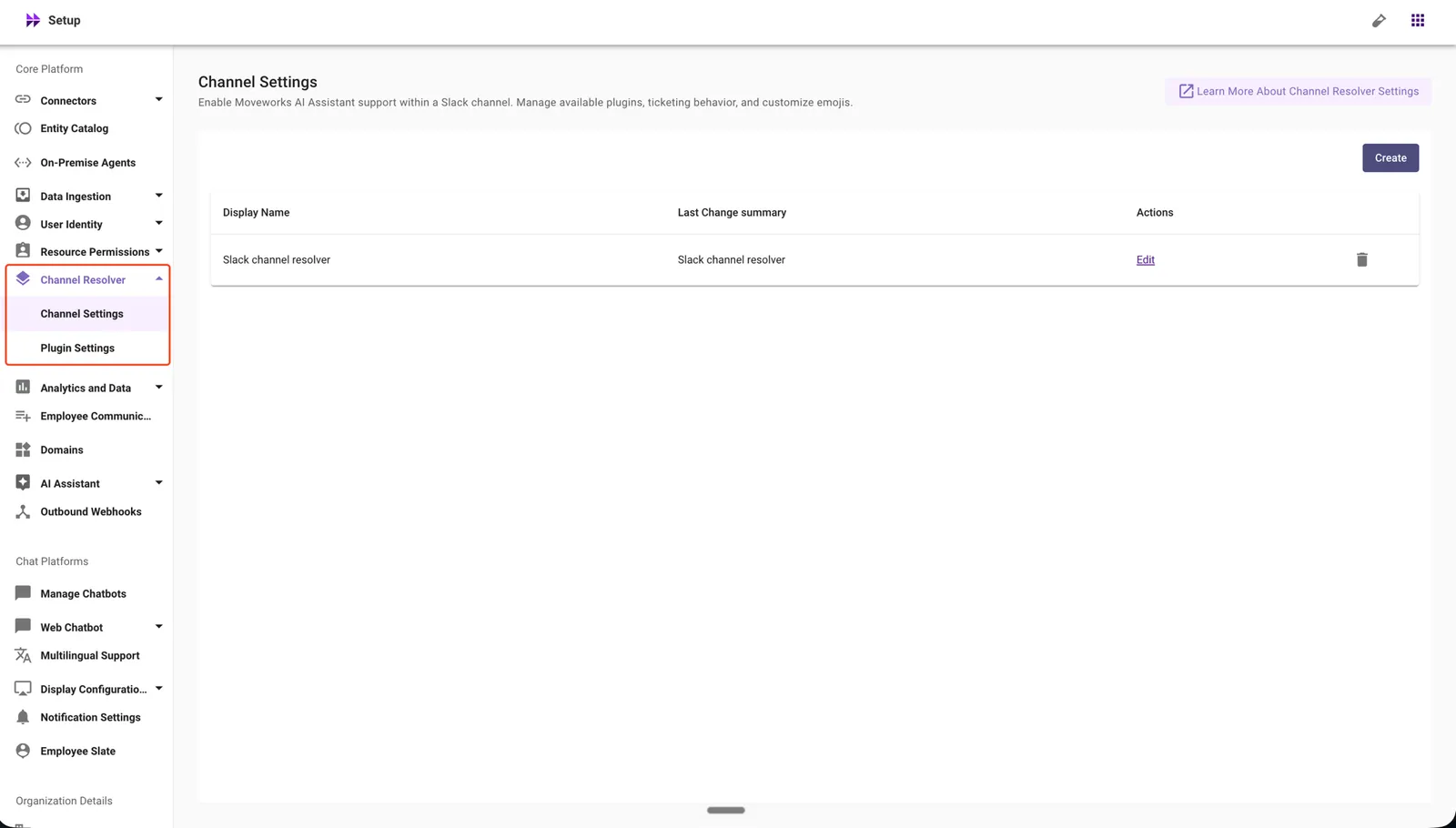
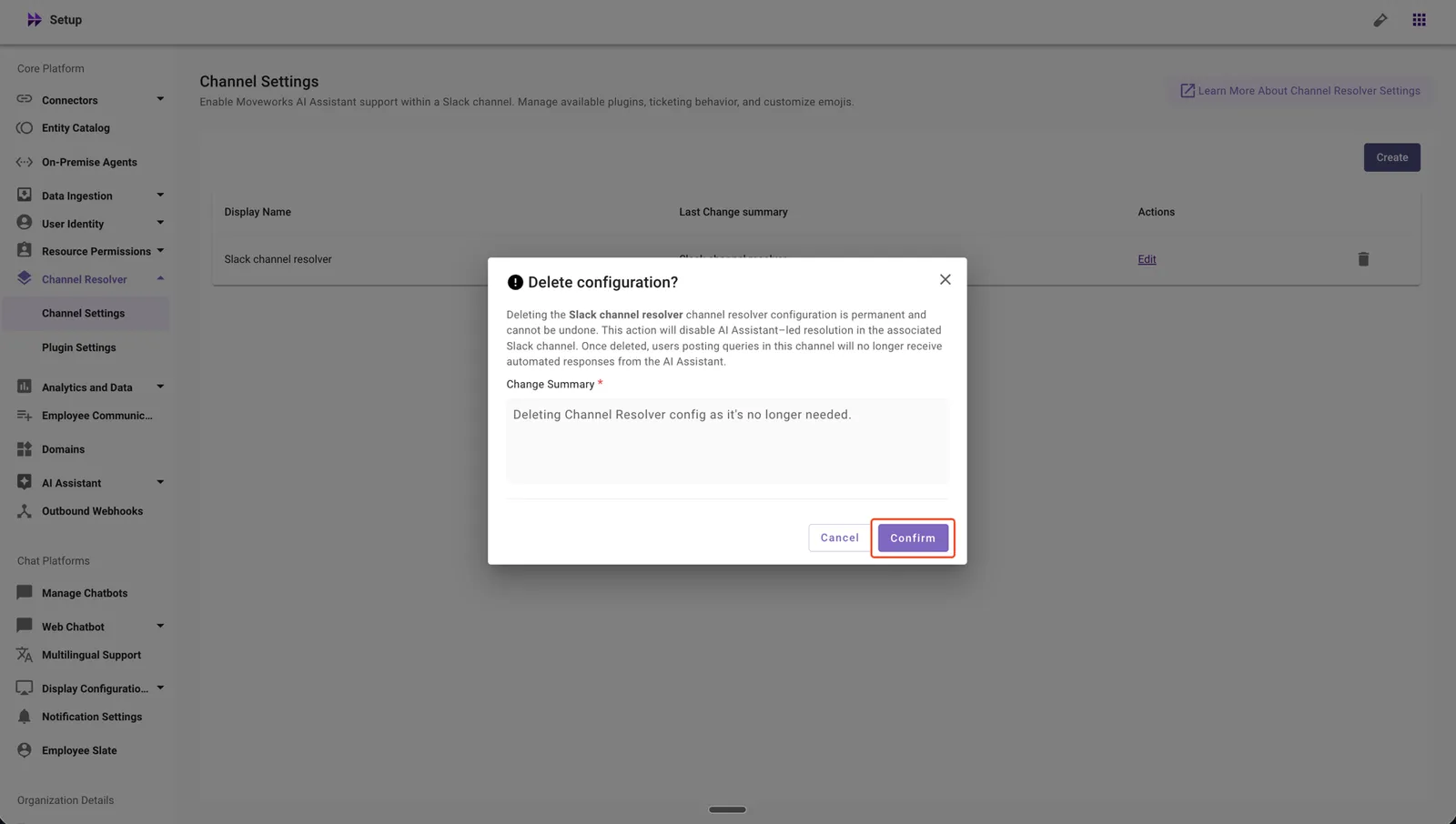
In Moveworks Setup, go to Core Platform → Channel Resolver → Channel Settings.
-
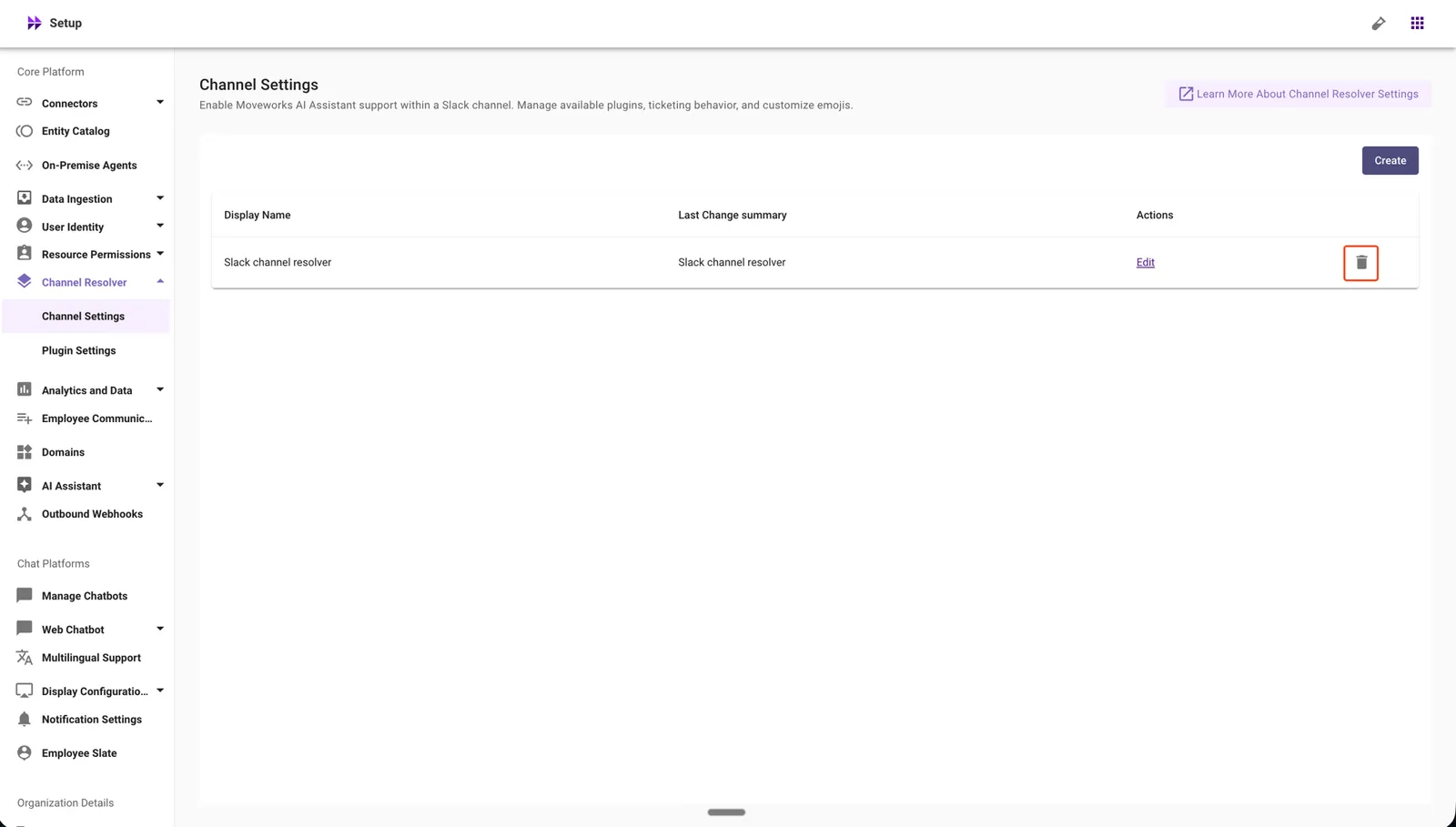
Click the delete icon for the Channel Resolver configuration you want to remove.
-
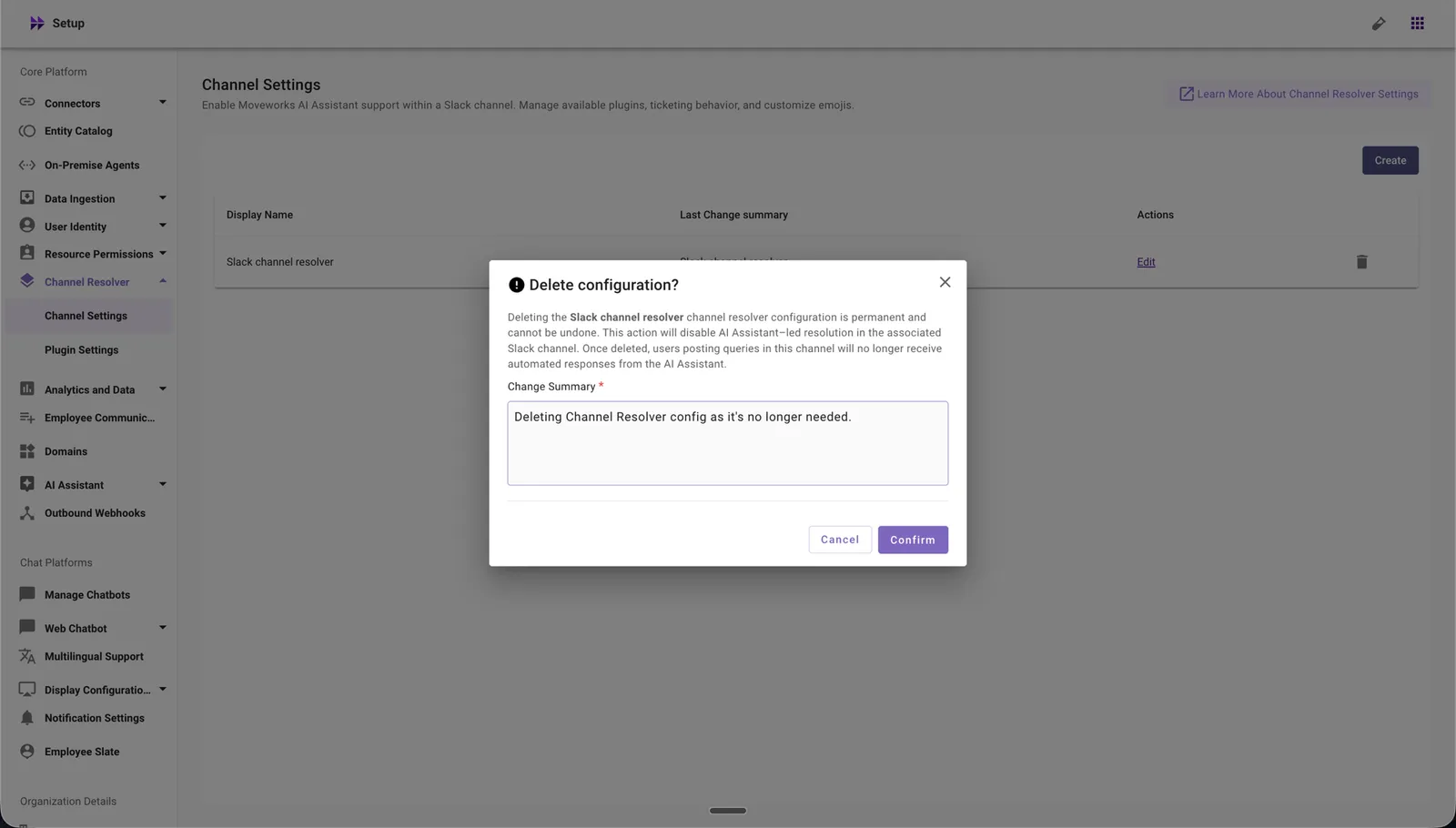
Review the warning message and enter a change summary.
-
Click Confirm to complete the deletion.
What the Confirmation Includes
Before deletion is confirmed, you will see a warning that states:
- Deleting the Channel Resolver configuration stops Slack channel resolution for the deleted Slack channel.
- Users posting queries in this channel will no longer receive automated responses from the AI Assistant.
- This action is irreversible. To restore the configuration, you must set up the Channel Resolver configuration again.
What Happens Automatically After Deletion
When you confirm the deletion, the system will:
- Stop channel resolution for the deleted Slack channel immediately.
- Disable AI Assistant responses for queries posted in this channel.
- Remove the Channel Resolver configuration from Moveworks Setup.
Deleting a Permission Rules Configuration
How to Delete
-
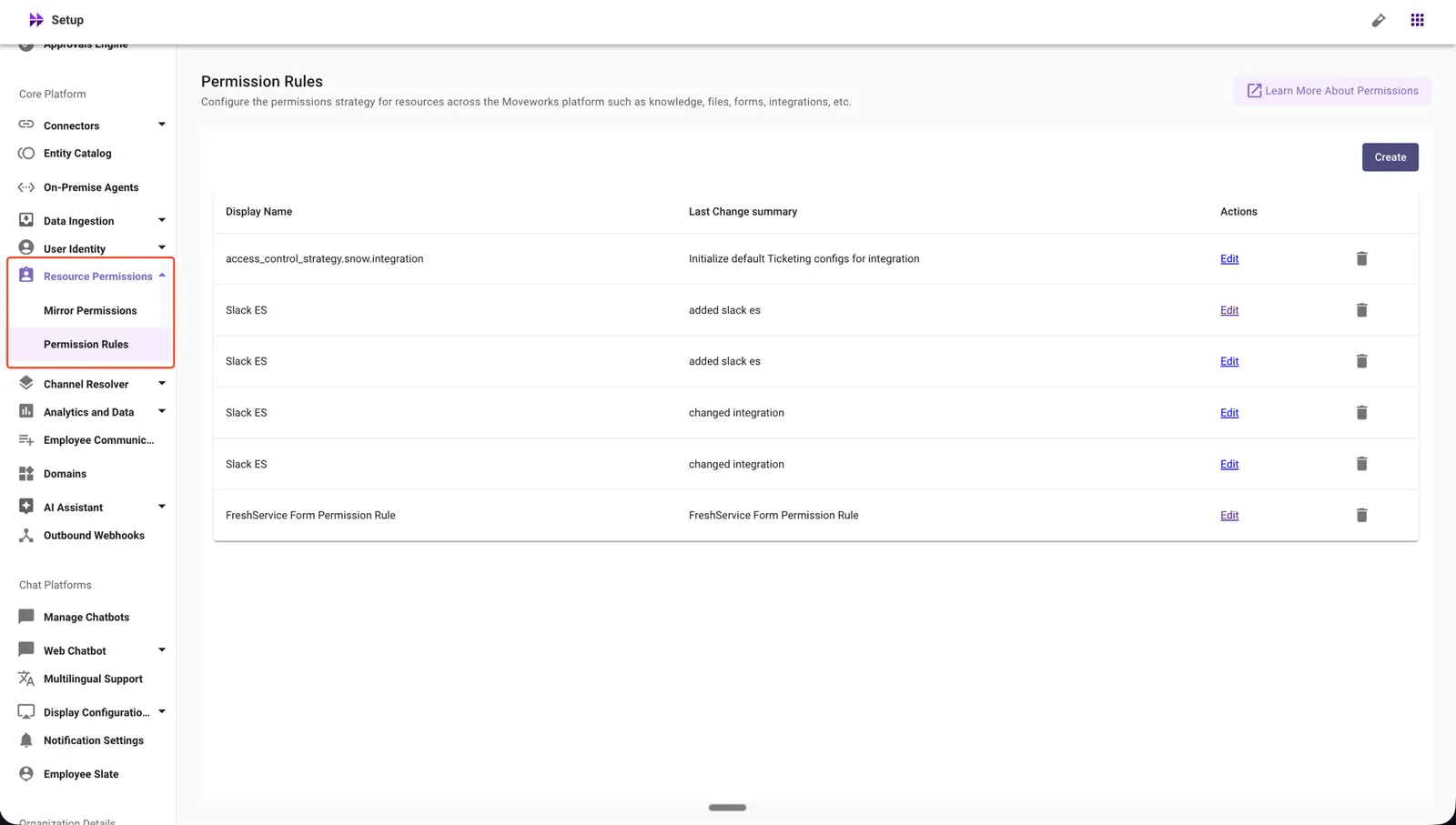
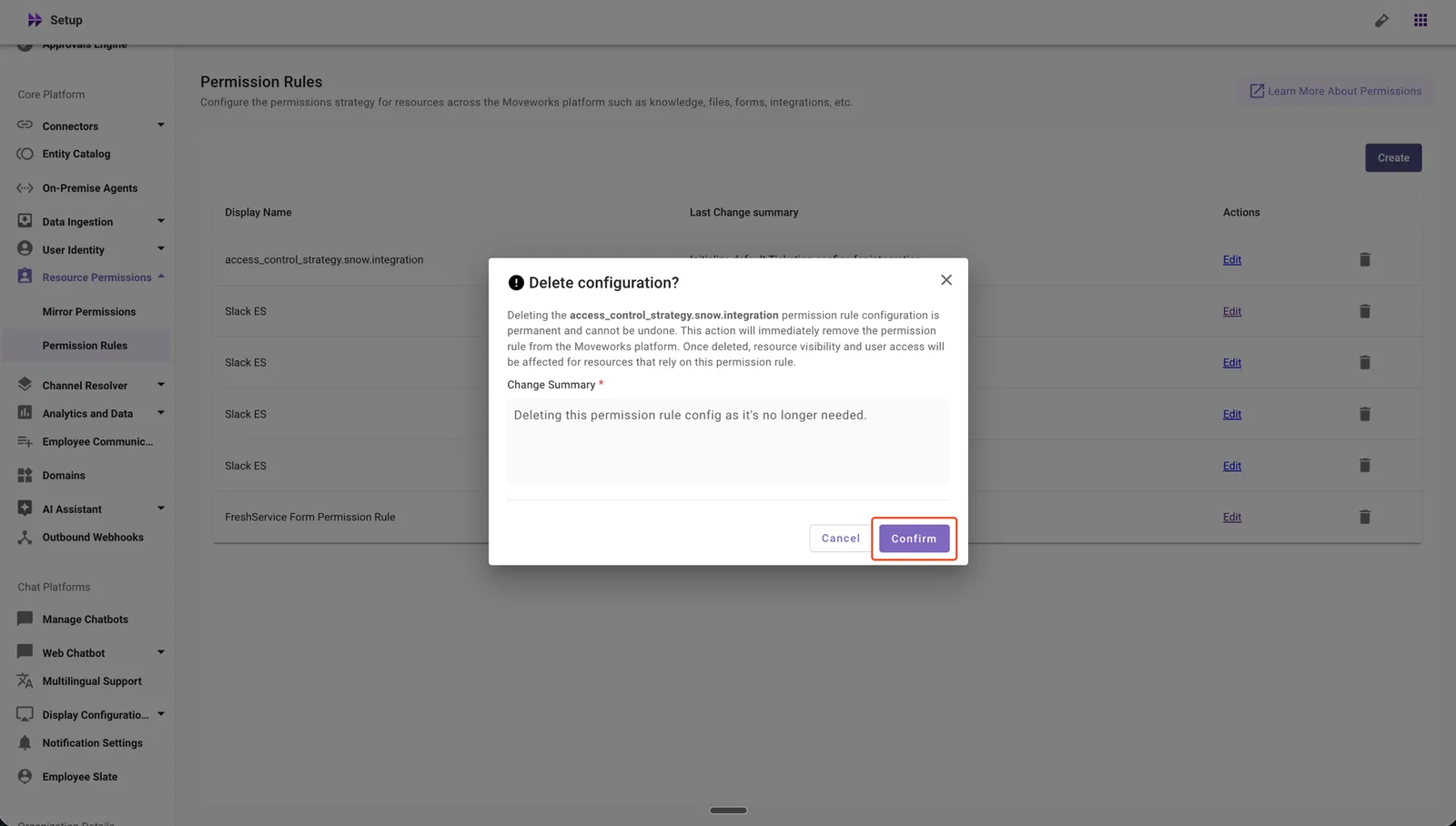
In Moveworks Setup, go to Core Platform → Resource Permissions → Permission Rules.
-
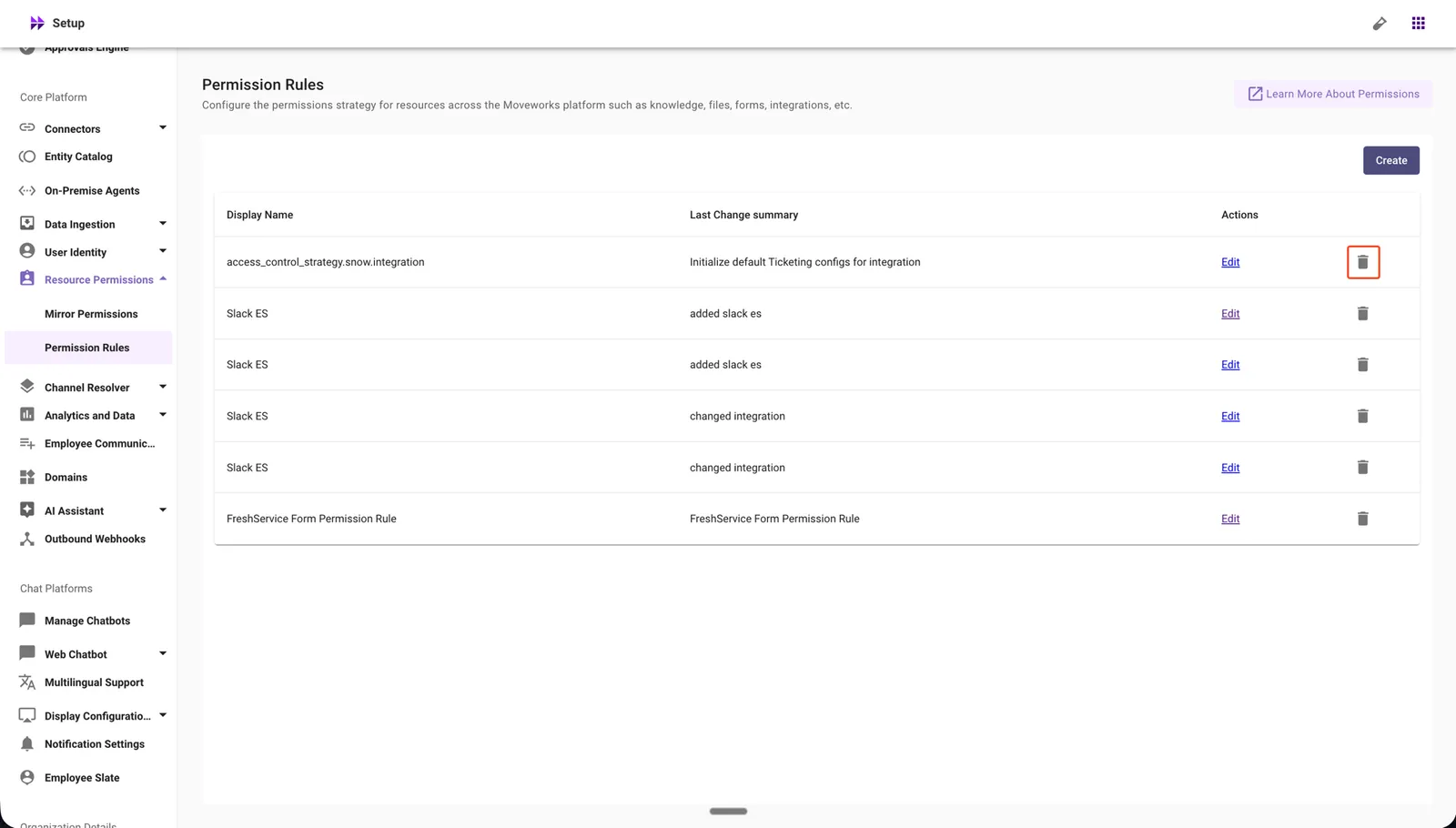
Click the delete icon for the Permission Rules configuration you want to remove.
-
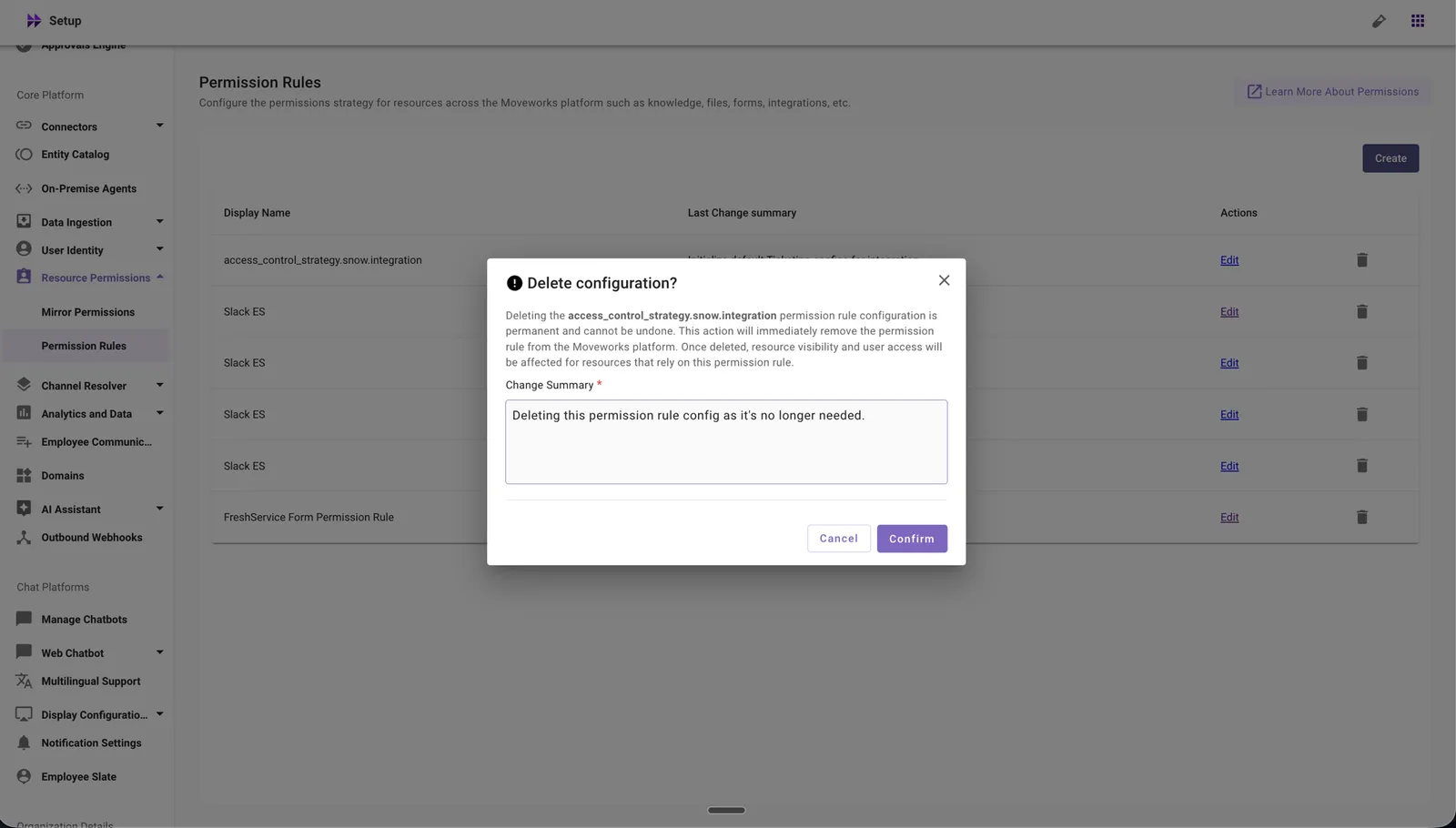
Review the warning message and enter a change summary.
-
Click Confirm to complete the deletion.
What the Confirmation Includes
Before deletion is confirmed, you will see a warning that states:
- Deleting the Permission Rule configuration may immediately stop content serving for the associated resources.
- Users may lose access to content in KB, File, or Max Capacity systems that were governed by this rule, subject to the configured access controls.
- This action is irreversible. To restore the configuration, you must set up the Permission Rule configuration again.
What Happens Automatically After Deletion
When you confirm the deletion, the system will:
- Stop content serving for the associated resources immediately.
- Block user access to content in KB, File, or Max Capacity systems governed by this rule.
- Remove the Permission Rule configuration from Moveworks Setup.
Deleting a Live Agent Configuration
How to Delete
-
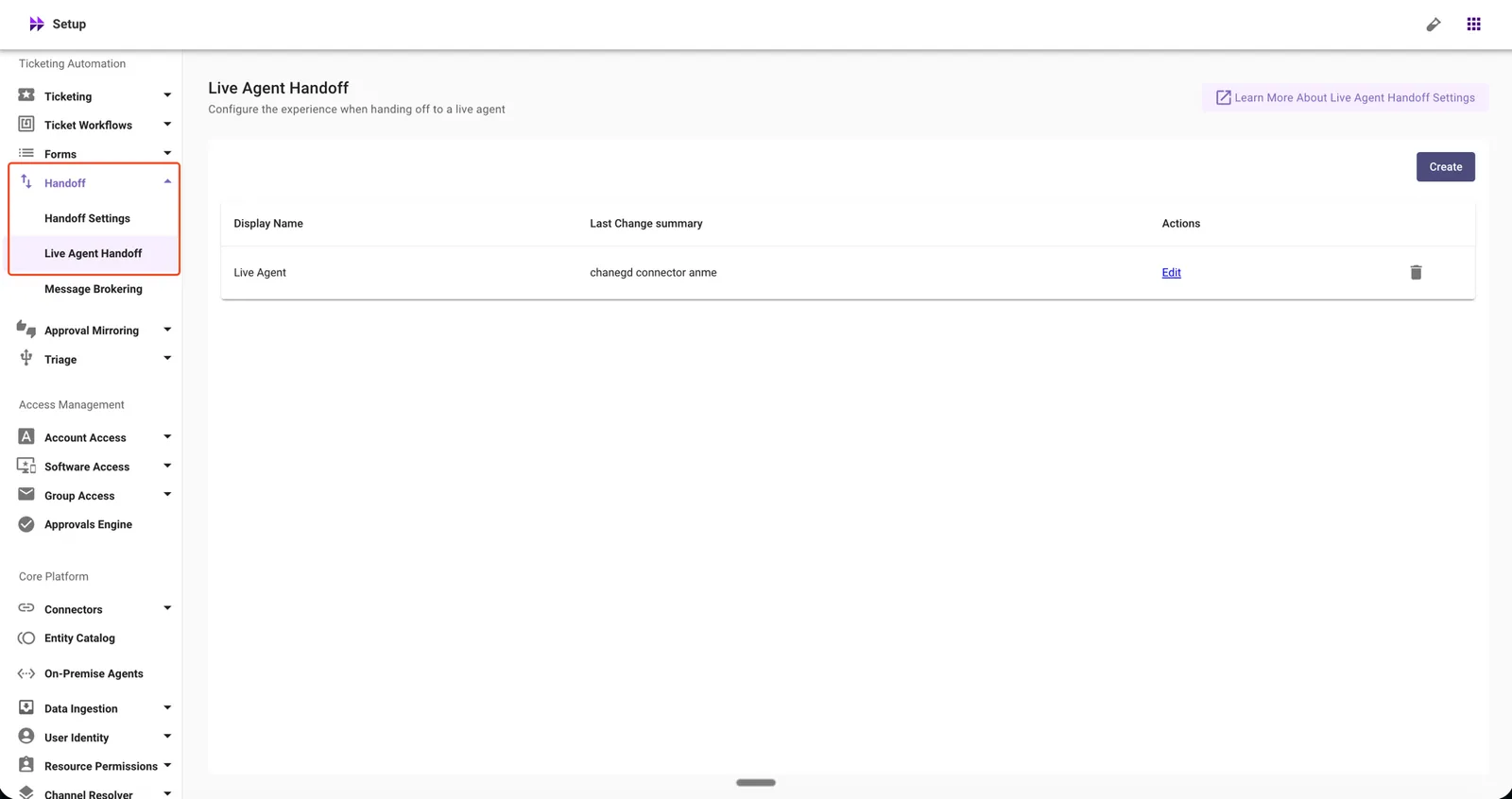
In Moveworks Setup, go to Ticketing Automation → Handoff → Live Agent Handoff.
-
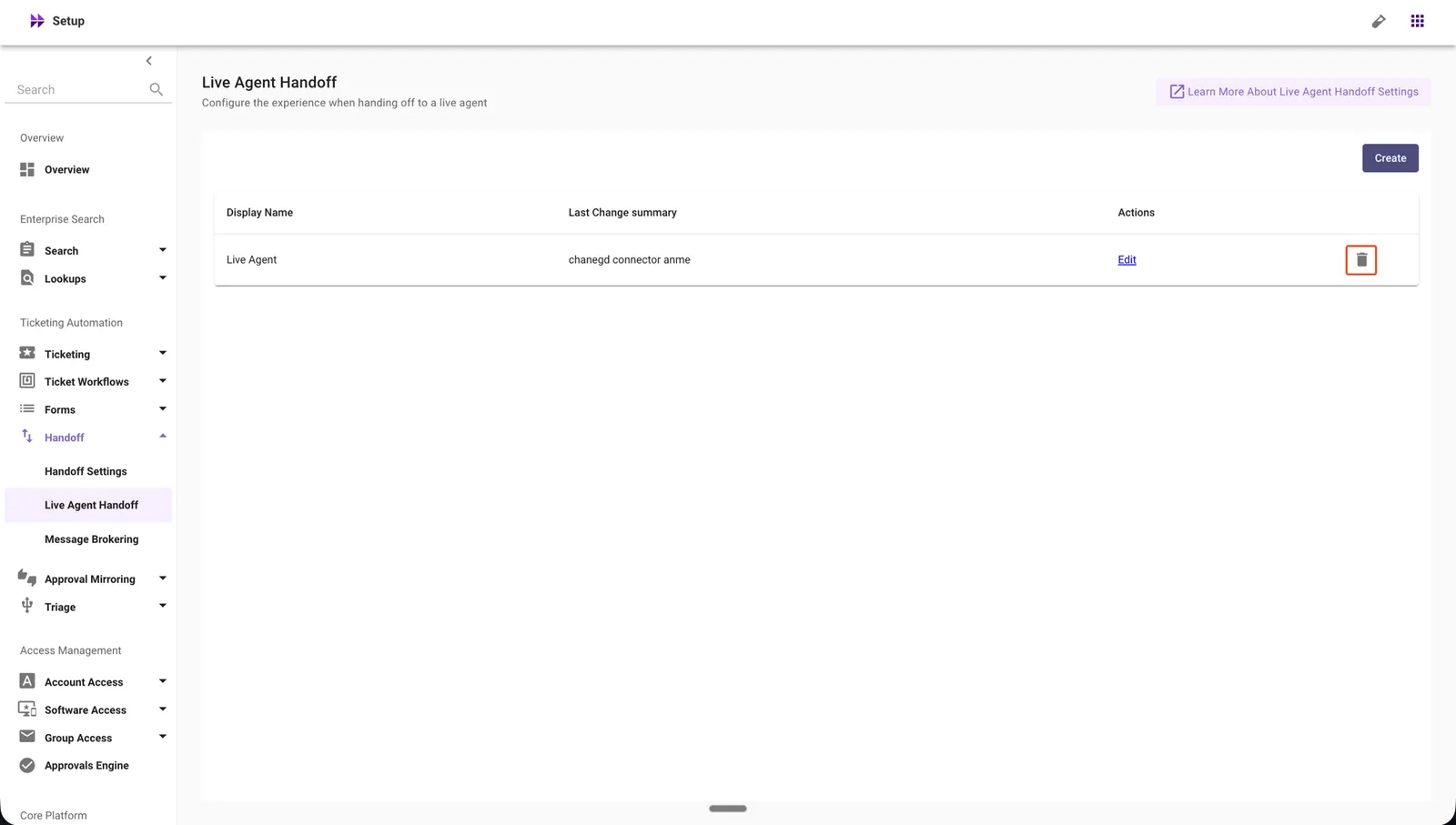
Click the delete icon for the Live Agent configuration you want to remove.
-
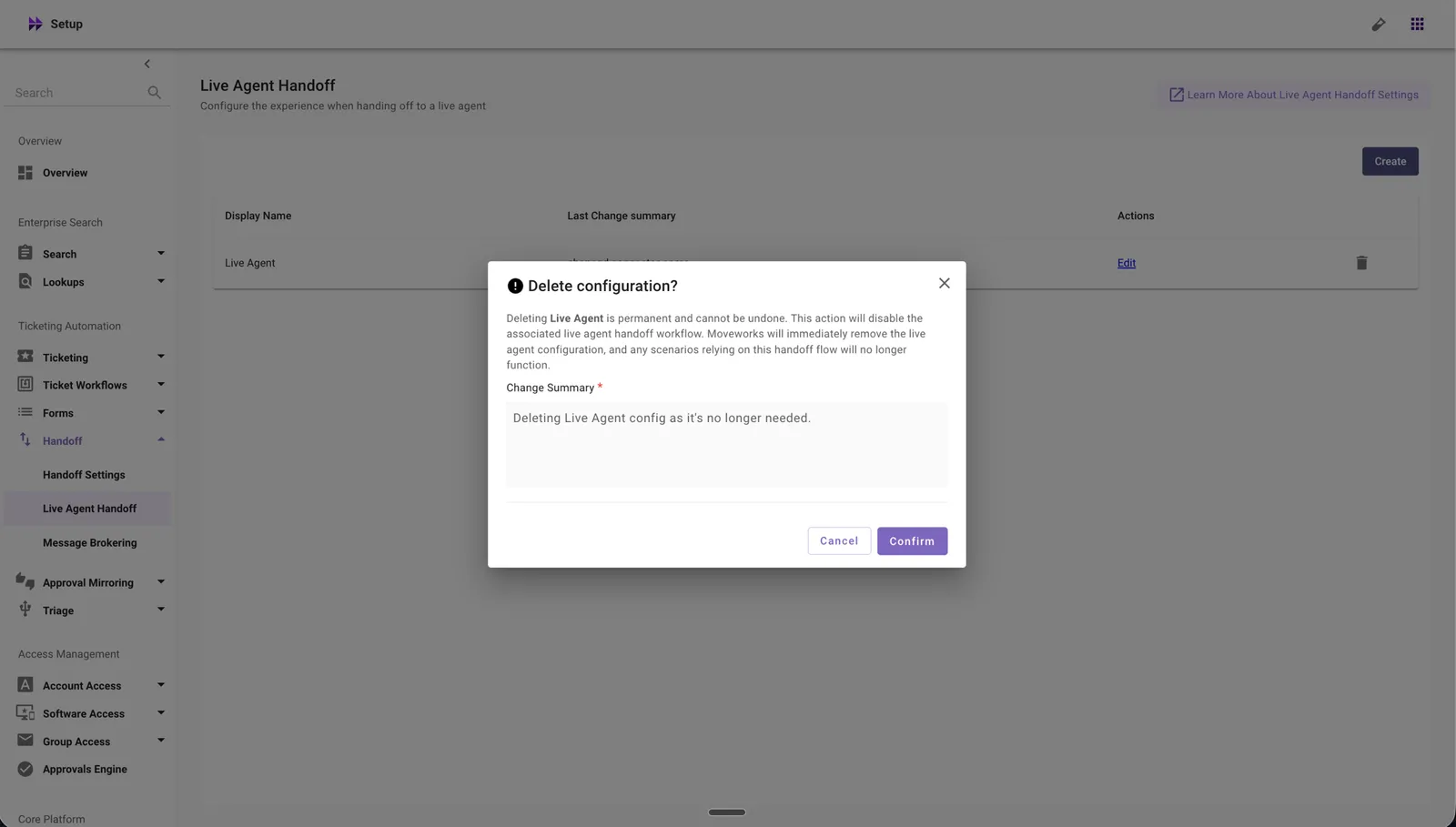
Review the warning message and enter a change summary.
-
Click Confirm to complete the deletion.
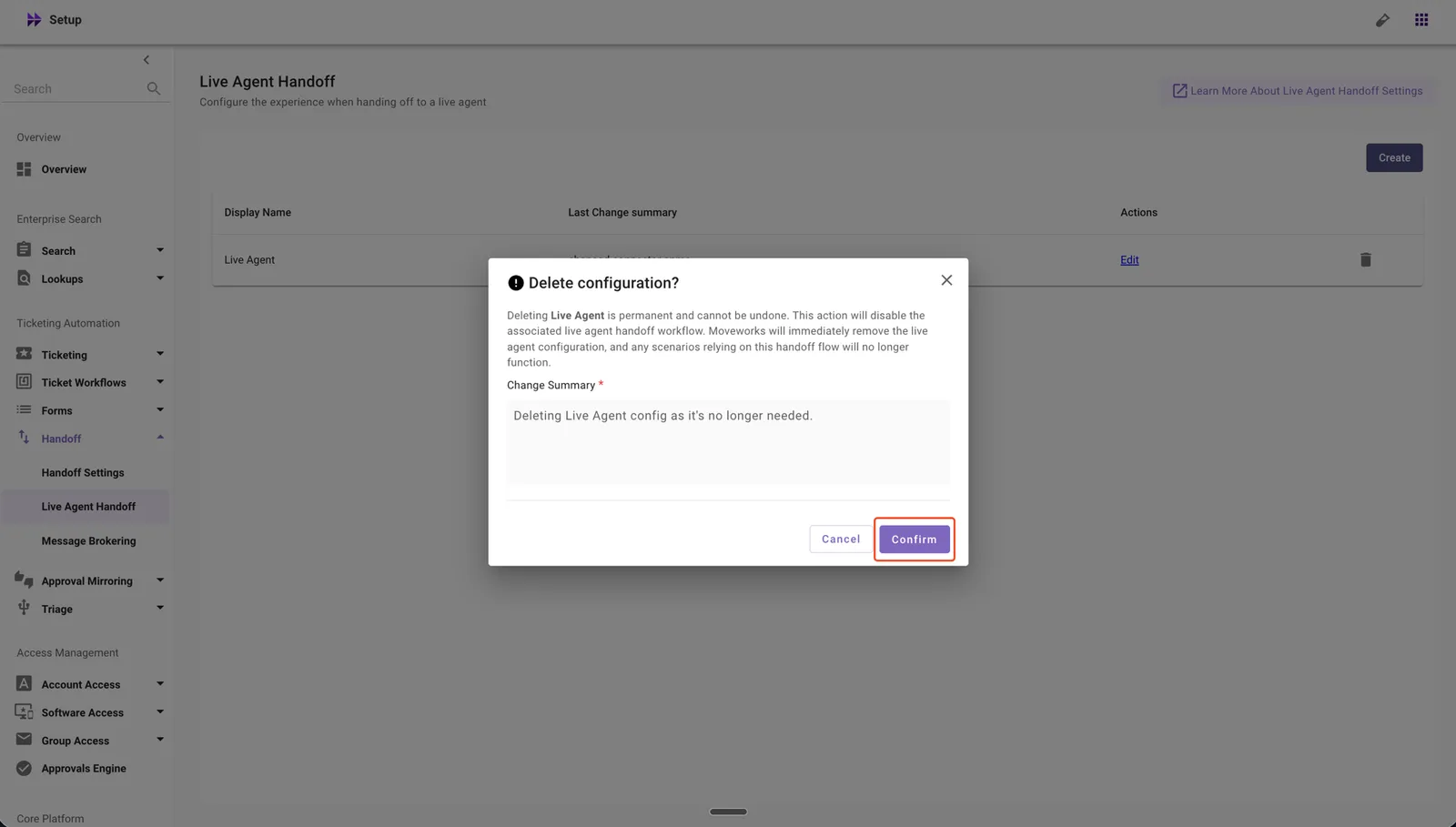
What the Confirmation Includes
Before deletion is confirmed, you will see a warning that states:
- Deleting the Live Agent configuration makes the Live Agent unavailable immediately. The deleted Live Agent will no longer be functional.
- Users will no longer be handed off to this Live Agent through the AI Assistant.
- This action is irreversible. To restore the configuration, you must set up the Live Agent configuration again.
What Happens Automatically After Deletion
When you confirm the deletion, the system will:
- Disable the Live Agent immediately.
- Block user handoff to this Live Agent through the AI Assistant.
- Remove the Live Agent configuration from Moveworks Setup.
If the Live Agent Is Referenced by a Handoff Menu Item
If the Live Agent you want to delete is referenced by a Handoff Menu Item in Handoff Settings, the deletion will be blocked and the error dialog will name the specific handoff menu item that still points to this Live Agent:
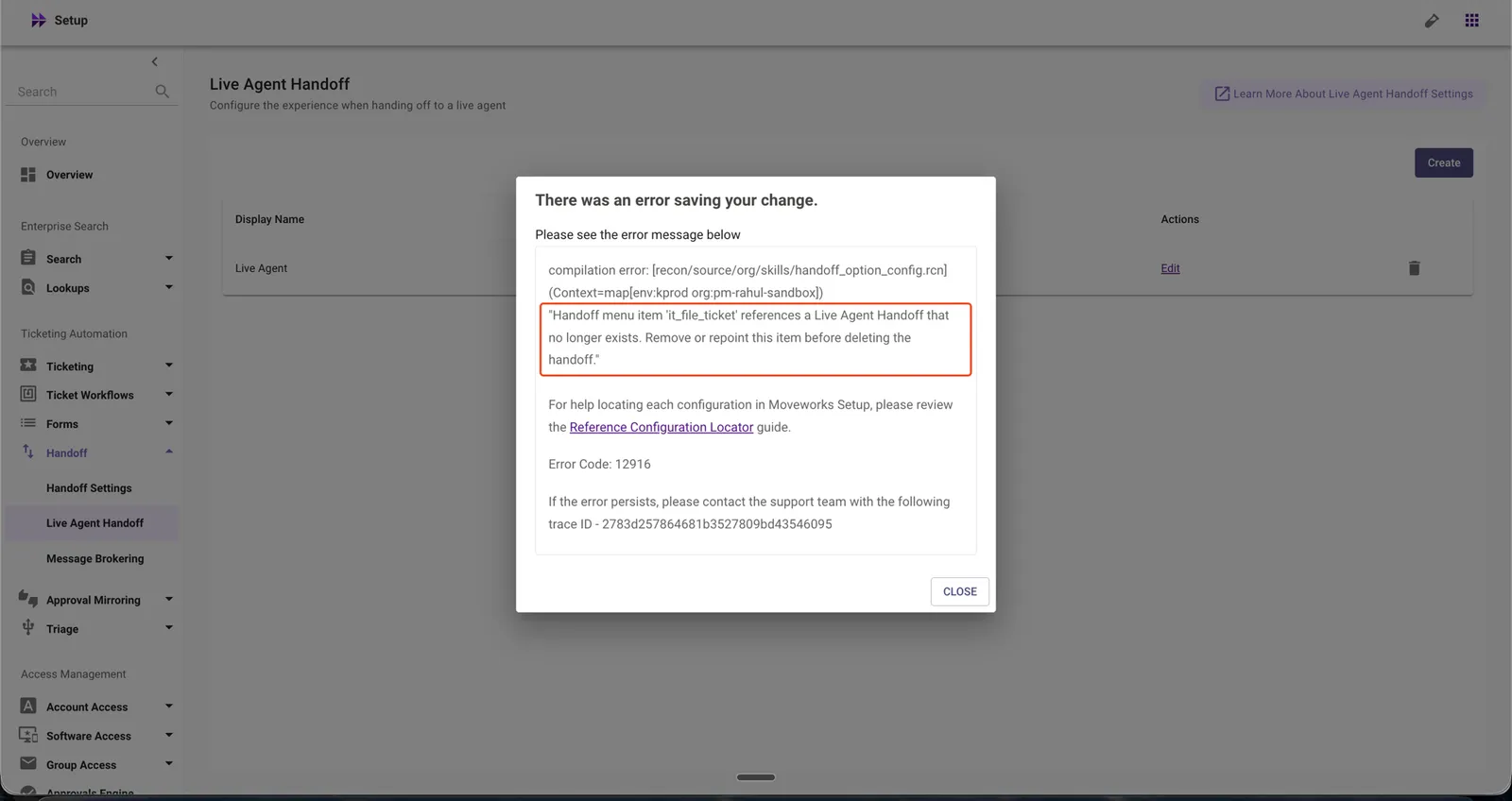
Refer to HandoffMenuItem in the Reference Configuration Locator for the steps to remove or repoint the handoff menu item before retrying the deletion.
Deleting a Connectors Configuration
How to Delete
-
In Moveworks Setup, go to Core Platform → Connectors → Built-in Connectors.
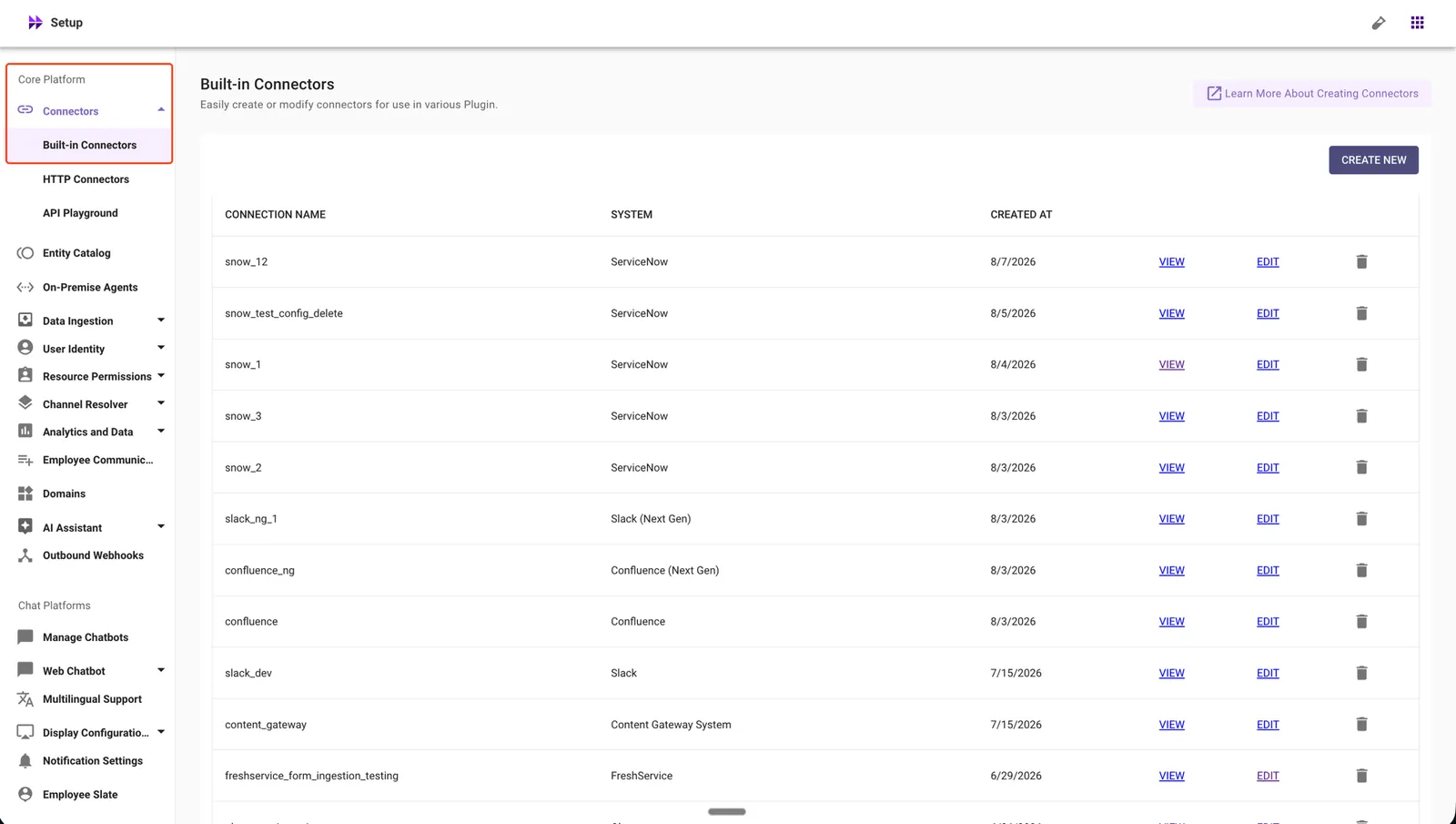
-
Click the delete icon for the Connector configuration you want to remove.
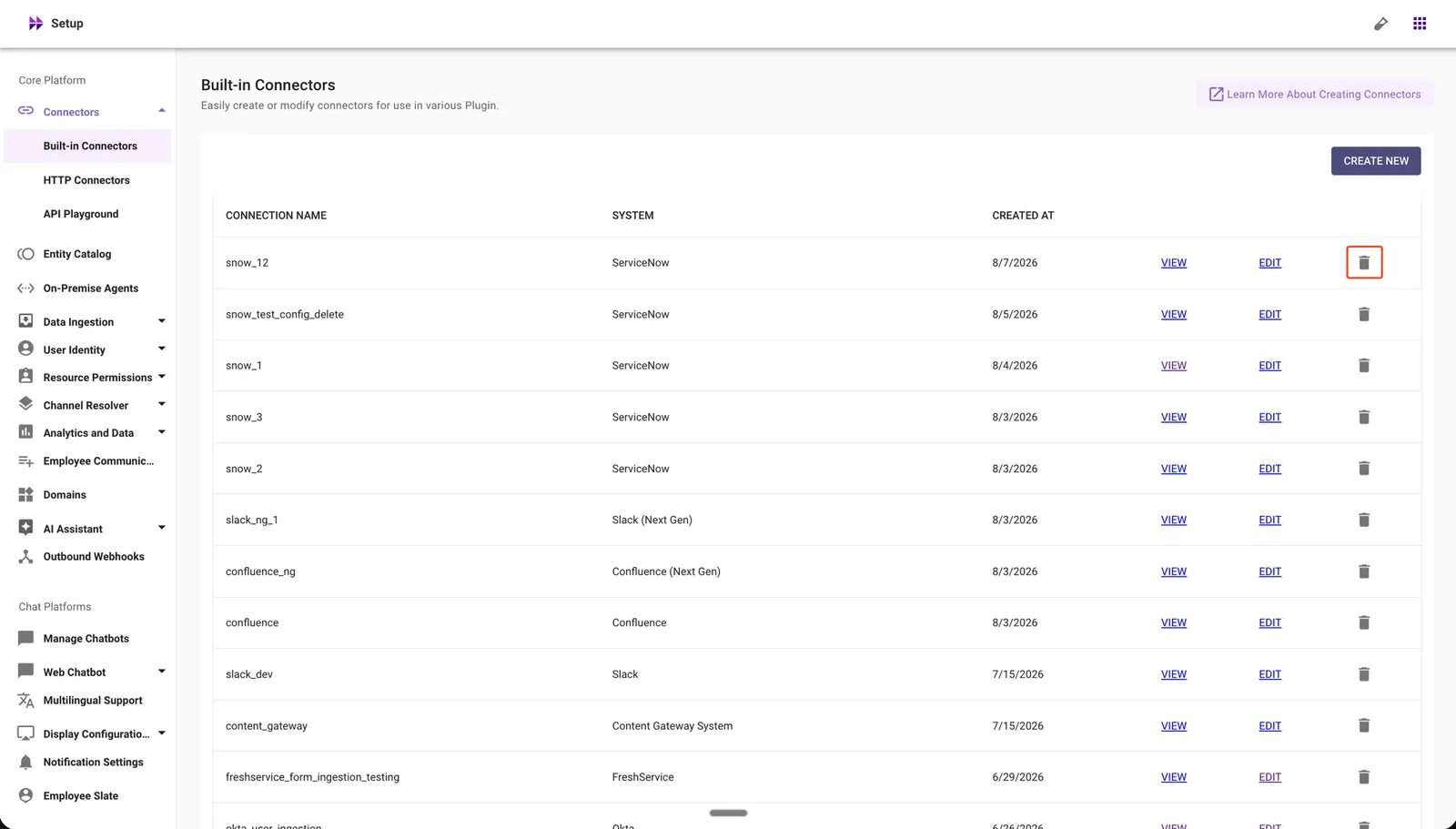
-
Review the warning message, check the confirmation box after reviewing the DSL Configurations to Review list, and enter a change summary.
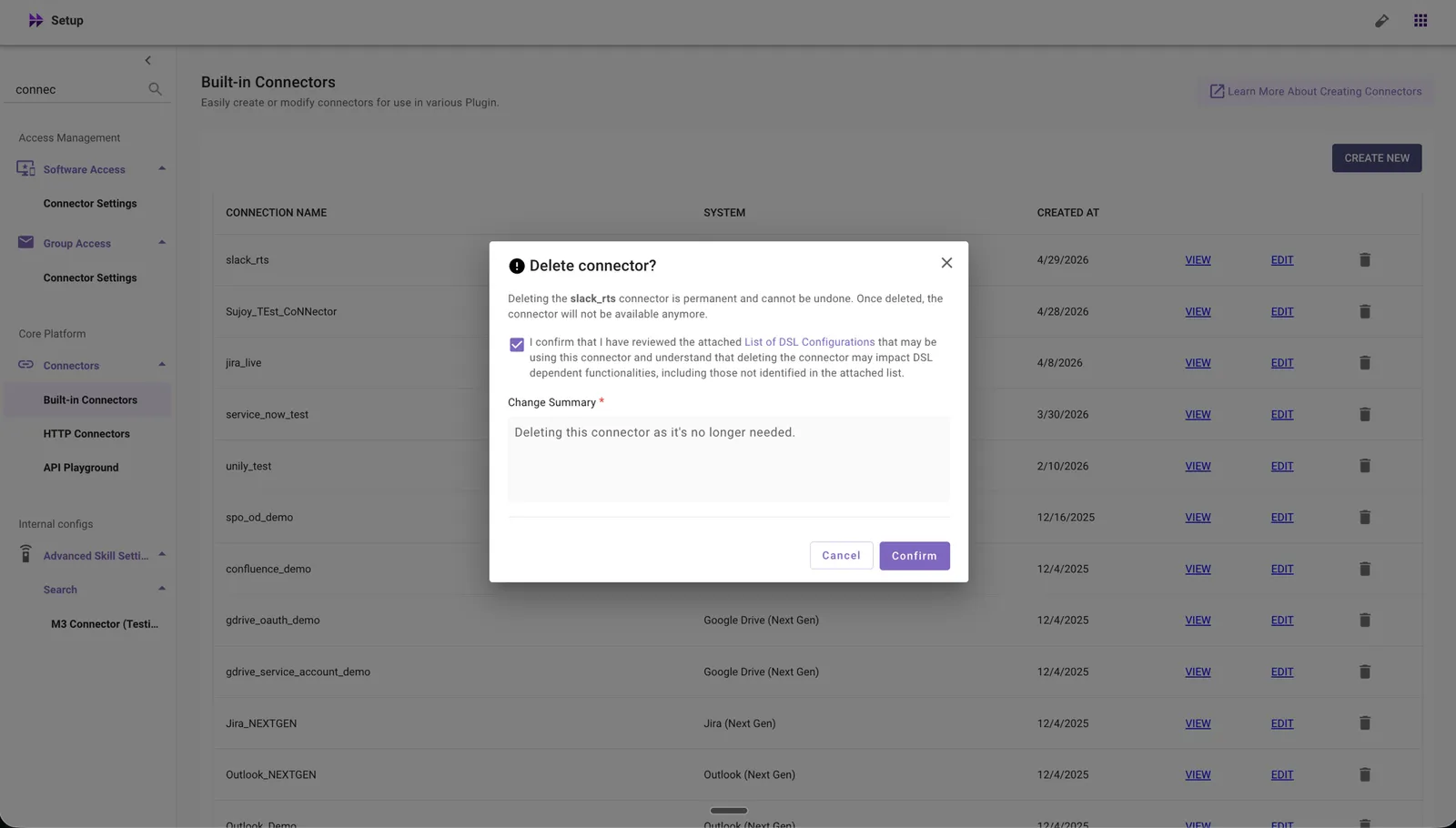
-
Click Confirm to complete the deletion.
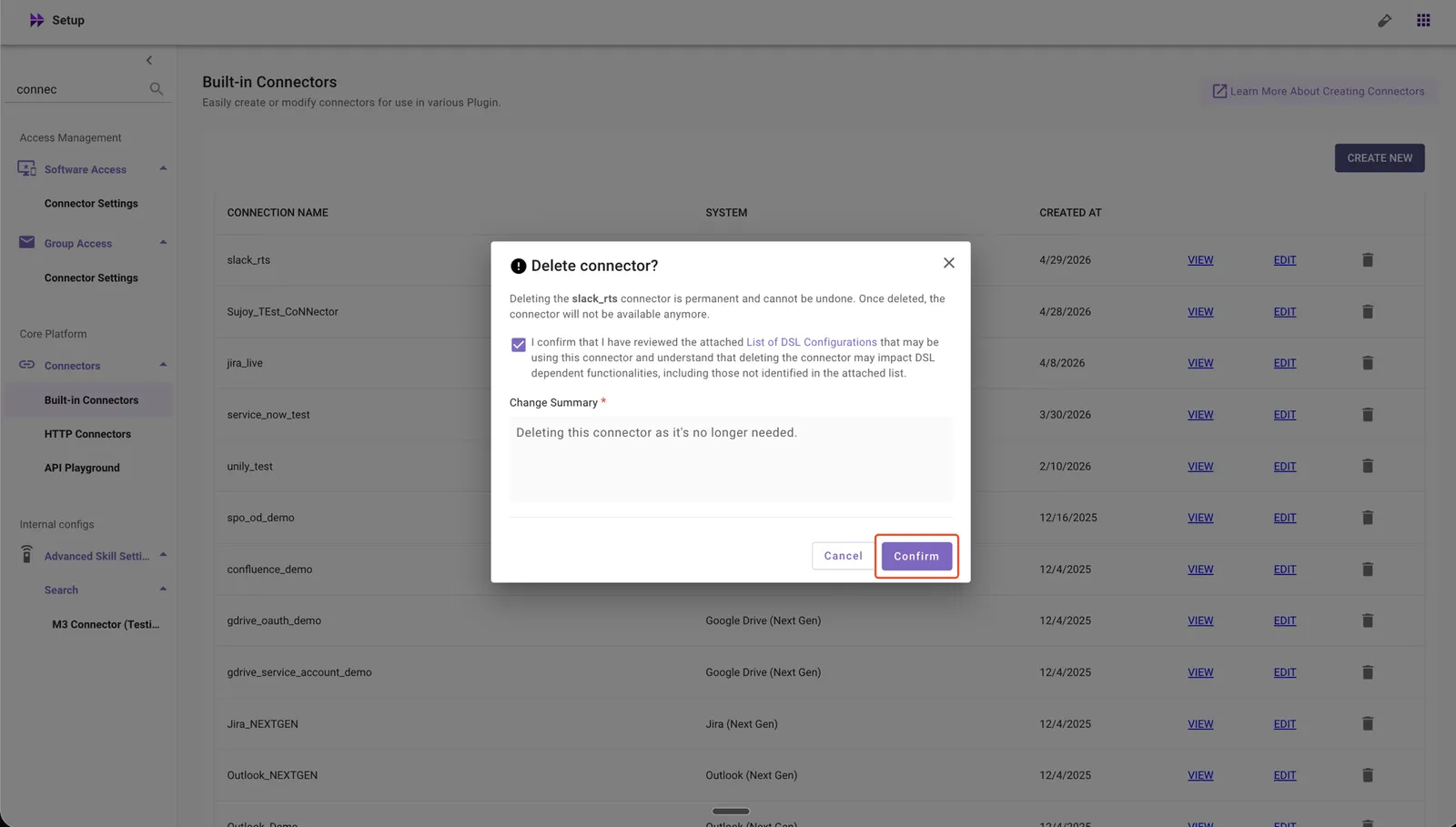
Before deleting a connector, review its references in your DSL rules. Moveworks does not detect DSL references to connectors automatically, so dependent functionality may fail silently after deletion. See DSL Configurations to Review for the full list of configurations to check.
What the Confirmation Includes
Before deletion is confirmed, you will see a warning that states:
- Deleting the connector permanently removes it from Moveworks Setup.
- Review DSL references to this connector — Moveworks does not detect these automatically, so dependent functionality may fail silently after deletion.
- This action is irreversible. To restore the connector, you must set it up again from scratch.
What Happens Automatically After Deletion
When you confirm the deletion, the system will:
- Remove the connector from Moveworks Setup permanently.
- Break dependent DSL references — configurations that reference this connector may fail silently.
- Reserve the connector name — you cannot create a new connector with the same name as a previously deleted connector, and attempts to do so will error out.
If the Connector Is Referenced by Other Configurations
When you try to delete a connector, the deletion is blocked if any configuration in Moveworks Setup still references it. The error dialog lists the specific referencing configurations — for example, IdentityIngestionVars and SSOConfig in the dialog below:
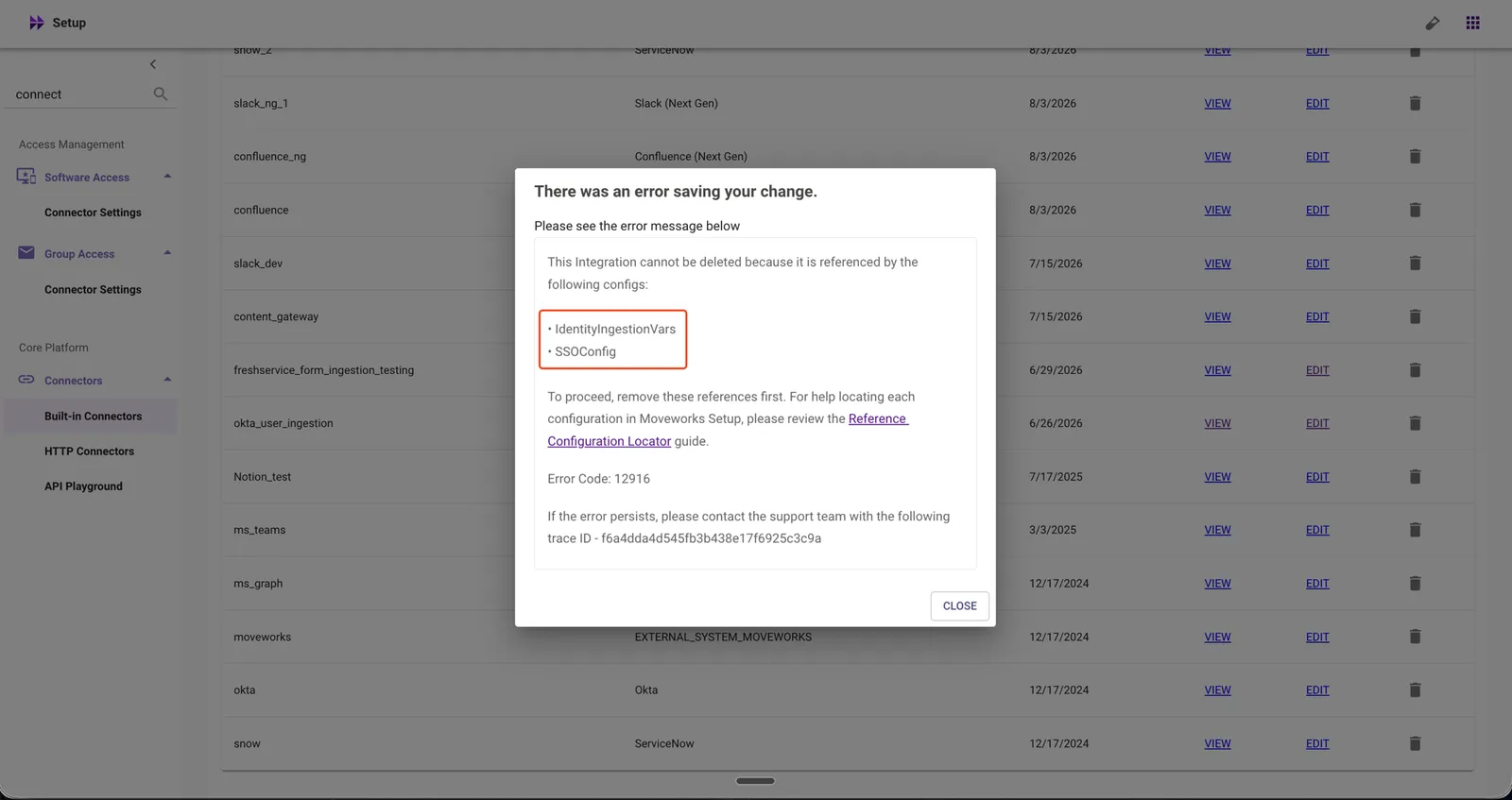
IdentityIngestionVars and SSOConfig are shown here as examples — the actual list depends on how the connector is used in your setup. A connector may be referenced by any of the following configurations:
- SSOConfig
- ACLIngestionVars
- AccessControlStrategy
- FormIngestionIntegrationConfig
- IdentityIngestionVars
- ChatVars
- EnterpriseSearchContentConfig
- AgentHandoffConfig
- ApprovalsConfig
- ApprovalsIntegrationConfig
- ApprovalsResourceConfig
- AccessSoftwareConfig
Refer to the Reference Configuration Locator to find where each configuration is managed and how to clear the reference before retrying the connector deletion.
Deleting a Forms Configuration
How to Delete
-
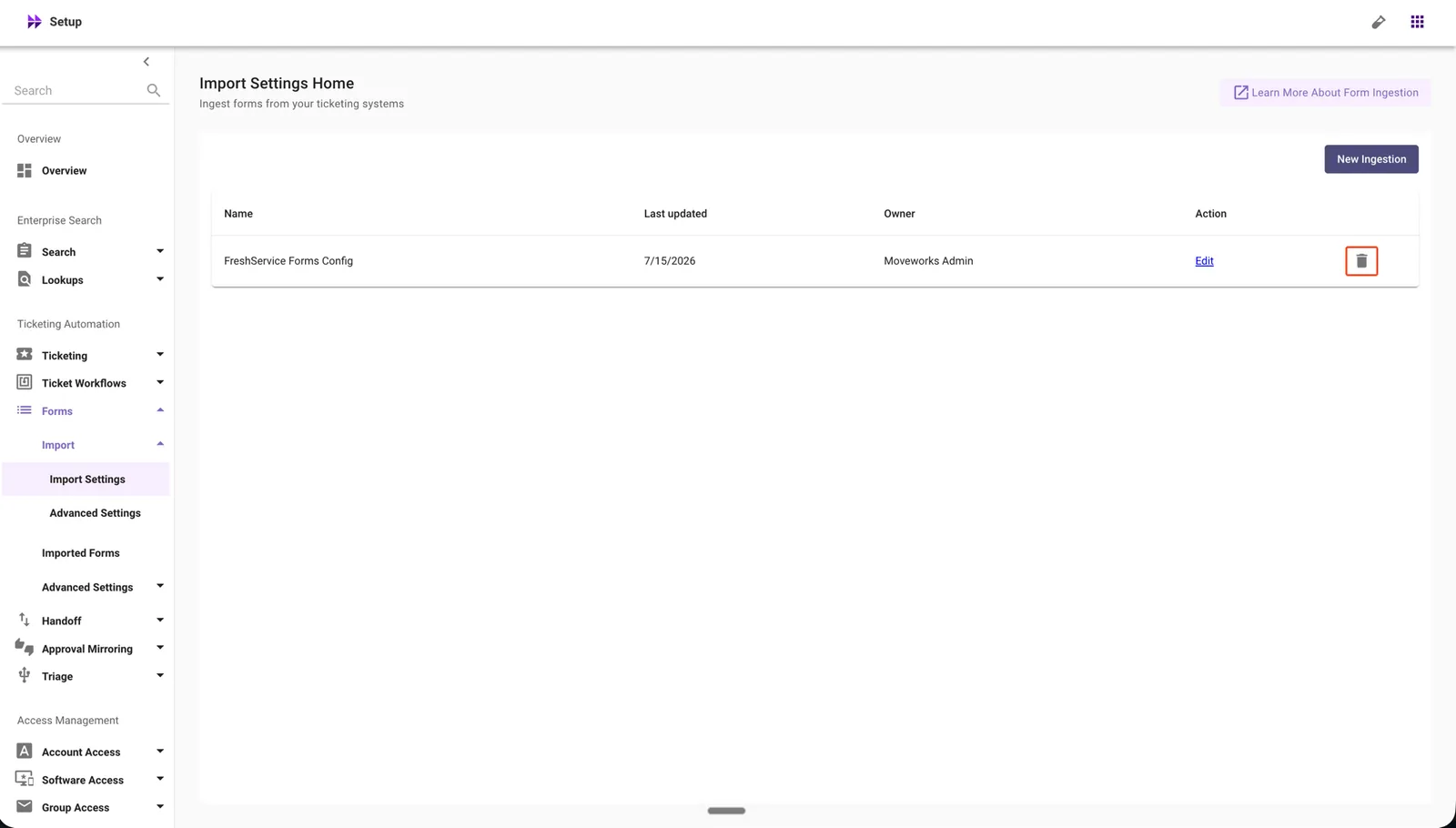
In Moveworks Setup, go to Ticketing Automation → Forms → Import → Import Settings.
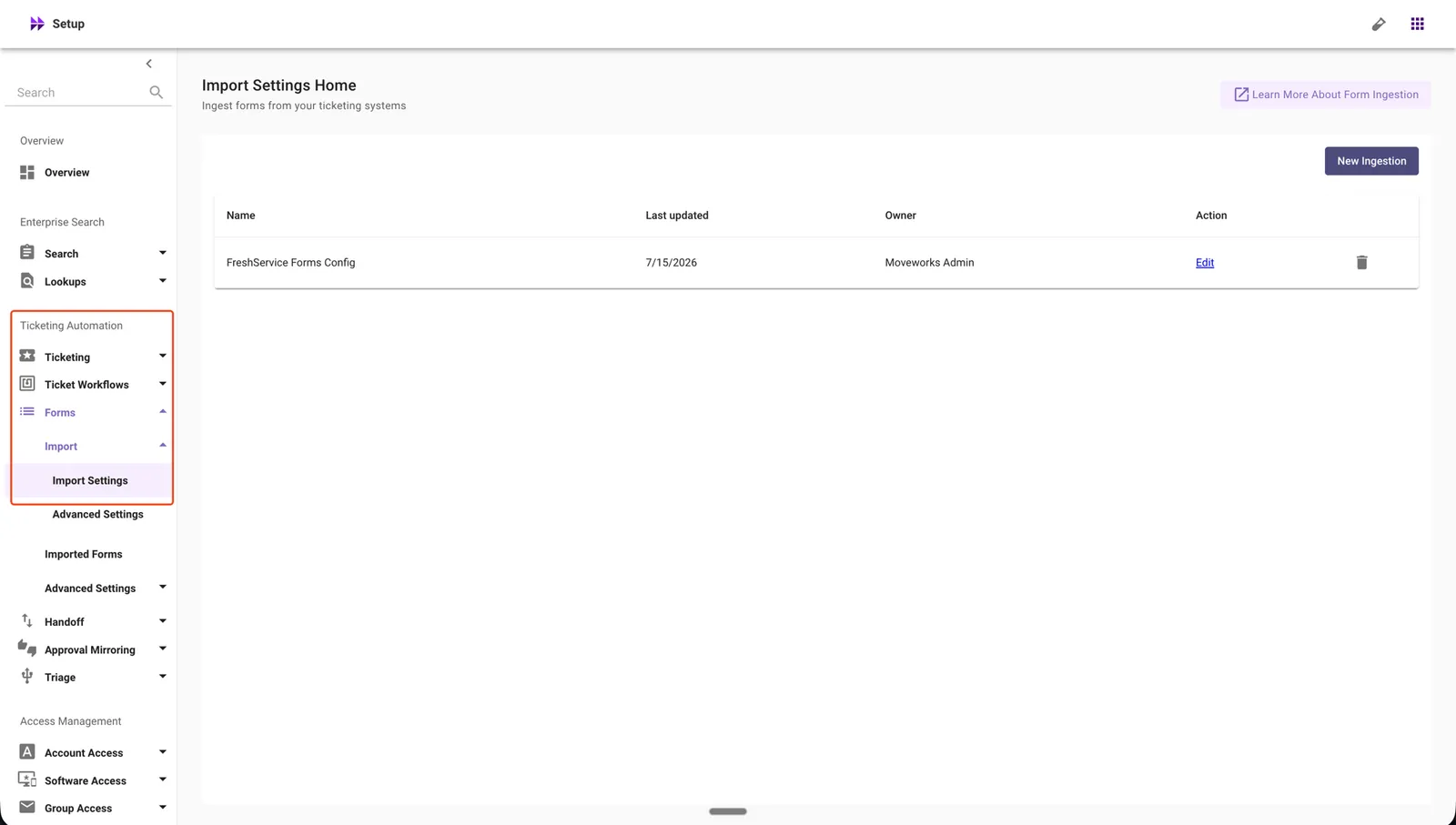
-
Click the delete icon for the Forms Ingestion configuration you want to remove.
-
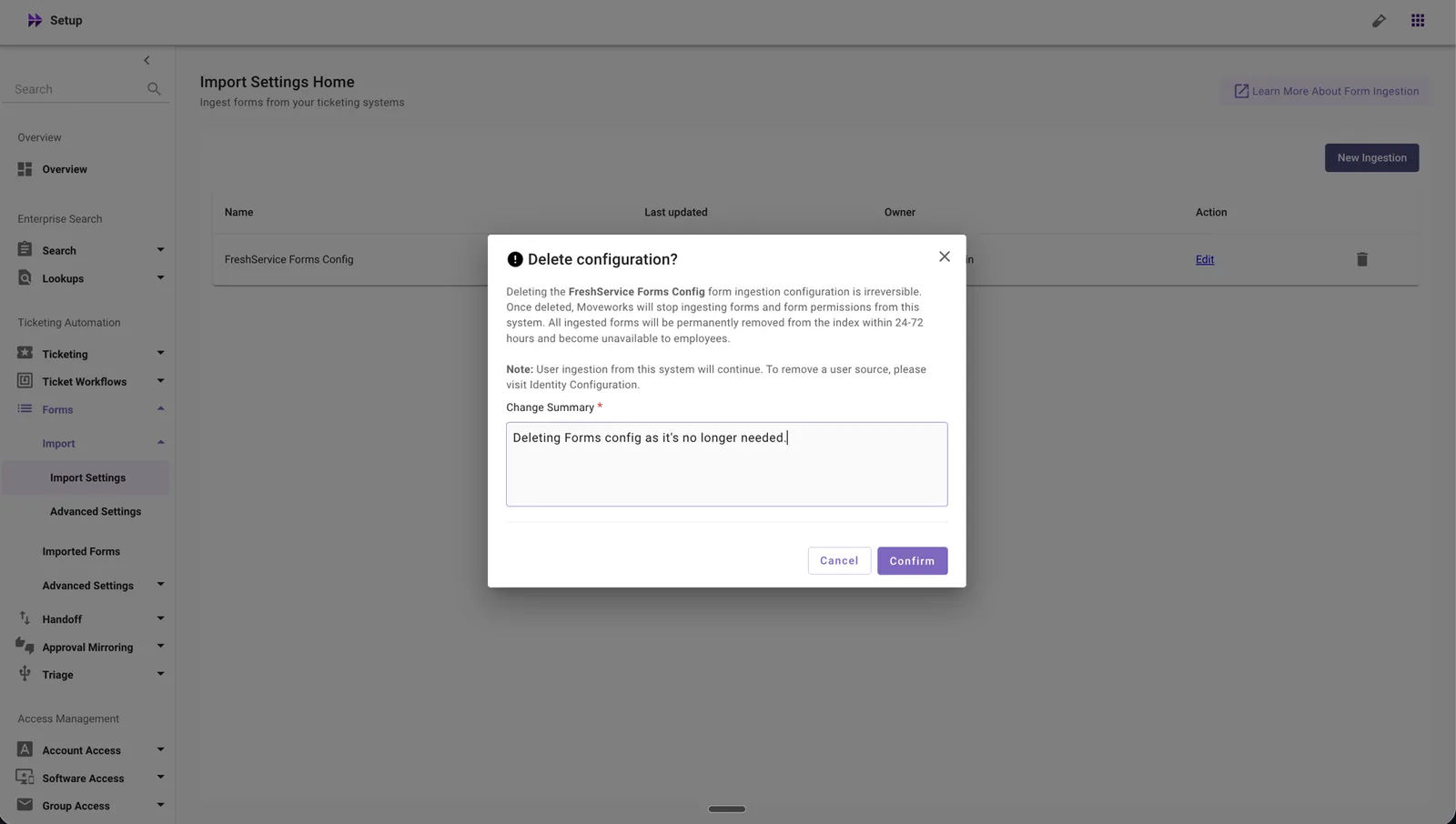
Review the warning message and enter a change summary.
-
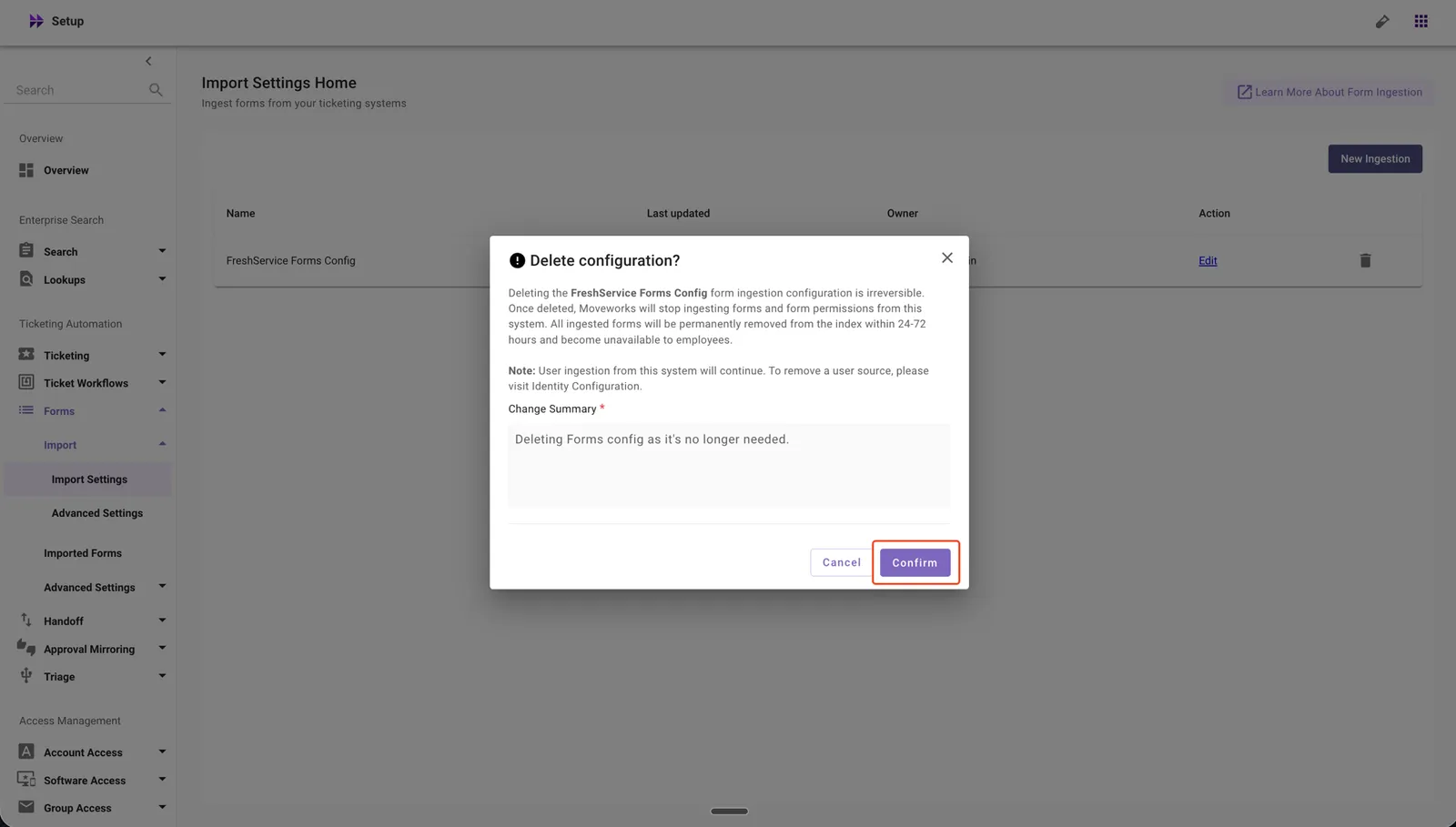
Click Confirm to complete the deletion.
What the Confirmation Includes
Before deletion is confirmed, you will see a warning that states:
- Deleting the Forms configuration permanently removes all indexed forms data within a few hours.
- Users will no longer be able to use forms ingested via this configuration through the AI Assistant.
- This action is irreversible. To restore the configuration, you must set up the Forms configuration again.
What Happens Automatically After Deletion
When you confirm the deletion, the system will:
- Purge all indexed forms data within a few hours of deletion.
- Remove the Forms configuration from Moveworks Setup.
Deleting a Mirror Permissions Configuration
How to Delete
-
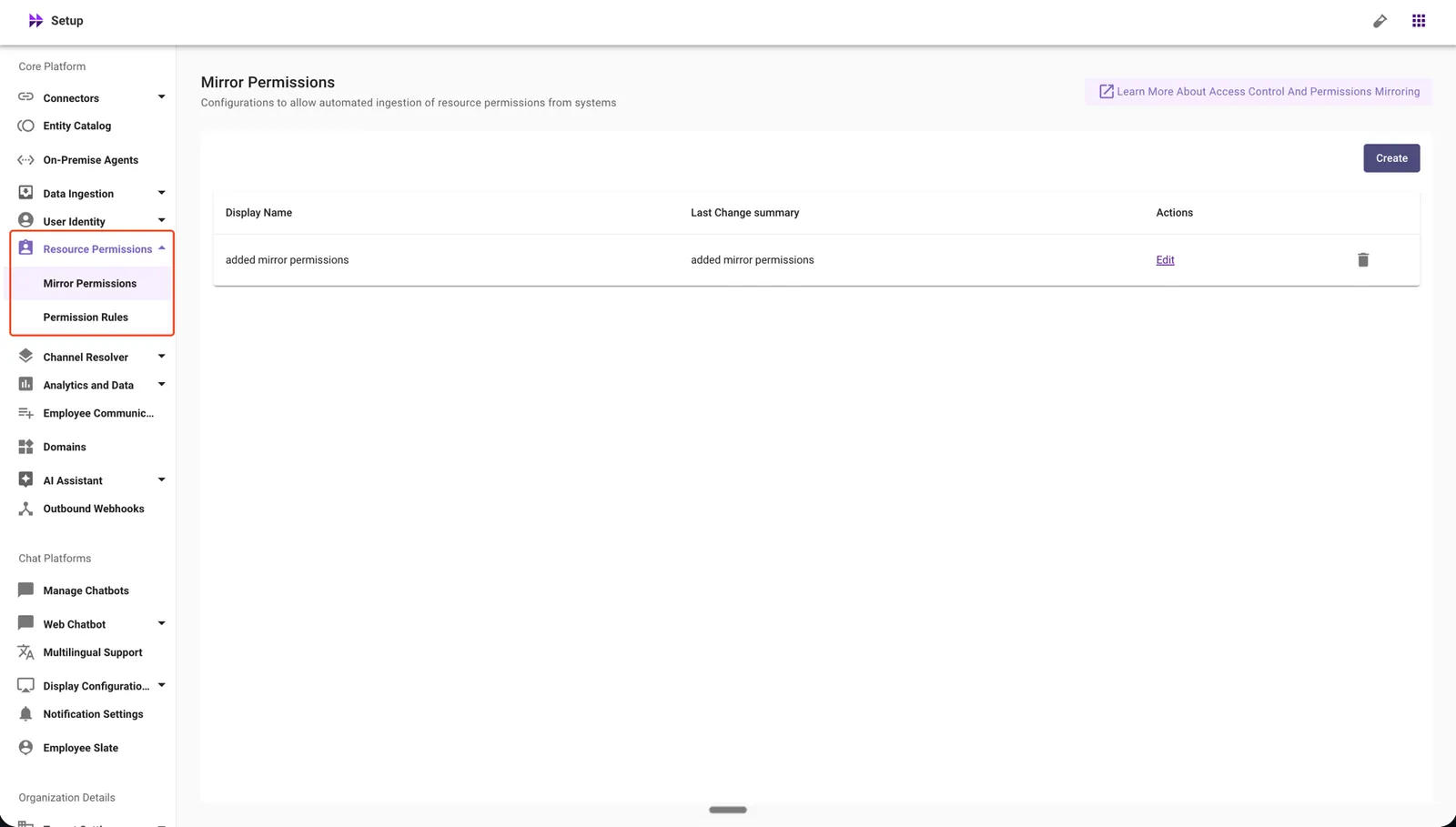
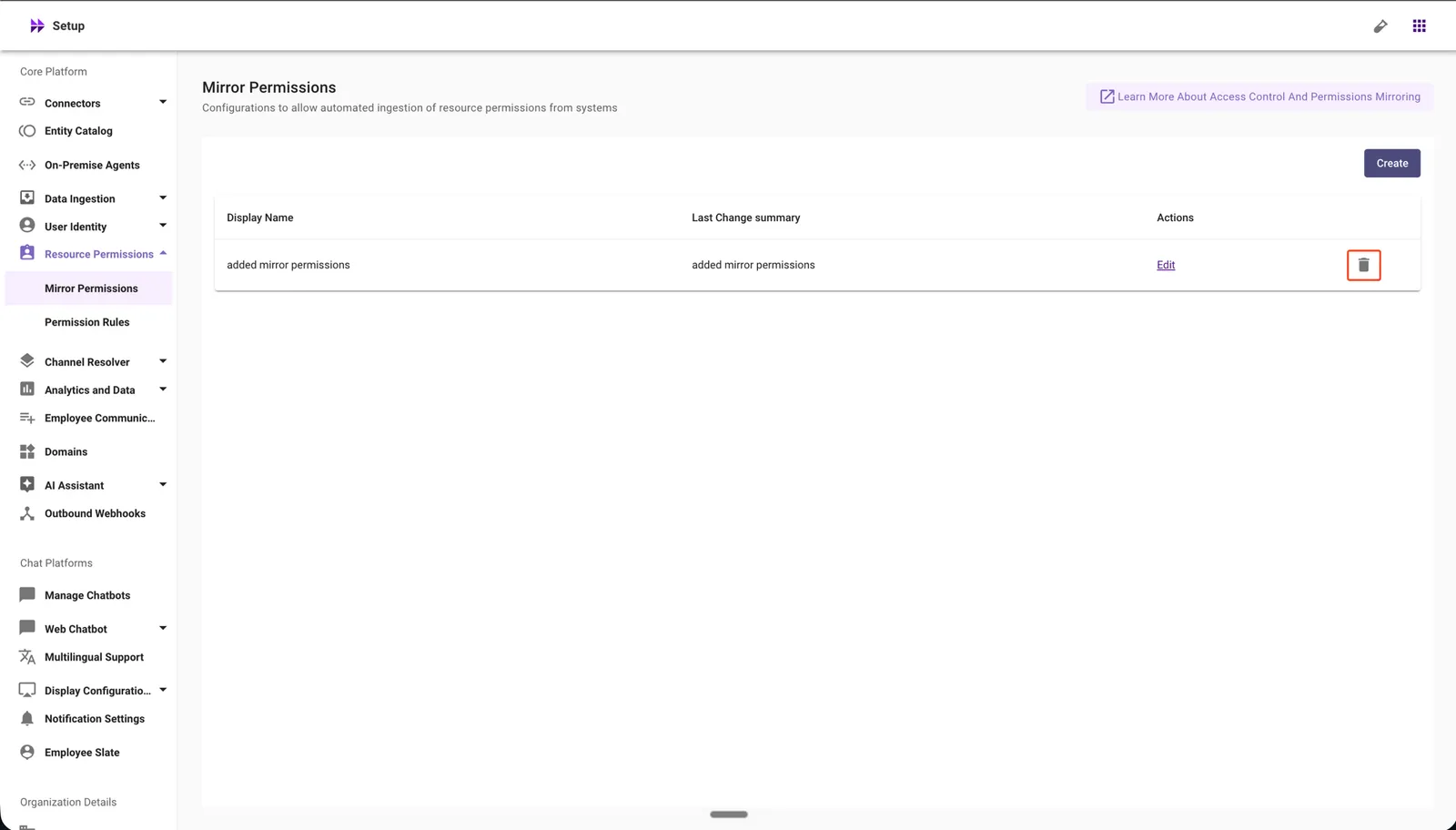
In Moveworks Setup, go to Core Platform → Resource Permissions → Mirror Permissions.
-
Click the delete icon for the Mirror Permissions configuration you want to remove.
-
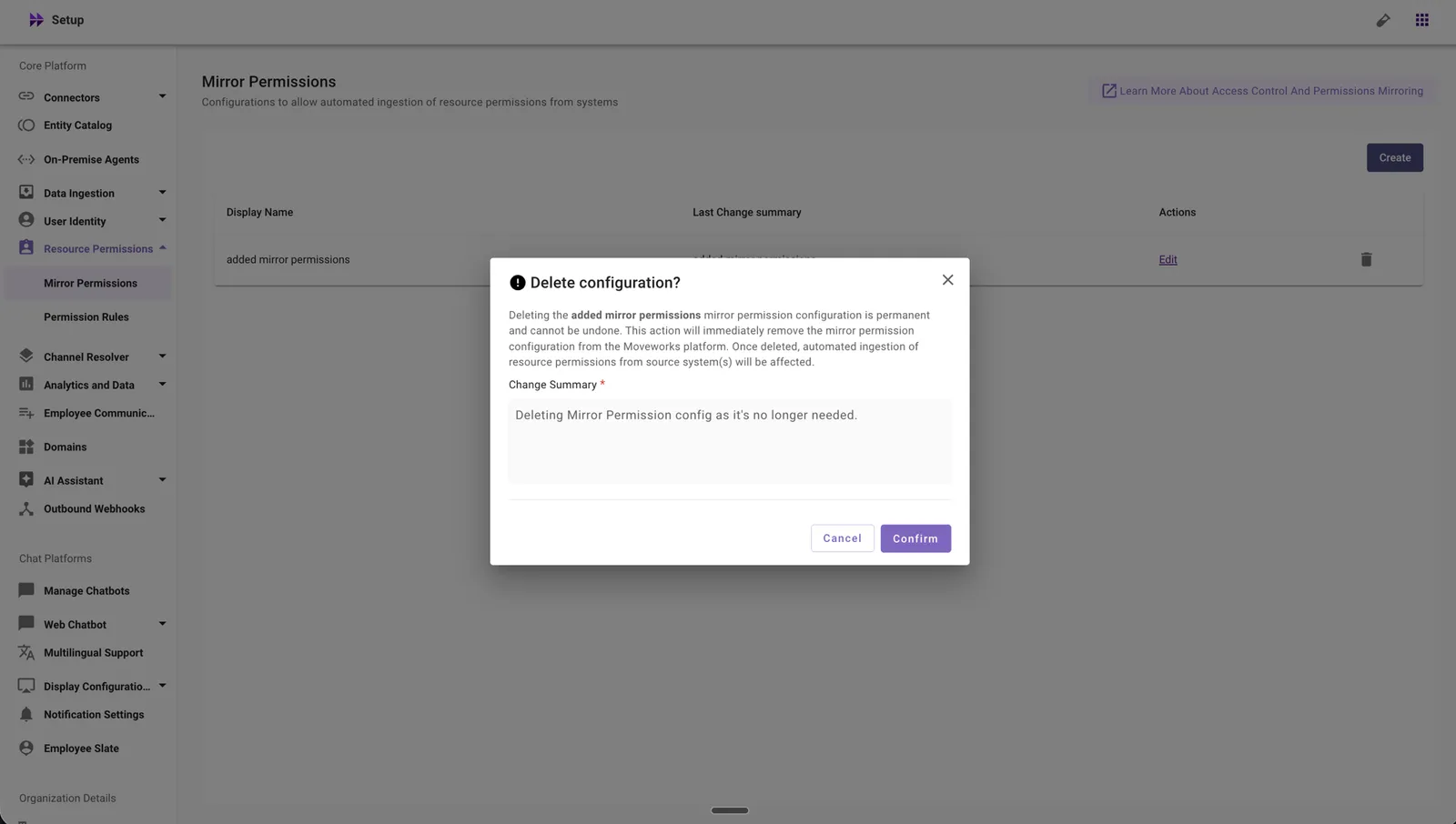
Review the warning message and enter a change summary.
-
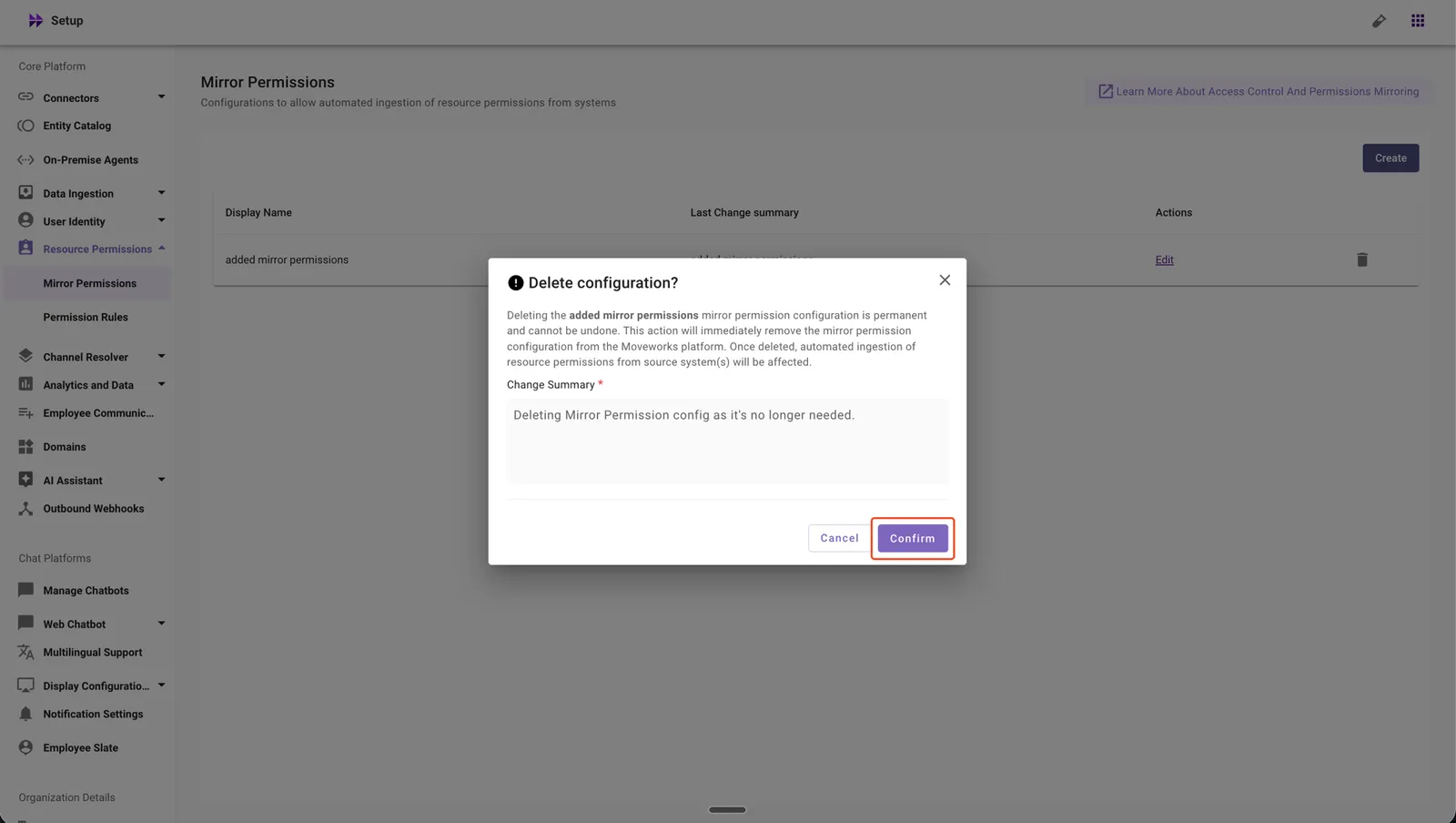
Click Confirm to complete the deletion.
What the Confirmation Includes
Before deletion is confirmed, you will see a warning that states:
- Deleting the Mirror Permissions configuration stops permissions ingestion from ServiceNow for any associated KBs or forms immediately.
- Permission changes made in ServiceNow will no longer be reflected in Moveworks for these resources.
- This action is irreversible. To restore the configuration, you must set up the Mirror Permissions configuration again.
What Happens Automatically After Deletion
When you confirm the deletion, the system will:
- Stop permissions ingestion from ServiceNow for the associated KBs or forms immediately.
- Remove the Mirror Permissions configuration from Moveworks Setup.
If Deletion Is Blocked
A deletion may fail if the configuration is still referenced by dependencies that require additional review before removal. In that case, you will see an error similar to the one below:
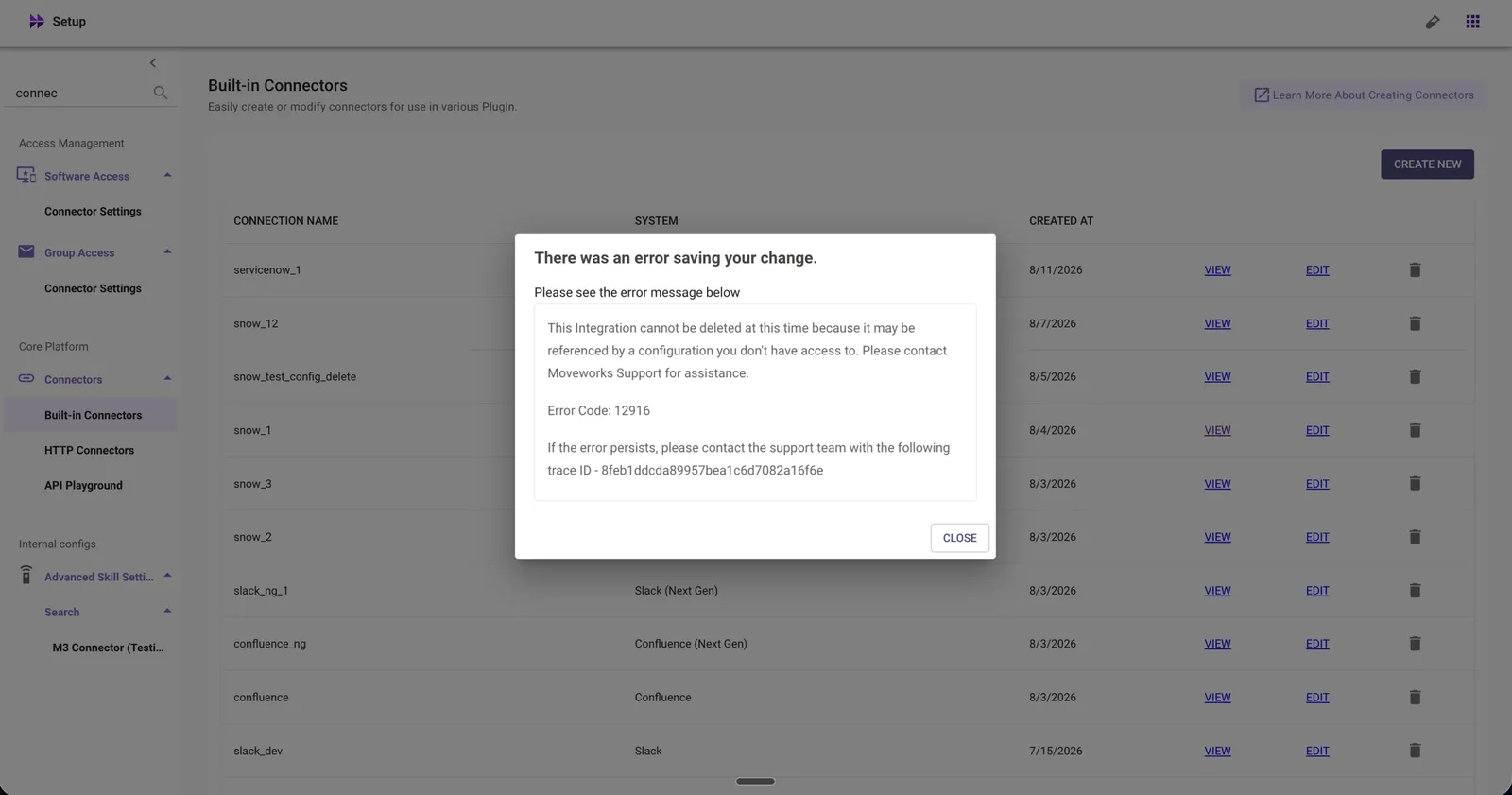
For this — or any other issue you encounter while deleting a configuration — contact Moveworks Support with the error code and trace ID shown in the dialog.
Auditing Configuration Deletions: Delete actions are not yet surfaced in Config Change History or SIEM logs. Support for auditing configuration deletions is on the roadmap and will be available soon.
Frequently Asked Questions
-
Can I undo a configuration deletion?
No. Deletion is irreversible. To restore a deleted configuration, you must set it up again from scratch and wait for any ingestion or processing to complete.
-
What happens to content when I delete an Enterprise Search configuration?
The ingested content is immediately marked as non-serving (it will no longer appear in search results). The data itself is purged from the index within a few hours.
-
Will deleting a configuration affect User Identity settings?
No. Deleting an Enterprise Search configuration does not remove User Identity configurations. You must remove those separately if needed.
-
Can I delete File Ingestion or Knowledge Ingestion configurations?
Not through self-service at this time. Contact your FDE or Moveworks support team for assistance with these deletions.
-
What happens if I try to delete a Ticket Workflow that is used in routing?
The system will block the deletion and display a “Workflow can’t be deleted” message. You must first remove the workflow from all routing conditions where it is referenced, then retry the deletion.
-
What happens if I try to delete a Rich Ticket Filing form that is used in a handoff?
The system will block the deletion and display a “Form can’t be deleted” message. You must first remove the form from all Smart Handoff configurations where it is referenced, then retry the deletion.
-
Why can’t I create a connector with the same name as one I previously deleted?
Connector names must be unique across your org, including names from previously deleted connectors, which remain reserved. Use a different name for the new connector. If a different name still doesn’t work, please contact Moveworks Support for assistance.
-
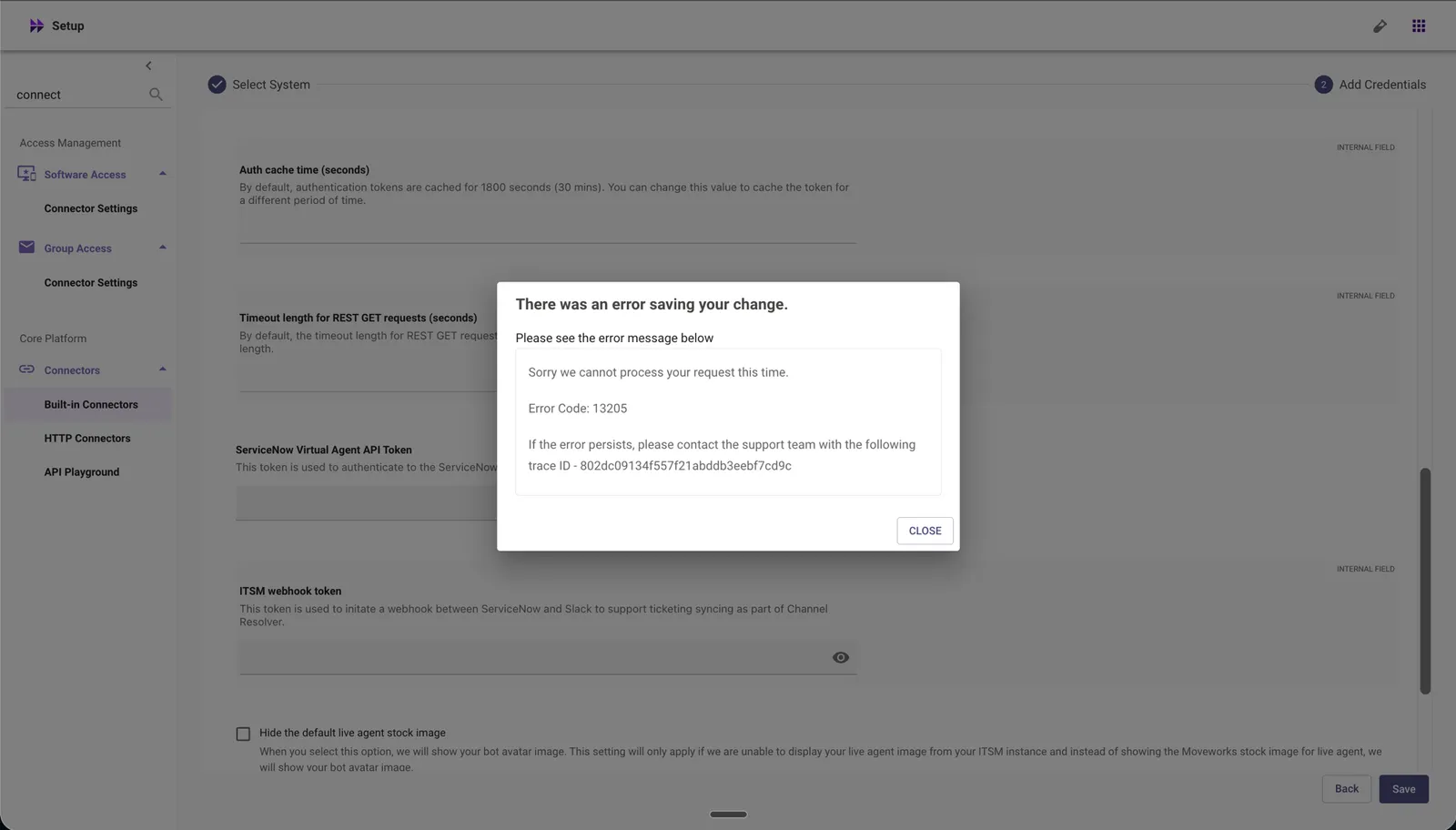
I see an error such as “Sorry, we cannot process your request at the time” while creating a new connector. What should I do?
A common cause is attempting to create a connector with the same name as a previously deleted connector. This is currently blocked by connector uniqueness checks. Use a different name for the new connector. If a different name still doesn’t work, please contact Moveworks Support for assistance.
-
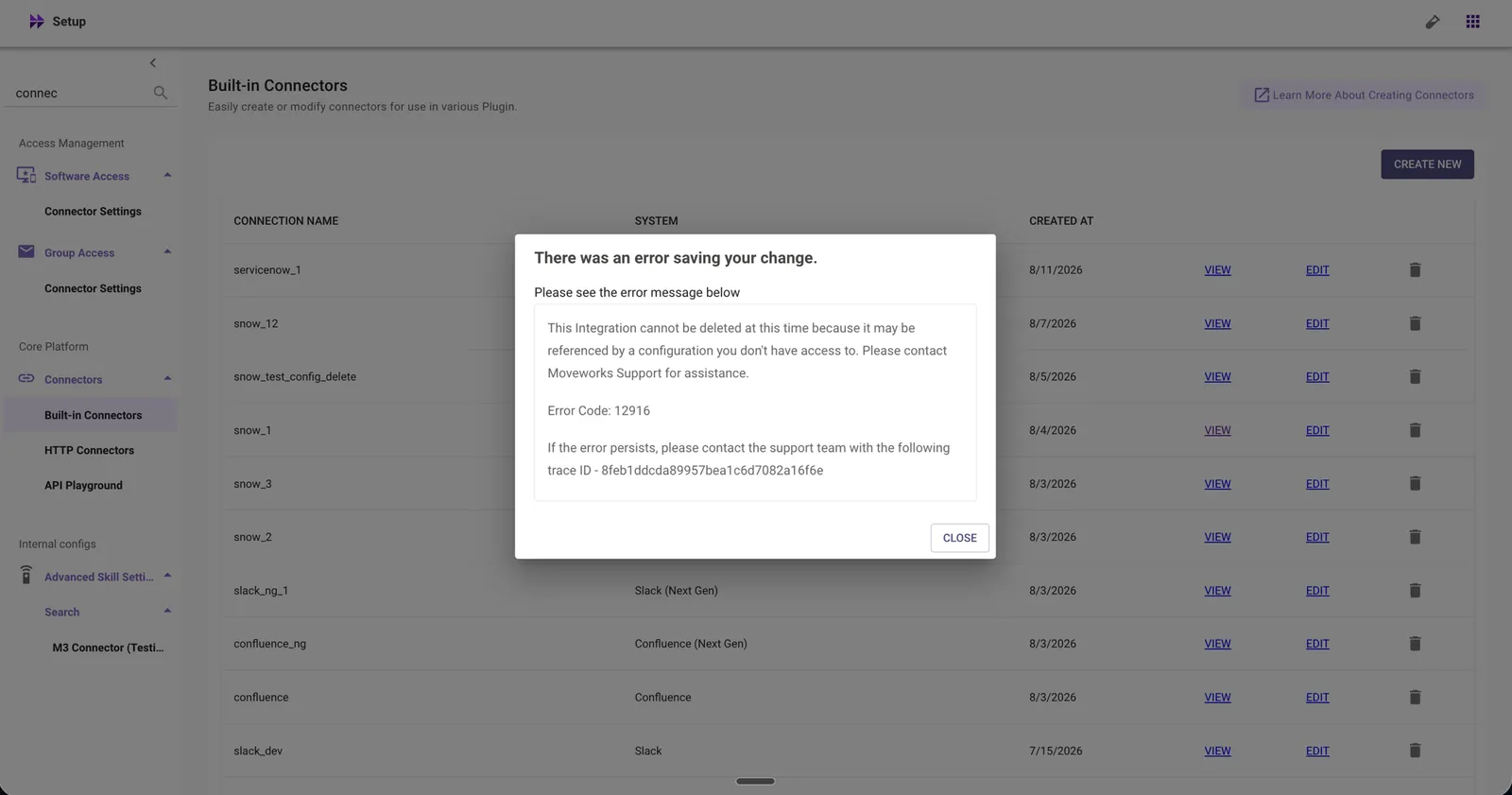
I see an error such as “This {configuration} cannot be deleted at this time because it may be referenced by a configuration you don’t have access to. Please contact Moveworks Support for assistance.” while deleting a configuration. What should I do?
A deletion may be blocked because:
- The configuration is referenced by another configuration.
- The dependent configuration does not yet support self-service deletion.
- An internal dependency/reference prevents the deletion from completing.
- The dependency cannot currently be removed through Moveworks Setup.
These blocks are intentional safeguards — we prefer to stop a deletion rather than allow it to leave broken references behind. Please contact Moveworks Support with the error code and trace ID shown in the dialog.
-
Can I delete User Identity, Chatbot, or SSO configurations in live orgs? I can’t see the Delete button.
Deletion of these high-impact configurations is restricted in live orgs because of the potential outage risk — the option is intentionally withheld. If you have a legitimate need to delete one of these, please contact Moveworks Support for assistance.
-
Are DSL references automatically detected before deleting a connector?
No. DSL references are not currently auto-detected or enforced as dependencies. Before deleting a connector, review the DSL Configurations to Review guide and manually check for connector references. Skipping this step may result in silent failures or broken references after deletion.
-
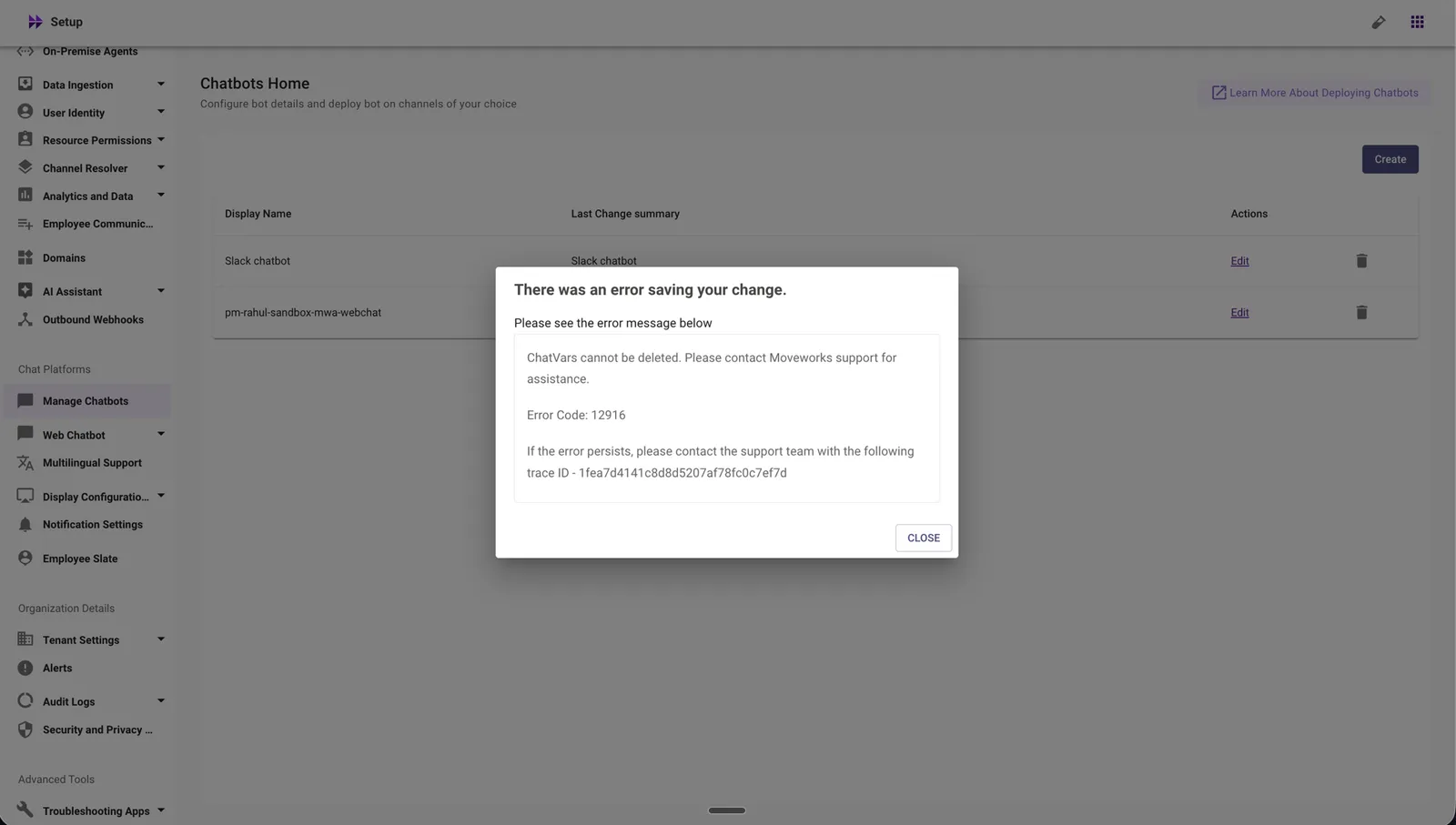
I see an error such as “ChatVars cannot be deleted. Please contact Moveworks Support for assistance.” when trying to delete the default Web Chatbot configuration. What should I do?
The default Web Chatbot configuration created out of the box cannot be deleted. This is expected behavior. If you have a legitimate need to delete this configuration, please contact Moveworks Support for assistance.
-
I see a dependency called “IdentityIngestionVars” or “ChatVars.” What does that mean?
Use the Reference Configuration Locator doc to map dependency module names to their configuration names and locations in Moveworks Setup, with screenshots for reference.
-
Are Config Delete actions captured in Config Change History or SIEM logs?
Not yet. Support for capturing delete actions in Config Change History and SIEM logs is planned on the roadmap and will be available soon.