For AI agents: a documentation index is available at the root level at /llms.txt and /llms-full.txt. Append /llms.txt to any URL for a page-level index, or .md for the markdown version of any page.
Logo
DeveloperAcademyCommunityStatus
  • Service Management
    • Overview
    • Concierge & Ticketing Capabilities Overview
    • Forms
    • Forms - Integration Specific Guides
    • Live Agent Chat / Handoff
    • Triage
    • Approval Mirroring
    • Ticket Interception
    • Generic Ticketing Integration: Ticket Gateway
  • Administration
    • MyMoveworks
    • Organization Information
    • Roles and Permissions
    • MyMoveworks SSO
  • Moveworks Setup
    • Accessing Moveworks Setup
    • First-Time Login via Magic Link
    • Moveworks Setup Modules
    • Moveworks Setup: Module How To Guides
    • Plugin Management
    • Monitor Alerts
    • Audit Logs
    • DSL Fields Defaults
    • Data Crawling View
    • API Playground
    • Setup Homepage
    • Troubleshooting Hub
    • Security and Privacy Settings
    • Configuration Delete
    • Advanced Config Editor
    • Identity configuration
    • Onboarding Stage
  • Security
    • Security
    • Hyperlink & Button Expiry
    • Attachment Handling
    • Moveworks Subprocessors
  • Provision Management
    • Overview
    • Access Software
    • Access Groups
    • Access Account
  • Access Requirements
    • Overview
    • Update Set Modules
    • Ticketing Systems & ITSMs Access
    • Identity and Access Management Systems Access
    • Multi-Factor Authentication (MFA) Systems Access
    • Knowledge Access Requirements
      • ServiceNow (KB Only) Access Requirements
      • Sharepoint Online Access Requirements (KBs & Files) [Classic]
      • SharePoint (On-Prem) Access Requirements
      • Confluence Cloud Access Requirements
      • Confluence Server / Data Center Access Requirements
      • Google Drive Access Requirements
      • Notion Access Requirements
      • Guru Access Requirements
      • Salesforce Knowledge Access Requirements
      • Simpplr Access Requirements
      • Simpplr Access Requirements [NEW]
      • LumApps Access Requirements
      • Unily Access Setup Guide
      • Jive Access Requirements
      • Interact Access Requirements
      • Igloo Access Requirements
      • Haystack Access Requirements
      • GitHub Knowledge Access Requirements
      • Dropbox Content Access Requirements
      • Contentful Access Requirements
      • Quip Access Requirements
      • Slite Access Requirements
      • ScreenSteps Access Requirements
      • RightAnswers Access Requirements
      • SAP Build Work Zone Access Requirements
      • StaffBase Access Requirements
      • Squiz KB Access Requirements
      • WordPress Access Requirements
      • Workday Access Requirements (Knowledge)
      • Axero Access Requirements
      • Comaround Access Requirements
    • Email Distribution List Systems Access
    • Facilities Management Access
    • Live Agent Chat Access
    • HR Information System Access
    • Expense Management Access
    • Calendar Management Access
  • Core Platform
    • User Identity
    • Moveworks On-Prem Agent
    • Approvals Engine
    • Entity Catalog
    • Configuration Languages
    • Moveworks Data Objects
    • SIEM
  • Employee Experience Insights
    • Overview
    • Breaking Down the Dashboard
    • Understanding Industry Benchmarks
    • Apps & Services
    • Impact Module
    • EXI Common Use Cases
    • Configure EXI
    • Ticket Backpolling
  • Knowledge Studio
    • Overview
    • Knowledge Studio Configuration
    • AI Powered Recommendations
    • Inspecting & Verifying Sources
    • Publishing Articles
    • Creating Knowledge Articles
    • Resolving IT Tickets Guidance
DeveloperAcademyCommunityStatus
On this page
  • Prerequisite
  • Process Walkthrough
  • Create the Connector in Moveworks Setup
Access RequirementsKnowledge Access Requirements

Simpplr Access Requirements

||View as Markdown|
Was this page helpful?
Edit this page
Previous

Simpplr Access Requirements [NEW]

Next
Built with

Use this document for instructions on how to get the access setup in place for the Moveworks integration with Simpplr.

Prerequisite

Make sure you have the salesforce.crt file handy. The Moveworks team should generate and share this with you.

Process Walkthrough

Please play close attention to the listed values while configuring access. These must be exact matches - they are not just examples.

  1. Create a Connected App in your Salesforce instance

    1. Under Setup > App Manager: Click New Connected App
    2. Fill basic info: {Connected App Name: Moveworks_Server, API Name: Moveworks_Server, Contact Email: support@moveworks.ai}
    3. Select enable oAuth settings under API (Enable oAuth Settings) & add {Callback URL: https://login.salesforce.com/}
    4. Check Use digital signatures. Upload the salesforce.crt that was provided as a pre-req.
    5. Add oAuth scopes to: 
      1. api
      2. refresh_token, offline_access
      3. visualforce (only required for Simpplr)
    6. Click Save & Note down the Consumer Key and the Consumer Secret
    7. After saving Update OAuth Policies, click
      1. Manage> Edit Policies
      2. And in the OAuth policies section, change Permitted Users to Admin approved users are pre-authorized
      3. And in the Session policies section, change Timeout Value to 24 hours
      4. Click Save
  2. Create a Permission Set to interact with the Connected App

    1. Navigate to Users > Permission Sets & click on New
    2. Add moveworks_connected_app as the Label & Api Names & click Save
    3. Now click on the moveworks_connected_app Permission Set and Click Assigned Connected Apps
    4. Click Edit and add Moveworks_Server to list of Enabled Connected Apps & Click Save
  3. Create New Service Account (if it doesn’t exist)

    1. Navigate to Users > Users & click on New User
    2. Enter the following information & click Save:
      1. Last Name: Moveworks
      2. Alias: moveworks
      3. Email, Username & Nickname: moveworks@{{customer-domain}}.com
      4. Setup profile as Standard User
  4. Assign our service user the connected app

    1. Navigate to Users > Users & click on our service user account that we just created
    2. Click on Permission Set Assignment and then Edit Assignments
    3. Now add moveworks_connected_app to list of Enabled Permission Sets & Click Save
  5. Ensure we have the required field level permissions to interact with all the columns

    1. Note down our service account’s Profile Name under Users > Profiles
    2. Navigate to Setup > Object Manager > Click on the object Label Simpplr Content (Simpplr__Simpplr_Content__c)
    3. Click on the Fields & Relationships tab
    4. Then do the steps below for each of the following fields:
      Id
      Simpplr__Title__c
      Simpplr__Text_Intro__c
      Simpplr__Site__c
      Simpplr__Type__c
      Simpplr__Is_Archived__c
      Simpplr__Is_Deleted__c
      Simpplr__Is_Published__c
      Simpplr__Is_Unpublished__c
      Steps:
      1. Click on the column name
      2. Click the button Set field-level Security
      3. Make sure Visible column is checked for our service account’s noted down profile for each of these columns.
      4. Save this configuration

Create the Connector in Moveworks Setup

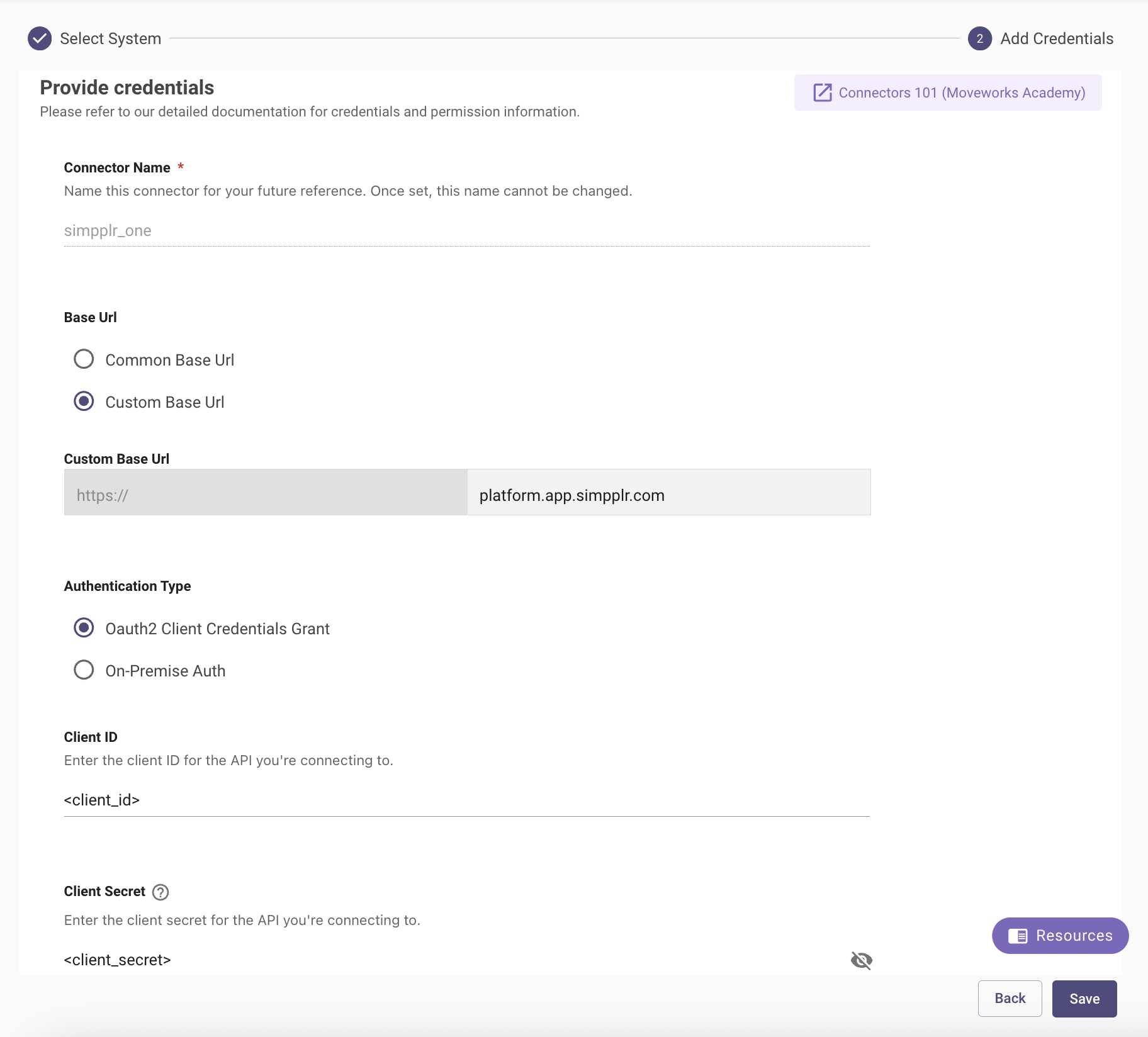
Navigate to Core Platform > System Connectors and create a new connector. Select Simpplr and enter the information below:

  • Connection Name: simpplr (recommended)
  • Base Url: Select “Common Base URL” and enter the tenant of your Simpplr instance if it ends with “.my.salesforce.com”. If not, select “Custom Base URL” and enter your Simpplr instance’s URL.
  • Authentication Type: Simpplr auth
  • Consumer Key: Enter the consumer key generated while creating the connected app
  • Consumer Secret: Enter the consumer secret generated while creating the connected app
  • Username: Enter the username of the service account assigned to Moveworks