For AI agents: a documentation index is available at the root level at /llms.txt and /llms-full.txt. Append /llms.txt to any URL for a page-level index, or .md for the markdown version of any page.
Logo
DeveloperAcademyCommunityStatus
  • Service Management
    • Overview
    • Concierge & Ticketing Capabilities Overview
    • Forms
    • Forms - Integration Specific Guides
    • Live Agent Chat / Handoff
    • Triage
    • Approval Mirroring
    • Ticket Interception
    • Generic Ticketing Integration: Ticket Gateway
  • Administration
    • MyMoveworks
    • Organization Information
    • Roles and Permissions
    • MyMoveworks SSO
  • Moveworks Setup
    • Accessing Moveworks Setup
    • First-Time Login via Magic Link
    • Moveworks Setup Modules
    • Moveworks Setup: Module How To Guides
    • Plugin Management
    • Monitor Alerts
    • Audit Logs
    • DSL Fields Defaults
    • Data Crawling View
    • API Playground
    • Setup Homepage
    • Troubleshooting Hub
    • Security and Privacy Settings
    • Configuration Delete
    • Advanced Config Editor
    • Identity configuration
    • Onboarding Stage
  • Security
    • Security
    • Hyperlink & Button Expiry
    • Attachment Handling
    • Moveworks Subprocessors
  • Provision Management
    • Overview
    • Access Software
    • Access Groups
    • Access Account
  • Access Requirements
    • Overview
    • Update Set Modules
    • Ticketing Systems & ITSMs Access
      • ServiceNow Access Requirements
      • ServiceNow for HR Access Requirements
      • Jira Service Desk Permission (On-Prem) Access Requirements
      • Moveworks Jira Application (for Jira Cloud)
      • Jira Service Management (Cloud) - Access Requirements
      • Zendesk Access Requirements
      • Freshservice Access Requirements
      • Freshdesk Access Requirements
      • Salesforce Access Requirements
      • BMC Remedy/Helix Access Requirements
      • BMC Remedyforce Access Requirements
      • Cherwell Access Requirements
      • Ivanti Neurons ITSM Access Requirement
      • Ivanti Service Manager Access Requirements
      • ManageEngine (Cloud) Access Requirements
      • ManageEngine (On-Prem) Access Requirements
      • SolarWinds Samange Access Requirements
      • Sysaid Access Requirements
    • Identity and Access Management Systems Access
    • Multi-Factor Authentication (MFA) Systems Access
    • Knowledge Access Requirements
    • Email Distribution List Systems Access
    • Facilities Management Access
    • Live Agent Chat Access
    • HR Information System Access
    • Expense Management Access
    • Calendar Management Access
  • Core Platform
    • User Identity
    • Moveworks On-Prem Agent
    • Approvals Engine
    • Entity Catalog
    • Configuration Languages
    • Moveworks Data Objects
    • SIEM
  • Employee Experience Insights
    • Overview
    • Breaking Down the Dashboard
    • Understanding Industry Benchmarks
    • Apps & Services
    • Impact Module
    • EXI Common Use Cases
    • Configure EXI
    • Ticket Backpolling
  • Knowledge Studio
    • Overview
    • Knowledge Studio Configuration
    • AI Powered Recommendations
    • Inspecting & Verifying Sources
    • Publishing Articles
    • Creating Knowledge Articles
    • Resolving IT Tickets Guidance
DeveloperAcademyCommunityStatus
On this page
  • Creating the Moveworks Service Account
  • Step 1: Create the Moveworks Service account role
  • Step 2: Create API key with the newly-created role
  • Exporting Service Request URLs
Access RequirementsTicketing Systems & ITSMs Access

Ivanti Neurons ITSM Access Requirement

||View as Markdown|
Was this page helpful?
Edit this page
Previous

Ivanti Service Manager Access Requirements

Next
Built with

Moveworks works best with a largely out-of-the-box implementation of Ivanti Neurons. However there are certain aspects required to ensure your Moveworks bot has what it needs to fully integrate into your instance.

Creating the Moveworks Service Account

Step 1: Create the Moveworks Service account role

  1. Navigate to Settings > Users and Permissions and create a new user for Moveworks.
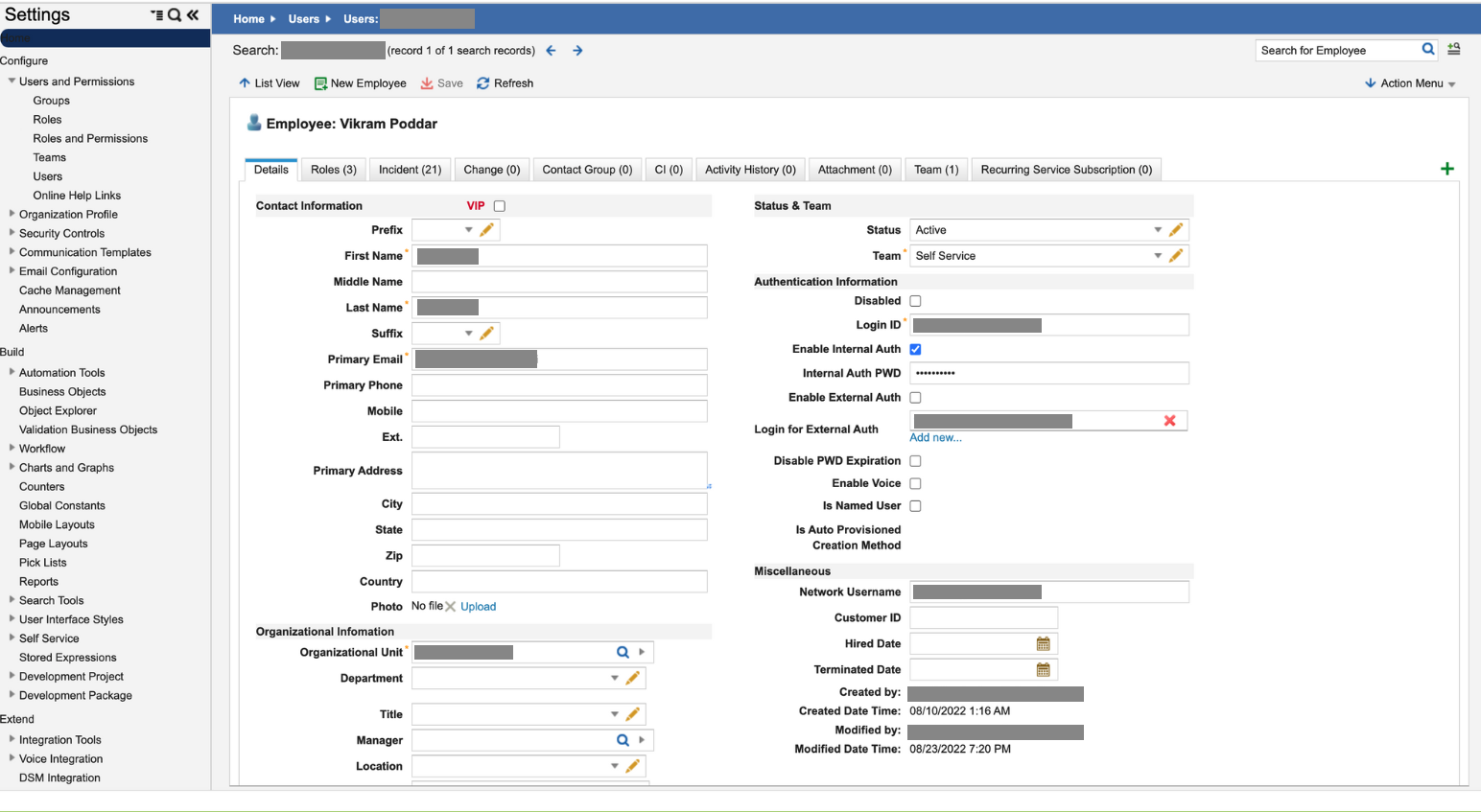
  2. Next, navigate to Settings > Users and Permissions > Roles and Permissions.

  3. Create a new role called Moveworks and edit the permissions.
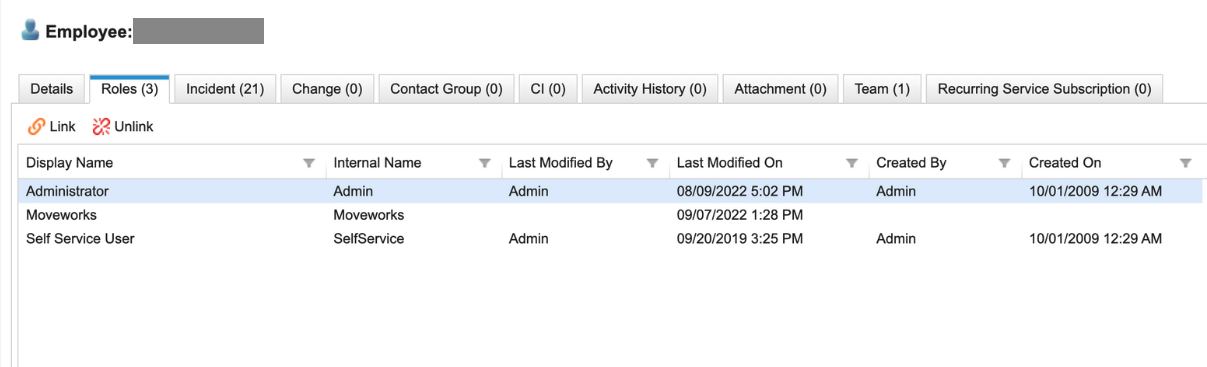
  4. Add the necessary permissions for the Moveworks bot.
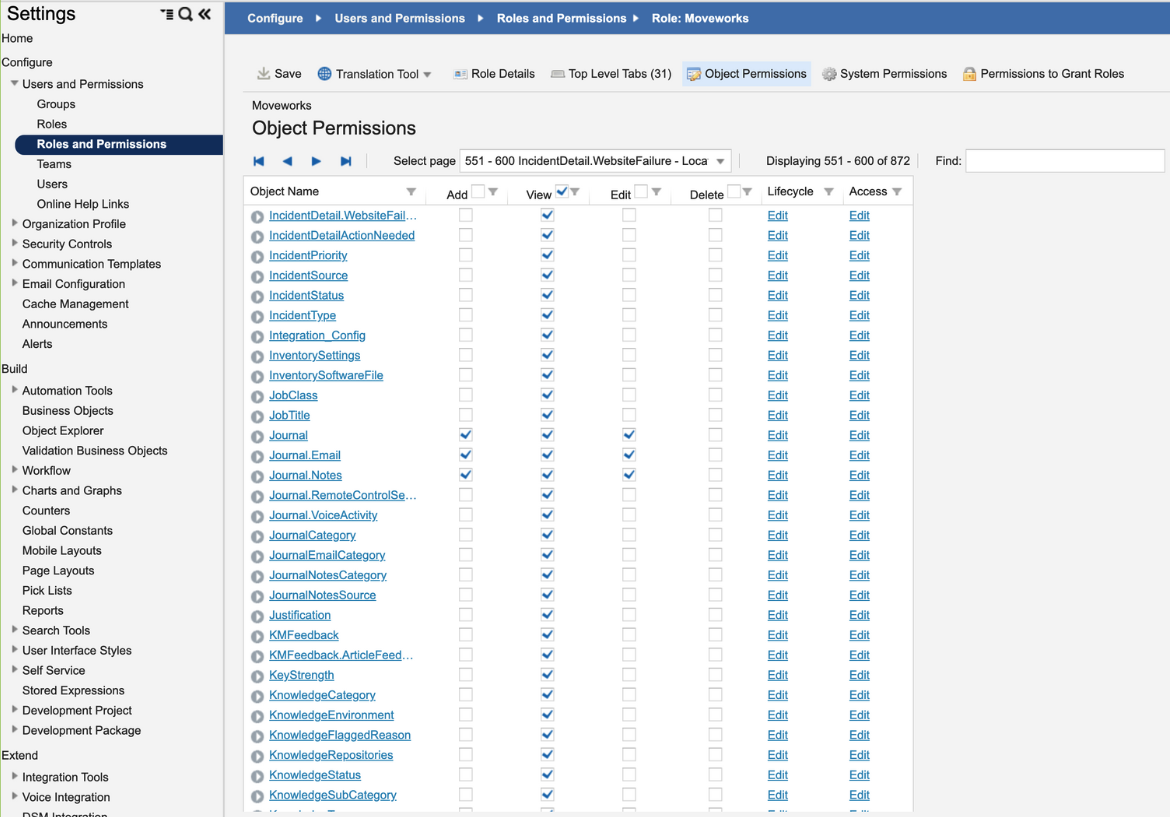
    1. View access to all users, tickets, and knowledge.
      1. Need permission to change the status for Incident and SR.
    2. Edit access to Tickets, Comments, Journals, and Attachments.

Step 2: Create API key with the newly-created role

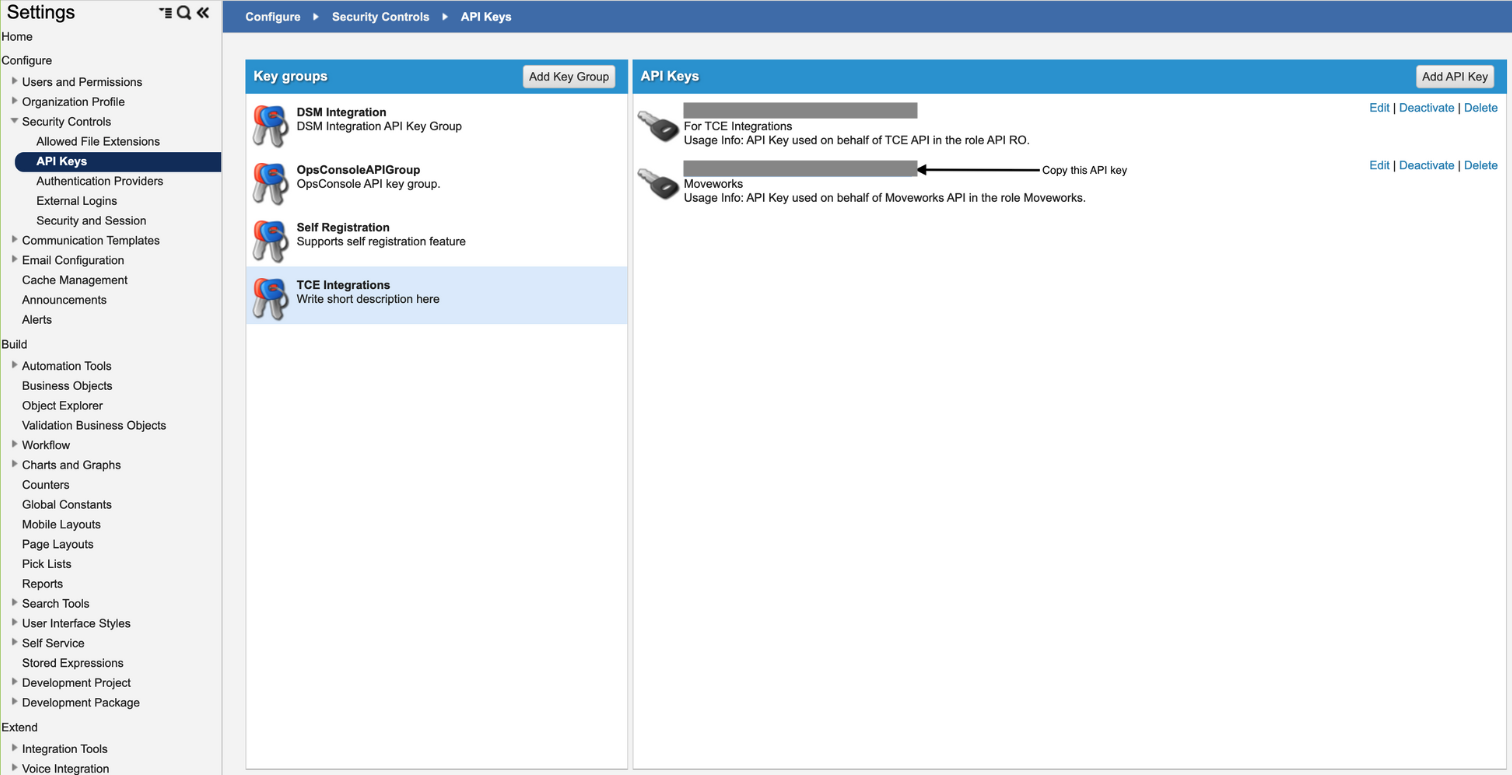
  1. Login into the instance as admin and click on Configure Applications.
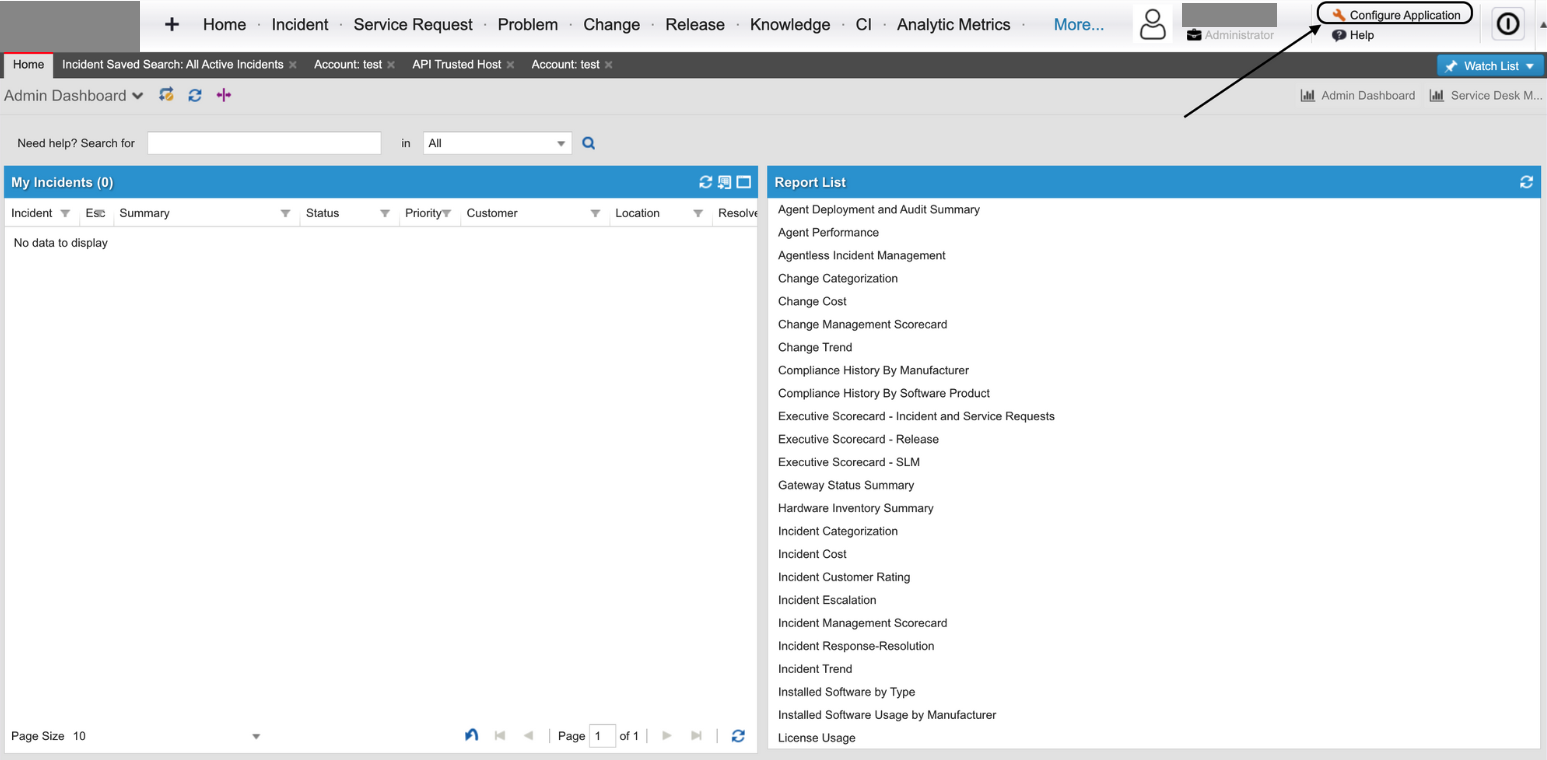
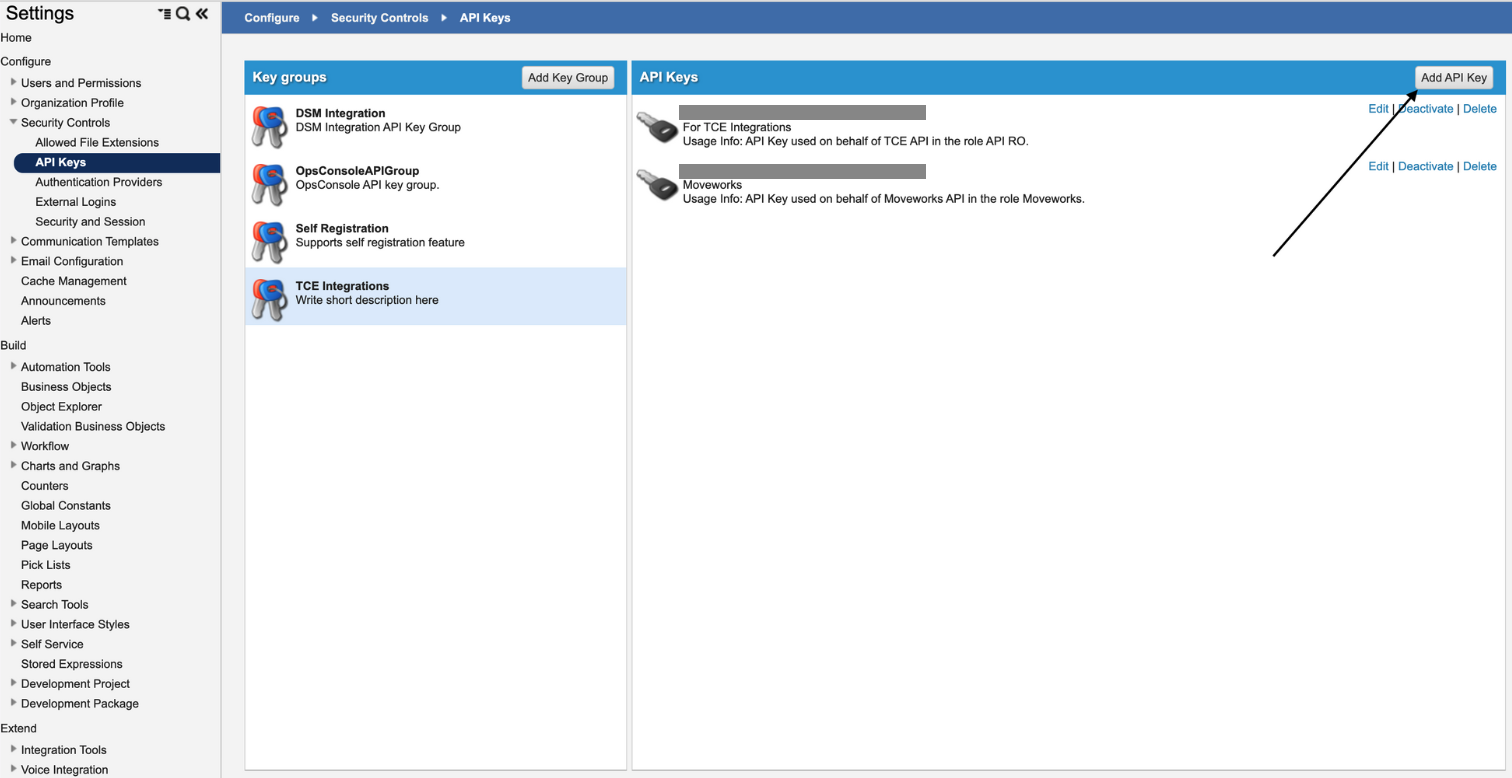
  2. Now click on Security Controls > API Keys located in the left navigation bar.
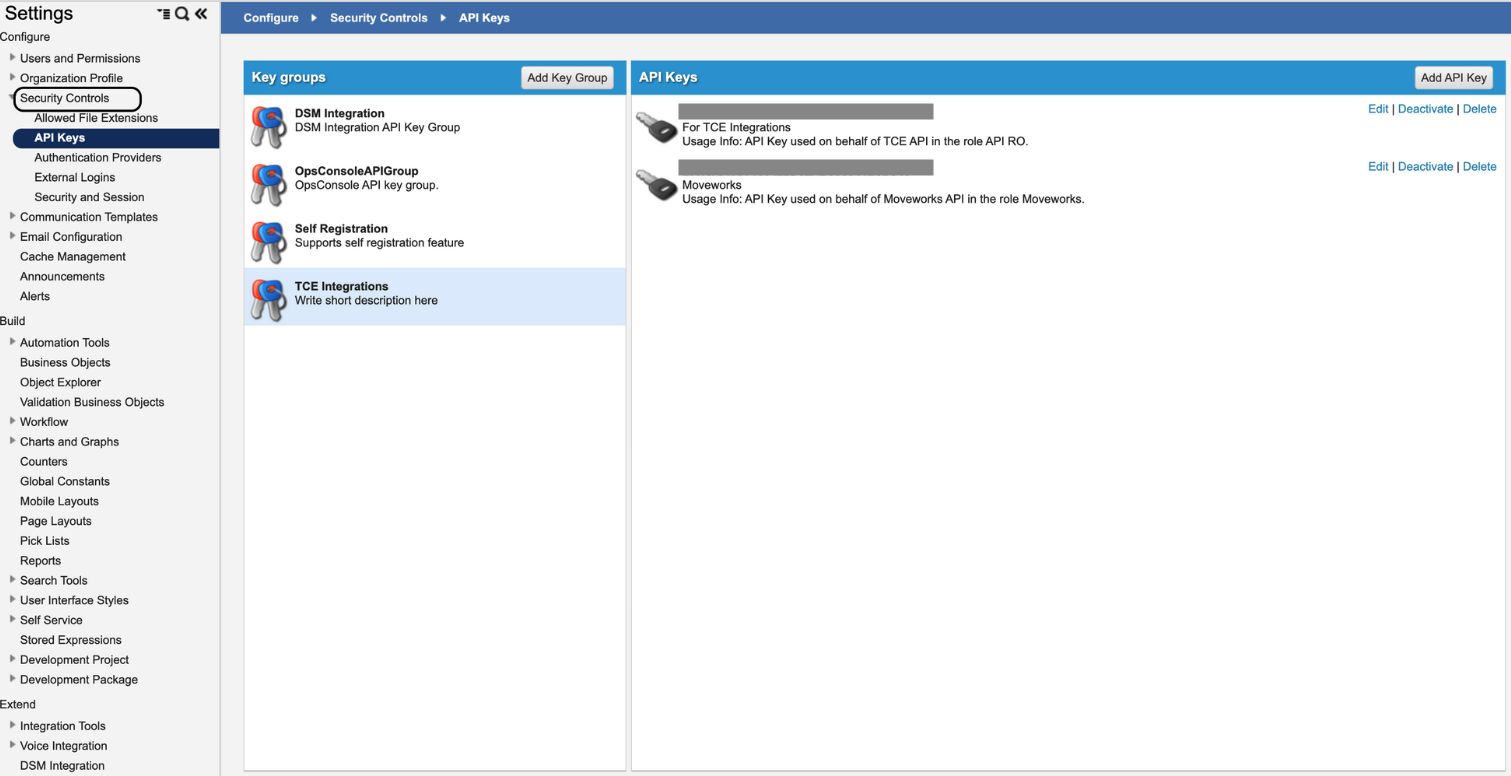
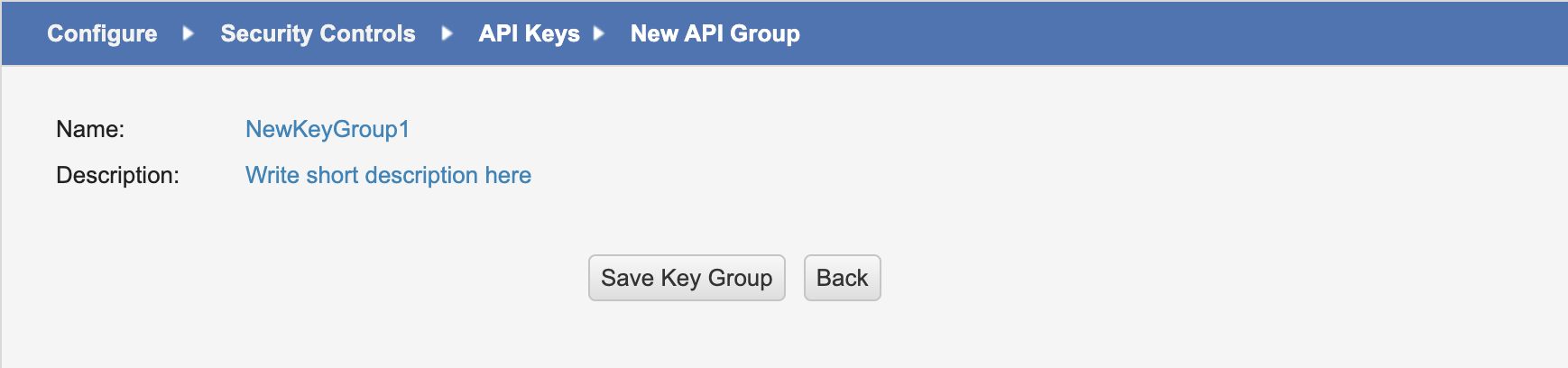
  3. Add a key group for Moveworks.

  4. Add a new API key.

  5. In the subsequent page, add the following:
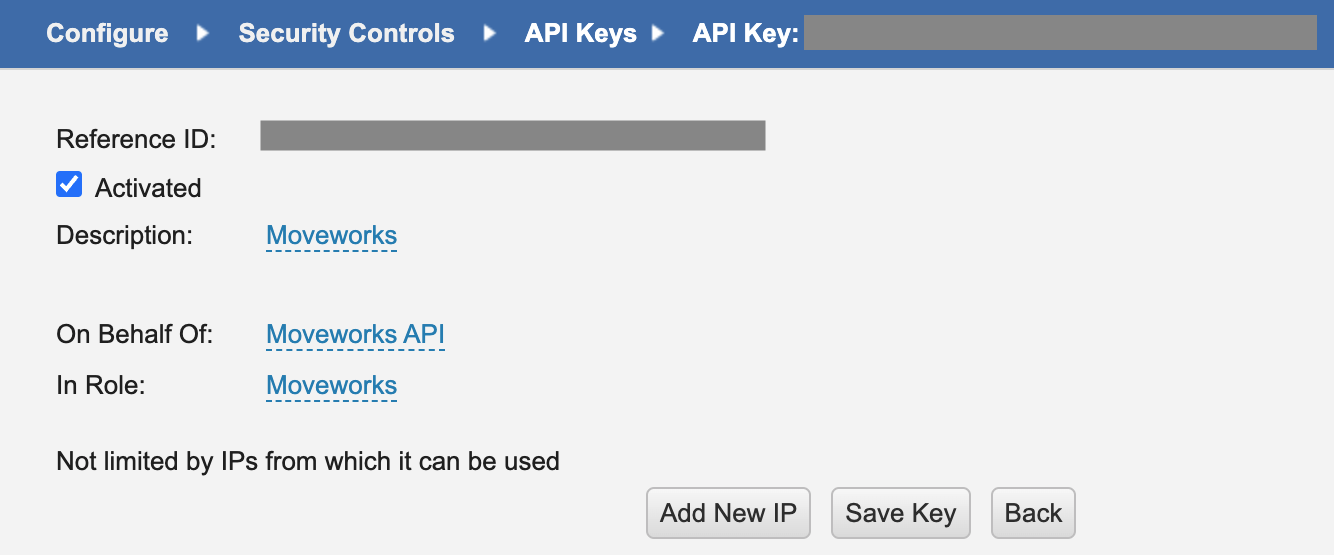
    1. Description: Moveworks
    2. On Behalf Of: <name of service account created in previous section>
    3. In Role: <name of role created in previous section>
  6. Copy the API key and share with your Moveworks team.
Exporting Service Request URLs

When relevant, the Moveworks bot can serve Service Requests to end users to help resolve their question or request. The URLs for these Service Requests must be exported out of Ivanti Neurons and shared with the Moveworks team.

  1. Login as an administrator.

  2. Navigate to More… > Request Offering.

  3. The list of all available forms (Published & Unpublished) will be shown.
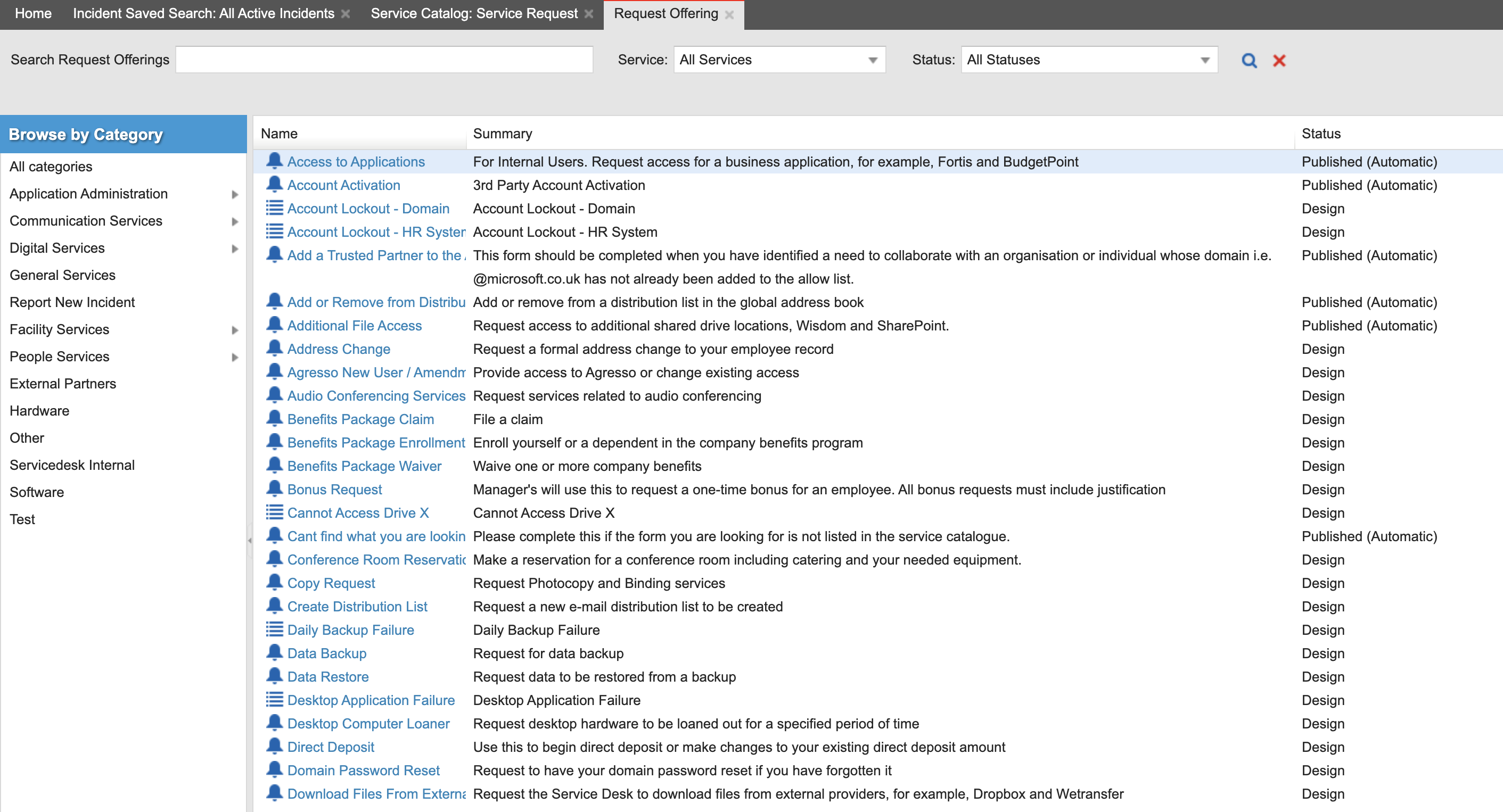
  4. Click on the Name of the form to view details.

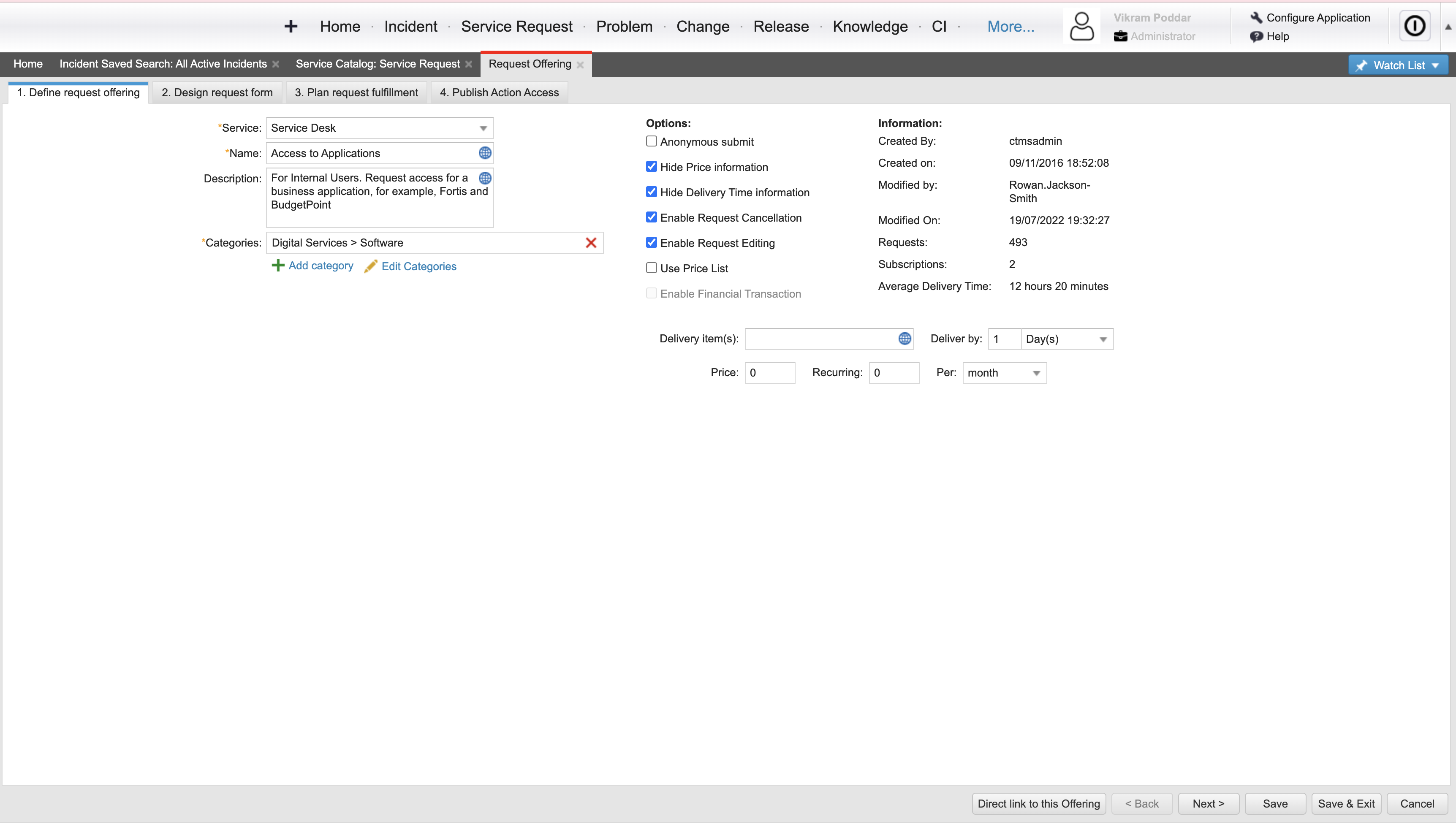
  5. In the Define request offering tab click the Direct Link to this offering button.
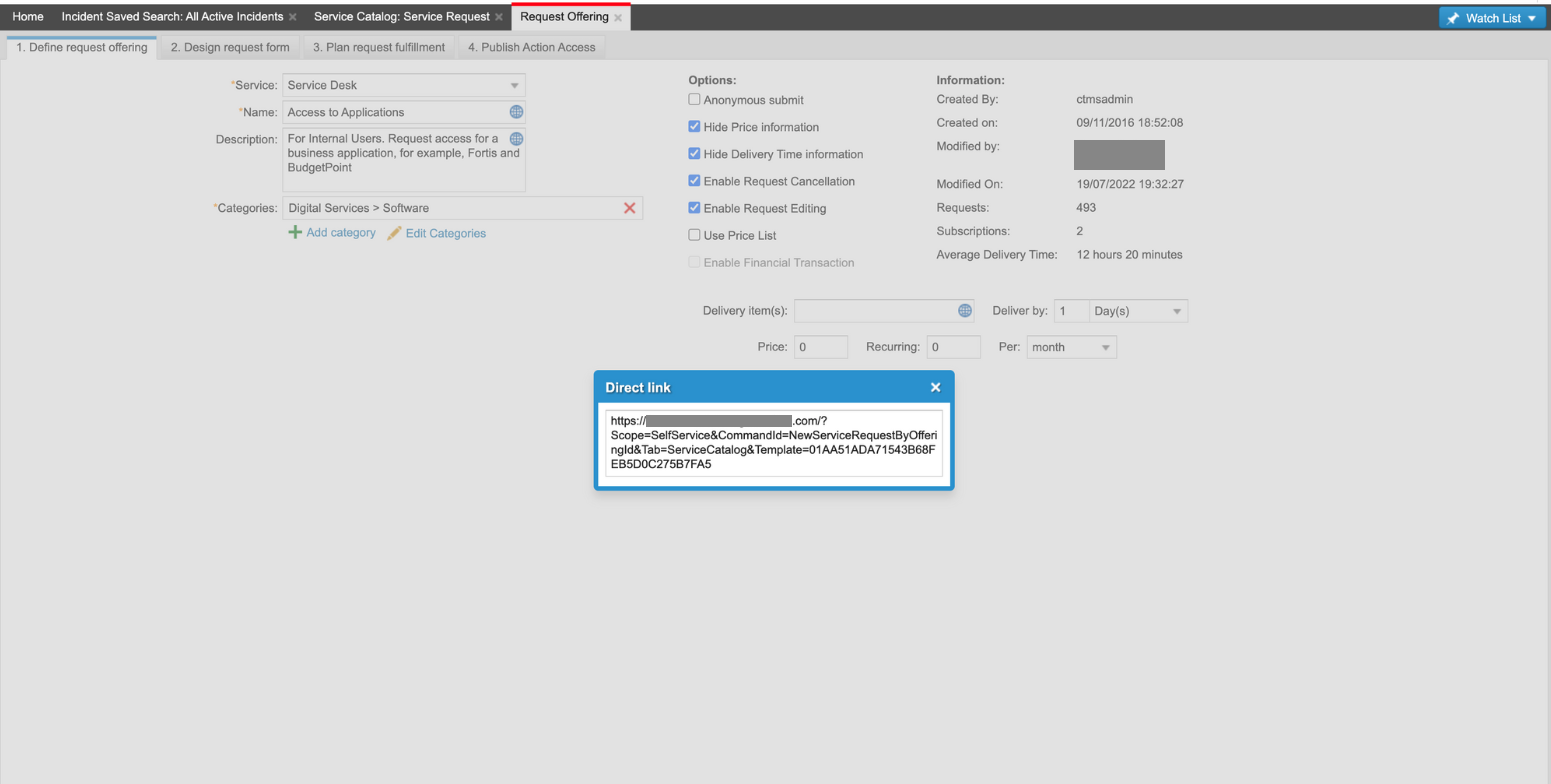
  6. Copy the Direct link.

  7. Repeat steps 4 through 6 for all forms.