
DSL Rule Scenarios for Plugins
This guide walks you through the DSL Rule Fields present in Setup and what attributes can be used to define them. If you are using Custom Attributes in your Rules, please refer to this guide on How to Define Custom Attributes.
Managing AI Assistant Access Rule
This is the most important DSL Rule Field in Moveworks which controls who in the Organisation has access to the AI Assistant in the Chat Interaction Platform. This control is found by navigating to User Identity > AI Assistant Access
Contexts Supported : User
Here are some rules which are commonly used across Moveworks :
- Enabling or Disabling AI Assistant Access Globally
All DSL rules can be turned ON or OFF completely by setting the DSL Rule as TRUE or FALSE.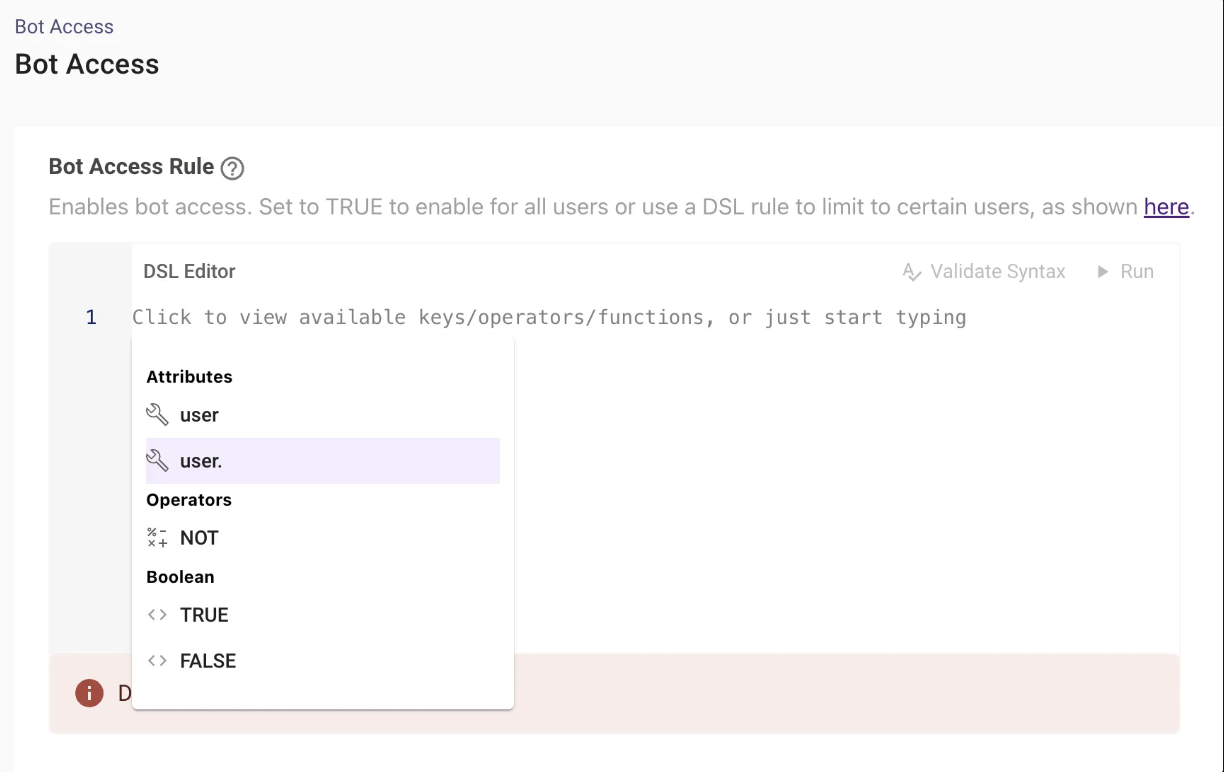
- Enabling or Disabling AI Assistant access using User Attribute
The AI Assistant Access DSL Rule field supports the User context which allows Rules to be written using the user attribute and its subfields which are ingested via Identity Ingestion.- DSL Rule to enable AI Assistant access based on User Email Address
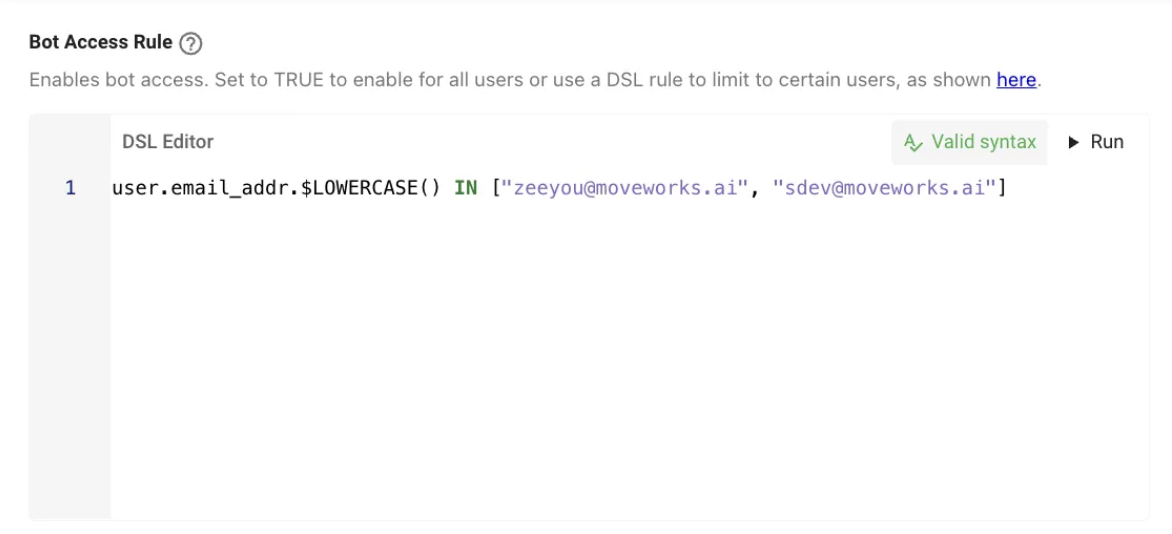
- DSL Rule to Disable AI Assistant Access for certain users based on User Email Address
- DSL Rule to enable AI Assistant access based on User Tag
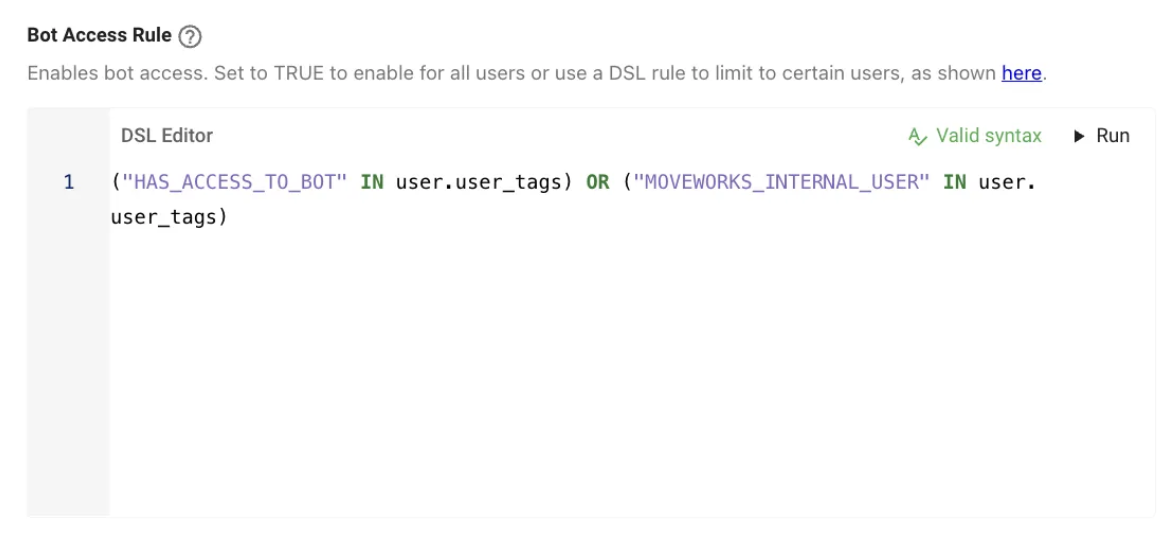
- DSL Rule to enable AI Assistant access based on Custom User Attribute
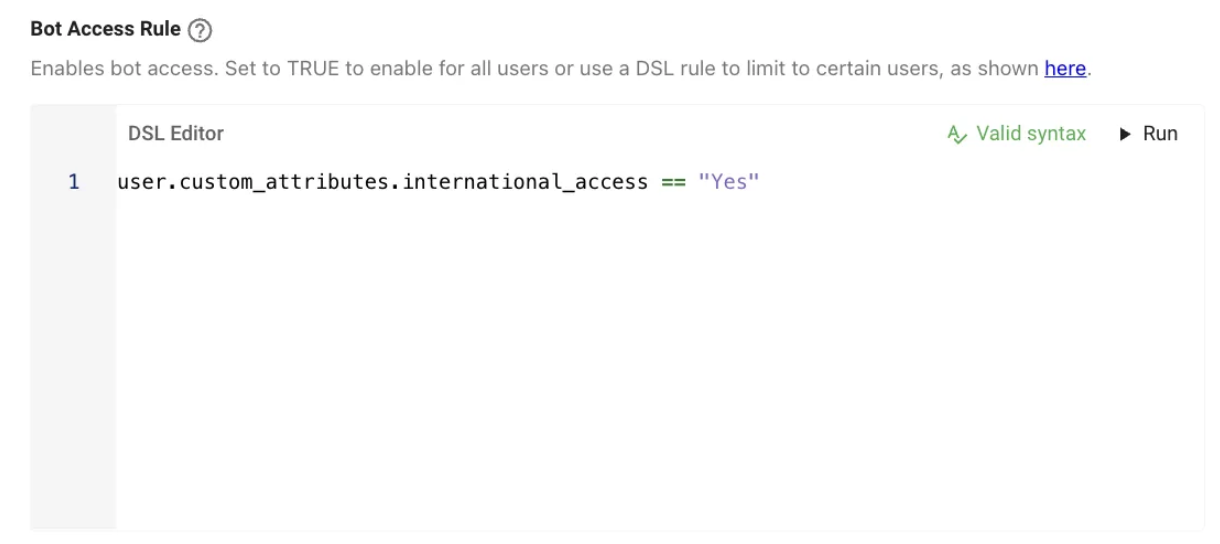
- DSL Rule to enable AI Assistant access based on User Email Address
Answers Plugin
DSL Rules can be leveraged in the Answers module to manage access to the plugin and control the filtering of Knowledge when being ingested. The Answers Plugin control can be found by navigating to Search > Plugin Settings from the left navbar.
The Answers Plugin has the below DSL Fields which are important :
Enabling Answers Plugin
- Global Controls
The Answers Plugin can be turned ON or OFF completely by setting the DSL Rule as TRUE or FALSE.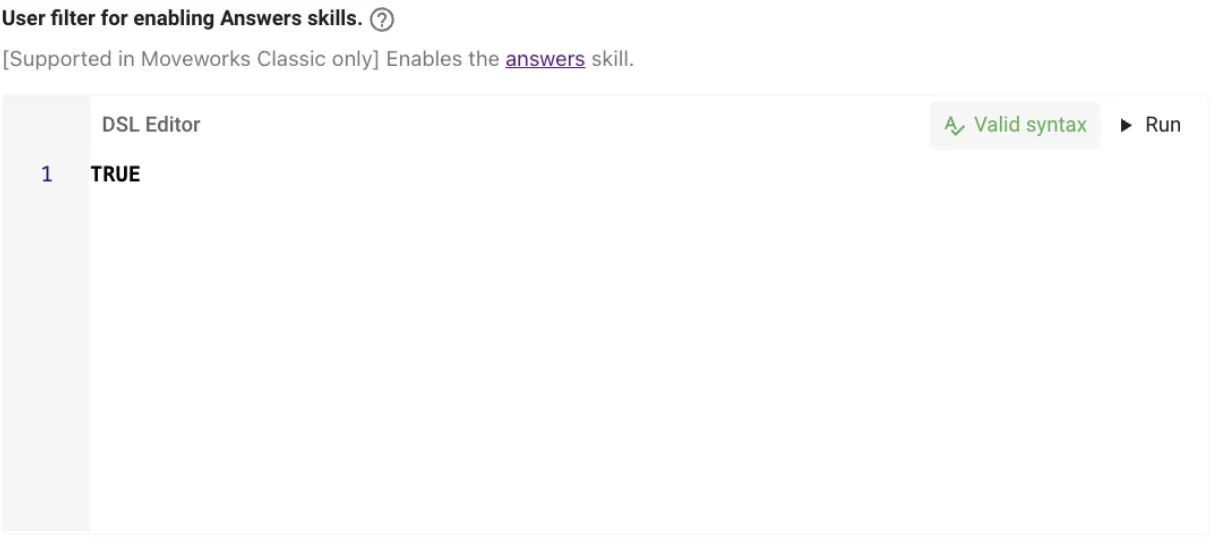
- User Context Attribute
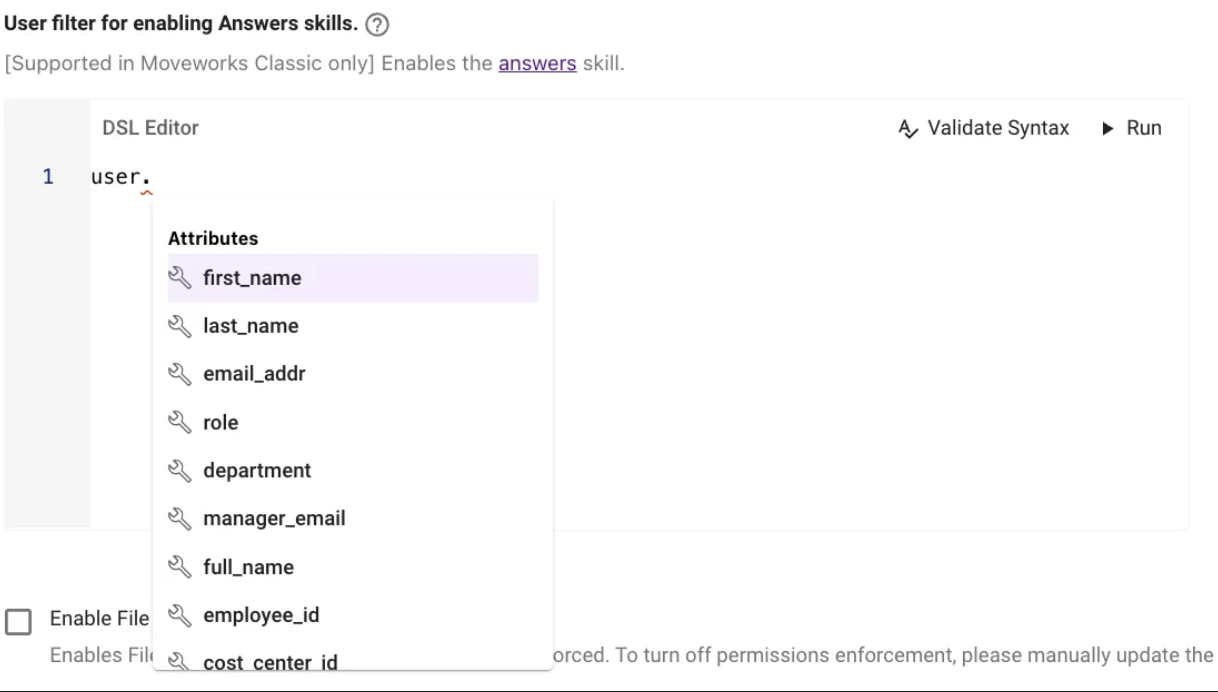
- Custom User Attributes Context
Knowledge Article Filter Rule
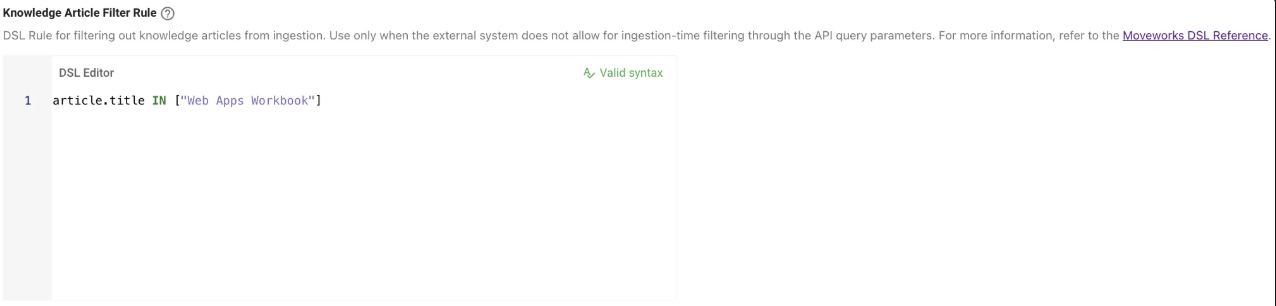
- When ingesting knowledge articles from an external source, Moveworks provides the ability to write DSL rules to filter out which Articles should be ingested from the Base.
- This DSL field can be found by navigating to
Search > Configure Search > Classic Ingestion > Internal Knowledge > Config - This is possible since the DSL Rule Field here supports the
articlecontext.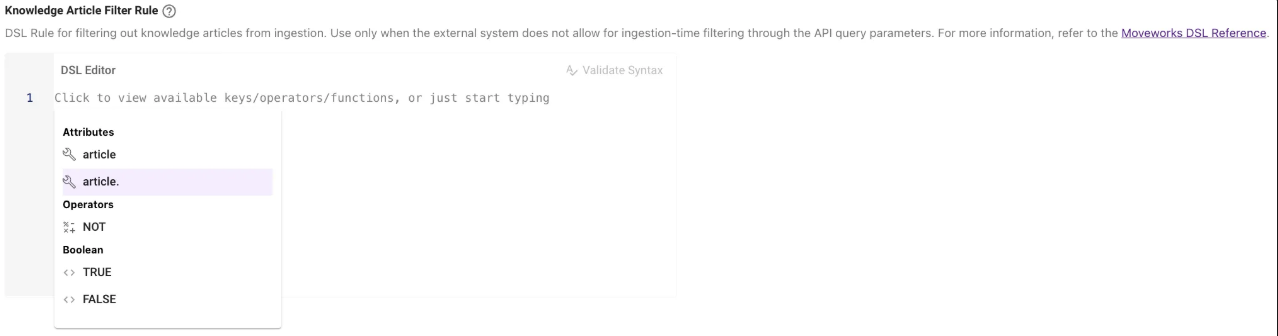
Here are the rules which are commonly used with DSL :
- Filter out Articles using Article ID
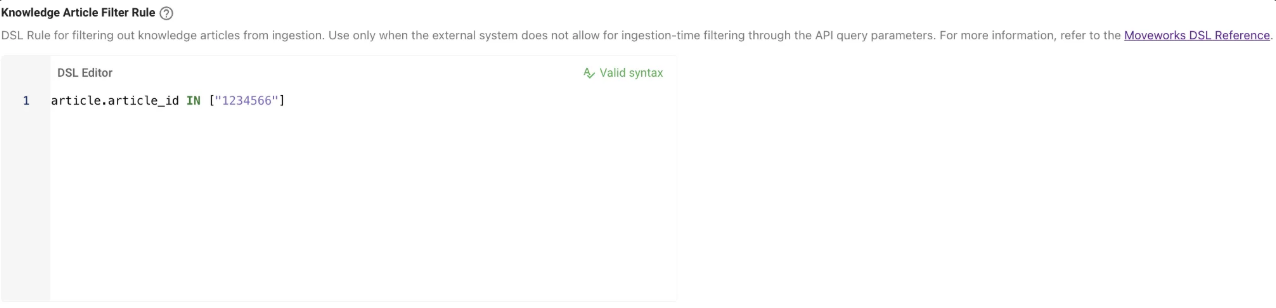
- Filter out Articles using the Title
Forms Plugin
DSL Rules can be leveraged in the Forms module to enable the plugin and control the behaviour of the forms within the AI Assistant with respect to how they are served. This control is found by navigating to Forms > Advanced Settings > Plugin Settings from the left navbar.
Here are Rules for the Forms plugin which are commonly used across Moveworks :
Ticket Interception with Forms
This Control defines if the Forms plugin will be used for Ticket resolution when they are intercepted by the AI Assistant. Here is a Document to learn more about Ticket Interception.
- Global Controls
The Enable form finding via ticket interception can be turned ON or OFF completely by setting the DSL Rule as TRUE or FALSE.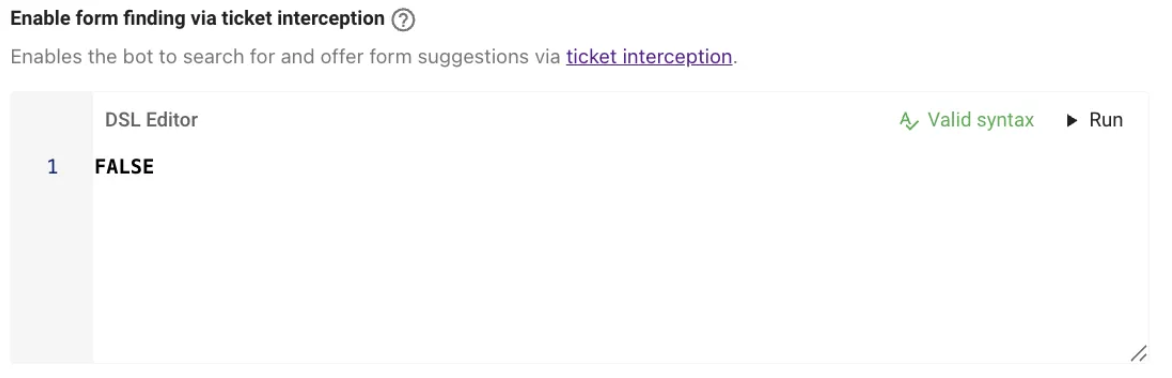
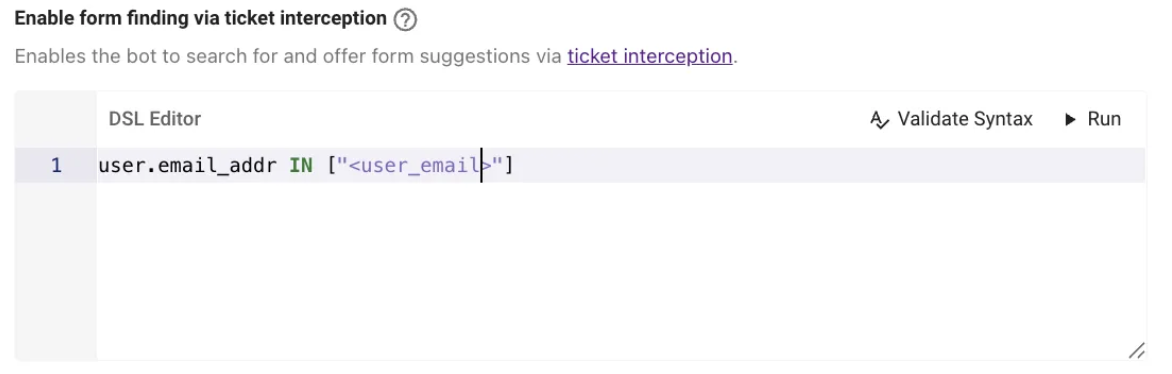
- User Context Attribute
Deflecting Forms to External System
Setting this Plugin to TRUE will deflect all forms provided to users in the AI Assistant to the External Ticketing System so it can be filled in the Portal.
- Global Controls
The Enable form deflection to ITSM can be turned ON or OFF completely by setting the DSL Rule as TRUE or FALSE.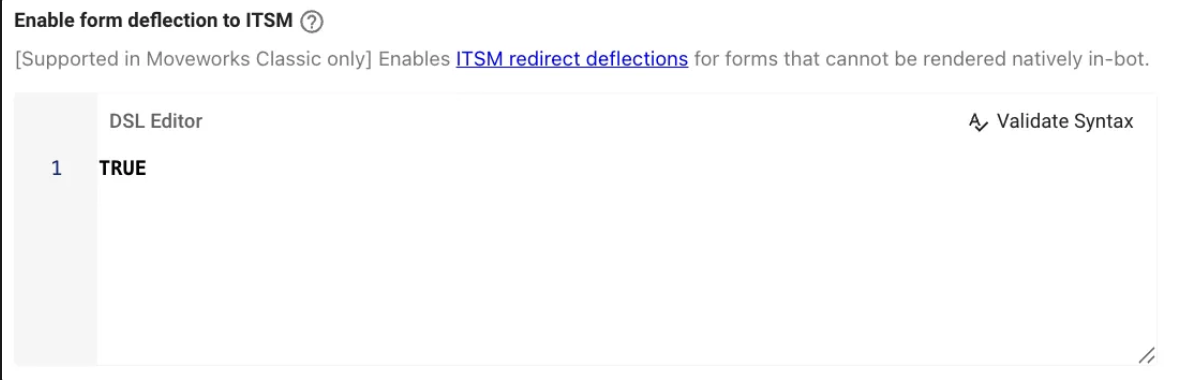
- User Context Attribute
Form Filling for Eligible Form
Setting this Plugin to TRUE will enable forms which have been ingested to be fillable in the AI Assistant.
- Global Controls
The Enable form filling for eligible forms can be turned ON or OFF completely by setting the DSL Rule as TRUE or FALSE.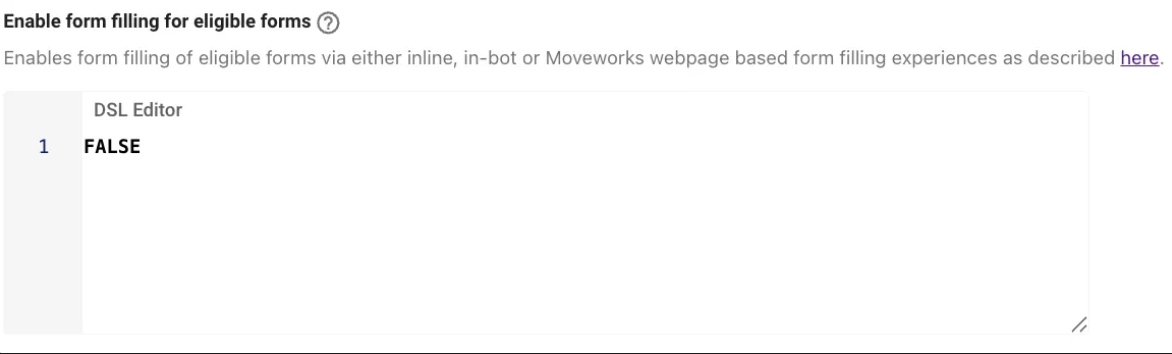
- User Context Attribute
Override Unfillable Forms to be Fillable
Setting this plugin to TRUE will force unfillable forms to be fillable in the AI Assistant, This does not cover 100% of all ingested. Learn more about Writing Moveworks Fillable Forms here.
- Global Controls
The Override unfillable forms to be fillable can be turned ON or OFF completely by setting the DSL Rule as TRUE or FALSE.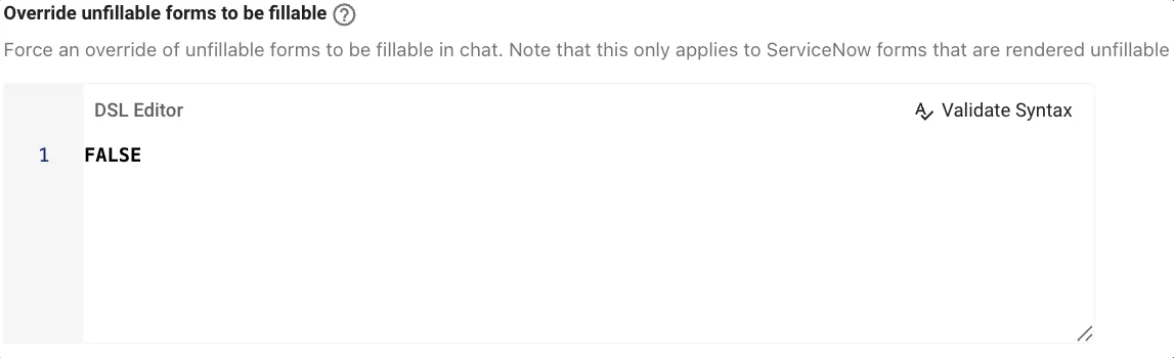
- User Context Attribute
- Form Source ID Attribute
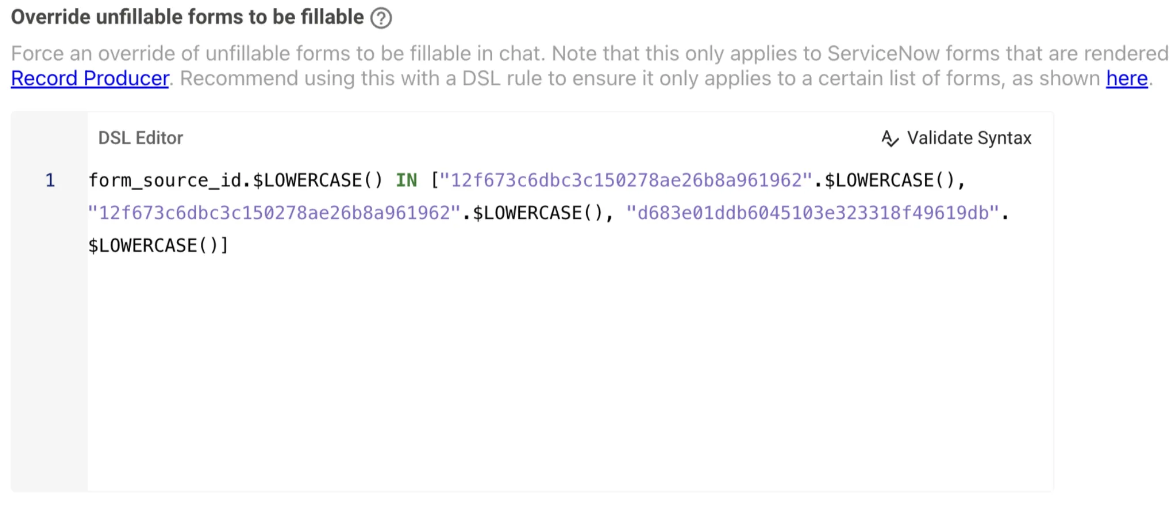
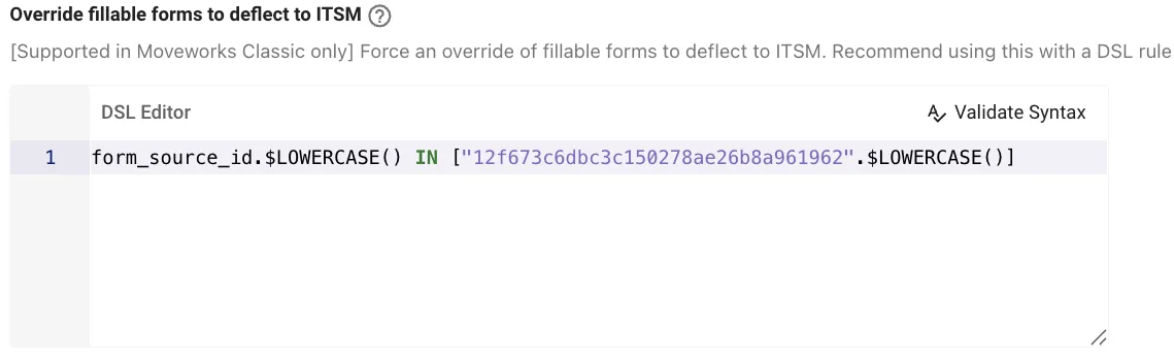
Override Fillable Forms to Deflect to External System
Setting this plugin to TRUE will override forms which are eligible to be filled in the AI Assistant to deflect the user to the External ITSM System instead.
- Global Controls
The Override fillable forms to deflect to ITSM can be turned ON or OFF completely by setting the DSL Rule as TRUE or FALSE.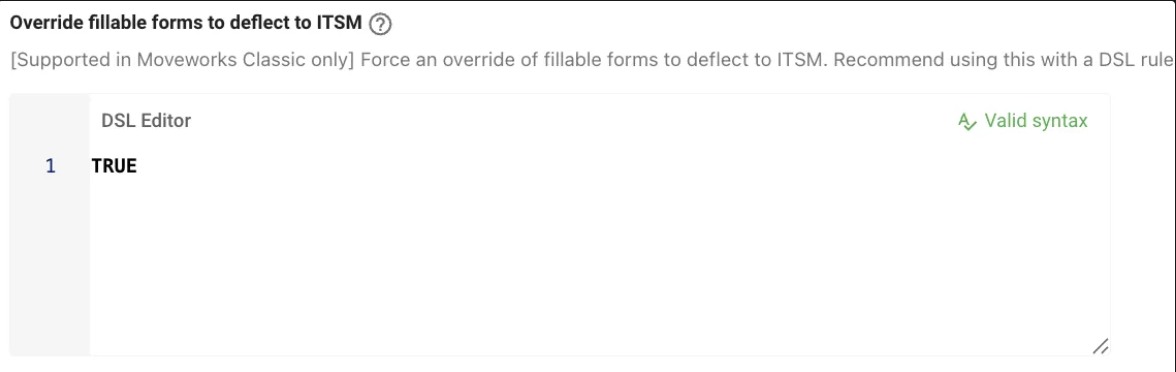
- User Context Attribute
- Form Source ID Attribute
People and Places Plugins
People and Places lookups are governed by two separate plugins, both found by navigating to AI Assistant > Plugin Management from the left navbar:
- People Registry Plugin — employee lookups
- Room Registry Plugin — conference room lookups
Each has its own User filter for enabling plugin DSL rule, which both enables the plugin and controls which users can leverage it within the AI Assistant. Enabling one does not enable the other.
Here is how Rules are written for the People and Places plugins :
People Registry Plugin
This control can be found by navigating to AI Assistant Plugin Management > People Registry Plugin
- Global Controls
The User filter for enabling plugin can be turned ON or OFF completely by setting the DSL Rule as TRUE or FALSE.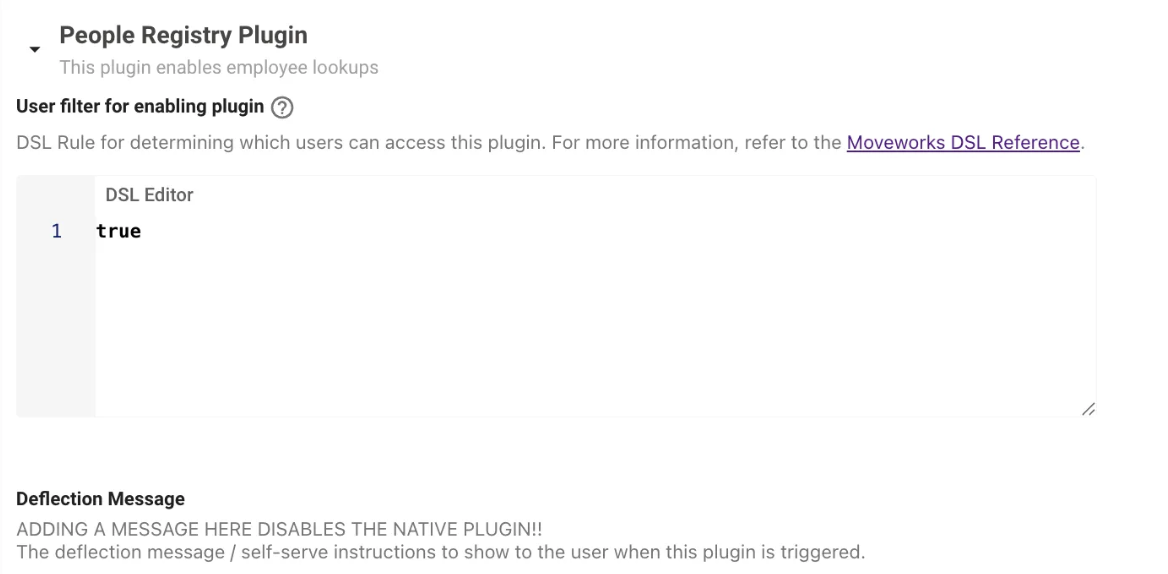
- User Context Attribute
Room Registry Plugin
This control can be found by navigating to AI Assistant Plugin Management > Room Registry Plugin
- Global Controls
The User filter for enabling plugin can be turned ON or OFF completely by setting the DSL Rule as TRUE or FALSE. - User Context Attribute
Resource Permissions
After Enabling the Answers Plugin, Moveworks provides the ability to permission which users the Answers Plugin will be served to using Resource Permission.
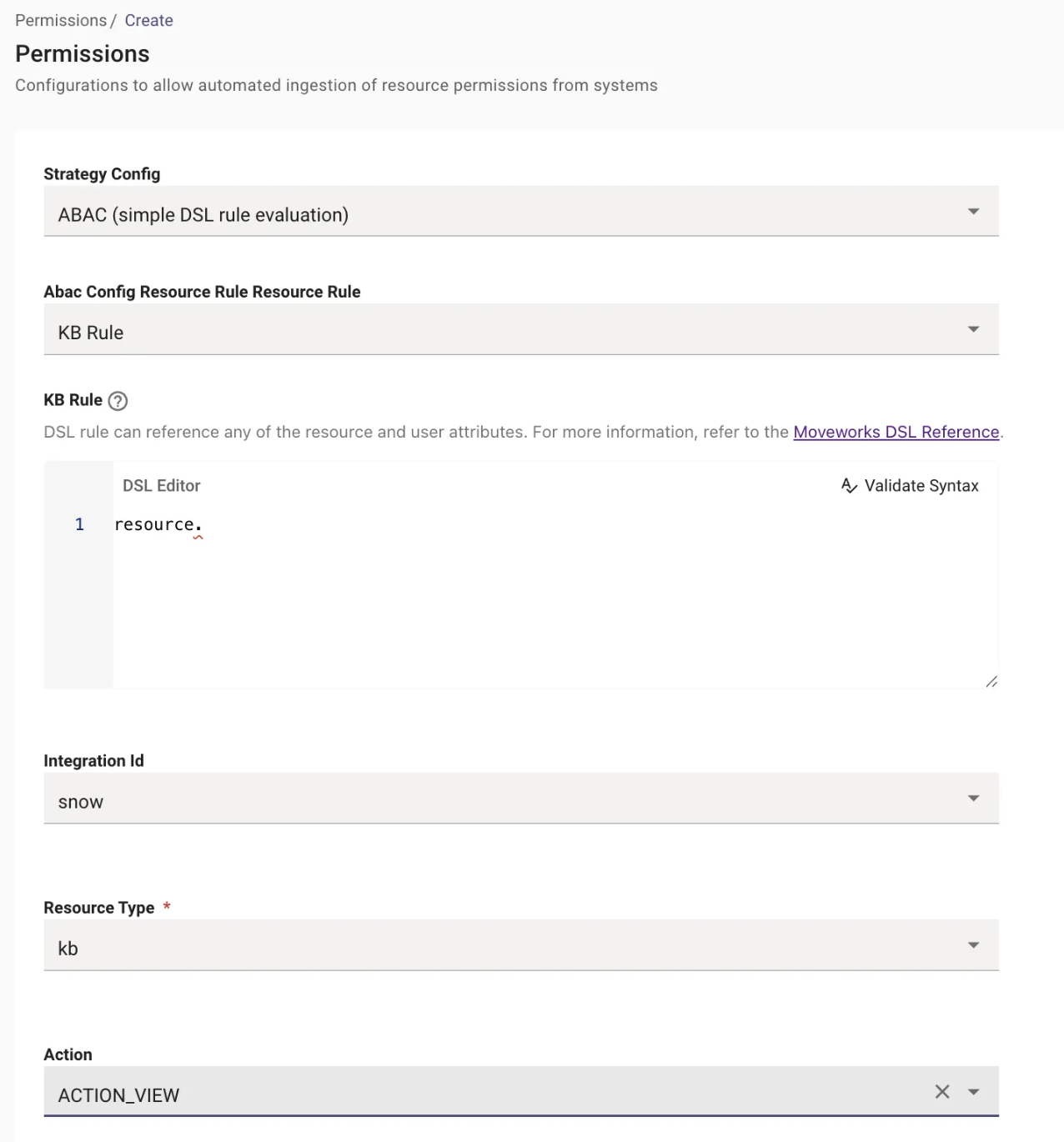
You can set this up by Navigating to Resource Permissions > Permission rules where you can either create a new configuration for permissioning access to plugins. Here is a Guide to learn more about Resource Permissions and how they work.
There are 2 types of Permissioning Strategies which are supported ABAC and REBAC which you can learn more about here. The below examples will be common for AI Assistant strategies.
Here are some examples of the Rules you can write using the below DSL Fields :
These Rules are written for the Resource Selected in the Resource Rule but this should be mapped to the Integration ID which is the connector that serves the respective resource.
We also have to select the same resource in the Resource Type field. The below example shows you the Resource Permission configuration for Knowledge.
Set any Resource Permission DSL value to TRUE to FALSE to globally enable or disable it.
User Context Attribute
- Enable Access to selected Resource Type for Users
Resource Context Attribute
- Permission Access to certain Resources for the selected Resource Type
- This is done using the
resourcecontext attribute which allows admins to permission only certain resources to be served.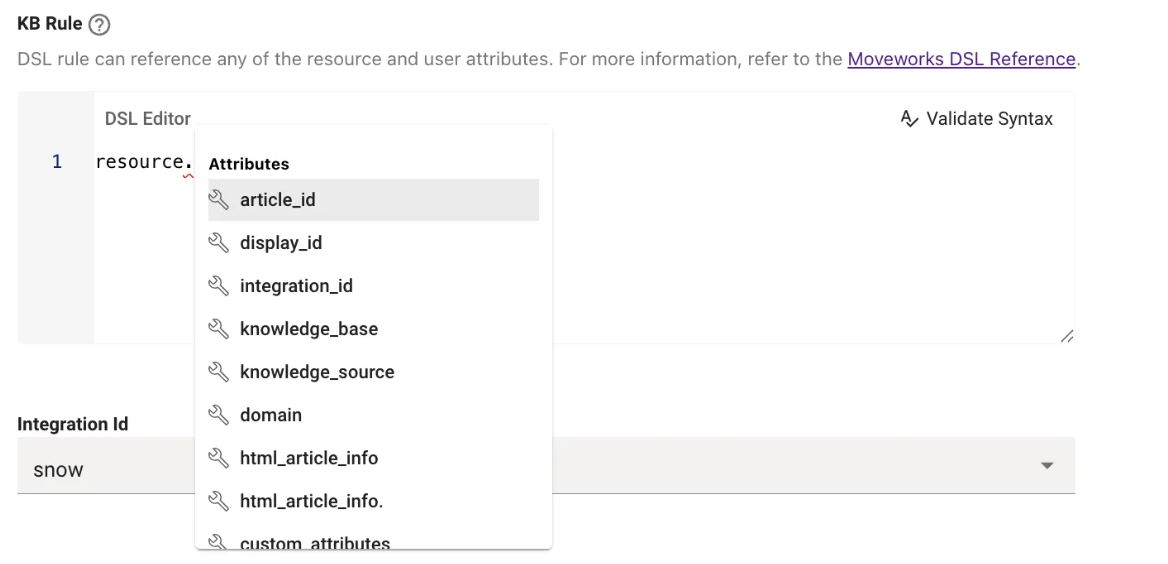
- You can also use the combination of user & Resource context attributes
- This is done using the
Ticket Filters
DSL Rules in Ticket Filters can be leveraged to apply standard or skill-specific control rules to exclude or include tickets accessed by Moveworks. These filters can be found by navigating to Ticketing > Ticketing Settings > Ticket Filters which are divided into the below sections.
Here are the Rules can write using the below DSL Fields in the Ticketing Filter configuration :
Standard Ticket Filter
These DSL fields have the Ticket context attribute exposed which will be leveraged to create the DSL rule for the ticket filters.
Universal Ticket fetching filter
This is the Highest/Top level filter, where any tickets that do not meet the criteria are completely ignored. Moveworks will not process those tickets at all for resolution or action via any Plugin. For more information, refer to the Moveworks DSL Reference.

- Filtering out tickets based on ticket attributes like
state,assignment_group,categoryetc - Filtering out tickets using
userattributes which are referenced viaticketattribute
This is made possible by using the attributecreated_bywhich allows us to access the user context attributes.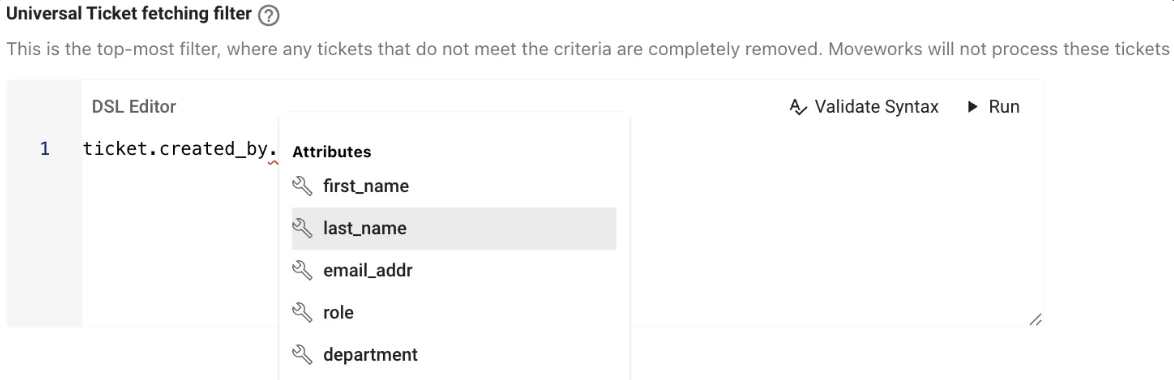
- Filtering out Tickets using Custom Ticket Attributes
The Ticketing attribute context has custom attributes which can be leverages as well. These attributes are different from the defaults which Moveworks supports Out of the Box. Follow this Guide to learn How To create and leverage Custom Attributes.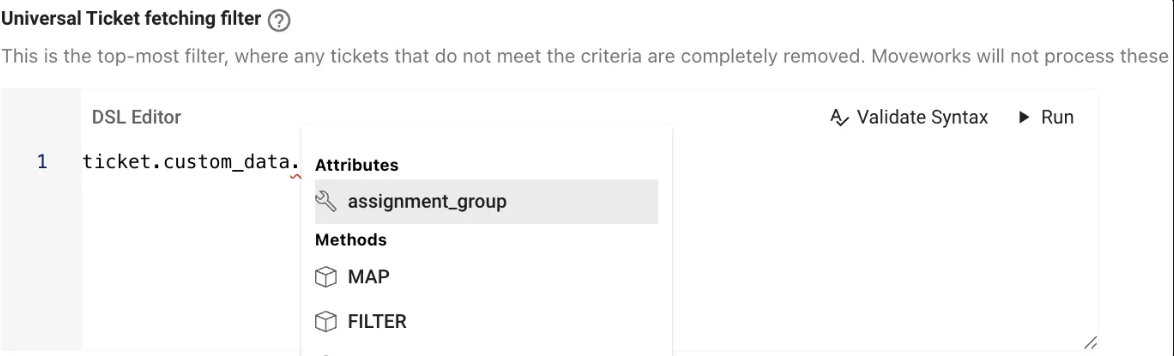
Ticket Resolution Filter
This filter defines the minimum criteria required for a Ticket which is polled, in order to be considered by the AI Assistant for a Resolution Analysis. For more information, refer to the Moveworks DSL Reference.
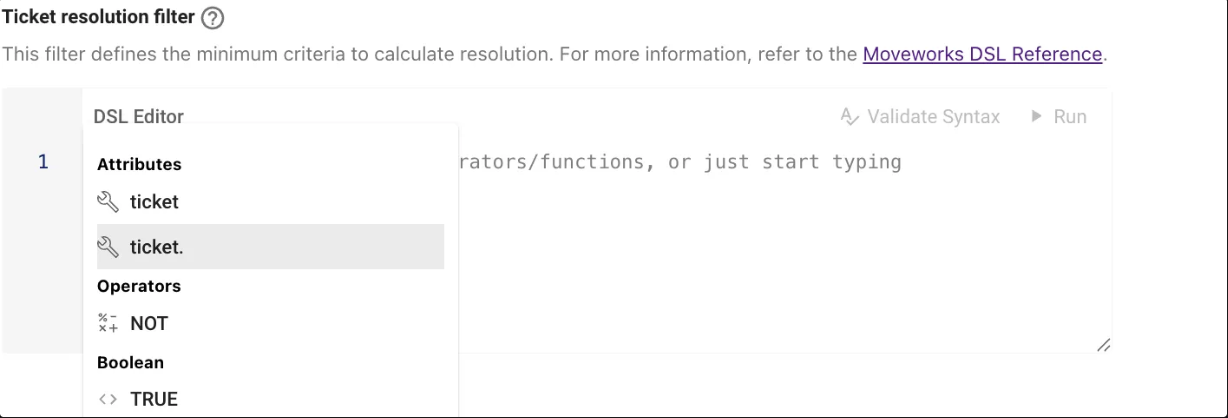
- Filtering out ticket resolution based on ticket attributes like
state,assignment_group,categoryetc - Filtering out tickets using
userattributes which are referenced viaticketattribute
This is made possible by using the attributecreated_bywhich allows us to access the user context attributes. - Filtering out Tickets using
Custom TicketAttributes
The Ticketing attribute context has custom attributes which can be leverages as well. These attributes are different from the defaults which Moveworks supports Out of the Box. Follow this Guide to learn How To create and leverage Custom Attributes.
Filter for actionable tickets
This filter defines which tickets are eligible for action from Moveworks after they have been analysed for Resolution. For more information, refer to the Moveworks DSL Reference.
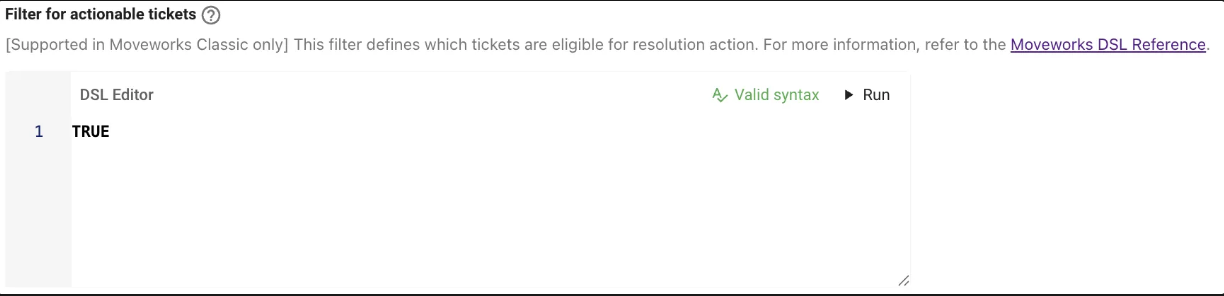
- Filtering out ticket based on ticket attributes like
state,assignment_group,categoryetc - Filtering out tickets using
userattributes which are referenced viaticketattribute
This is made possible by using the attributecreated_bywhich allows us to access the user context attributes. - Filtering out Tickets using
Custom TicketAttributes
The Ticketing attribute context has custom attributes which can be leverages as well. These attributes are different from the defaults which Moveworks supports Out of the Box. Follow this Guide to learn How To create and leverage Custom Attributes.
Skill Specific Ticket Filter
These DSL fields have the Ticket context attribute exposed which will be leveraged to create the DSL rule for the skill specific ticket filters.
Ask-me Skill (Answers Plugin)
This filter defines tickets which are eligible to be acted upon by the Answers plugin. This is combined with “Filter for actionable tickets” which the ticket needs to pass in order to evaluate in this DSL Rule. For more information, refer to the Moveworks DSL Reference.

- Filtering out ticket based on ticket attributes like
state,assignment_group,categoryetc - Filtering out tickets using
userattributes which are referenced viaticketattribute
This is made possible by using the attributecreated_bywhich allows us to access the user context attributes. - Filtering out Tickets using
Custom TicketAttributes
The Ticketing attribute context has custom attributes which can be leverages as well. These attributes are different from the defaults which Moveworks supports Out of the Box. Follow this Guide to learn How To create and leverage Custom Attributes.
Ticket Activity updates
This filter defines tickets that are eligible for Updates based on Ticket Activity. These are cases when a ticket has updates based on state change or addition of comments which the user will be notified about within the AI Assistant. For more information, refer to the Moveworks DSL Reference.
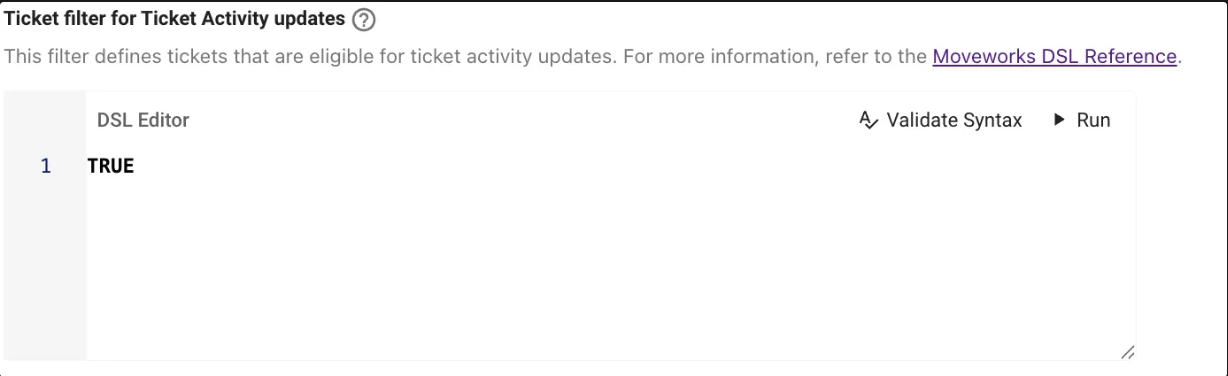
- Filtering out ticket based on ticket attributes like
state,assignment_group,categoryetc - Filtering out tickets using
userattributes which are referenced viaticketattribute
This is made possible by using the attributecreated_bywhich allows us to access the user context attributes. - Filtering out Tickets using
Custom TicketAttributes
The Ticketing attribute context has custom attributes which can be leverages as well. These attributes are different from the defaults which Moveworks supports Out of the Box. Follow this Guide to learn How To create and leverage Custom Attributes.
Ticket Filter for Nudges
This filter defines tickets that qualify for nudges, which are follow-ups from the Moveworks AI Assistant when the ticket has not been updated or acted upon in more than x days. For more information, refer to the Moveworks DSL Reference.
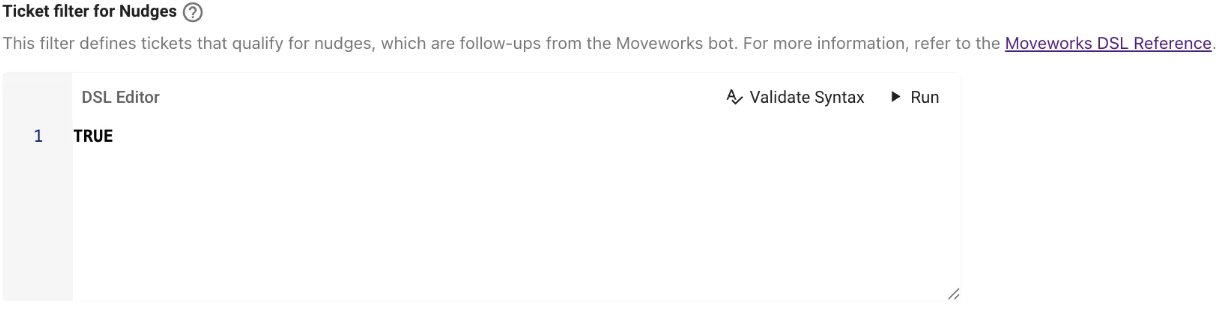
- Filtering out ticket based on ticket attributes like
state,assignment_group,categoryetc - Filtering out tickets using
userattributes which are referenced viaticketattribute
This is made possible by using the attributecreated_bywhich allows us to access the user context attributes. - Filtering out Tickets using
Custom TicketAttributes
The Ticketing attribute context has custom attributes which can be leverages as well. These attributes are different from the defaults which Moveworks supports Out of the Box. Follow this Guide to learn How To create and leverage Custom Attributes.
Ticket Filter for Triage
This filter defines tickets which can be updated by the triage model or static rules on how triage should behave for certain conditions. For more information, refer to the Moveworks DSL Reference.
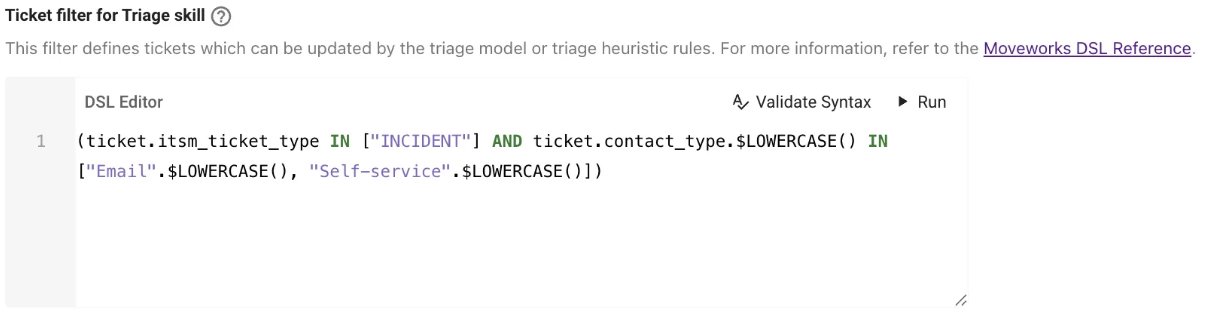
- Filtering out ticket based on ticket attributes like
state,assignment_group,categoryetc - Filtering out tickets using
userattributes which are referenced viaticketattribute
This is made possible by using the attributecreated_bywhich allows us to access the user context attributes. - Filtering out Tickets using
Custom TicketAttributes
The Ticketing attribute context has custom attributes which can be leverages as well. These attributes are different from the defaults which Moveworks supports Out of the Box. Follow this Guide to learn How To create and leverage Custom Attributes.
Notifications Settings
DSL Rules can be used to manage and control ticket Notifications Settings for your users based on ticket updates. These filters can be found by navigating to Ticketing > Concierge Settings > Notification Filters which are divided into the below sections.
Here are the Rules you can write using the below DSL Fields in the Notification Settings configuration :
Enable Concierge Notifications
Enables the AI Assistant to send concierge notifications for ticket state changes and comments. Note: In order to disable Notifications Block Concierge Notifications and Disable Concierge Notifications should be set to False
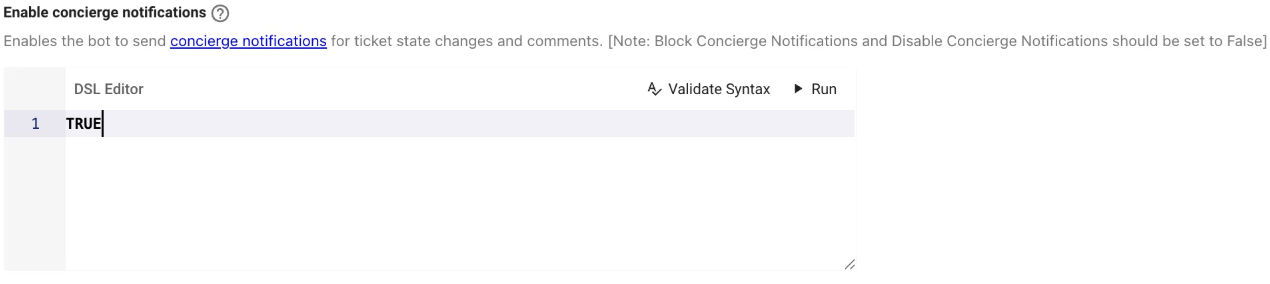
- Global Controls
The Enable Concierge Notifications can be turned ON or OFF completely by setting the DSL Rule as TRUE or FALSE. - User Context Attribute
- Custom Attributes under User Context
Enable user timezone for concierge notifications
This control allows you to leverage the user’s timezone which has been ingested in order to send the concierge notifications in their local timezone
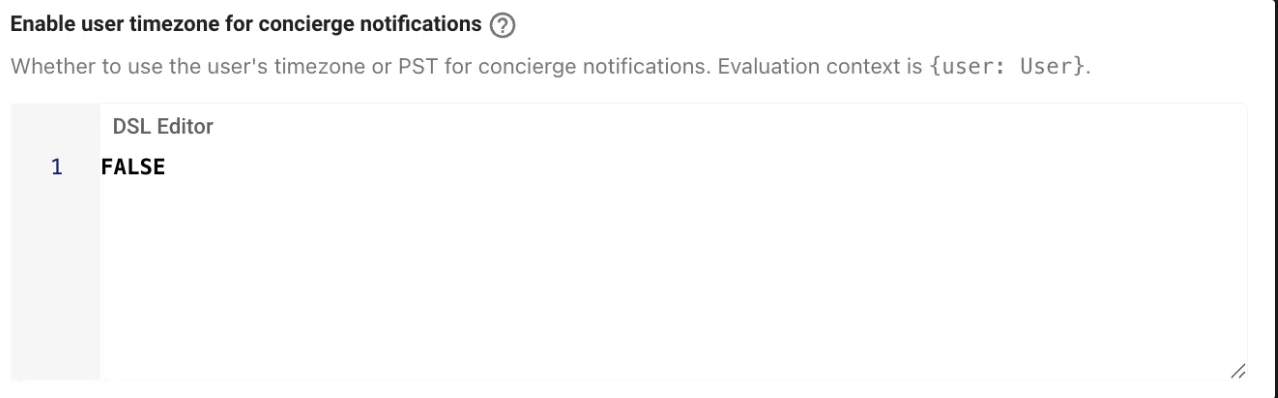
- Global Controls
The Enable user timezone for concierge notifications can be turned ON or OFF completely by setting the DSL Rule as TRUE or FALSE.
Enable weekend notifications
Allows users to receive ticket notifications on weekends during business hours.
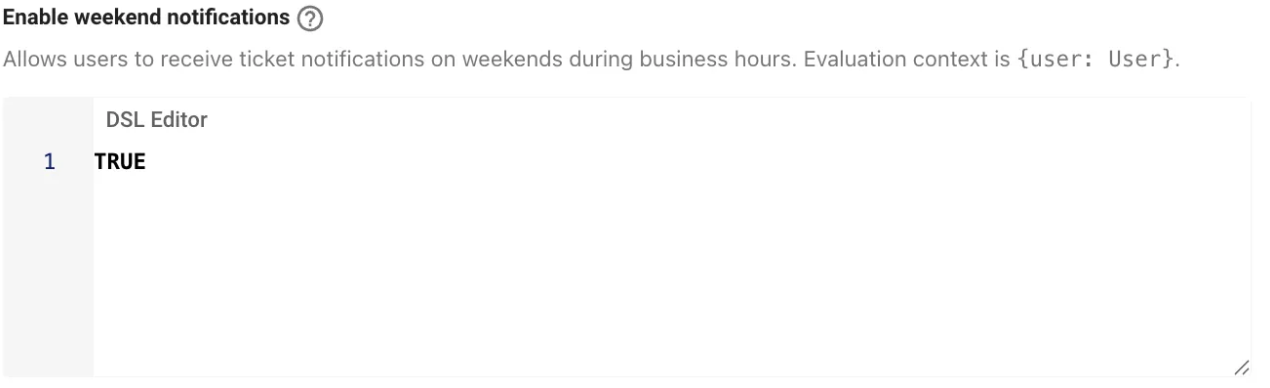
- Global Controls
The Enable weekend notifications can be turned ON or OFF completely by setting the DSL Rule as TRUE or FALSE.
Disable Concierge Notifications to Watchers
If this control is enabled, concierge notifications will not be sent to watchers on tickets. The watcher data will be queried from the ticket while being polled.
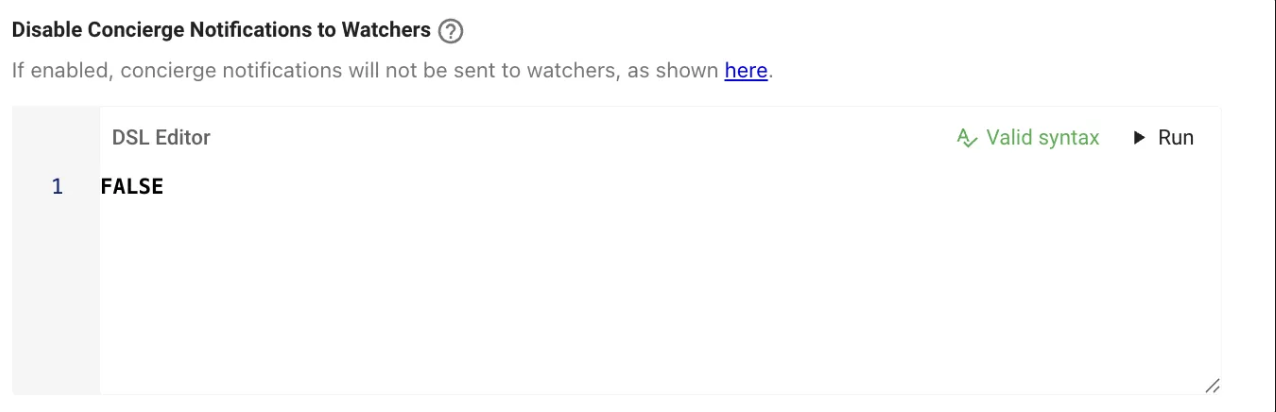
- Global Controls
The Disable Concierge Notifications to Watchers can be turned ON or OFF completely by setting the DSL Rule as TRUE or FALSE. - User Context Attribute
- Custom Attributes under User Context
Respect user geocode when resolving weekend hours
If enabled, the AI Assistant will determine weekend hours based on the user’s geocode Information. By default, Moveworks assumes a Monday - Friday work week but if enabled, users in countries such as Israel will have their work week set to Sunday - Thursday.

- Global Controls
The Respect user geocode when resolving weekend hours can be turned ON or OFF completely by setting the DSL Rule as TRUE or FALSE.
Ticket Actions
DSL Rules can be used to control and manage functionalities while creating/ filing, updating or viewing tickets. These filters can be found by navigating to Ticketing > Concierge Settings > Ticket Actions which are divided into the below sections.
Here are the Rules you can write using the below DSL Fields in the Notification Settings configuration :
Hide reopen button if ticket state is closed
When enabled, tickets that are in CLOSED state will not display “Reopen Ticket” button in the dialogs in the AI Assistant.
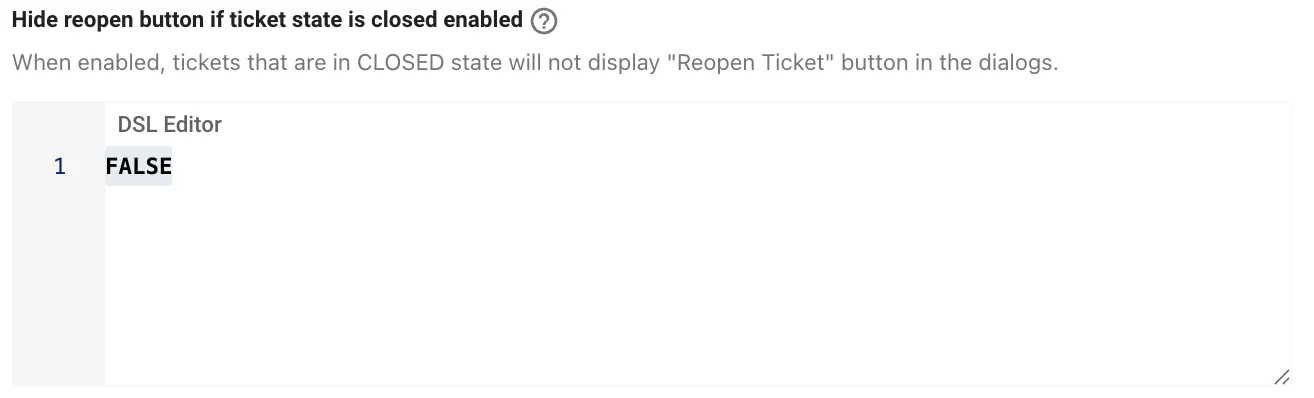
- Global Controls
The Hide reopen button if ticket state is closed can be turned ON or OFF completely by setting the DSL Rule as TRUE or FALSE.
Enable attachment upload
This control provides the ability for attachments to be uploaded option to a in a ticket draft when creating or updating a ticket.
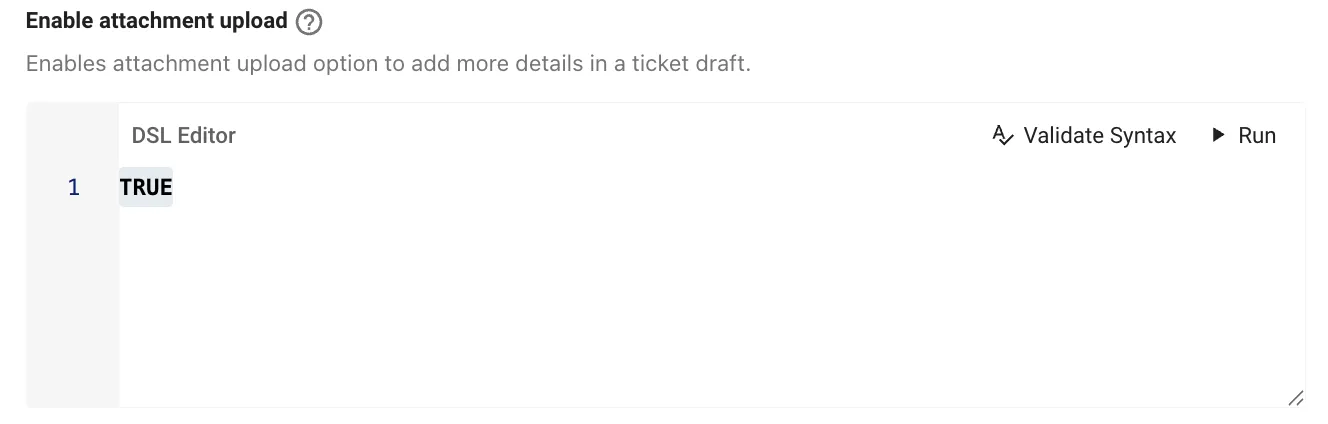
- Global Controls
The Enable attachment upload can be turned ON or OFF completely by setting the DSL Rule as TRUE or FALSE. - User Context Attribute
- Custom Attributes under User Context
Respect Ticket Filters for Querying Tickets
This control relies on the filter present in the Ticket filters config which be found by navigating to Ticketing > Ticketing Settings > Ticket Filters you can find the rule under the DSL Fields Universal Ticket fetching filter.
If Enabled this will only query the tickets which pass through the above mentioned filter.
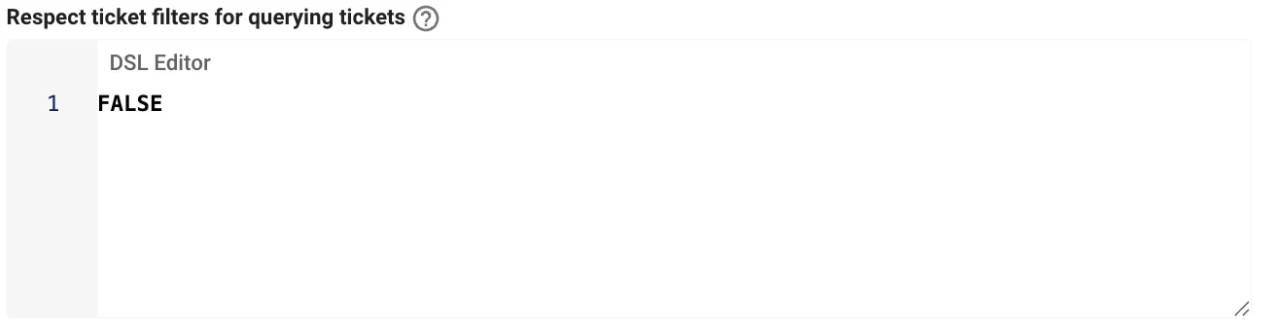
- Global Controls
The Respect Ticket Filters for Querying Tickets can be turned ON or OFF completely by setting the DSL Rule as TRUE or FALSE.
Restrict ticket visibility to requestors only
If Disabled, users will be able to look up any ticket from your Ticketing system regardless of whether they were the requestor or not. Enabling this control ensures that only the tickets requestors will be able to look up their specific ticket.

- Global Controls
The Restrict ticket visibility to requestors only can be turned ON or OFF completely by setting the DSL Rule as TRUE or FALSE. - User Context Attribute
- Custom Attributes under User Context
Block watchers from resolving tickets
If disabled, the concierge ticket filter only applies to concierge ticket notifications. Enabling this flag ensures that this filter also applies to querying a ticket (via either a broader check status query or a by simply looking up a single ticket ID).

- Global Controls
The Block watchers from resolving tickets can be turned ON or OFF completely by setting the DSL Rule as TRUE or FALSE.
Advance Ticket Settings
DSL Rules can be used to manage Advanced concierge Controls . These filters can be found by navigating to Ticketing > Concierge Settings > Advanced Settings which are divided into the below sections.
️ These controls do not have DSL Validation currently but will support them in the future.
Here are the Rules you can write using the below DSL Fields in the Advanced Ticket Settings configuration :
Enable ticket polling
Enables the AI Assistant to poll your configured ticketing system(s) for new tickets or updates to existing tickets.
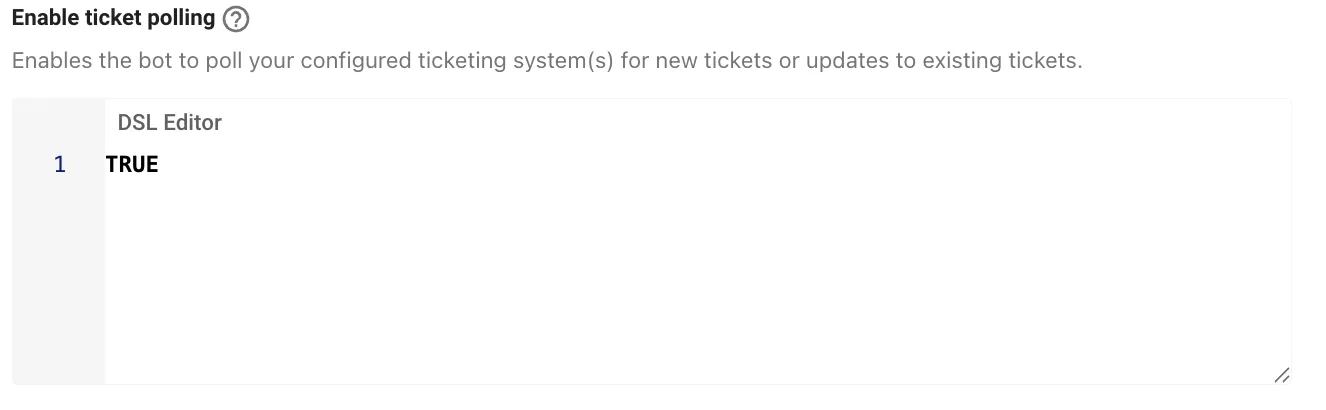
- Global Controls
The Enable ticket polling can be turned ON or OFF completely by setting the DSL Rule as TRUE or FALSE.
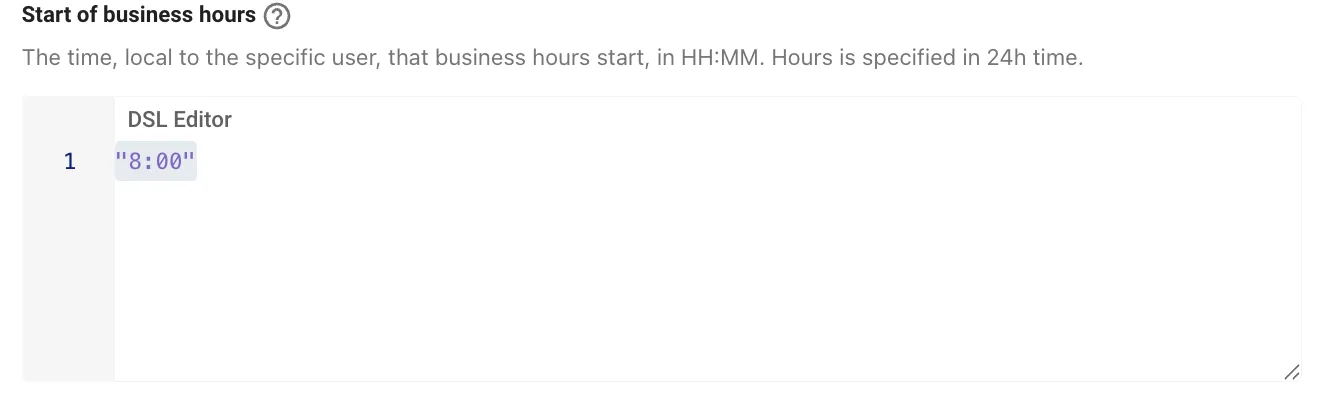
Start of business hours
This control only support the Time Format of HH:MM in 24h time scale. It is used to define the default system time, or local to the specific user, that business hours start.
End of business hours
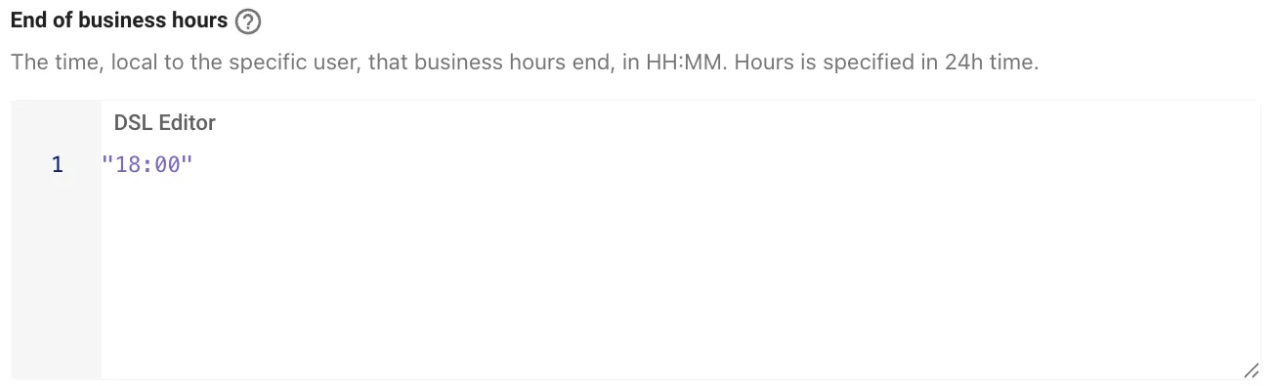
This control only support the Time Format of HH:MM in 24h time scale. It is used to define the default system time, or local to the specific user, that business hours end.
Filter for ticket Watcher Notifications
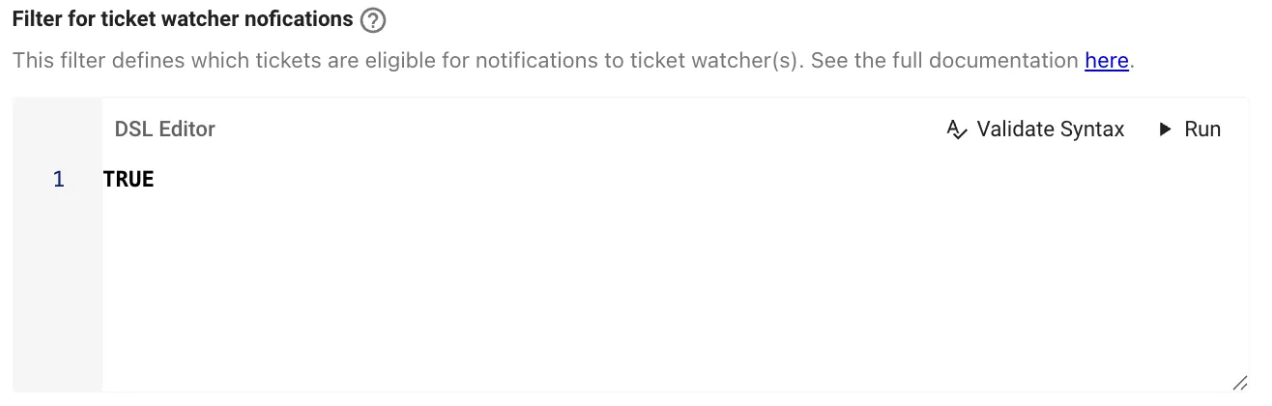
This filter defines which tickets are eligible for notifications to ticket watcher(s). This control supports the ticket context which can be used to filter tickets that are eligible for sending out notification to watchers.
- Global Controls
The Filter for ticket Watcher Nofications can be turned ON or OFF completely by setting the DSL Rule as TRUE or FALSE. - Filtering out ticket based on ticket attributes like
state,assignment_group,categoryetc - Filtering out tickets using
userattributes which are referenced viaticketattribute
This is made possible by using the attributecreated_bywhich allows us to access the user context attributes. - Filtering out Tickets using
Custom TicketAttributes
The Ticketing attribute context has custom attributes which can be leverages as well. These attributes are different from the defaults which Moveworks supports Out of the Box. Follow this Guide to learn How To create and leverage Custom Attributes.
Respect user geocode when resolving weekend hours
If enabled, the AI Assistant will determine weekend hours based on the user’s geocode information which is being ingested. By default, Moveworks assumes a Monday - Friday work week but if enabled, users in countries such as Israel will have their work week set to Sunday - Thursday.

- Global Controls
The Filter for ticket Watcher Nofications can be turned ON or OFF completely by setting the DSL Rule as TRUE or FALSE.
Ticket Interception
DSL Rules can be used to manage configurations related to ticket interception plugin which polls tickets actively and tries to resolve them using other plugins within Moveworks. These filters can be found by navigating to Ticketing > Ticket Interception which are divided into the below sections.
️ These controls do not have DSL Validation currently but will support them in the future.
Here are the Rules you can write using the below DSL Fields in the Advanced Ticket Settings configuration :
Enable Control to provide MFA reset for Tickets intercepted
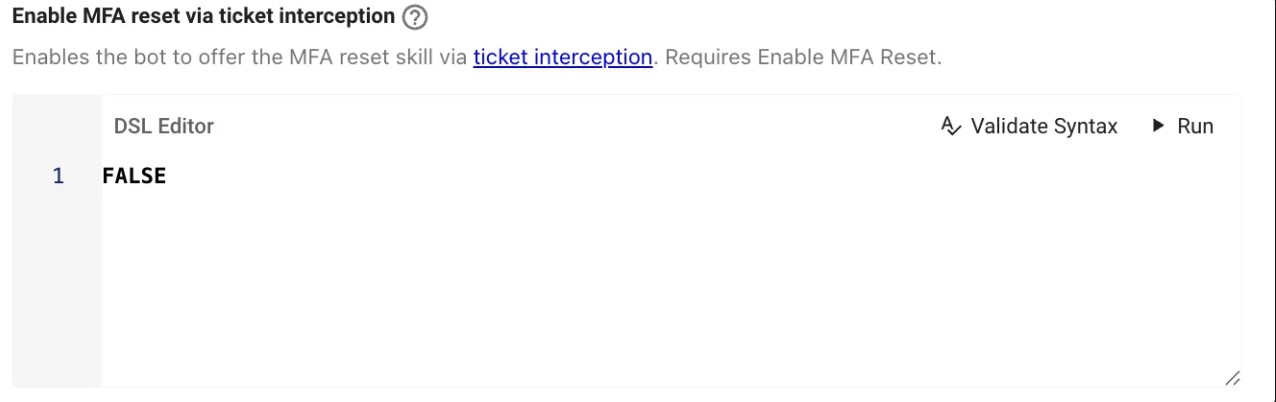
Enables the AI Assistant to offer the MFA reset skill via ticket interception. Requires the Enable MFA Reset to be enabled.
- Global Controls
The complete functionality can be turned ON or OFF completely by setting the DSL Rule as TRUE or FALSE.
Enable Control to provide Group Access Skill for Tickets Intercepted.
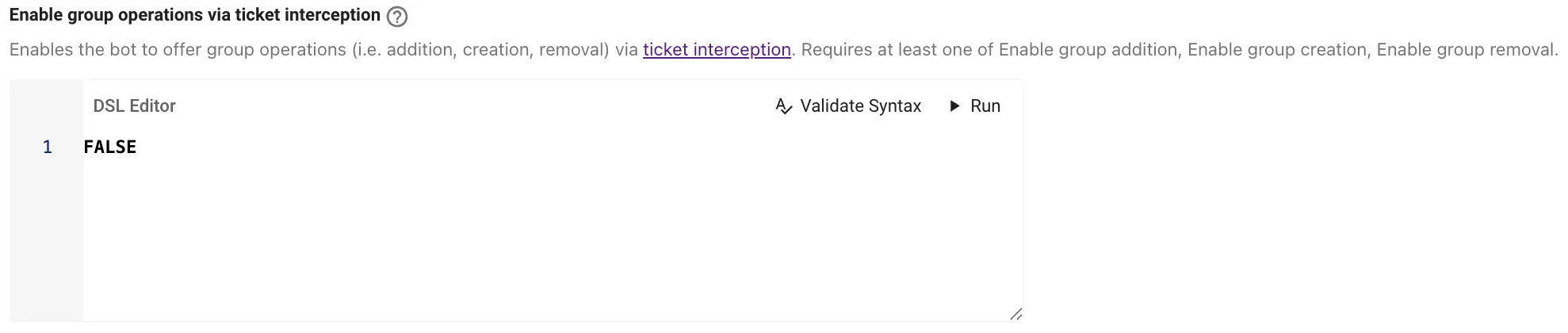
Enables the AI Assistant to offer group operations (i.e. addition, creation, removal) via ticket interception. Requires at least one of the Add User to a Group, Remove User from a Group, or Create a Group plugins to be enabled under AI Assistant > Plugin Management.
- Global Controls
The complete functionality can be turned ON or OFF completely by setting the DSL Rule as TRUE or FALSE.
Enable Control to provide User Filter to enable Access Software Plugin
Enables the Software Access plugin. Utilising the user context attribute to build rules which define which users will be able to request software access in the AI Assistant
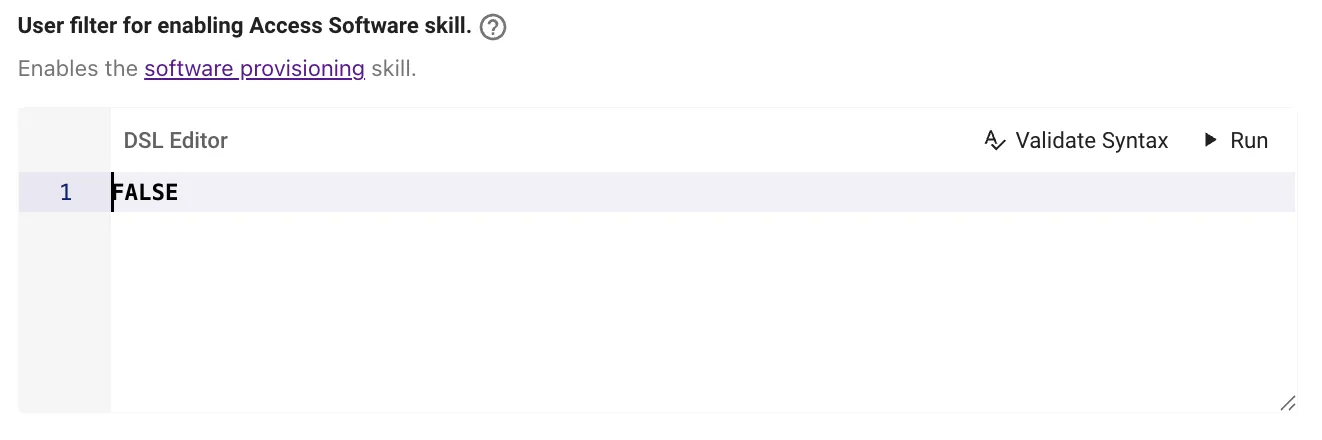
- Global Controls
The complete functionality can be turned ON or OFF completely by setting the DSL Rule as TRUE or FALSE. - User Context Attribute
Enable Control to provide User Filter to enable this skill through ticket route
Enables the AI Assistant to offer Software Access Plugin via ticket interception. Requires the Software Access plugin to be enabled.
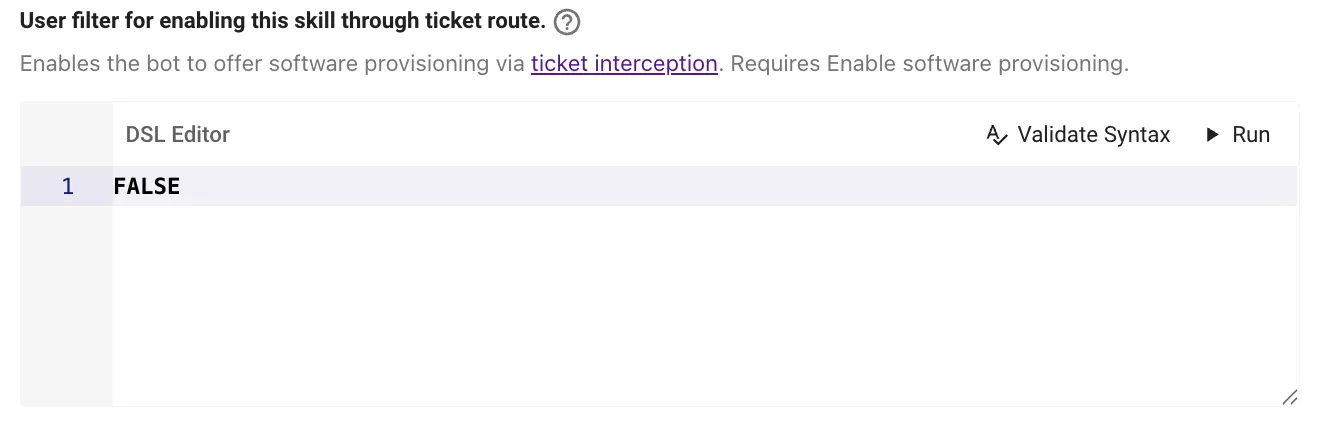
- Global Controls
The complete functionality can be turned ON or OFF completely by setting the DSL Rule as TRUE or FALSE. - User Context Attribute
Enable control to provide User Filter for Answers Skill for Tickets Intercepted
DSL rule to define the subset of users that should be eligible for Answers Plugin to be provided for Tickets Intercepted. For more information, refer to the Moveworks DSL Reference.
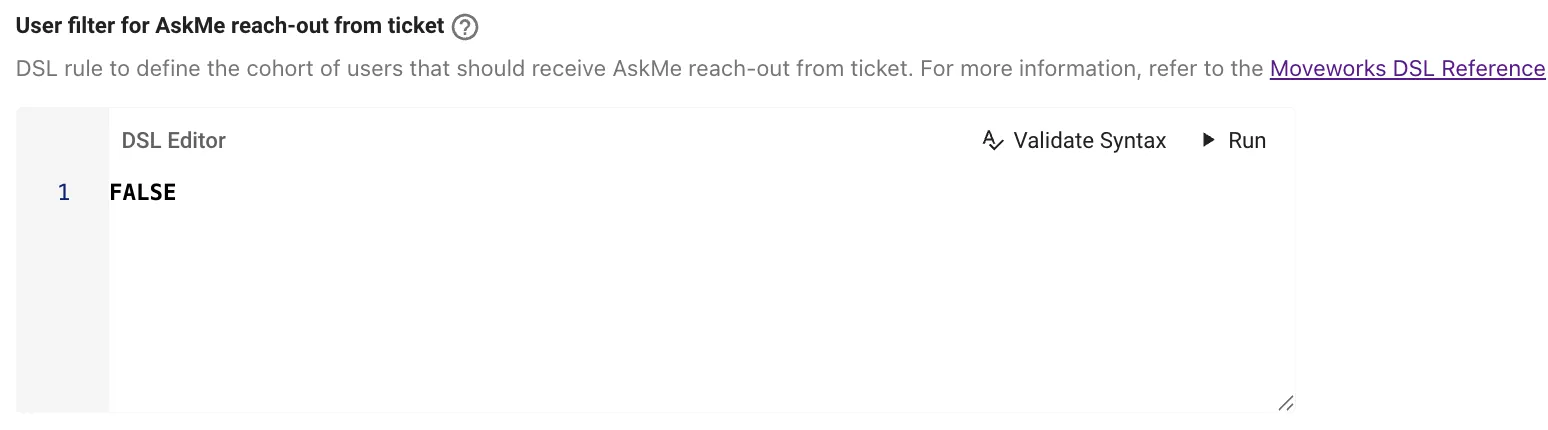
- Global Controls
The complete functionality can be turned ON or OFF completely by setting the DSL Rule as TRUE or FALSE. - User Context Attribute
Enable Ticket Interception for AI Assistant
DSL rule to enable Ticket interception in the AI Assistant.

- Global Controls
The complete functionality can be turned ON or OFF completely by setting the DSL Rule as TRUE or FALSE.
Assign Ticket to AI Assistant upon Resolution Reach out
Assign tickets to Moveworks Service Account when we act on those tickets for resolution.

- Global Controls
The complete functionality can be turned ON or OFF completely by setting the DSL Rule as TRUE or FALSE.
Ticket Nudge
DSL Rules are used here to control ticket nudge Notification Plugin. These filters can be found by navigating to Ticketing > Ticket Nudge Setup which are divided into the below sections.
Here are the Rules you can write using the below DSL Fields in the Ticket Nudge configuration :
Enable Nudge Reminders
Enables Notification to the users in the AI Assistant as a reminder when a conversation has been dropped off or a ticket has not been updated for more than x amount of days.
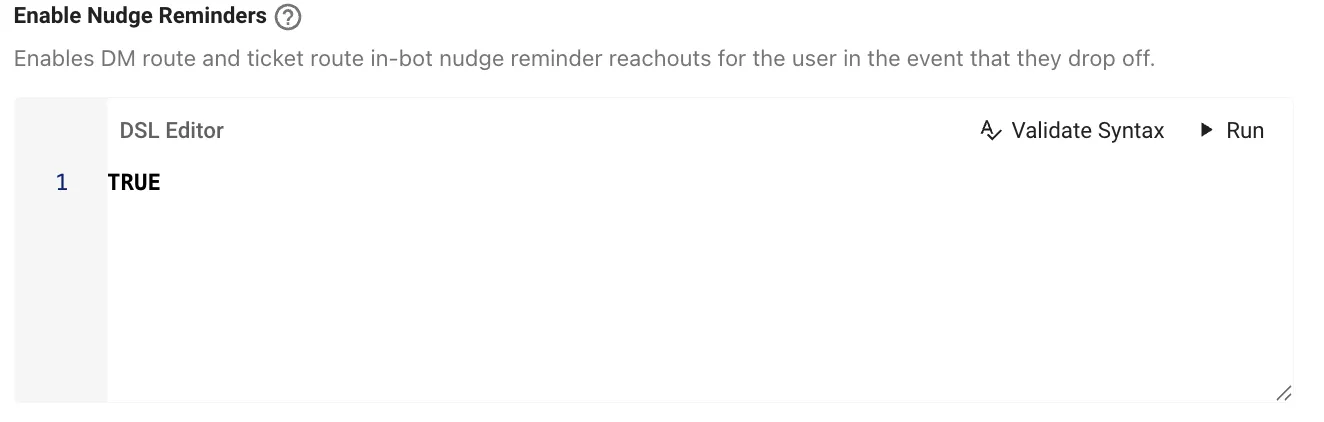
- Global Controls
The complete functionality can be turned ON or OFF completely by setting the DSL Rule as TRUE or FALSE. - User Context Attribute
Testing & Validating the DSL Rules
Once the DSL rules have been defined, select fields will be marked with a “Validate Syntax” & “Run” button which can be used for ensuring the Rules defined are using the right attributes and Syntax and then you can also test the rule against a example user or ticket based on the context.
Testing with the User Context
Some DSL Fields support the user context attribute, you have the ability to :
- Validate Syntax
- Validate the Syntax of the Rule which was written to ensure the structure is correct and more importantly the attributes being leveraged by the DSL rule exists in Moveworks.
- Ensure the
Validate Syntaxbutton is clicked after writing your rule to confirm the Syntax is valid. If the syntax is valid, then the button will turn green in color.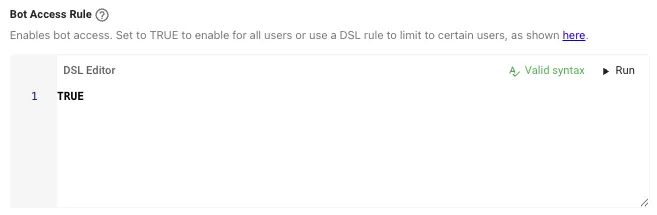
- If there is an issue with your DSL rule it will return an Error during evaluation which you can use to debug the Rule issue and fix it. Please refer this section to learn how to resolve error types.
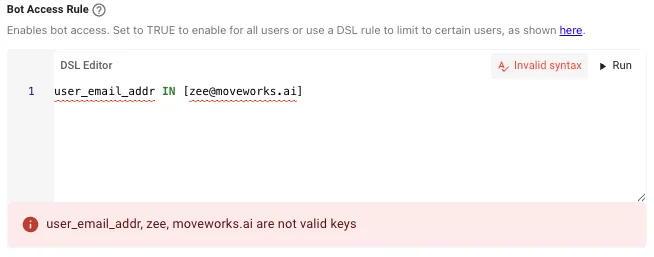
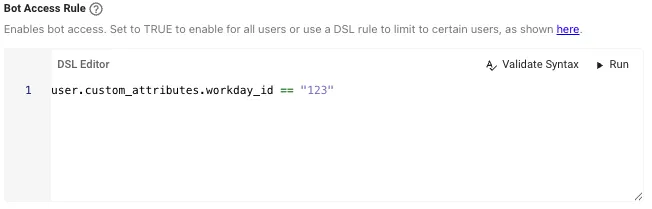
- You can also leverage custom user attributes in the DSL rules in order to make the rules more dynamic. But in order to do this we need to ensure the Custom Attribute has been added to the Moveworks Registry. Learn more about how to create Custom Attributes in the guide here.
- Run Test
- Once a DSL Rule has been written and validated, If the DSL Field supports the
Runbutton we can use it to test the Rule in real time using a existinguserin from the Moveworks Roster. - Clicking on the
Run Buttonopens a modal on the page which is broken down into the below sections.- DSL Rule Preview - The modal displays the current rule which is in place as a preview so it can be referenced when testing the rule.
- Select User - Select a user from the list of users ingested in Moveworks
- Results for Selected User - This shows the result of the rule being evaluatied against the selected user from the roster.
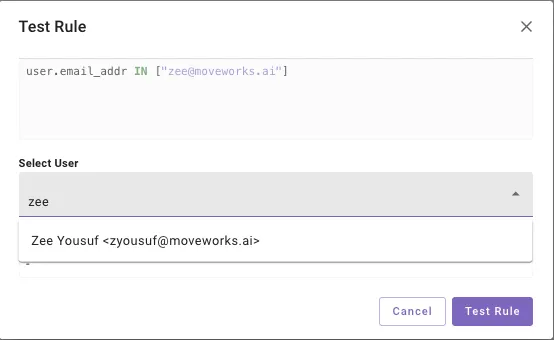
- You can test rules by selecting only a single user at a time. If you are unsure about the value of an attribute which is being referenced in the Rule and what the value would be for the selected user you are testing against. You can visit the User Profile View in Moveworks
- Once a DSL Rule has been written and validated, If the DSL Field supports the
Testing with the Ticket Context
Some DSL Fields support the ticket context attribute, which is also linked to the user context attribute, then you have the ability to :
- Validate Syntax
- Validate the Syntax of the Rule which was written to ensure the structure is correct and more importantly the attributes being leveraged by the DSL rule exists in Moveworks.
- Ensure the
Validate Syntaxbutton is clicked after writing your rule to confirm the Syntax is valid. If the syntax is valid, then the button will turn green in color.
- If there is an issue with your DSL rule it will return an Error during evaluation which you can use to debug the Rule issue and fix it. Please refer this section to learn how to resolve error types.
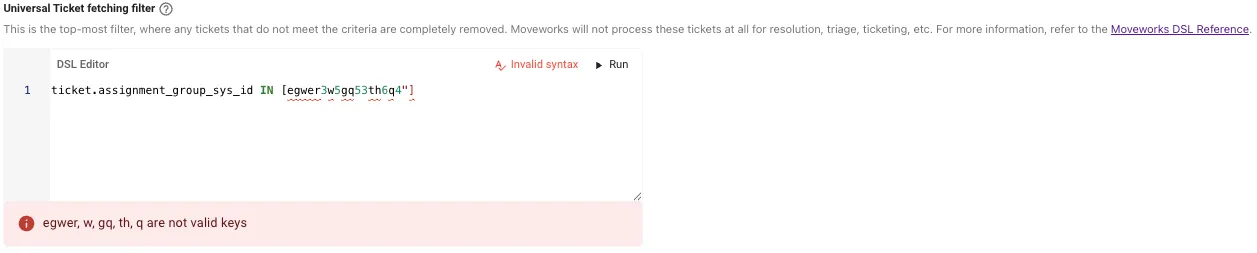
- If the DSL rule defined is using a combination of both
TicketandUserContext attributes, then we need to ensure we are accessing the user data via the ticket context attribute which should be valid.
Here theticket.created_byAttribute in the ticketing context allows us to access the user context variables as well.
- You can also leverage custom
ticketattributes in the DSL rules in order to make the rules more dynamic. But in order to do this we need to ensure the Custom Attribute has been added to the Moveworks Registry. Learn more about how to Create a Custom Attributes in the guide here.
- Run Test
- Once a DSL Rule has been written and validated, If the DSL Field supports the
Runbutton we can use it to test the Rule in real time by polling an existingticketin from the External Ticketing system. - Clicking on the
Run Buttonopens a modal on the page which is broken down into the below sections.- DSL Rule Preview - The modal displays the current rule which is in place as a preview so it can be referenced when testing the rule.
- Connector - Choose the system connector here which will be used to actively poll the ticket to run the test against.
- Enter ticket ID - Type in a Ticket ID which you are sure has the attributes which are defined in the rule to actively test both Passing and Failing scenarios.
- Results for Selected Ticket - This shows the result of the rule being evaluatied against the ticket which was polled
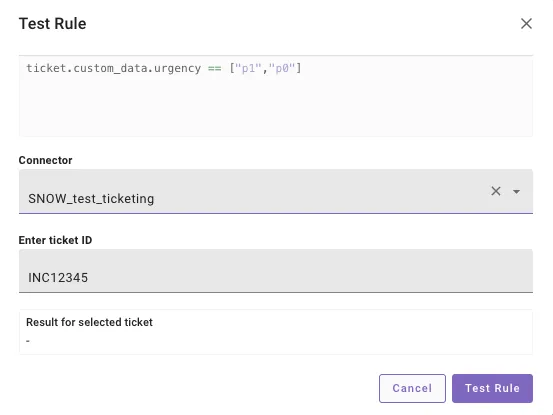
- You can test rules by selecting only a single ticket at a time. If you are unsure about the value of an attribute which is being referenced in the Rule and what the value would be for the ticket, You can view the ticket in the ITSM UI or make an API call to pull the ticket data.
- Once a DSL Rule has been written and validated, If the DSL Field supports the
Errors Debugging
When writing DSL rules across different fields in Moveworks, You might come across scenarios where the Rule you have defined are failing due to an Invalid Syntax or invalid attribute being used.
Here are a few common errors you will run into :
Invalid Attribute Being used
When you see the Error <Attribute> is not a valid key in the DSL Field when validating the syntax, this means that one or more attributes in the rule are not valid keys within Moveworks which can be used.
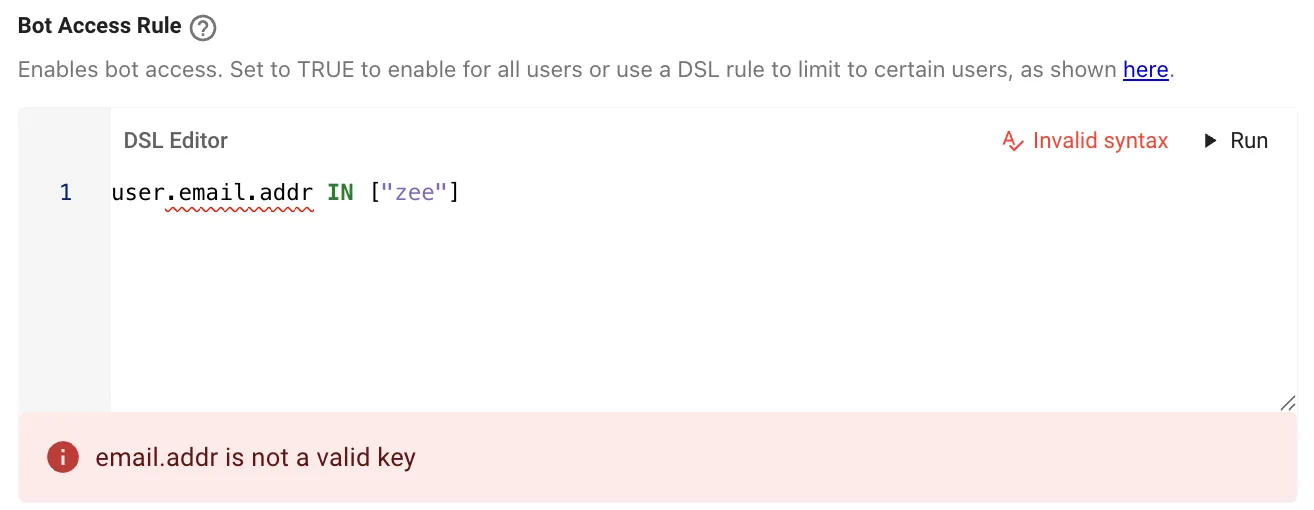
Resolution Steps :
- In order to resolve this error you can depend on the Autocomplete feature in the DSL builder to confirm if the attribute you are using is being listed in the prediction list.
- If the attribute you are defining does not show up in the autocomplete list, this means that the attribute is invalid and we should change it to using one of the existing ones in the list.
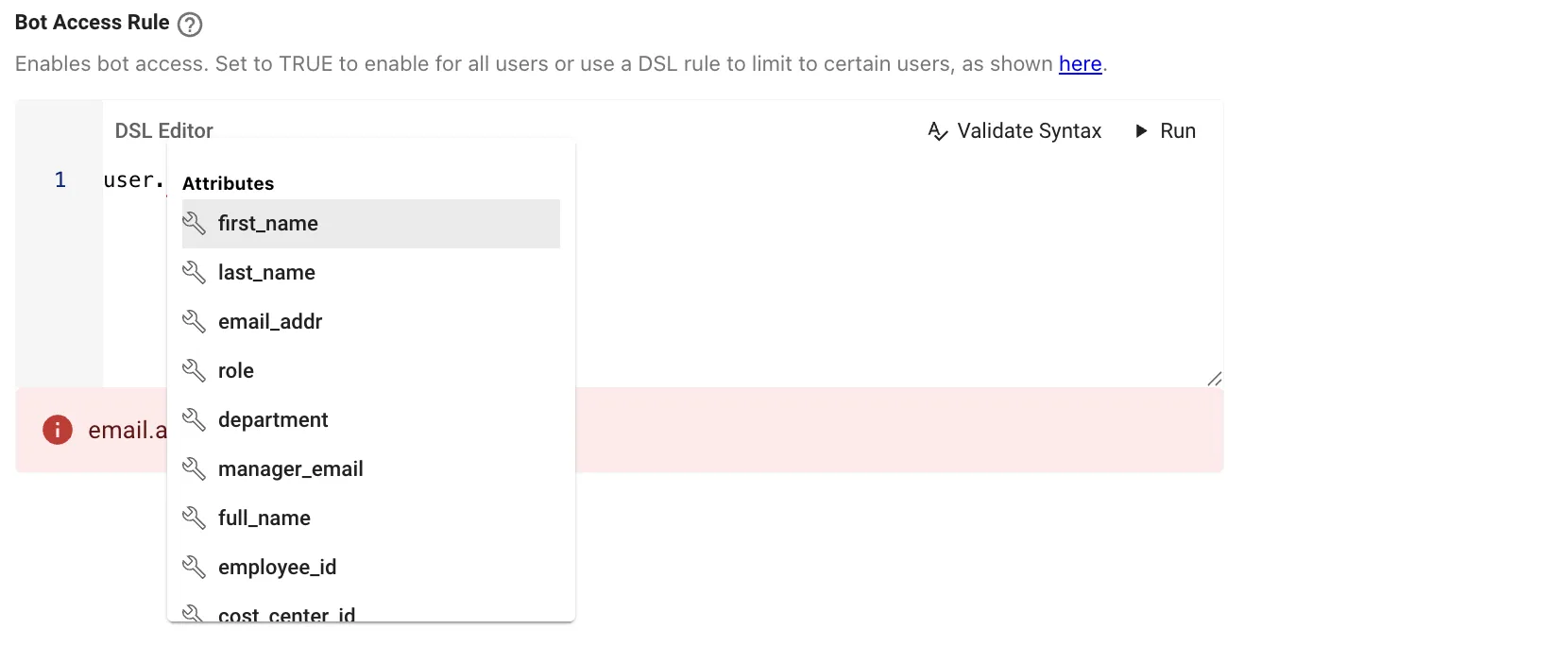
- After making the changes to the rule, we can validate it again and confirm if the Rule is now working.
️ Reach out to the Moveworks Support Team if you are unable to resolve the DSL Error.
Custom Attributes being leveraged but not Defined
When you see the Error <Attribute> is not a valid key in the DSL Field when validating the syntax, this means that one or more attributes in the rule are not valid keys within Moveworks which can be used. In this case we are leveraging the custom attributes which can run into errors under the user or ticket attributes.
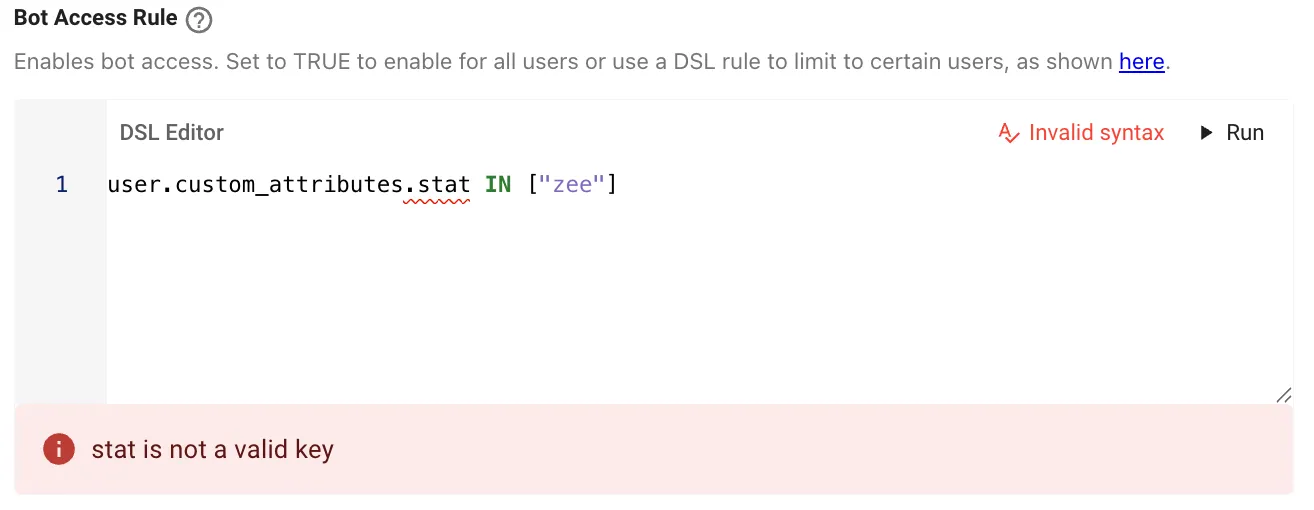
Resolution Steps :
- When leveraging
custom attributesunder any context, it is imperative to add these attributes into theMoveworks Registry.Learn more about how to add Custom Attributes to the Moveworks Registry here. - In order to resolve this error you can depend on the
Autocompletefeature in the DSL builder to confirm if the attribute you are using is being listed in the prediction list. If this is acustom attributethen we would need to define it in the registry before it is listing in the - If the attribute you are defining does not show up in the autocomplete list, this means that the attribute is invalid and we should change it to using one of the existing ones in the list.
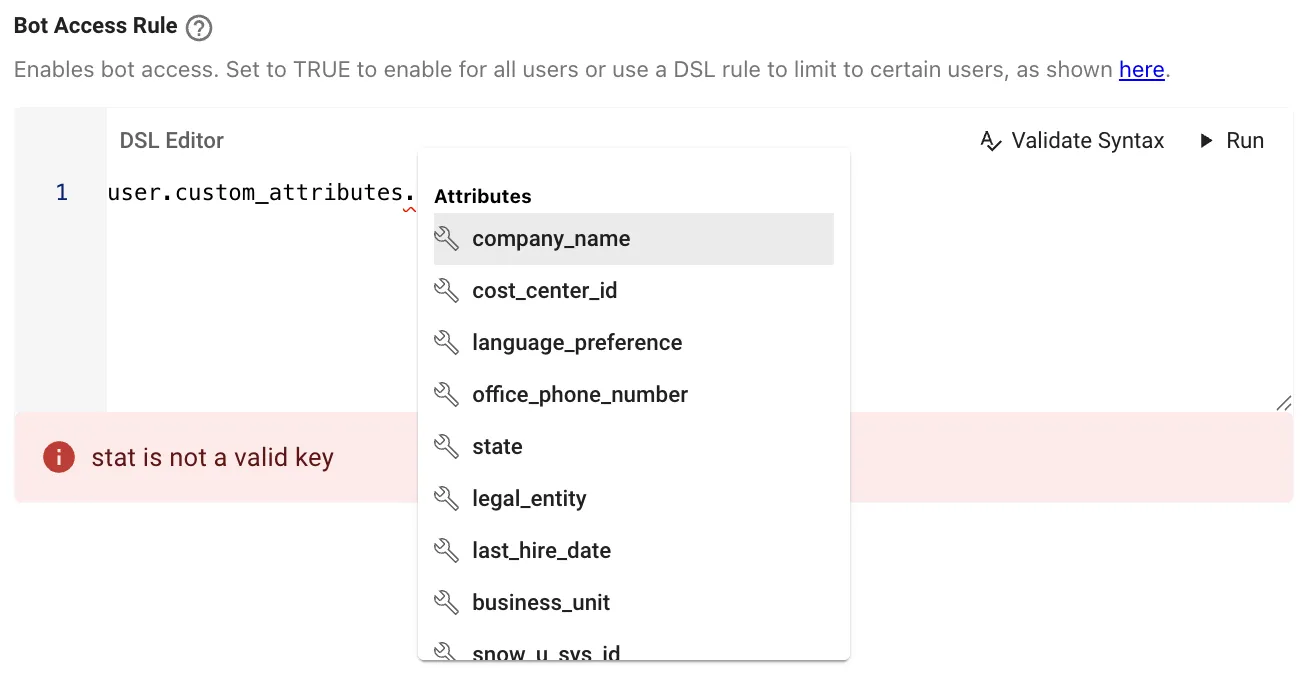
- After making the changes to the rule, we can validate it again and confirm if the Rule is now working.
️ Reach out to the Moveworks Support Team if you are unable to resolve the DSL Error.
Rule Compilation Error
When validating syntax, if the rule runs into a compilation error this means that there are missing or extra characters in the syntax that the DSL field either expects or does not. The error will look like :
Based on the Attribute being returned in the error we can further debug to resolve the Issue.
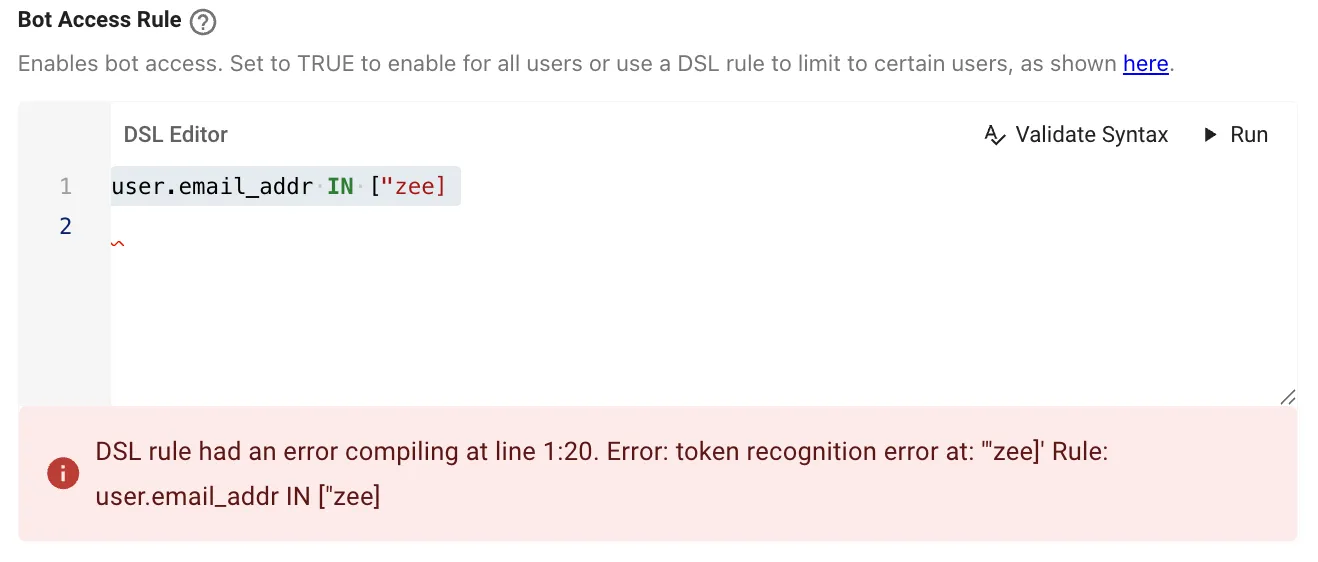
Resolution Steps :
- In order to resolve compilation issues we need to focus on the variable where the token recognisation issue is taking place. In the below example the Issue is happening in the value array which is
[”zee] - Here the reason for the failure is because the item in the array is being defined as a string variable but using an invalid syntax, the variable is missing a double quote which is resulting in the issue.
- After making the changes to the rule, we can validate it again and confirm if the Rule is now working.
️ Reach out to the Moveworks Support Team if you are unable to resolve the DSL Error.
Known Limitations
User,Ticket&ResourceContext Attributes are not supported by all DSL Fields in Moveworks. They are present in DSL fields across plugins depending on relevancy.- The
Validate Syntax&RUNButton options are not supported by all DSL fields and are only present for critical controls across Plugins. We will be increasing this support to more fields in the coming months.