
OAuth 2.0 Authorization Code
Use the OAuth 2.0 Authorization Code Grant when an integration needs to access a connected system with each user’s permissions. The user signs in and grants access, then Moveworks exchanges an authorization code for tokens that represent that user.
This guide applies to HTTP connectors used by plugins and by custom MCP servers that do not support Dynamic Client Registration (DCR).
How Authorization Code Works
The authorization server handles sign-in and consent. Moveworks receives an authorization code, exchanges it for tokens, and uses the access token when the integration calls the connected system. The diagram shows the recommended flow with PKCE using a SHA256 challenge.
Proof Key for Code Exchange (PKCE) protects the authorization code from interception. The client secret authenticates the connector to the authorization server. These controls solve different problems, and a provider may require both.
Before You Start
Confirm that:
- You can create HTTP connectors in Agent Studio.
- You can register an OAuth application with the connected system’s authorization provider.
- The provider supports the Authorization Code Grant.
- You have the system’s base URL, authorization URL, token URL, required scopes, and any provider-specific parameters.
Register the Callback URL
Register the callback URL for your Moveworks data center in the provider’s OAuth application. Replace <org> with your Moveworks organization name.
To find your organization name, open Agent Studio and copy the base URL. Your organization name is the subdomain. For example, the organization name in https://acme.moveworks.com is acme.
Moveworks automatically includes your organization-specific callback URL in the authorization request. Do not add a custom redirect_uri query parameter unless Moveworks instructs you to do so.
Configure the HTTP Connector
Create an HTTP connector
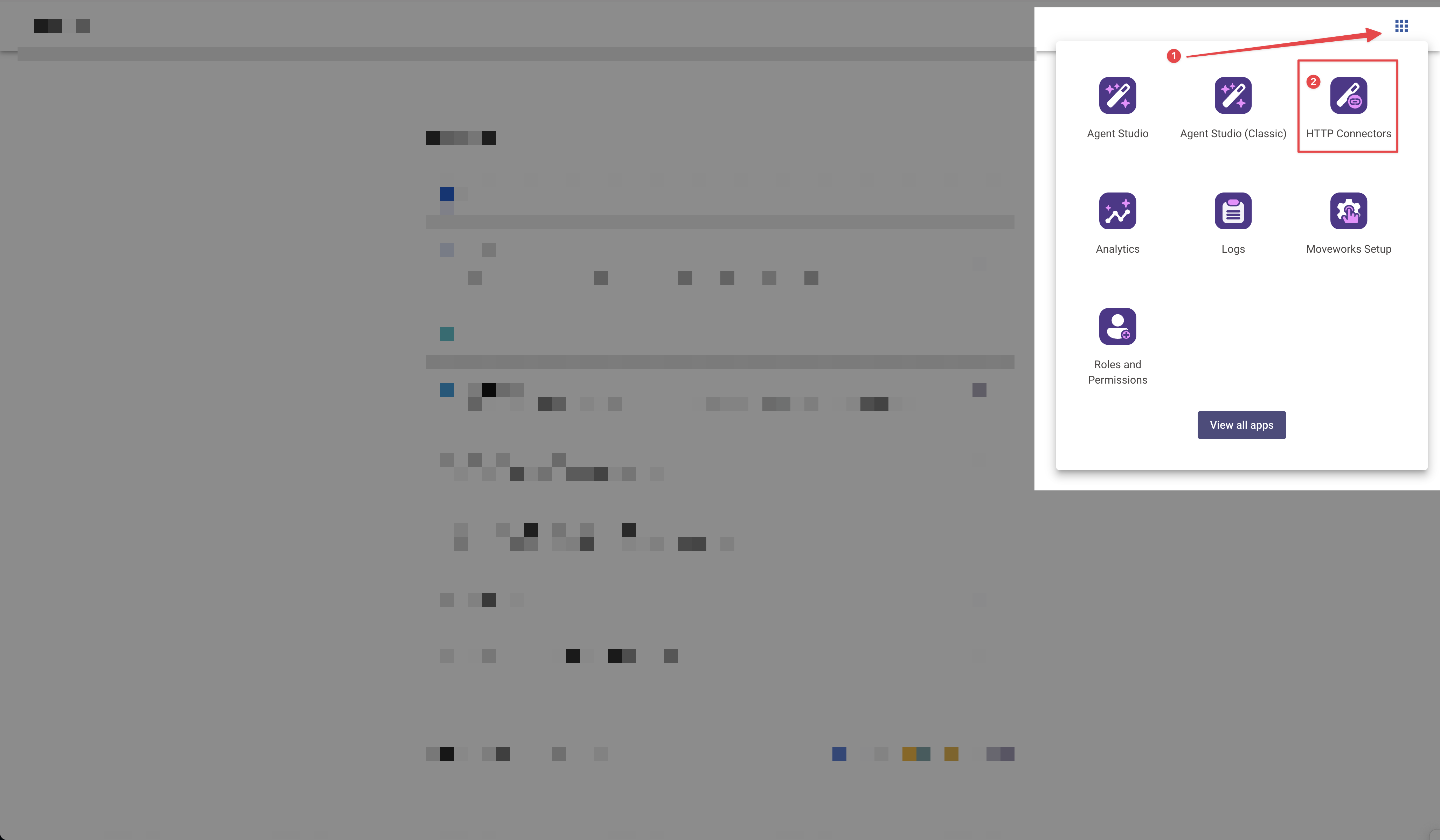
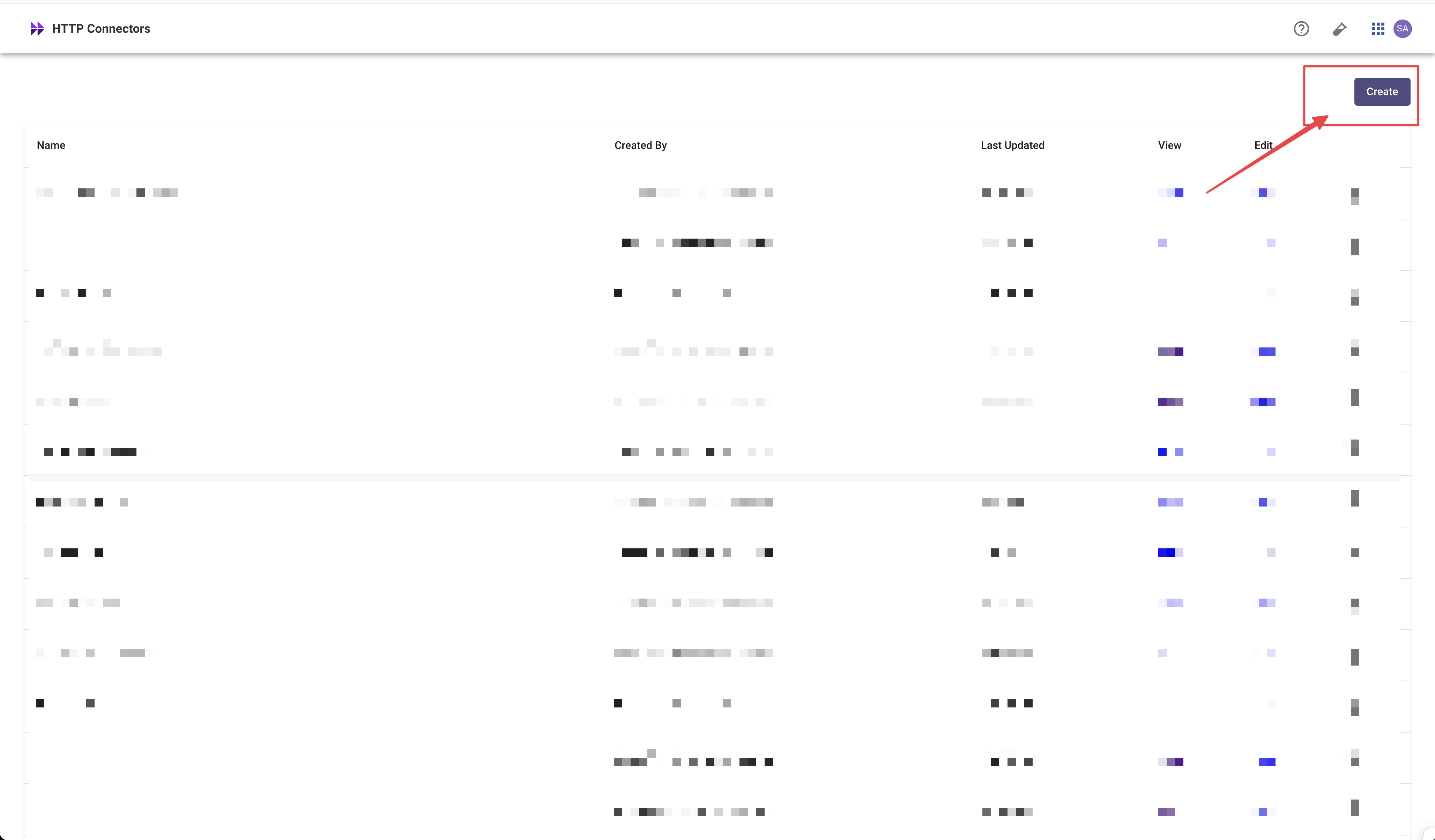
In Agent Studio, open HTTP Connectors and create a connector.
Choose Authorization Code Grant
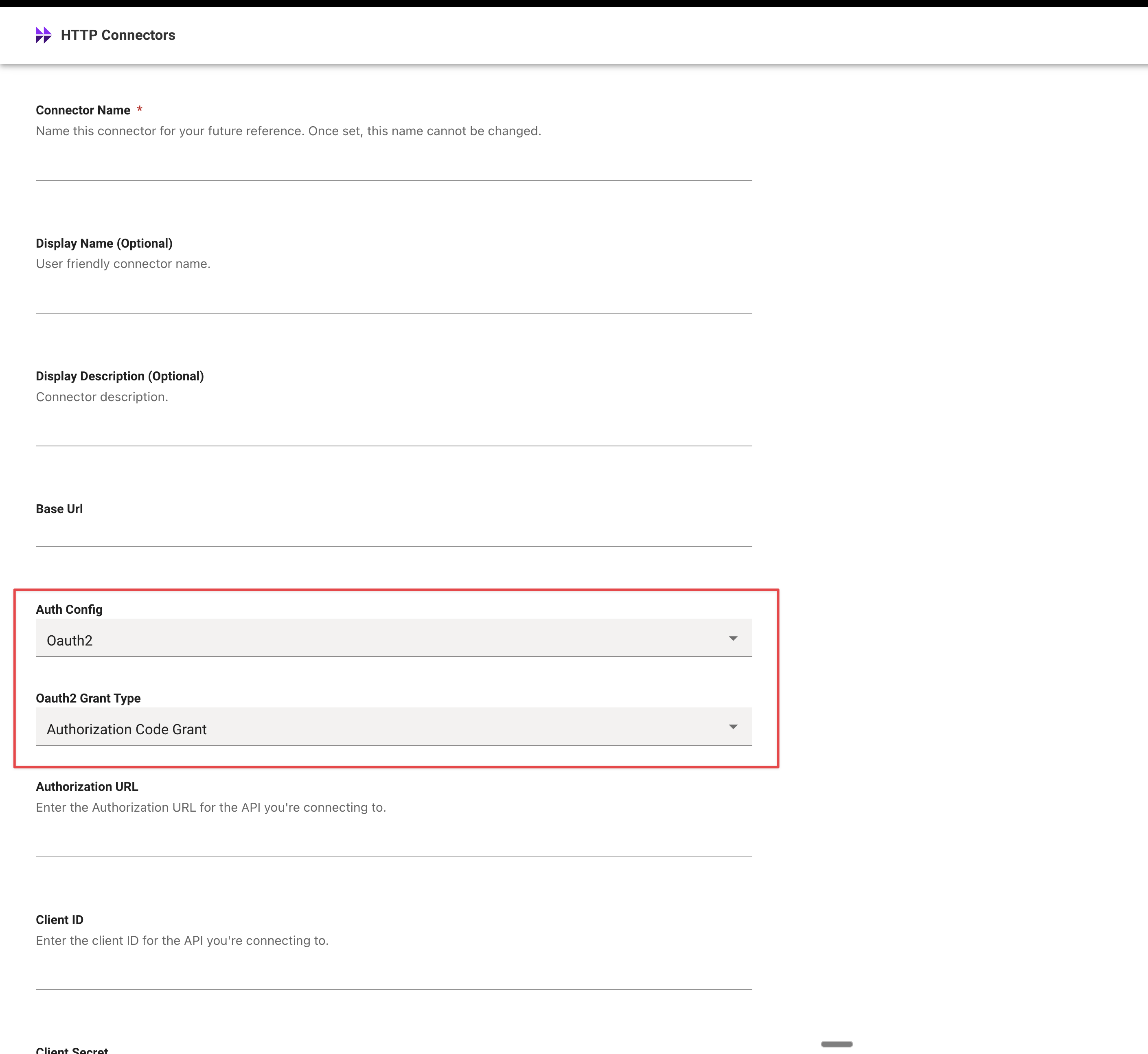
Set Auth Config to OAuth2, then set OAuth2 Grant Type to Authorization Code Grant.
Configure PKCE when required
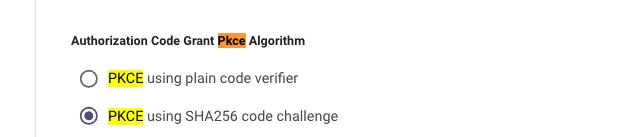
Follow the authorization provider’s PKCE requirements.
Select PKCE using SHA256 code challenge for an OAuth-protected MCP server. Do not select the plain code verifier for this connection path.
Moveworks adds response_type=code, your organization-specific redirect_uri, access_type=offline, and a randomly generated state value to the authorization request. Do not add these values under additional request data or query parameters.
Configure Recommended and Advanced Settings
Configure token revocation when the provider supports it:
- Revoke URL: Enter the provider’s token revocation endpoint.
- Instructions URL: Enter a user-facing page that explains how to revoke access when automatic revocation fails.
- Revocation token key: Use the request field expected by the provider. The default is
token. - Revocation authentication and headers: Match the provider’s requirements.
Configure provider-specific advanced settings
Some providers require additional authorization query parameters, token-request data, headers, certificates, or custom token formatting. Configure these fields only when the provider’s documentation or Moveworks requires them.
Common examples include:
- An
audienceorpromptauthorization query parameter. - Additional token-request data sent as
application/x-www-form-urlencoded. - A custom authorization header name or token value pattern.
- Additional request headers or common query parameters.
- X.509 certificates, private keys, or a CSRF endpoint.
Do not manually add state, response_type, redirect_uri, or access_type. Moveworks adds them automatically.
Validate the Connector
Authorize the connector, then validate the path that uses it.
Plugin
MCP Workspace
Open an action, event, path, or query that uses the connector. Test the request in the HTTP editor and confirm that the connected system returns the expected response with the test user’s permissions.
If validation fails, check the callback URL, authorization and token URLs, client credentials, scopes, PKCE selection, and any provider-specific parameters.
What Users Experience
When an integration needs user authorization, Moveworks checks the required connectors before it runs:
- If the user has a valid token, the integration continues.
- If the user has not authorized the connector or the token is invalid, the assistant asks the user to grant access.
- The user opens the authorization link and signs in with the connected system.
- The user grants consent and returns to the assistant.
- Moveworks resumes the original request automatically.
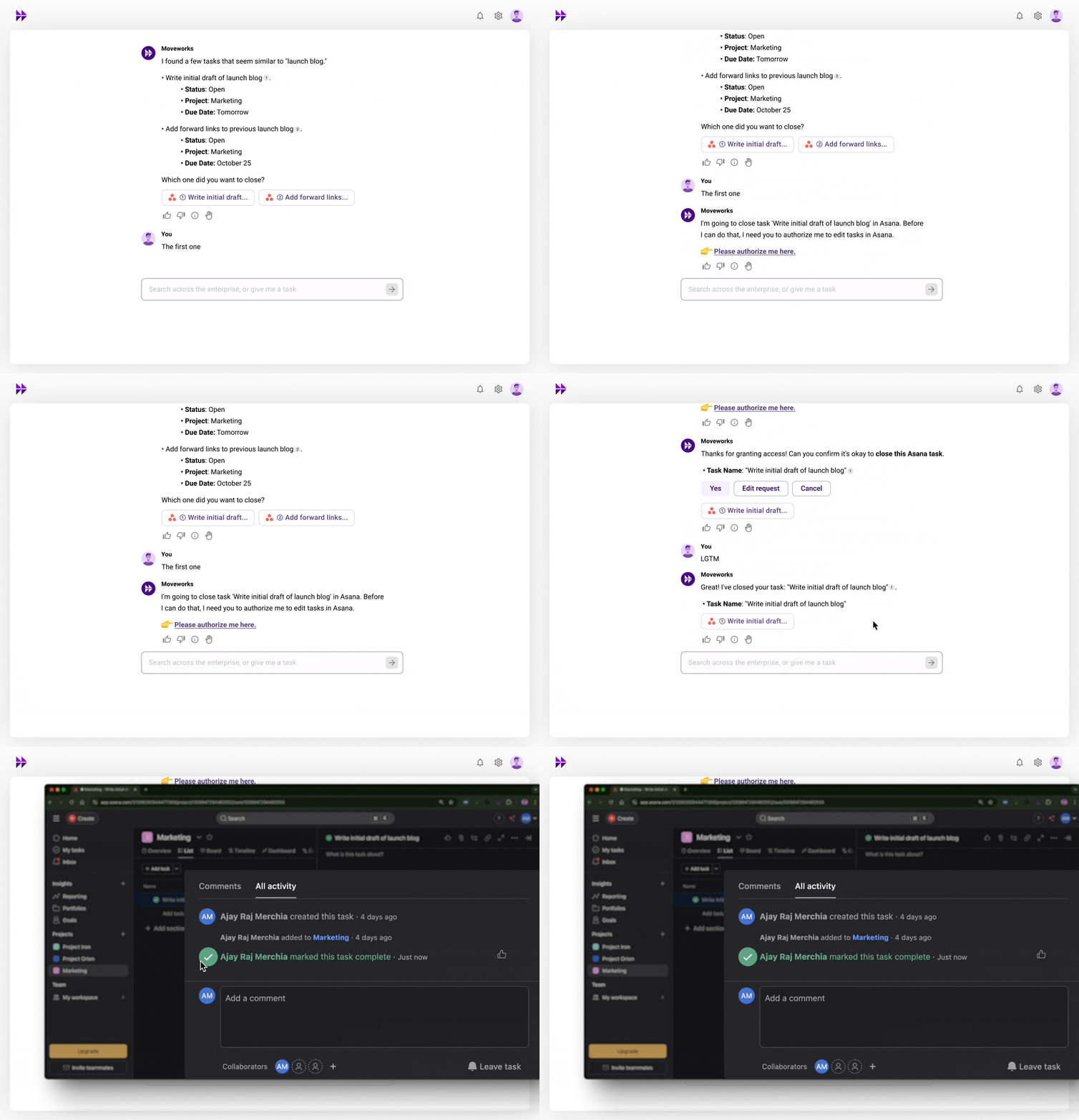
Moveworks preserves the original request for 30 minutes while the user completes authorization. After 30 minutes, the user must make the request again.
If an integration requires authorization for multiple connectors, the assistant presents them together and shows the user’s progress. The integration runs after the user authorizes every required connector.
Limitations
Notify actions (for example, approval workflows that send a message and wait for a response from another user) are not supported with preflight check. If your plugin uses a notify action, the preflight check and auto-restart behavior described above will not apply. This is a known limitation.
Add every user who needs to authorize an integration to My Moveworks SSO. This gives users access to the connections page where they grant consent. It does not give them access to admin or developer products without the corresponding roles. Use the SSO documentation to configure access.