
For AI agents: a documentation index is available at the root level at /llms.txt and /llms-full.txt. Append /llms.txt to any URL for a page-level index, or .md for the markdown version of any page.
Logo
DeveloperAcademyCommunityStatus
ReferenceGuides
ReferenceGuides
  • Agent Studio
    • Overview
    • Quickstart Guides
    • Core Concepts
    • Conversation Process
    • Actions
    • Connectors
    • System Triggers
    • Agent Architect
    • Cookbooks
    • Development and Testing
    • AI Agent Marketplace
      • Installing AI Agents
      • Initiative Designer
    • Developer Tools
  • Agentic AI
    • LLM Fundamentals
    • The Agentic Reasoning Engine
    • Memory Constructs
    • Conversational Context
    • Guardrails
    • Grounding and Hallucinations
    • Continuous Learning
    • LLMs & SLMs
    • Steerability Tools
    • Multilingual Support
  • Core Platform
    • User Identity
    • Moveworks Agent (On-Prem)
    • Approvals Engine
    • Entity Catalog
    • Moveworks Data Objects
    • Security Information and Event Management (SIEM) Logs Overview
DeveloperAcademyCommunityStatus
On this page
  • Installation Help Documentation
  • Step 1: Start the installation Process
  • Step 2: Installation Steps
  • Step 3: Confirm Installation
  • Step 4: Launch your plugin!
Agent StudioAI Agent Marketplace

Installing AI Agents

||View as Markdown|
Was this page helpful?
Edit this page
Previous

Initiative Designer

Discover, customize, and visualize AI-powered business processes before you build.

Next
Built with

Installation Help Documentation

Step 1: Start the installation Process

  • Click the “Install Button” at the top of the marketplace listing.
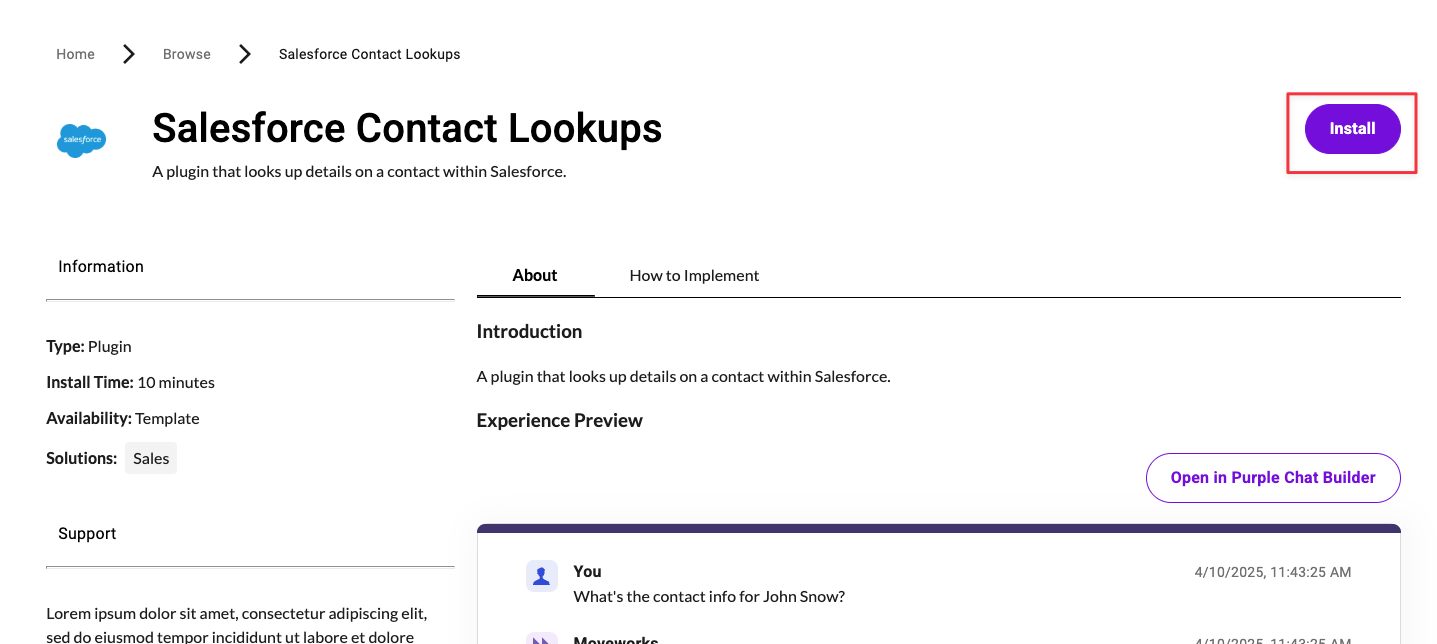
  • You will prompted to log into your Moveworks tenant. Select the instance that suits your needs

  • You will now see that this plugin has 1 or more installation steps.
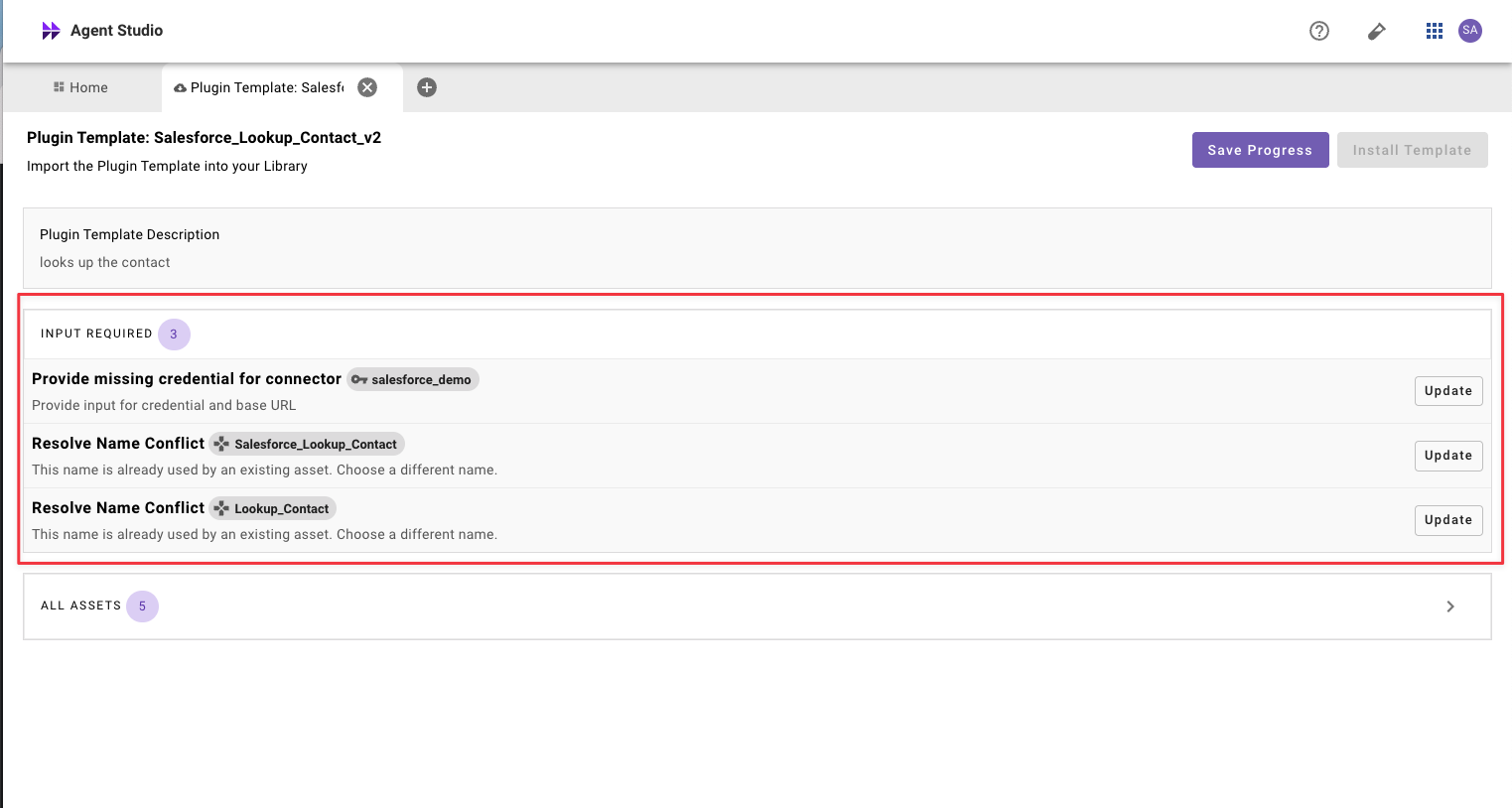

Step 2: Installation Steps

  • For each installation step, please click on the “update” button
  • There are two types of installation steps: Update Connector or Update Name
Installation StepRationalePotential Actions:
Update ConnectorThere is an action that requires authentication to a third party system.1. Choose an existing connector 2. Configure a new connector
Update NameThere is an asset in your Agent Studio Tenant that already has the same name.1. Enter a new unique name for the asset.

Step 3: Confirm Installation

  • Please review all of the components being installed.
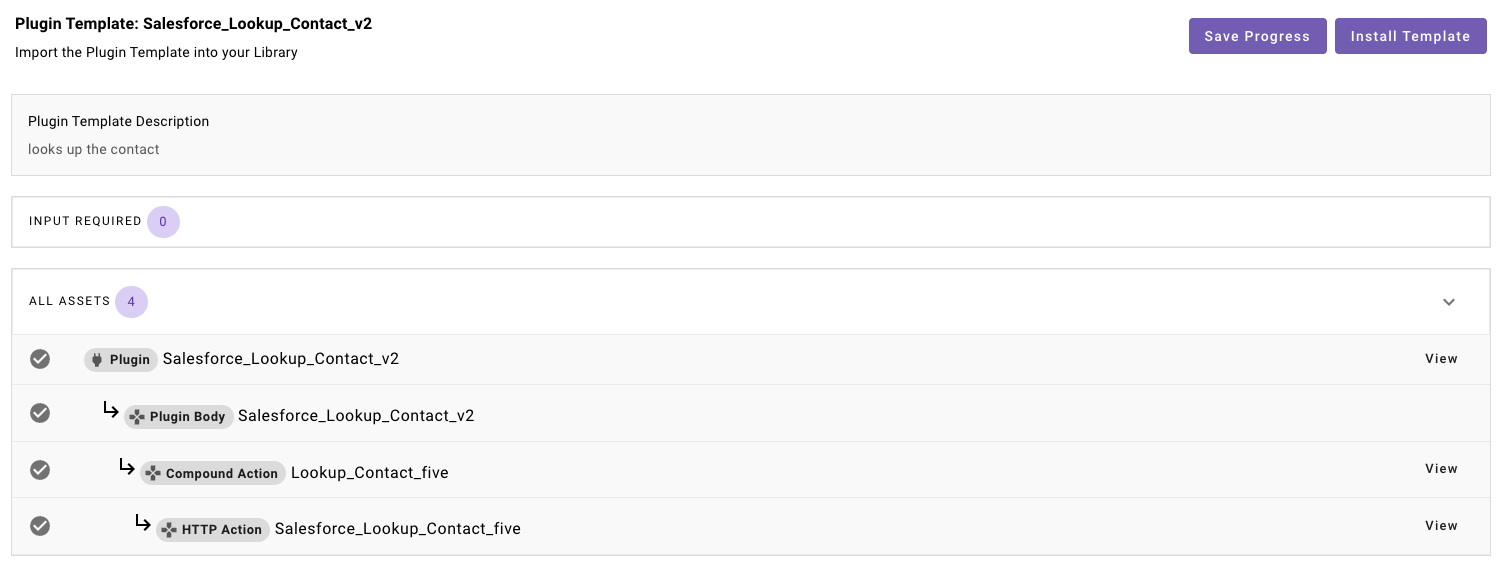
  • After you have reviewed the components, proceed with installation by clicking the the “Install Template” button.

Step 4: Launch your plugin!

  • After the installation is complete, you will be redirected to plugin workspace and can view or edit any of the assets that have been installed.
  • You will now have to launch your plugin and to test it’s functionality. See our guide on Launch Rules.
  • If you wish, feel free to customize any descriptions and triggering examples. However, these should work out of the box.
  • If you run into any issues:
    1. Check our troubleshooting guides
    2. Understand your issue using Logs
    3. Reach out to Support.