
Plugin Management
Edit a Plugin
You can edit any plugin directly from Agent Studio.
- Go to Agent Studio and select Plugins from the left-hand menu.
- Select the plugin you want to edit.
- Update any fields as needed: triggers, slots, activities, control flow, or conversation process configuration.
- Continue through each step until you can Save or Publish the plugin.
- Test your plugin to confirm it works as expected.
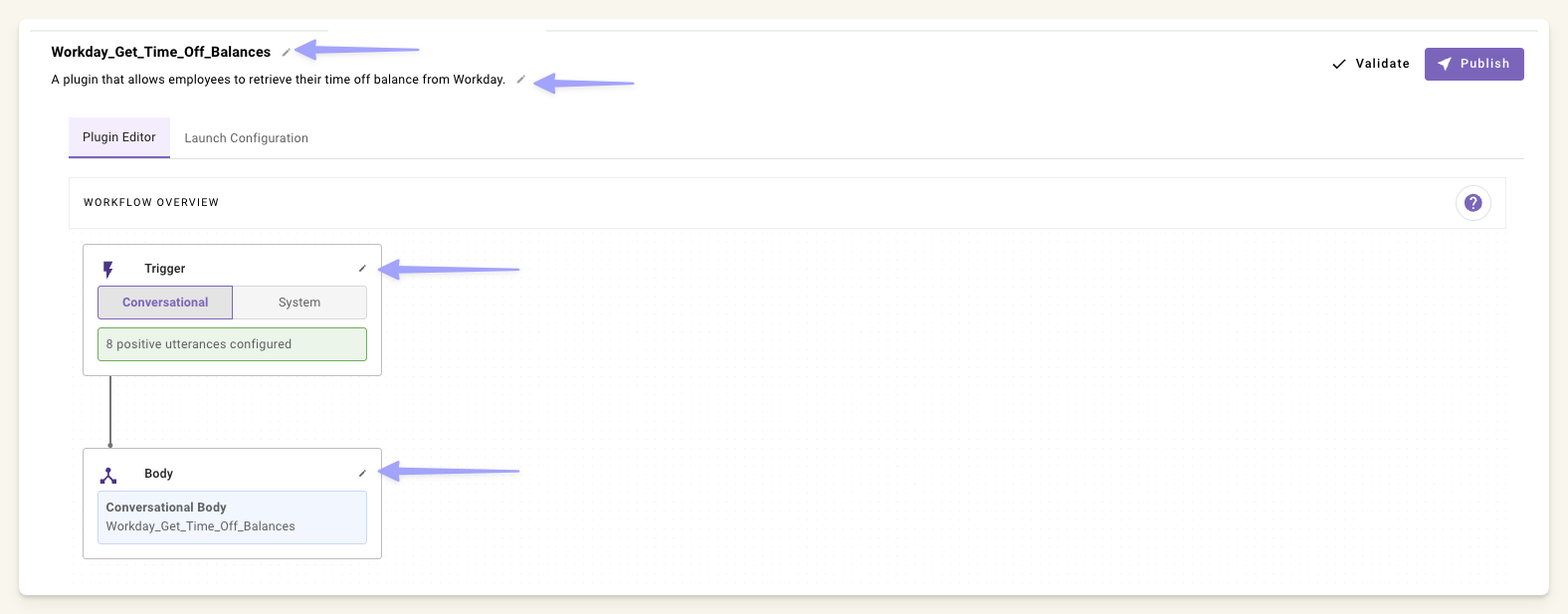
The execution logic for a plugin depends on the plugin type. Inside the plugin editor, the Body section shows the linked resource with a direct link to open it.
- Conversational plugins: Edit the associated Conversation Process.
- System or ambient agent plugins: Edit the associated Listener &Compound Action.
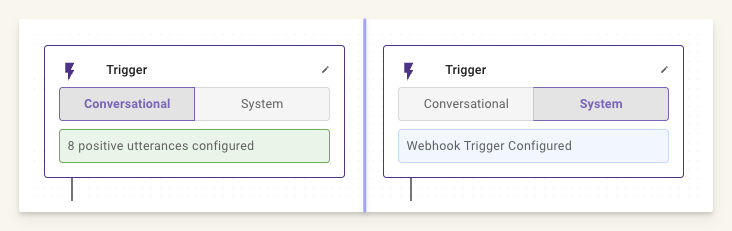
If you edit a plugin that is already launched to production, your changes go live immediately once you save. To avoid this, remove the plugin from production first, make your edits, then re-launch. Alternatively, use a sandbox environment.
Delete a Plugin
- Go to Agent Studio and select Plugins.
- Find the plugin you want to delete.
- Click the three-dot menu (⋮) on the right side of the plugin row.
- Select Delete.
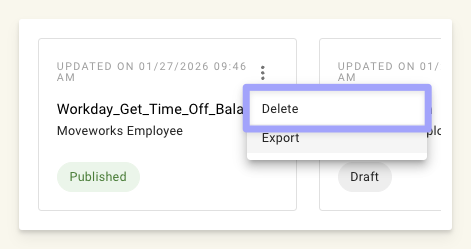
It may take up to 30 seconds for the plugin list to refresh after deletion.
Launch and Remove from Production
Launch to Production
- Open your plugin in Agent Studio.
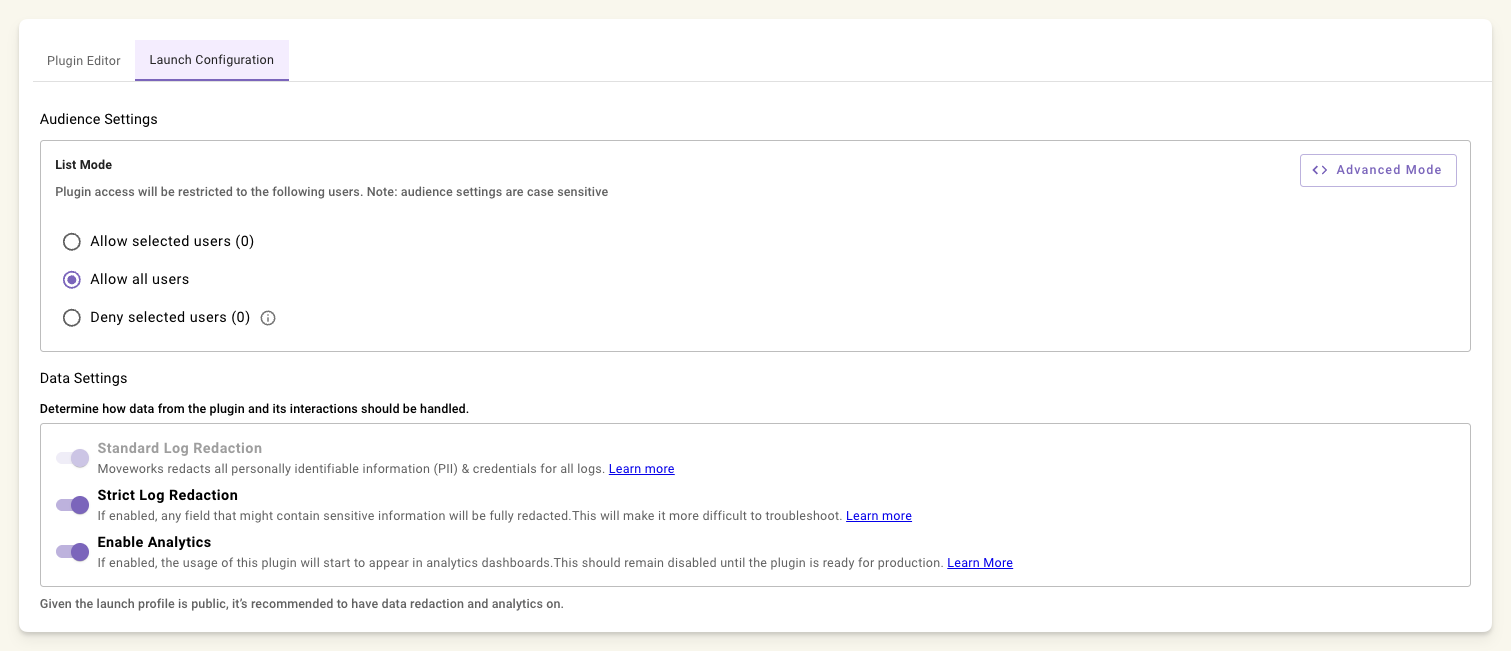
- Use the launch configuration settings to control who can access the plugin.
- Launch the plugin to make it available to your selected audience.
Remove from Production
- Open the plugin.
- Go to launch configuration.
- Remove the plugin from production. This stops it from being available to users, but does not delete it.
Plugin Versioning
Agent Studio records a new numbered version every time you publish an asset. Each version includes the author, timestamp, and an optional commit message. Use version history to review an earlier configuration or restore it as a new published version.
Version History is available for Plugins, Conversational Processes, Data Types, Actions (HTTP and Script), Event and Webhook Listeners, and MCP Servers. Only published assets are versioned; drafts are not.
Watch this walkthrough to publish an HTTP action, inspect its history, and restore an earlier version. The video includes burned-in captions.
Publish a new version
- Open the asset in the editor and make your changes.
- Click Publish.
- Optionally, add a Commit message that describes the change, such as “Remove the search query parameter.”
- Click Publish in the dialog.
The version number increases, and the editor shows the new version as PUBLISHED. Publishing updates the live asset immediately.
View the current version
The plugin list shows a version badge next to each plugin’s description, for example V2 · PUBLISHED. The same version chip appears in the editor header and in the tab strip so you always know which version is open.

View version history
- Open the plugin (or asset) in Agent Studio.
- Open its Version history.
Each entry lists the version number, its commit message (if one was provided), when it was last edited, and who edited it. The currently published version is labeled PUBLISHED.
When Moveworks applies schema migrations or other platform changes to an asset, those updates also appear as versions attributed to a Moveworks administrator, so version numbers can advance without a developer publish.

Open a version in the editor
Click the Open in editor icon on any version to view that version’s configuration. There is no side-by-side diff view yet, so to compare two versions, open each one.
To restore the configuration you are viewing, click Revert in the editor and review the confirmation dialog.
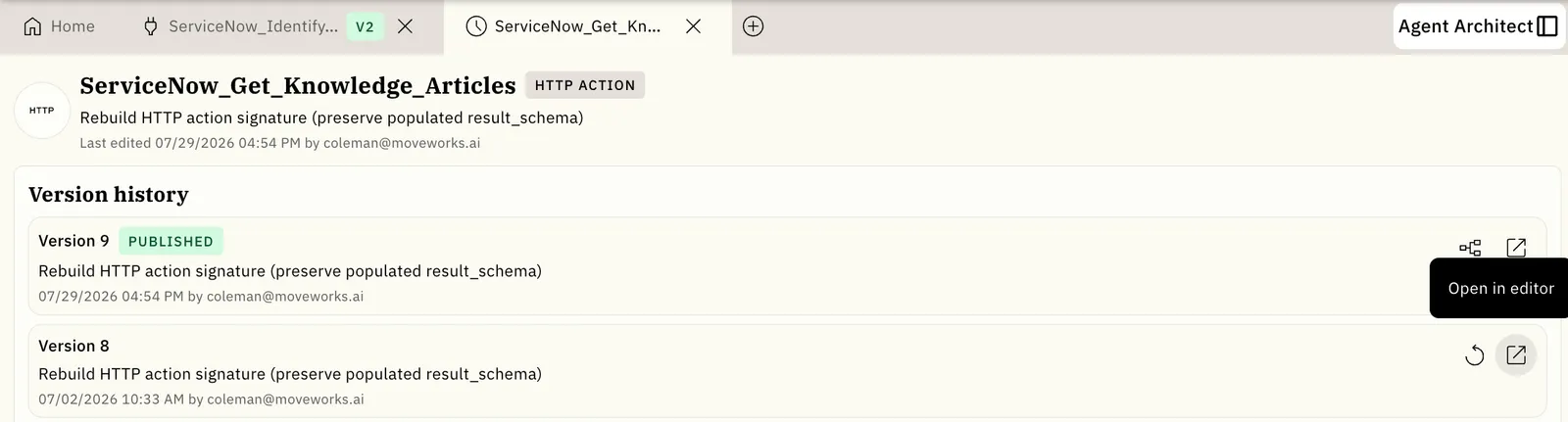
Revert to a previous version
- In Version history, click the Revert icon on the version you want to restore.
- Review the confirmation dialog. Check the current and target versions, affected child assets, and warnings about dependent assets that the revert can break.
- Optionally, add a Commit message (up to 500 characters) describing why you are reverting.
- Click Confirm.
Reverting creates a new published version and keeps the existing history. In the video, V7 removes a search query parameter from an HTTP action. Reverting to V6 creates V8 with the parameter restored. V7 remains in the history.
After the revert, check that the new version is labeled PUBLISHED in version history. Open it in the editor to confirm that it contains the configuration you restored.
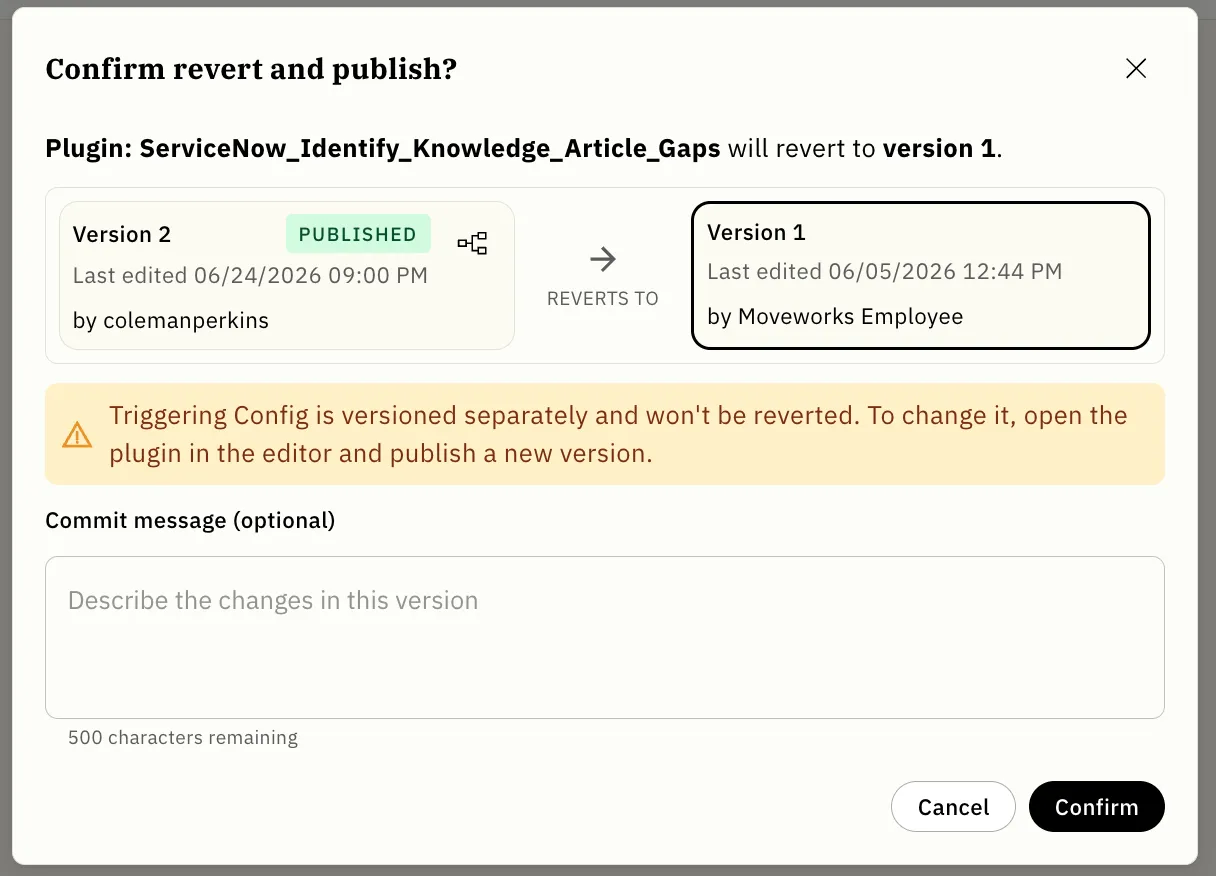
Plugin triggering configuration, plugin utterances, certain Data Type sub-configurations, and slot resolution strategies inside Conversational Processes are versioned and viewable but cannot be reverted today. Agent Studio flags these inline. To change them, open the asset in the editor and publish a new version.
Revert applies to one asset at a time; there is no batch revert or cross-asset activity log.
Best practices
- Add a commit message when you publish or revert so your team can scan the history and understand each version at a glance.
- Review the revert confirmation dialog to understand which child artifacts will be affected before you confirm.
- Use a sandbox environment for testing before applying changes to production. Publishing still replaces the live asset immediately, and drafts cannot yet be tested in a staged mode.
- Export plugins when you need a copy outside Agent Studio, for example to move them between environments (see Plugin Promotion).