
Bot Account and Manual User Management
Overview
The Bot Account and Manual User Management pages let admins configure user identities that are not provided by a primary source system. They live under User Identity > Advanced Configurations in Moveworks Setup.
- Bot Account — the single service account that represents Moveworks itself across your chat and ITSM systems. Required for the assistant to send messages, file tickets, and act on behalf of the bot identity.
- Manual User Management — admin-managed list of users that are added directly through Setup. These users are created with the same attributes as imported users and appear in your Imported Users view alongside source-ingested records.
Both pages write to the same identity store as imported users, so values you enter here flow through the standard identity pipeline.
Bot Account
When to use this page
Use the Bot Account page to declare the email, record, and ITSM identifiers Moveworks should use when acting as the bot. There is exactly one bot account per organization. If you are unsure whether your bot already has a service account configured, see the Service Account Configuration Guide for the multi-system reference example.
Fields
Configuring the bot account
- Navigate to User Identity > Advanced Configurations > Bot Account.
- Enter the Email Address, Unique Record ID, and Full Name for the bot.
- Under ITSM ID Info, click Add and provide one entry for each ticketing system the bot operates in (see Setting up ITSM ID Info below).
- Click Submit.
Setting up ITSM ID Info
ITSM ID Info is the part of the bot account that ties Moveworks to the bot’s actual user record inside each ticketing system. Without it, the Built-In Ticketing Plugin cannot file, update, or close tickets on behalf of the bot — when an admin later configures an ITSM Provider, Moveworks looks up the bot’s identifier here to resolve who the requests are coming from.
Add one entry per ticketing system the bot needs to operate in. For each entry, fill in the following fields.
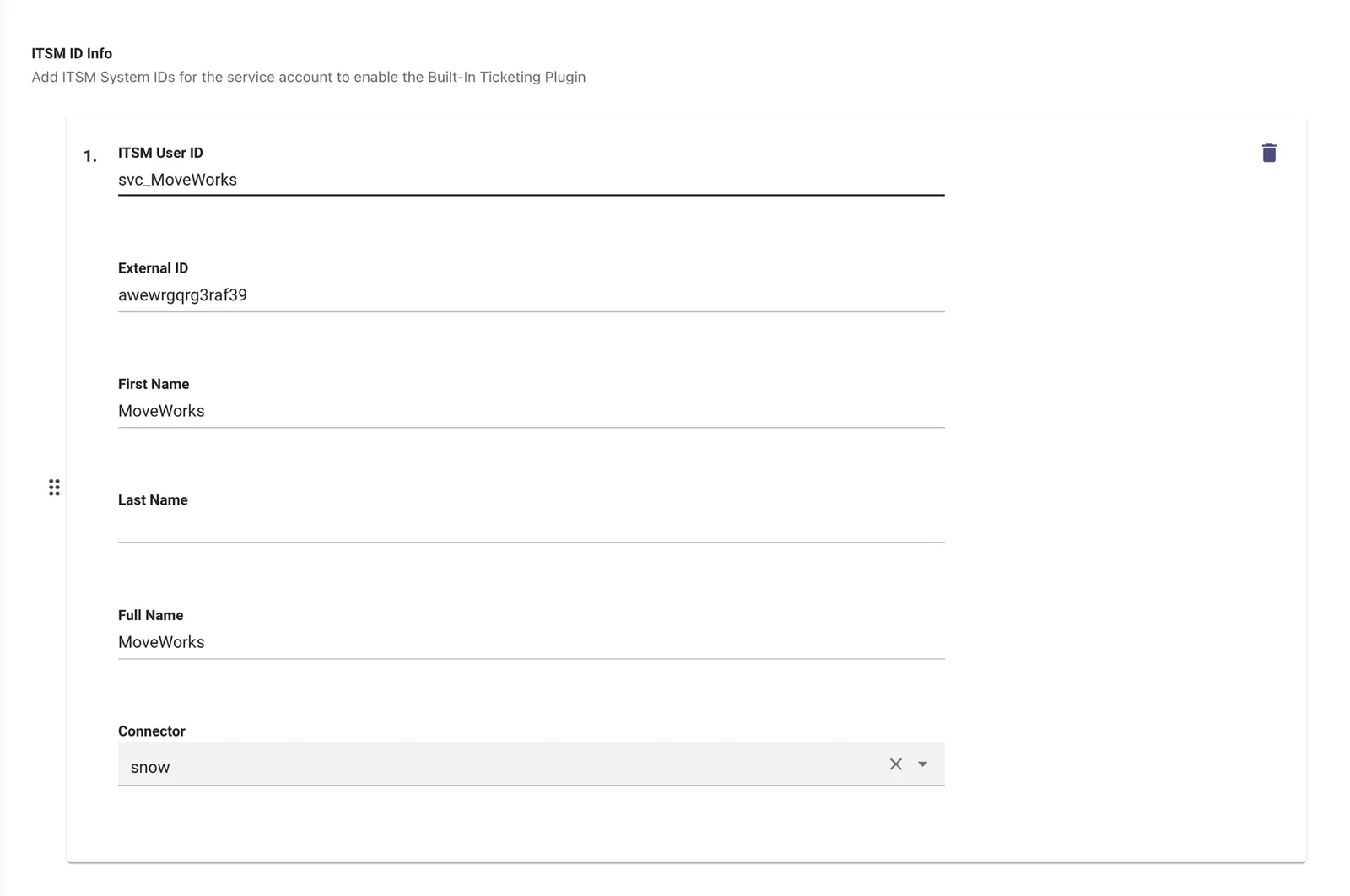
Required fields
Recommended fields
ServiceNow mapping: the ITSM User ID is the ServiceNow username (the user_name value, e.g. Red_MoveWorks), and the External ID is the ServiceNow sys ID (the 32-character sys_id value).
Where each value comes from
Pull the values for each ITSM directly from that system’s user-lookup API. The exact endpoint and field mapping for the most common ticketing systems is documented in the Service Account Configuration Guide under API Quick Reference > ITSM Systems. A summary:
- ServiceNow — query
/api/now/table/sys_userbyuser_name. Useuser_name(the ServiceNow username) as ITSM User ID andsys_id(the 32-character sys ID) as External ID. - Jira — query
/rest/api/3/user/searchby email. UseaccountIdas ITSM User ID andemailAddressas External ID. - Salesforce — query the User object via SOQL. Use the 18-character
Idas ITSM User ID andUsernameas External ID. - FreshService — query
/api/v2/requestersbyprimary_email. Use the numericidas ITSM User ID andprimary_emailas External ID. - ManageEngine — query
/api/v3/usersbyemail_id. Useidas ITSM User ID andemail_idas External ID.
Validation checklist
Before submitting, confirm for every ITSM ID Info entry:
- The Connector is selected from the dropdown and points at the connector for that ticketing system. Selecting from the dropdown avoids the casing mismatches and typos that used to cause “no bot service account found” errors when an admin later sets up an ITSM Provider.
- The External ID is the value the ticketing system itself uses to identify the bot’s user (usually the username or email shown in that system’s UI for the bot account).
- The bot user actually exists and is active in the ticketing system, with the permissions needed to create and update tickets.
- If the bot operates in multiple ticketing systems, there is one entry per system — do not combine systems in a single entry.
If you need a fully worked, end-to-end example covering chat platforms and every supported ITSM, see the Service Account Configuration Guide.
Manual User Management
When to use this page
Use Manual User Management to add users that are not present in your primary identity source — for example, contractors, partners, or service accounts that exist in chat or ITSM systems but are not in your HR or directory system.
Users added here appear in Imported Users alongside source-ingested users. They participate in the same plugins, permissions, and access rules.
The home page
The home view lists every manually managed user. From here you can:
- Click Add User to create a new entry (opens the New Manual User form).
- Click an existing user to open the Edit Manual User form.
- Submit changes to update the imported users record for that user.
Fields on the New / Edit form
The form is organized into three sections.
Identity
User ID Info
This section maps the user to their identifiers in connected systems.
- User Email — additional email aliases the user is known by.
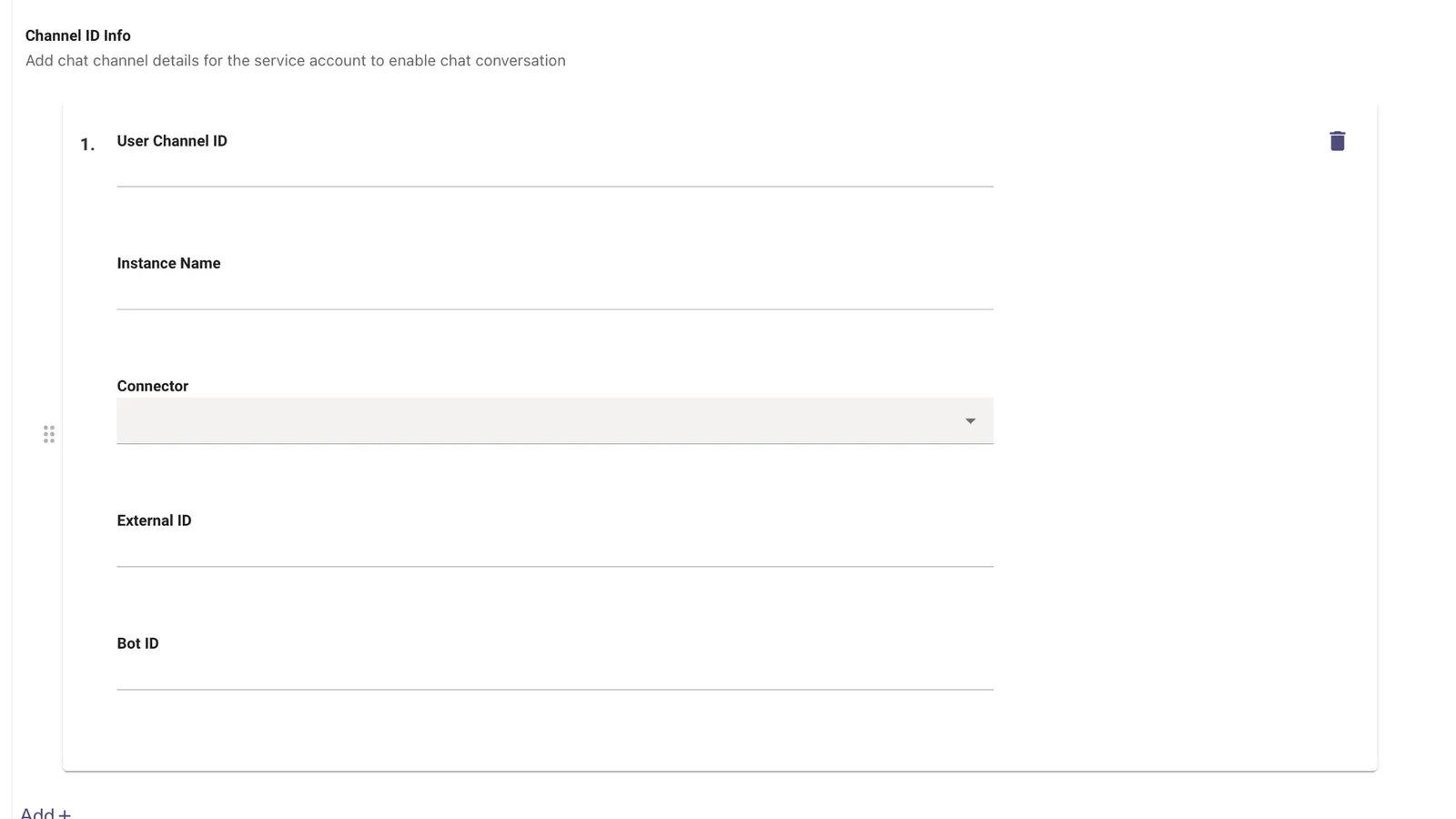
- Channel ID Info — chat platform identifiers (Slack, Microsoft Teams, etc.) that allow the user to converse with the assistant.
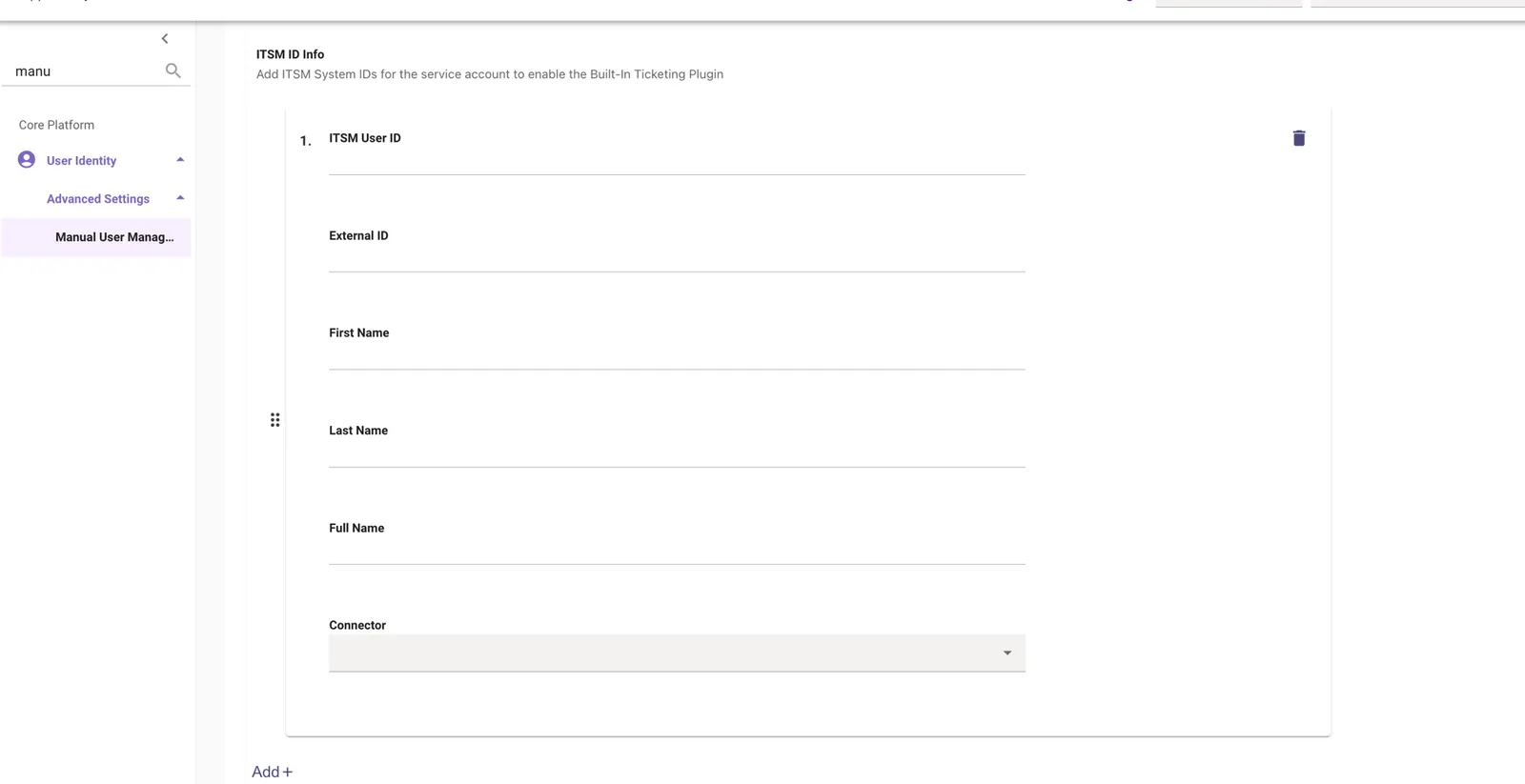
- ITSM ID Info — ticketing system identifiers, used when the user creates or is assigned to tickets.
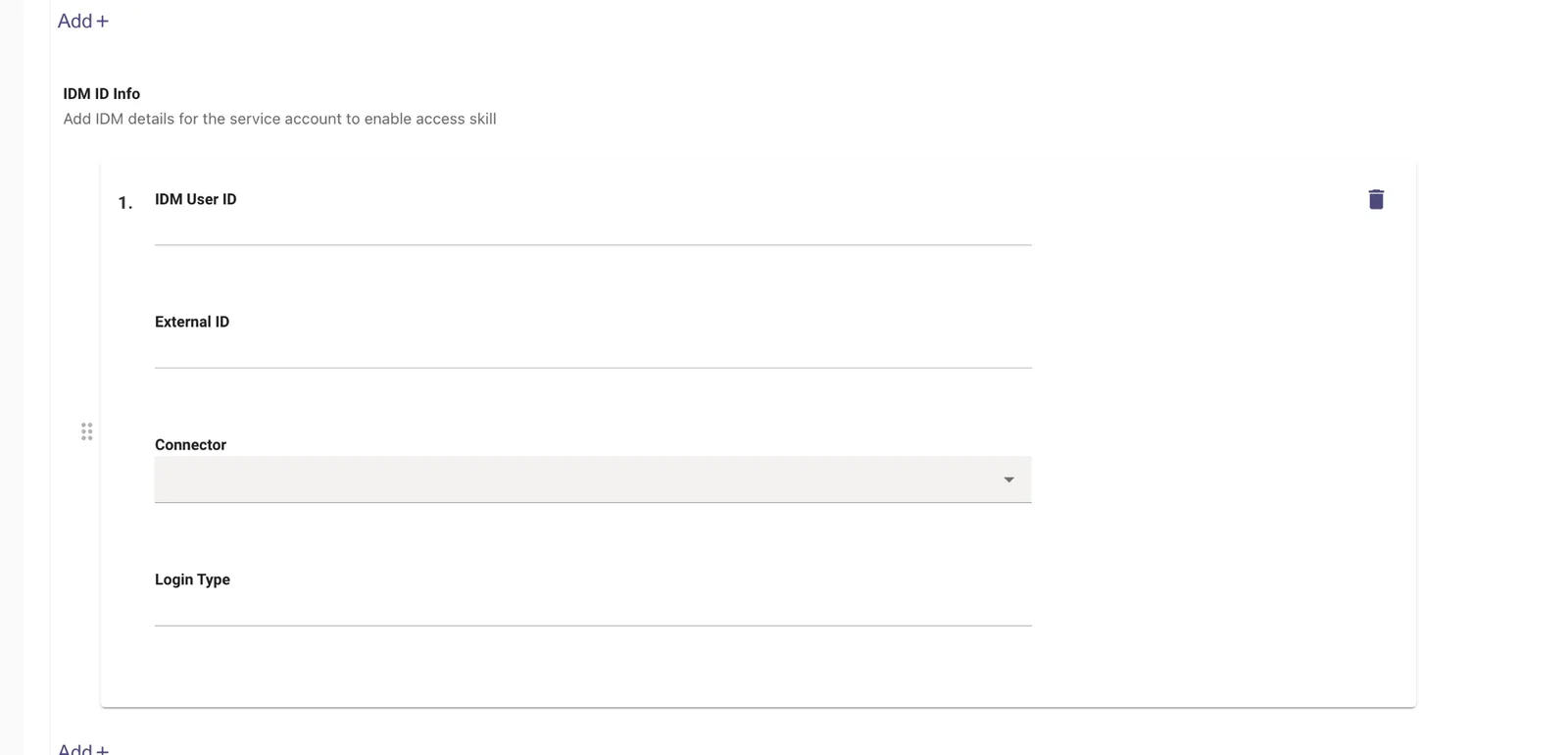
- IDM ID Info — identity provider identifiers (Okta, Azure AD, etc.) used for access skills.
Add one entry per system the user is active in.
Each Channel ID Info, ITSM ID Info, and IDM ID Info entry includes a Connector dropdown. Select the connector for that system from the list — it is populated from the connectors you set up under Manage Connectors, so you always point the entry at an existing connector rather than typing its name. (For ITSM entries, this is the same Connector field described under Setting up ITSM ID Info for the bot account.)
Advanced settings
Optional profile attributes that mirror what would be ingested from a directory source. Fill in the ones that apply to the user; leave the rest blank.
Adding a new manual user
- Navigate to User Identity > Advanced Configurations > Manual User Management.
- Click Add User.
- Fill in Email Address, Unique Record ID, and Full Name at minimum.
- Add entries under User ID Info for every system the user needs to be reachable in.
- Optionally fill in any Advanced settings that apply.
- Click Submit.
The user appears in Imported Users after the next identity refresh.
Editing or removing a manual user
- Open Manual User Management.
- Click the user you want to change.
- Update the fields and click Submit, or remove the entry from the list view to delete the user.
FAQ
How are manually managed users ingested?
Bot Account and Manual User Management entries are ingested by the same User Identity pipeline that processes records from external identity sources — they are treated as another input during the merge step, then validated and loaded into the user store.
For organizations with at least one external identity source (Workday, Okta, Active Directory, etc.):
- Manual entries are folded in on the regular User Identity ingestion cycle (every 4 hours, alongside the rest of the User Import Process).
- For each manual entry, Moveworks looks for a source record whose joining key matches the entry’s Unique Record ID. If found, the two are merged into a single Moveworks User. If no match exists, the manual entry becomes a standalone Moveworks User.
For organizations with no external identity source:
- A dedicated User Identity ingestion runs on a 30-minute schedule. The fetch / map / process source steps are skipped (since there is nothing to fetch), and the pipeline goes straight to the merge step using your Bot Account and Manual User Management entries as the only inputs.
- After the merge, the same validators and load steps run, so manually added users land in Imported Users within ~30 minutes of submission.
In both cases, manually added users go through the standard validators (duplicate detection, large data change protection) and load steps before they appear in Imported Users.
What happens if I enter the wrong Unique Record ID?
The behavior depends on what value you typed and what your organization uses as its joining key:
- The value does not match any source record’s joining key. The manual entry is loaded as a standalone Moveworks User on the next ingestion run. The same person may then appear twice in Imported Users — once from the connected source under their real joining key, and once from the manual entry under the value you typed.
- The value matches another user’s joining key. The manual entry merges into that user’s record on the next ingestion run, overlaying fields with the values you entered. This is the most common cause of “wrong fields showing up” on a Moveworks User after a manual entry is added.
- The value is empty. Submit is blocked at the form level — Unique Record ID is required.
- The value duplicates another entry in Manual User Management. Submit is blocked — Unique Record IDs must be unique within the manual user list.
To correct a wrong Unique Record ID, open the entry from the Manual User Management home view, edit the field, and submit. The next ingestion run rebuilds the merge with the corrected value; no manual cleanup is needed in the user store. Until the next ingestion run completes, Imported Users will still reflect the previous (incorrect) state.
Does the Unique Record ID have to be an email address?
No. The Unique Record ID is a free-form string — the only requirements are that it is non-empty and unique within the Manual User Management list. What it should match is your organization’s configured joining key for the User Identity pipeline:
- For most organizations the joining key is the user’s primary email address, so using the email is correct.
- Organizations that join on a different attribute should use that attribute instead. Common alternatives:
- Employee ID (e.g.,
E12345) — used when an HR system is the primary source. - User Principal Name (UPN) (e.g.,
jane.doe@corp.local) — used when Active Directory or Azure AD is the primary source and the UPN differs from the email. - Username (e.g., a ServiceNow
user_name) — used in ITSM-driven joins. - Custom external IDs issued by the primary source.
- Employee ID (e.g.,
If you are unsure which value your organization joins on, check the joining key configured under your primary identity source, or see the Service Account Configuration Guide for a worked example. Setting the Unique Record ID to anything other than the joining key will prevent the manual entry from merging with the corresponding source record.
Tips
- Joining key — the value you enter for Unique Record ID must match the joining key used by your primary identity source. If joining keys differ, the manually added user will not merge correctly with any matching source record. See Service Account Configuration Guide for an end-to-end example.
- ITSM ID Info is required for ticketing — if the bot or a manual user needs to act in a ticketing system, fill in the ITSM ID Info for that system. Without it, ticketing plugins cannot resolve the user.
- Tags drive access — apply user tags such as
HAS_ACCESS_TO_BOTorTESTERso the user is included or excluded from the right rules and dashboards. See Bot Access Rules.