Quickstart #6: Expense Approval Ambient Agent

View as Markdown

What You’ll Build

You’ll create a smart expense approval agent that:

  • Auto-approves expenses under $500
  • Routes expenses $500+ to the right manager with a chat-based approval request
  • Updates your expense system (via Purple API) with approved/denied

The result is a streamlined process for everyone. For expenses over $500, managers receive a simple, direct approval request right in their chat client, allowing them to take action in seconds.
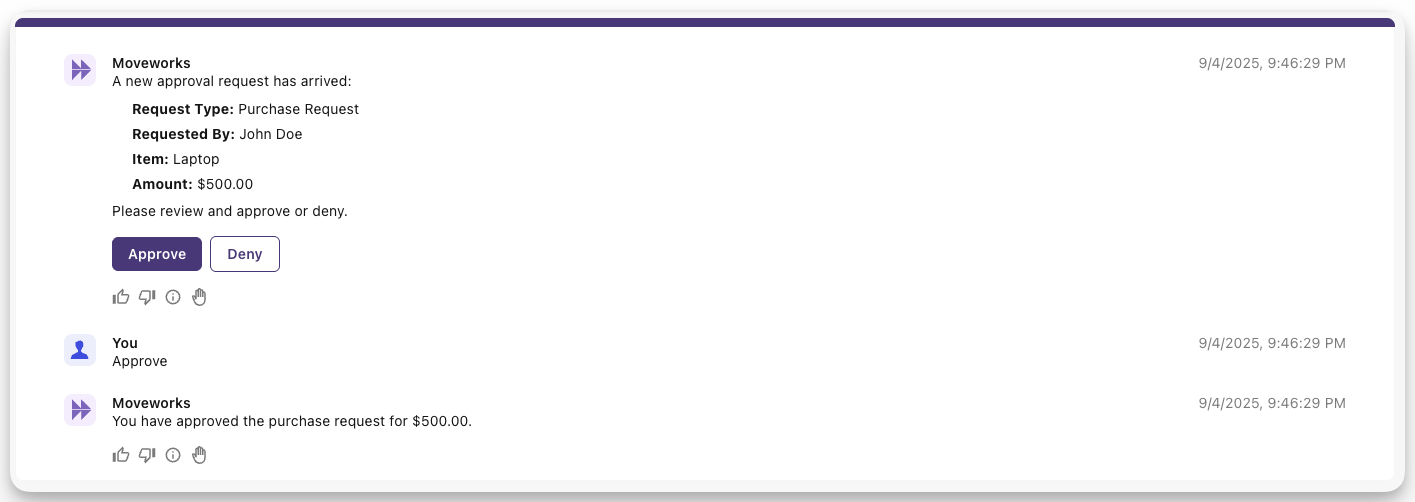
While the user-facing interaction is intentionally simple, the real power is the automation happening behind the scenes. The agent processes every request from your expense system, and for the majority of expenses (those under $500), no manual action is needed at all, they are approved instantly.

Learning Objectives

  • Build a Listener to receive expense webhooks
  • Create a Compound Action with conditional logic (switch)
  • Implement an automated approval branch for expenses under a set threshold.
  • Use built-in actions: batch_get_users, generate_text, create_generic_approval_request
  • Wire everything in a Plugin with input mapping
  • Update the source system to reflect the final “approved” or “rejected” status.

Prerequisites

  1. Access to the “Agent Studio” App
  2. Completed Quickstart #5: Notification Ambient Agent

Architecture Overview

The agent’s logic is built around a central Compound Action that is triggered by a Listener. This Compound Action ingests data from the expense system, such as the approver, the requester, and the expense details, and then follows a conditional path based on the expense amount.

Let’s get started!

Phase 0: Generate a unique Session ID & Set up your Connector

You may be able to skip this phase if you’ve completed another Agent Studio Quickstart guide.

You can skip Phase 0 and move onto Phase 1 if:

  1. You have already created a first_last_moveworks_purple connector, AND
  2. You already have your unique “Session ID” on hand.

This section will walk you through how to set up your own connector to the Moveworks Purple API (which powers the Actions used in the Quickstart guides), so no need to repeat this step if you’ve done it before.

In this guide, you’ll build a Plugin that will actually fetch from and take action on a store of feature requests that’s set up just for you. In preparation for this, follow these steps:

1

Generate your Session ID

  1. Go to the Moveworks Purple API Tool.
  2. Click “Create New Session ID”. You should see sample feature requests populate below.
  3. Do not close the Purple API Tool.
2

Open HTTP Connectors

Now, you just need to set up a (reusable) connector that will allow you to seamlessly hit the necessary Actions that your Plugin will use.

  1. Navigate to the App Picker in the top right corner of Agent Studio.
  2. Click on “HTTP Connectors”, which will take you to another browser tab.
3

Create a new connector

Click “Create” in the top right corner. Fill out the following information for your Connector (be sure to replace “first” and “last” with your corresponding information).

FieldValue to enter (replace “firstname” & “lastname” with your info)
Connection Namefirst_last_moveworks_purple
DescriptionMoveworks Purple APIs Connector
Display Description (Optional)leave blank
Base Urlhttps://marketplace.moveworks.com
Auth ConfigNo Auth
4

Save your connector

Click “Save” on the bottom right corner.

You’re now fully ready to start building. On to Phase 1 to set up your Actions!

Phase 1: Set up your “Update Approval Status” Action

Let’s set up an Action to update the status of the approval that is being provided by the source system. This action will require three dynamic inputs: approval_id, status, and session_id.

1

Create a new HTTP Action

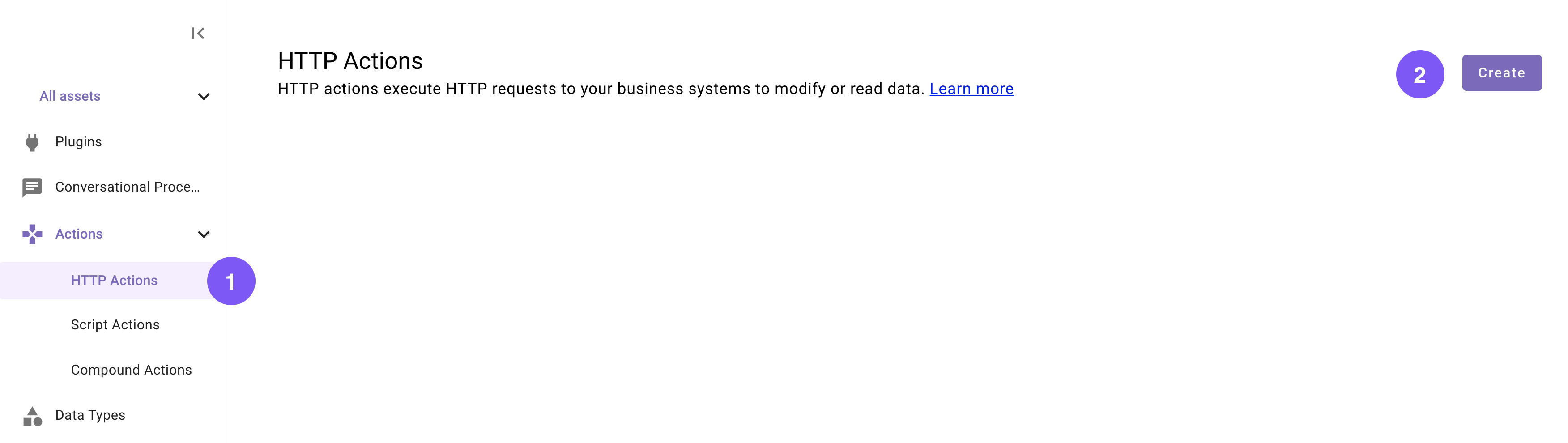
Navigate to a new HTTP Action.

2

Set the title and description

Set the following title and description for your Action (be sure to replace “first” and “last” with your corresponding information).

FieldValue to enter (replace “first” & “last” with your info)
Titlequickstart_first_last_update_approval_request
DescriptionUpdates an approval request's status
3

Import the API details

Enter the details of your API:

  1. Click on the “Import” icon to the right of the “TEST” button.
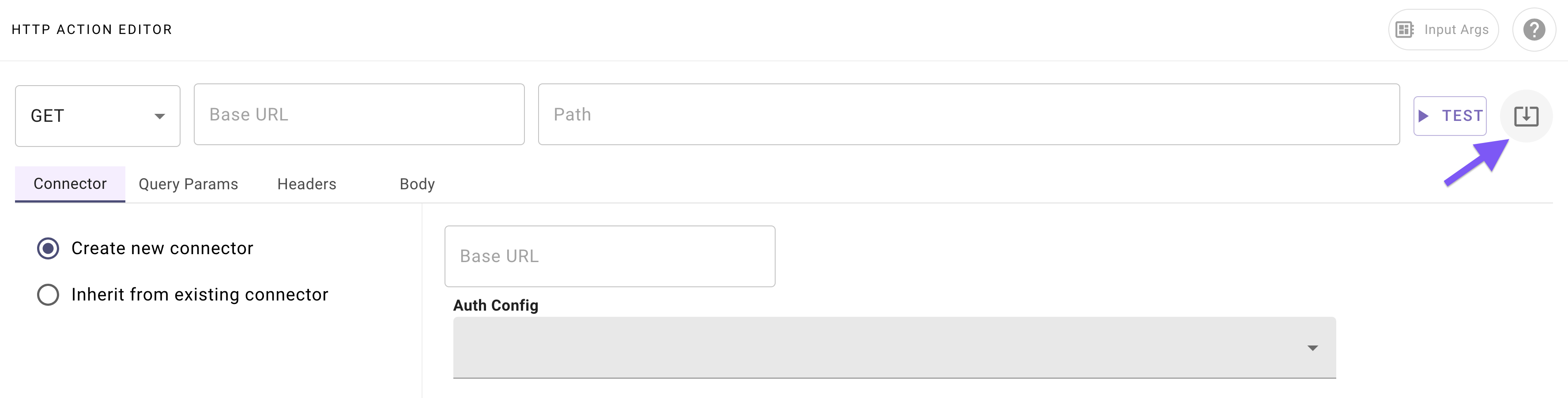
  2. Paste the following cURL command:

    1curl -X PATCH \
    2 -H "Content-Type: application/json" \
    3 -d '{"status": "{{status}}"}' \
    4 "https://marketplace.moveworks.com/api/purple-suite/erp/approvals/{{approval_id}}?sessionId={{session_id}}"
  3. Click “Import” (your Action should now be auto-populated with details).

4

Add your connector

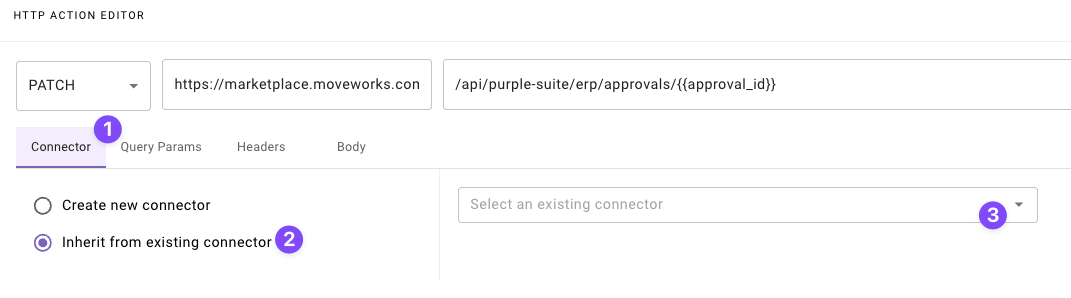
Navigate to the “Connector” tab, and select your existing Moveworks Purple Connector (set up in Phase 0).
5

Define input arguments

Define 3 formal input arguments to represent the “approval ID”, and “status”, and “session ID” inputs that this Action requires:

  1. Click on the “Input Args” button near the top right corner.

  2. Click “Create New” in the “Input Arguments” pop up.

  3. Fill out the following details for your approval_id argument:

    Field labelValue to enter/select
    Argument Nameapproval_id
    Data TypeSelect “string”
    Example ValueAPV-965
    DescriptionThe ID of the approval request being updated
    RequiredCheck the box
  4. Hit “Save”.

  5. Click “Create New” again in the “Input Arguments” pop up.

  6. Fill out the following details for your status argument:

    Field labelValue to enter/select
    Argument Namestatus
    Data TypeSelect “string”
    Example Valueapproved
    DescriptionThe status the approval request is being updated to
    RequiredCheck the box
  7. Hit “Save”.

  8. Click “Create New” again in the “Input Arguments” pop up.

  9. Fill out the following details for your session_id argument:

    Field labelValue to enter/select
    Argument Namesession_id
    Data TypeSelect “string”
    Example ValueEnter your own (Enter the session ID you created earlier)
    DescriptionThe session of the user that keeps track of their approval requests
    RequiredCheck the box
  10. Hit “Save” and hit the “X” icon to close this “Input Arguments” pop up.

6

Publish

Hit “Publish”.

Nice, your Action is all set up and ready to update approval requests!

Time to construct your Compound Action.

Phase 2: Create Your Compound Action

You will now create a compound action to handle the incoming webhook routed by the listener.

In this phase you will build a compound action with 1) approver, business_justification, requested_by, payload, session_id as input arguments, 2) three actions to resolve the users by email, create a Moveworks approval request, and update the approval in the source system, and 3) switch expressions to conditionally route the expense approval requests. Here’s a reminder of the bird’s-eye view for our Compound Action:

1

Create a new Compound Action

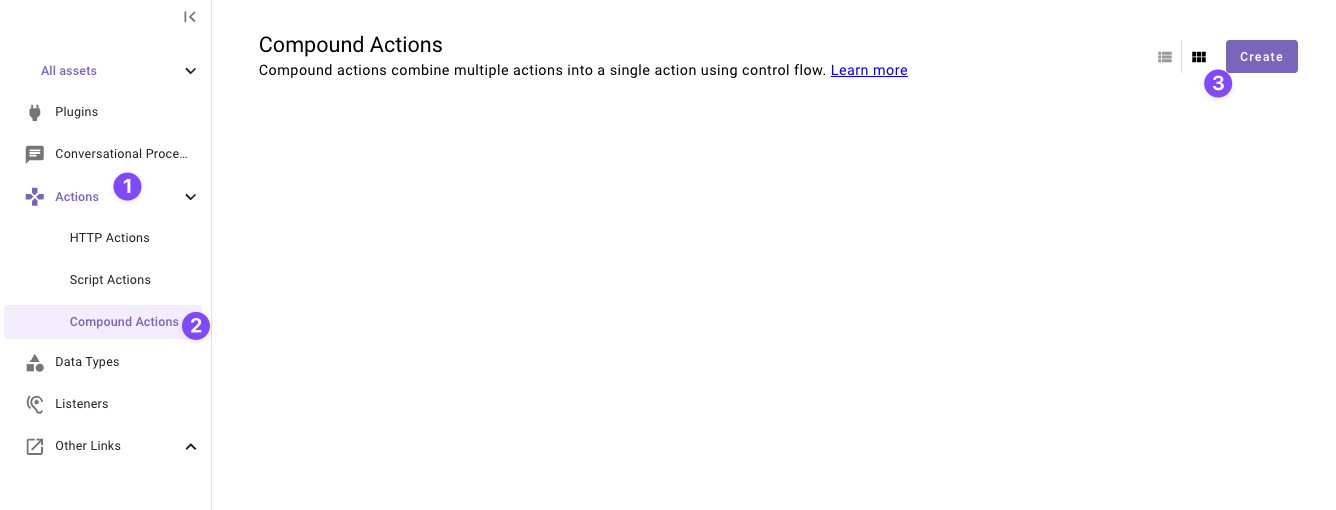
Navigate to a new “Compound Action” in the left nav and then click “Create”.
2

Set the title and description

Set the following title and description for your Compound Action (be sure to replace “firstname” and “lastname” with your corresponding information).

FieldValue
Titlequickstart_first_last_expense_approval_ca
DescriptionHandles an incoming expense approval request
3

Configure the Compound Action expression

Copy the following expression into the Compound Action Editor:

Make sure to replace the action name’s with your action name!

1steps:
2 - switch:
3 cases:
4 - steps:
5 - action:
6 output_key: early_approval_result
7 action_name: quickstart_first_last_update_approval_request # MAKE SURE TO CHANGE THIS
8 input_args:
9 approval_id: data.payload.approval_id
10 status: '''approved'''
11 session_id: data.session_id
12 - return:
13 output_mapper:
14 early_return_message: '''Approval request approved. Terminating process'''
15 condition: data.payload.amount < 500
16 default:
17 steps: []
18 - action:
19 output_key: target_users
20 action_name: mw.batch_get_users_by_email
21 input_args:
22 user_emails: [data.approver, data.requested_by]
23 - action:
24 output_key: llm_summary_result
25 action_name: mw.generate_text_action
26 input_args:
27 system_prompt: '''Based on the provided business justification and payload from an approval expense request. Write a brief summary for the approver of the request with the important details that an approver must see. Do not format with *.'''
28 user_input:
29 RENDER():
30 template: "business justification: {{business_justification}}\n payload: {{webhook_data}}"
31 args:
32 webhook_data: $STRINGIFY_JSON(data.payload)
33 business_justification: data.business_justification
34 - action:
35 output_key: approval_request_result
36 action_name: mw.create_generic_approval_request
37 input_args:
38 approvers:
39 - data.target_users.user_records[0].user
40 users_requested_for:
41 - data.target_users.user_records[-1].user
42 approval_details: data.llm_summary_result.generated_output
43 - switch:
44 cases:
45 - steps:
46 - action:
47 output_key: reject_approval_result
48 action_name: quickstart_first_last_update_approval_request # MAKE SURE TO CHANGE THIS
49 input_args:
50 approval_id: data.payload.approval_id
51 status: '''denied'''
52 session_id: data.session_id
53 condition: data.approval_request_result.status == "DENIED"
54 default:
55 steps:
56 - action:
57 output_key: approve_approval_result
58 action_name: quickstart_first_last_update_approval_request # MAKE SURE TO CHANGE THIS
59 input_args:
60 approval_id: data.payload.approval_id
61 status: '''approved'''
62 session_id: data.session_id

Understanding the Compound Action (Guide #6)

This Compound Action routes an expense-approval flow. It can early-approve low-risk requests, then (for everything else) fetches users, summarizes the request with an LLM, creates an approval, and finally updates the source system based on the approver’s decision.

  1. switch (early decision) (Syntax)
    1. Purpose: Short-circuit the workflow for small requests.
    2. Process: If data.payload.amount < 500, call your custom action quickstart_first_last_update_approval_request to approve immediately, then return with an early_return_message and stop the flow.
    3. Otherwise, fall through to the default branch (do nothing here) and continue.
  2. mw.batch_get_users_by_email` (Built-in Action)
    1. Purpose: Resolve both the approver and the requester to Moveworks user objects.
    2. Inputs: user_emails: [data.approver, data.requested_by] (provided by your trigger mapping).
    3. Output: data.target_users.user_records[0].user (approver) and [1].user (requester).
  3. mw.generate_text_action (Built-in Action)
    1. Purpose: Create a crisp summary for the approver.
    2. Process:
      1. system_prompt asks the LLM to produce an approver-ready summary.
      2. user_inputusesRENDER()to pass both the **business justification** and the **raw webhook payload** (stringified via$STRINGIFY_JSON(data.payload)`).
    3. Output: data.llm_summary_result.generated_output (the formatted approval details).
  4. mw.create_generic_approval_request (Built-in Action)
    1. Purpose: Open an approval with the resolved participants and LLM summary.
    2. Inputs:
      1. approvers: [ data.target_users.user_records[0].user ]
      2. users_requested_for: [ data.target_users.user_records[1].user ]
      3. approval_details: data.llm_summary_result.generated_output
    3. Output: data.approval_request_result.status indicates if the approver Approved or Denied.
  5. switch (post-decision update) (Syntax)
    1. Purpose: Sync the final decision back to your source system.
      1. Process:
        1. If data.approval_request_result.status == "DENIED", call your custom action quickstart_first_last_update_approval_request with status: 'denied'.
      2. Default: Call the same custom action with status: 'approved'.
      3. Inputs to custom action:
        1. approval_id: data.payload.approval_id (from the incoming webhook),
        2. status: 'approved' | 'denied',
        3. session_id: data.session_id (used for request scoping/traceability).
4

Define input arguments

Define 5 formal input arguments to represent the approver, requested_by, payload, business_justification, and session_id inputs that this Compound Action requires.

  1. Click on the “Input Args” button near the top right corner.

  2. Click “Create New” in the “Input Arguments” pop up.

  3. Fill out the following details for your approver argument:

    Field labelValue to enter/select
    Argument Nameapprover
    Data TypeSelect “string”
    Example Valuetest_email@example.com
    DescriptionThe expense approval request's approver email
    RequiredCheck the box
  4. Hit “Save”.

  5. Click “Create New” again to the “Input Arguments” pop up.

  6. Fill out the following details for your requested_by argument:

    Field labelValue to enter/select
    Argument Namerequested_by
    Data TypeSelect “string”
    Example Valuejohn
    DescriptionThe user who requested the expense approval
    RequiredCheck the box
  7. Click “Create New” again to the “Input Arguments” pop up.

  8. Fill out the following details for your payload argument:

    Field labelValue to enter/select
    Argument Namepayload
    Data TypeSelect “object”
    Example Value{"approval_id":"appr_demo","amount":100}
    DescriptionThe payload data in the expense request
    RequiredCheck the box
  9. Click “Create New” again to the “Input Arguments” pop up.

  10. Fill out the following details for your business_justification argument:

    Field labelValue to enter/select
    Argument Namebusiness_justification
    Data TypeSelect “string”
    Example Valueteam outing
    DescriptionThe expense request's business justification
    RequiredCheck the box
  11. Click “Create New” again to the “Input Arguments” pop up.

  12. Fill out the following details for your session_id argument:

    Field labelValue to enter/select
    Argument Namesession_id
    Data TypeSelect “string”
    Example Value101
    DescriptionThe session were the approval request is being tracked at
    RequiredCheck the box
  13. Hit “Save” and hit the “X” icon to close this “Input Arguments” pop up.

5

Publish

Click “Publish”.

All done with Actions!

You’re ready to move on — time to create your webhook listener.

Phase 3: Set Up Your Webhook Listener
1

Create a new Listener

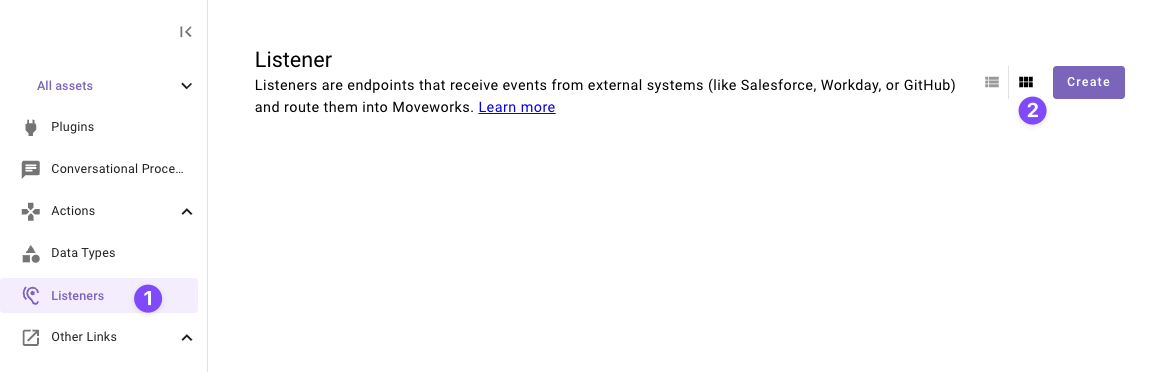
Navigate to a new Listener and click “Create”.

2

Set the title and description

Set the following Title and Description for your listener (be sure to replace firstname and lastname with your corresponding information).

FieldValue to enter (replace “first” & “last” with your info)
Titlequickstart_first_last_expense_approval_listener
DescriptionListens for expense approvals
3

Copy the webhook URL

Click “Copy URL” and paste the webhook URL somewhere you can get back to it quick, we will need it in future steps.

4

Publish

  1. Click “Publish” to save your listener.
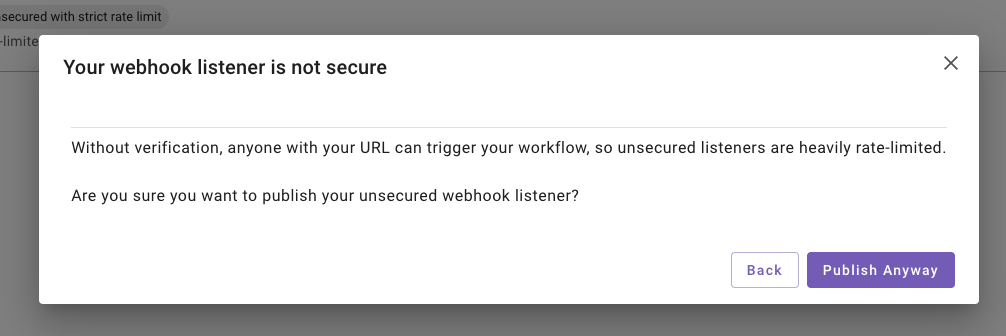
  2. When prompted with a confirmation message about security, click “Publish anyway” to proceed.

Note: Unsecured listeners are intended for testing only. For production environments, always enable signature verification to secure your webhook listener.

Phase 4: Configure and Launch Your Plugin

This section guides you through adding your Listener and Compound Action to a Plugin. A key step will be configuring the data flow, where you’ll specify exactly which fields from the webhook you want to forward to your action.
1

Create a new Plugin

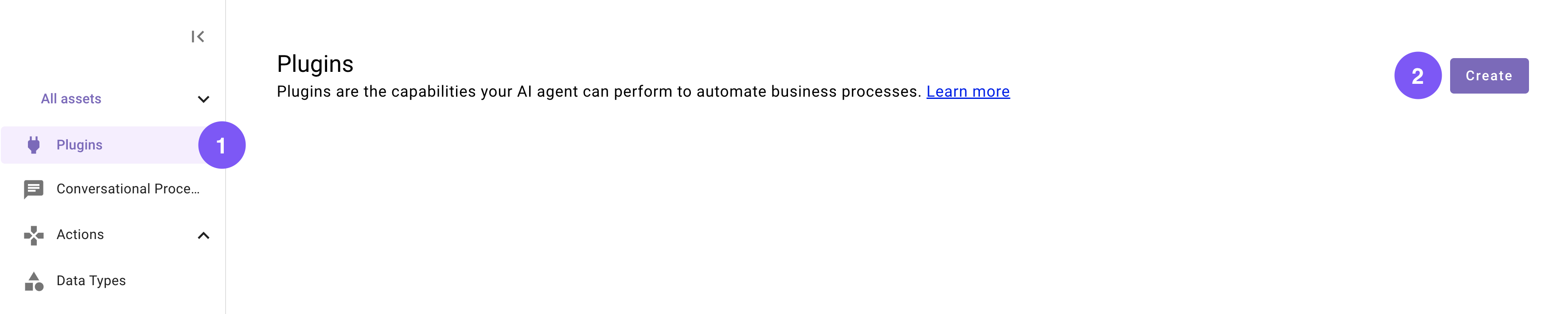
Navigate to a new Plugin (navigate to the library and click “Create”).

2

Set the title and description

Set the following title and description for your Plugin (be sure to replace “first” and “last” with your corresponding information).

FieldValue to enter
Titlequickstart_first_last_expense_approval
DescriptionHandles an incoming expense approval request.
3

Configure the trigger and body

In the “Workflow Overview” section click “System” in the Trigger box.
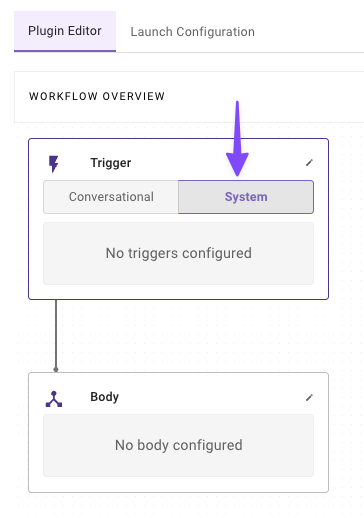
  1. Configure your system trigger to connect your Listener in the slide-out pop up with:

    Field LabelValue to enter/select
    Select Trigger TypeWebhook
    Select Listenerquickstart_first_last_expense_approval_listener (Select yours)
    Event FilterLeave this field empty
  2. Click on the “Body” in the “Workflow Overview
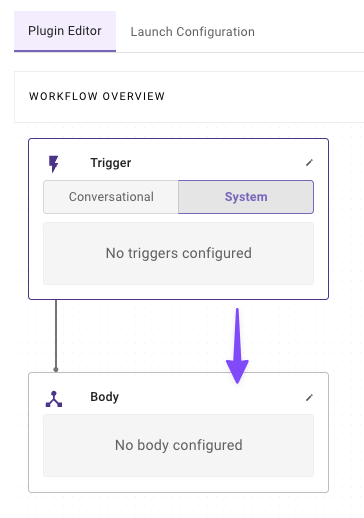
  3. Configure your system body to connect your compound action to the plugin

    • Select Type - System body
    • Select an Action - quickstart_first_last_expense_approval_ca (Select your Action)
    • Input Mapping - Copy the below values
      • approver: parsed_body.approver
      • payload: parsed_body.data
      • requested_by: parsed_body.requested_by
      • session_id: parsed_body.session_id
      • business_justification: parsed_body.details

    Understanding the Input Mapping

    When the listener receives a webhook, we expect a JSON payload structured like this:

    1{
    2 "approver": "jdoe@example.com",
    3 "data": {
    4 "amount": 300,
    5 "approval_id": "APV-965",
    6 "category": "Meals & Entertainment",
    7 "currency": "USD",
    8 "description": "Lunch meeting with a client",
    9 "merchant": "The Corner Bistro",
    10 "payment_method": "Corporate Credit Card",
    11 "transaction_date": "2025-09-05T10:26:00Z"
    12 },
    13 "details": "Requirement to advance to the next sales pipeline with client",
    14 "requested_by": "kjoe@example.com",
    15 "session_id": "OW3hEkZwgLCfI2gipNAJ" # this session_id will be based on your session
    16}

    The listener automatically parses this JSON payload into a parsed_body object. To access the data you need, you simply use dot notation to reference the keys:

    • parsed_body.email
    • parsed_body.data

    This method gives you the flexibility to extract only the specific data your compound action requires, even if the webhook sends a much larger payload.

    Note: While this mapping is currently a manual process, we are developing an “Auto Configure” feature to streamline this setup in the future.

4

Publish your Plugin

Click “Publish” to launch your Plugin.

And just like that — you've finished building your Plugin, and now it's ready to use!

Congrats! You are now ready to test your plugin. In the next section, you will provided with required tools to help you test it.

Phase 5: Testing

This section guides you through the Moveworks Purple API tool to help you test your plugin by sending webhooks to your listener.

1

Open the Webhooks tab

  1. Go back to the tab where your Moveworks Purple API Tool is open.
  2. Click on the Webhooks Tab.

2

Configure webhook fields

Configure the field values with your listener information:

FieldValue to enter
Webhook URLEnter the Webhook URL you created in Phase 3
API KeyLeave empty
3

Set up the Approval

  1. Click on the Approvals Tab.

  2. Fill out the Approval Form with your information (Make sure to edit the approver and requested by fields):

    Field labelValue to enter/select
    Business JustificationRequirement to advance to the next sales pipeline with client
    Approver Emailapprover@example.com (Type approver email)
    Requested By Emailrequestor@example.com (Type requested by email)
    Data TemplateExpense Approval
  3. Click on Generate Approval. You will see an approval being generated in the system for your session ID with the details you entered.

4

Generate and send the webhook

  1. Click on Generate Webhook Payload. A payload will be generated for your upcoming webhook:

    1{
    2 "approver": "approver@example.com", // this will your approver make sure to edit
    3 "data": {
    4 "amount": 300,
    5 "approval_id": "APV-965",
    6 "category": "Meals & Entertainment",
    7 "currency": "USD",
    8 "description": "Lunch meeting with a client",
    9 "merchant": "The Corner Bistro",
    10 "payment_method": "Corporate Credit Card",
    11 "transaction_date": "2025-09-05T10:26:00Z"
    12 },
    13 "details": "Requirement to advance to the next sales pipeline with client",
    14 "requested_by": "requestor@example.com", // this will be your requested by user
    15 "session_id": "OW3hEkZwgLCPf2gipNAJ" // this will be based on the session ID you created
    16}
  2. Make sure to tinker with the amount field to test different flows of your plugin.

  3. Click on Trigger Webhook.

Success! Check the Approvals

Excellent work! You have successfully tested your plugin. Depending on the amount you set, your approval request may have gotten automatically approved or you may have gotten an approval request! You can click on the Refresh Approvals button in the Purple API Tool to see the status updates on the approvals!