
Configure Moveworks Toxicity Filter
Overview
The Moveworks AI Assistant declines harmful or non-work-appropriate requests. Safety is judged by the Assistant’s reasoning engine, which reads each request in the full context of the conversation — so it understands what the user is actually asking before deciding whether to help. When a request genuinely violates these rules, the Assistant responds with a clear, consistent refusal such as “I’m sorry, but I can’t help with that.”
Because the Assistant judges intent in context, requests that merely touch a sensitive subject — reporting harassment, asking about company policy, seeking mental-health support resources — are answered normally rather than wrongly declined.
Default blocked categories
The following categories are blocked by default for every organization:
- Violent — physical violence, including weapon instructions or gratuitous depictions
- Non-violent Illegal Acts — non-violent unlawful activity such as hacking, theft, or fraud
- Sexual Content or Sexual Acts — sexually explicit content
- Unethical Acts — clearly unethical content such as hate speech, harassment, or discrimination
- Politically Sensitive — deliberately false information about government actions, historical events, or public figures
- Jailbreak — attempts to bypass the Assistant’s safety instructions
Anti-jailbreak protections always remain in place and cannot be overridden by any configuration.
Customize safety rules for your organization
The Safety: Additional Organization Instructions setting extends the built-in categories with your organization’s own rules, written in plain language. You can:
- Add topics to decline. For example: “Refuse questions about unannounced M&A activity.”
- Define approved exceptions to the built-in categories. For example: “The security team may request phishing-simulation email drafts for awareness training.”
Where your instructions conflict with a built-in category, your instructions take precedence. The one exception is Jailbreak protection, which always applies and cannot be relaxed.
This setting replaces the previous Safety Guard: Allowed Content Categories allow-list. If your organization previously configured allowed categories, review those decisions and restate any organization-specific rules as instructions here.
Prerequisites
Before configuring, gather the following:
- Topics your organization wants the Assistant to decline beyond the default categories, if any.
- Approved exceptions your organization wants to permit, if any.
- Alignment from the relevant stakeholders (for example, HR, Legal, and Security) on the exact wording of the instructions.
Configuration Steps
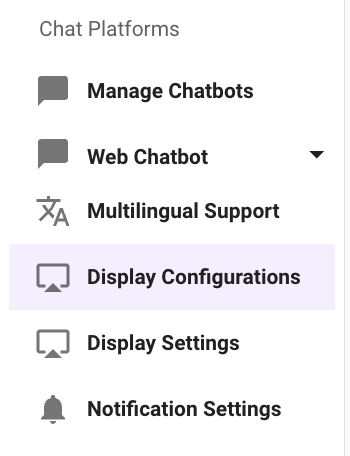
Step 1: Navigate to Display Configurations
- Navigate to Chat Platforms -> Display Configurations.
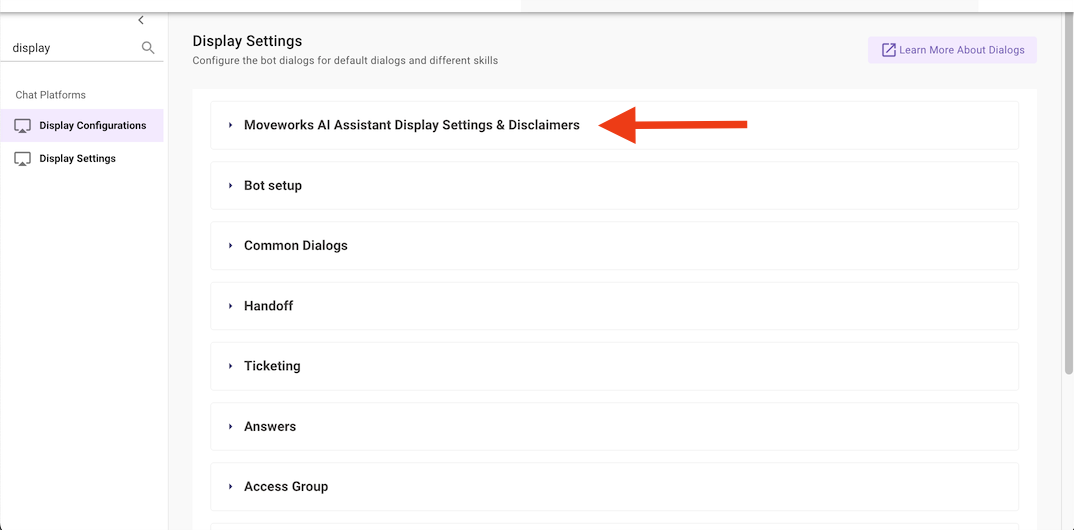
Step 2: Open Moveworks AI Assistant Display Settings & Disclaimers
- Scroll down to the Moveworks AI Assistant Display Settings & Disclaimers module and click into it.
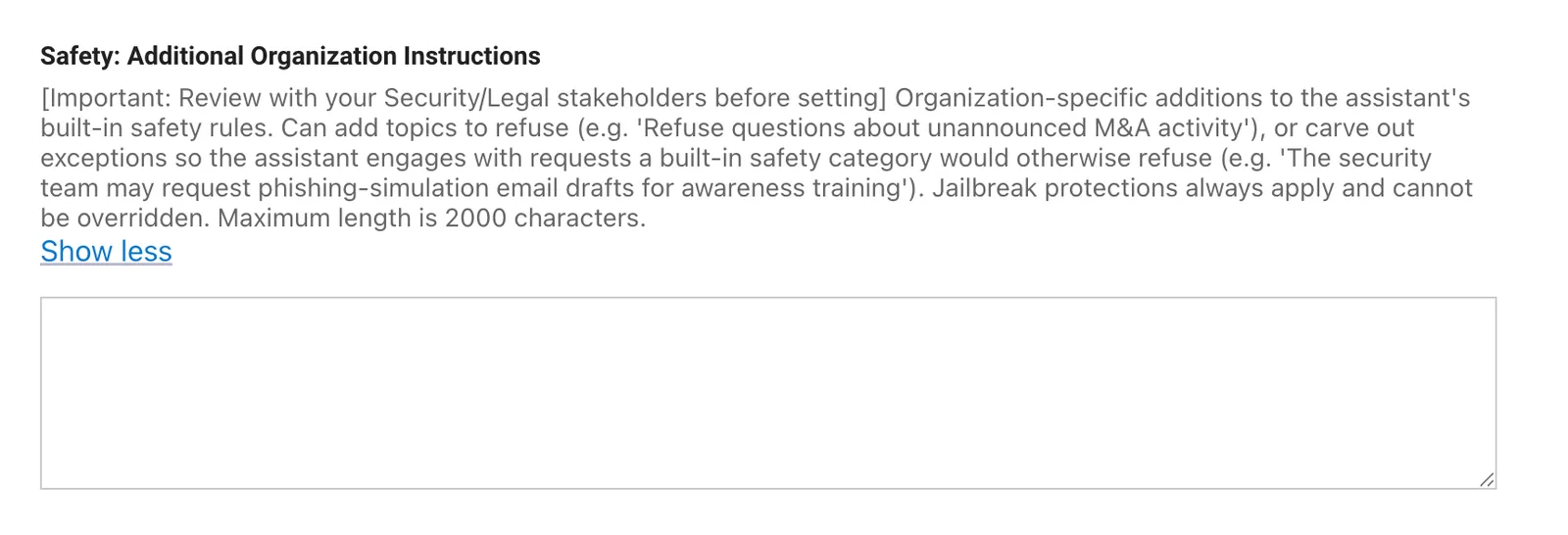
Step 3: Set Additional Organization Safety Instructions
- Scroll down to the Safety: Additional Organization Instructions field.
- Enter your rules in plain language — topics to decline, approved exceptions, or both. The field accepts up to 2,000 characters.
- Save your changes. The instructions take effect for all future conversations.
These instructions apply to every user in your organization. Add only rules that your organization has reviewed and approved.
FAQs
Q: Does this override the toxicity protections built into the underlying models?
A: No. This is a Moveworks-specific safety layer. Provider-side moderation from OpenAI or Azure still applies, and Moveworks does not control it.
Q: What happens if I don’t configure anything?
A: No configuration is required. The default categories remain blocked, and all other requests are answered normally.
Q: Can I add my own topics to block?
A: Yes. Add them to Safety: Additional Organization Instructions in plain language, and the Assistant will decline requests on those topics just as it does for the default categories.
Q: Can I allow a topic that the default categories block?
A: Yes. Your instructions can define approved exceptions to the default categories — for example, permitting your security team to request phishing-simulation email drafts for awareness training. The Assistant will engage with those requests even though a default category would otherwise decline them. The only protection that cannot be relaxed is Jailbreak.
Q: What happened to my previous Allowed Content Categories selections?
A: The category allow-list has been replaced by the free-text instructions field. If your previous selections captured decisions specific to your organization, restate them as instructions to preserve that behavior.