
Limitations and Troubleshooting
MCP Workspace is available to a limited set of customers. Moveworks is validating the experience and gathering feedback, so capabilities and limits may change. To request access, register your interest.
This page first describes the current boundaries of MCP Workspace, then walks through the four stages of a failed request.
Current Limitations
Timeouts, Progress, and Retries
Long-running calls are supported. A retrieval that takes 120 seconds fits within current platform timeout budgets, but test it with your server before rollout. There is no single maximum timeout for every execution path, and the upstream server can impose a shorter limit. Do not design around unlimited execution time.
Users do not see the server’s MCP progress updates. A call can continue in the background, but this does not provide a stream of partial results to the employee.
Automatic retries cover certain connection failures before a tool call starts. Failed tool calls are not automatically replayed. A resumed SSE connection also does not mean that the tool ran again.
For a slow or failed request:
- Open the MCP tool call log and compare its latency and error with the server logs.
- If the server timed out, reduce the request scope or improve the server’s response time.
- Before manually retrying a write, check whether the upstream action completed.
Check What the Assistant Did
Start by identifying whether the assistant selected the expected MCP tool and what happened next.
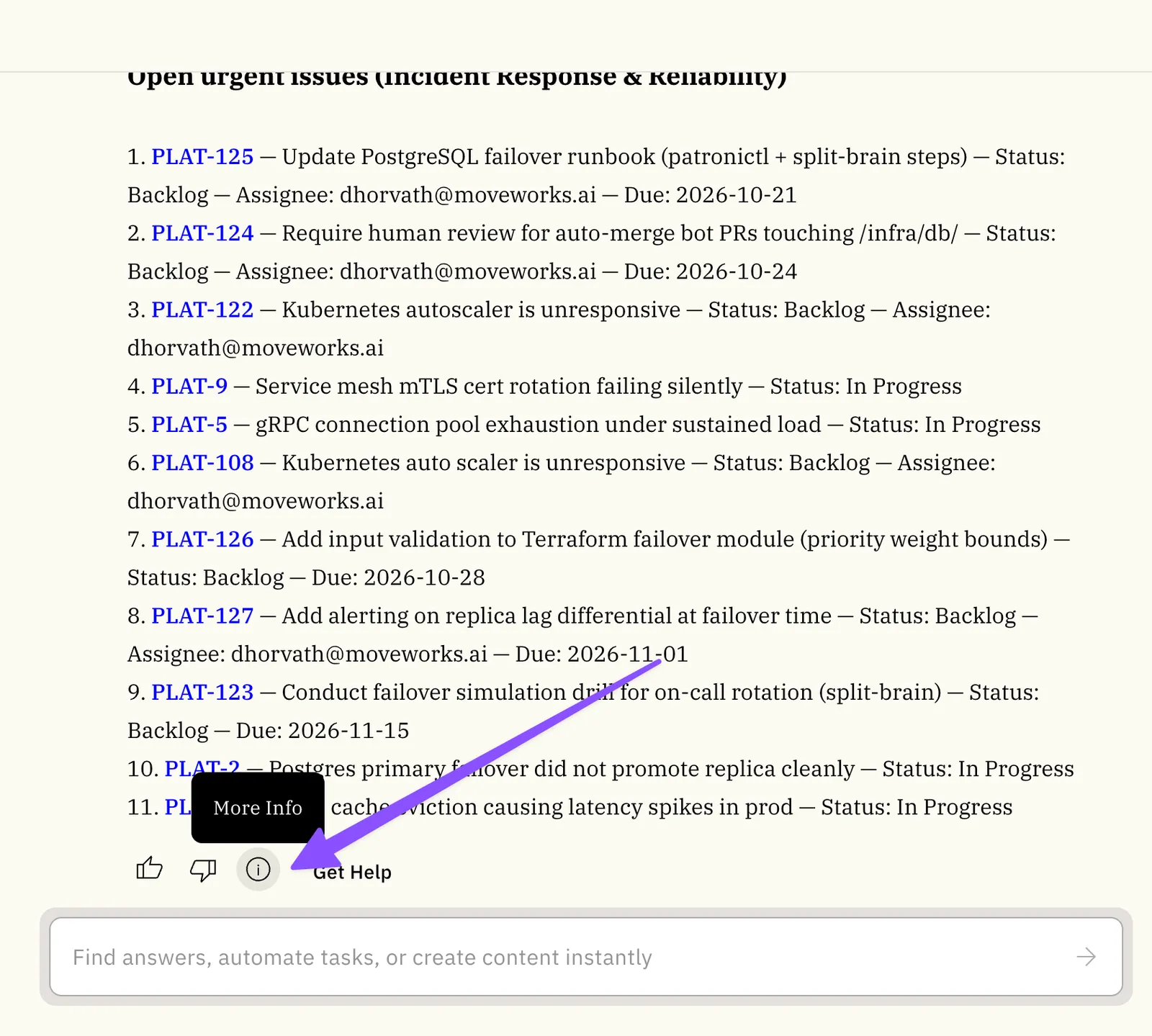
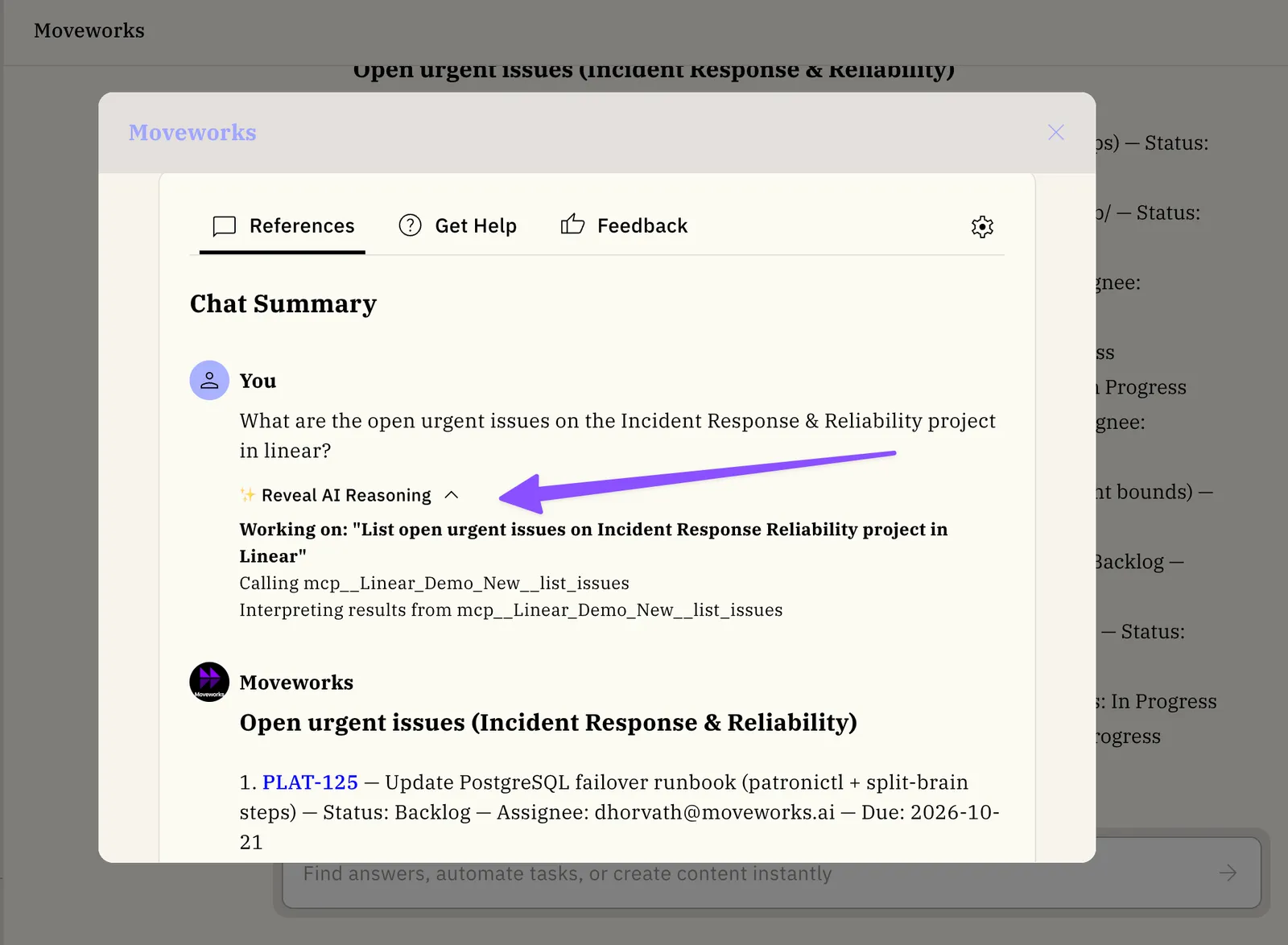
- Reveal AI Reasoning: In the assistant, open More info > Reveal AI Reasoning on a response. This is the fastest first check for a user.
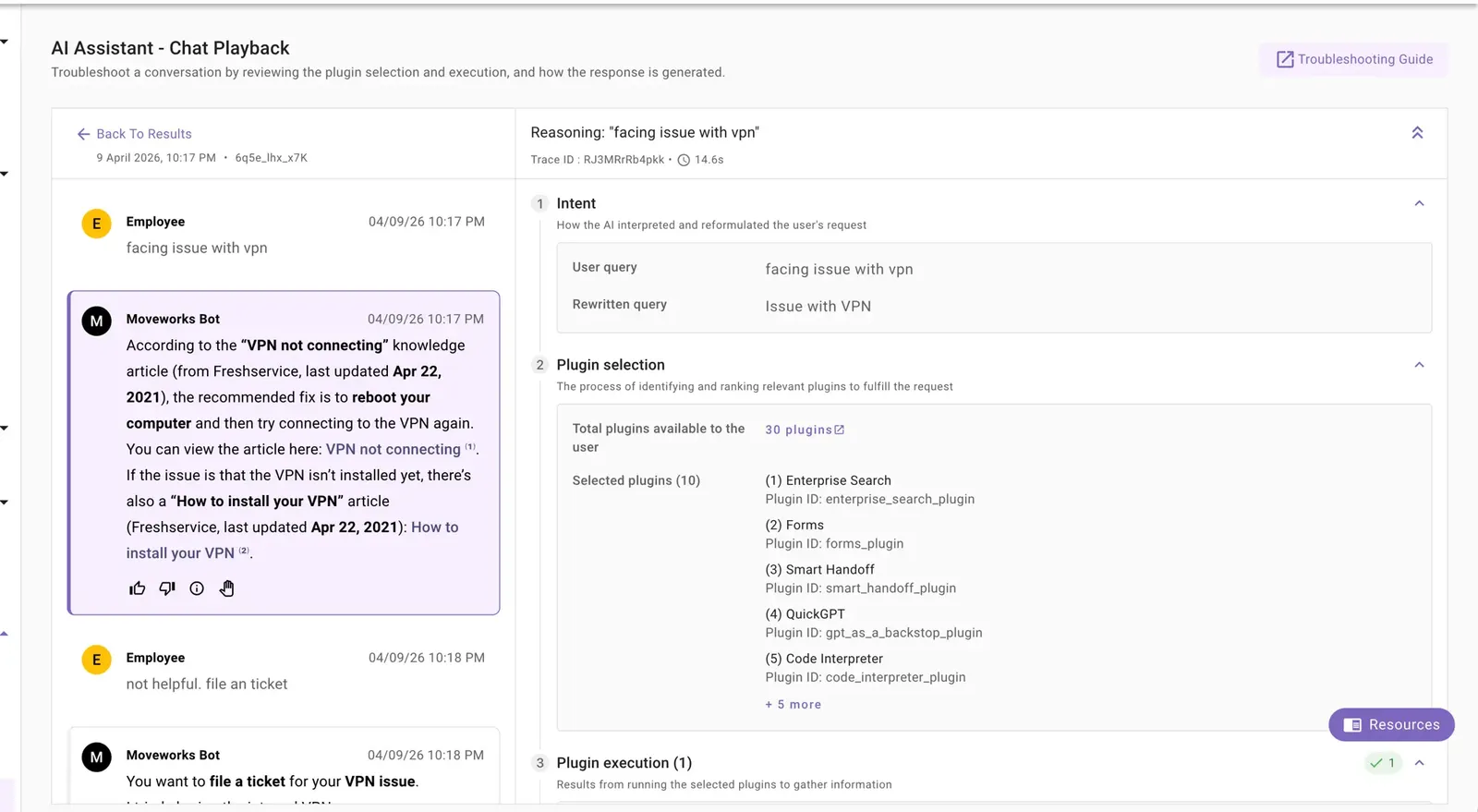
- Chat Playback: Admins can review the available and selected tools for a conversation. A conversation can take roughly 10 minutes to appear.
- MCP tool call logs: Open the Logs app to inspect the arguments, model-visible response, execution status, latency, and error for each call. View MCP Tool Call Logs explains the available filters and fields.
MCP tool calls use the format mcp__<server>__<tool>. If you expected that prefix but see a plugin or Enterprise_Search instead, focus on tool selection.
Work Through the Four Stages
Work through these stages in order. The first one that fails is where to focus.
Stage 1: Connection and Authentication
Recover from an Authorization Failure
An Authorized status does not prove that the upstream server still accepts the stored token. Moveworks refreshes tokens when needed, but an expired or revoked refresh token requires a new sign-in.
- Ask the assistant for a specific task and name the app. If a connect prompt appears, complete sign-in, then repeat the request.
- If the connection still fails or no prompt appears, open your Moveworks Connections page. Disconnect the affected integration, then authorize it again.
- For an administrator’s failed Preview Tools connection, use Revoke Token, authenticate again, and run Preview Tools.
- If authentication still fails, compare the sanitized
401or403error with the provider’s token and permission settings.
Revoking a token or disconnecting an integration removes that authorization. It does not remove the MCP server configuration. Do not delete and recreate a server to recover a user token.
Stage 2: Tool Discovery and Selection
Stage 3: Tool Execution
Stage 4: Response Quality
Retry Before You Escalate
Before you escalate, try the recovery step that matches the failed stage:
- Ask the assistant, “Why didn’t that work?” It can often explain whether sign-in, tool selection, or a tool call failed.
- Retry with the app named and the request scoped to the entity, project, field, or date range you need.
- If the server works for others but not the affected user, have that user complete the in-chat sign-in flow.
Escalate with Useful Evidence
If you identify the failed stage and do not have a self-service fix, include the following in your escalation:
- Conversation URL or ID and the approximate timestamp with timezone.
- The failed stage and the exact request.
- The affected app and expected
mcp__<server>__<tool>name, when known. - Expected and actual behavior.
- A screenshot of Reveal AI Reasoning and, when available, Chat Playback.
- The user-facing error text and safe server-side correlation details, such as a request ID, HTTP status, or stable error code.
- Whether the issue reproduces, the affected pilot group, and any recent connector, server, or tool-description change.
Do not include access tokens, refresh tokens, credentials, raw employee data, or unredacted upstream responses in an escalation.