
Multilingual Support Troubleshooting
This guide outlines the common issue scenarios with the Moveworks AI Assistant’s multilingual functionality and provides key solutions to ensure accurate and effective communication across different languages.
Assistant Incorrectly Translating Words
Sometimes, the default translation from the Moveworks Engine might not be the best fit for certain UI elements—especially short strings like “Submit” or “Cancel” or “Closed” in the Target Locale. In these scenarios we can use Override Configs to change this behaviour.
Translation Overrides Config
Using this configuration, you can define exact translations for specific source strings. This is especially useful for short, frequently repeated text such as button labels or form titles that are not LLM-generated. This config is not optimized for LLM-generated text.
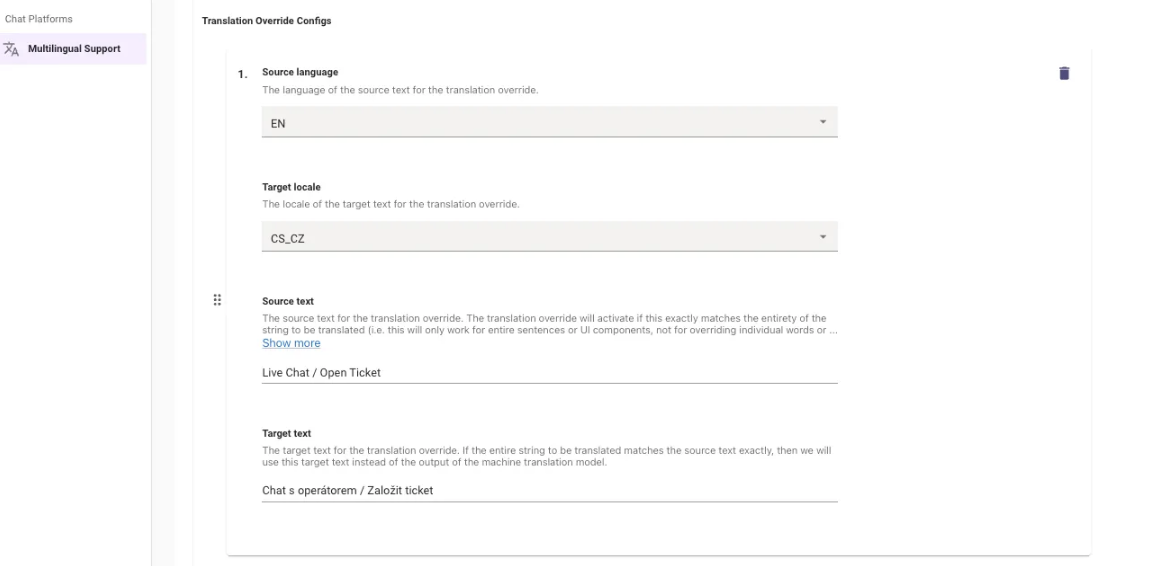
- Navigate to Multilingual Support under Chat Platforms module.
- Here you will find the Translation Override Configs under Additional Controls
- How it works: You specify the original string and the exact translation you want the system to use.
- For Ex: Here we are defining the Translation for the text “Live Chat” from English to Czech and by explicitly what the Target Text should be.
- This is best used for - Short, standalone phrases that occur in isolation (e.g., a button labeled “Submit”).
- Note: Overrides only apply to exact string matches. For example, an override for “Submit” will affect a button labeled “Submit” but not “Submit ticket.” This approach gives you precise control over translations for critical UI elements and avoiding mis-translations.
Disable Translations Config
In some scenarios, when users are communicating with a Live Agent in a different Country or Locale, There is a requirement for the Assistant to present certain text without any translation.
A common scenario is when an IT agent sends a URL and wants to avoid the Translation to the end user’s preferred language as this breaks the URL. This is where we can leverage the Disable Translation Config.
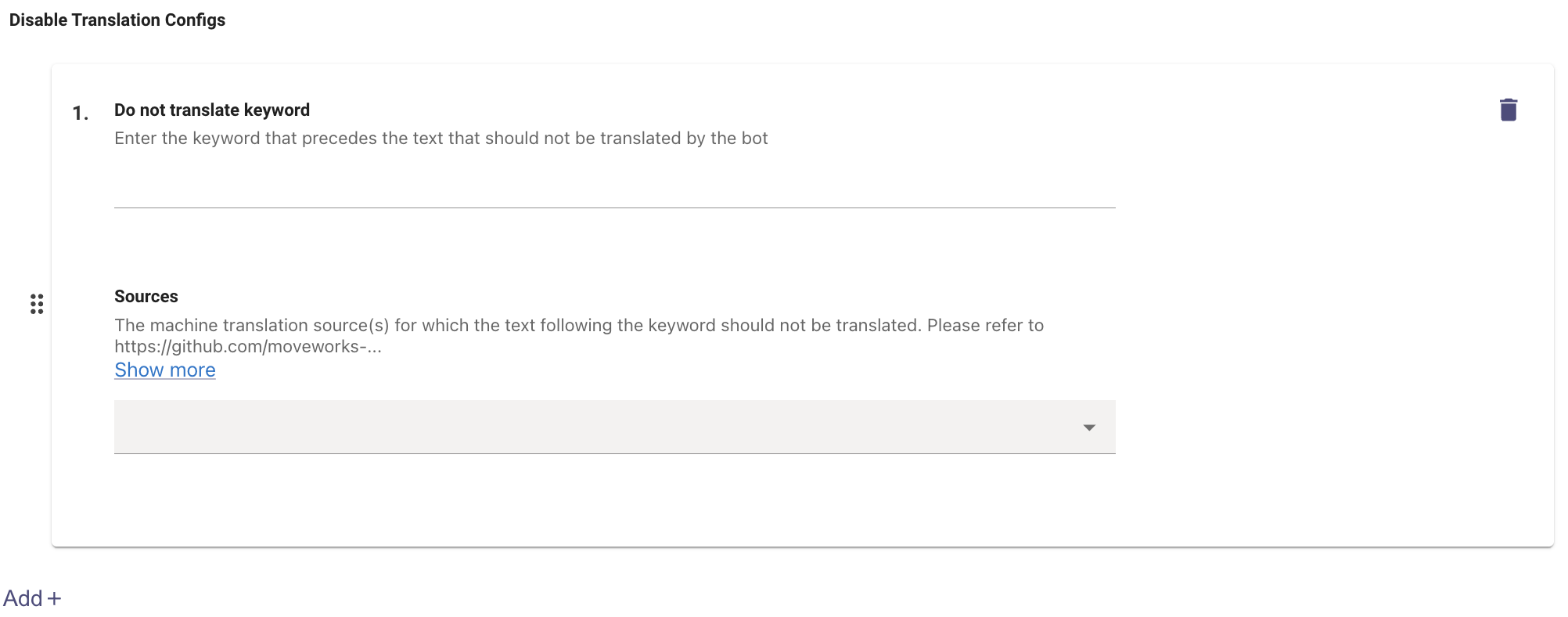
-
Navigate to Multilingual Support under Chat Platforms module.
-
Here you will find the Disable Translation Configs under Additional Controls
-
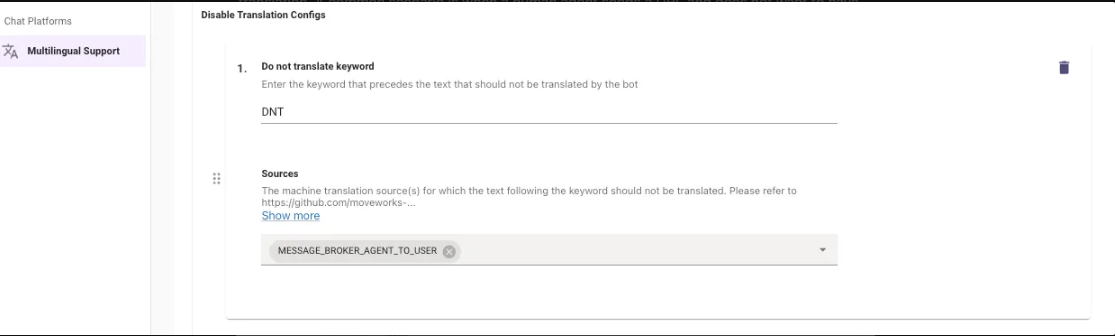
How it works: You specify a keyword here, which when preceded by any text will instruct the AI Assistant to not translate the content that follows. The Keyword acts as a signal to the AI Assistant to disable its translation function for that particular text.
-
For Ex: If an agent types
DNT /users/moveworks/aug2024/file.pdf, then this will not be translated and the same text /users/moveworks/aug2024/file.pdf will be sent to the user. -
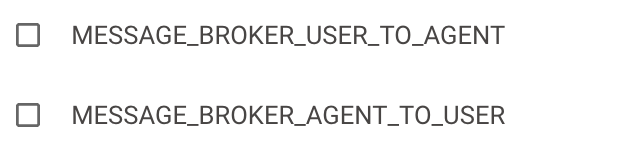
Here DNT is the Keyword and then you can Define the Source from which the message will be sent, there is a dropdown that has a few options but the main ones are :
-
-
Providing this keyword is crucial for seamless transitions to live agents or for preserving text.
Prompt Override Formality Tone in the Assistant
Different languages and regions have their own expectations for tone and formality. The default tone used by the AI Assistant might not always suit every audience. Moveworks provides flexibility where we can prompt the LLM to change this.
-
Navigate to Multilingual Support under Chat Platforms module.
-
Here you will find the Locale Prompt Override Configs under Additional Controls
-
Here you can adjust the Assistant’s tone and formality based on the target language or locale. This is done by adding a specific prompt that instructs the LLM to translate in a particular style.
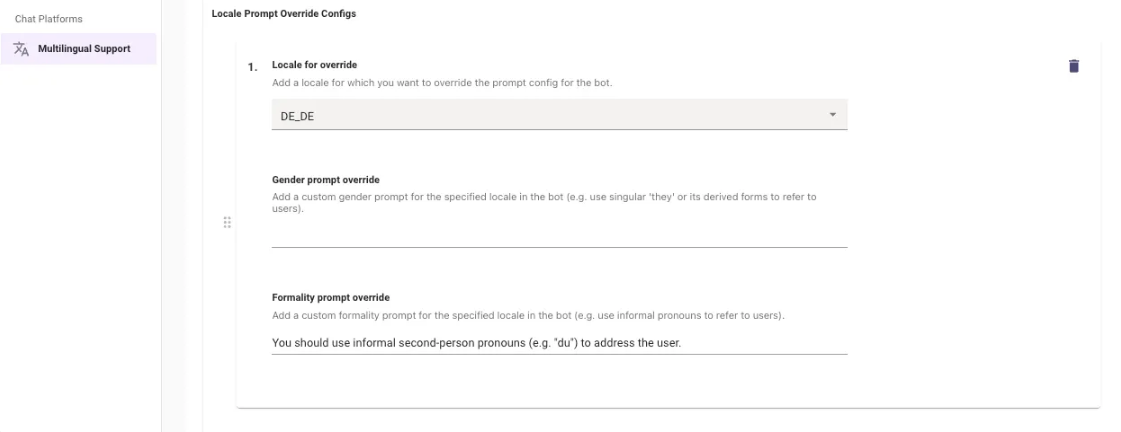
-
How it works: When the source string is detected, an extra prompt is added to guide the translation to be more formal, casual, or follow a chosen linguistic style.
- For Ex: You could set an override so that responses in German are translated in a more formal and polite tone, or alternatively, make them more casual and conversational.
- This gives you finer control over how translations sound to different audiences, ensuring they match local communication norms.
Customizing Translation-Based Outputs Based on Context
What this change does: This update allows you to customize how specific words, phrases, or corporate terminology are translated when the AI Assistant performs an active translation from a source document or system step for secondary components (not the conversation response itself). This ensures the output matches your organization’s internal vocabulary preferences.
Sometimes a word or phrase has several correct translations, and the best choice depends on your organization’s internal preference. For example, the term “HR” can be translated into Spanish as either “HR” or “RRHH”. While both are technically accurate, your company might prefer one over the other.
Where can this change be applied?
This update applies to secondary components where the AI is actively translating from an underlying source text. This includes:
- Reasoning Steps (the status steps while the AI is thinking)
- Citations in the reference popup
- Live Agent interface interactions
This change cannot be applied to the main conversational responses generated dynamically by the LLM itself.
Why can this only be applied to translated text?
The core AI Assistant response is generated dynamically by the Large Language Model (LLM) to answer the user’s prompt based on the user’s query language. Because there is no fixed “source text” being translated, its exact phrasing fluctuates and cannot be controlled by a static, word-replacement rule.
However, elements like reasoning steps, citation popups, and live agent messages use translations, and therefore allow us to apply precise, predictable translation overrides to ensure specific terms always match your company’s preferred vocabulary.
How to request a change
If you have specific translation examples that you would like to adjust to match your organization’s preferences, please reach out to the Moveworks Support Team to help configure these updates.
Assistant Not Responding in the Language of My Query
Occasionally the Moveworks Assistant may respond in a language that doesn’t match the user’s most recent message. This is most likely to happen when:
- The user changes their preferred language mid-conversation.
- The user switches the language they’re using throughout a thread, so the model anchors on an earlier language signal.
- The user types a very short message that doesn’t give the language-detection model enough signal — for example, a single word that exists in multiple languages such as Japanese and Chinese.
To address this, clear the conversation history to reset the Assistant. Just type clear history in the Assistant and ask your question again — language detection will run fresh on your next message.