
For AI agents: a documentation index is available at the root level at /llms.txt and /llms-full.txt. Append /llms.txt to any URL for a page-level index, or .md for the markdown version of any page.
Logo
DeveloperAcademyCommunityStatus
ReferenceGuides
ReferenceGuides
  • Agent Studio
    • Overview
    • Quickstart Guides
    • Core Concepts
    • Conversation Process
    • Actions
      • LLM Actions
      • Built-in Actions
      • HTTP Actions
      • Script Actions
      • Compound Actions
        • Action
        • Switch
        • For Loop
        • Parallel
        • Return
        • Try Catch and Raise Error
        • Notify
        • Input Arguments
        • Progress Updates
        • Compound Action Patterns
        • Compound Action Data Bank
        • Compound Action Examples
        • Troubleshooting Compound Actions
    • Connectors
    • System Triggers
    • Agent Architect
    • Cookbooks
    • Development and Testing
    • AI Agent Marketplace
    • Developer Tools
  • Agentic AI
    • LLM Fundamentals
    • The Agentic Reasoning Engine
    • Memory Constructs
    • Conversational Context
    • Guardrails
    • Grounding and Hallucinations
    • Continuous Learning
    • LLMs & SLMs
    • Steerability Tools
    • Multilingual Support
  • Core Platform
    • User Identity
    • Moveworks Agent (On-Prem)
    • Approvals Engine
    • Entity Catalog
    • Moveworks Data Objects
    • Security Information and Event Management (SIEM) Logs Overview
DeveloperAcademyCommunityStatus
On this page
  • Overview
  • Action Types
  • Requirements for Calling a Conversation Action
  • Low-Code Editor
  • Syntax Reference
  • Schema
  • Fields
  • Resources Schema
  • Action Types
  • Resources
  • Example 1: Enforcing specific analysis on an action button click
  • Practical Examples
  • Example 1: Simple Ticket Alert
  • Example 2: Multi-Option Response
  • Example 3: Handoff to Conversation
  • Example 4: Notification with Images
  • Troubleshooting
  • Notify actions not appearing in Agent Studio logs
Agent StudioActionsCompound Actions

Notify

||View as Markdown|
Was this page helpful?
Edit this page
Previous

Input Arguments

Next
Built with

Overview

Notify pulls compound actions into the chat spotlight, sending messages to specific users with embedded actions, shown as buttons, that can perform various actions when clicked.

Action Types

TypeFunction
Content ActionDeliver an inline message. Ideal for links or summaries
System ActionTriggers an action or compound action with input arguments
Conversation ActionStarts a conversation process. Inputs args must be declared as slots in the process.
Button expiration (TTL)

Buttons generated by a Notify step follow the same TTL as other AI Assistant buttons — they should be clickable for 30 days after delivery (pending confirmation). See URL Hyperlink & Button Expiry Specs for the full breakdown.

️ IMPORTANT NOTE:

Requirements for Calling a Conversation Action

To ensure your action is triggered correctly, please note the following:

  • Use the Conversational Process Name: When calling the action, specify the name of the conversational process itself, not the name of the plugin.
  • Conversational Action input_args: These must be declared as slots in the conversational process in order to reference the data passed in as input args.

Low-Code Editor

Add a Notify step, define the recipient, the content of the message they are receiving, and what actions they’ll be provided with.
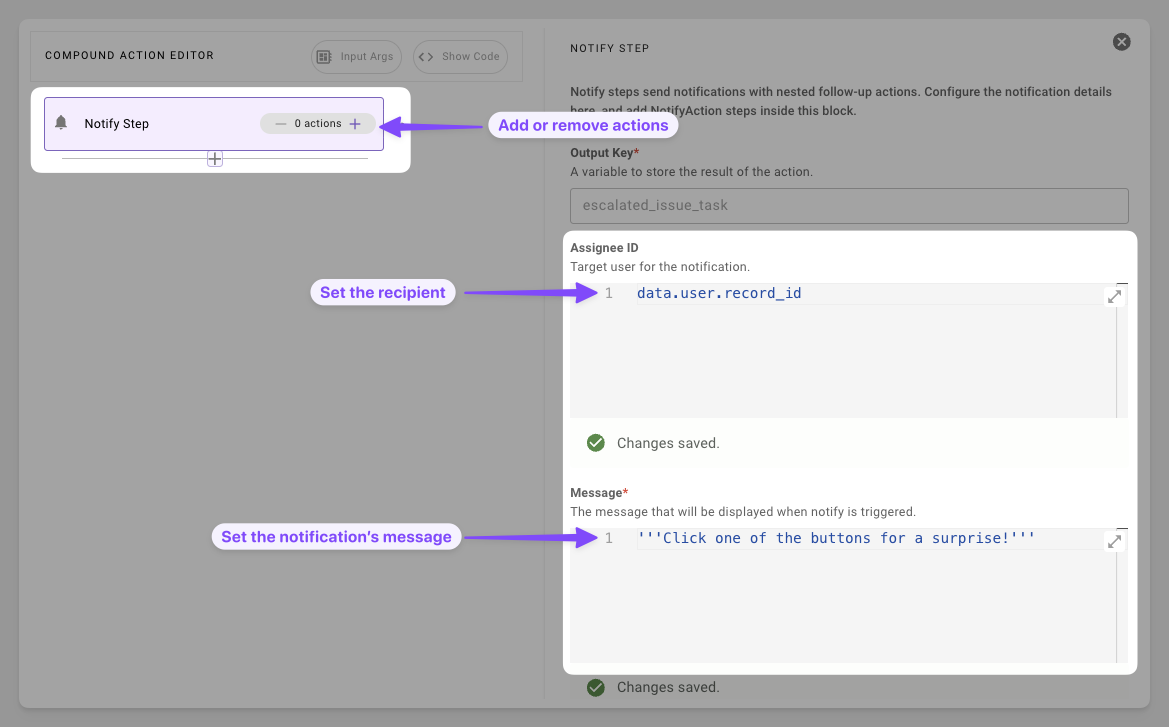
  1. Prepare Essentials: Set the notification’s recipient, informational message, and optionally provide image URLs to display in the notification.
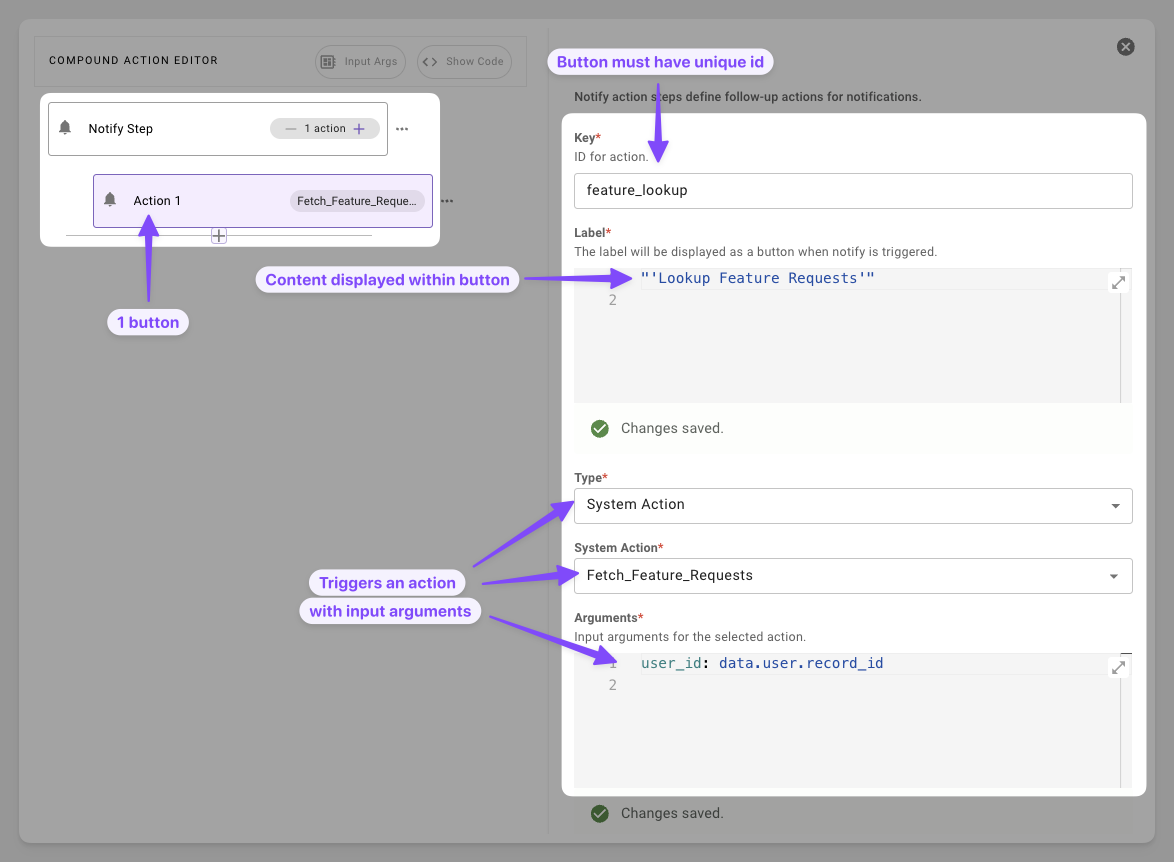
  1. Add Actionable Task: Add a button that can trigger an HTTP, compound, or script action.
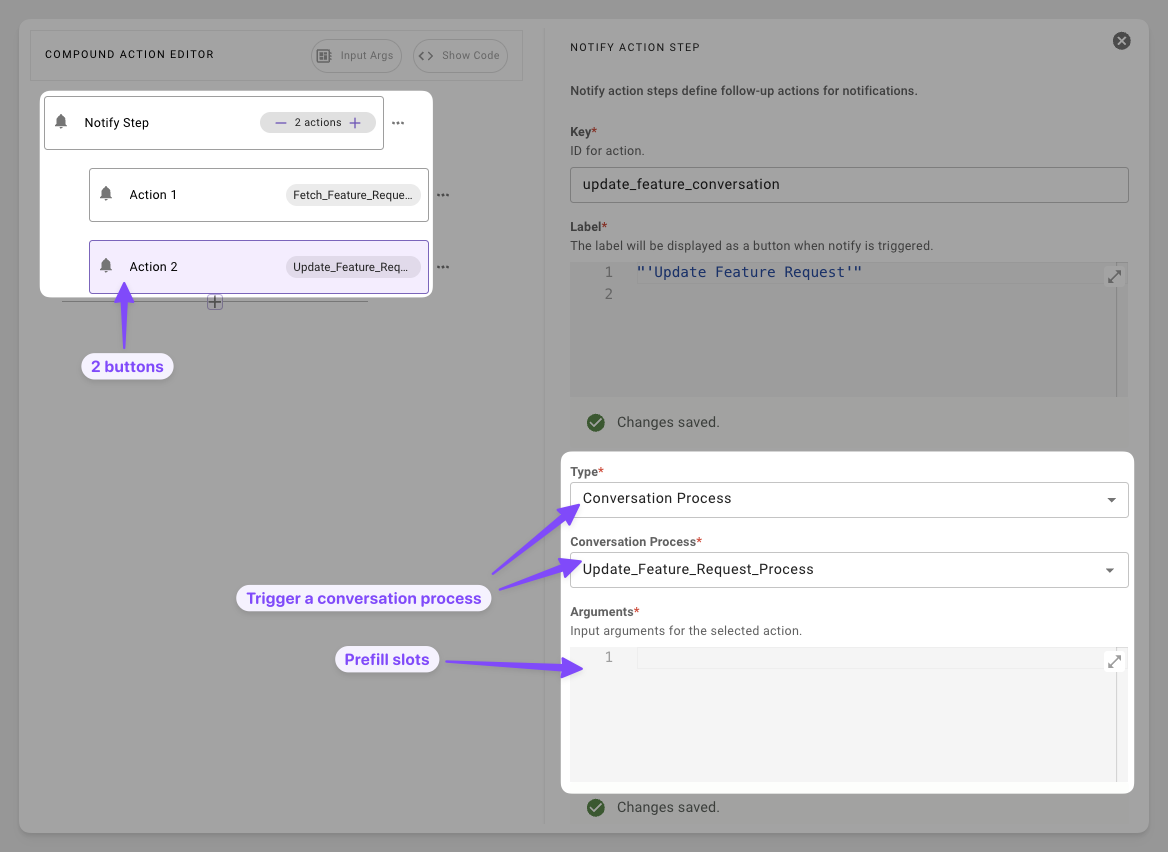
  1. Start a Conversation: Add a button that invokes a conversational flow with the user.
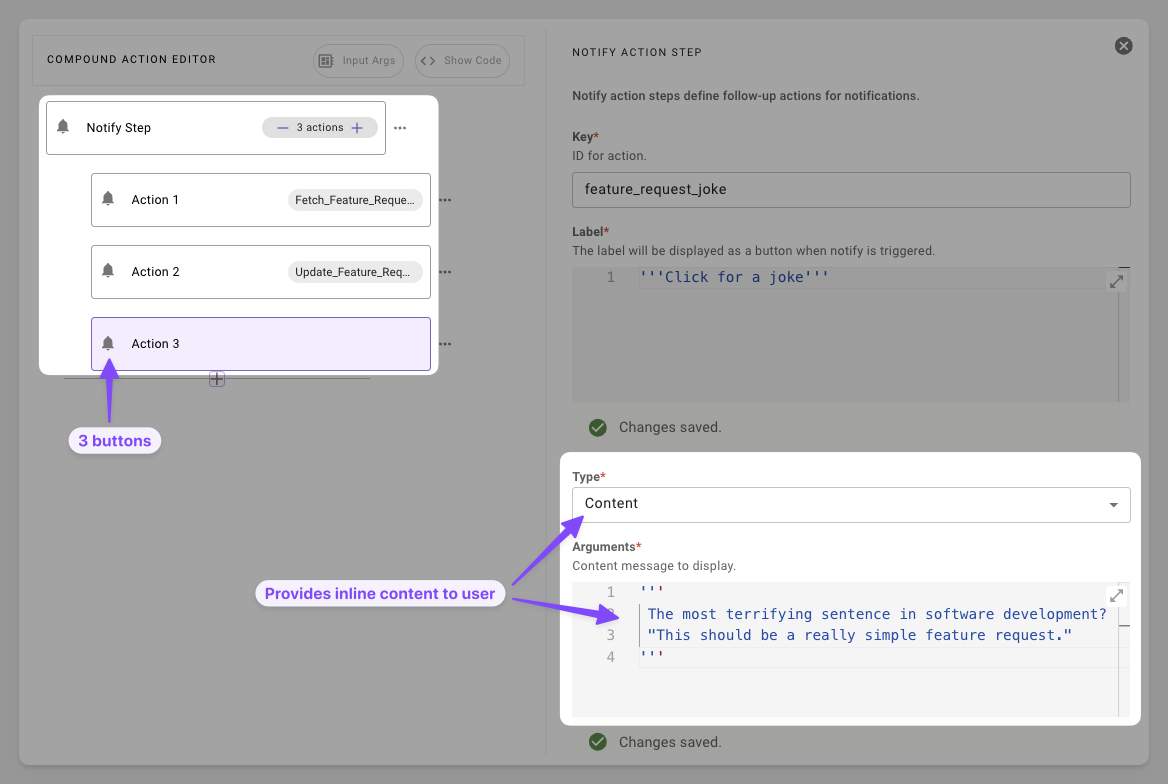
  1. Add More Content: Provide a button that provides inline content that doesn’t require fetching or starting a conversation.

Syntax Reference

Schema

1notify: # Delivers message + buttons to user
2 output_key: RESULT_VAR* # str: Stores interaction results
3 recipient_id: USER_ID* # str: e.g., data.target_user.record_id
4 message: MSG_EXPR* # DSL str or RENDER() template
5 image_urls: # Optional list[str]: Images shown in notification
6 - IMAGE_URL
7 resources: # Optional list[dict] only available in pro-code
8 - name: RESOUCE_NAME # str: no dsl evaluation just type out string
9 datatype: DATA_TYPE # datatype: no dsl evaluation just type out string
10 value: VAL # DSL of datatype declared above
11 actions: # Optional list[dict]
12 - key: ACTION_KEY # Unique str ID
13 label: BUTTON_TEXT # Display DSL str
14 # ONE of:
15 content_action:
16 message: CONTENT_MSG
17 system_action:
18 action_name: ACTION_NAME
19 input_args:
20 key: VAL
21 conversation_action:
22 conversation_process_name: PROCESS_NAME # Published plugin
23 input_args:
24 slot_name: VAL # Match process slots

Fields

FieldTypeMandatoryDescription
output_keystringYesCapture’s button outcome. Currently returns NULL
recipient_idstringYesID of the target user
messagestringYesDSL expression field
image_urlslist[str]NoImage URLs displayed in the notification
actionslist[dict]NoButtons displayed to user
resourceslist[dict]NoPass additional context to the reasoning engine

Resources Schema

FieldTypeMandatoryDescription
namestringYesName of the resource
datatypestringYesDatatype of value; options here
valueanyYesDSL expression field: Value of data to pass as context

Action Types

FieldKeysUse Case
content_actionmessageQuick info drops.
system_actionaction_name, input_argsInvoke actions
conversation_actionconversation_process_name, input_argsStart conversation processes

Resources

Resources are an optional field that can be used in the pro-code syntax. These are used for passing additional data as context for the LLM. These can be used situationally for giving the llm additional data to reference when using a follow up action such as passing a string to the LLM for SDA reasoning.

"instructions": "Analyze the data for the top commented on tickets"

Example 1: Enforcing specific analysis on an action button click

1# input args: data.tickets
2notify:
3 output_key: user_choice
4 recipient_id: data.target_user.record_id
5 message:
6 RENDER():
7 template: "Click the button below for insights on the top commented tickets"
8 args:
9 id: data.ticket.id
10 resources:
11 - name: instructions
12 datatype: string
13 value: '"Analyze the data for the top commented on tickets"'
14 actions:
15 - key: view
16 label: "'View Tickets'"
17 system_action:
18 action_name: retrieve_all_tickets
19 input_args:
20 support_tickets: data.tickets

Practical Examples

Example 1: Simple Ticket Alert

Notify assignee with a link

1notify:
2 output_key: alert_sent
3 recipient_id: data.target_user.record_id
4 message:
5 RENDER():
6 template: "Hello {{name}}, [<b>T-{{id}}</b>]({{link}}) assigned to you. Follow runbook."
7 args:
8 name: data.target_user.first_name
9 id: data.ticket.display_id
10 link: data.ticket.url

Expectation: User will receive a simple notification message with the ID of the ticket they were assigned

Example 2: Multi-Option Response

Offer multiple options to the user

1# input args: data.ticket
2notify:
3 output_key: user_choice
4 recipient_id: data.target_user.record_id
5 message:
6 RENDER():
7 template: "Ticket {{id}} assigned—act now."
8 args:
9 id: data.ticket.id
10 actions:
11 - key: view
12 label: "'View Ticket'"
13 content_action:
14 message:
15 RENDER():
16 template: "View ticket {{id}}"
17 args:
18 id: data.ticket.id
19 - key: convert
20 label: "'Convert to Bug'"
21 system_action:
22 action_name: convert_support_issue_to_known_bug
23 input_args:
24 support_ticket: data.ticket

Expectation: User will receive a notification about a ticket that was assigned to them. They will be provided two buttons, one to look at the ticket and one to convert the ticket.

Example 3: Handoff to Conversation

Alert the user and collection more information

1# input args: data.ticket
2notify:
3 output_key: handoff_result
4 recipient_id: data.target_user.record_id
5 message:
6 RENDER():
7 template: "[{{id}}]({{url}}) assigned—need details?"
8 args:
9 id: data.ticket.display_id,
10 url: $CONCAT(["https://notion.so/", data.ticket.sys_id], "")
11 actions:
12 - key: send_back
13 label: "'Send Back'"
14 conversation_action:
15 conversation_process_name: collect_reason_for_send_back_and_send_case_back_to_case_owner
16 input_args:
17 support_ticket: data.ticket

Expectation: User receives the notification and are prompted to start a conversational process to send back the ticket for more information.

Example 4: Notification with Images

Include images in a notification using the image_urls field.

1notify:
2 output_key: image_notification
3 recipient_id: data.target_user.record_id
4 message:
5 RENDER():
6 template: "Here are the latest charts for project {{name}}."
7 args:
8 name: data.project.name
9 image_urls:
10 - data.project.chart_url
11 - data.project.timeline_url

Expectation: User receives a notification with the message and the referenced images rendered inline.

Troubleshooting

Notify actions not appearing in Agent Studio logs

Notify actions may not appear in Agent Studio execution logs, even when the notification is successfully delivered. This is a known limitation that affects troubleshooting.

Logging limitation

When a notify step fails silently or does not send as expected, Agent Studio logs may not show any invocation record for the notify action — neither a success nor a failure entry. This applies regardless of your role, including Super Admin and Elevated Agent Studio Logs Viewer.

Workarounds:

  • Verify the recipient_id resolves to a valid user by logging it in a prior step.
  • Test with a minimal compound action containing only the notify step to isolate the issue.
  • If using notify inside a for loop, test with a small iteration count first to rule out timeout or memory limits.
  • Confirm the recipient has an active chat platform connection (e.g., Slack, Teams) — notify requires a reachable messaging channel.