
ToolSmith
Overview
ToolSmith is an assistant for creating, editing, and debugging plugins. You describe the workflow you want, the systems it touches, and who will use it. ToolSmith proposes a plan, and once you approve it, it builds the plugin.
ToolSmith is not only for new plugins. Describe the change you need, or explain what is going wrong, and ToolSmith proposes edits to the existing plugin. You review and approve edits the same way you approve a new build.
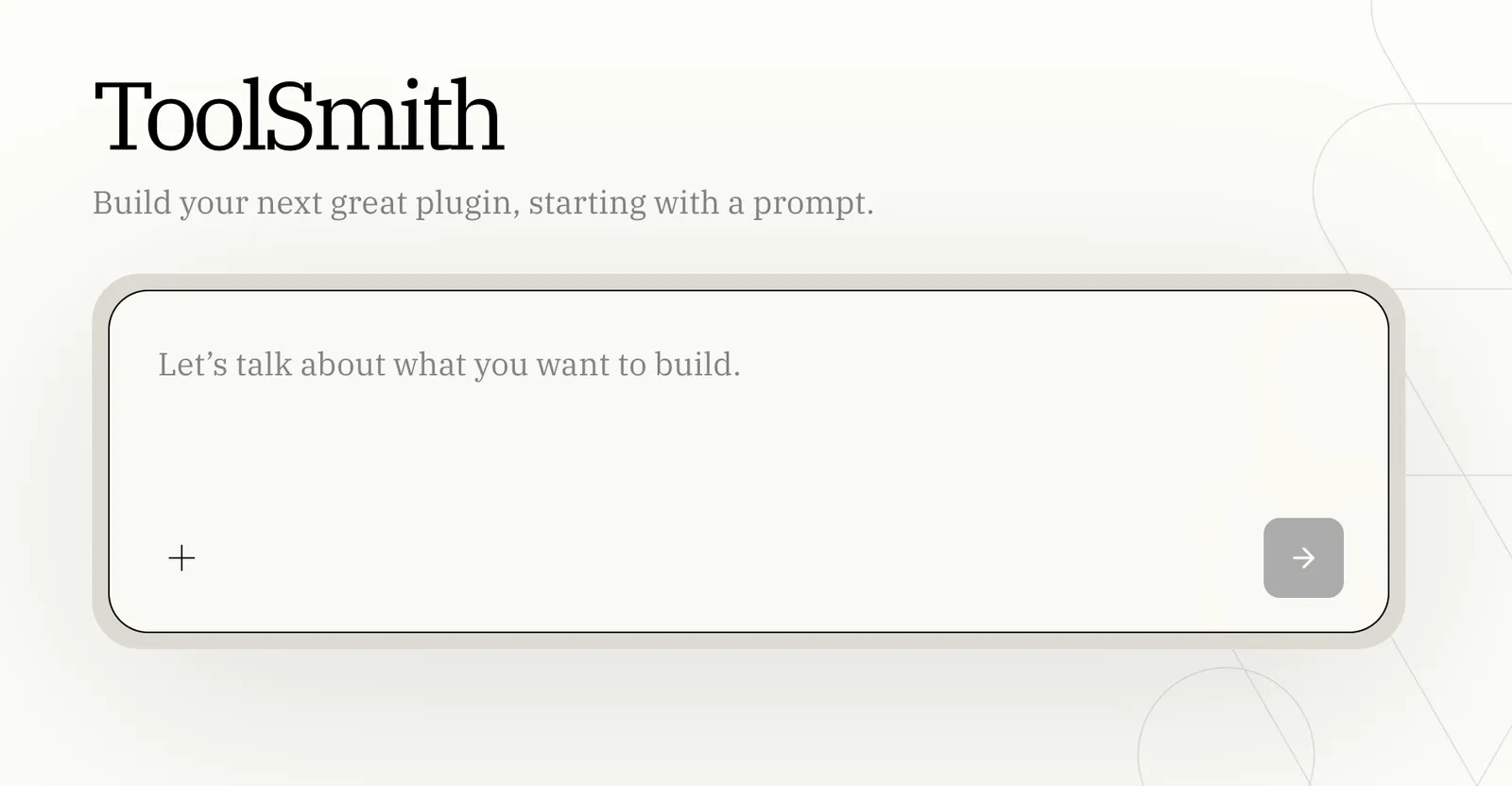
ToolSmith is available to Moveworks customers in early access. To register interest, use the ToolSmith page on the AI Agent Marketplace.
How a build works
Review the proposed steps
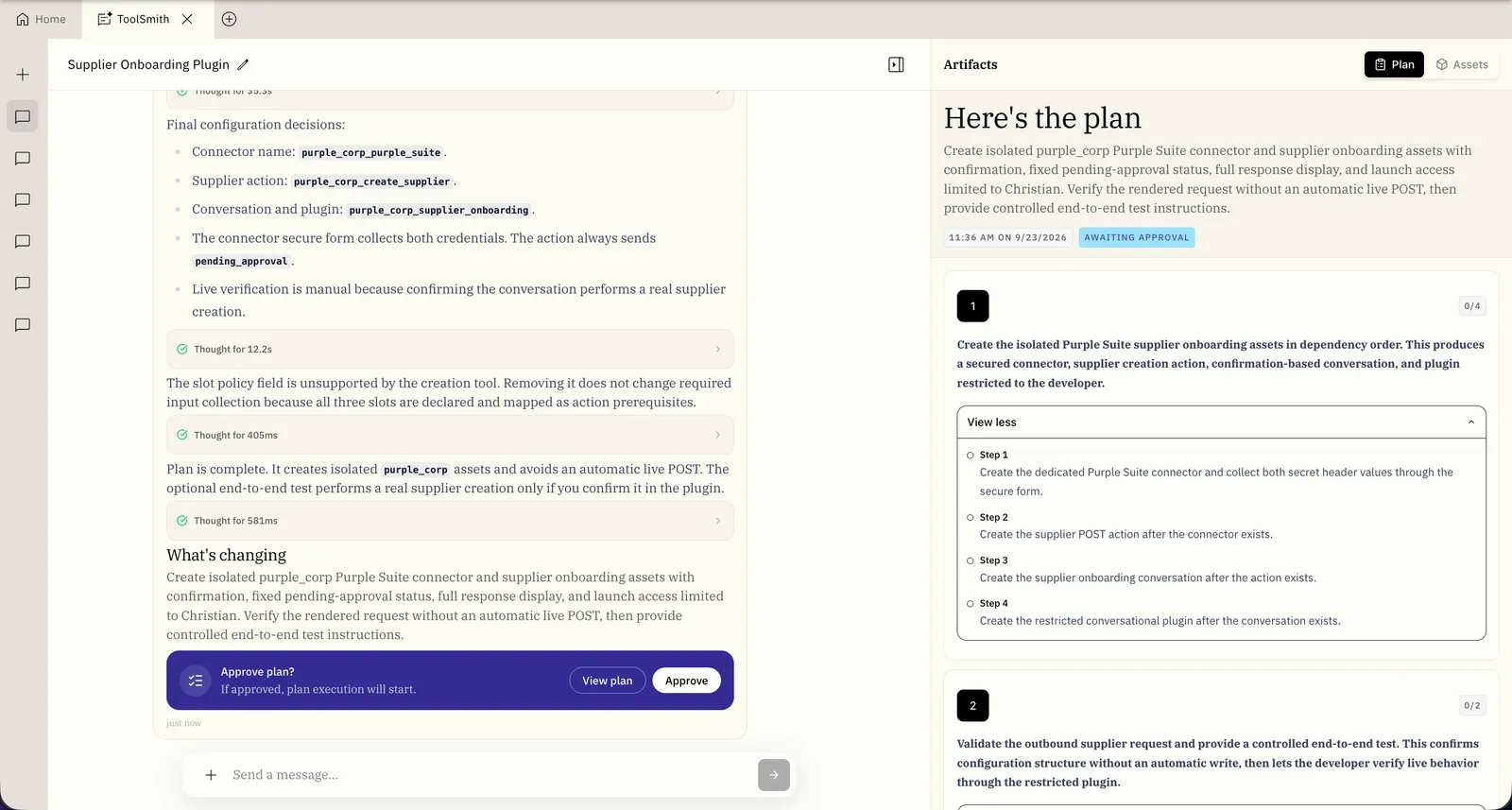
ToolSmith lays out the assets it intends to create, modify, or reuse and the steps it plans to take. You should review the complete plan before you approve it. Confirm that the plan includes the expected business rules, assets, connectors, tests, and potential side effects. Ask ToolSmith to revise anything that is missing, unclear, or incorrect.
What ToolSmith uses
- The Action Catalog. A library of third-party API operations and their documentation. When your plugin needs an HTTP action against a covered system, ToolSmith already has the endpoint, parameters, and schemas, so it skips the research step and gets the request shape right the first time.
- Your connectors. Every action ToolSmith builds is attached to a connector you configure. See Connectors.
- Execution logs. When you ask ToolSmith to fix a plugin, it reads the plugin’s execution logs to find what went wrong and proposes edits.
Before you begin
Before using ToolSmith:
- Start with a focused workflow involving one or two systems.
- Use a test or non-production environment. During the build cycle, ToolSmith may call external endpoints to test the plugin, including requests that send data to or change data in a connected system.
Write effective prompts
Give ToolSmith enough context to understand the business outcome and evaluate whether its proposed plan meets your requirements. Do not rely on ToolSmith to infer requirements that you have not stated.
When you describe the work:
- Start with the business outcome. Explain what users need to accomplish and why.
- Identify the users and systems involved. Include the intended audience and any existing plugins, actions, or connectors ToolSmith should use or preserve.
- Describe the workflow rules explicitly. Include decision conditions and branches, validation rules, required user confirmations, calculations or mappings, and exceptions.
- Define the expected inputs and outputs. Describe the information a user provides, the data the plugin should return or change, and the behavior you expect.
- Describe success and failure behavior. Explain what should happen when the workflow succeeds, returns no results, receives invalid input, or encounters an external-system error.
- Provide representative examples. Add sample requests, expected results, and test cases when they clarify the intended behavior. Do not include credentials or other secrets.
- Call out constraints and non-goals. State what ToolSmith must not change and any behavior outside the scope of the request.
For example:
Retrieve my team’s open Linear issues and rank them by priority. Return each issue’s identifier, summary, assignee, priority, and status. Exclude completed issues. If no open issues are found, explain that the team has no active issues.
Configure credentials securely
When a connection requires credentials, ToolSmith pauses the build and displays a credential request. Select Configure to open the secure configuration card.
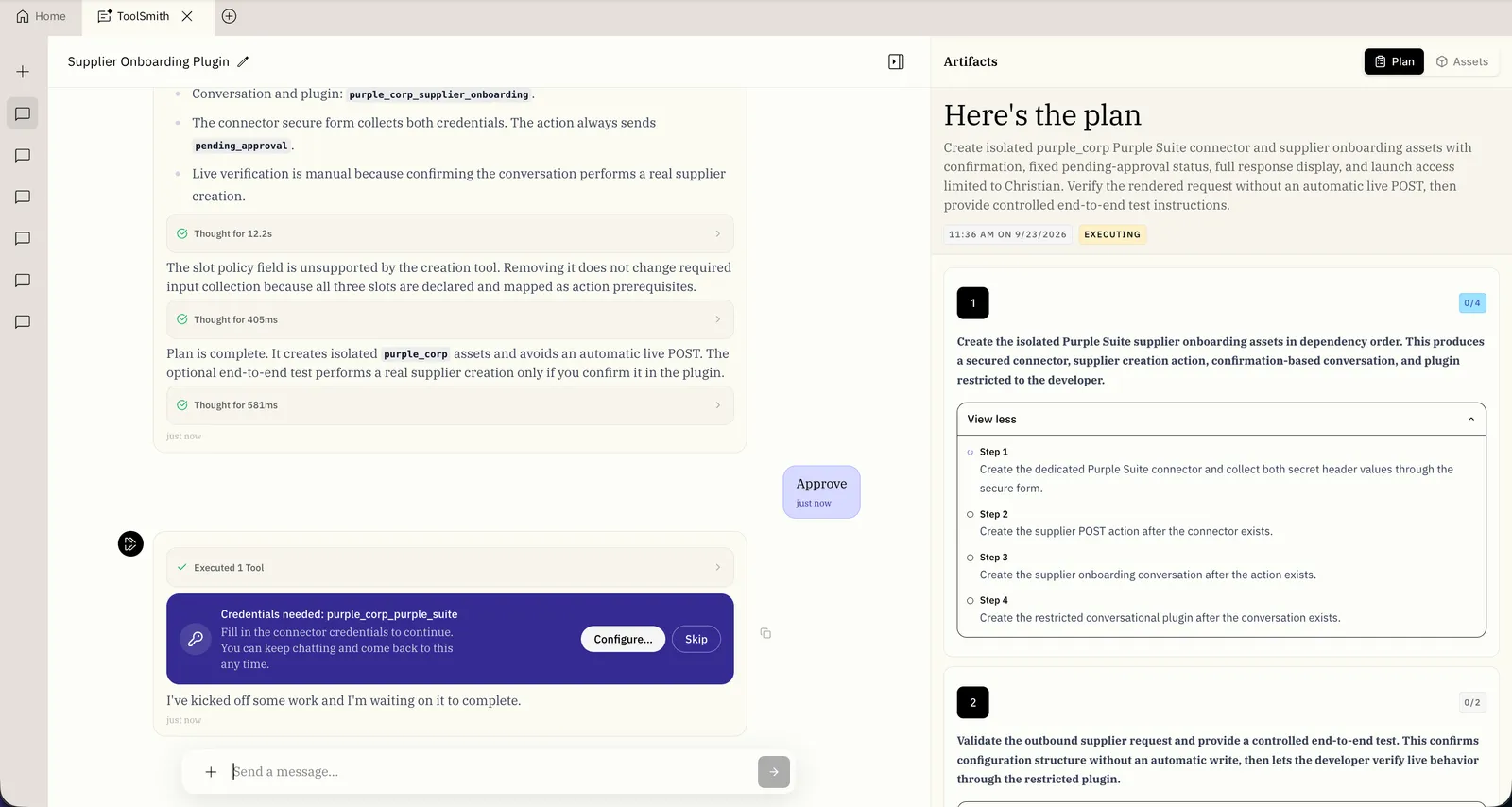
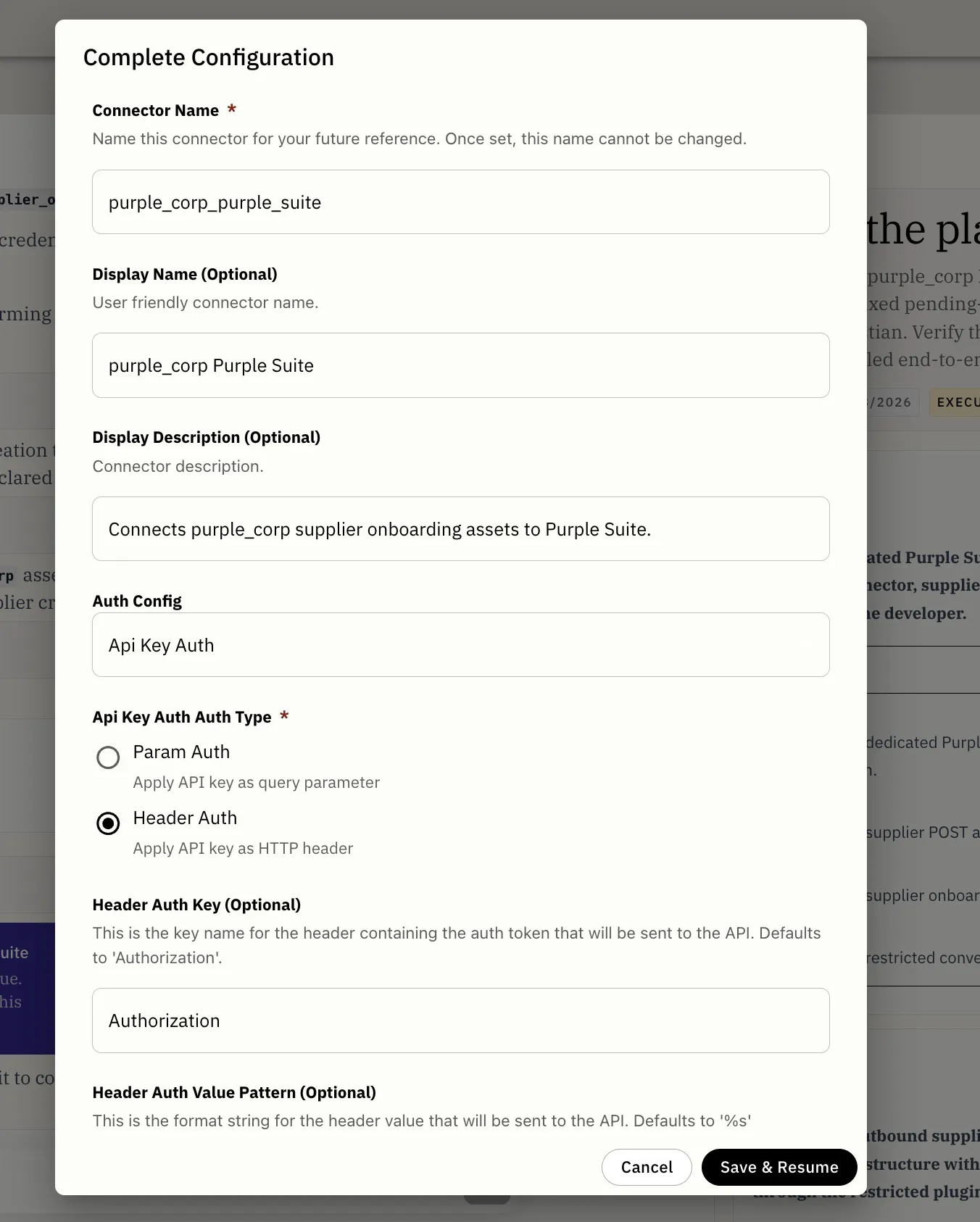
Enter credentials only through this card. Do not paste credentials, API keys, tokens, or other secrets into the ToolSmith conversation.
Review the result
After the build completes, compare the assets ToolSmith created or modified with the approved plan. Open each asset to inspect its configuration and continue testing before you rely on the plugin.
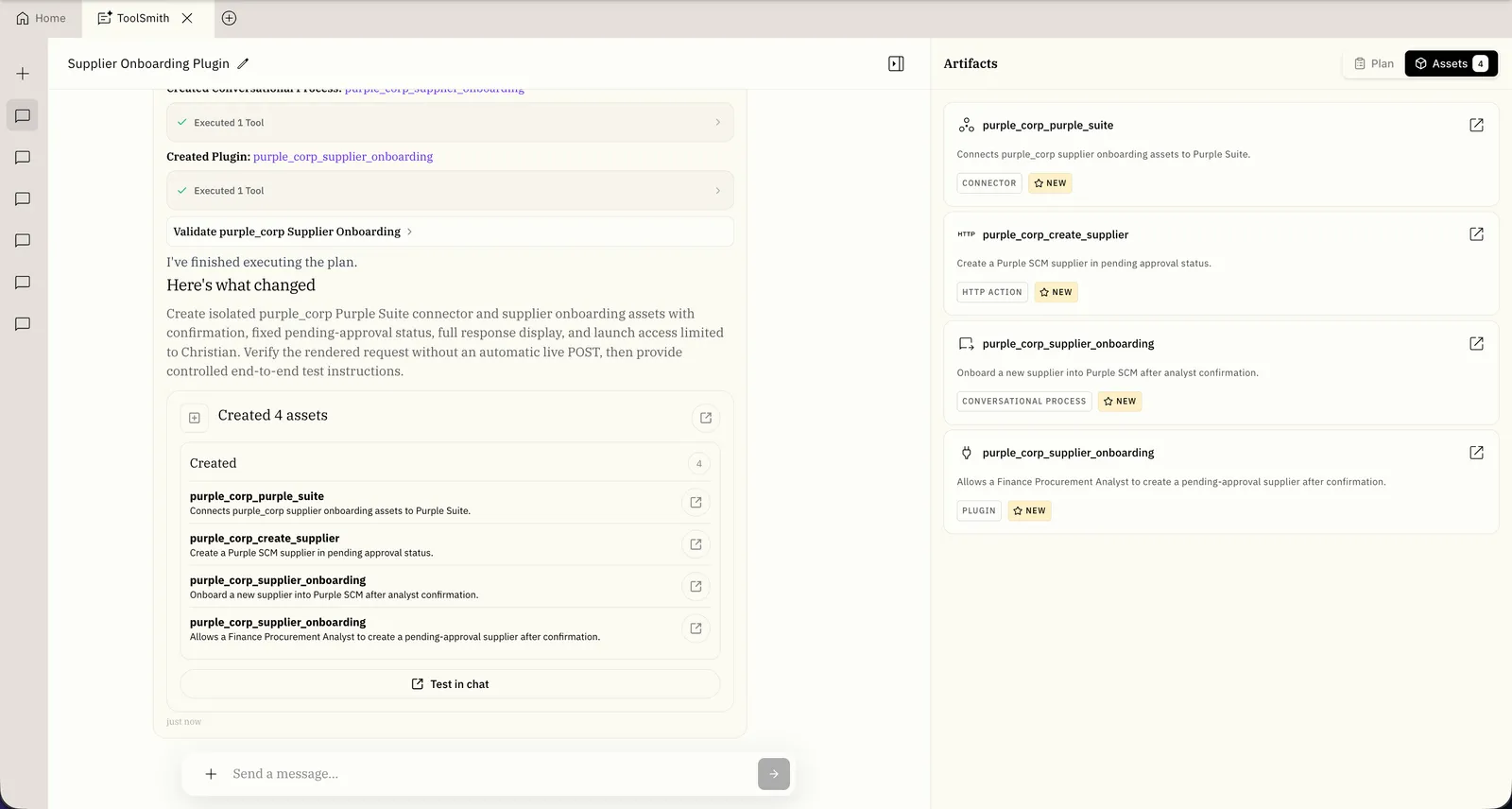
You remain responsible for thoroughly reviewing and testing the result. Confirm that its workflows behave as expected across representative scenarios and edge cases, and that the implementation matches the approved plan before publishing or production use.
Relationship to Agent Architect
Agent Architect is the read-and-advise copilot inside the Agent Studio editor: it explains and suggests, and you author the changes. ToolSmith builds and edits plugins on your behalf after you approve a plan. Both are available; use Agent Architect for guidance while you hand-build, and ToolSmith when you want the build done for you.
Limitations and considerations
Keep these limitations and considerations in mind when using ToolSmith.
Limitations
- ToolSmith cannot delete assets. Delete assets directly in Agent Studio when needed.
- ToolSmith conversations cannot be shared with other users.
- Asset dependencies are not shown in the conversation. When you edit an asset, ToolSmith does not show the assets that depend on it or the assets it depends on. Review dependencies before approving the change and validate affected plugins afterward.
Considerations
- Results vary by system and workflow complexity. ToolSmith’s output depends on the available API documentation, existing assets, and the context in your prompt. If a proposed plan or result does not meet your requirements, follow the prompt-writing guidance and provide more specific business rules, inputs, outputs, examples, or constraints. Review the revised plan before approving it. You might still need to complete part of the work manually.
- Tests can affect connected systems. ToolSmith asks for approval before performing external actions. Use a test or non-production environment, and review the expected side effects before approving an action or test.
FAQs
Do I still need to configure connectors and access control?
Yes. ToolSmith builds the plugin; you own the connection credentials, permissions, and testing, exactly as with a hand-built plugin.
Can I paste credentials into the ToolSmith conversation?
No. Enter credentials only through the secure configuration card. Do not paste credentials, API keys, tokens, or other secrets into the conversation.
Which systems can ToolSmith build actions for?
Any system with an API. Systems in the Action Catalog are faster and more reliable because ToolSmith already has their documentation. Check coverage on the AI Agent Marketplace Explore page with the ToolSmith filter.
Does ToolSmith always fix plugin failures?
No. ToolSmith can read execution logs, investigate a failure, and propose a fix, but it might not identify or resolve every root cause. Always review and test a proposed fix. Use logs and common errors to continue troubleshooting.
Where do I use ToolSmith?
In Agent Studio, for customers with early access. Register interest on the Marketplace ToolSmith page.