
How To Guides for Channel Resolver
Enable or Disable Plugins in Channel Resolver
For each channel, you choose which domains Channel Resolver handles and which plugins it uses to resolve requests.
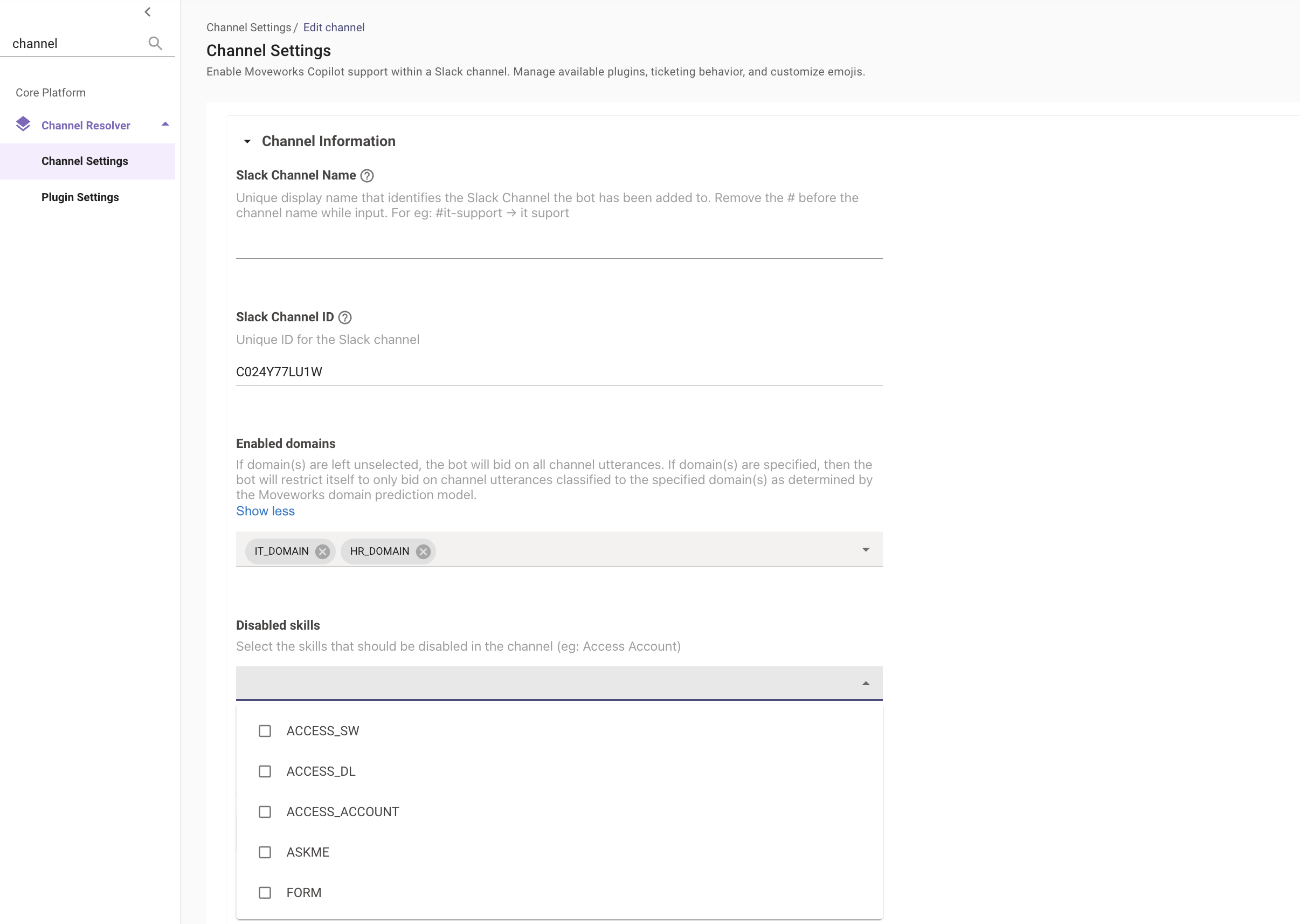
- Go to Moveworks Setup > Core Platform > Channel Resolver > Channel Settings. Edit an existing channel, or create a new one.
- In Enabled domains, select the domains Channel Resolver responds to in the channel.
- Under Channel Plugin Configuration, in Plugin Allowlist, enter the plugins Channel Resolver can use in the channel. When the allowlist is empty, the channel uses the default built-in plugins.
- Save the configuration.
When the allowlist has any entries, the AI Assistant uses only the plugins on the list. See Choose the Plugins for a Channel.
To add Tool Studio plugins to a channel, see Change How the AI Assistant Responds in a Channel.
Disable Ticket Filing in Slack Channels
If ticket syncing is enabled for a channel, you can disable ticket filing for that channel. The AI Assistant then files no tickets from the channel.
-
Go to Moveworks Setup > Core Platform > Channel Resolver > Channel Settings, and edit the channel.
-
Select the control shown below, and save the configuration.

Configure Emoji for Channel Posts
The AI Assistant reacts to channel posts with emoji that show what happened. Emoji names follow the Slack naming convention. See Use emoji and reactions in the Slack Help Center.
- Go to Moveworks Setup > Core Platform > Channel Resolver > Channel Settings, and edit the channel.
- Set an emoji for each of these scenarios:
- Emoji to indicate no resolution occurred: the AI Assistant adds this emoji to the post when it can’t find a resolution, so agents can see which posts need their attention. The default is
exclamation. - Emoji to indicate some resolution occurred: the AI Assistant adds this emoji to the post when it provides a resolution. The default is
white_check_mark. - Emoji to indicate a ticket was filed: the AI Assistant adds this emoji to the post when it files a ticket. The default is
ticket. - Enable adding emoji when no response was provided: when selected, the AI Assistant adds an emoji to posts it has no response for, so agents can see which posts need their attention.
- Emoji to indicate no response was provided: the emoji the AI Assistant adds when it has no response. The default is
exclamation. - Emoji to trigger synced ticket creation: adding this emoji to a post creates a synced ticket in your ticketing system.
- Emoji to indicate an auto-generated ticket was created: the AI Assistant adds this emoji to posts by non-agents and creates a ticket in your ticketing system. The default is
ticket. - Emoji to trigger ticket assignment: an IT agent adds this emoji to a post to assign the ticket to themselves. Moveworks distinguishes IT agents from other users in your environment.
- Emoji to indicate no resolution occurred: the AI Assistant adds this emoji to the post when it can’t find a resolution, so agents can see which posts need their attention. The default is
- Save the configuration.
Change How the AI Assistant Responds in a Channel
- Go to Moveworks Setup > Core Platform > Channel Resolver > Channel Settings, and edit the channel.
- To add Tool Studio plugins, under Channel Plugin Configuration, enter each plugin’s name in Plugin Allowlist as it appears in Tool Studio. Also add any built-in plugins the channel should keep. When the allowlist has entries, the AI Assistant uses only those plugins. See Choose the Plugins for a Channel.
- To have the AI Assistant reply in the thread of the employee’s post instead of a DM, select Respond in Thread under Response Configuration. Everyone in the channel can see those replies.
- Save the configuration.
To have the AI Assistant reply to every post in the channel, open a case with Moveworks Support with your org name and the channel name, and ask them to turn on Always Respond. It isn’t editable in Setup today.
To confirm, post a request in the channel that the change affects.