
Configure Channel Resolver
What Is Channel Resolver?
Channel Resolver lets the Moveworks AI Assistant detect and help resolve requests for help that employees post in Slack support channels, such as #it-support or #tech-help.
When the AI Assistant is confident it can resolve a request, it reacts to the channel post, sends the employee a direct message (DM) with a solution, and posts status updates in the thread of the channel post. Keeping the solution in the DM keeps confidential information out of the channel.
To learn how Channel Resolver works, see Channel Resolver.
What You Can Configure
In the Channel Resolver module, you can set:
- The channels where the AI Assistant is active.
- The emoji the AI Assistant uses to show what happened, for example that a ticket was filed or that a response was provided.
- How tickets are created from channel posts.
Prerequisites
Channel Resolver is enabled per channel, so you can configure each channel to meet its own needs. Channels can be public or private.
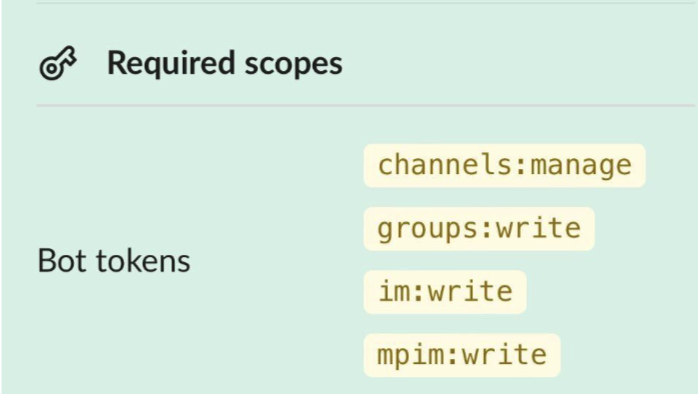
As a security measure, if the AI Assistant is added to a channel that is not enabled for Channel Resolver, it leaves the channel automatically. This requires the Slack scopes shown below.
- Add the AI Assistant to each Slack channel where it should be active, so that it can read and reply to messages in the channel.
- After you add the AI Assistant, it takes about 10 minutes before it is active in the channel.
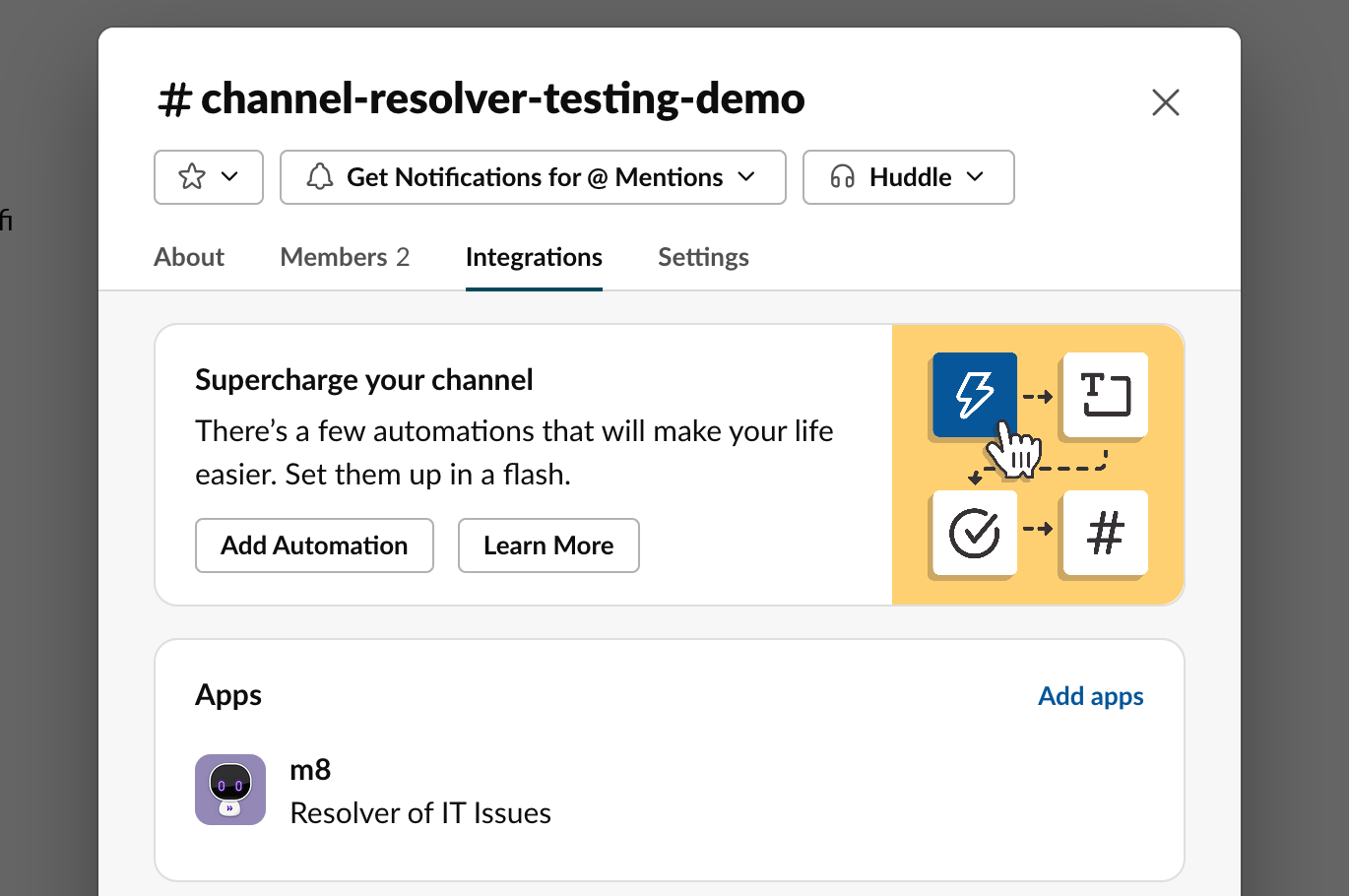
- After you add the AI Assistant, it takes about 10 minutes before it is active in the channel.
Module Overview
You configure the AI Assistant’s behavior in a channel in these sections:
- Channel information: the channel details and the domains the AI Assistant acts on.
- Emoji customization: the emoji the AI Assistant adds for each action.
- Ticket syncing: how the AI Assistant creates and syncs tickets in the channel.
- Channel workflows: the Slack workflows in the channel that the AI Assistant can act on.
Configure a Channel
Go to Moveworks Setup > Core Platform > Channel Resolver > Channel Settings, and then create or edit a channel.
Channel Information
Post-Back Buttons
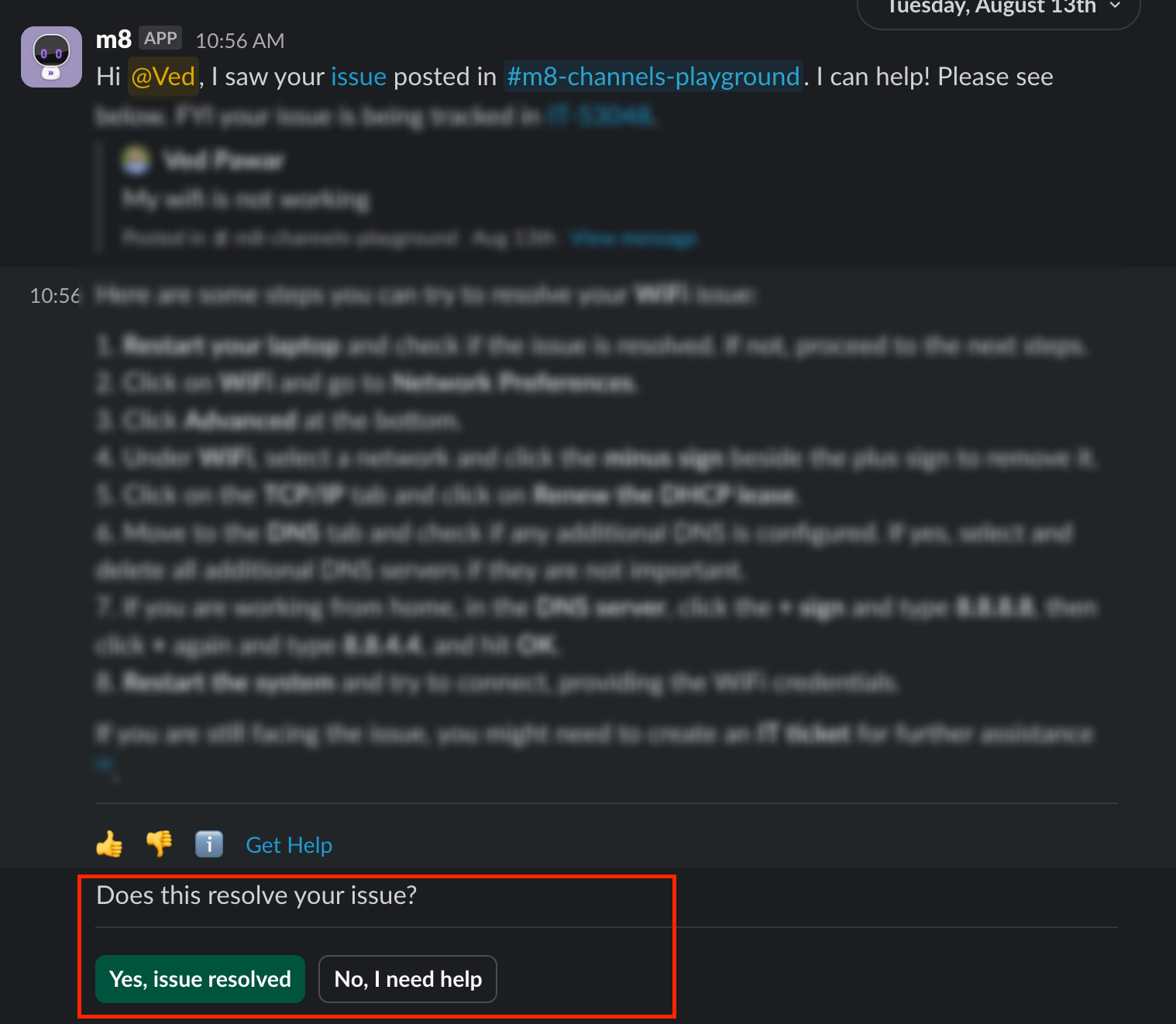
Post-back buttons let employees mark their issue as resolved or unresolved from the DM. The AI Assistant then updates the status in the channel thread. Post-back buttons are available only in the AI Assistant version of Channel Resolver.
To choose which plugins show post-back buttons, use Tools with immediate feedback under Channel Plugin Configuration. The AI Assistant also tracks what employees do in forms, software access, and account access workflows. If an employee completes a workflow without selecting a button, the AI Assistant still updates the resolution status in the channel thread.
Emoji Customization
Set the emoji the AI Assistant adds to channel posts. Whenever the AI Assistant reaches out to an employee in a DM, it also adds the 👀 emoji to the post.
Channel Resolver supports all standard Slack emoji and any custom emoji in your workspace. Enter each emoji by its name, without colons. For example, to use 🎫, enter ticket.
Ticket Syncing (Advanced)
- Enable ticket syncing
- Brings comments on the ticket into the channel thread, and updates the thread when the ticket is resolved.
- Ticket syncing also needs configuration in your ticketing system. See the integration guides under Channel Resolver, and select your ticketing system in the left navigation.
- Ticket creation criteria
- Create a synced ticket when an agent uses the manual ticket creation emoji: the AI Assistant creates a ticket only when an agent adds the ticket emoji to a post. This option also requires Enable ticket syncing. Two-way comment syncing works only after you complete the setup in your ticketing system, described in the integration guides.
- Automatically create synced tickets from all Slack posts made by non-agents: the AI Assistant creates a ticket for every post by a user who is not an agent.
- Assign ticket to bot if reachout occurs
- Assigns the ticket to the AI Assistant, so you can tell which tickets came from the channel. If the employee marks the resolution as not helpful, the AI Assistant removes itself as the assignee so an agent can pick up the ticket.
Enable Smart Handoff Through Channel Resolver
To have the AI Assistant offer smart handoff in a DM, select the check box shown below in the channel configuration. Also enable the no-response emoji in Emoji Customization.

Channel Workflows (Advanced)
Use this section when Slack workflows post in a channel where the AI Assistant is present. The AI Assistant uses this information to create tickets from workflow posts.
To add a workflow, select +Add under Workflows and enter:
- Slack Workflow App ID. A Slack administrator can find this ID. It begins with the letter A.
- User ID Identifier.
- Short Description Identifier.
Under Default domain for ticket filing, select the domain for tickets filed from Slack channel workflows.
After you save, the configuration takes about five minutes to sync. Then the AI Assistant starts replying to requests in the channel.
Response Configuration
These settings control how the AI Assistant responds in the channel. Each channel has its own values. To change Respond in Thread or the channel’s plugins, edit the channel in Core Platform > Channel Resolver > Channel Settings. Always Respond is set by Moveworks for your org and isn’t editable in Setup today.
Choose the Plugins for a Channel
Under Channel Plugin Configuration, set:
- Plugin Allowlist lists the plugins the AI Assistant can use in the channel, including Tool Studio plugins and built-in plugins. To add a Tool Studio plugin, enter its name as it appears in Tool Studio.
- Tools with immediate feedback lists the plugins whose responses include post-back buttons, so employees can mark the issue as resolved or unresolved in the channel thread.
When the allowlist has any entries, the AI Assistant uses only the plugins on the list in that channel. To keep the built-in plugins when Tool Studio plugins are added, the built-in plugins must be on the list too. When the allowlist is empty, the channel uses the default built-in plugins.
These built-in plugins are available in a channel:
Ticket lookups return only the tickets of the employee who posted.
For channels configured before the plugin allowlist was available, the Plugin Allowlist and Tools with immediate feedback are filled in from the channel’s previous plugin settings, so the channel keeps the same plugins. To change them, edit the Plugin Allowlist.
FAQ
Does Moveworks support Slack 2.0 workflows?
Yes. Both original and Slack 2.0 workflows are supported by default.