
Channel Resolver
Overview
Channel Resolver lets the Moveworks AI Assistant join Slack support channels and help employees with the issues they post there. When an employee posts an issue in the channel, the AI Assistant replies in a direct message (DM) with steps to resolve it. The conversation is multi-turn, so the employee can ask follow-up questions in the DM. Channel Resolver is available in Slack only.
Channel Resolver can:
- Summarize an answer from the knowledge articles and files the employee has access to.
- Send forms the employee has access to.
- Share the access workflows that are available in the channel.
- File tickets for employees in two ways:
- Manual ticketing: When an employee or an IT agent reacts to the post with the 🎫 emoji, the AI Assistant files a ticket on behalf of the employee who started the thread. You can change the emoji.
- Automatic ticketing: The AI Assistant files a ticket for every message posted in the channel, on behalf of the employee who started the thread, and reacts with the 🎫 emoji. You can change the emoji.
How Does Channel Resolver Work?
Channel Resolver follows these steps to understand the employee’s issue and reach out to them.
-
Understand the request
The AI Assistant uses its reasoning engine to understand the request and find a plugin that can help. If none of the available plugins can resolve the issue, the AI Assistant does not reach out to the employee. Channel Resolver uses the following plugins in a Slack channel:
-
Check access
Before it replies, the AI Assistant checks that the employee has access to the knowledge it summarizes, and that the employee’s role and attributes allow them to use the requested workflow.
-
Reach out in a DM
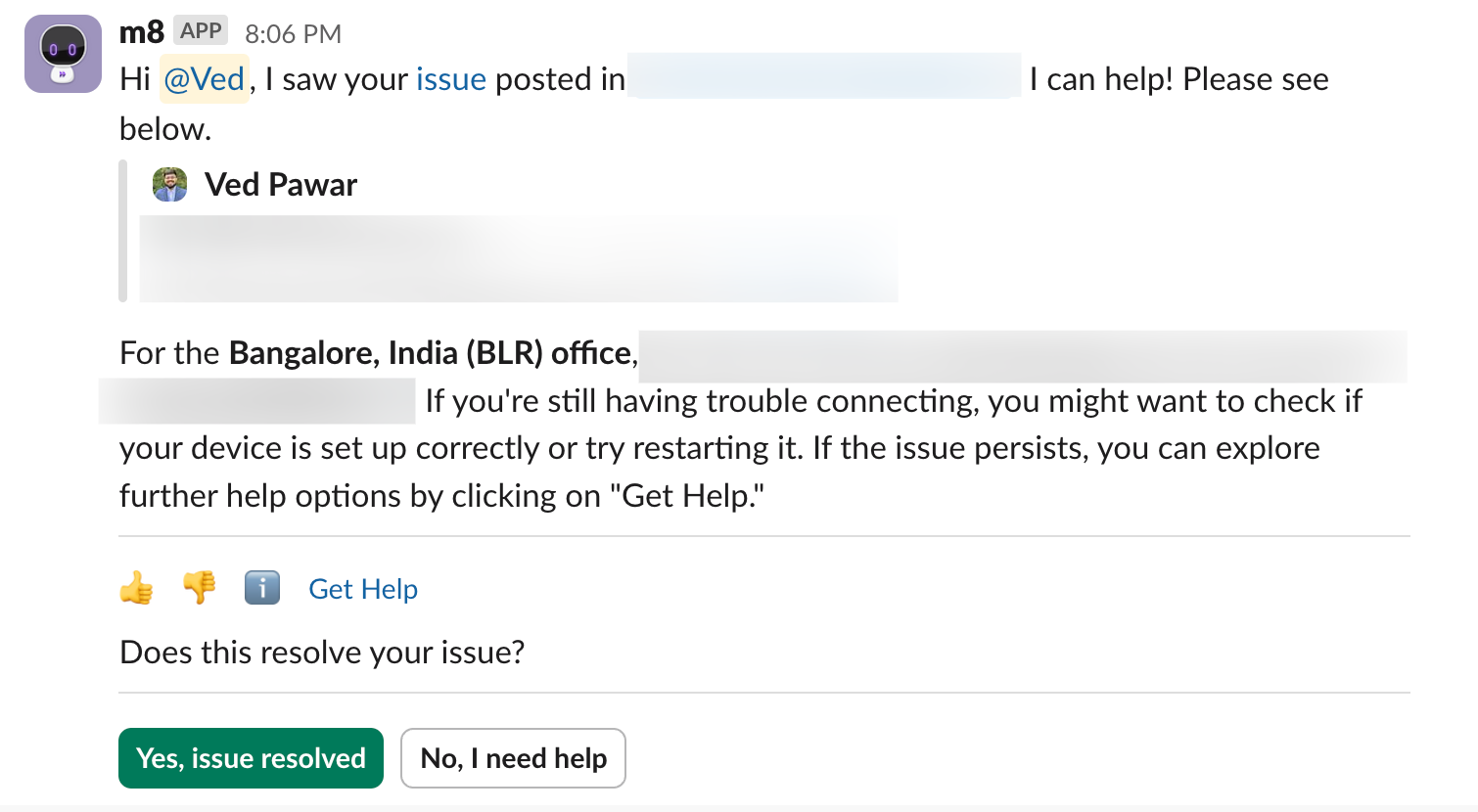
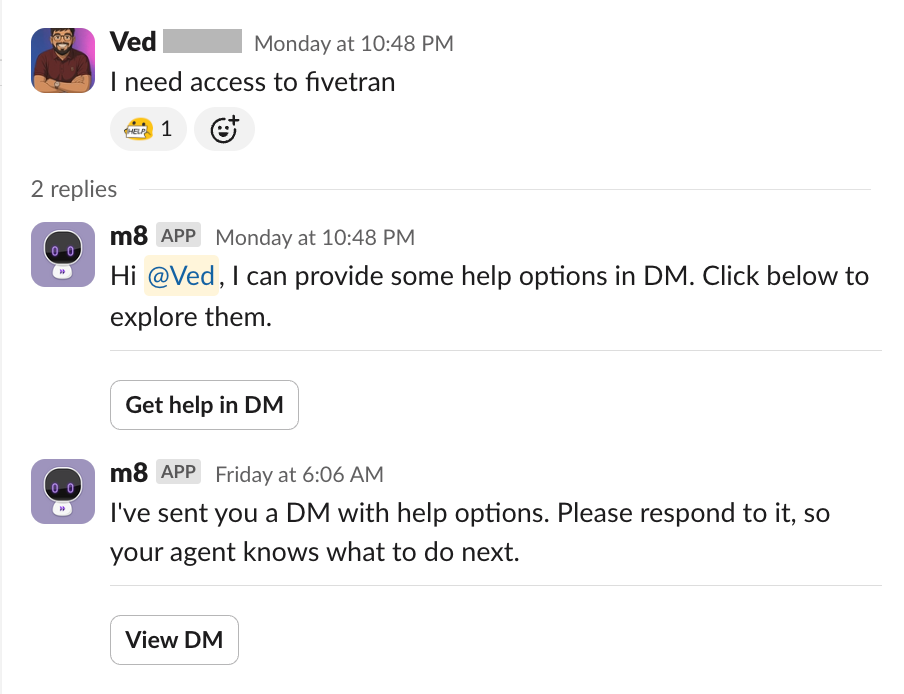
The AI Assistant sends the employee a DM with the steps to resolve the issue. It also reacts to the channel post with the 👀 emoji to show that it has replied in a DM.
In the channel:

In the DM:
-
Post the result in the channel thread
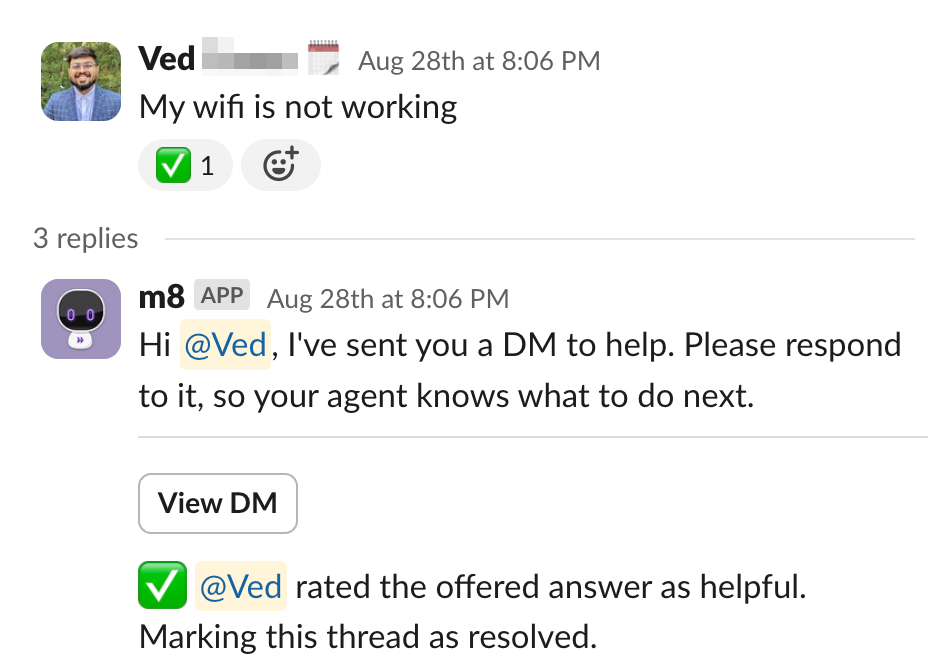
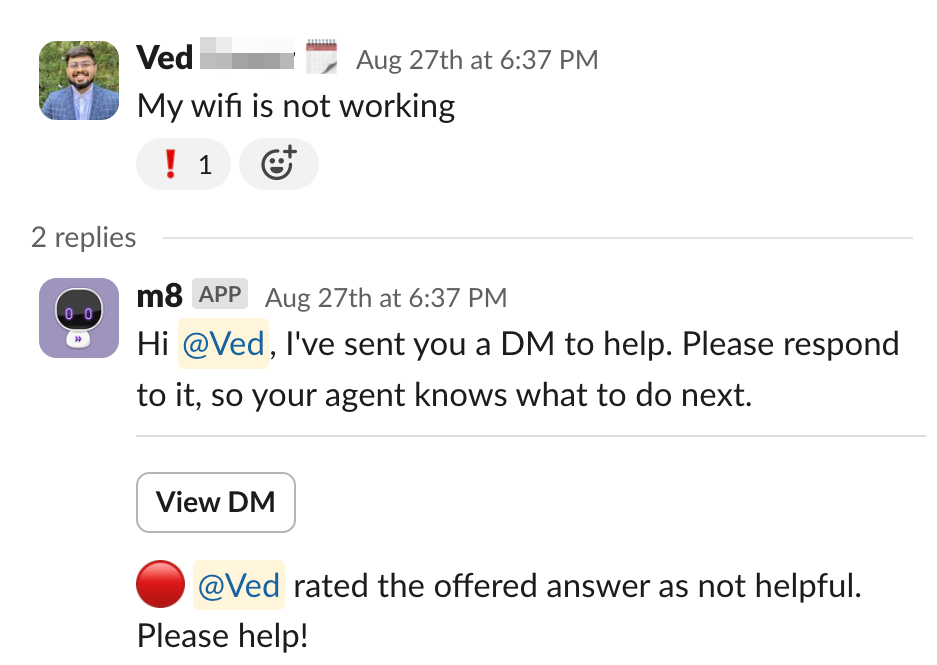
The AI Assistant updates the channel thread with a message and an emoji reaction that shows whether the issue was resolved in the DM. The thread is updated in one of two ways:
- For summarized answers from the Knowledge Base plugin, the DM includes feedback buttons. The employee’s choice updates the status in the thread.
- For action plugins such as Forms and Grant Software Access, the status in the thread follows the employee’s actions. For example, when the employee completes the software access workflow, the AI Assistant marks the thread as resolved.
When the issue is resolved in the DM:
When the issue is not resolved in the DM:
-
File a ticket from the channel thread
The AI Assistant files a ticket in either of these cases:
- An employee or agent reacts to the channel post with the 🎫 emoji.
- Automatic ticketing is enabled. The AI Assistant files a ticket for every post in the channel and reacts with the 🎫 emoji.
In both cases, the AI Assistant posts the ticket number in the thread so that agents in the channel know a ticket was filed.
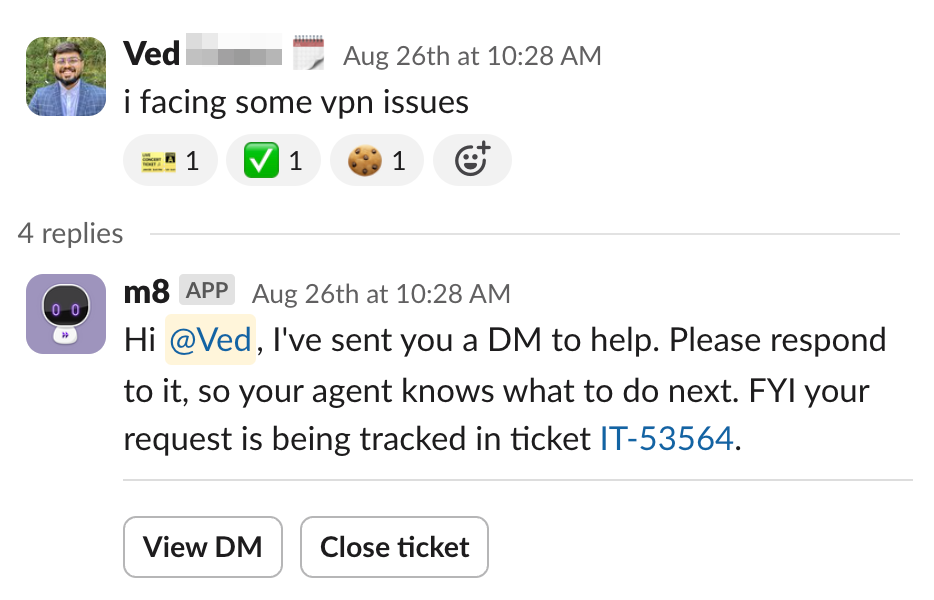
Employees can also file a ticket from the DM through smart handoff. If an employee does not find the answer helpful and files a ticket from the DM, the AI Assistant posts the ticket number in the channel thread.
-
Hand off from the channel
Sometimes no plugin or knowledge article can help, for example when the software is not yet connected to Moveworks. In that case, the AI Assistant offers smart handoff in a DM, so the employee has a next step without waiting for an agent to reply in the channel. From the DM, the employee can:
- File a ticket
- Chat with a live agent
How smart handoff behaves in a channel:
- The AI Assistant offers handoff in a DM only when no relevant knowledge or workflow matches the post.
- The AI Assistant does not respond to posts in disabled domains.
- The AI Assistant marks the channel post with the no-resolution emoji. If the employee files a ticket or contacts a live agent from the DM, the thread is not updated.
Smart handoff does not work with automatic ticketing. When automatic ticketing is enabled, the AI Assistant files a ticket directly and does not offer handoff.
-
Sync tickets
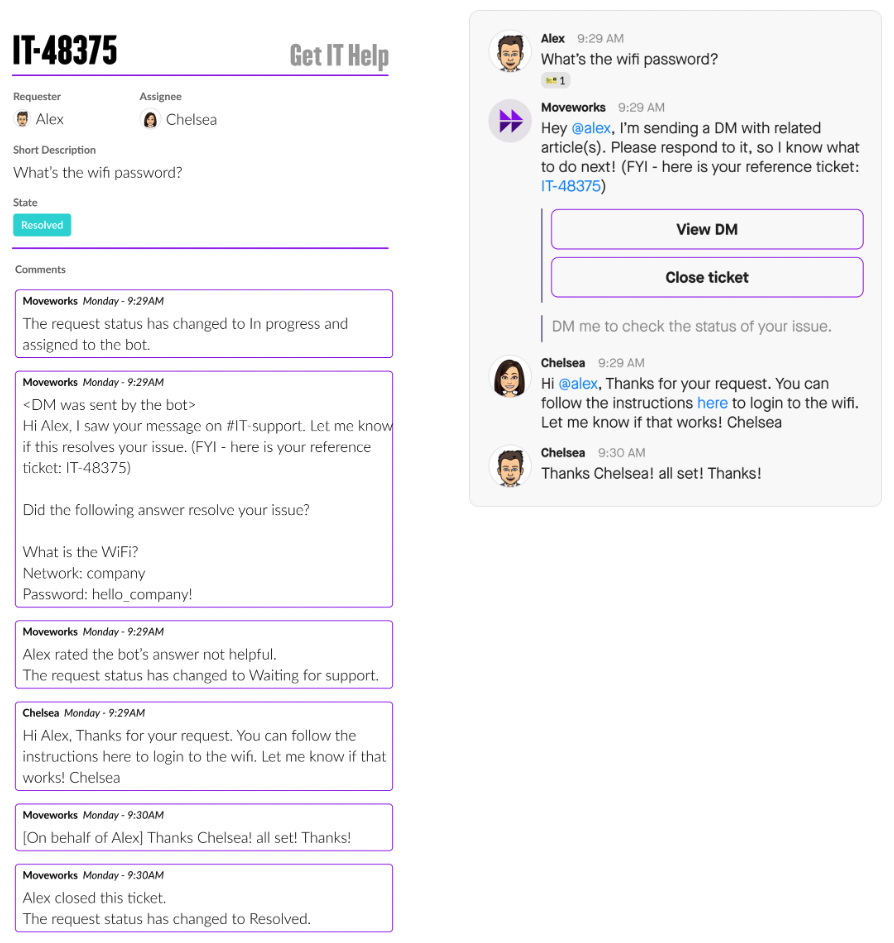
The AI Assistant syncs ticket comments and status updates from your ticketing system to the channel thread, and posts replies from the thread as comments on the ticket. Employees stay informed about the ticket, and agents can follow the conversation in the thread.
Ticket syncing needs a webhook in your ticketing system. Moveworks supports ticket syncing for:
Ticket syncing works only for tickets filed in the channel, manually or automatically. Tickets that an employee files from the DM through smart handoff are not synced.
Configuration
Add the AI Assistant to each Slack channel where you want to use Channel Resolver. To configure the channel, see Configure Channel Resolver.
If your Slack channels are already set up in the classic version of Channel Resolver, you don’t need to set them up again.
Choose How the AI Assistant Responds in Each Channel
Each channel has its own values for these settings:
- Which plugins the AI Assistant can use. The built-in plugins, plus your own Tool Studio plugins. See Choose the Plugins for a Channel.
- Whether the AI Assistant responds to every post. By default, the AI Assistant replies only to posts it is confident it can help with. With Always Respond, it replies to every post in the channel.
- Where the AI Assistant replies. By default, the AI Assistant replies in a DM. With Respond in Thread, it replies in the thread of the employee’s post, where everyone in the channel can see it.
To change Respond in Thread or the channel’s plugins, edit the channel in Core Platform > Channel Resolver > Channel Settings. Always Respond is set by Moveworks for your org and isn’t editable in Setup today.
For what each setting does, see Response Configuration.
Generated Messages
The messages the AI Assistant posts in the channel thread, and the opening line of its DM, are written for each request. They refer to what the employee posted and to the answer the AI Assistant found, instead of repeating the same fixed text. If a message can’t be generated, the AI Assistant uses the standard text. Generated messages are on by default.
FAQ
Can Channel Resolver work in more than one Slack channel?
Yes. You can configure Channel Resolver in as many channels as you need, and enable or disable plugins separately for each channel.
Can the AI Assistant use custom emoji?
Yes. Channel Resolver supports your organization’s custom emoji. To set the emoji for each case, see Emoji Customization.
Can I control which knowledge the AI Assistant shares in a channel?
The AI Assistant shares knowledge articles and replies in a DM based on each employee’s access. You can’t limit a channel to a specific set of knowledge sources. You can disable domains, so the AI Assistant does not respond to posts in those domains.
Which plugins does Channel Resolver support?
Channel Resolver supports the Knowledge plugins (internal knowledge, files, FAQs, and external knowledge), Forms, and the access plugins. It also handles manual and automatic ticket filing. It does not support GPT-based plugins. You can also add Tool Studio plugins to a channel. See Choose How the AI Assistant Responds in Each Channel.
Can the AI Assistant reply in the channel instead of a DM?
Yes. Turn on Respond in Thread for the channel in Channel Settings. The AI Assistant then replies in the thread of the employee’s post, and everyone in the channel can see the reply. See Response Configuration.