
Lab #7: Handoff - Live Agent
Overview
- Learning Objectives: Configure Moveworks to broker live agent chat sessions between users and ServiceNow agents using the Virtual Agent API integration.
- Estimated Time: 30 minutes
- Prerequisites:
- Labs 0–5 complete
- ServiceNow lab instance with the following update sets applied (provided by instructor):
Moveworks Live Agent VA API Config(Virtual Agent API scope)Moveworks Live Agent AWA Config(Global scope)
- ServiceNow admin credentials for your lab instance
Key Concepts
Live Agent Message Brokering allows Moveworks to act as a bridge between end users in their chat platform (Slack, Teams, etc.) and live agents in ServiceNow’s Service Operations Workspace. When the AI Assistant cannot resolve a user’s issue, it can seamlessly hand off the conversation to a human agent.
- Message Brokering vs. Deep Link: Message brokering keeps the conversation within the user’s native chat platform (Slack/Teams). The alternative deep link approach redirects users to a ServiceNow portal. Message brokering provides a better user experience.
- Virtual Agent API: Moveworks uses ServiceNow’s Virtual Agent Bot-to-Bot API (
/api/sn_va_as_service/bot/integration) to initiate conversations and relay messages between users and agents. - Agent Availability: Moveworks checks the
awa_agent_presence_capacitytable to determine if agents are available before offering the handoff option. - AWA Routing: Interactions must be routed through Advanced Work Assignment (AWA) queues. Without a properly configured queue, assignment rule, and eligibility pool, interactions will immediately close.
🛠️ 1: Walkthrough
Warning: The update sets handle most of the ServiceNow configuration. Before proceeding, verify the setup was applied correctly.
1.1: Verify Virtual Agent API Plugin
-
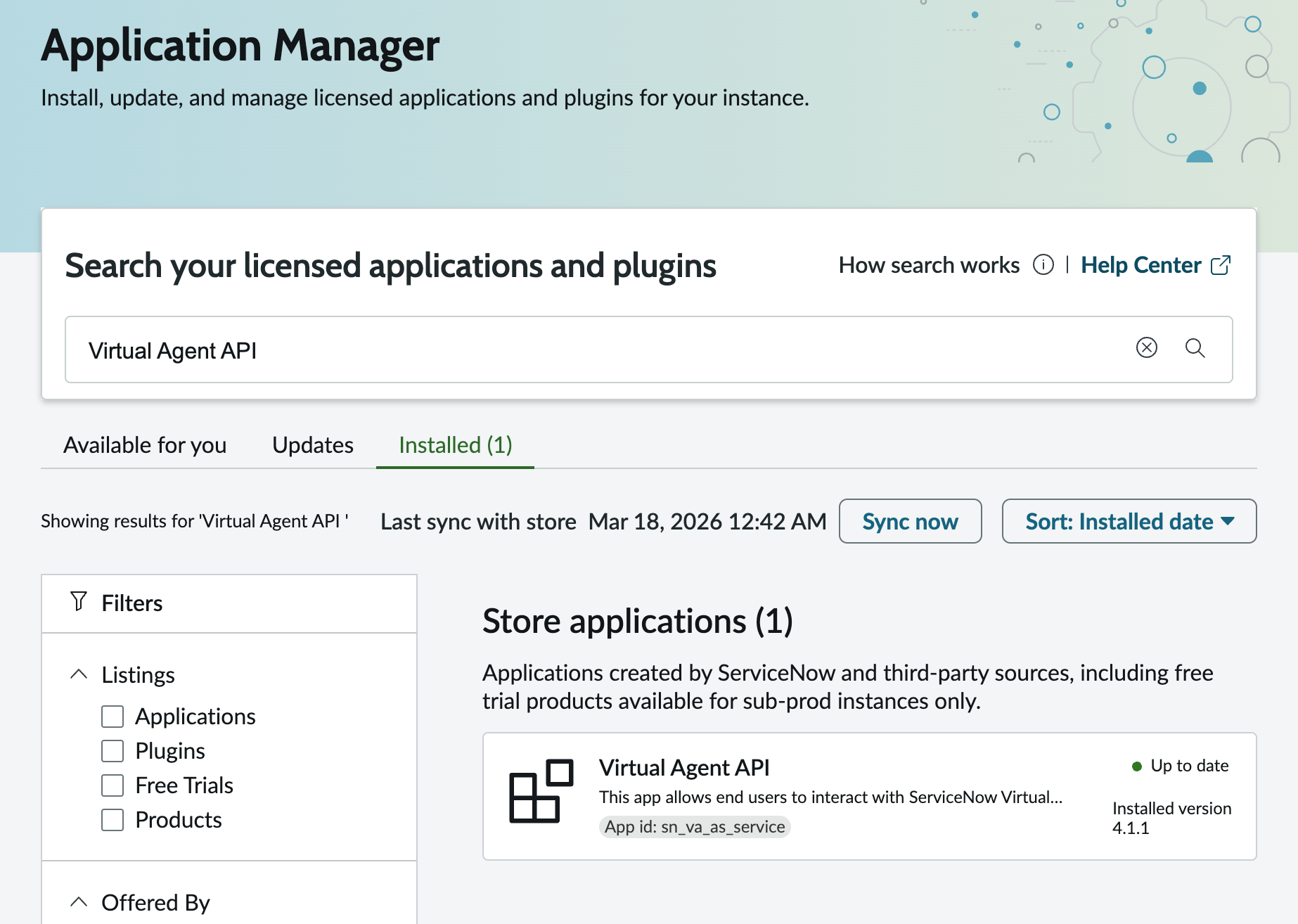
In your ServiceNow instance, navigate to System Applications > All Available Applications > All
-
Search for Virtual Agent API and confirm it is installed
-
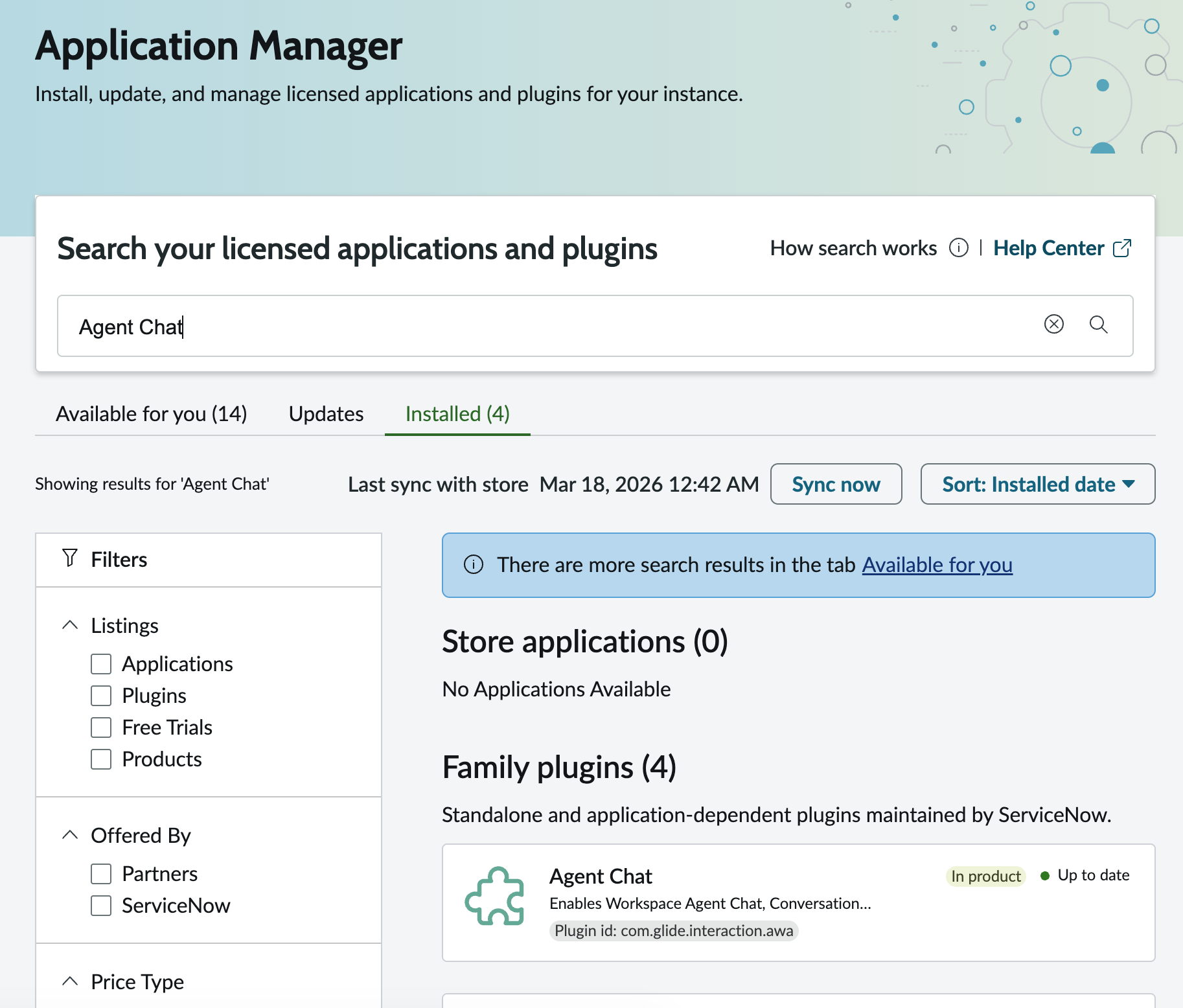
Search for Agent Chat plugin and confirm it is installed
1.2: Verify Update Set Configurations
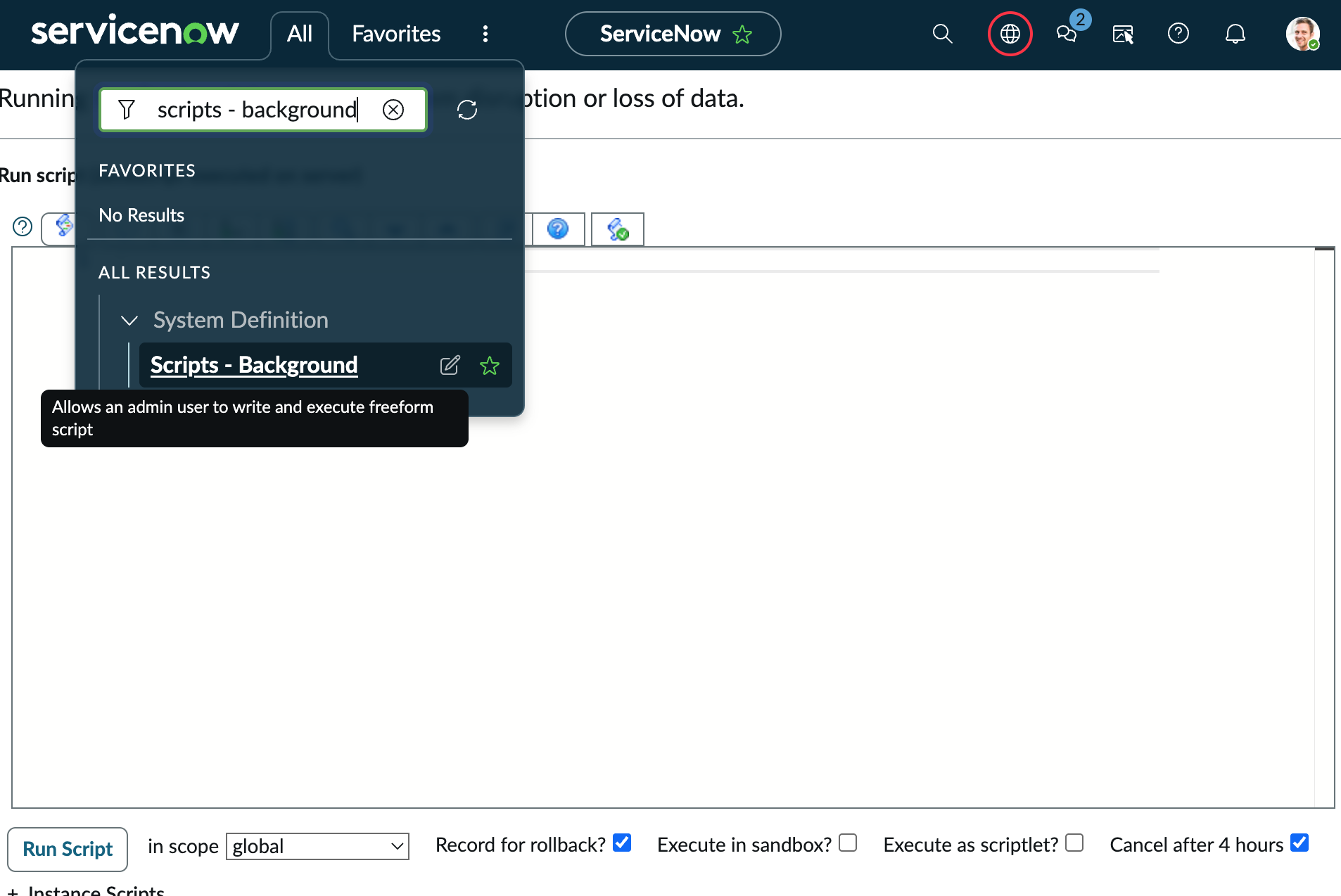
Run the following script in Scripts - Background to confirm the update sets were applied correctly:
Expected Output:
Note: All lines should show the expected values. If any line shows ERROR, the update set may not have been applied correctly. Contact your lab instructor.
1.3: Generate API Key
-
Navigate to the MyMoveworks portal
-
Open the HTTP Connectors App
-
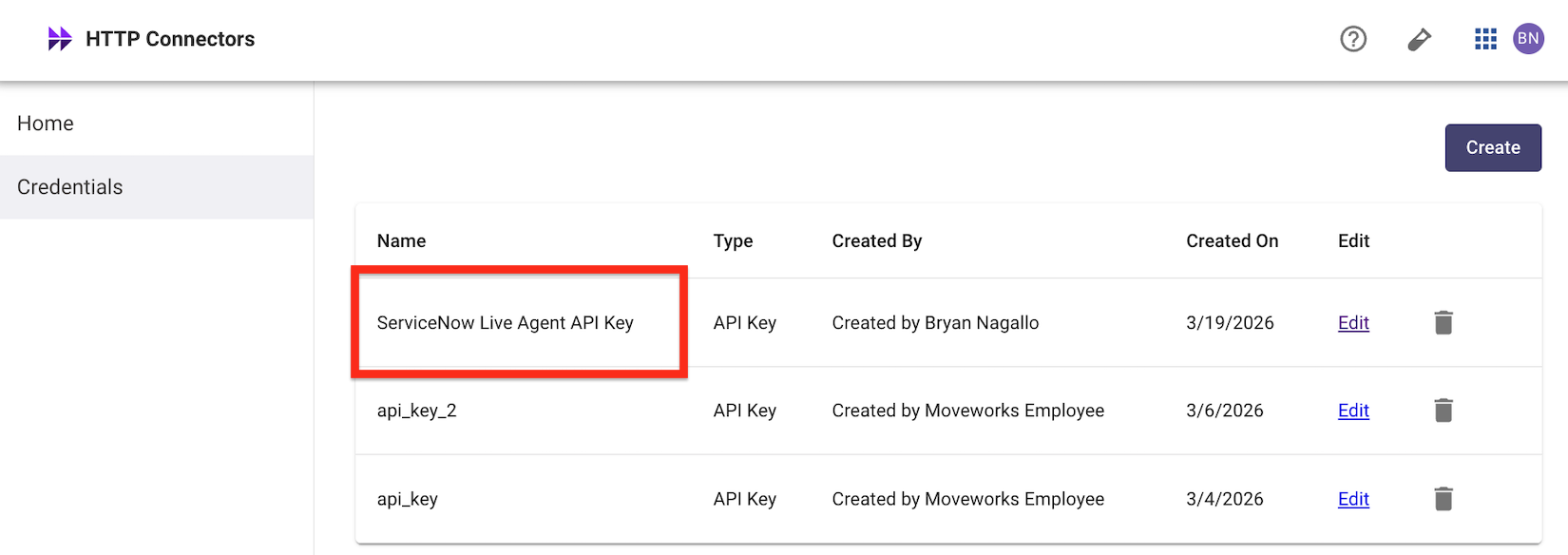
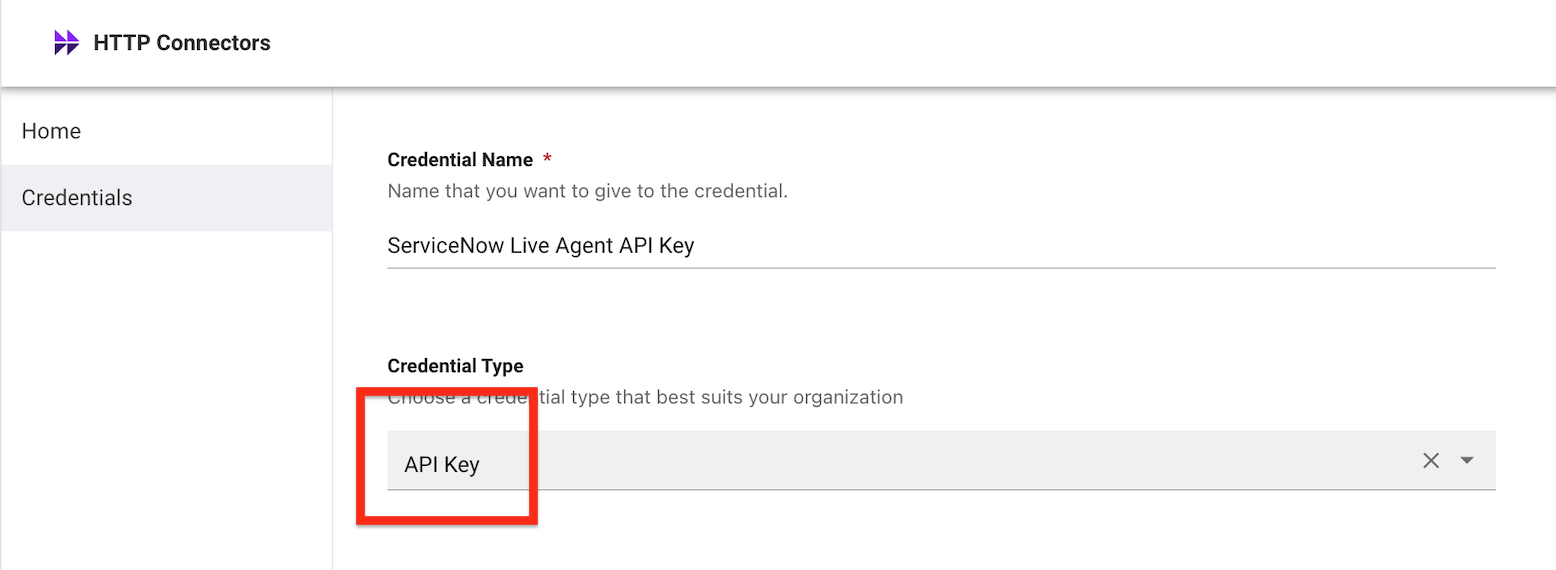
Click on Credentials and click Create
-
Enter a Credential Name (e.g.,
ServiceNow Live Agent API Key) -
Choose API Key
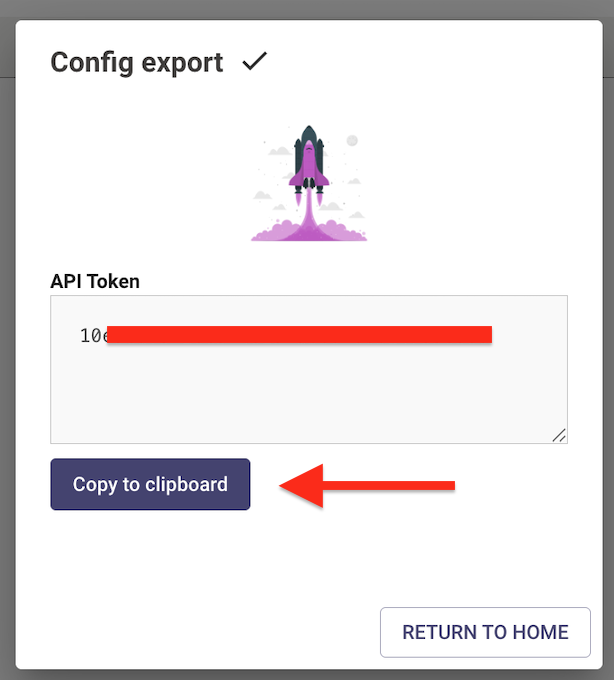
Warning: When you click Publish, save the API Key immediately. This key will not appear again.
-
Click Publish and save the API Key securely
1.4: Set Auth Profile Password in ServiceNow
The update set creates the auth profile but cannot transport the password. You must enter the API key you just generated.
-
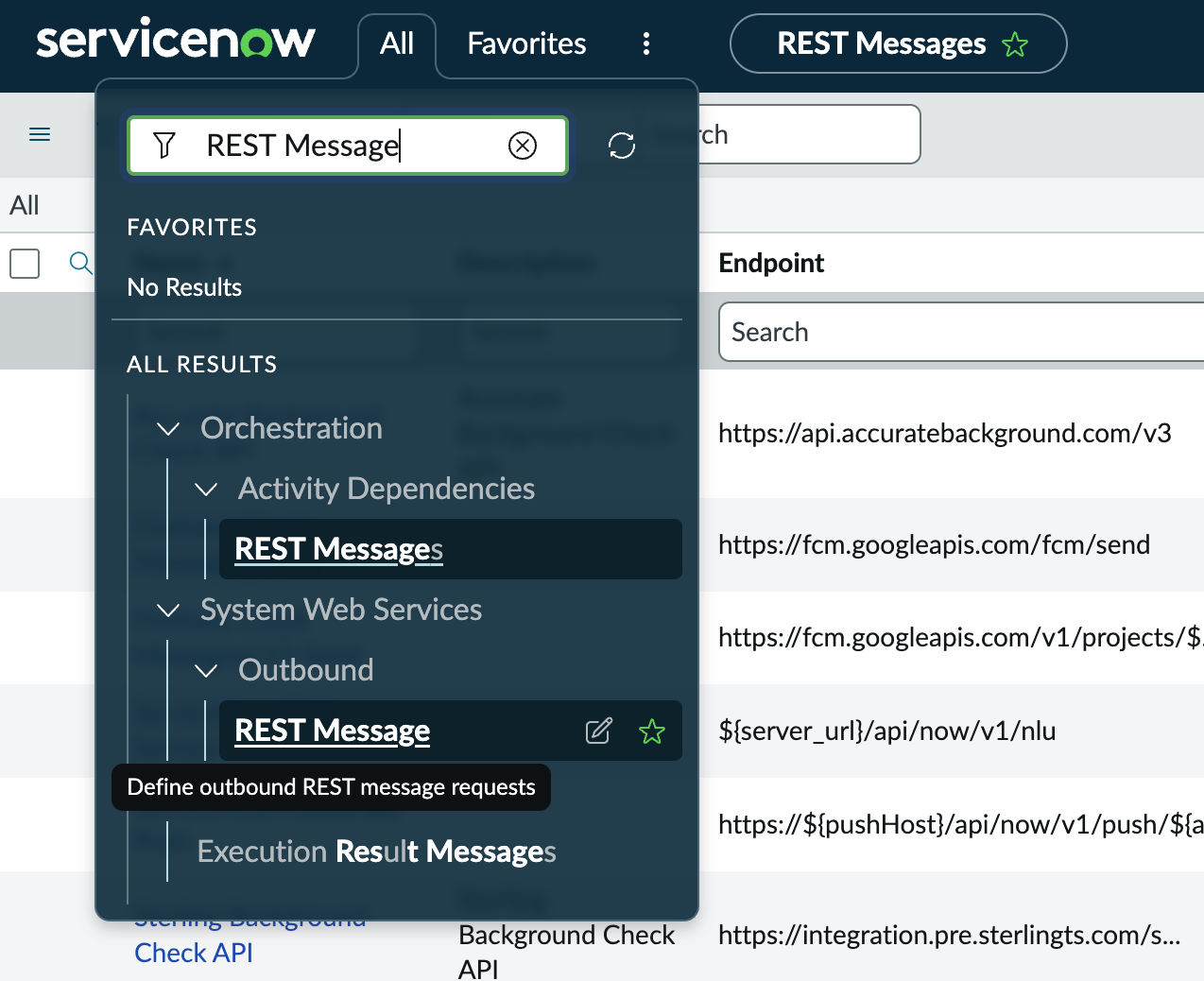
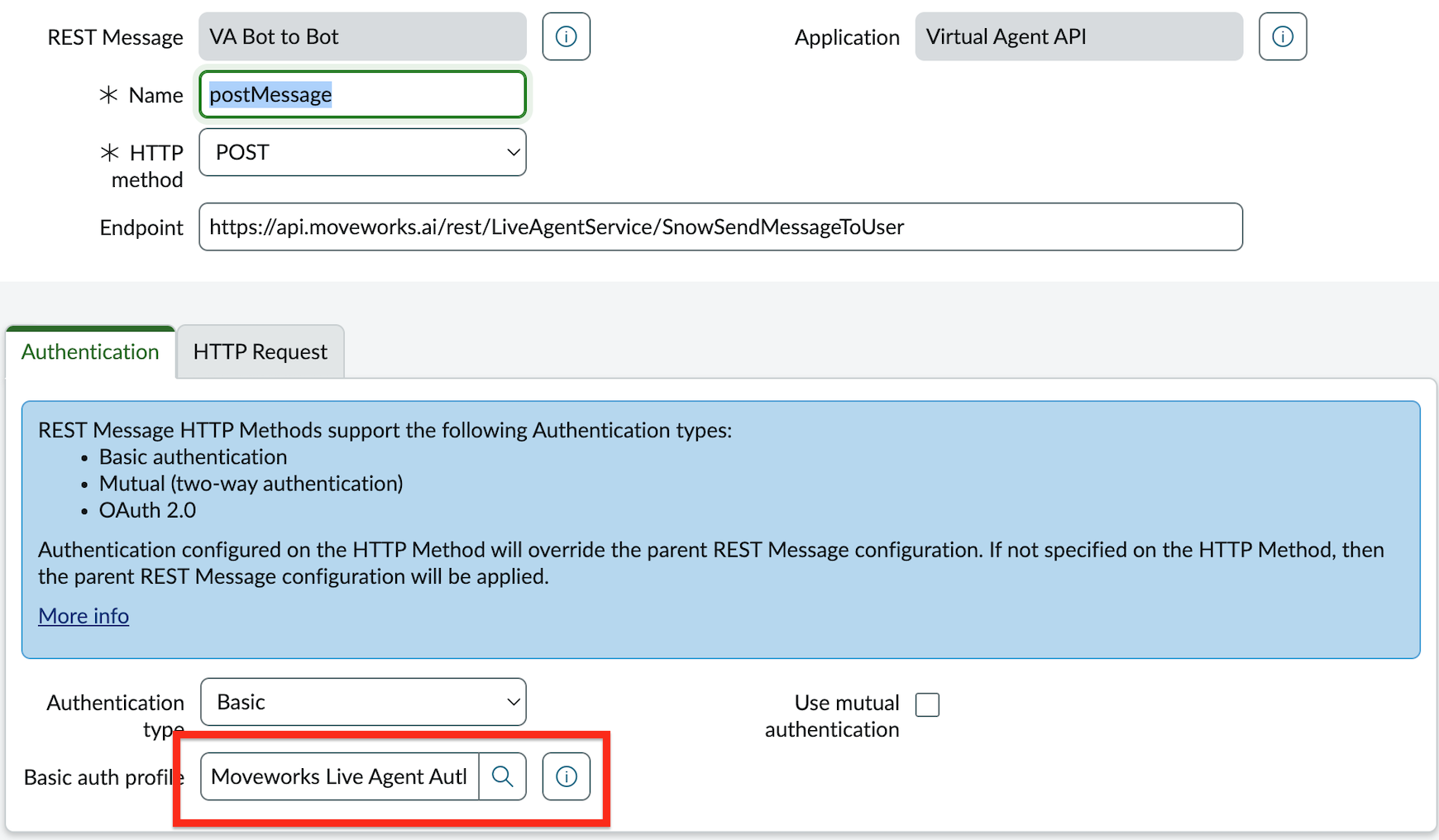
In your ServiceNow instance, navigate to Outbound > REST Message and search for VA Bot to Bot
-
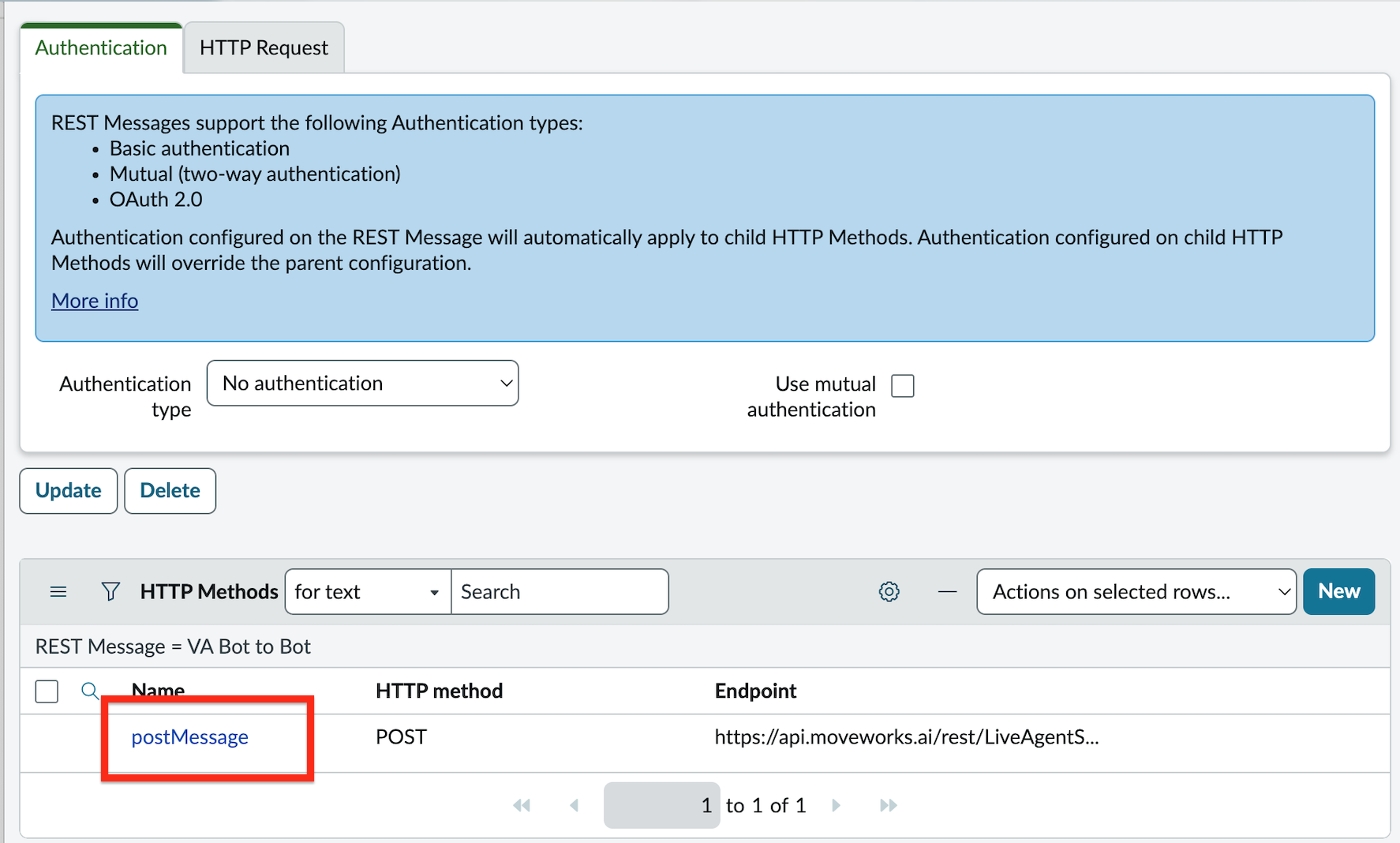
Open the POST method record (listed under HTTP Methods)
-
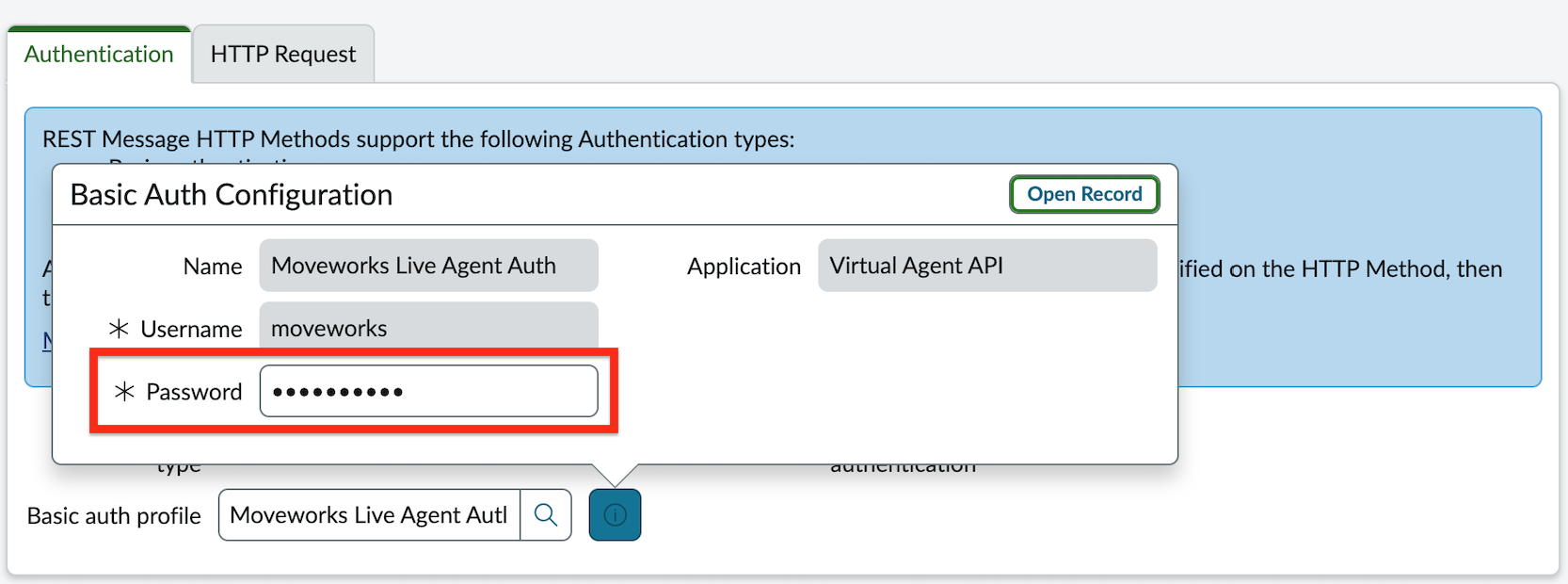
Click on the Authentication tab and open the auth profile Moveworks Live Agent Auth
-
Enter the API key from Step 1 as the Password
-
Click Update
1.5: Set Token Verification Password in ServiceNow
The update set creates the token verification record but cannot transport the password. You must set it manually.
-
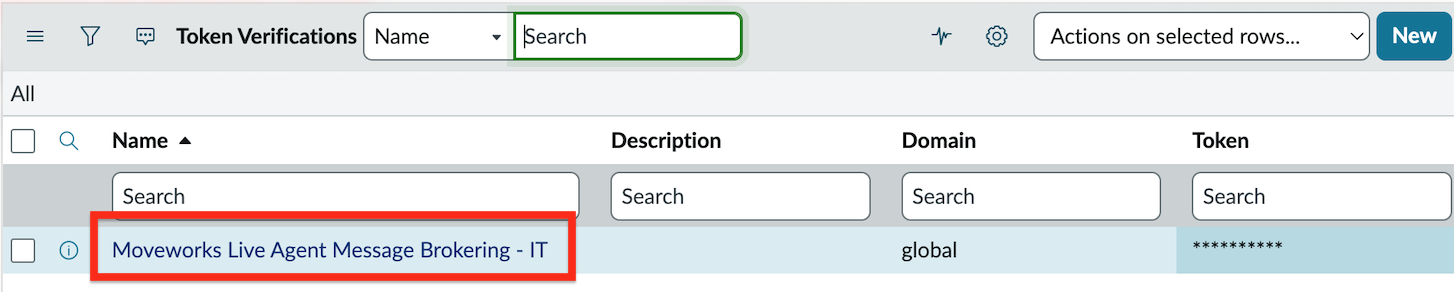
Navigate to
[your_instance]/token_verification_list.do -
Open the record named Moveworks Live Agent Message Brokering - IT
-
Set any secure password in Token — save this password securely, you will need it in Step 6
-
Click Update
1.6: Configure Live Agent Handoff
-
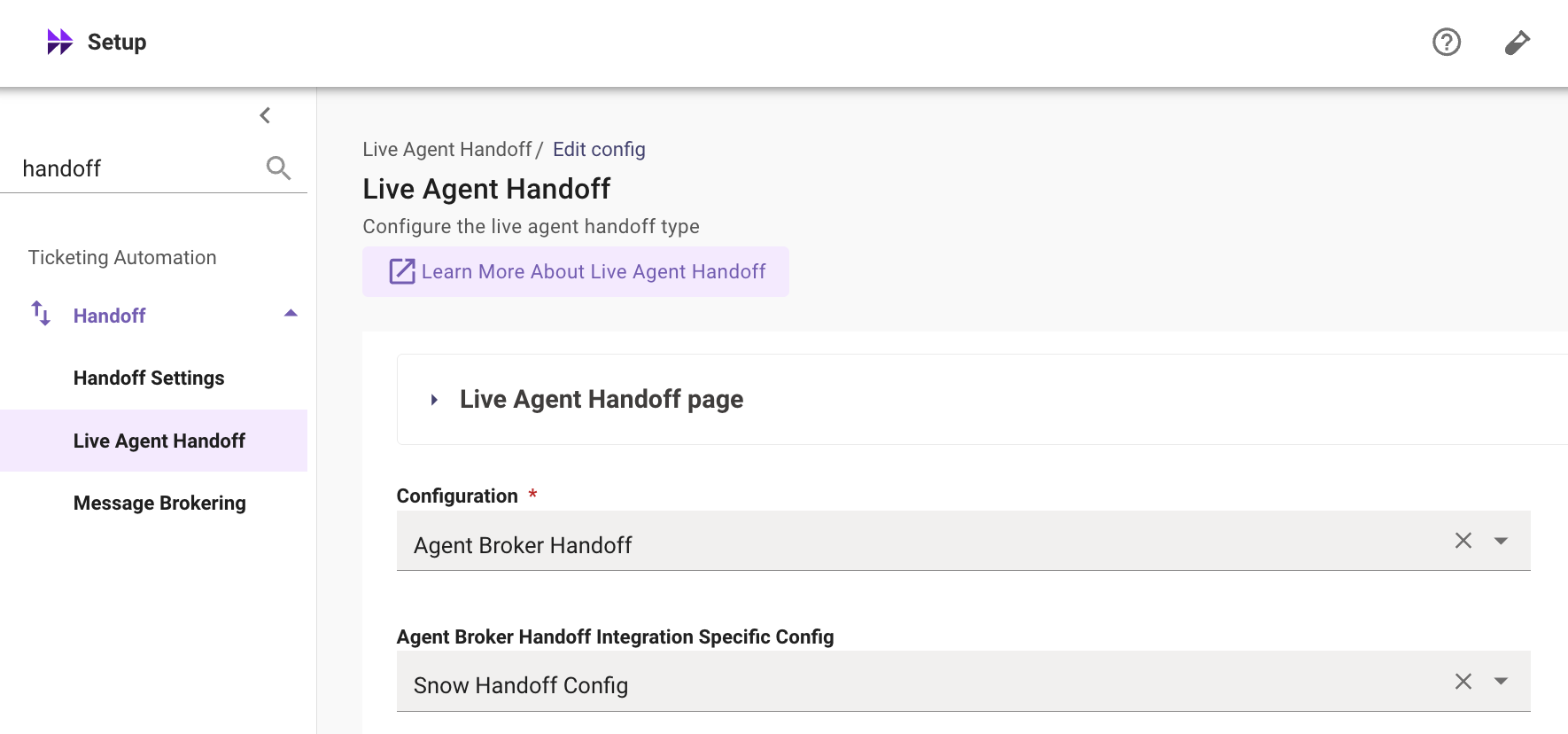
In MyMoveworks, navigate to Handoff > Live Agent Handoff
-
Click Create to add a new configuration
-
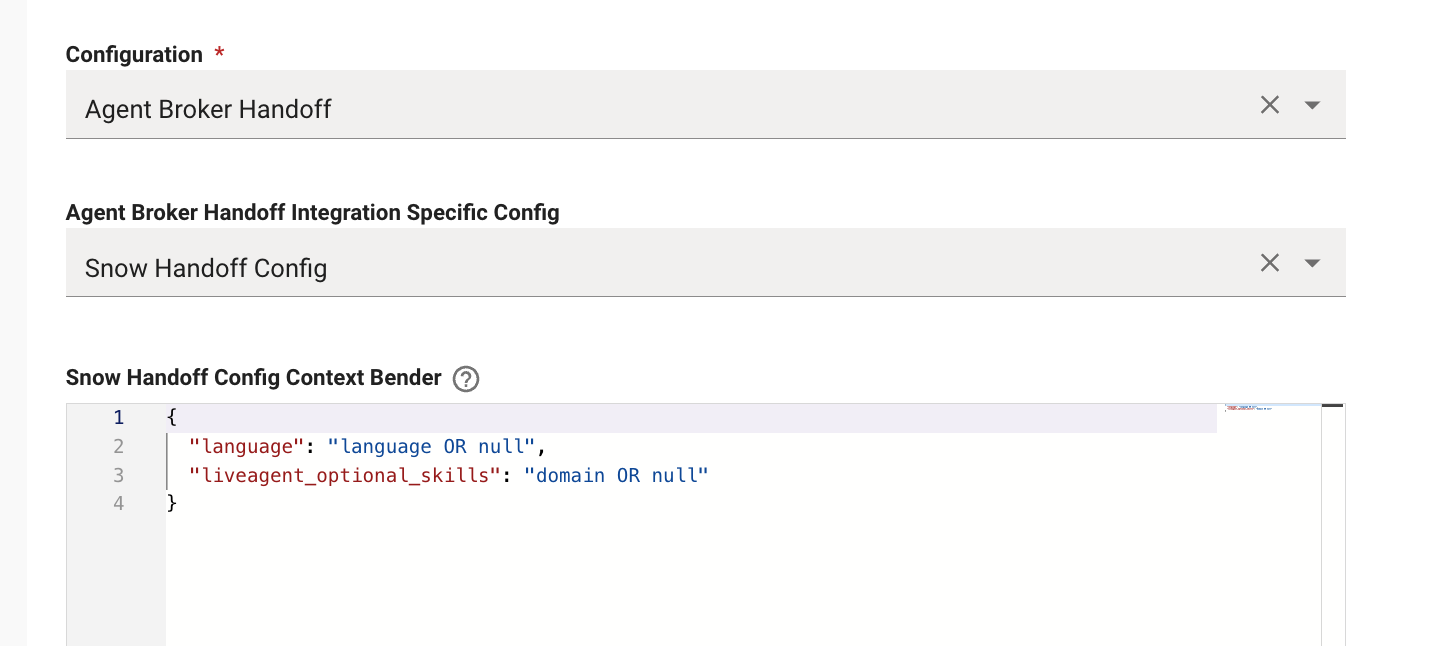
Set Configuration to Agent Broker Handoff
-
Open the Live Agent Handoff dropdown and set the Handoff Identifier (e.g.,
agent_broker_instance_1)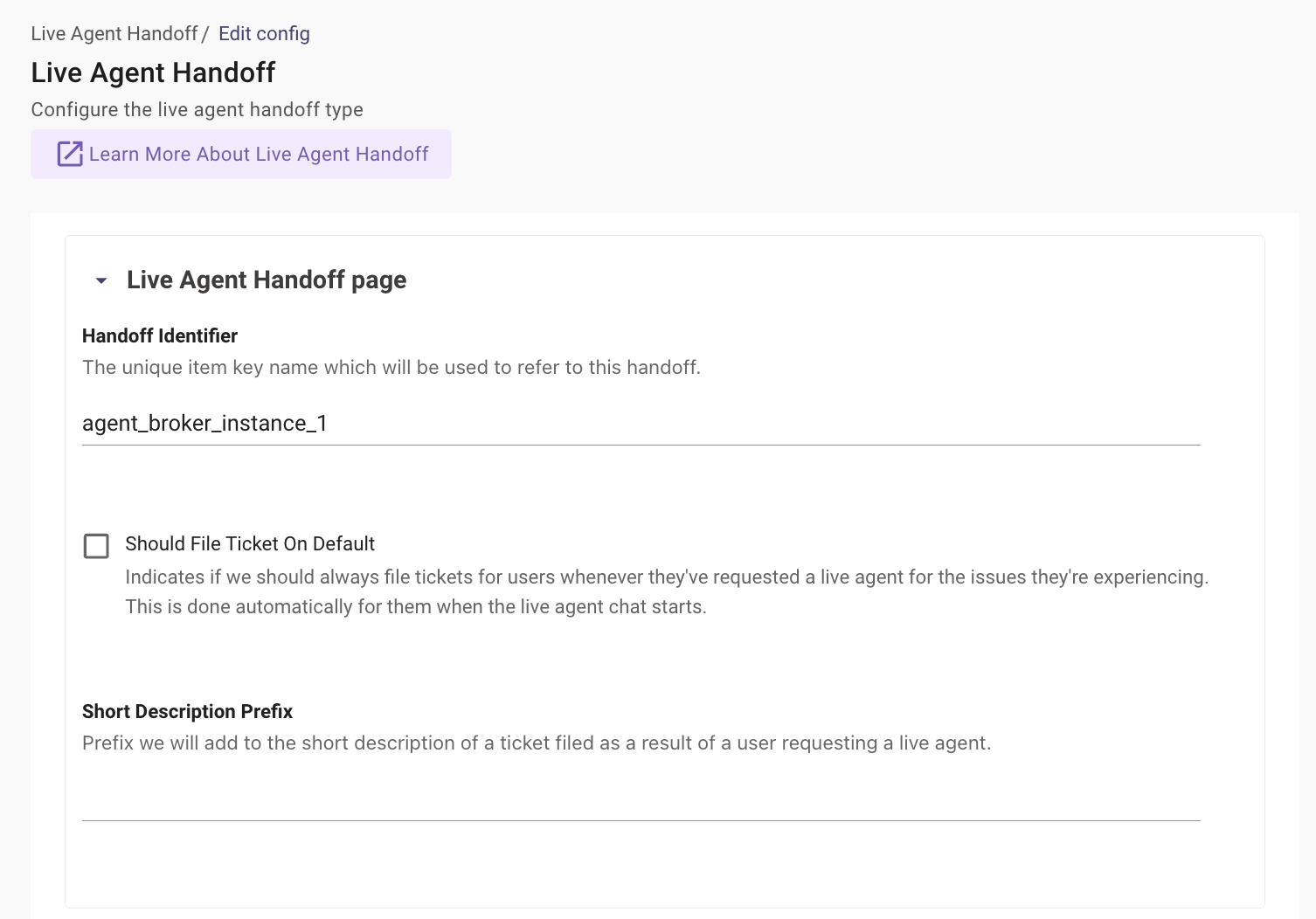
-
Configure the Snow Handoff Config Context Bender with the following default payload:
-
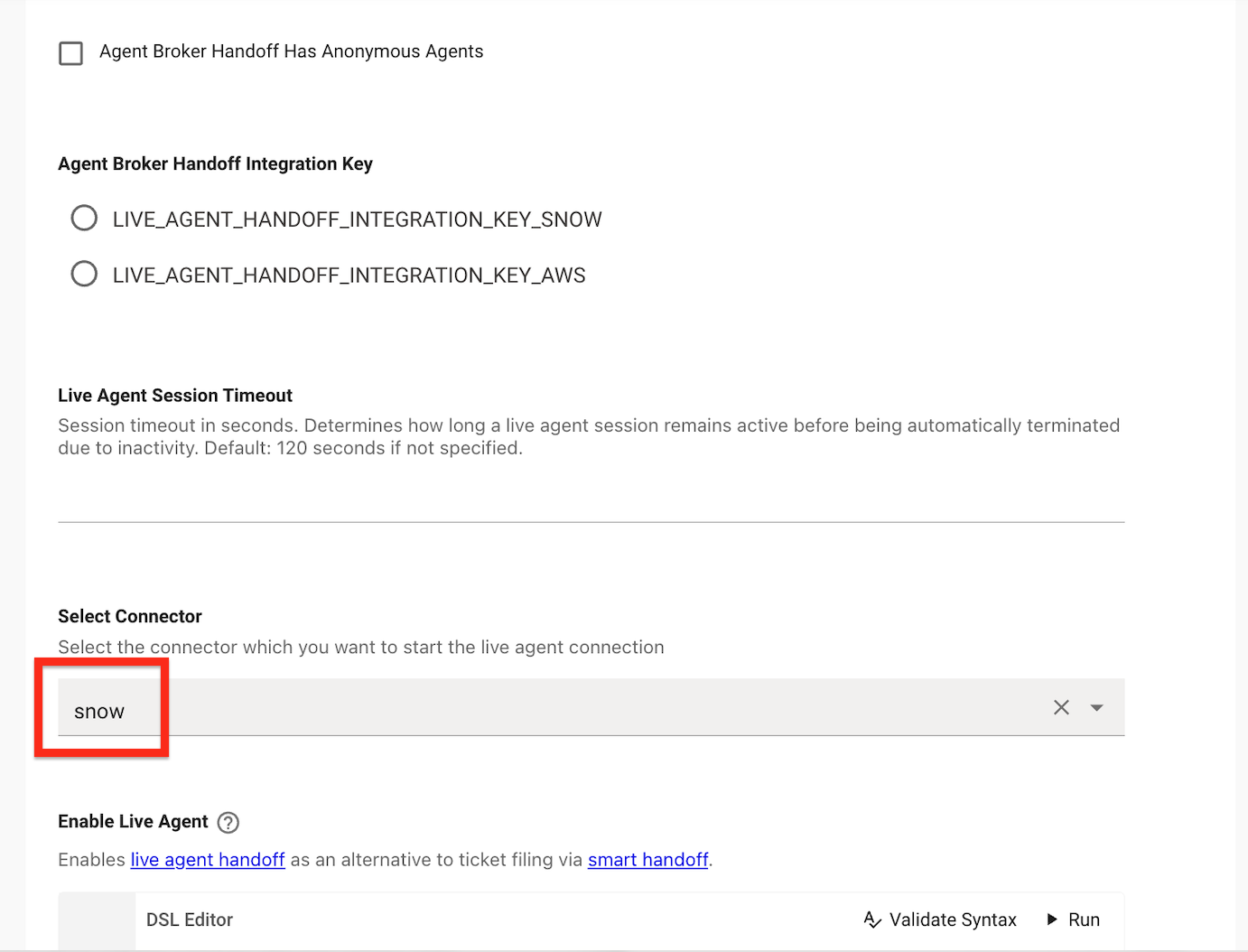
Set the Integration ID to the ServiceNow connector that will be used as the live agent chat platform
-
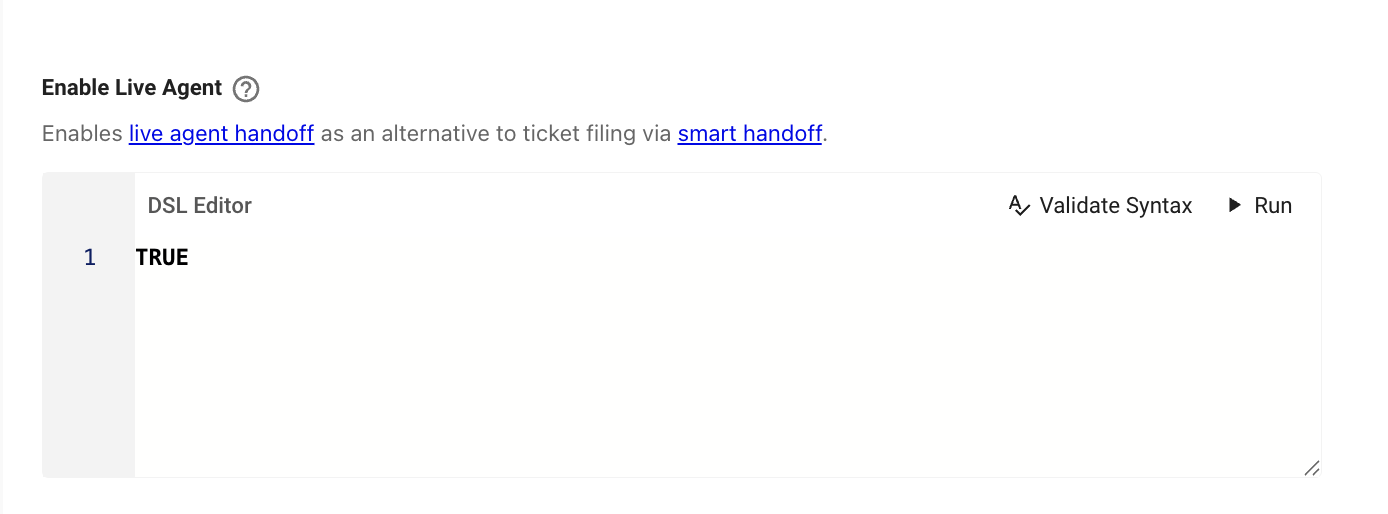
Set Enable Live Agent to TRUE
1.7: Configure Smart Handoff
-
Navigate to Handoff > Handoff Settings
-
Add a new Item Display Key with the following rule:
IF (context.domain_candidates[0].domain == "IT_DOMAIN") THEN 1.0 ELSE 0.5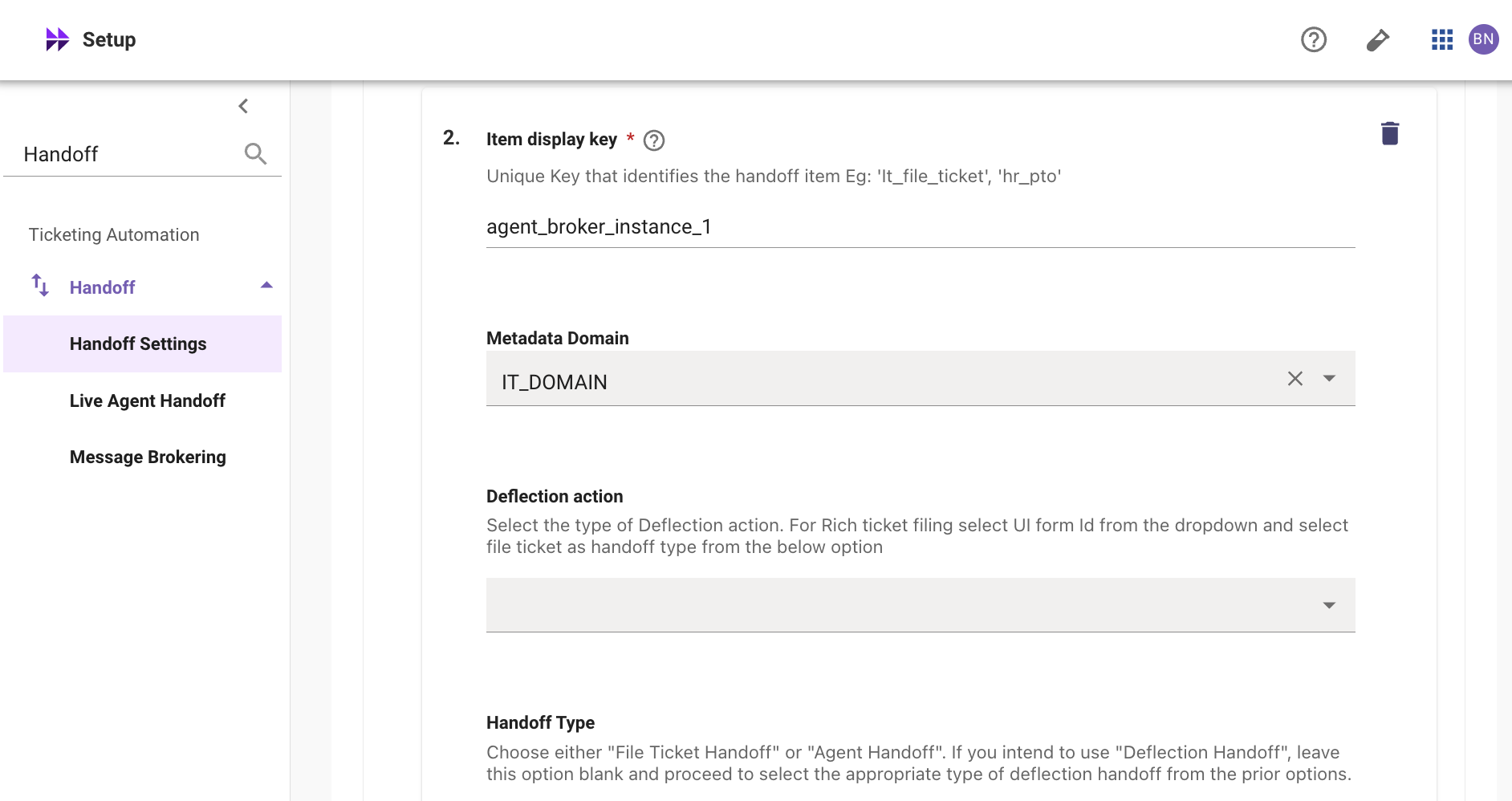
-
Navigate to Display Configurations > Handoff
-
Ensure the Handoff Identifier (
agent_broker_instance_1) is set -
Set the Value field to a user-friendly name (e.g.,
Live Chat) — this is what users will see when selecting this handoff option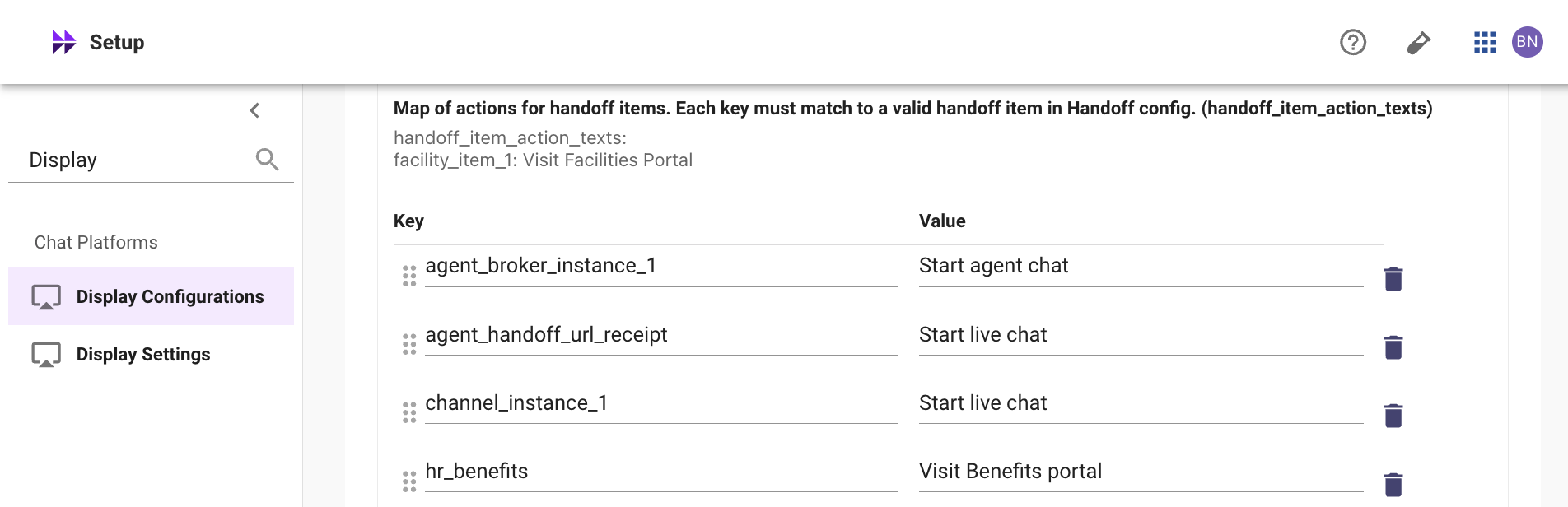
Note: If the Handoff Identifier is not set in Display Configurations, the “Start agent chat” button will not appear in the AI Assistant.
1.8: Update ServiceNow Connector with Token
-
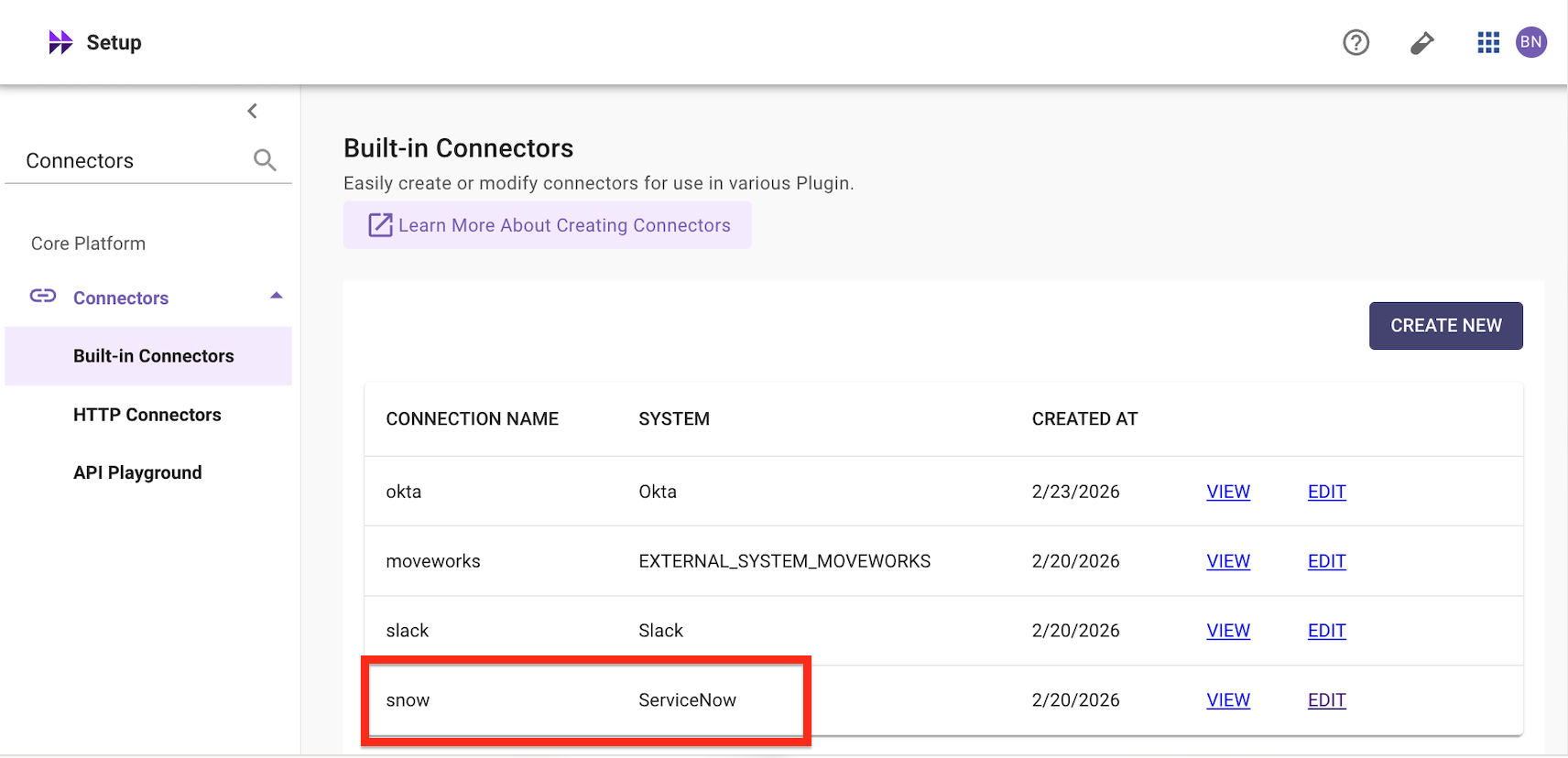
In MyMoveworks, navigate to Connectors > Built-in Connectors
-
Find the ServiceNow connector for your lab instance and click Edit
-
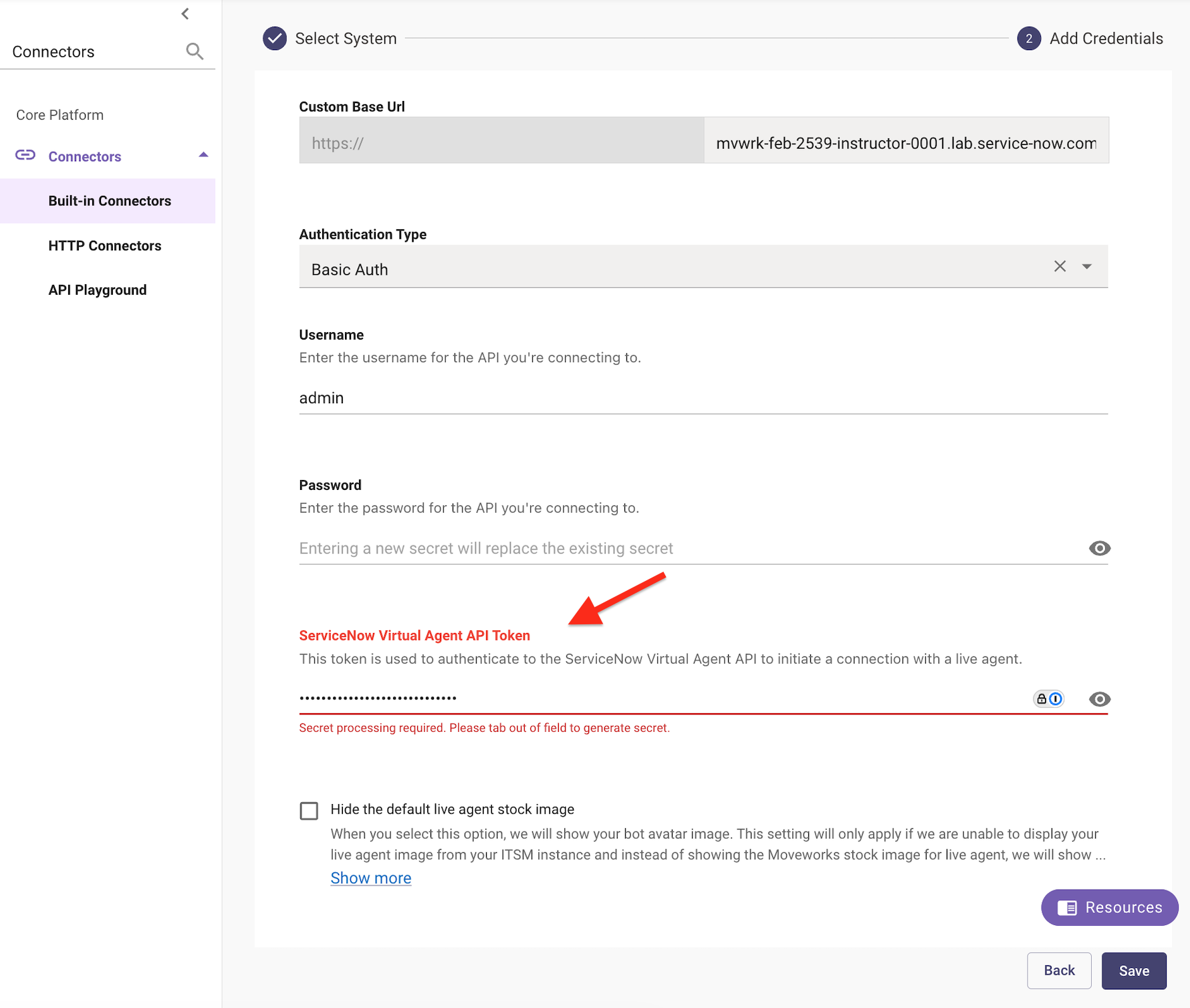
Add the token password from Step 3 to the ServiceNow Virtual Agent API Token field
-
Click Save
1.9: Set Up Your Agent in ServiceNow
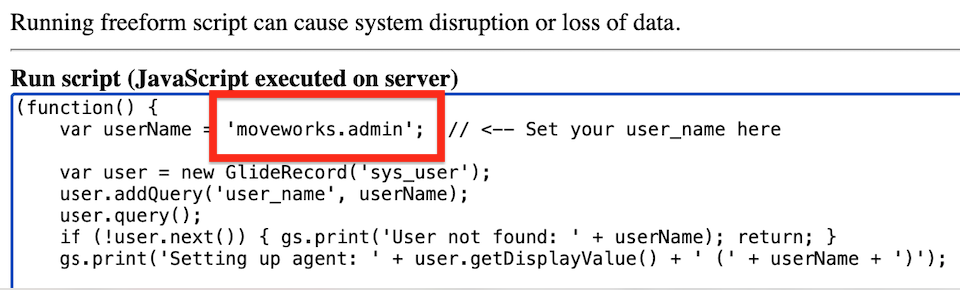
Run the following script in Scripts - Background to configure your user as a live agent. Replace CHANGE_ME with your ServiceNow username:
Note 1: Make sure the instance is set to Global scope.
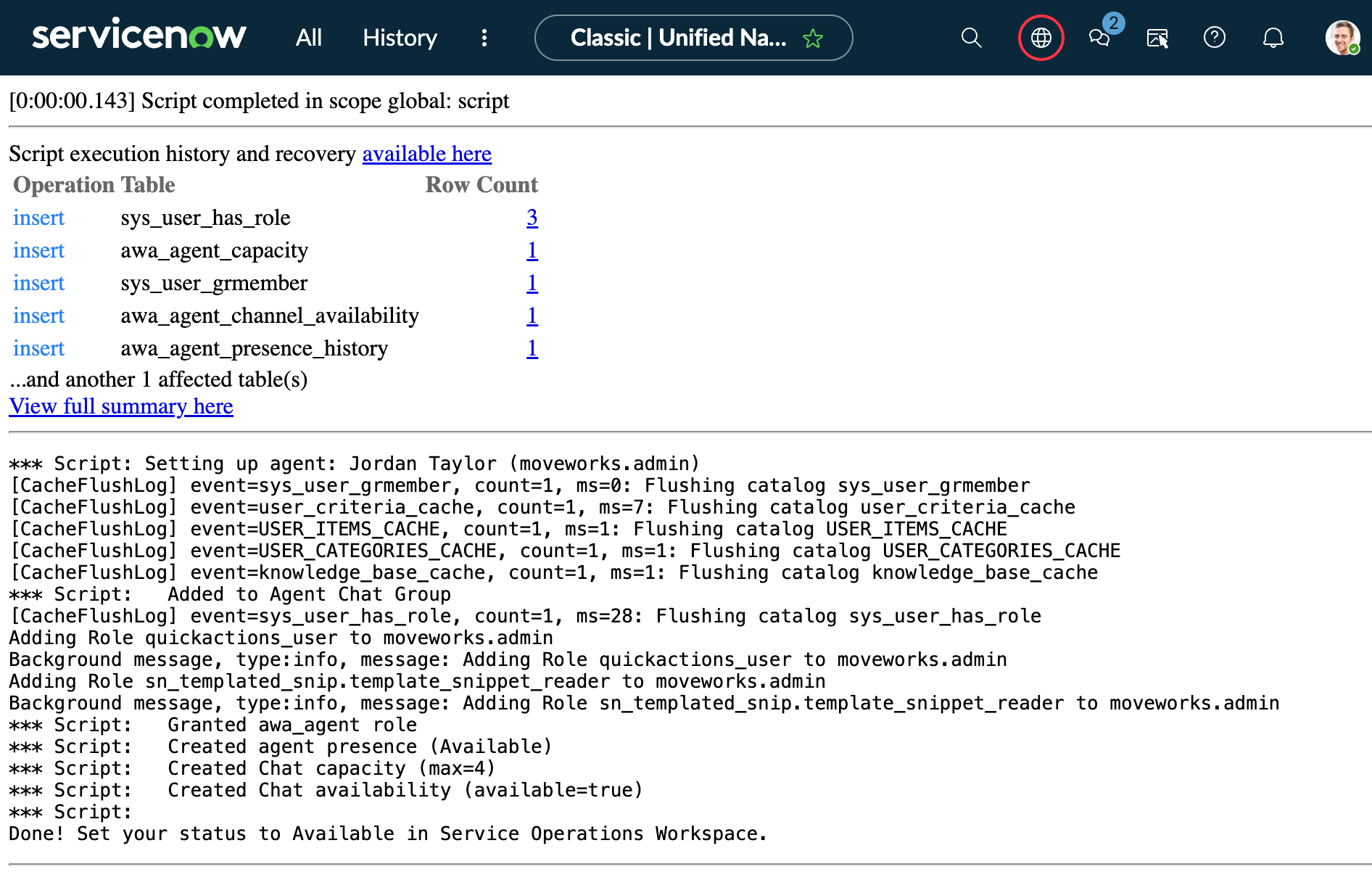
Note 2: The script is pre-configured to set up moveworks.admin (Jordan Taylor) as the live agent. You cannot answer your own live agent chat — the agent receiving the chat must be a different user than the one initiating the handoff.
Expected Output:
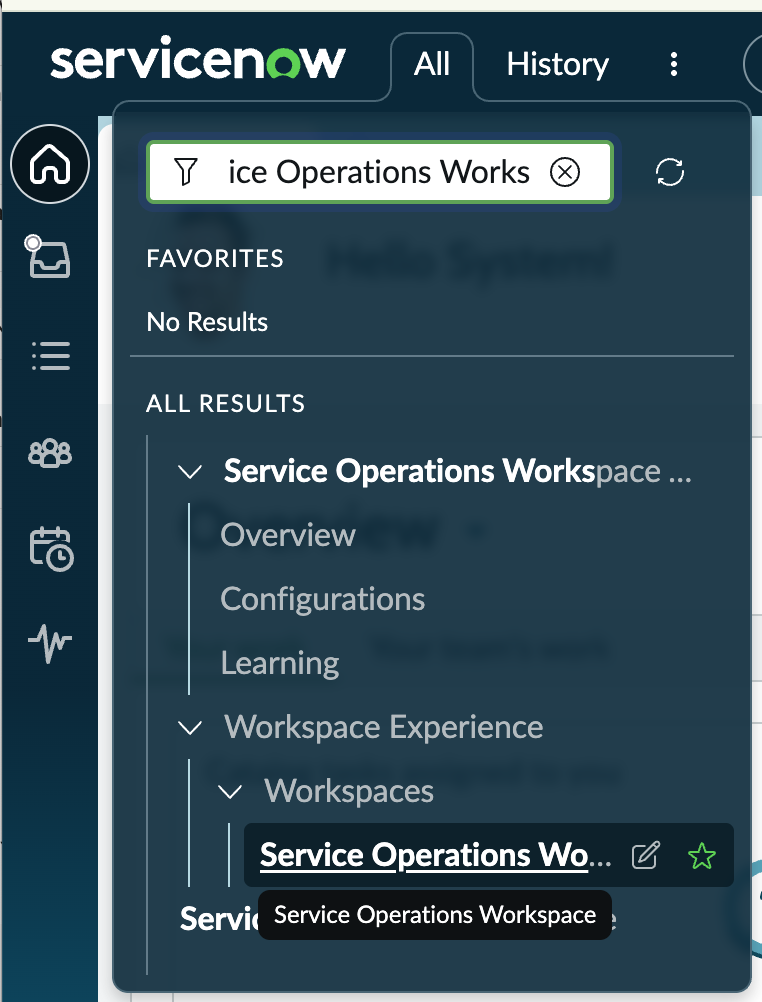
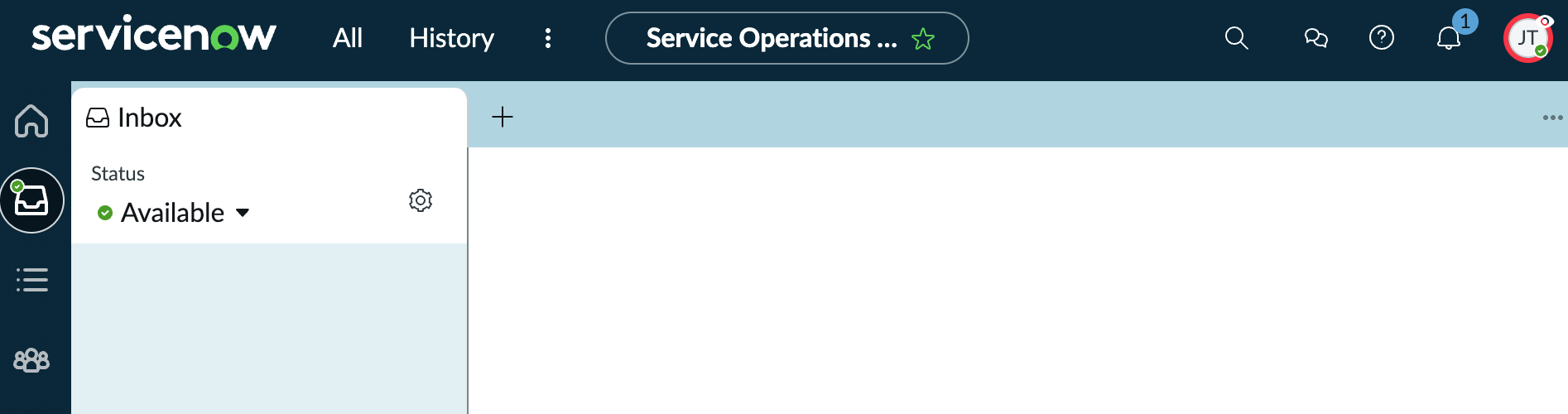
Impersonate moveworks.admin (Jordan Taylor), then open Service Operations Workspace in ServiceNow and set your status to Available — this is the agent session that will receive the test handoff in the next section.
✅ 2: Verification & Testing
2.1: Test the Handoff
-
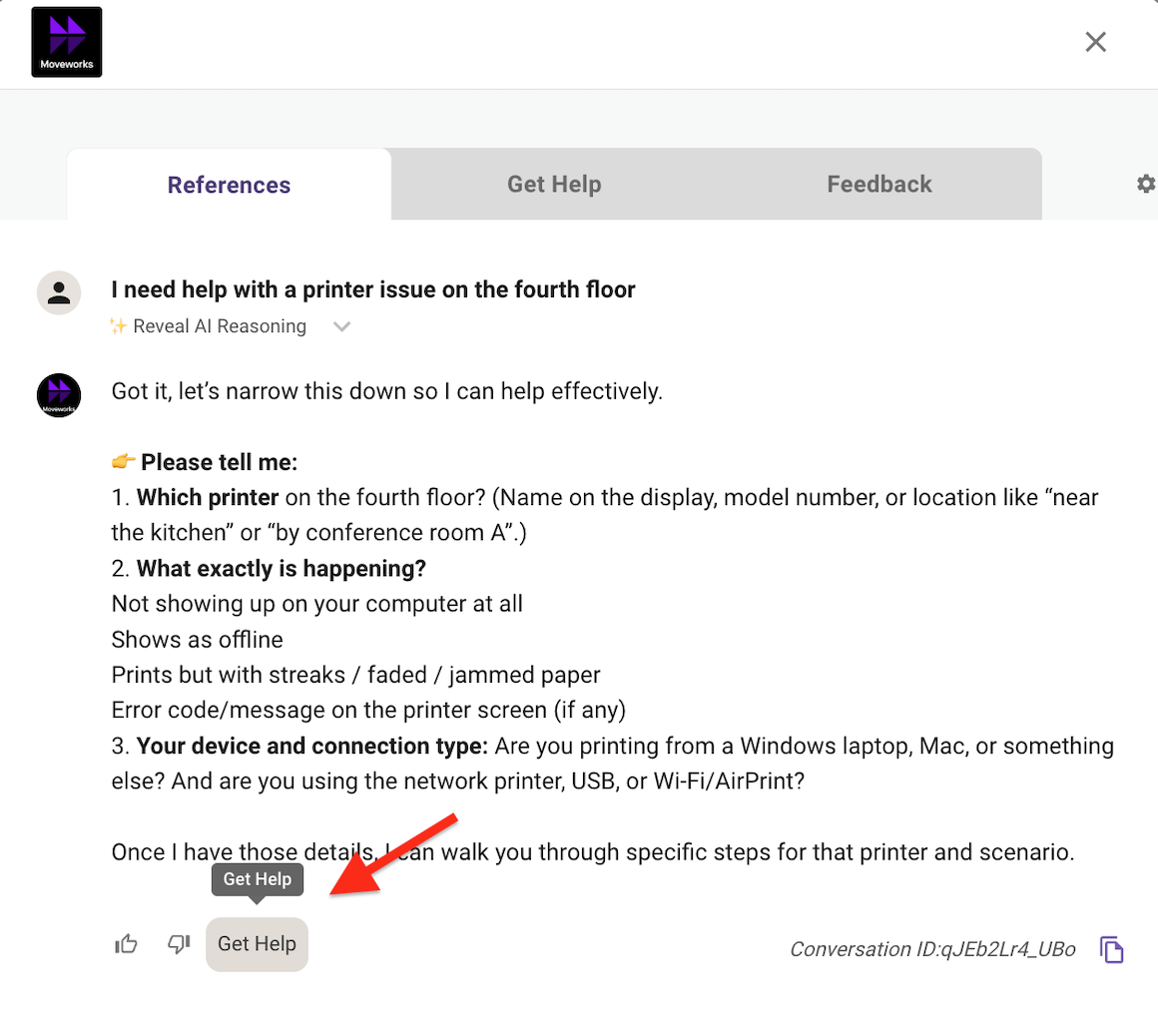
Open your AI Assistant
-
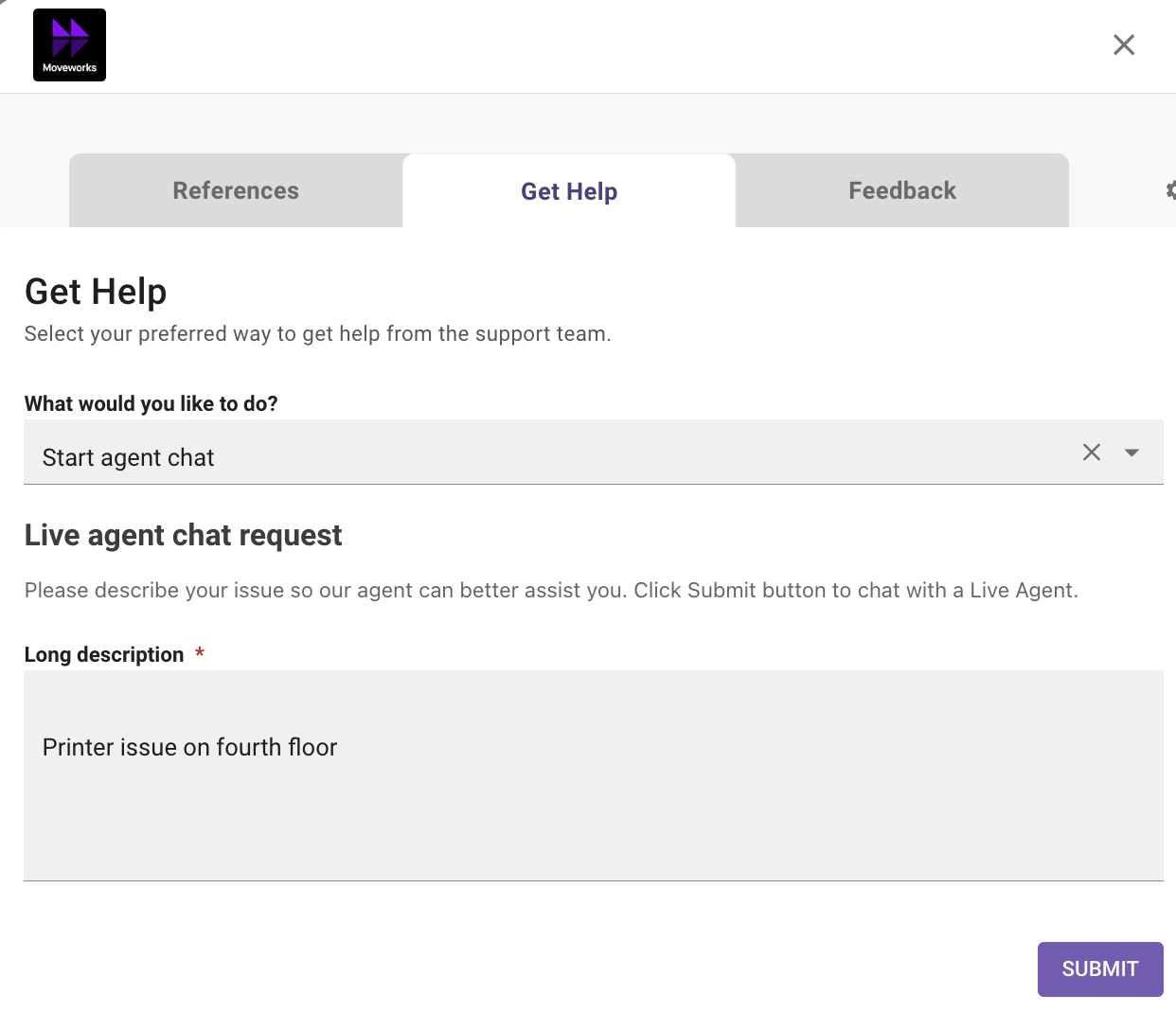
Start a conversation and click Get Help
-
Select the Start agent chat
-
Verify the description and click Submit
-
The live agent session should begin — check Service Operations Workspace (logged in as Jordan Taylor) for the incoming chat
2.2: Troubleshooting
🪞 3: Reflecting on This Configuration
Through this lab, you’ve learned the following:
- How to configure Moveworks Live Agent Handoff to broker chat sessions between users and ServiceNow agents
- How to connect Moveworks and ServiceNow using the Virtual Agent Bot-to-Bot API with proper authentication (API key + token verification)
- How to configure Smart Handoff rules to control when the live agent option appears based on domain context
- How to verify agent availability and troubleshoot common issues like missing AWA queue configuration, closed interactions, and authentication mismatches
- How the end-to-end flow works: availability check → interaction creation → AWA routing → agent assignment → message brokering