
Lab #6a: Moveworks Data Syntax Language (DSL)
Overview
- Learning Objectives: Understand how to configure Moveworks DSL blocks to control access to functionality. Use the DSL Tester to validate rules against real users before applying them.
- Estimated Time: 15 minutes
- Prerequisites:
- Lab 0 complete (Moveworks Setup access configured)
- Lab 1 complete (snow connector configured)
- Lab 2 complete (users ingested — required to test DSL rules against real user data)
Key Concepts
DSL is the logic layer of Moveworks, allowing you to write custom “if-this-then-that” rules for access and filtering. Core concepts include:
- Context: The specific data object available to the rule. For example, a “Bot Access Rule” uses the
usercontext, while a “Ticket Filter” uses theticketcontext. - Dot Walking: The syntax used to access nested properties within an object, such as
user.departmentto check an employee’s org unit. - Normalization: The use of methods like
$LOWERCASE()to ensure that logic remains consistent even if source data has inconsistent capitalization. - Operators: Logical tools (like
==,AND,OR,IN) used to build complex conditions, such as allowing access only to specific departments or locations. Relevant Documentation: - Moveworks Help: Data Syntax Language Reference
- Moveworks Help: DSL Best Practices
- Moveworks Agent Marketplace: Agent Architect
🛠️ 1: Walkthrough
1.1: Building DSL Rules
- Navigate to the Bot Access Rule to see an example of a Moveworks DSL block we have already leveraged
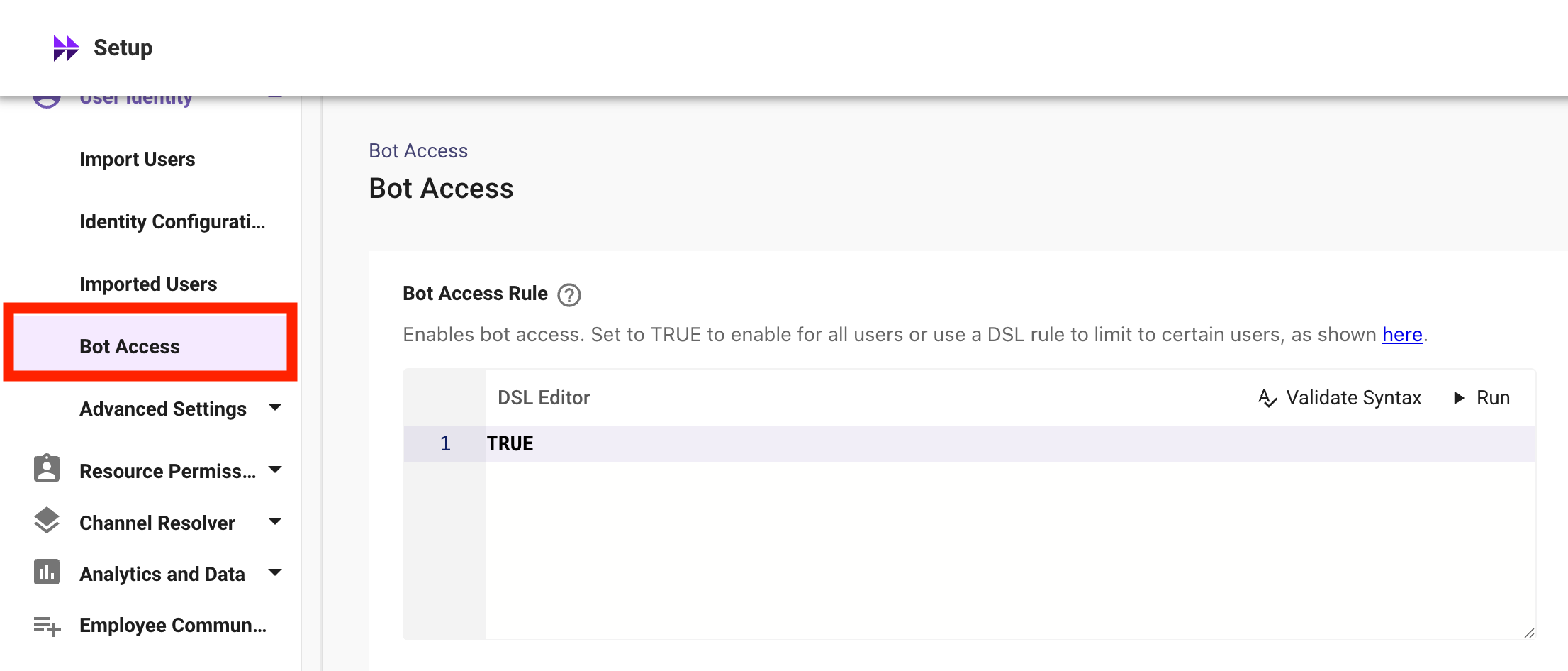
- By clicking into the DSL Block & removing the pre-existing
TRUE, we can see the available context, operators, and methods that are available for us to configure this. We will select theuser.option from the dropdown to view the list of available attributes
Understanding Context: In Moveworks, context represents the data object currently accessible to your DSL code.
- In this Example: We are using the User context because we are defining user access permissions.
- Other Scenarios: Different DSL blocks will provide different objects (like
TicketorArticle) depending on what the block is designed to do.
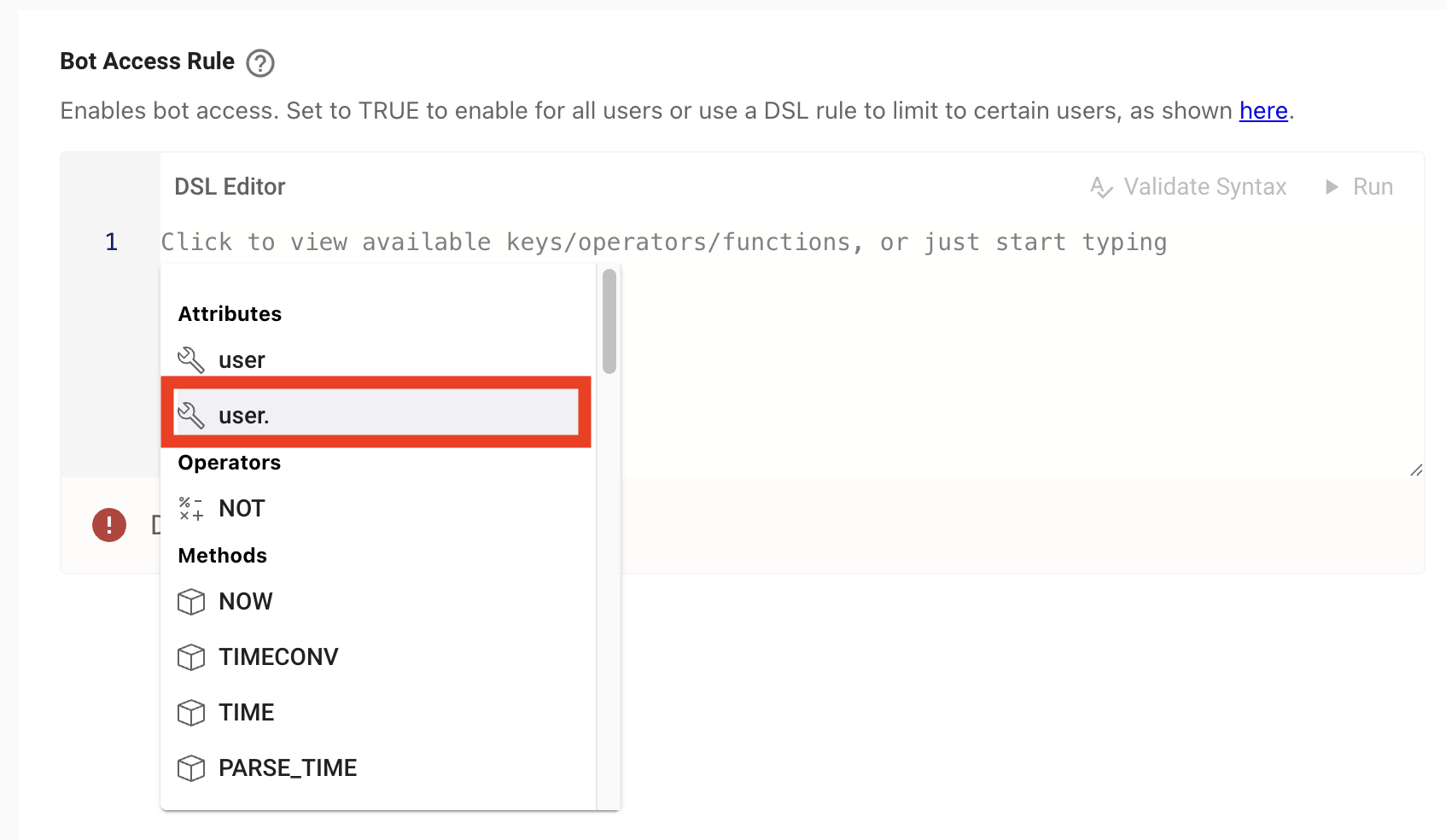 3. When accessing a Moveworks Data Object’s context, the DSL evaluator will show all of the attributes associated with that object. We can use these attributes to build DSL rules that determine which types
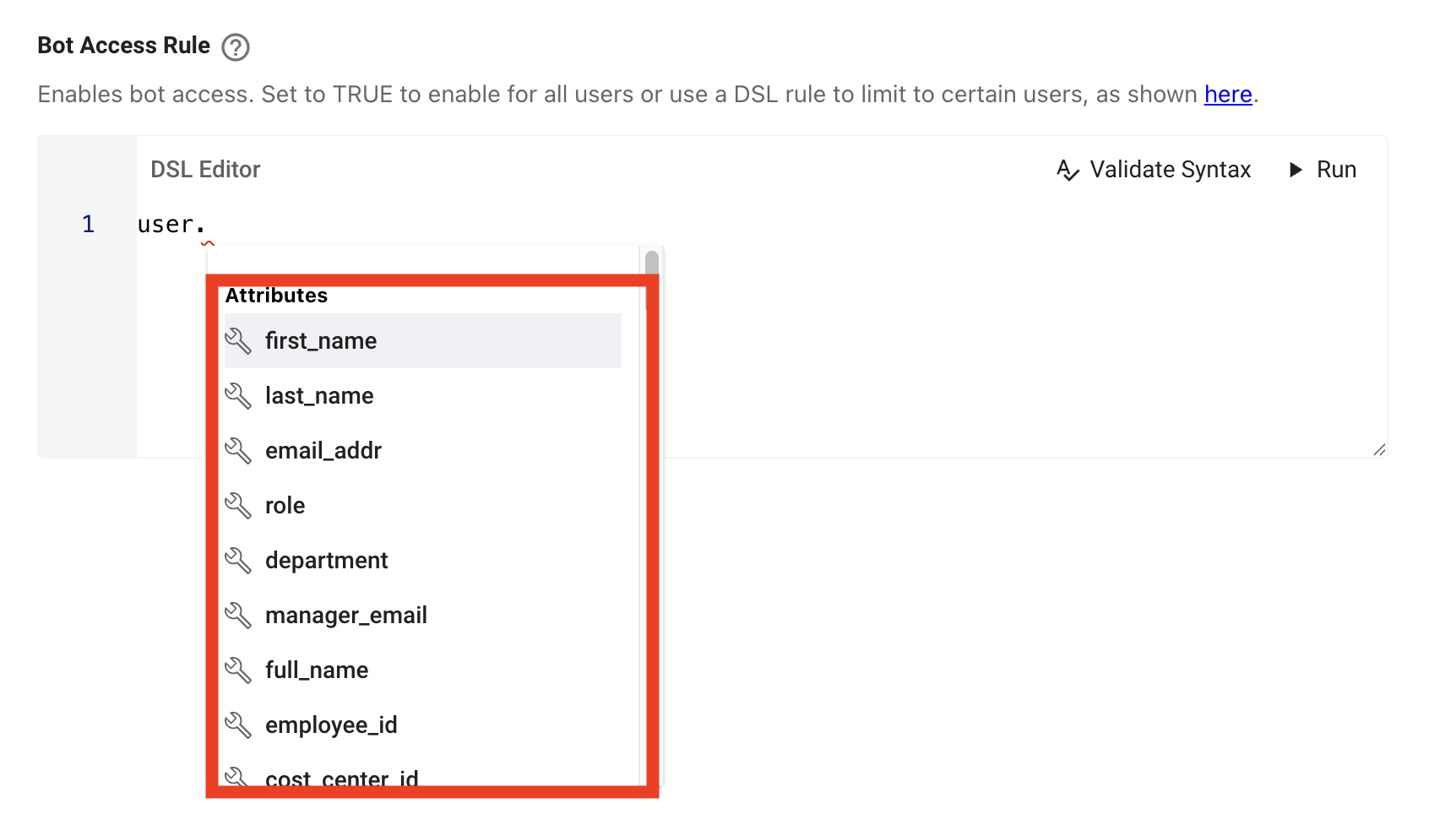
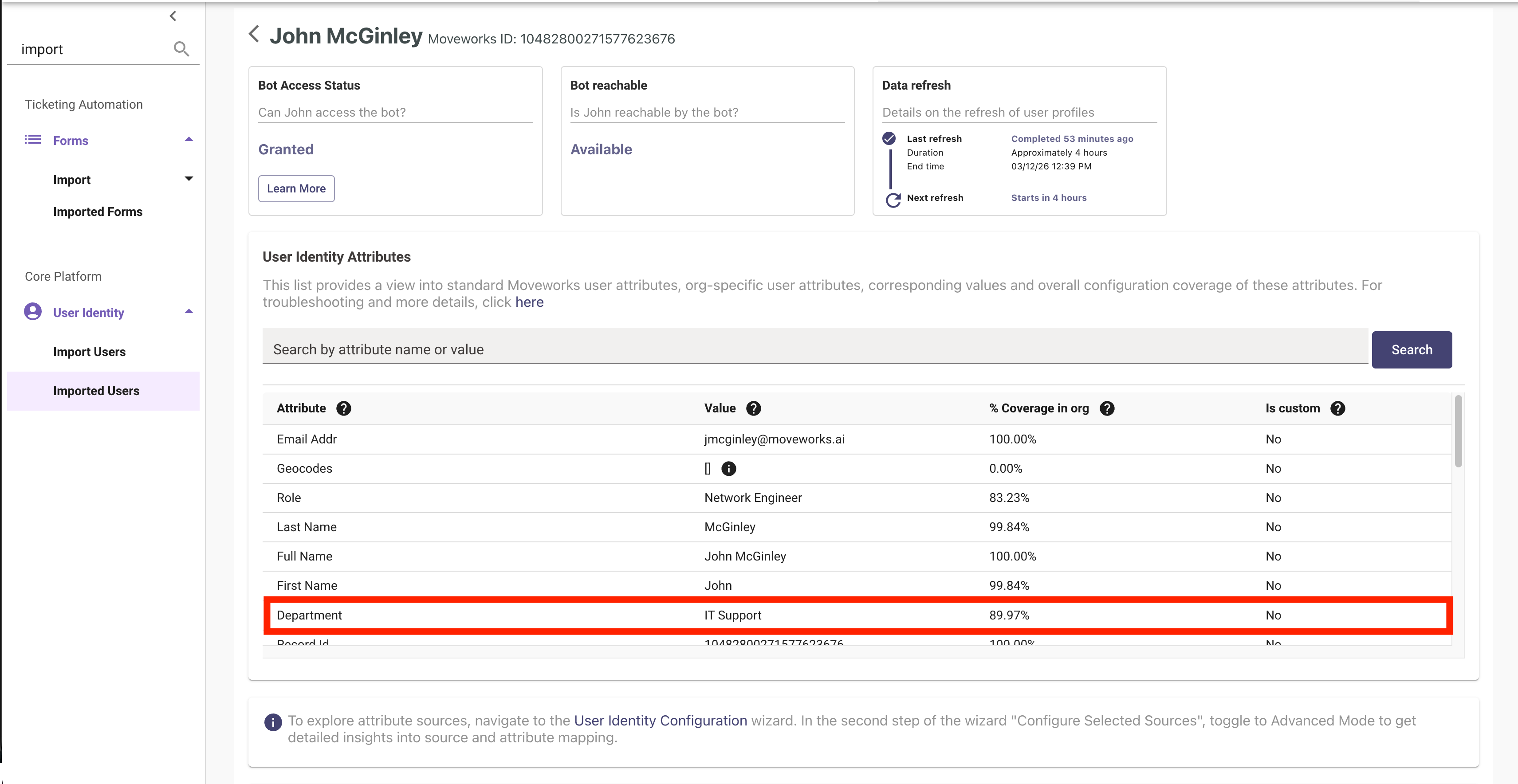
Note: The DSL autofill displays all potential context object fields, even if they contain no data.
Before writing rules, verify the field’s coverage for your organization. In the following example, if an administrator were to limit bot access by the “Department” field, they must be aware that 10.03% of the users lack this attribute and would be excluded by default.
 4. Continue dot walking into an attribute on the user object. You will see the DSL manipulation methods that are available. Use the
 LOWERCASE method to normalize all of the text processed from the attribute, to ensure case mismatches don’t result in unexpected rule outcomes
Pro-tip: When doing text comparisons. ALWAYS normalize the casing to ensure consistency
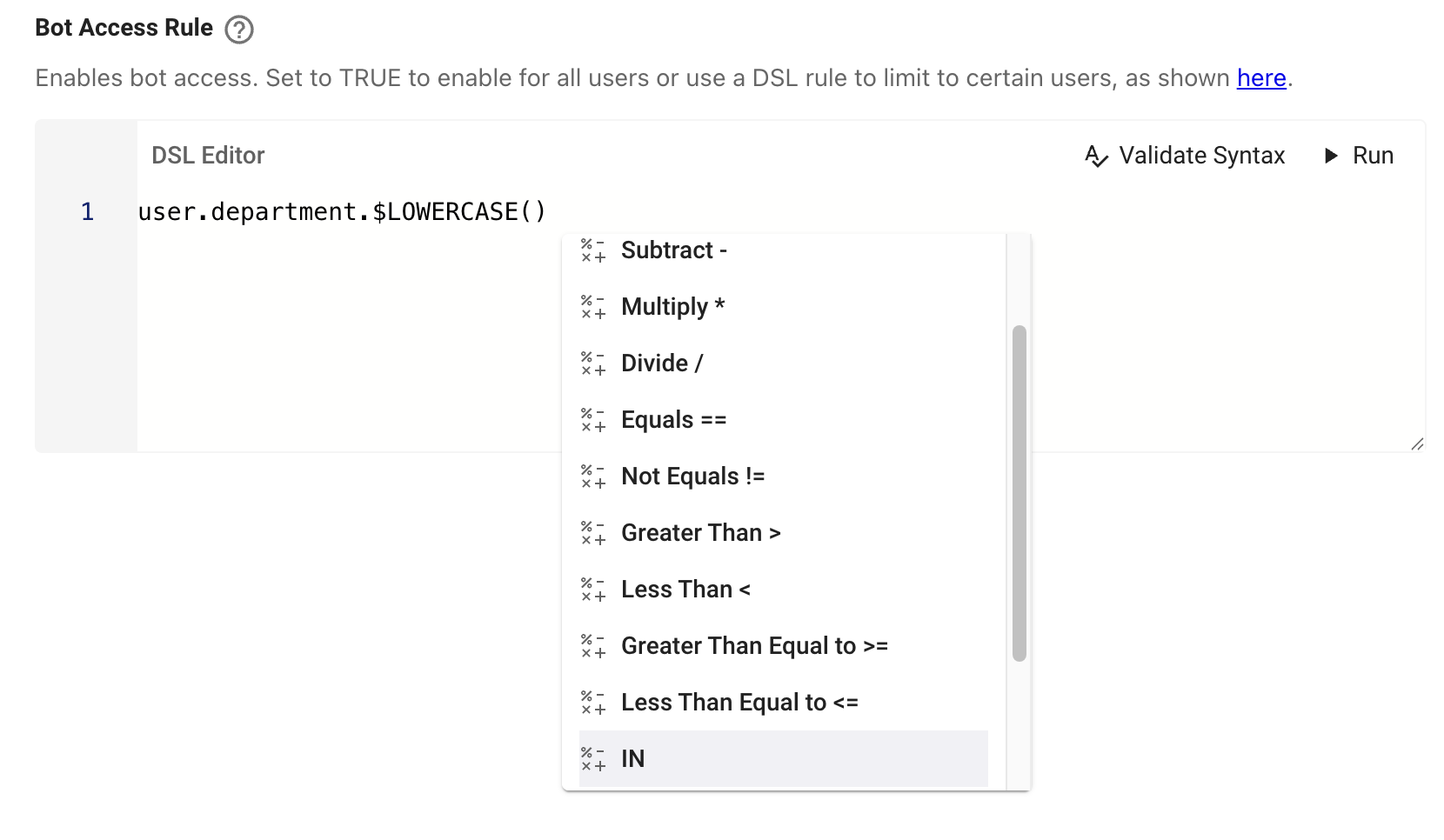
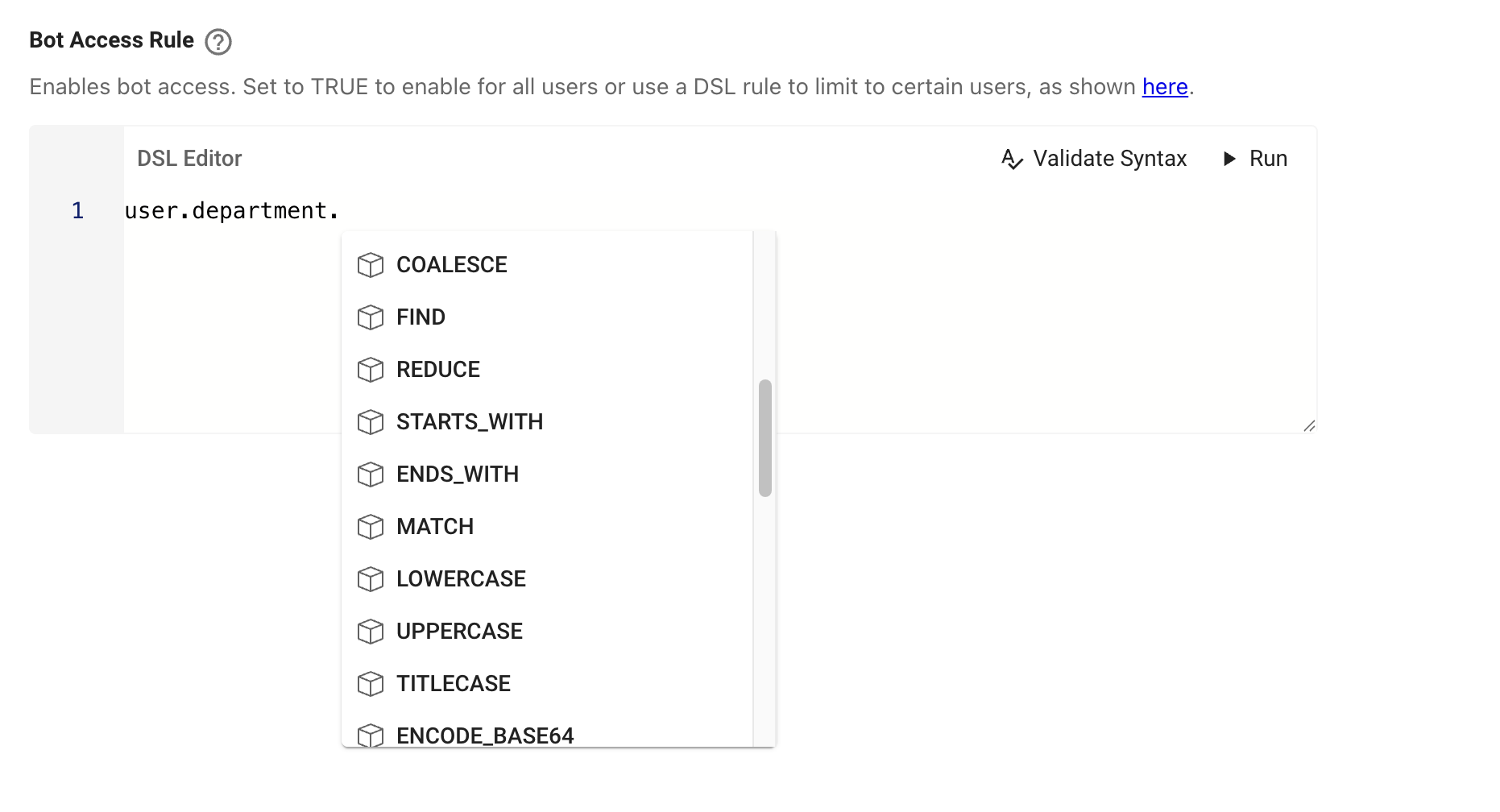 5. Once you select a method, press
 Space to view the auto-populated list of Operators. These are used for logical comparisons and data manipulation. For instance, using IN allows you to compare an attribute against a list of values; it returns TRUE only if the attribute exists in that list.
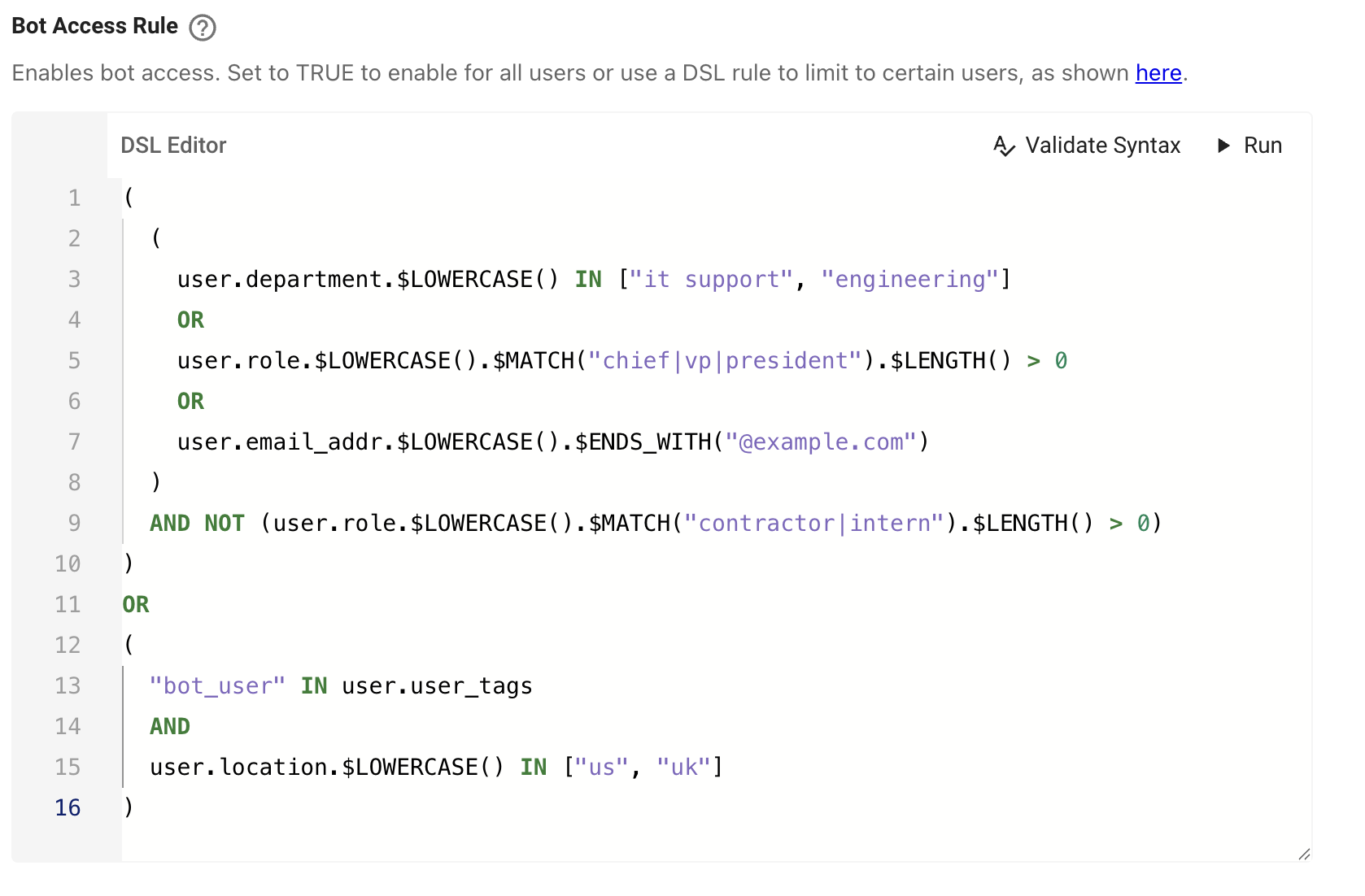
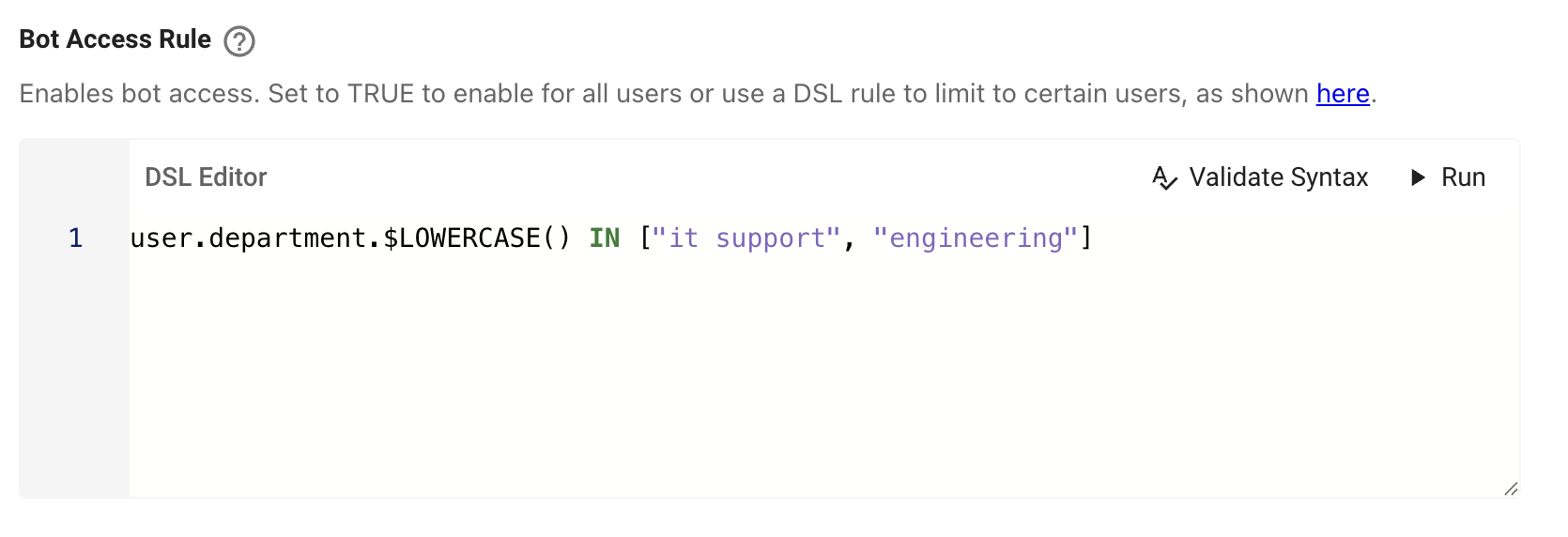 6. We can add several different layers of DSL logic by combining operators. As long as an attribute is being ingested on the Moveworks
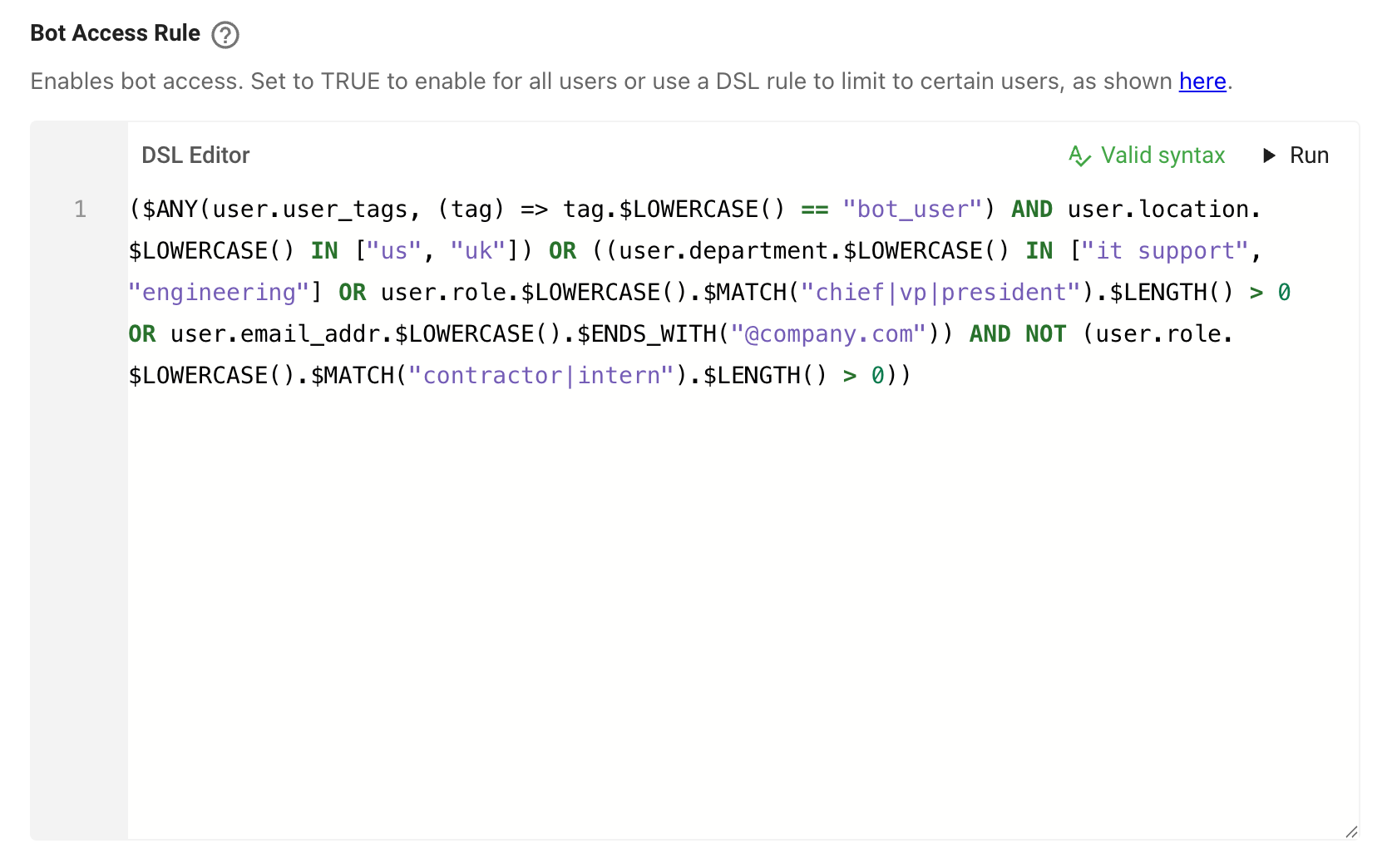
 User or Ticket object, you can build an access rule around it! Try adding the below block to see a combination of fields, case normalization, operator combination, and comparisons
 7. After configuring a DSL rule, you should ALWAYS PERFORM the follow two checks:
a. Select the
7. After configuring a DSL rule, you should ALWAYS PERFORM the follow two checks:
a. Select the Validate Syntax button to verify there are no syntax errors
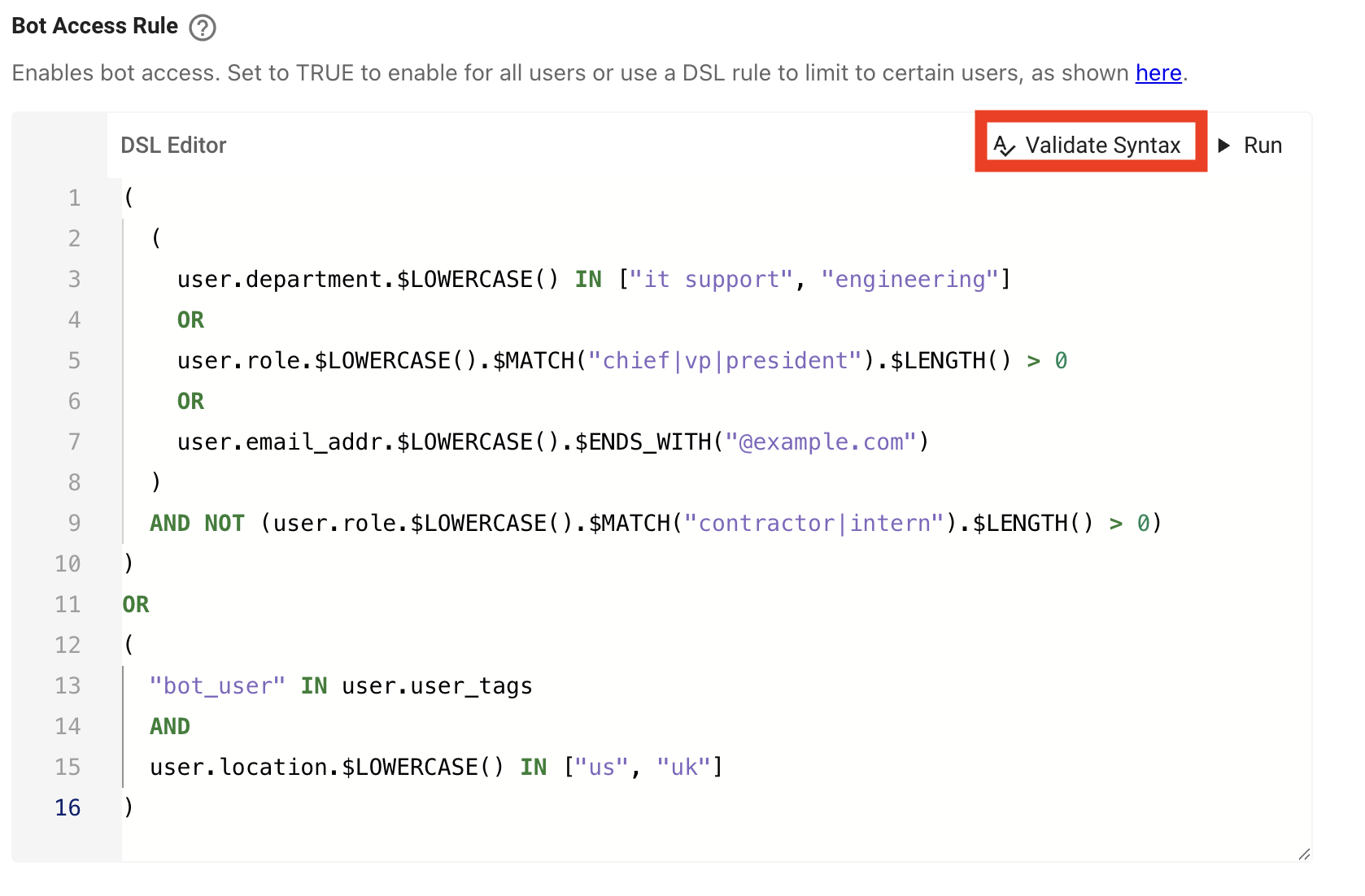
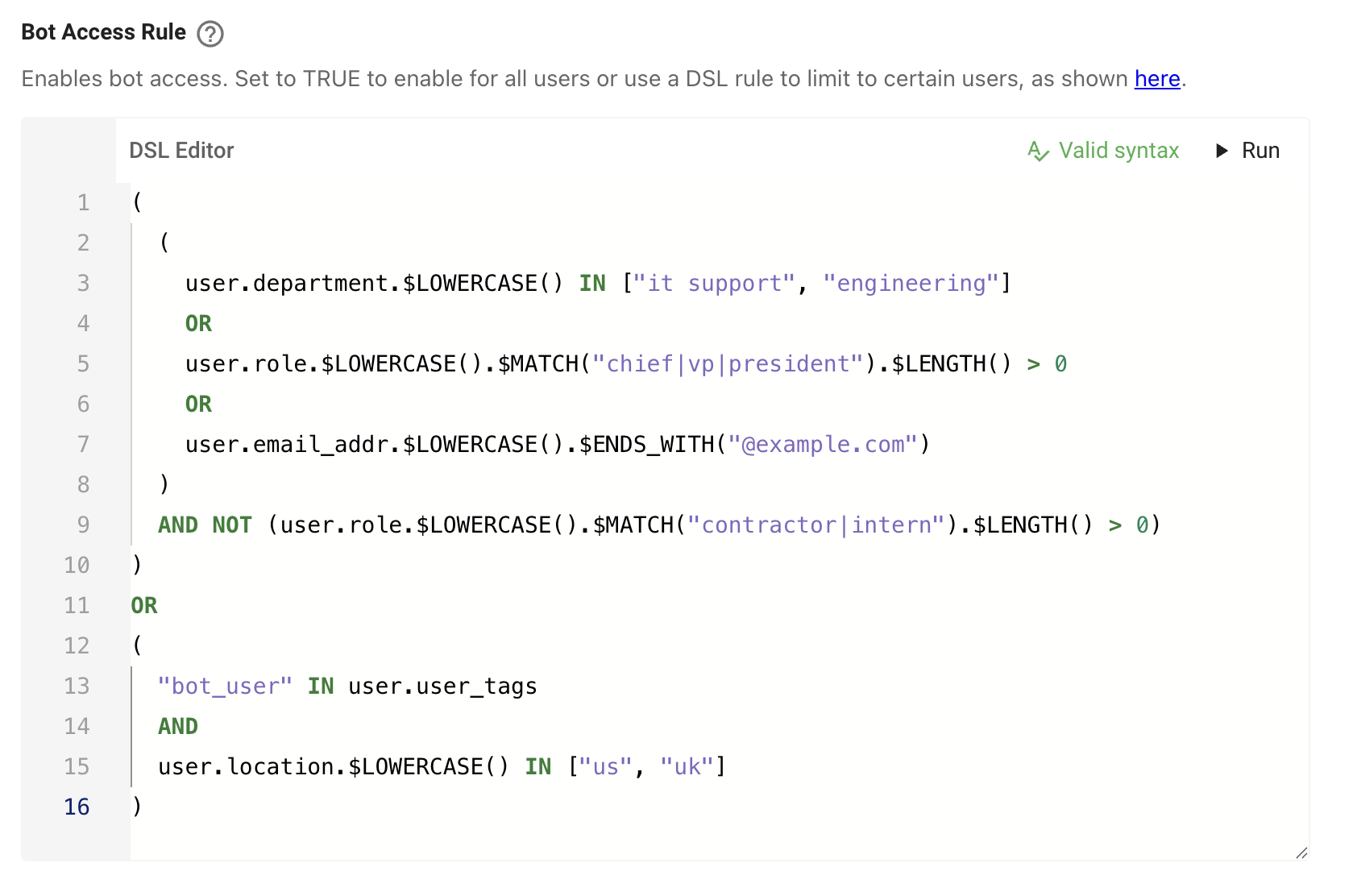 b. Select
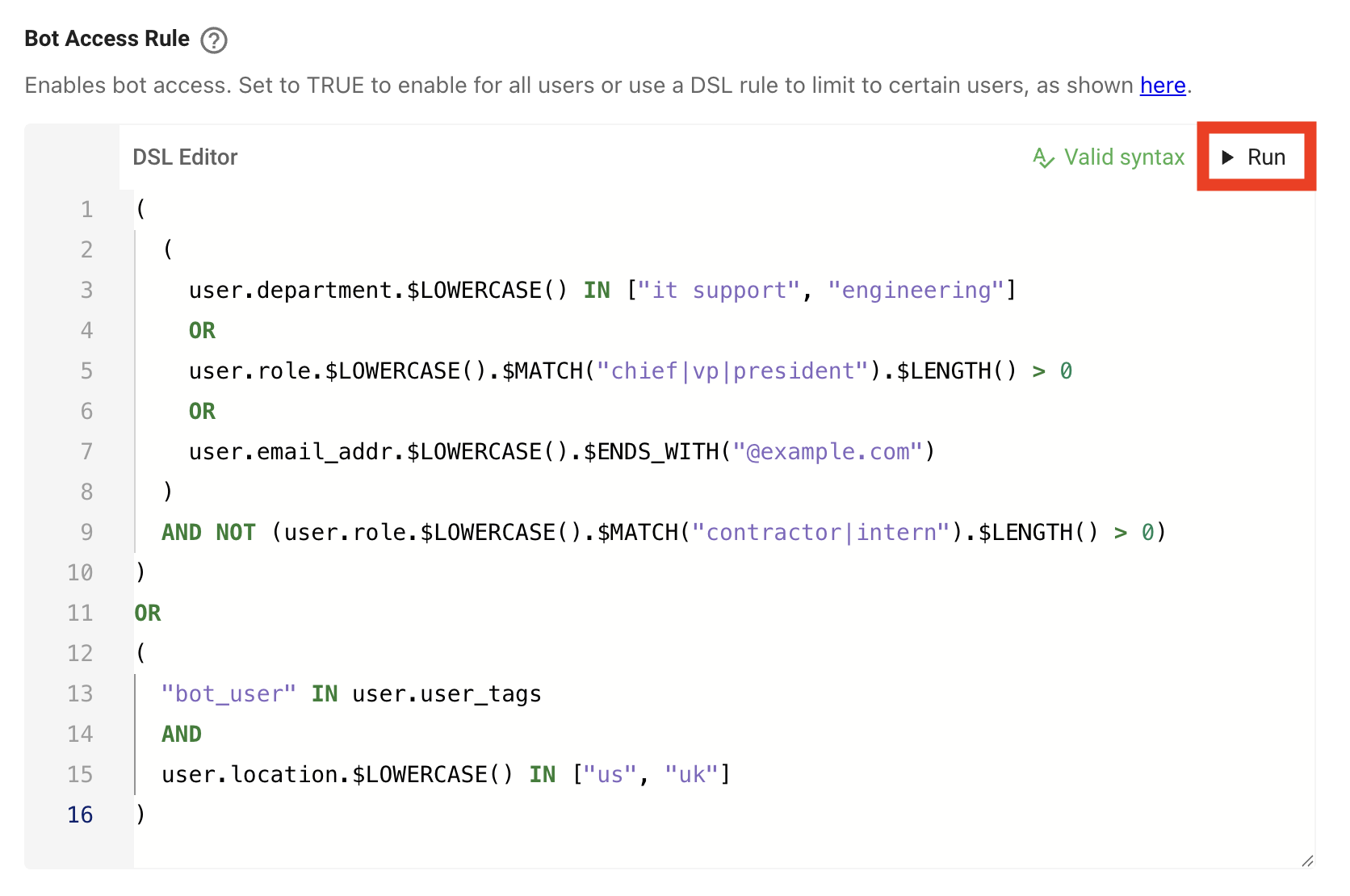
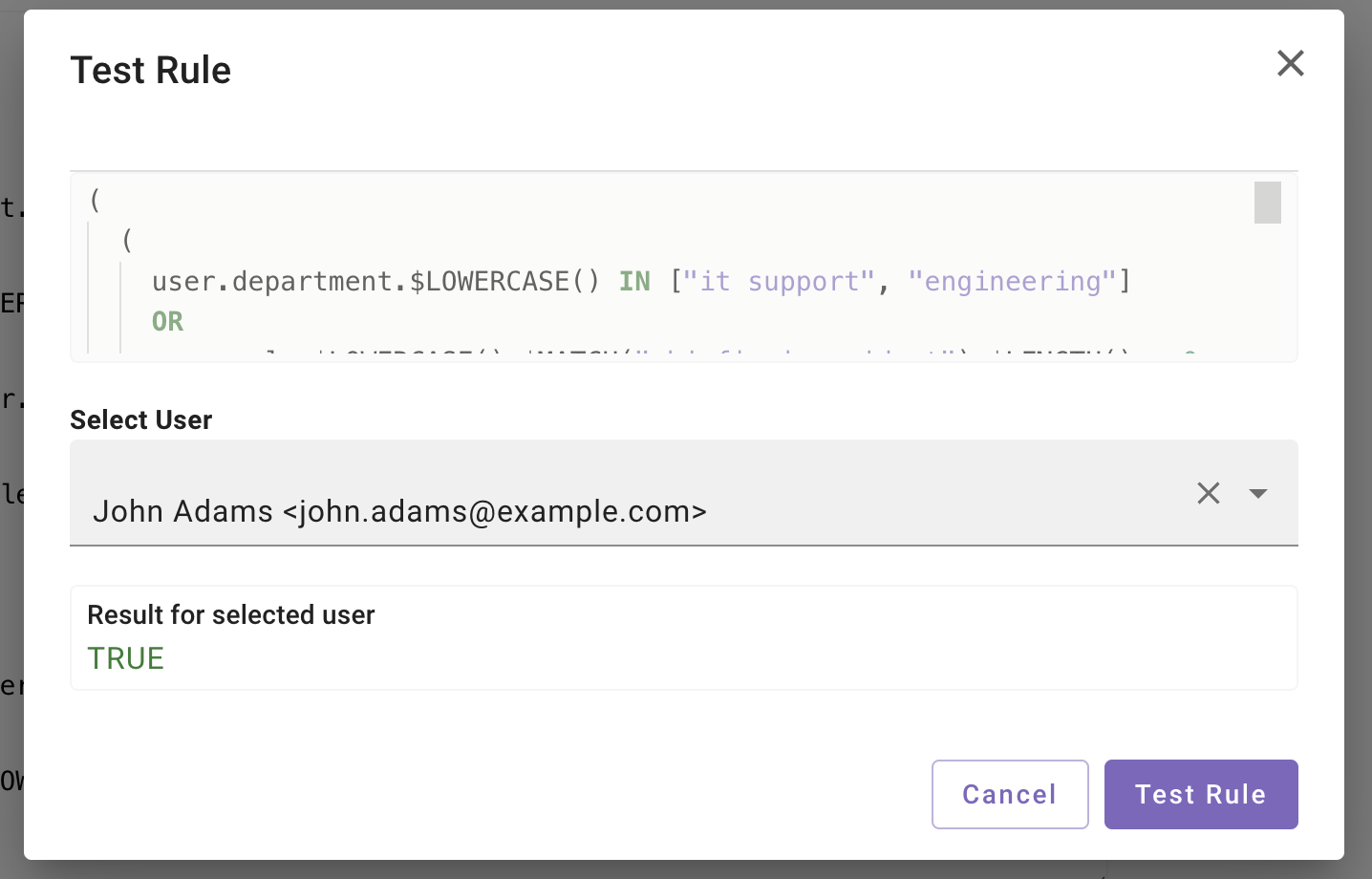
 Run to compare your DSL rule against a user or ticket which you know should pass & fail, and confirm your rule is working as expected
1.2: Using Moveworks Agent Architect to Construct DSL Rules
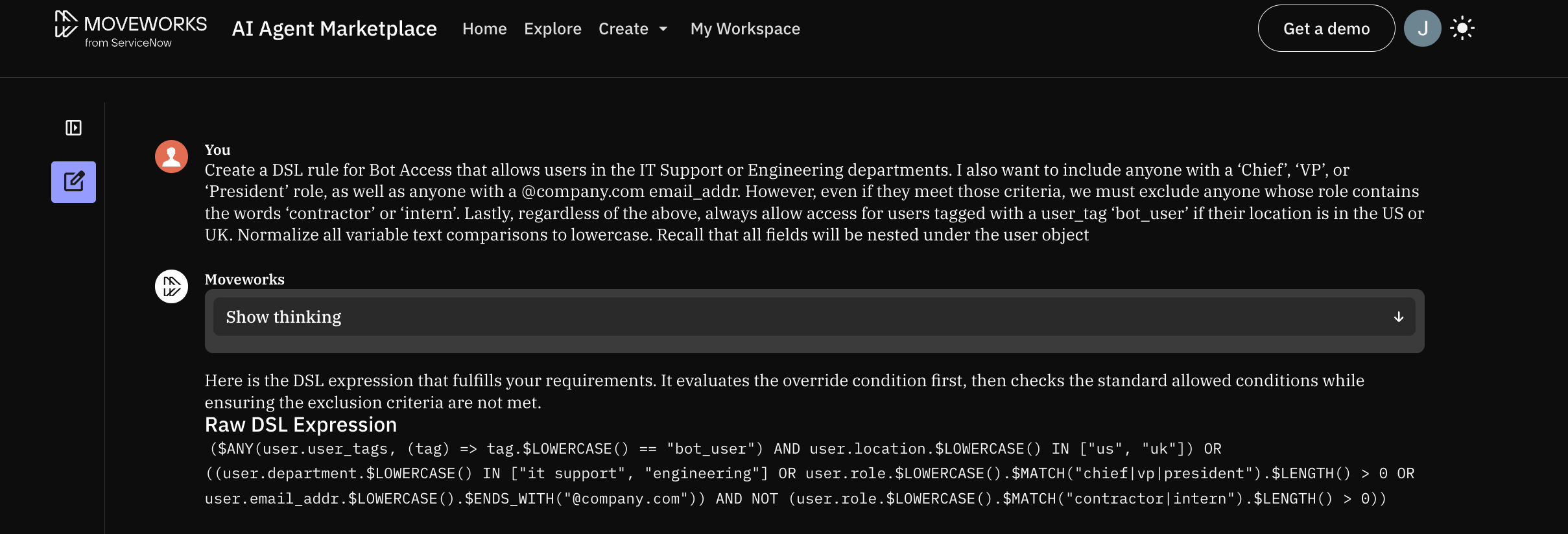
Use the Moveworks DSL Architect when trying to create complex DSL rules to restrict access. The architect allows you to turn natural language requirements into ready-to-use DSL code. Simply describe who should (or shouldn’t) have access, and the Architect will handle the nesting, methods, and operators for you.
- Navigate to Moveworks Agent Marketplace by clicking the
?icon in the upper right hand corner and selectingAI Agent Marketplace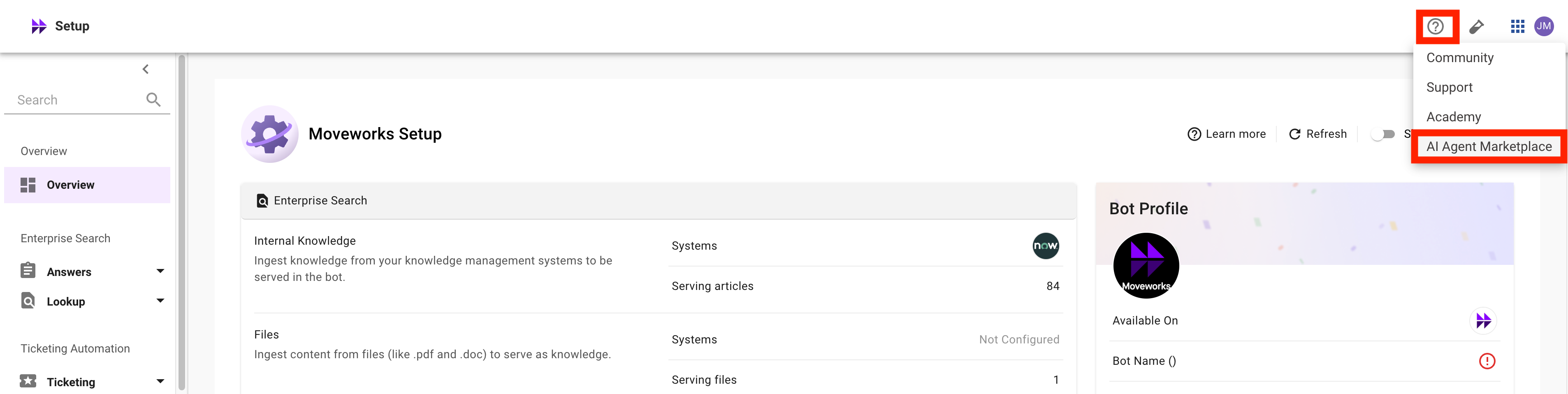
- Select
Create -> Agent Architect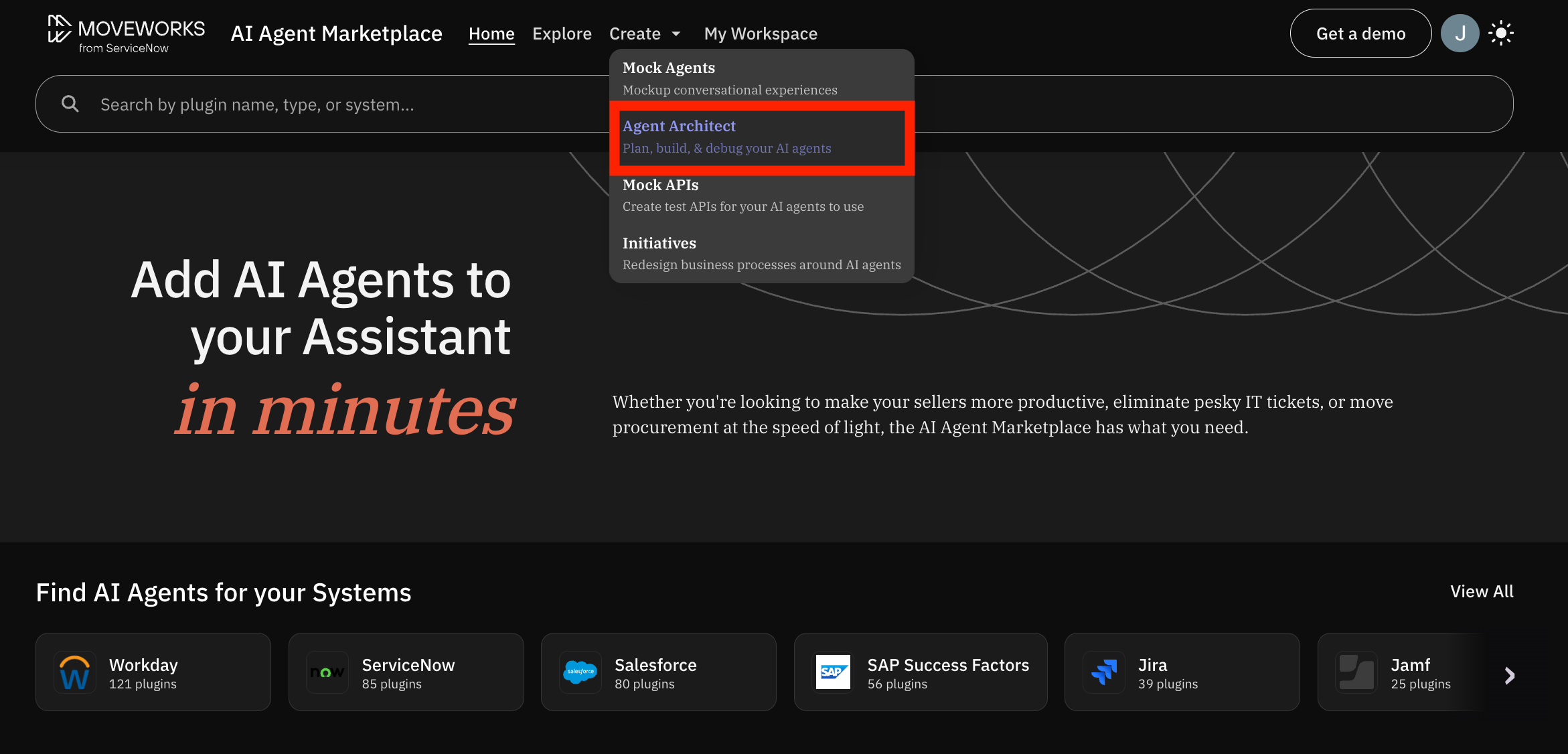
- Select
DSL Architect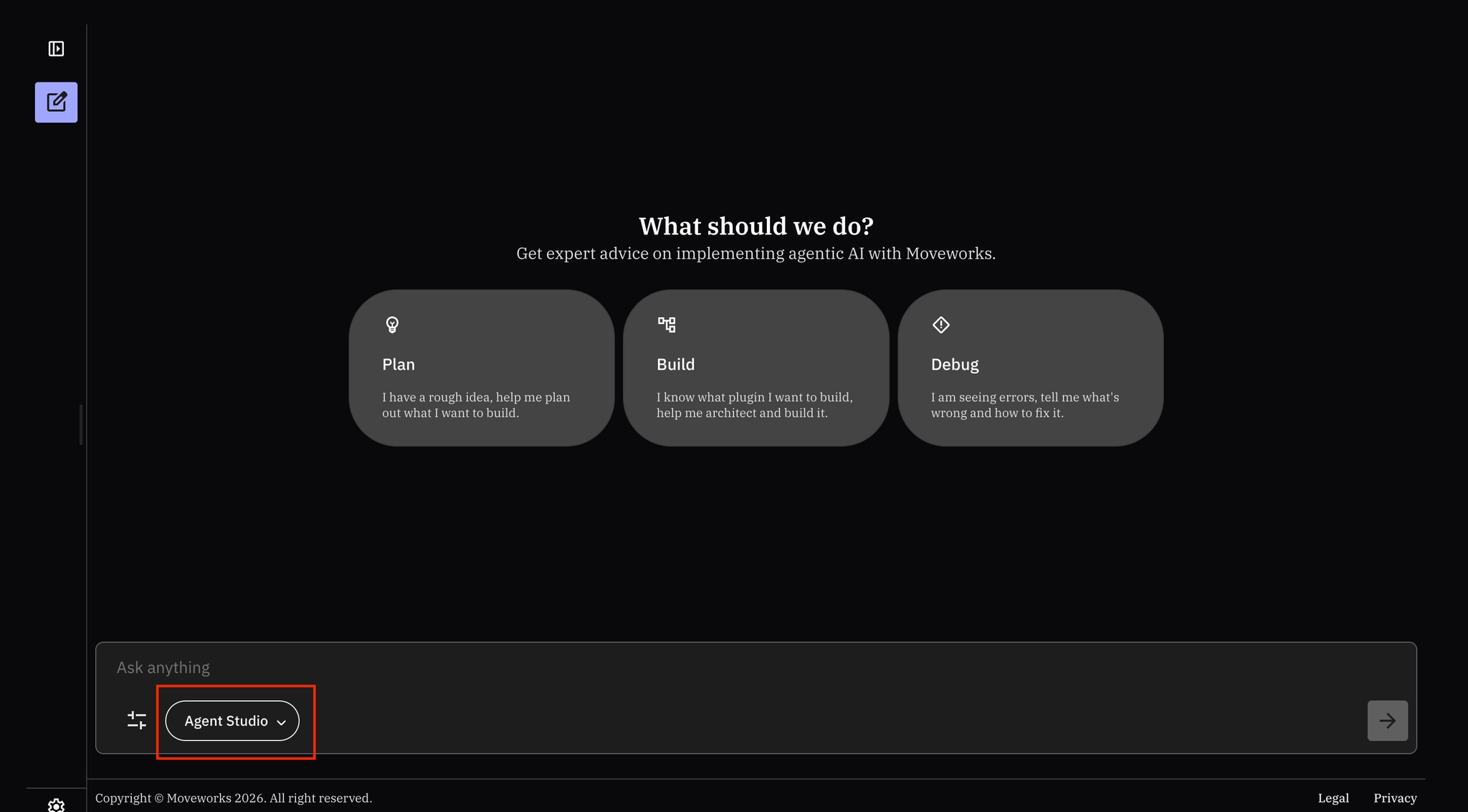
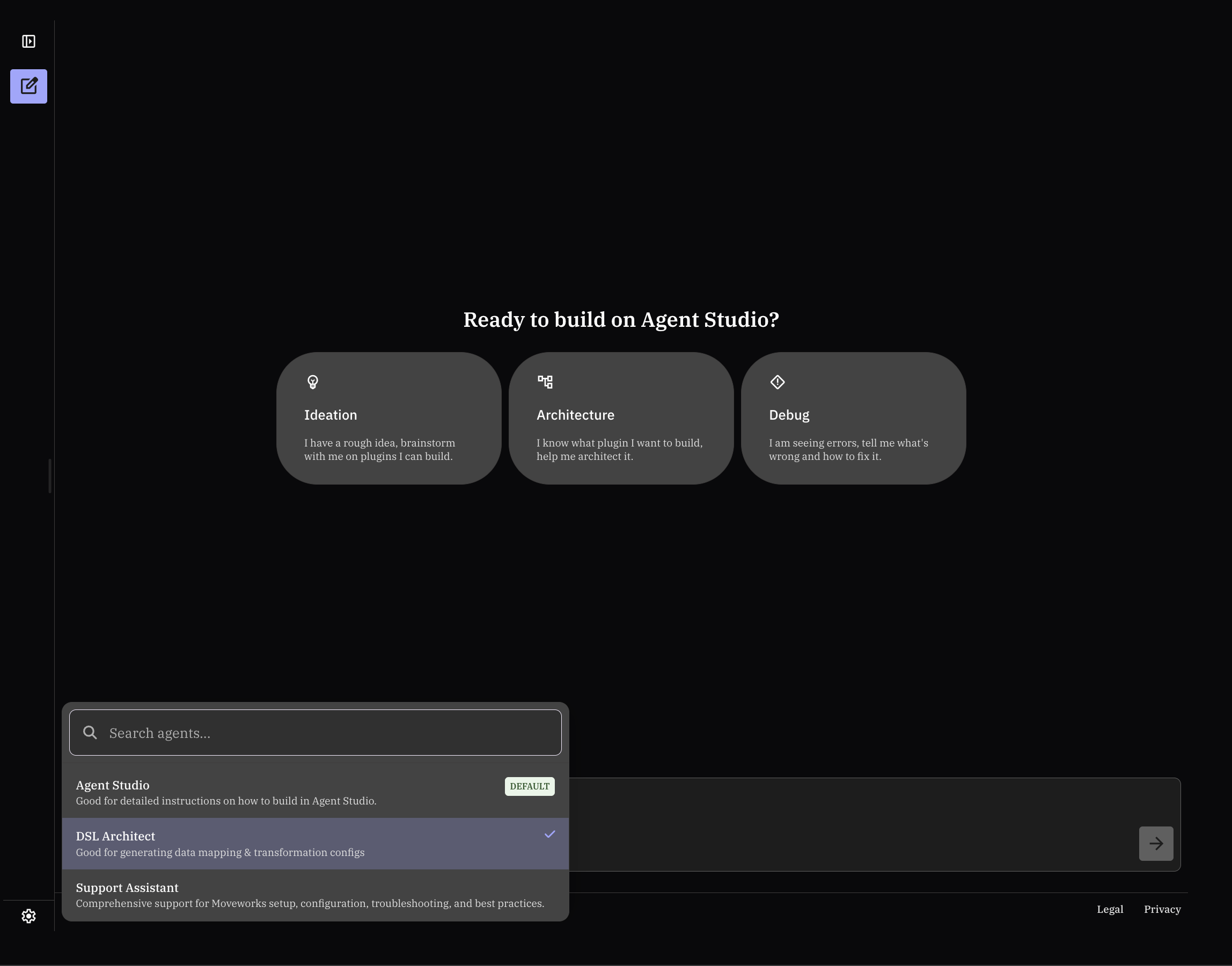
- Input the following prompt to see how DSL Architect can help you construct DSL rules:
Pro-tip: Bookmark this page!! When configuring new DSL Rules, Bender, Agent Studio Plugins, or Moveworks Setup functionality, always consult the Moveworks Agent Architect as a first pass! Note: In the following prompt, we are telling the DSL Architect what the field names are. This is important to getting an easily usable response!
Create a DSL rule for Bot Access that allows users in the IT Support or Engineering departments. I also want to include anyone with a ‘Chief’, ‘VP’, or ‘President’ role, as well as anyone with a @company.com email_addr. However, even if they meet those criteria, we must exclude anyone whose role contains the words ‘contractor’ or ‘intern’. Lastly, regardless of the above, always allow access for users tagged with a user_tag ‘bot_user’ if their location is in the US or UK. Normalize all variable text comparisons to lowercase. Recall that all fields will be nested under the user object
✅ 2: Verification & Next Steps
- Confirm Understanding:
- Read the DSL rule we constructed. Understand exactly what it is doing, and what functions, operators, context, and attributes are available
- Read the prompt provided to the DSL architect. Understand the level of specification to ensure a consistent output that meets the designated criteria
- Practice:
- After implementing Moveworks & ServiceNow Ticketing, go to the
Ticket Filtersconfiguration, and add DSL rules to limit what types of tickets Moveworks can action on
- After implementing Moveworks & ServiceNow Ticketing, go to the
🪞 3: Reflecting on This Configuration
Through this guide, you’ve learned the following:
- What Moveworks DSL rules are used for
- What content is available within a Moveworks DSL block (operators, bender methods, relevant context, attributes)
- How to construct & validate a DSL rule
- How to access and leverage the DSL Architect to aid you in creating complex logic
🧠 4: Knowledge Check: Lab #6a
1. What does “context” mean in a Moveworks DSL block?
- Answer: Context is the data object available to the rule — for example,
usercontext gives access to user attributes likedepartmentorrole, whileticketcontext gives access to ticket fields.
2. Why should you always use $LOWERCASE() when comparing text values in DSL?
- Answer: Source data may have inconsistent capitalization (e.g., “IT Support” vs “it support”). Normalizing with
$LOWERCASE()ensures comparisons work regardless of how the data was entered.
3. What are two ways to validate a DSL rule before applying it in production?
- Answer: (1) Use the Validate Syntax button to check for syntax errors, and (2) use the Run button to test the rule against a real user or ticket to confirm expected pass/fail behavior.
4. When would you use the IN operator instead of == in a DSL rule?
- Answer: Use
INwhen comparing a single attribute against multiple allowed values (e.g.,user.department.$LOWERCASE() IN ["it support", "engineering"]). Use==for a single exact match.
⚙️ 5: Configuration Details
Use the table below to fill in the required fields accurately.