
Lab #2: User Identity & Service Account Setup
Overview
- Learning Objectives: Learn how to leverage connected systems to build a Moveworks User Roster. Understand how to configure the account representing the Moveworks AI Assistant, and give end-users access to Moveworks.
- Estimated Time: 45 minutes
- Prerequisites:
- Lab 1 complete (snow connector configured and tested)
- The
sys_idof the ServiceNow admin account (copied during Lab 0, Step 1.3)
Key Concepts
The User Roster is the “brain” of Moveworks identity, determining who can talk to the bot and what data belongs to them. Key components include:
- Source Connectors: The primary systems (usually an ITSM or IDAM) from which Moveworks pulls raw employee data to build the user roster.
- Processors: Automated functions that clean or “resolve” data during ingestion, such as transforming a manager’s
sys_idinto a clickable name or calculating local time zones. - Advanced Mode Mapping: A JSON-based configuration where you define precisely which source fields (like
u_employee_id) map to Moveworks profile attributes. - Bot Access Rule: A global logic gate (often set to
TRUEor controlled via DSL) that determines if a user is permitted to interact with the AI Assistant.
Relevant Documentation:
- Moveworks Help: User Identity Overview
- Moveworks Help: Configuring User Ingestion
- Moveworks Help: Configuring the Service Account
- Moveworks Help: User Data Object
🛠️ 1: Walkthrough
1.1: Setup User Roster / User Ingestion
-
In Moveworks Setup, enter
Import Usersinto the search bar & navigate toUser Identity > Import Users> Setup User Identity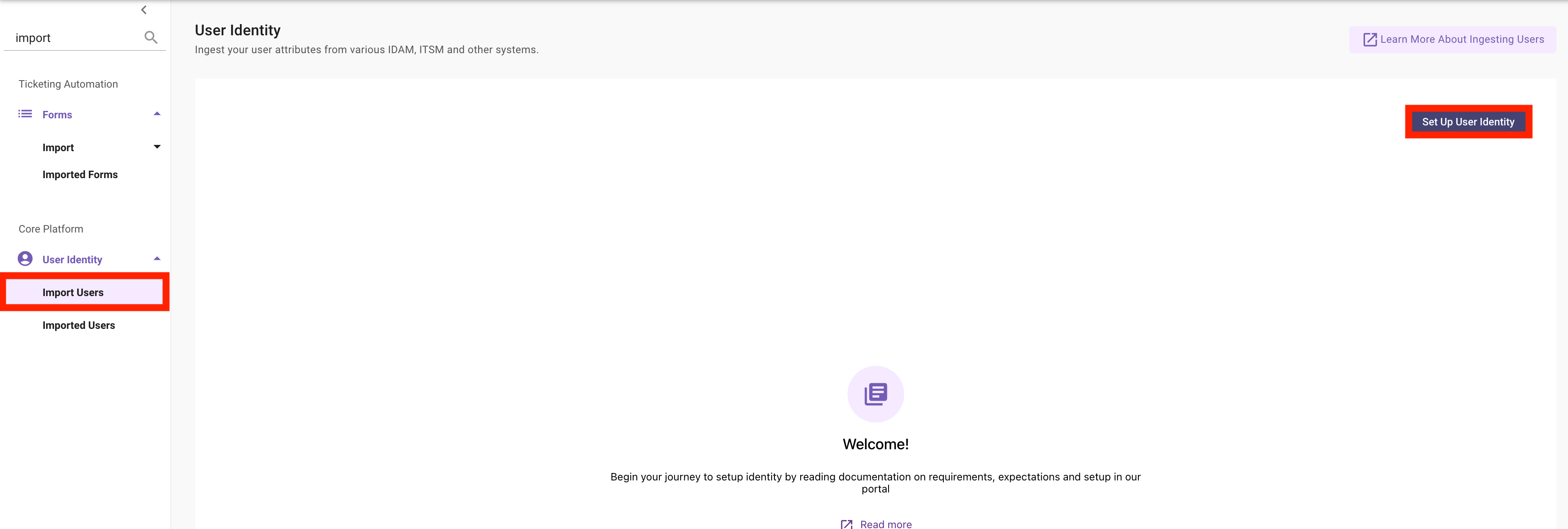
-
Validate that you have
snowas the primary source connector and selectNext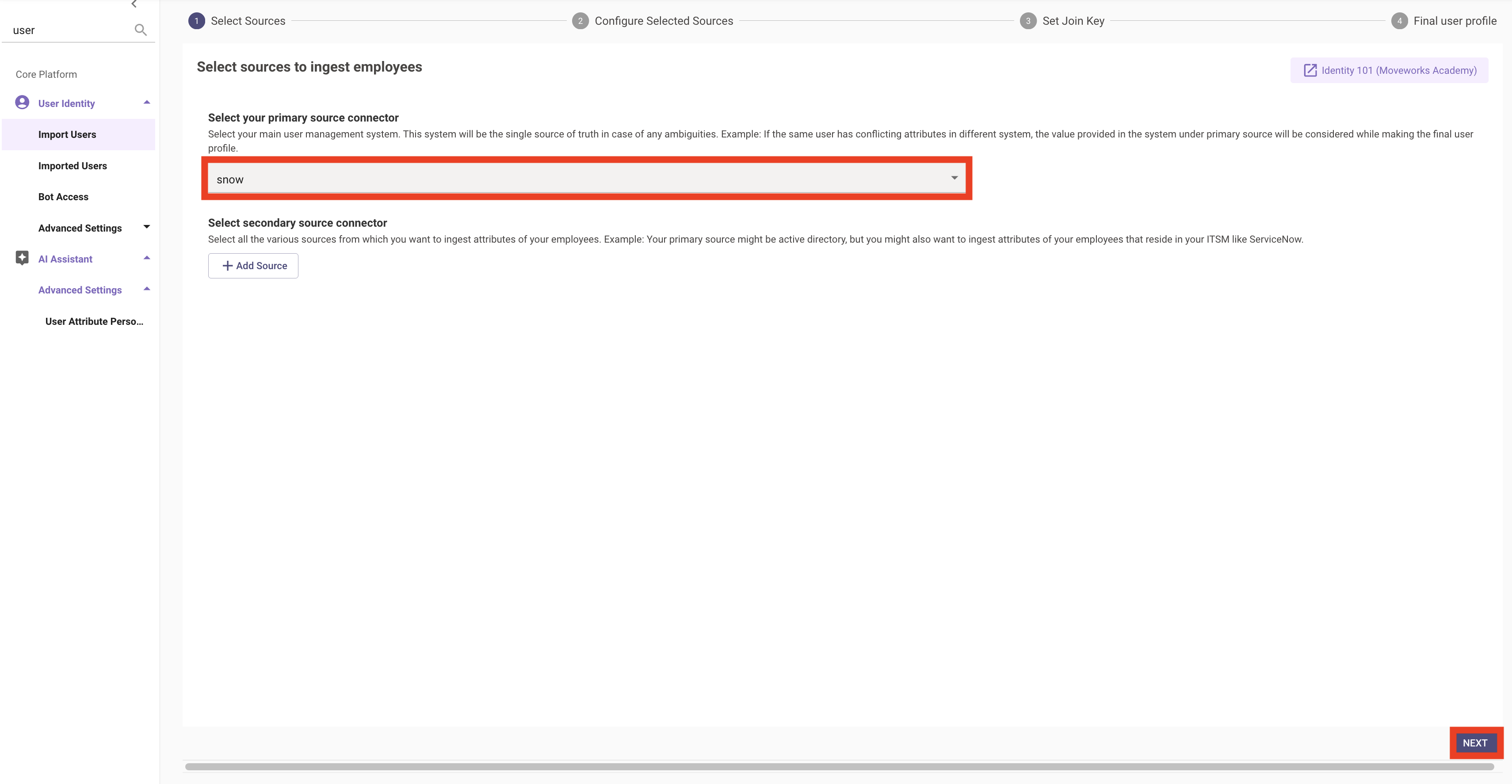
-
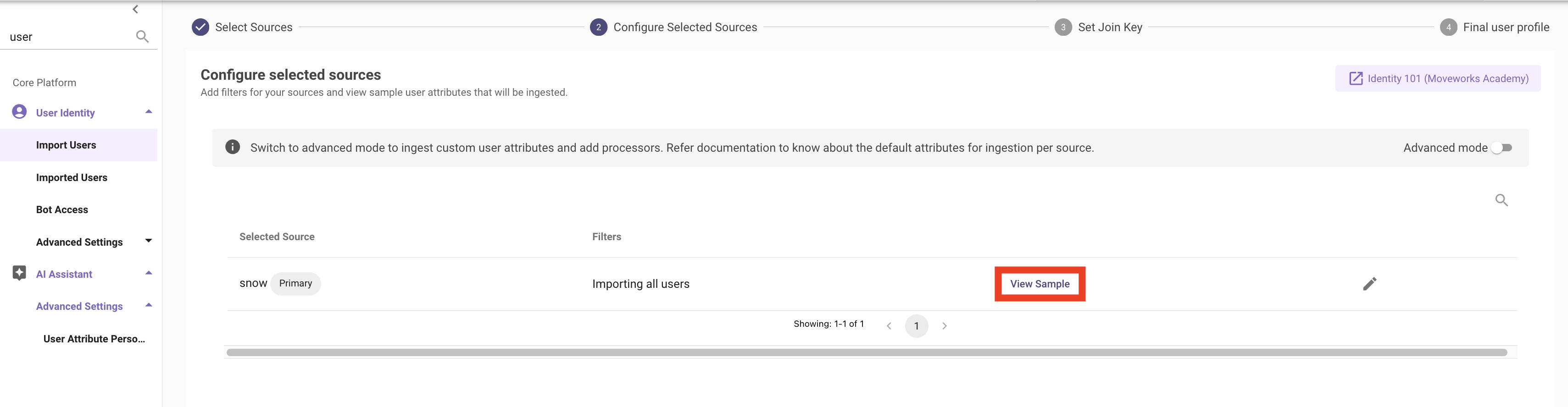
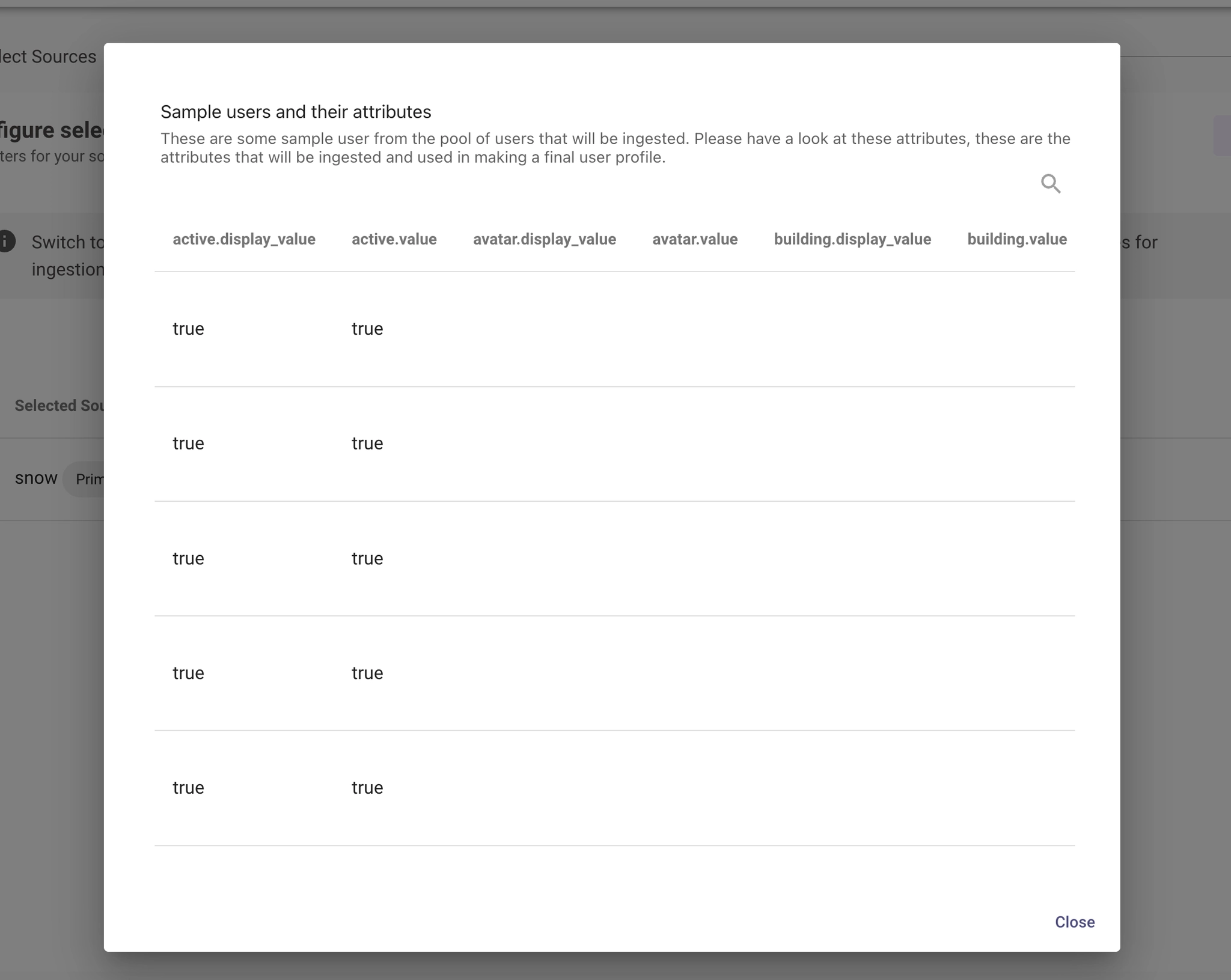
Click
View Samplefor each source to ensure users are returned.If users are not returned, go back to your connectors and verify that your credentials were entered properly.
-
Now that we have confirmed we can see users, we will use the following configuration example in
Advanced Mode, to map user attributes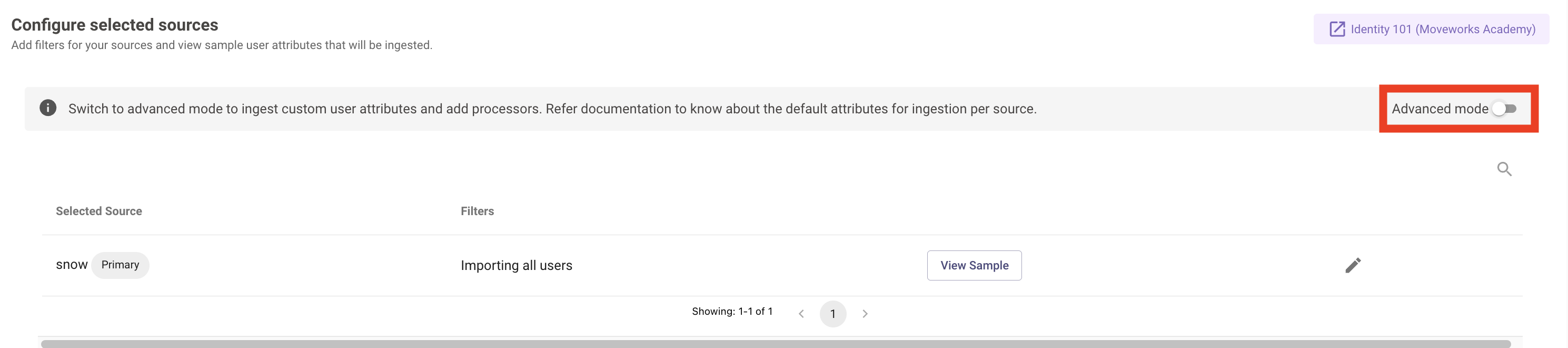
-
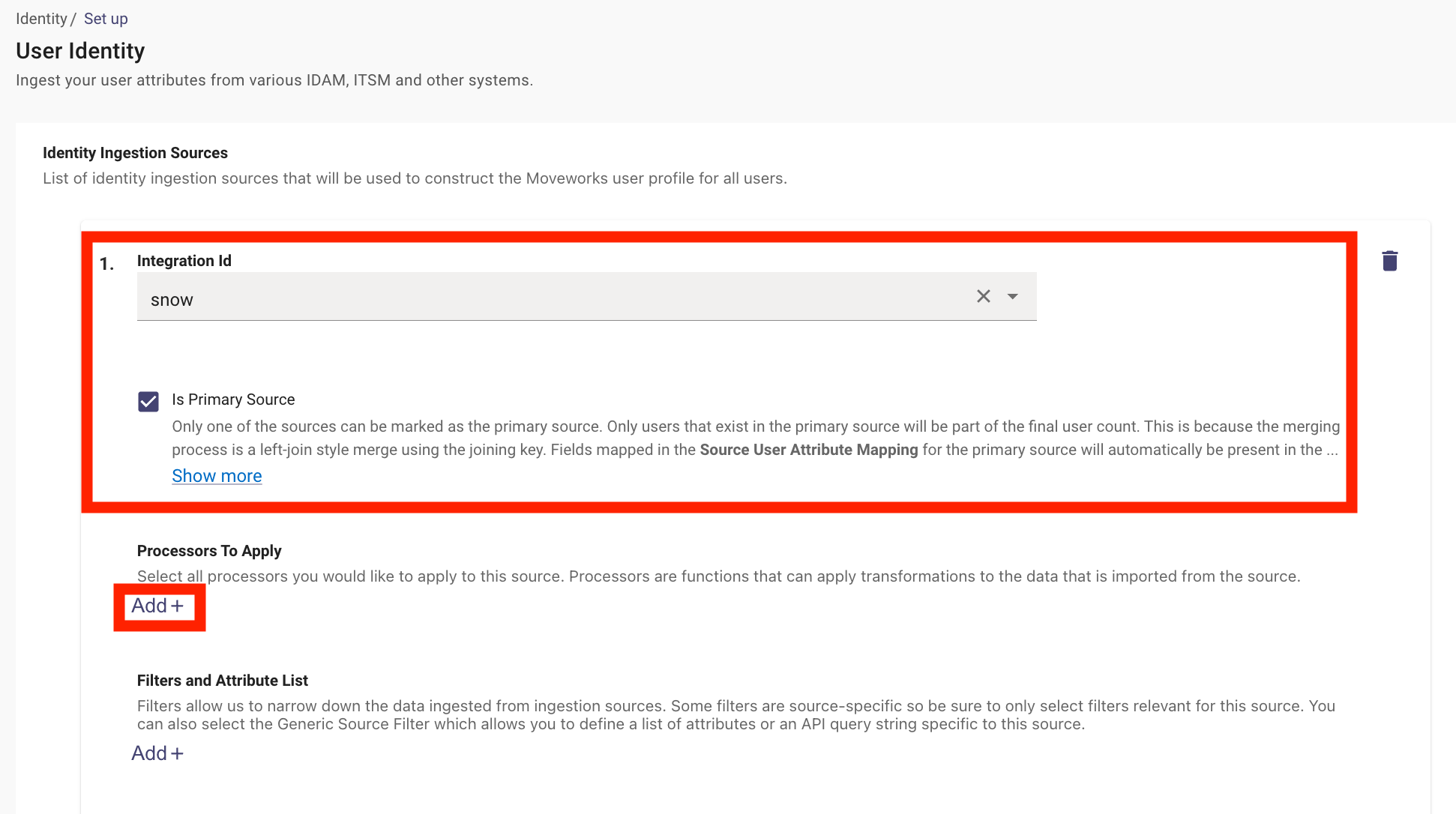
Ensure the following values are selected:
- Integration Id:
snow - Is Primary Source: ✅
- Integration Id:
-
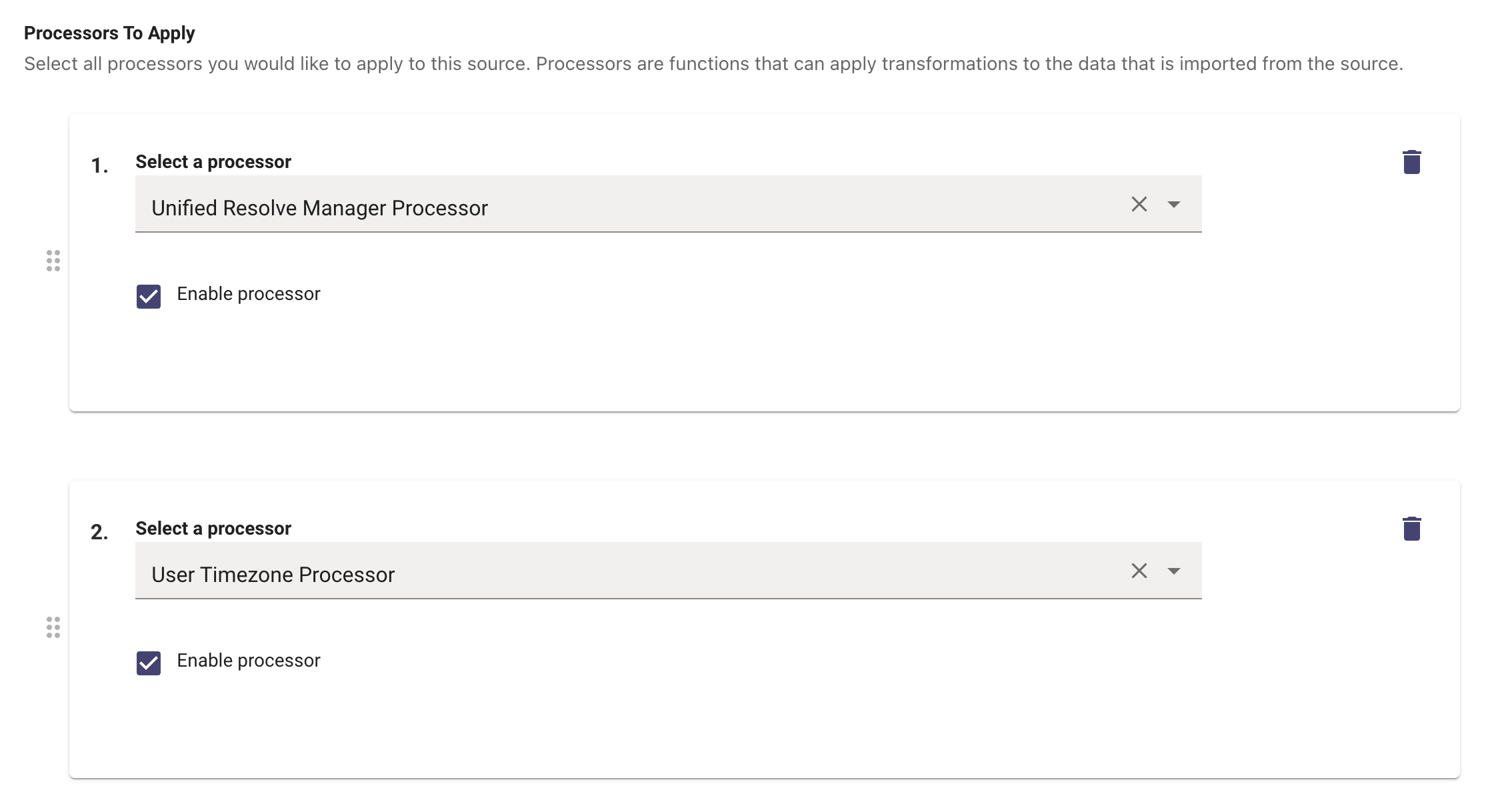
Add the Unified Resolver Manager Process & User Timezone Processor
-
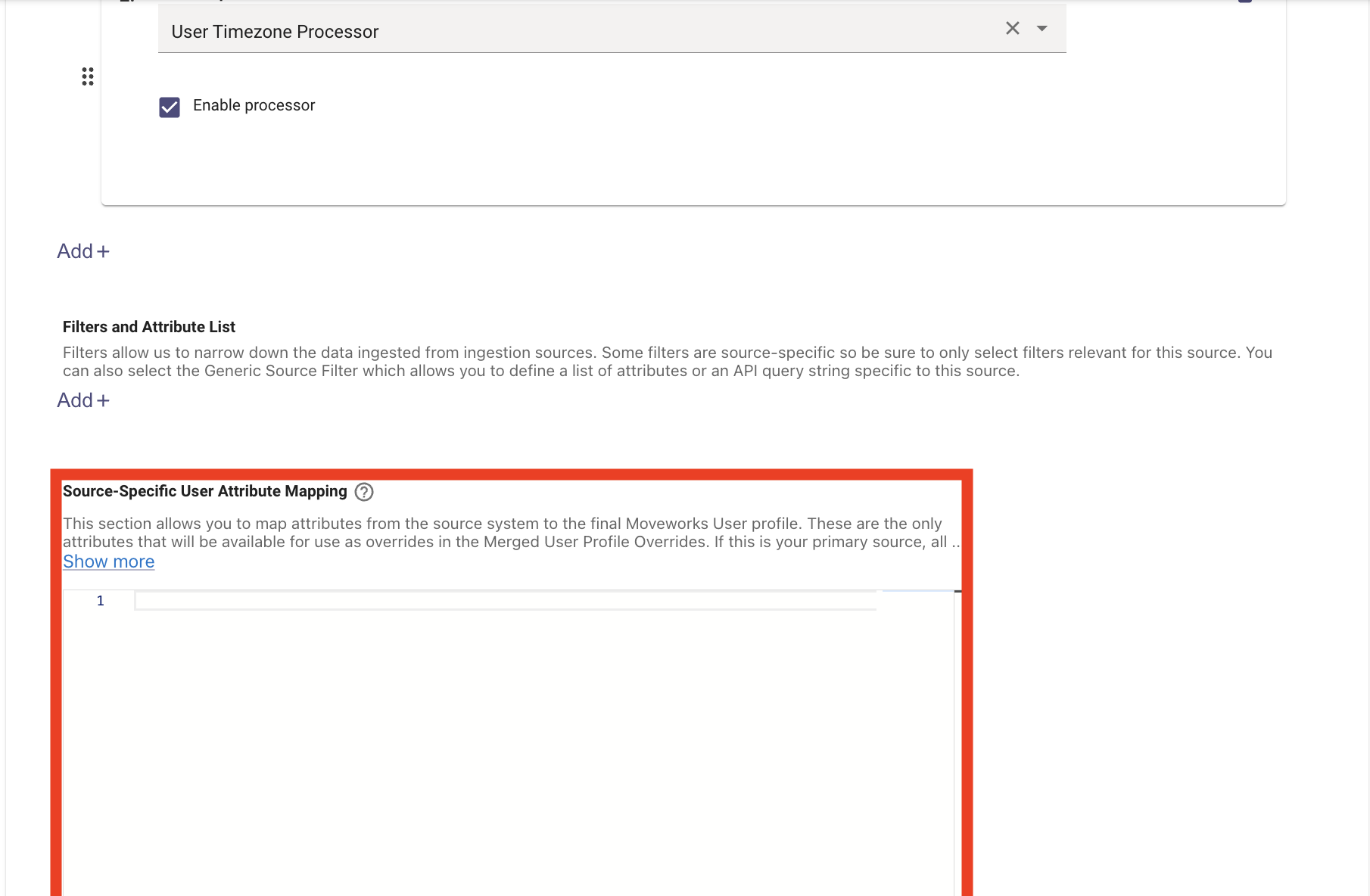
Copy the JSON block below into the
Source Specific User Attribute MappingNote: For new implementations, the system initializes using the default JSON configuration shown below. These mappings represent the standard fields synced when Moveworks first connects to a ServiceNow (NOW) instance.
- Left-hand side: Attributes within the Moveworks User Object.
- Right-hand side: Source field names retrieved from ServiceNow, transformed via Moveworks DSL (Bender).
Detailed instruction on Moveworks DSL syntax and logic will be covered in a subsequent laboratory session.
-
Set the Joining Key field to
email_addrNote: The
Joining Keyis the unique identifier linking a user’s profile across all integrated systems (Chat, ITSM, HRIS, and IdP).Why it Matters
- Identity Resolution: Maps a chat user (e.g., Slack) to their backend records (e.g., ServiceNow).
- Security: Ensures sensitive actions like password resets are tied to a verified, authorized identity.
- Data Integrity: Prevents duplicate records during multi-source syncs.
Common Examples
-
Email Address (Most common)
-
Employee ID
Requirement: A
joining_keymust be unique, immutable (permanent), and present across all integrated systems.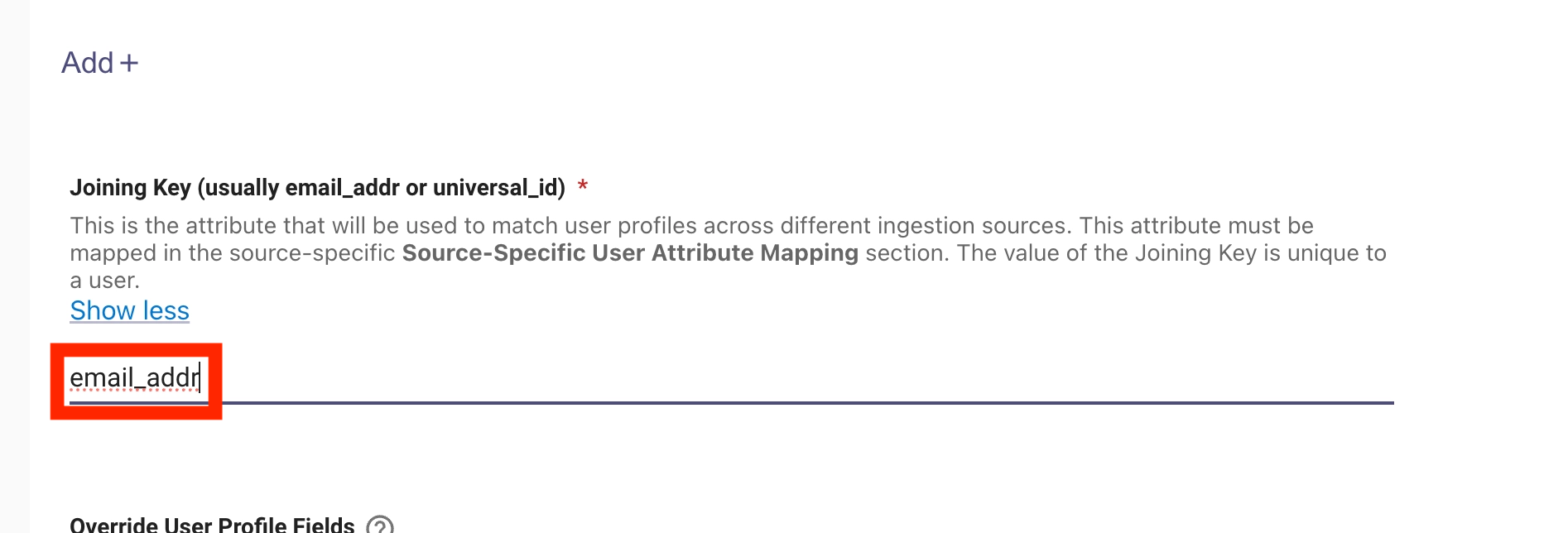
-
Review your configuration, then scroll down to the bottom of the page and click
Submit
1.2: Setup the Moveworks Service Account
Note: When configuring this for a new implementation, we will add the relevant information for each integration that the Moveworks AI Assistant has a service account within. See the Moveworks Service Account Configuration Guide for more information on what a multi-system Moveworks Service Account looks like.
-
Navigate to the
Bot Accountpage, and add the corresponding information for the Moveworks Service Account user for each field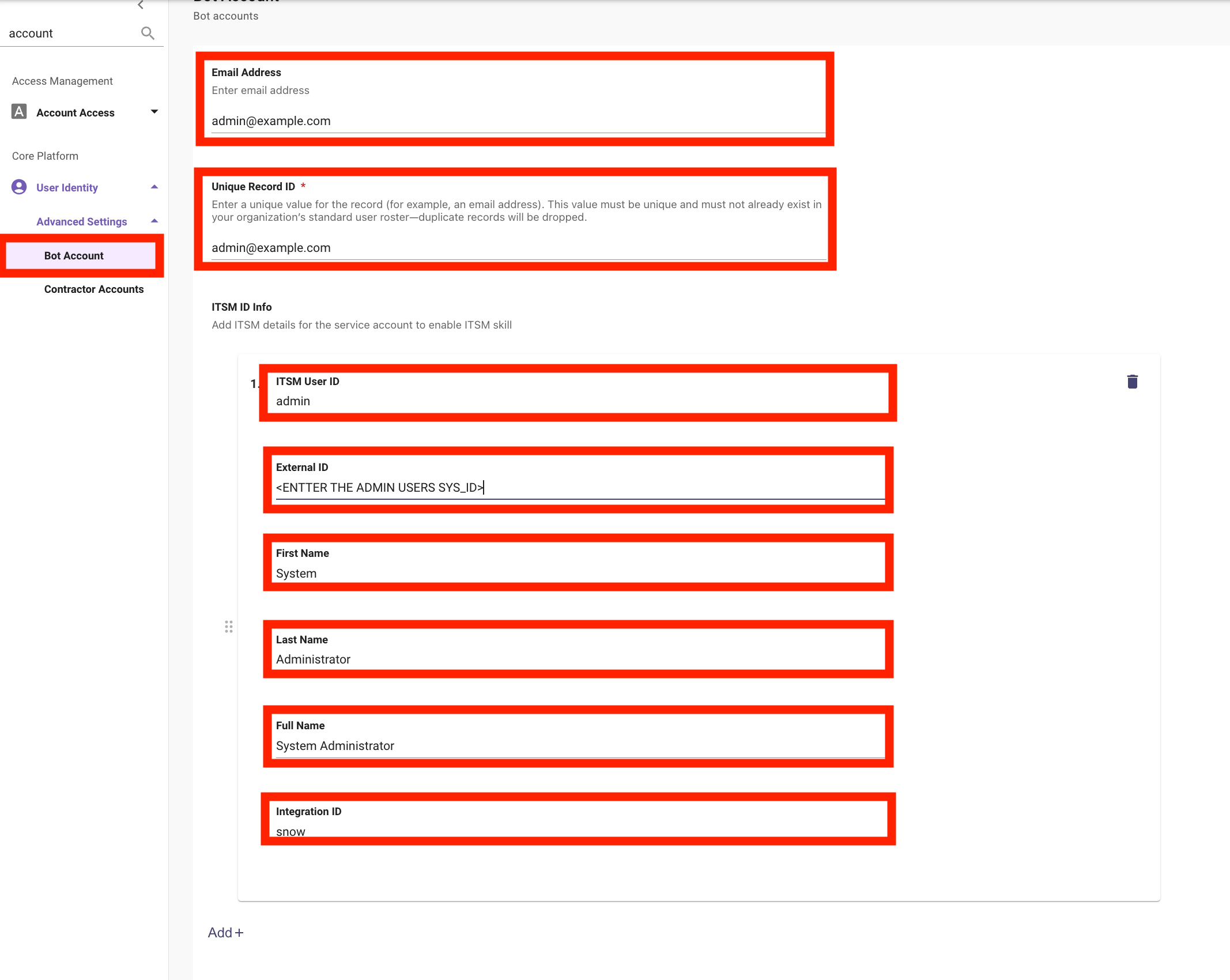
-
After you enter your configuration,
Submityour changes
1.3: Set up Bot Access Rule
Note: Setting the Bot Access Rule to TRUE will give all users who are ingested into Moveworks access to interact with Moveworks, but they must also have access to Moveworks via one of the following methods:
- Integrated Chat Platform:
- Access to talk to the Moveworks application in Slack, Teams, etc
- My Moveworks Access:
- Ability to select a tile in their IDAM platform that allows them to interact with the Moveworks on Web Assistant
- Embedded AI Assistant:
- Access to a Moveworks Assistant that has been surfaced on a web page controlled by IDAM SSO. This includes platforms like ServiceNow, Sharepoint, FreshService, etc
-
Navigate to
User Identity > Bot Access, set theBot Access RuletoTRUE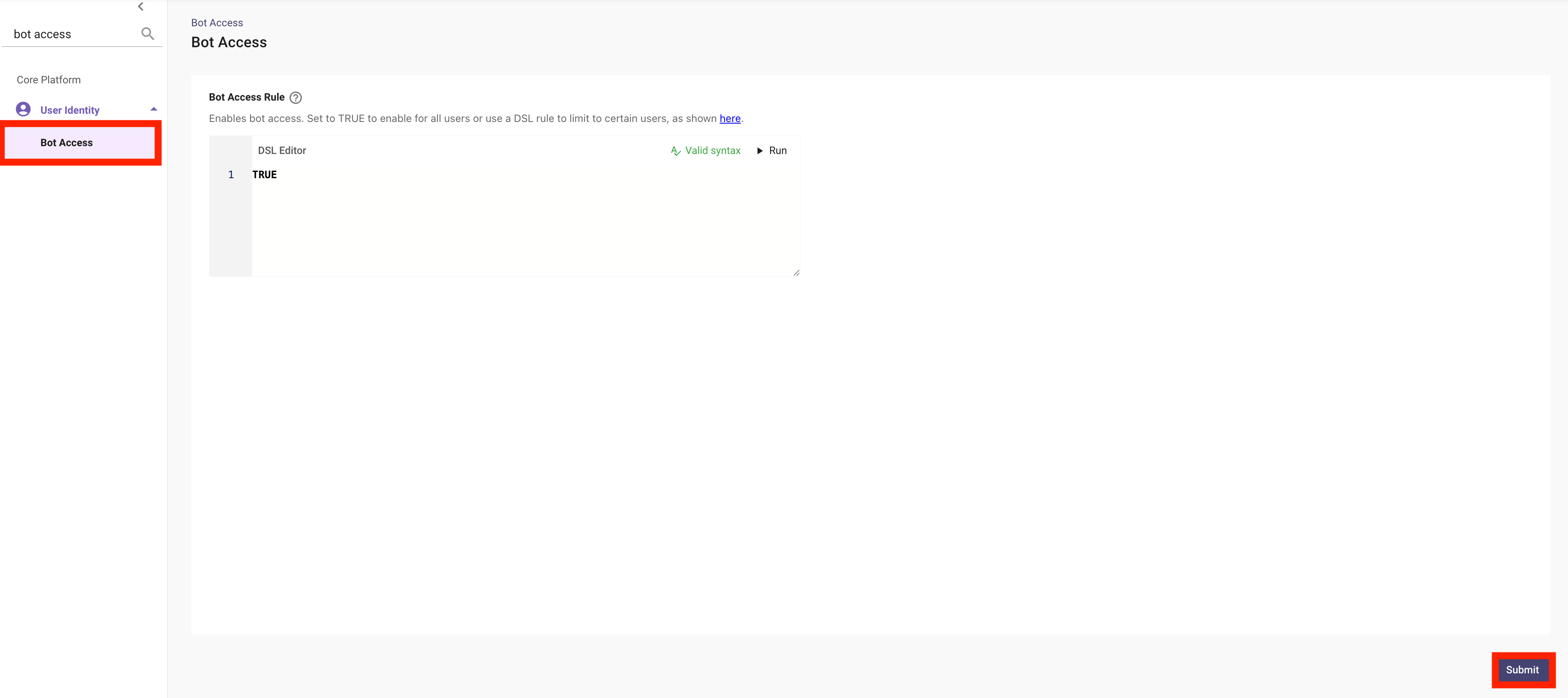
✅ 2: Verification & Next Steps
-
Wait for Processing:
- Now that we have configured the Moveworks User Identity Pipeline, we will need to wait for the user ingestion cycle to complete
- In a typical environment, the user roster refreshes every 4 hours
- If you are participating in a designated Moveworks Lab, your environment will refresh every 30 minutes.
- Now that we have configured the Moveworks User Identity Pipeline, we will need to wait for the user ingestion cycle to complete
-
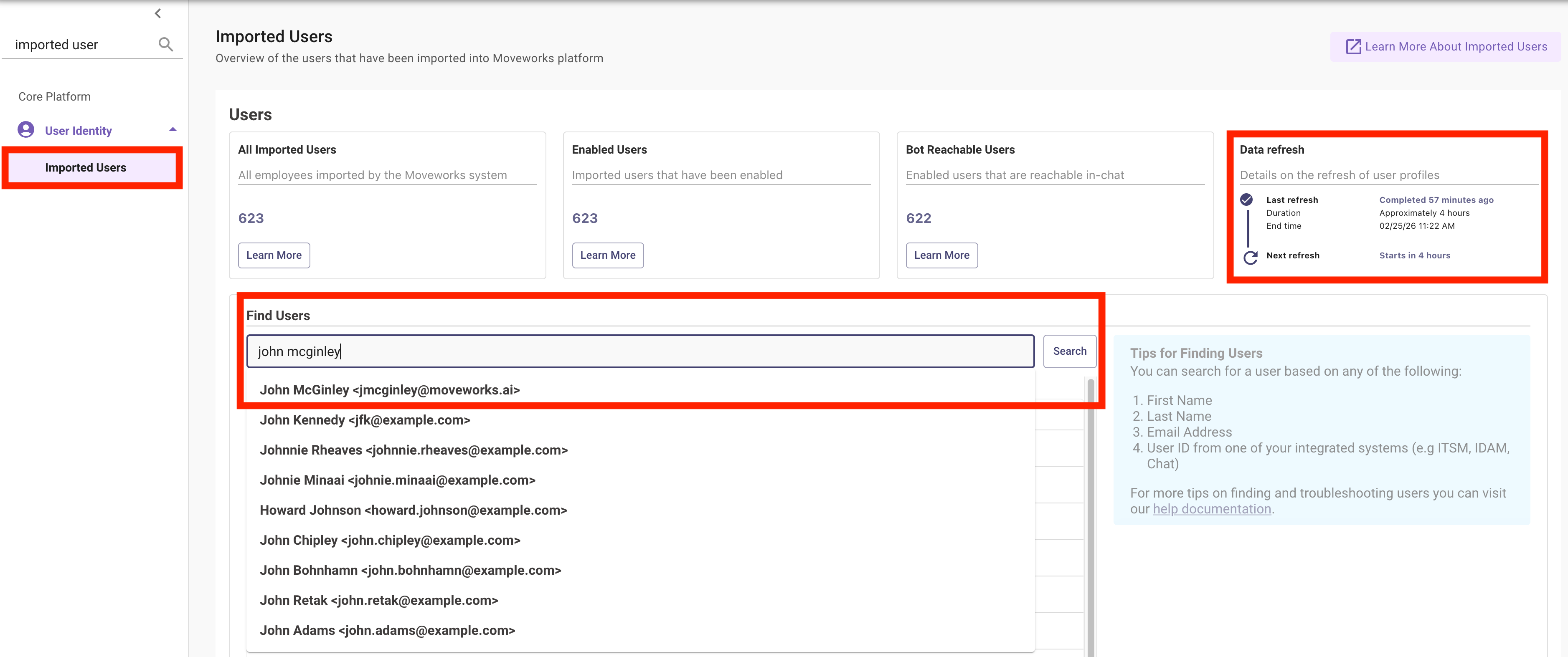
Confirm Completion:
- Check the
Imported Userspage, and confirm that:- You are able to find yourself in the user roster
- The
Enabled Users&Bot Reachable Usersis greater than 0 - You see when the ingestion cycle completed and when it is next scheduled to run
- Check the
🪞 3: Reflecting on This Configuration
Through this guide, you’ve learned the following:
- How to configure Identity Sources within Moveworks
- How to configure specific fields for Moveworks to ingest
- How to leverage processors for resolving fields like password_expiry, user managers, and timezone
- How to create the Moveworks Service Account user
- How to enable access to the Moveworks AI Assistant
- That Moveworks ingests users at a regular cadence, and you can see the currently ingested users + cadence in the
Imported Userspage
⚙️ 4: Configuration Details
Use the table below to fill in the required fields accurately.