
Lab #3: Configuring Enterprise Search
Overview
- Learning Objectives: Set up Moveworks Enterprise Search to ingest Knowledge Base articles from ServiceNow so the AI Assistant can answer questions in-chat
- Estimated Time: 45 minutes
- Prerequisites:
- Lab 1 complete (snow connector configured and tested)
- Existing Knowledge Base articles in your ServiceNow PDI
- The Moveworks ACL Update Set installed in ServiceNow (provided by instructor)
Key Concepts
Moveworks Enterprise Search indexes your existing knowledge content so the AI Assistant can answer questions directly in-chat. Important elements include:
- Search Connector: The bridge to your Knowledge Management System (KMS) that defines the scope of what the bot is allowed to read.
- Knowledge Base (KB) Selection: The specific repositories within your KMS that you choose to ingest; you can ingest everything or limit search to specific knowledge bases.
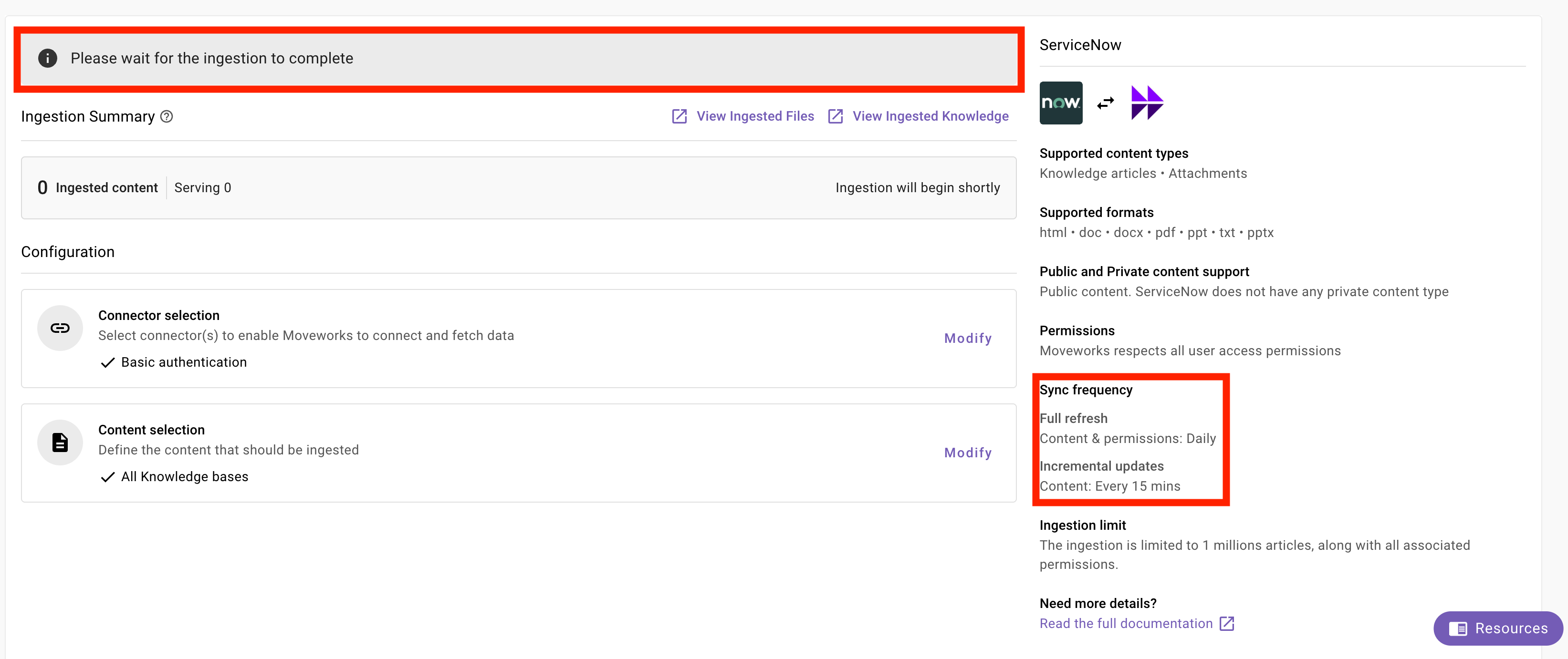
- Ingestion Cycle: The periodic process where Moveworks fetches updates to articles. New content typically takes about 15-30 minutes to appear in search results after a crawl.
- When doing the initial configuration, this cadence may take up to several hours as Moveworks has to perform all of its first-time processing for each document.
- Access Control Lists (ACLs): Security settings inherited from the source system (like ServiceNow User Criteria) that ensure users only see articles they have permission to view. Relevant Documentation:
- Moveworks Help: Enterprise Search Overview
- Moveworks Help: Configuring Enterprise Search for ServiceNow
🛠️ 1: Walkthrough
- Navigate to
Answers > Ingestion > Enterprise Search - Select
Get Started - Select
ServiceNowas the source system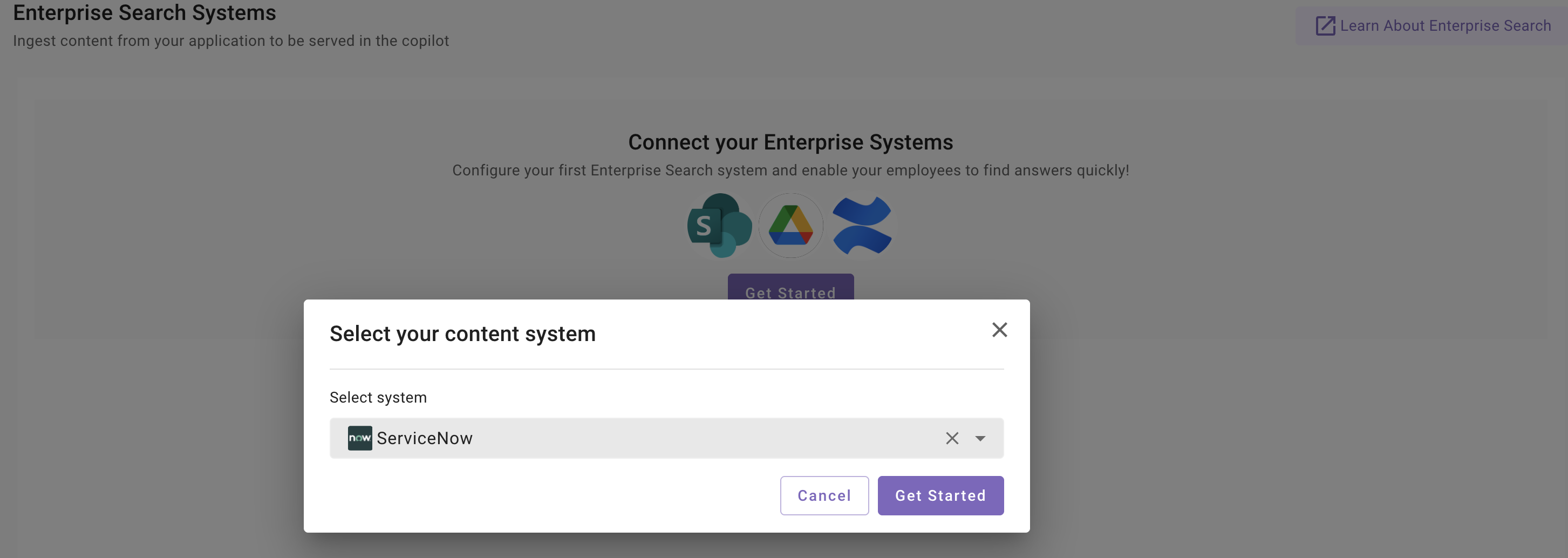
- Choose
Select Connector- Select
Basic Authentication - Choose the connector created in lab 1 (
snow)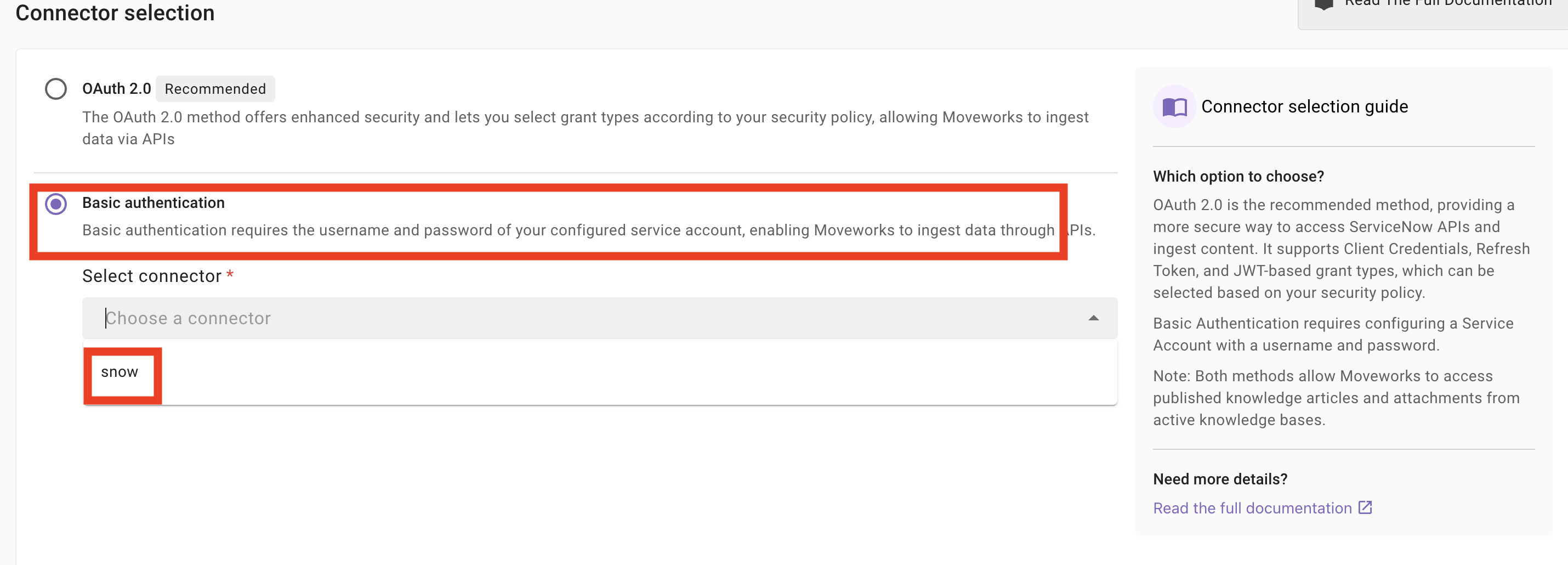
- Select
- Select
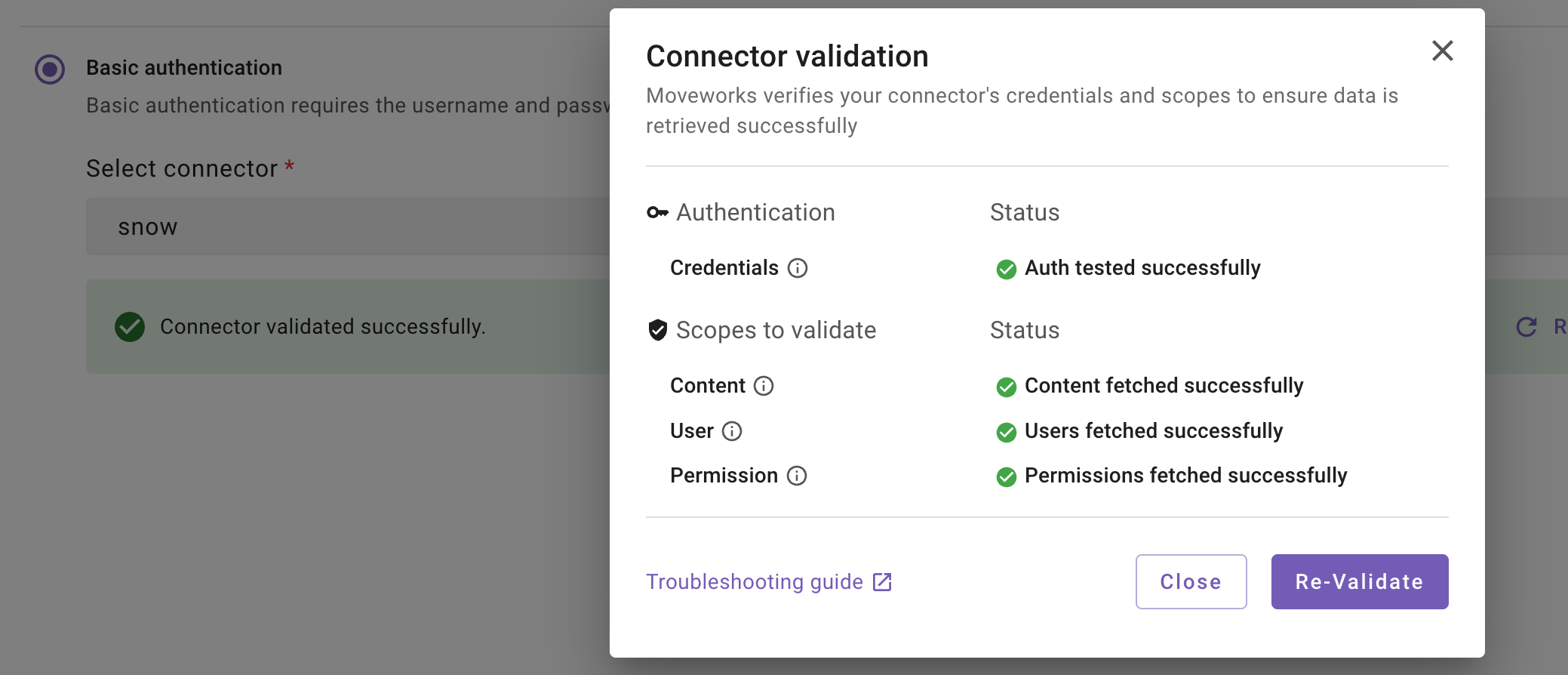
Start Validationto allow Moveworks to verify that the Now instance is ready for Moveworks to ingest content
- You should see that the Connector has validated successfully
If the connector has not validated successfully, take these troubleshooting steps:
- Ensure that you can properly access the ServiceNow instance in the Moveworks Setup API Playground
- Confirm that the Moveworks Update Sets are installed within the ServiceNow instance under the
Retrieved Update Setpage. You should seemoveworks.base.1.0.0andmoveworks.acl.1.0.1a. If the Permissions show as failing, Walk through the steps in the pre-requisite LabInstalling the Moveworks Update Sets in ServiceNow
 7.
7. Save your connector configuration, and move on to the Content Selection step
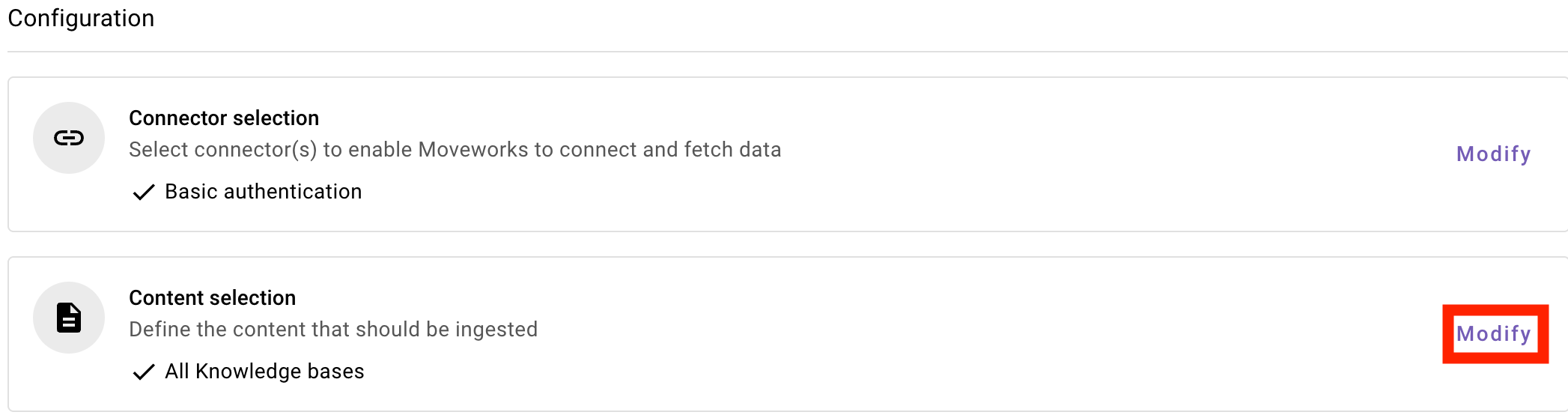 8. Select
 All Knowledge Bases and click Save
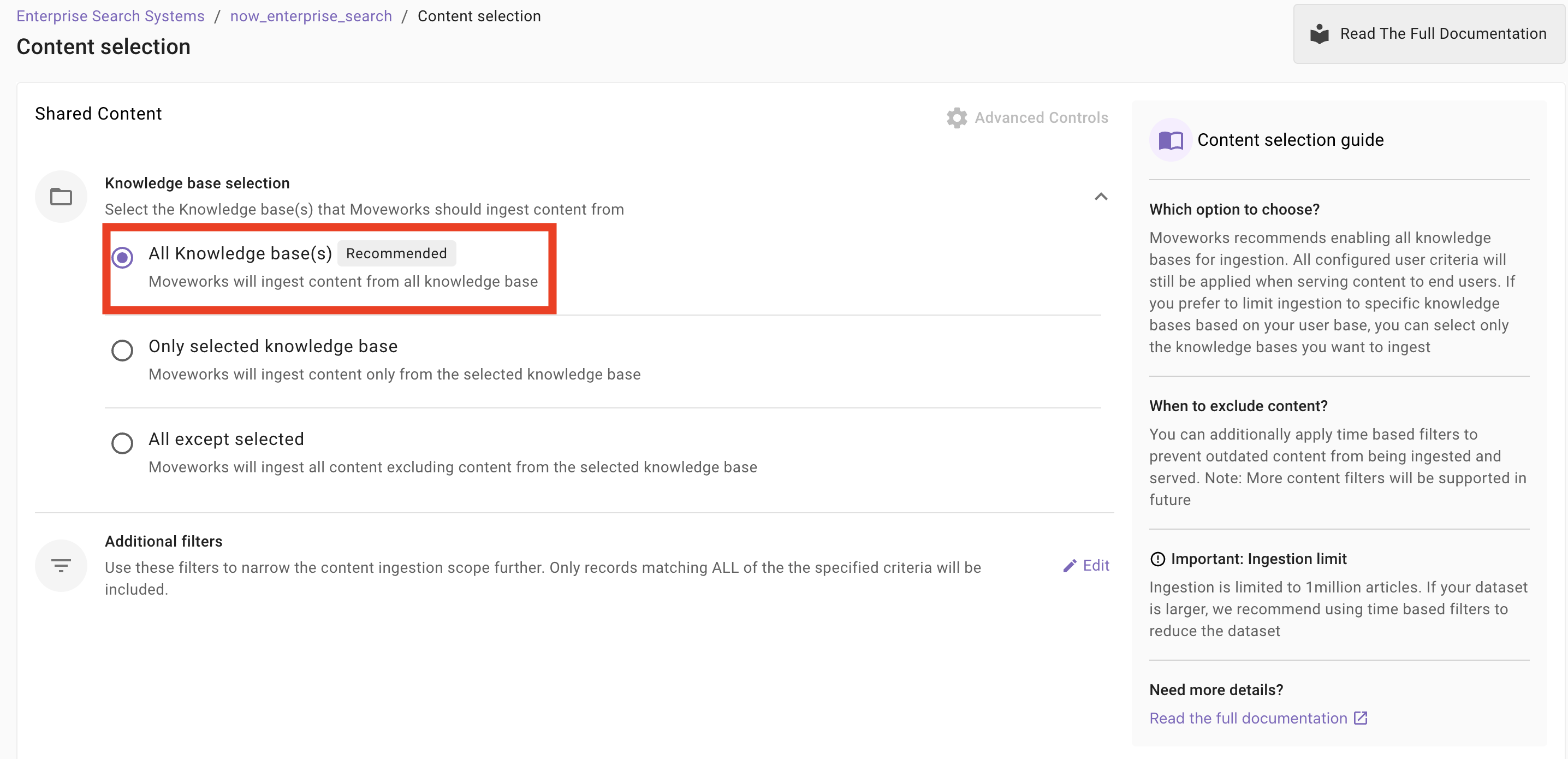 9. Wait for the initial ingestion to complete. While the data syncs, let’s use this time to verify the security configurations generated by Moveworks.
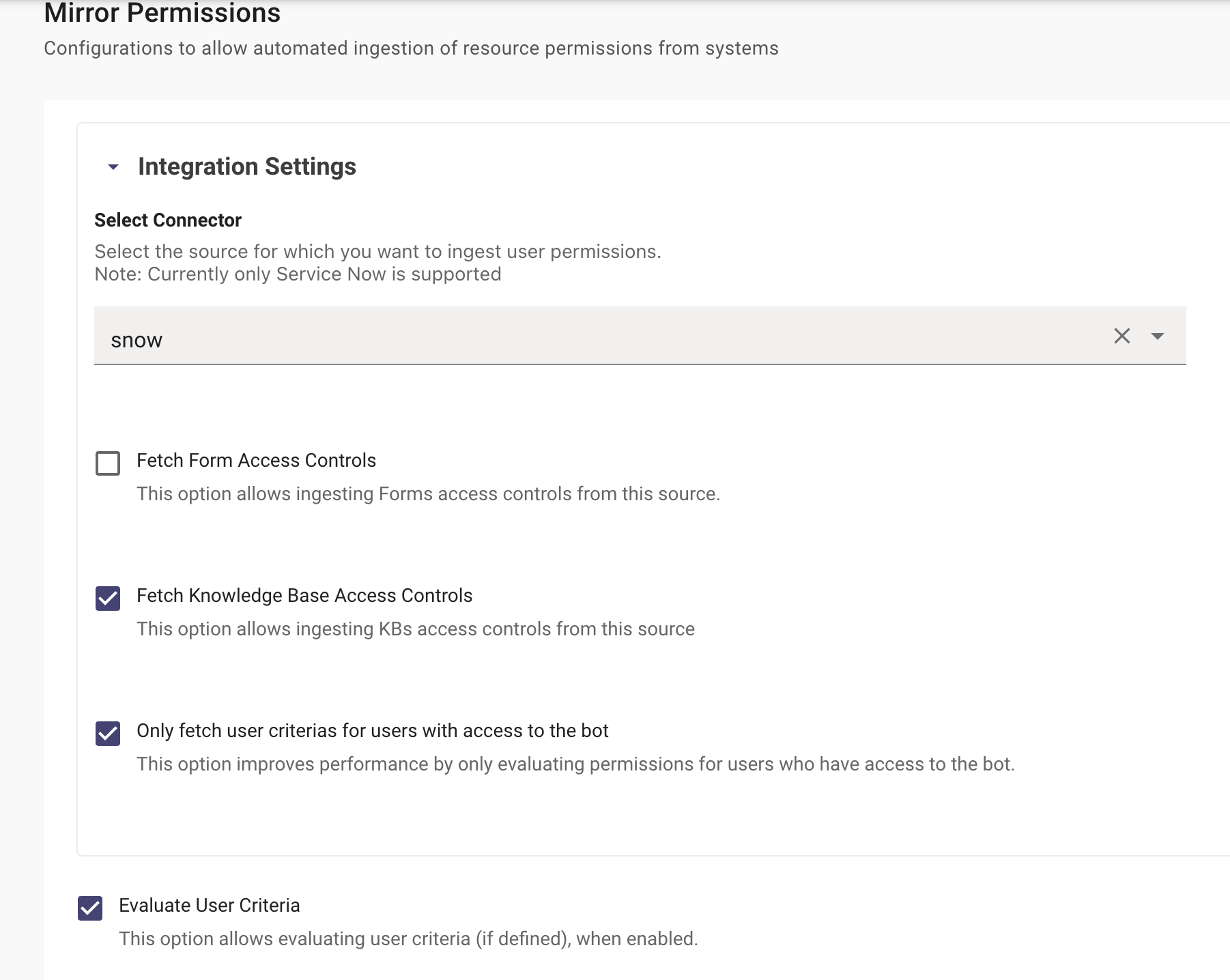
 10. Check how the Mirrored Permissions page is configured to ensure access controls and User Criteria are being pulled correctly from ServiceNow.
Note: This page is powered by the moveworks.acl update set. If you are also configuring Form Ingestion, ensure the Fetch Form Access Controls checkbox is selected here.
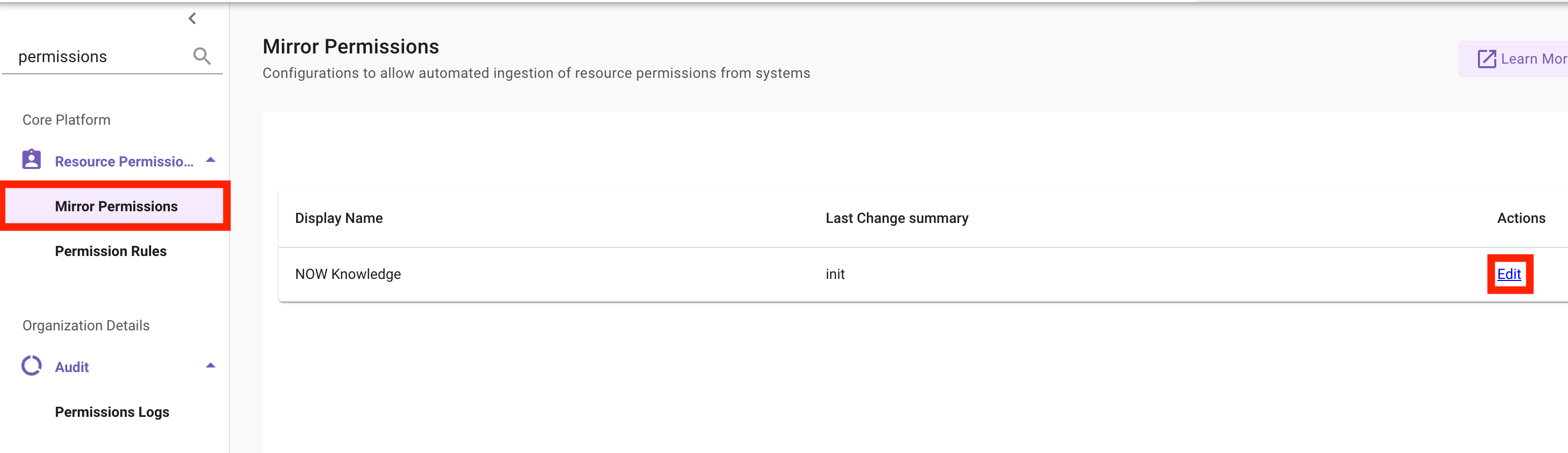
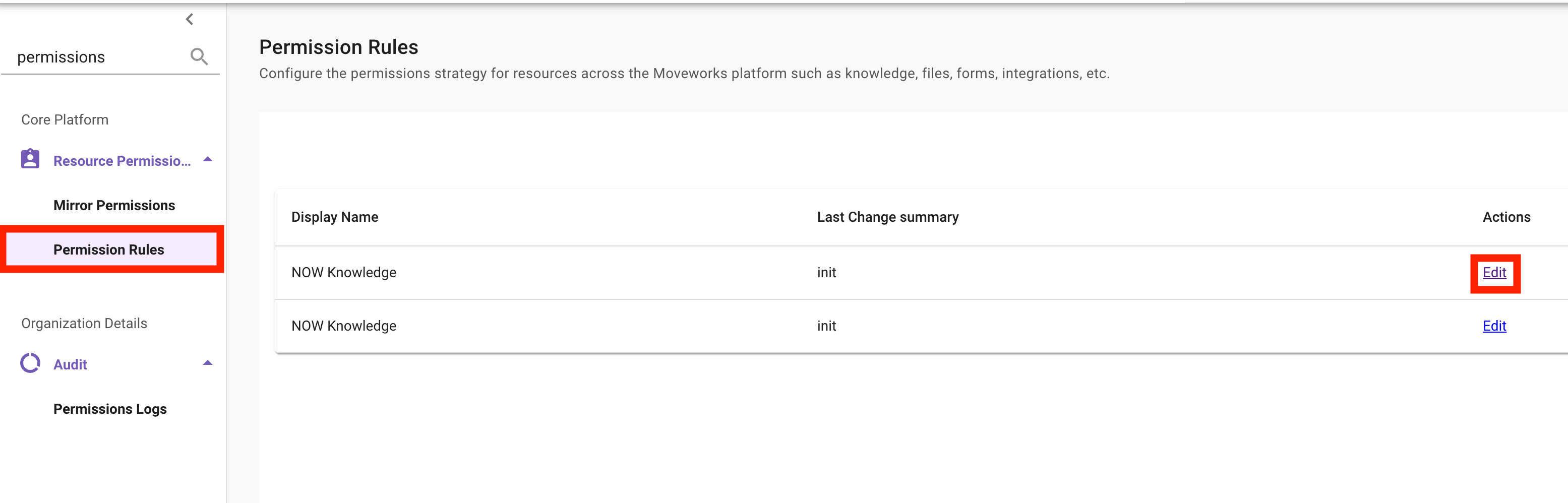
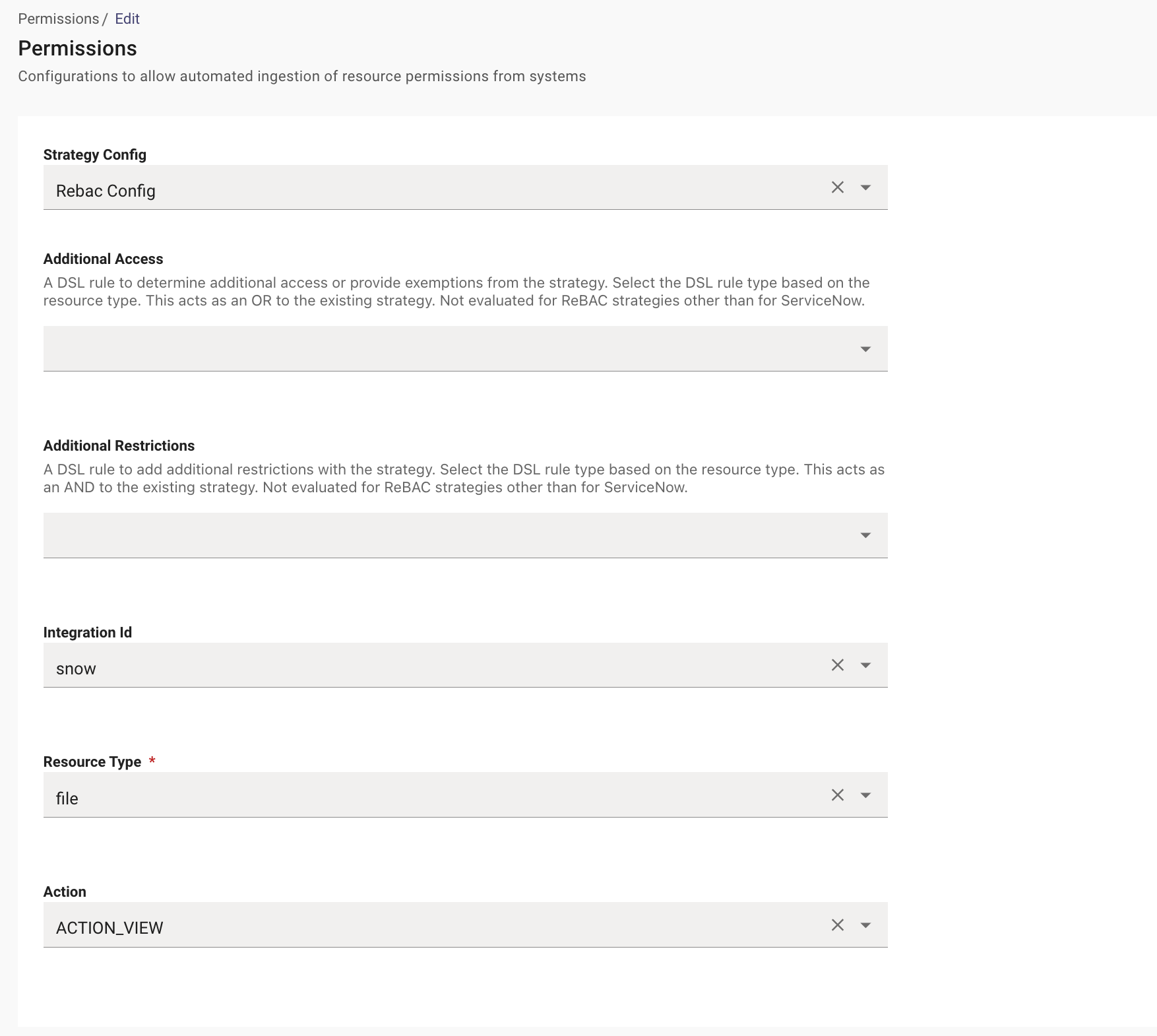
 11. Navigate to the Permission Rules page. Moveworks uses Relationship-Based Access Control (ReBAC) to ensure the bot respects the source system’s original permissions.
Key Concept: While Mirroring is specific to ServiceNow, Permission Rules apply across all integrated systems to maintain a consistent security posture.
✅ 2: Verification & Next Steps
- Check Success: After a few hours, validate that your knowledge articles have been ingested into Moveworks. This can be confirmed by checking the
Ingested Knowledgepage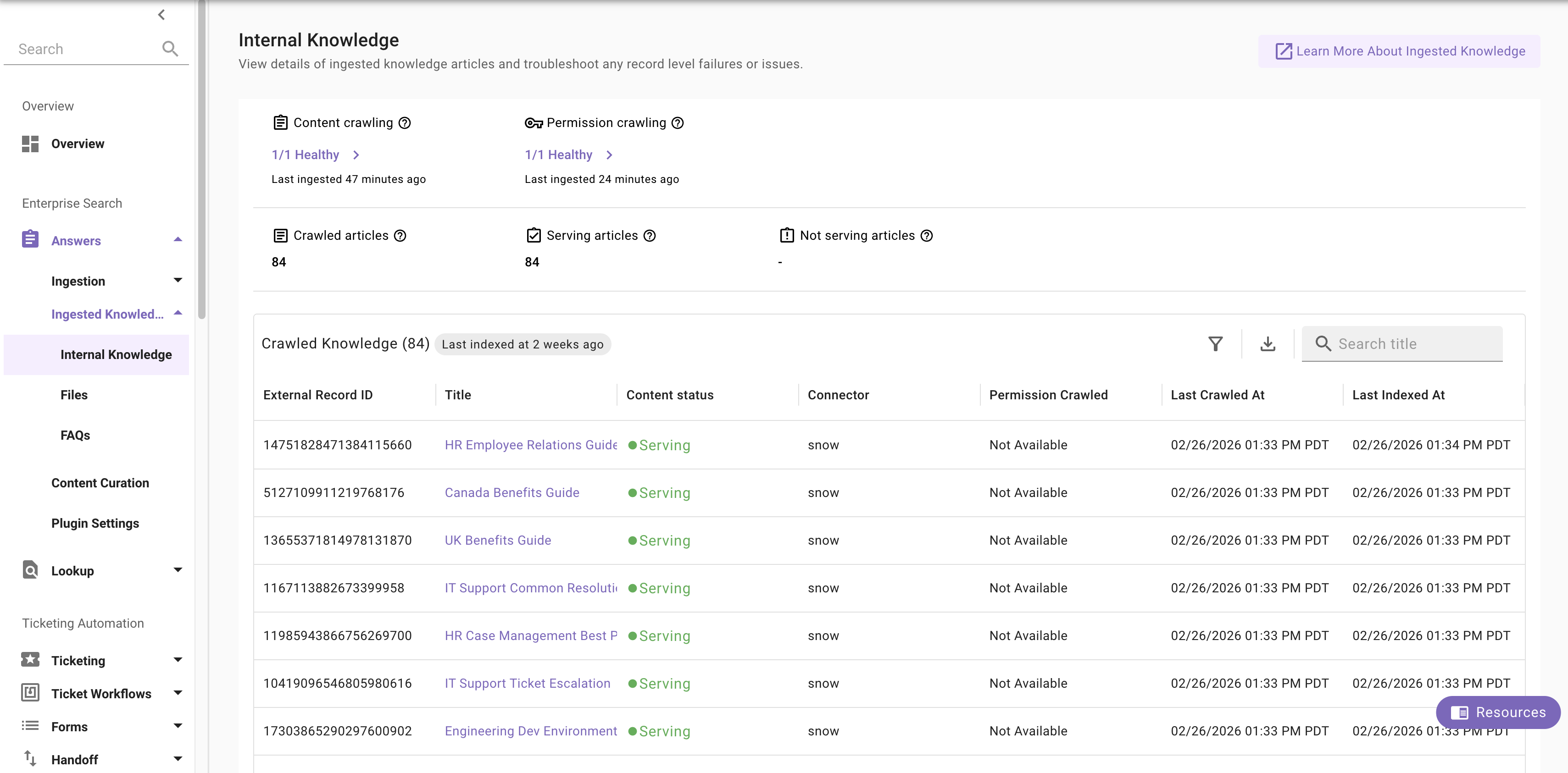
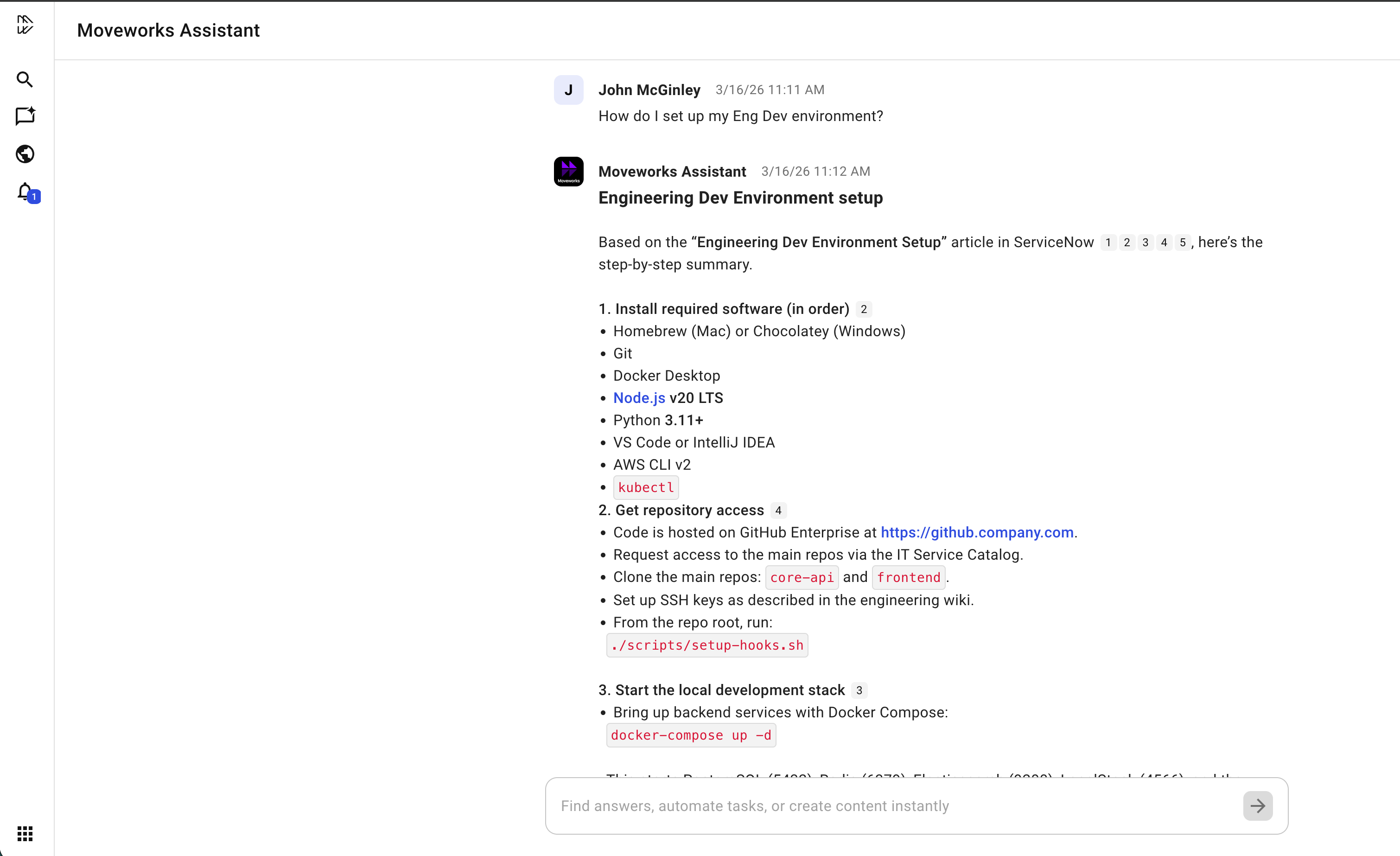
- Confirm Access: Ask a question relating to some of the content ingested into Moveworks visible on the
Ingested Knowledgepage. This will confirm that you have access & Moveworks is properly serving the content that was ingested
If you are unable to get any knowledge content back, visit the troubleshooting section of this page (Section 3)
❗ 3: Troubleshooting Triage — Why can’t I find my article?
If an article has been ingested but isn’t surfacing in search, follow this “Outside-In” triage process to identify the root cause.
3.1: The Ingestion Check — “Is it there?”
Before checking within the Assistant, verify the article & permissions are ingested & “Serving” within Moveworks Setup
- The Data Crawling page allows us to see all of the full & incremental updates Moveworks has processed from the knowledge system. We should sanity check that the Permission & Content ingestion have been operating without error
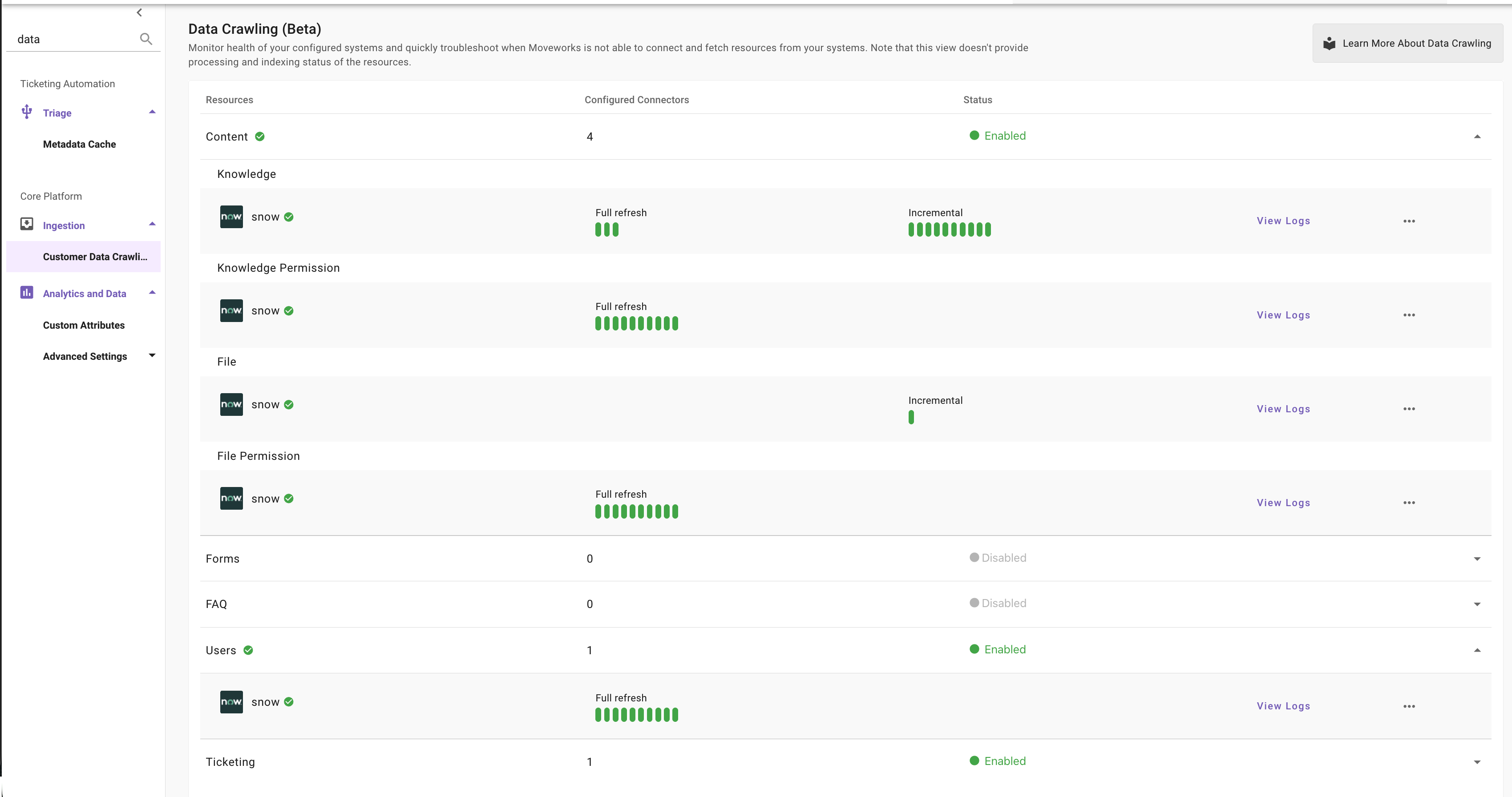
- Validate that the Content & Permission crawling are recent, and have had a chance to run after any changes in the source system that may be causing the current issue
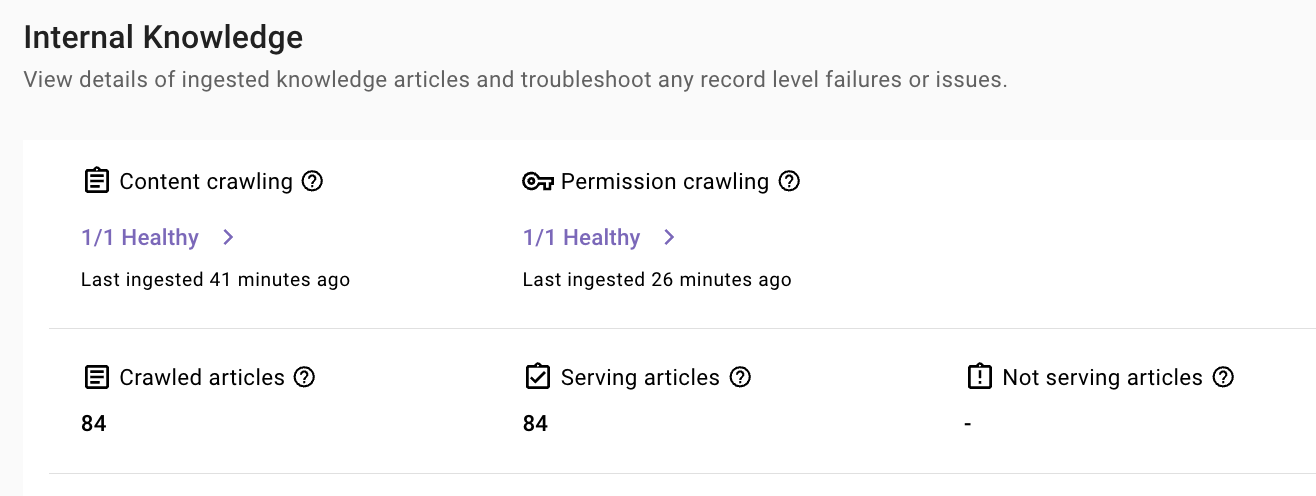
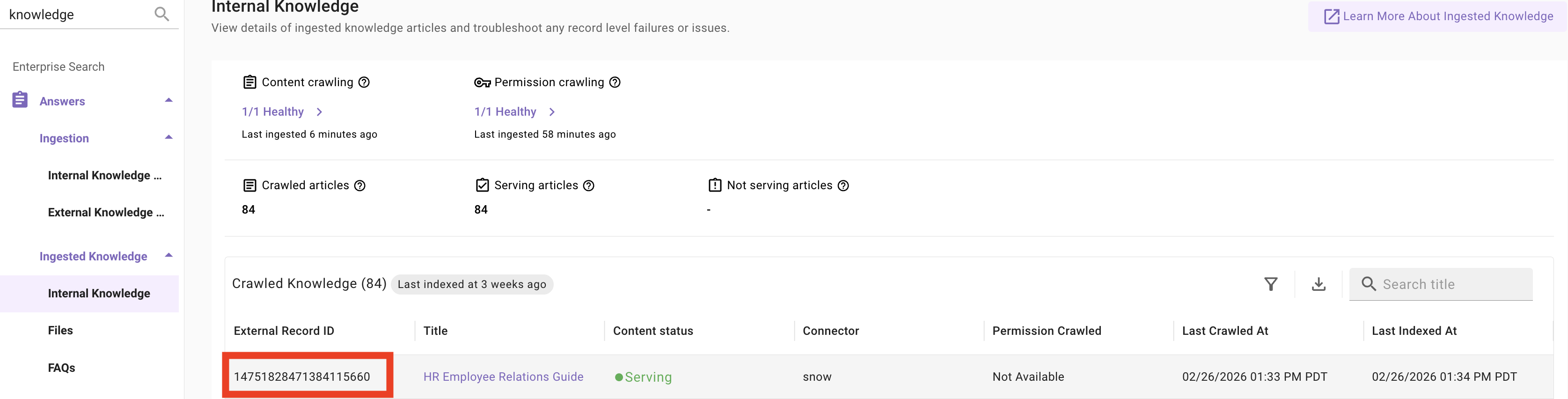
- Search for the record: In the Ingested Knowledge pages, search for your article by ID.
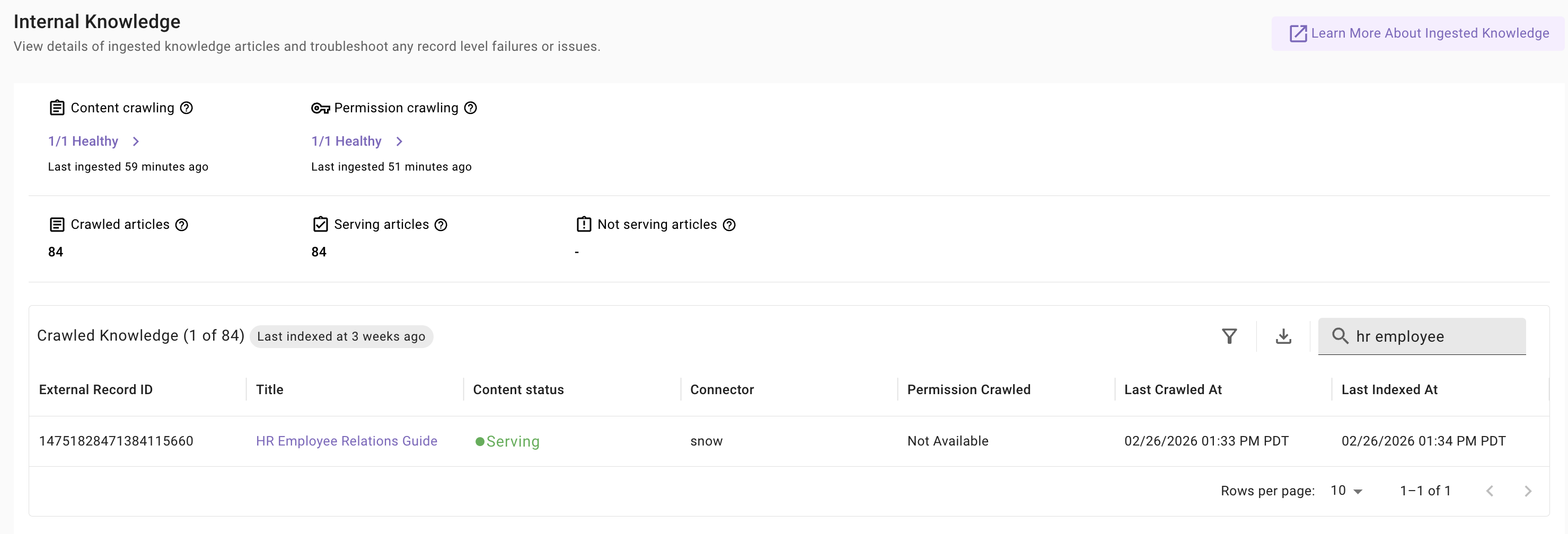
- Check the Status: Only articles marked Serving are searchable.
- Check the Cadence: Remember, new content takes 15-30 minutes to appear after a crawl.
- Check the Health: Ensure that the content & permission crawling is marked as Healthy.
3.2: The Access Strategy Check — “Am I allowed?”
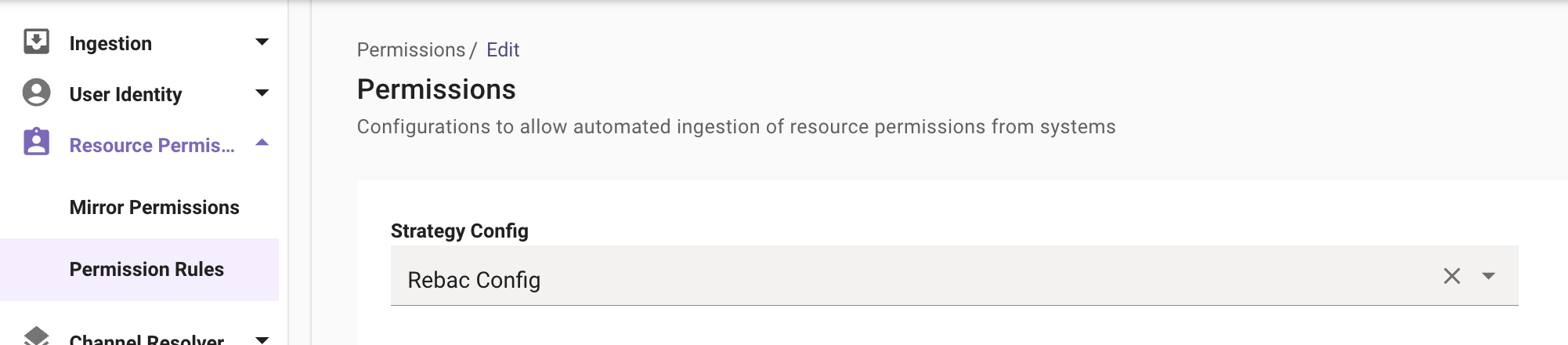
Moveworks defaults to REBAC (Relationship-Based Access Control), meaning it strictly follows the source system permissions.
- Confirm REBAC: Navigate to the Permission Rules page. If Strategy is set to REBAC, Moveworks is looking for your ServiceNow User Criteria.
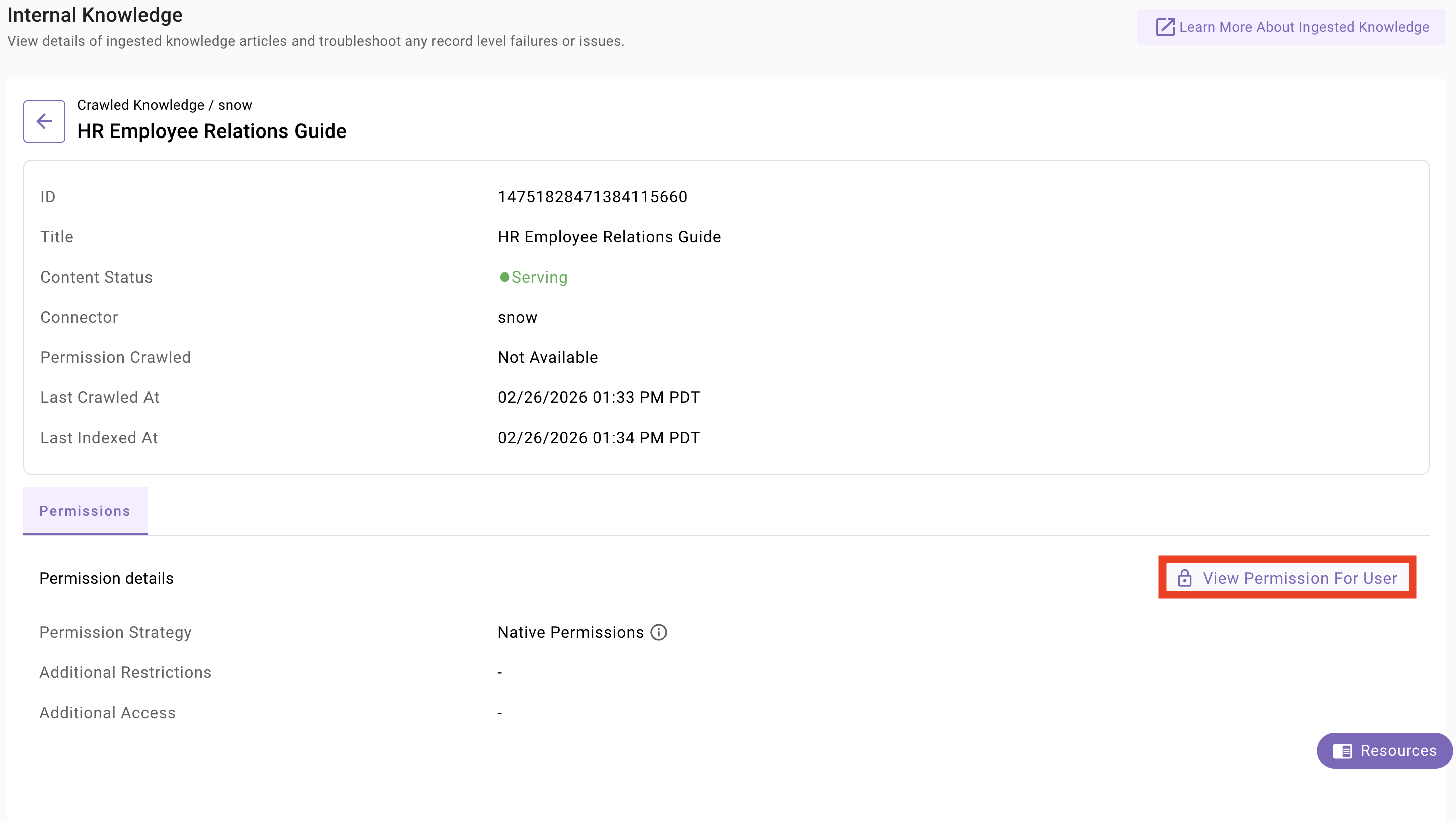
- Check your evaluated user permissions: Navigate to the Permission Rules page. Within the Ingested Knowledge page, click into the row that represents that article you are validating access to, and check the permissions of the user experiencing issues
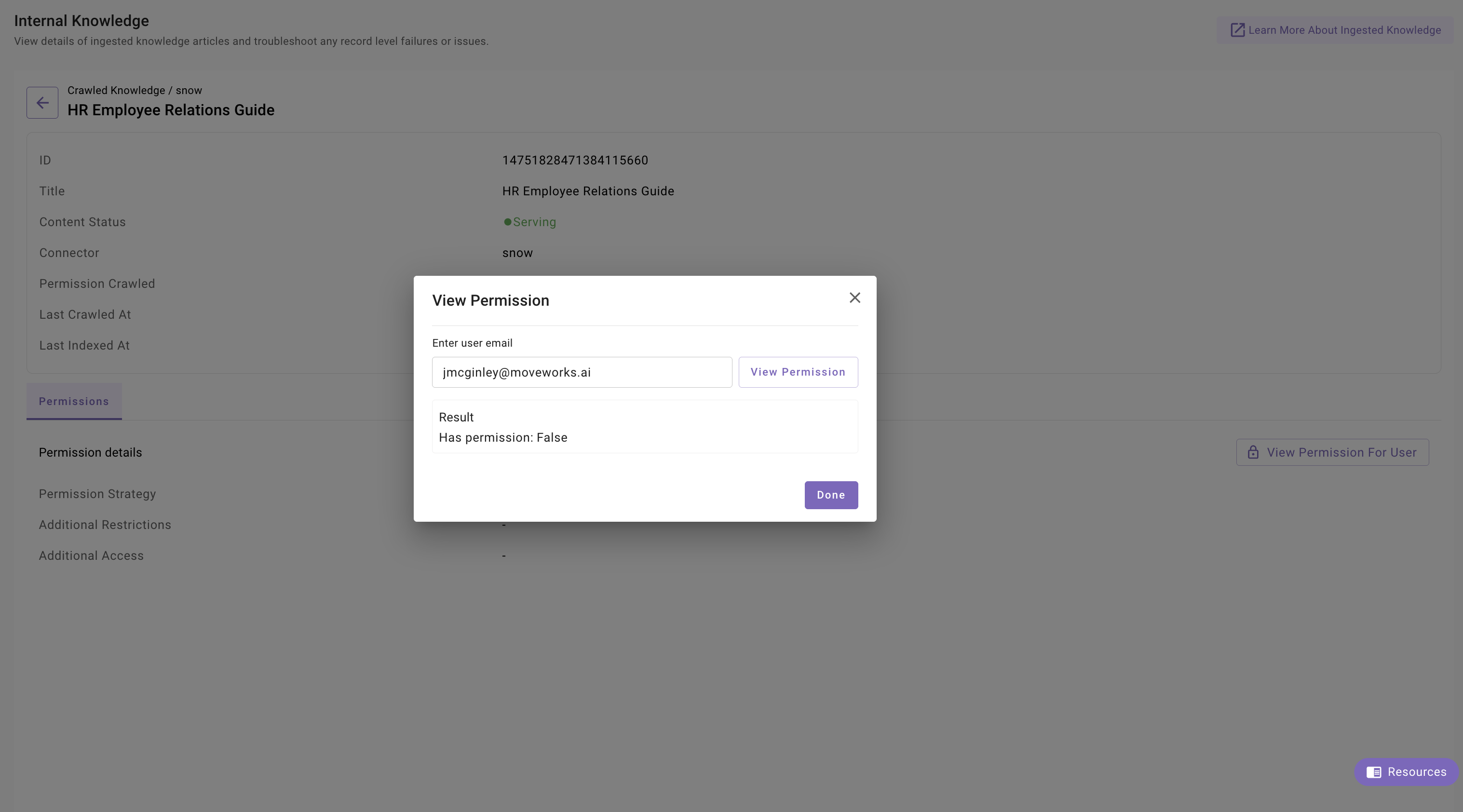
- Result: If the permissions evaluate to False, the user either meaningfully has no access to the content or there is a misalignment between Moveworks & the source system permissions
3.3: The Isolation Test — “Is it the ACL?”
If you are unsure if the issue is the search engine or the permissions, use these bypass methods in the Resource Permissions configuration to confirm:
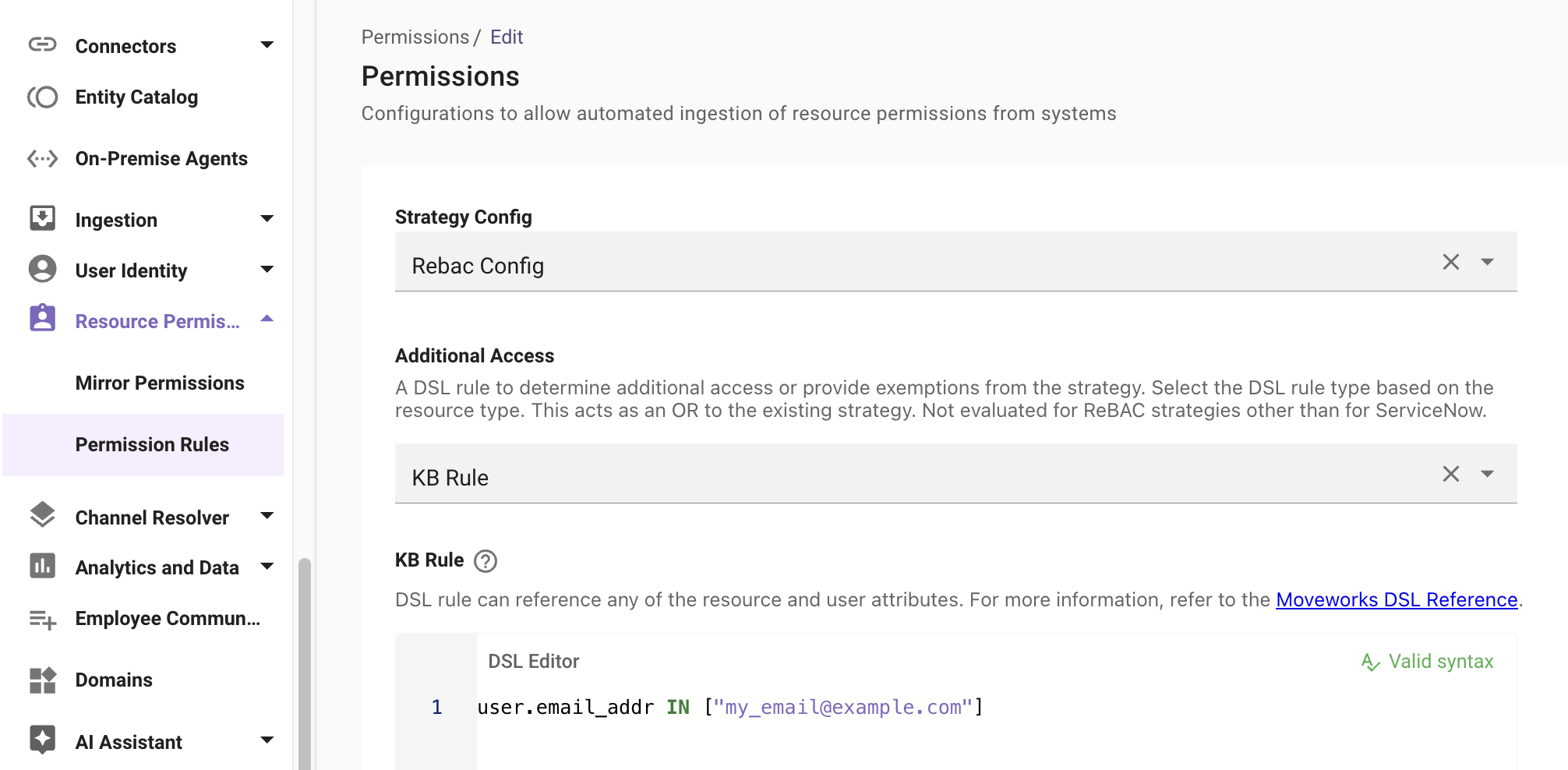
- Add Additional Access: Open the associated Resource Permission in Moveworks and add your email to the Additional Access field.
- Result: If the article now appears, the search engine is fine, but your ServiceNow ACLs are blocking you.
- Result: If the article now appears, the search engine is fine, but your ServiceNow ACLs are blocking you.
3.4: Source System Permission Evaluation — “System Sanity Check”
If you are able to successfully retrieve the article after doing the isolation test, it means there is some mismatch between the system permissions & Moveworks interpretation of them. We should sanity check the users access to the article in the given system. To evaluate permissions collect the following:
- The Source System ID of the KB article we are validating against
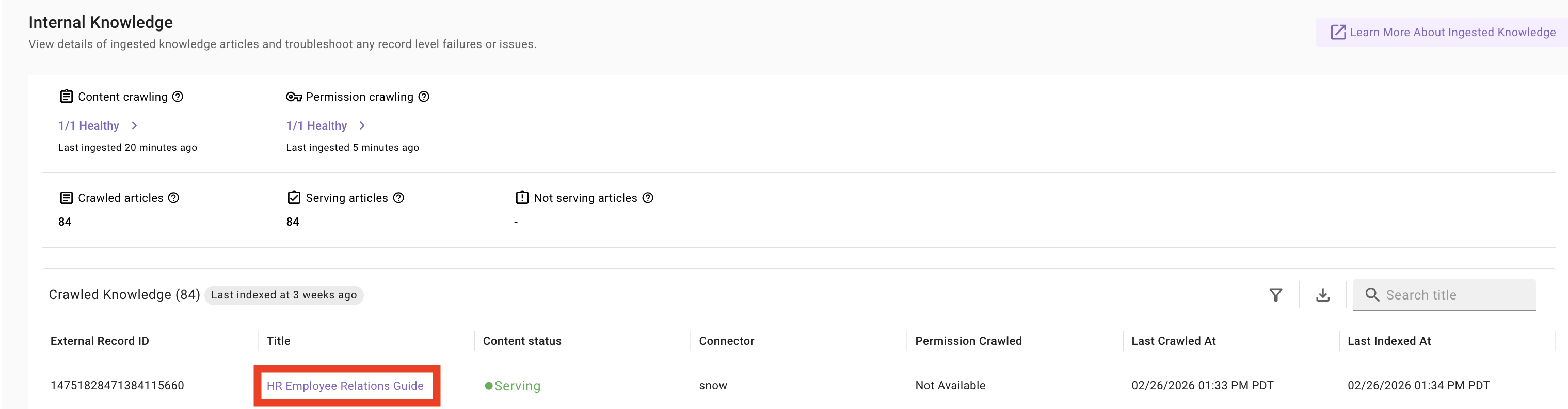

- The Source System ID of the User we are validating against
User Identity > Imported Users > Search for user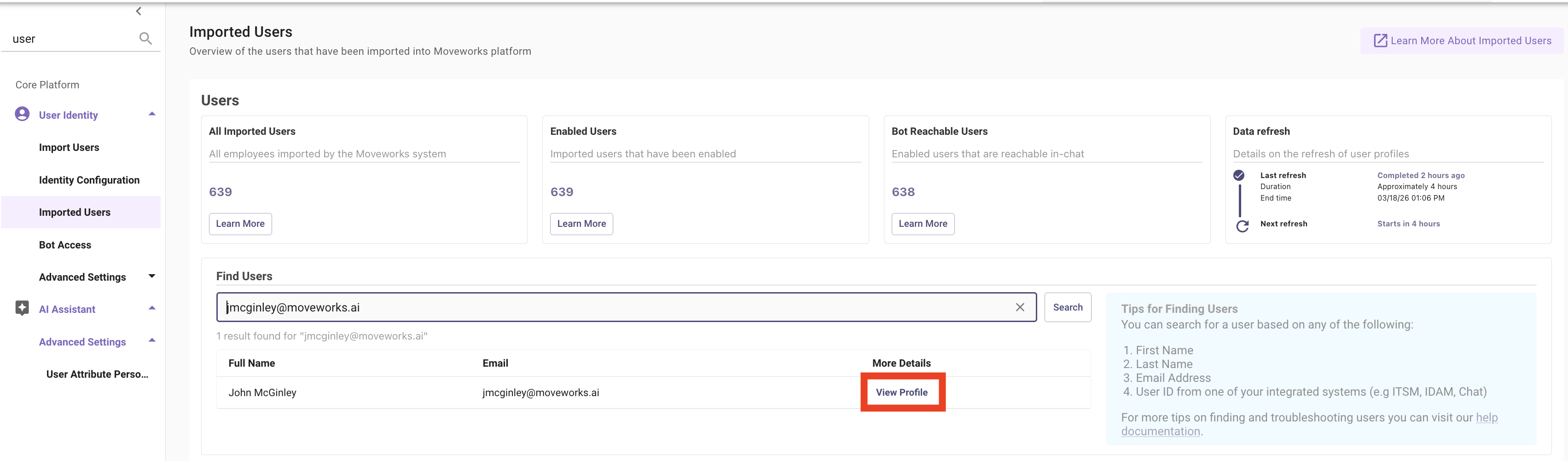
- Scroll to the bottom of the page, expand the system information, and capture the users
External ID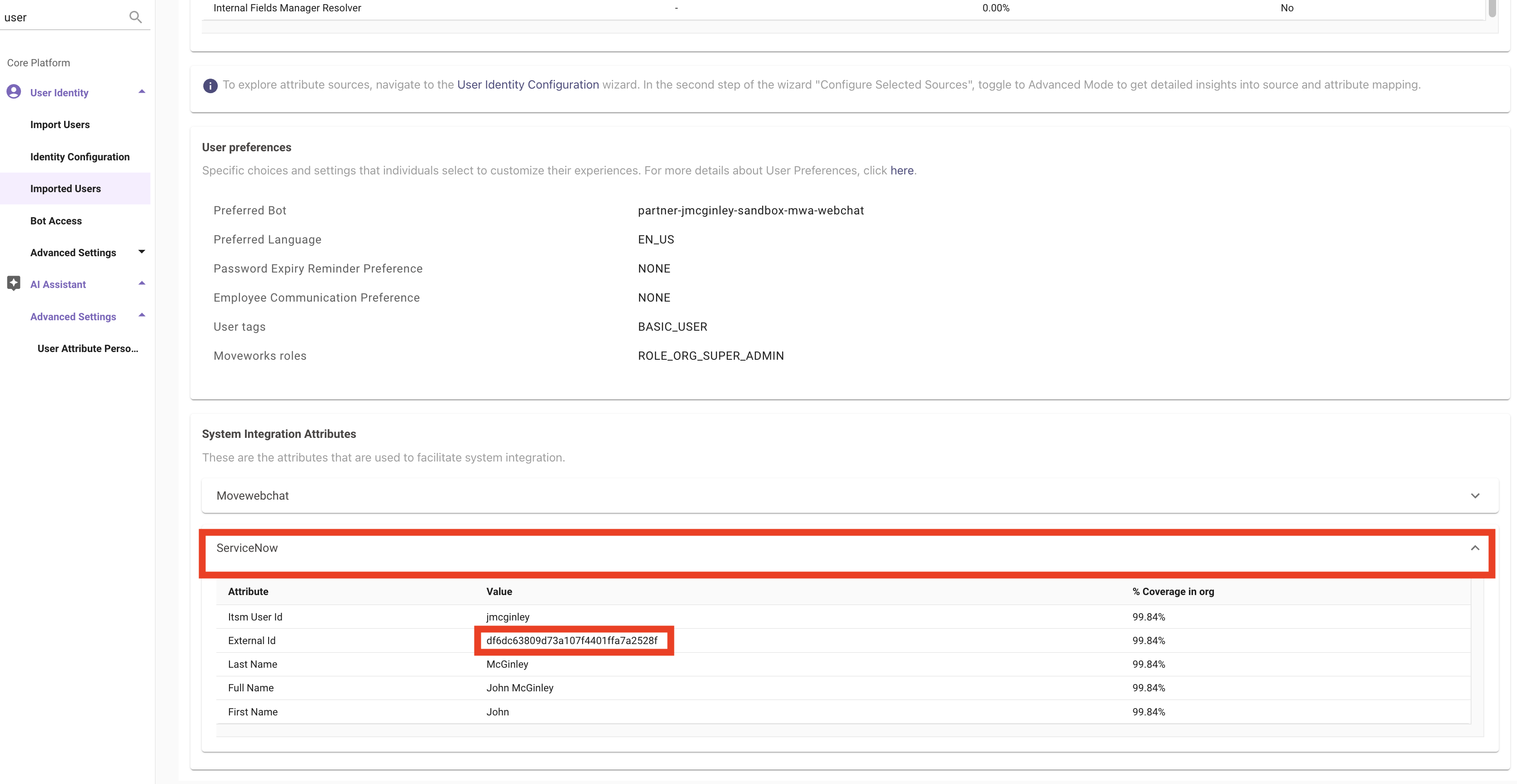
- Navigate to API Plaground and select the
ACL GETrequest. Enter the KB article sys_id and you user record sys_id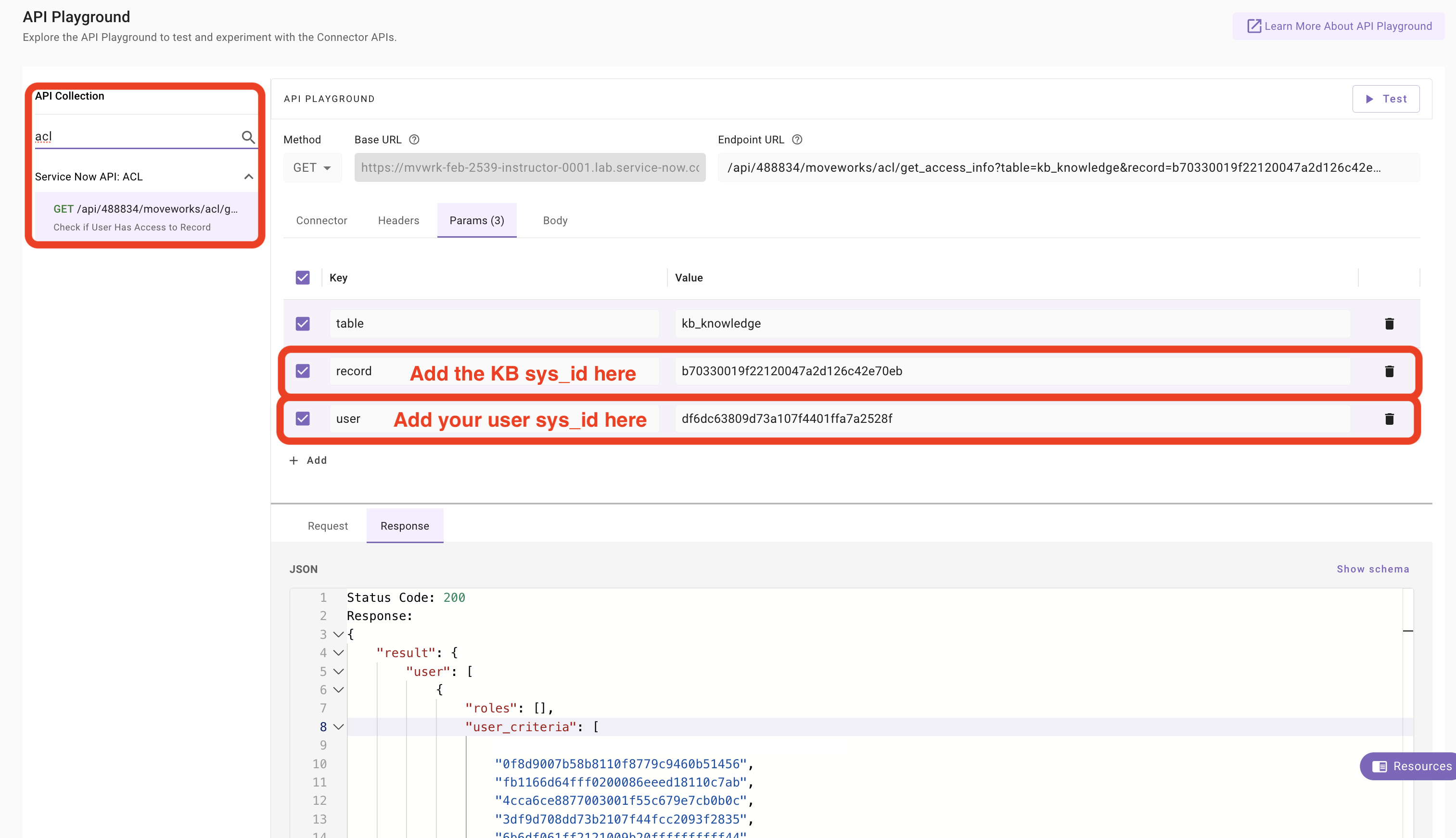
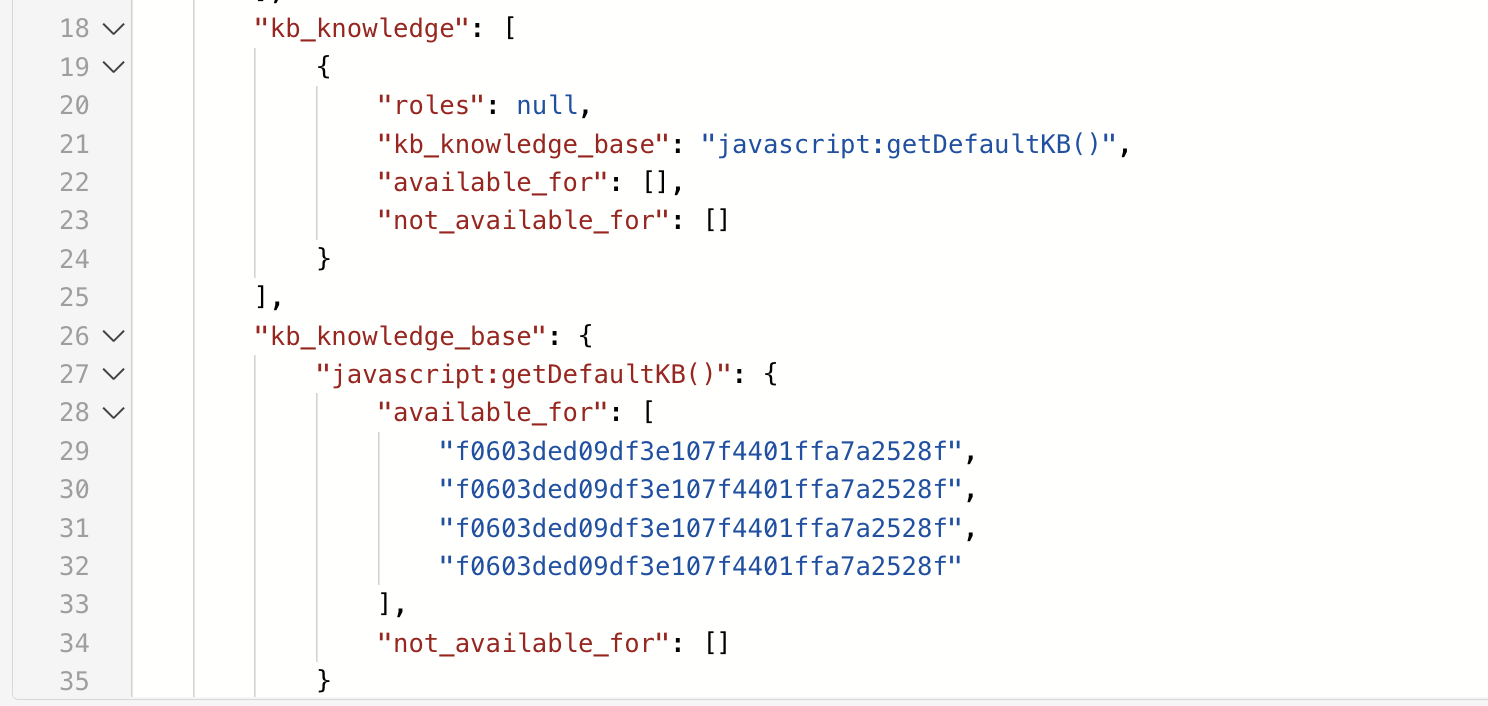
- *Result: *When looking at the source system, we see that the knowledge base user criteria requirements only allow access for the criteria with sys_id
f0603ded09df3e107f4401ffa7a2528f, which the given user does not have. Therefore they should not have access within Moveworks
3.5: Check the Moveworks Status Page
Validate that there have been no broader issues reported by the Moveworks team on the Moveworks Status Page
3.6: Escalate to Moveworks Support
If we have validated the following, and are unable to diagnose the root cause, we can open a ticket with the Moveworks support team and include the following details related to the failure mode we are seeing:
- The email of the user experiencing the issue
- The KB Article they are experiencing the issue in relation to
- Title, sys_id, and current state within Moveworks (in this case,
SERVING)
- Title, sys_id, and current state within Moveworks (in this case,
- That we have already validated the following:
- The article has been ingested
- The permissions are being ingested from the source system (working for other articles)
- Our Resource Permissions configuration is set to REBAC
- The user does have access to the article in the source system We always want to provide the Moveworks team with as much information as possible, to accelerate their ability to provide us support.
🪞 4: Reflecting on This Configuration
Through this guide, you’ve learned the following:
- How to configure Moveworks Enterprise Search
- How knowledge system permissions are respected + configured within Moveworks
- What to expect in terms of turnaround time for content ingestion within Moveworks
- The troubleshooting flow to follow when a user is not seeing results they expect within Moveworks
⚙️ 5: Configuration Details
Use the table below to fill in the required fields accurately.