***
title: 'Lab #2: User Identity & Service Account Setup'
position: 3
deprecated: false
hidden: false
metadata:
robots: index
-------------
## Overview
* **Learning Objectives:** Learn how to leverage connected systems to build a Moveworks User Roster. Understand how to configure the account representing the Moveworks AI Assistant, and give end-users access to Moveworks.
* **Estimated Time:** 45 minutes
* **Prerequisites:**
* Lab 1 complete (snow connector configured and tested)
* The `sys_id` of the ServiceNow admin account (copied during Lab 0, Step 1.3)
***
### Key Concepts
The User Roster is the "brain" of Moveworks identity, determining who can talk to the bot and what data belongs to them. Key components include:
* **Source Connectors:** The primary systems (usually an ITSM or IDAM) from which Moveworks pulls raw employee data to build the user roster.
* **Processors:** Automated functions that clean or "resolve" data during ingestion, such as transforming a manager's `sys_id` into a clickable name or calculating local time zones.
* **Advanced Mode Mapping:** A JSON-based configuration where you define precisely which source fields (like `u_employee_id`) map to Moveworks profile attributes.
* **Bot Access Rule:** A global logic gate (often set to `TRUE` or controlled via DSL) that determines if a user is permitted to interact with the AI Assistant.
**Relevant Documentation:**
* [Moveworks Help: User Identity Overview](https://help.moveworks.com/service-management/core-platform/user-identity)
* [Moveworks Help: Configuring User Ingestion](https://help.moveworks.com/service-management/core-platform/user-identity/mw-setup-identity#overview)
* [Moveworks Help: Configuring the Service Account](https://help.moveworks.com/service-management/core-platform/user-identity/service-account-configuration-guide)
* [Moveworks Help: User Data Object](https://help.moveworks.com/service-management/core-platform/moveworks-data-objects#user)
***
## 🛠️ 1: Walkthrough
### 1.1: Setup User Roster / User Ingestion
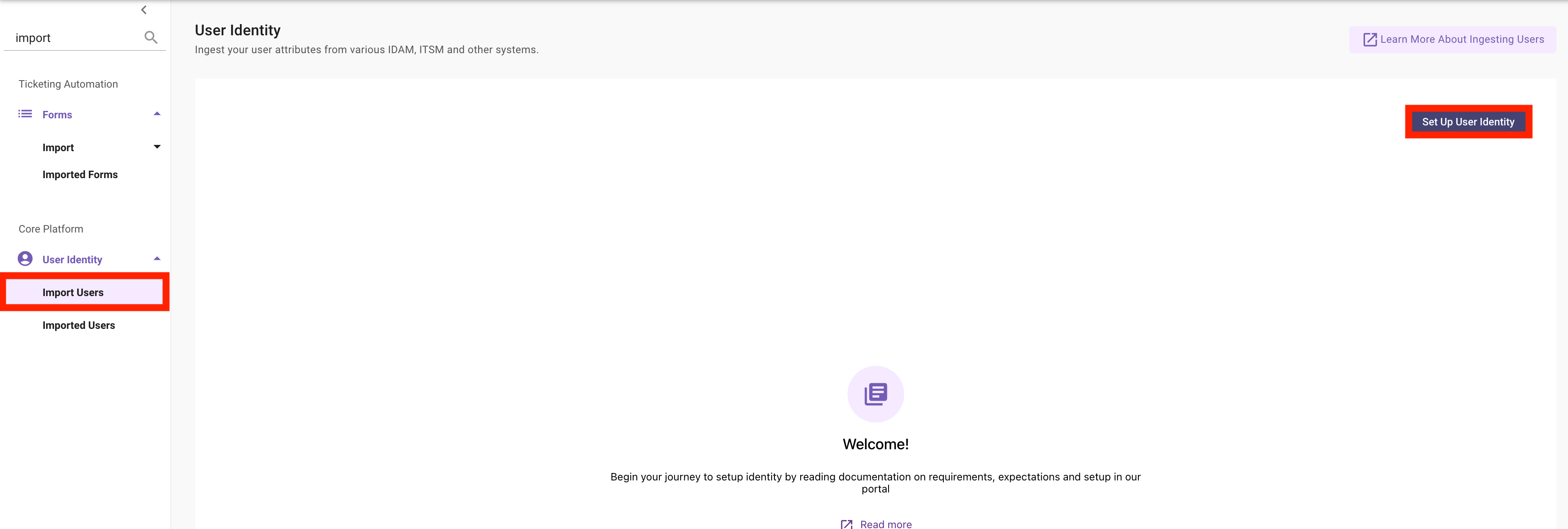
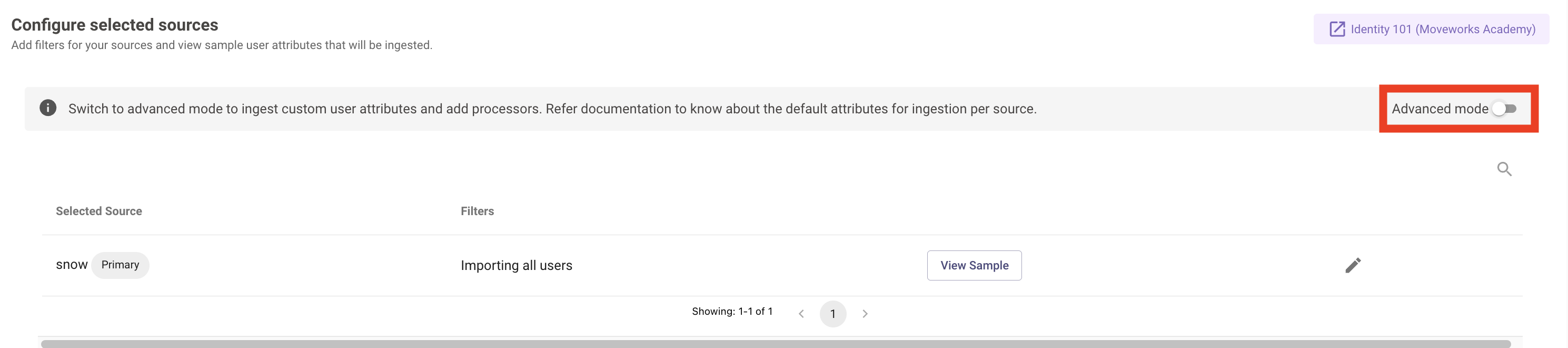
1. In **Moveworks Setup, enter `Import Users`** into the search bar & navigate to **`User Identity > Import Users`** **`> Setup User Identity`**
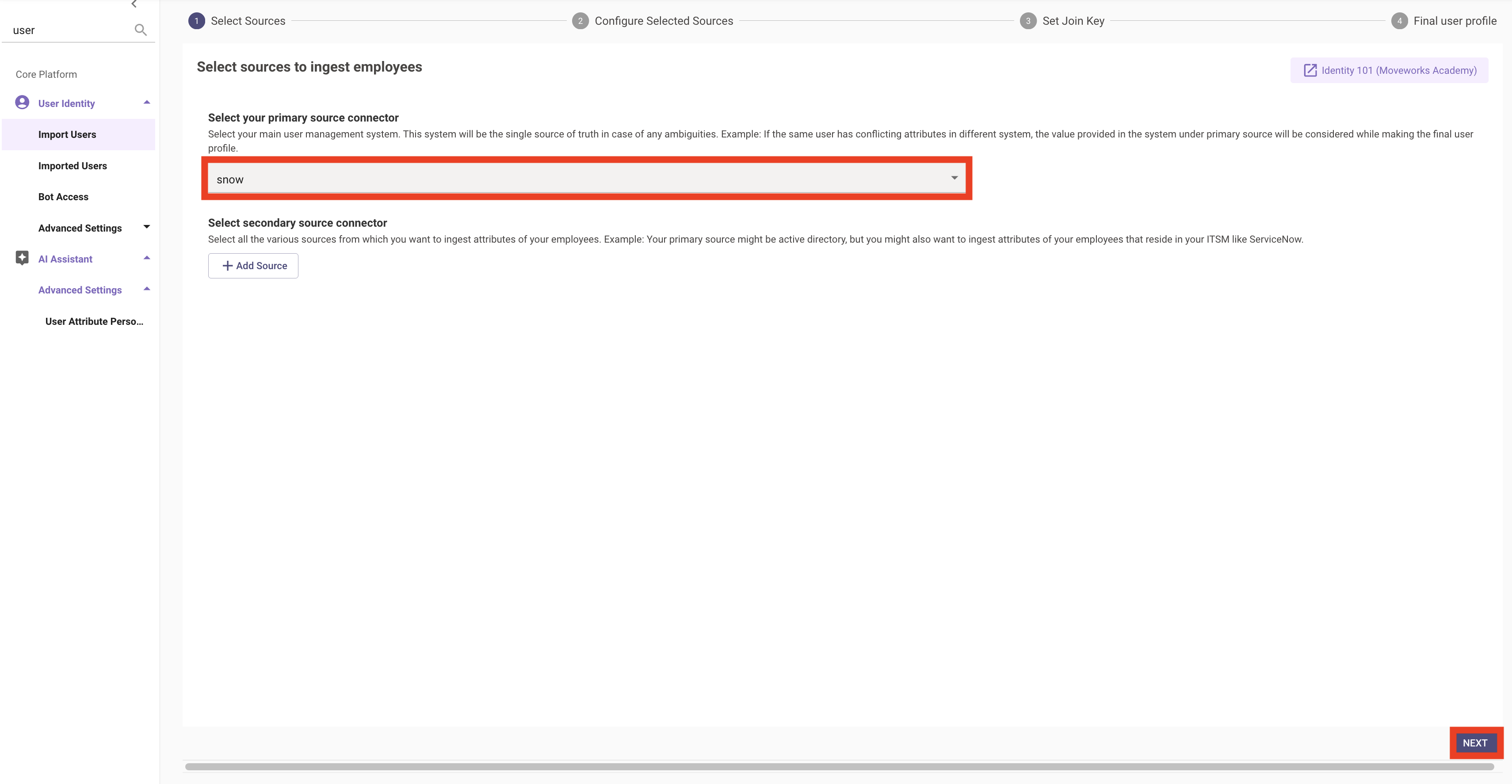
2. Validate that you have `snow` as the primary source connector and select `Next`
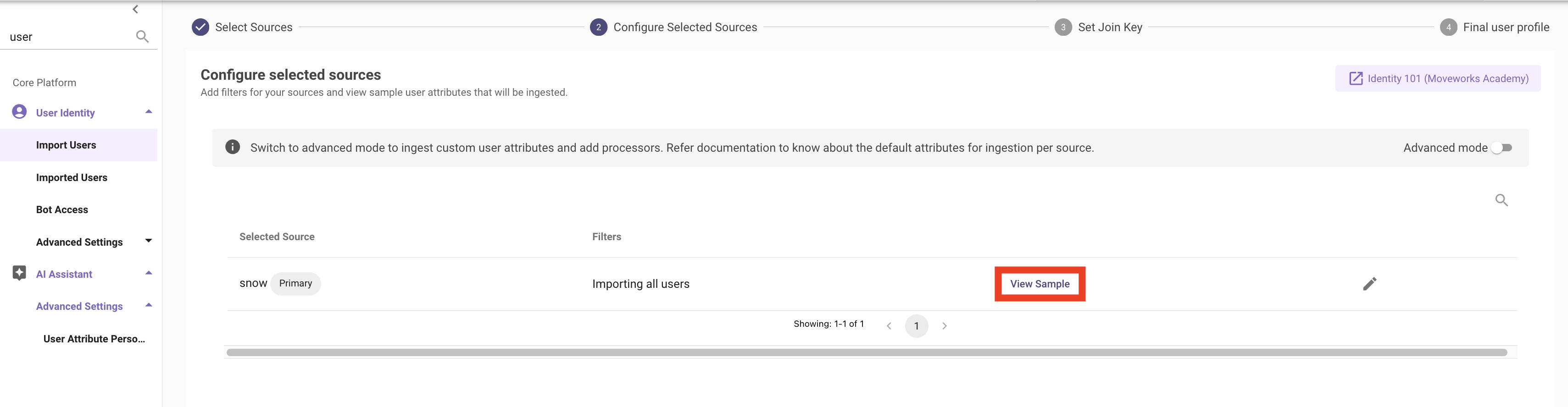
3. Click **`View Sample`** for each source to ensure users are returned.
If users are **not** returned, go back to your connectors and verify that your credentials were entered properly.
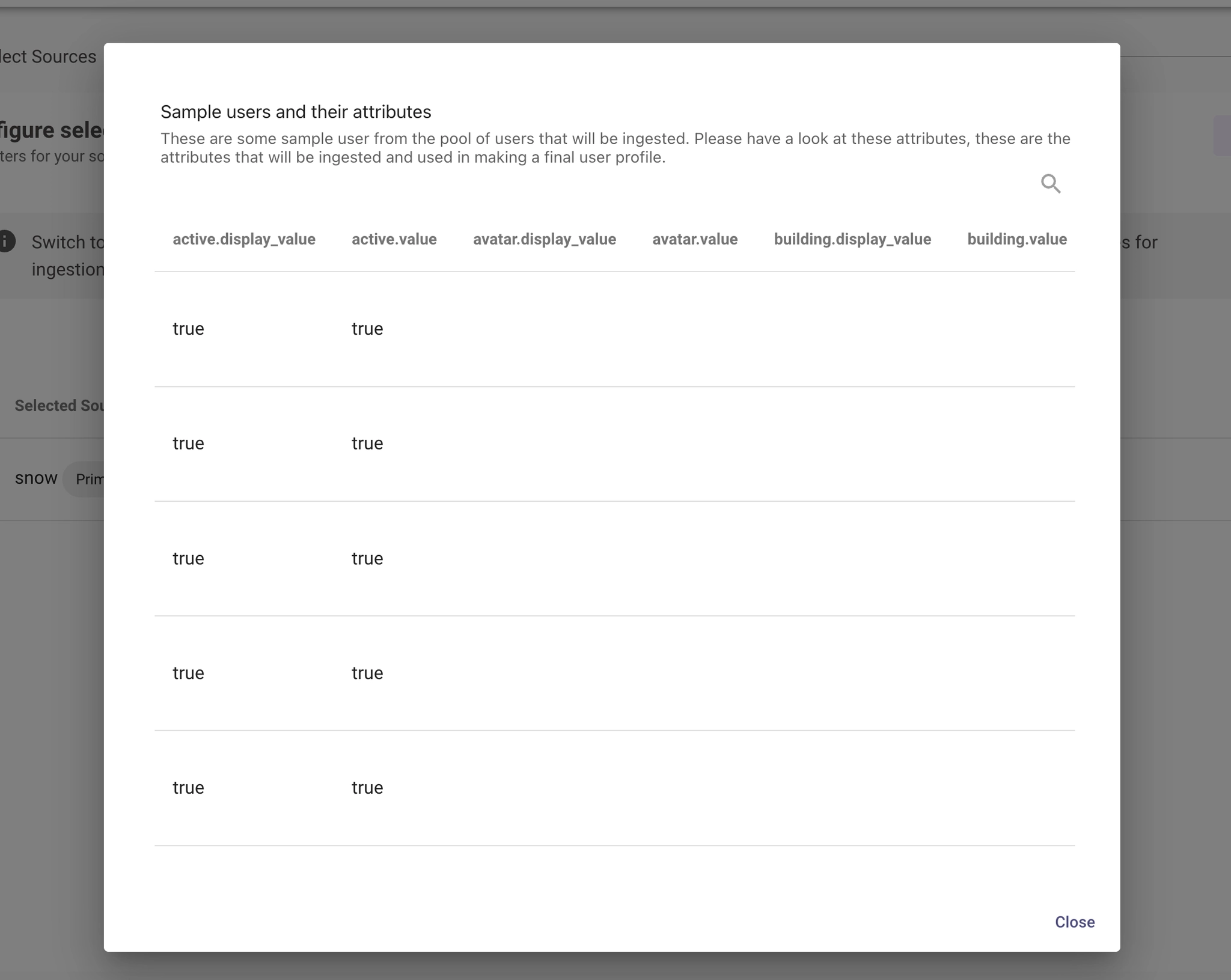
4. Now that we have confirmed we can see users, we will use the following configuration example in **`Advanced Mode`**, to map user attributes
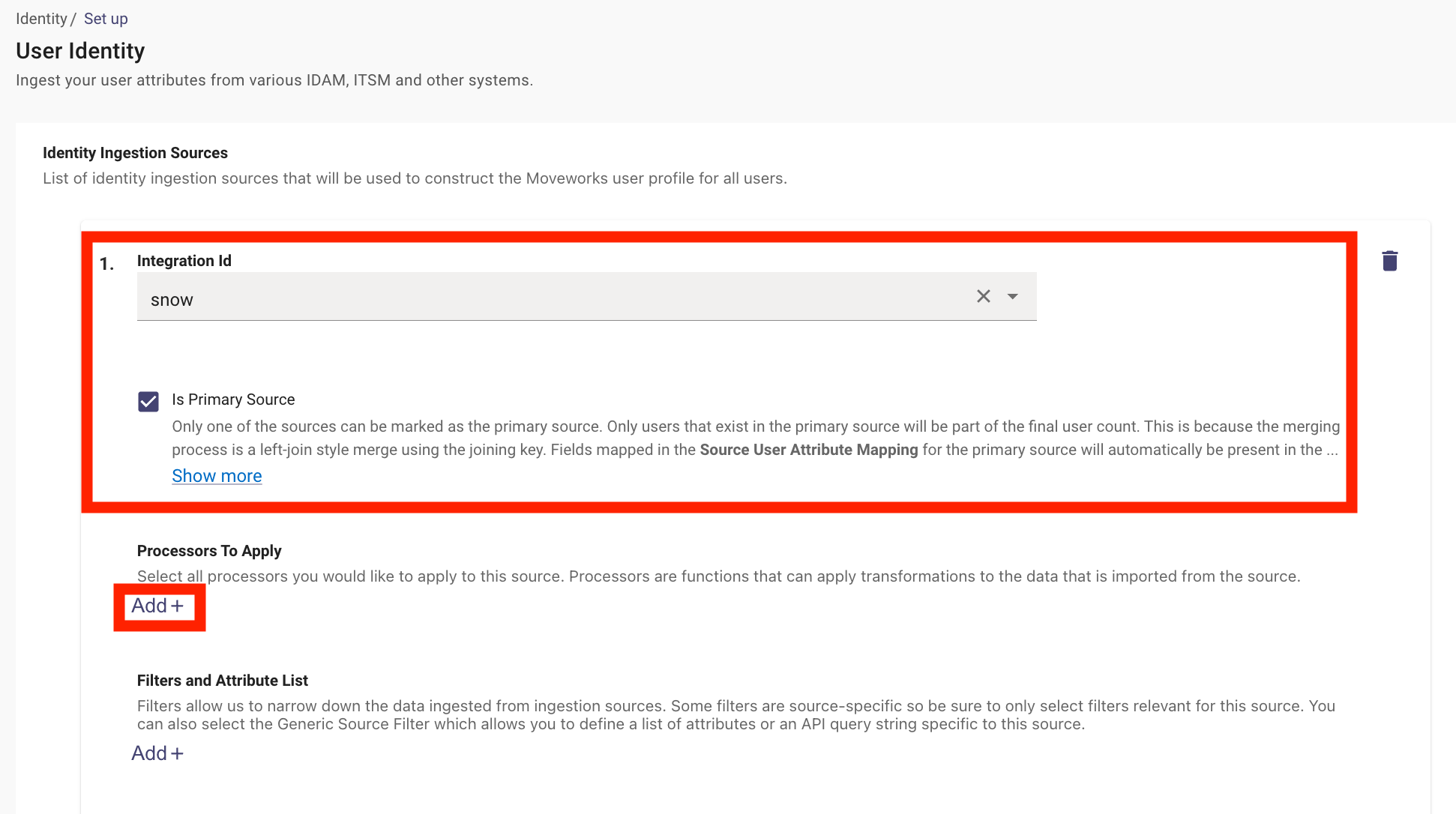
5. Ensure the following values are selected:
1. **Integration Id:** **`snow`**
2. **Is Primary Source:** ✅
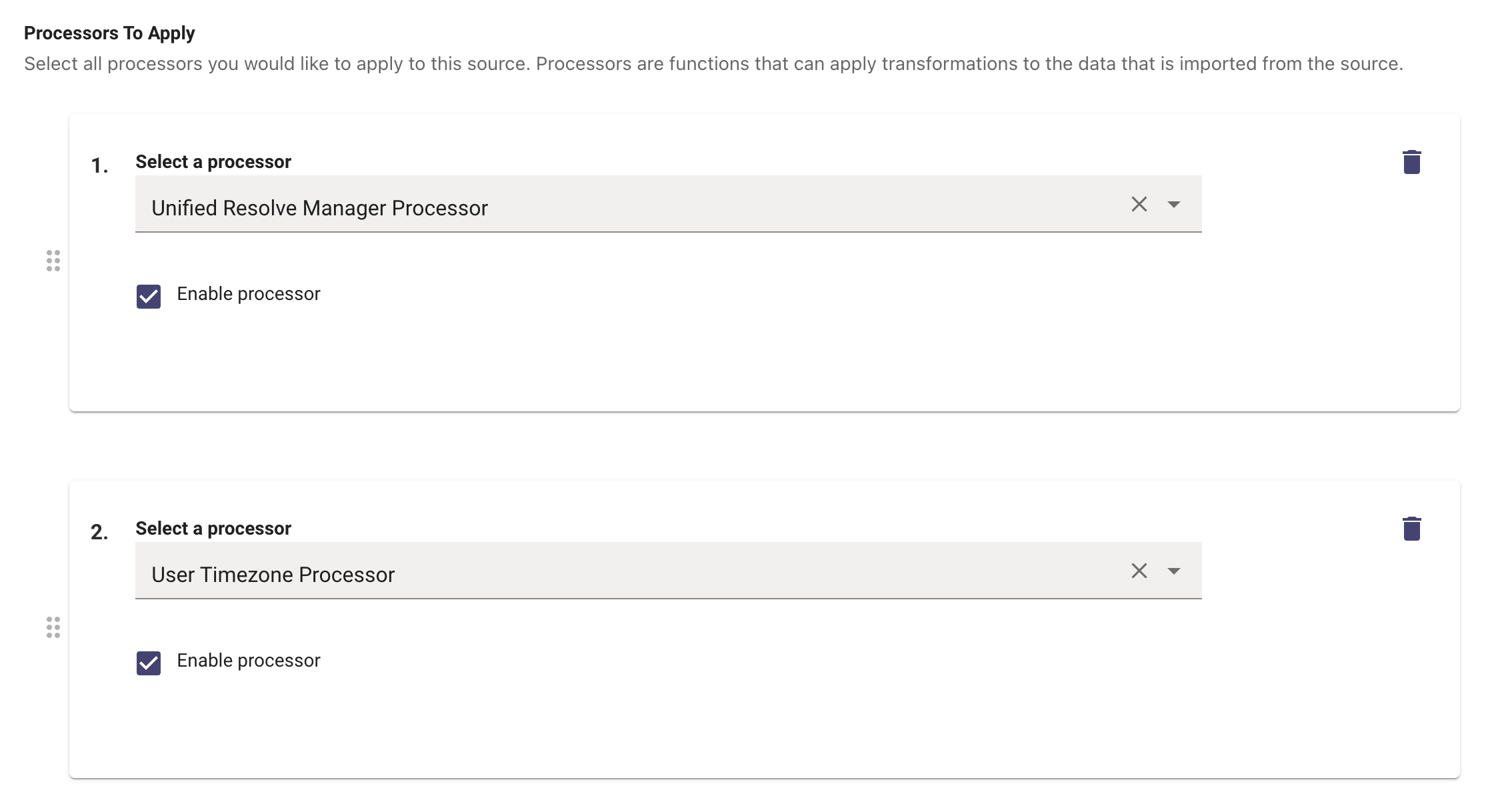
6. Add the Unified Resolver Manager Process & User Timezone Processor
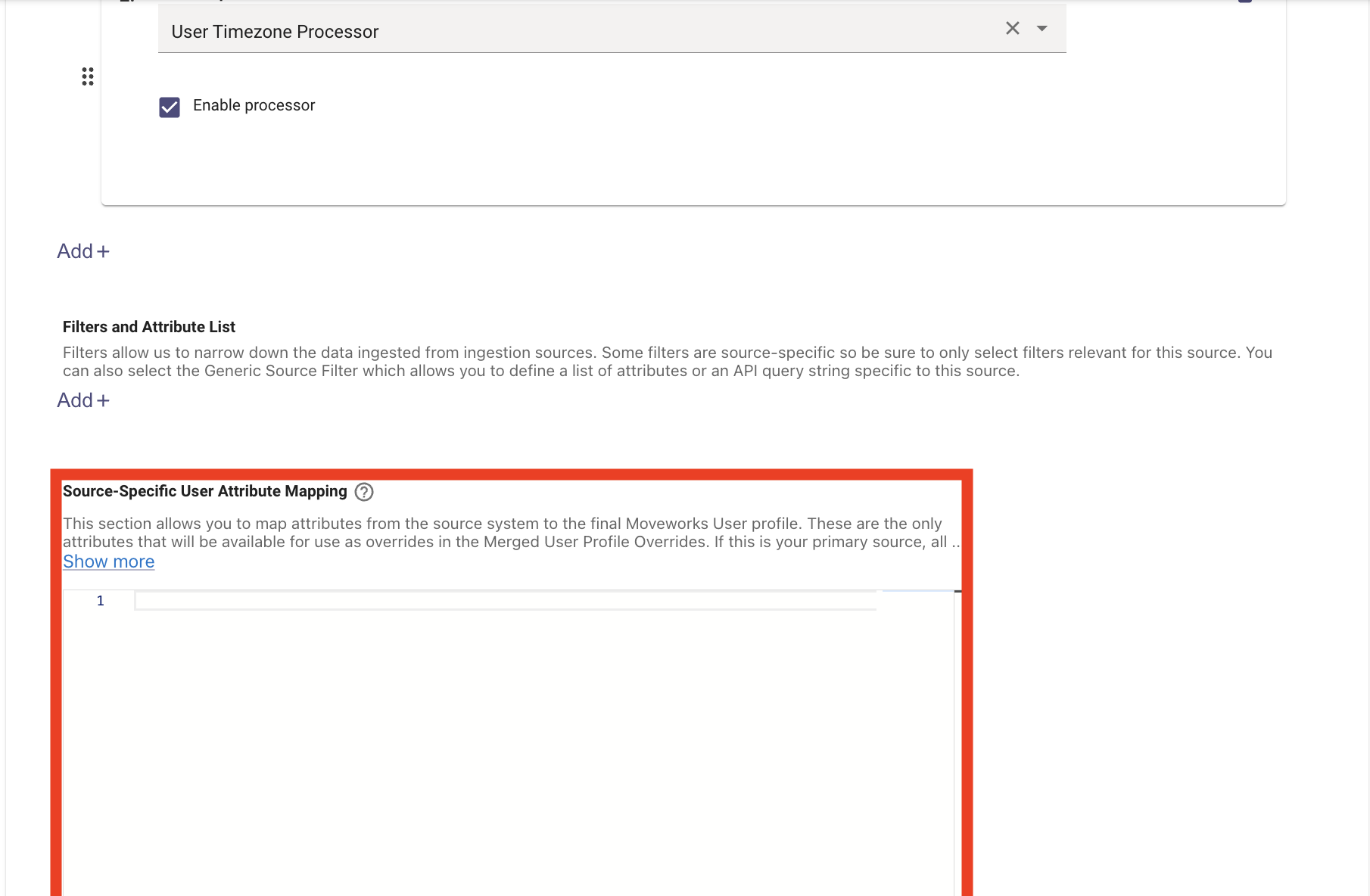
7. Copy the JSON block below into the **`Source Specific User Attribute Mapping`**
**Note:** For new implementations, the system initializes using the default JSON configuration shown below. These mappings represent the standard fields synced when Moveworks first connects to a ServiceNow (NOW) instance.
* **Left-hand side:** Attributes within the **Moveworks User Object**.
* **Right-hand side:** Source field names retrieved from **ServiceNow**, transformed via **Moveworks DSL (Bender)**.
*Detailed instruction on Moveworks DSL syntax and logic will be covered in a subsequent laboratory session.*
```json
{
"internal_fields": {
"manager_resolver": "$TRIM(IF sys_id THEN sys_id.display_value OR \"\" ELSE NULL)"
},
"phone_number": "$TRIM(IF phone THEN phone.display_value OR \"\" ELSE NULL)",
"user_name": "$TRIM(IF user_name THEN user_name.display_value OR \"\" ELSE NULL)",
"employee_id": "$TRIM(IF employee_number THEN employee_number.display_value OR \"\" ELSE NULL)",
"department": "$TRIM(IF department THEN department.display_value OR \"\" ELSE NULL)",
"full_name": "$TRIM(IF name THEN name.display_value OR \"\" ELSE NULL)",
"user_id_info.user_email": "if $TRIM(IF email THEN email.display_value OR \"\" ELSE NULL) then [$TRIM($TRIM(IF email THEN email.display_value OR \"\" ELSE NULL))] else []",
"city": "$TRIM(IF city THEN city.display_value OR \"\" ELSE NULL)",
"country_code": "$TRIM(IF country THEN country.display_value OR \"\" ELSE NULL)",
"email_addr": "$TRIM(IF email THEN email.display_value OR \"\" ELSE NULL)",
"first_name": "$TRIM(IF first_name THEN first_name.display_value OR \"\" ELSE NULL)",
"timezone": "$TRIM(IF time_zone THEN time_zone.display_value OR \"\" ELSE NULL)",
"cost_center_name": "$TRIM(IF cost_center THEN cost_center.display_value OR \"\" ELSE NULL)",
"role": "$TRIM(IF title THEN title.display_value OR \"\" ELSE NULL)",
"manager_email": "(manager).value.$TRIM()",
"user_id_info.user_itsm_id_info": [
{
"first_name": "$TRIM(IF first_name THEN first_name.display_value OR \"\" ELSE NULL)",
"external_id": "$TRIM(IF sys_id THEN sys_id.display_value OR \"\" ELSE NULL)",
"integration_id": "\"snow\"",
"full_name": "$TRIM(IF name THEN name.display_value OR \"\" ELSE NULL)",
"itsm_user_id": "$TRIM(IF user_name THEN user_name.display_value OR \"\" ELSE NULL)",
"system": "\"SNOW\"",
"last_name": "$TRIM(IF last_name THEN last_name.display_value OR \"\" ELSE NULL)"
}
],
"state": "$TRIM(IF state THEN state.display_value OR \"\" ELSE NULL)",
"user_tags": {
"FILTER()": {
"items": [
"\"BASIC_USER\"",
{
"CONDITIONAL()": {
"condition": "$LOWERCASE(((vip.value OR \"\"))) == $LOWERCASE((\"TRUE\"))",
"on_pass": "\"VIP\""
}
}
]
}
},
"location": "$TRIM(IF location THEN location.display_value OR \"\" ELSE NULL)",
"last_name": "$TRIM(IF last_name THEN last_name.display_value OR \"\" ELSE NULL)",
"custom_data": {
"u_password_expiry": "$TRIM(IF u_password_expiry_date THEN u_password_expiry_date.display_value OR \"\" ELSE NULL)"
}
}
```
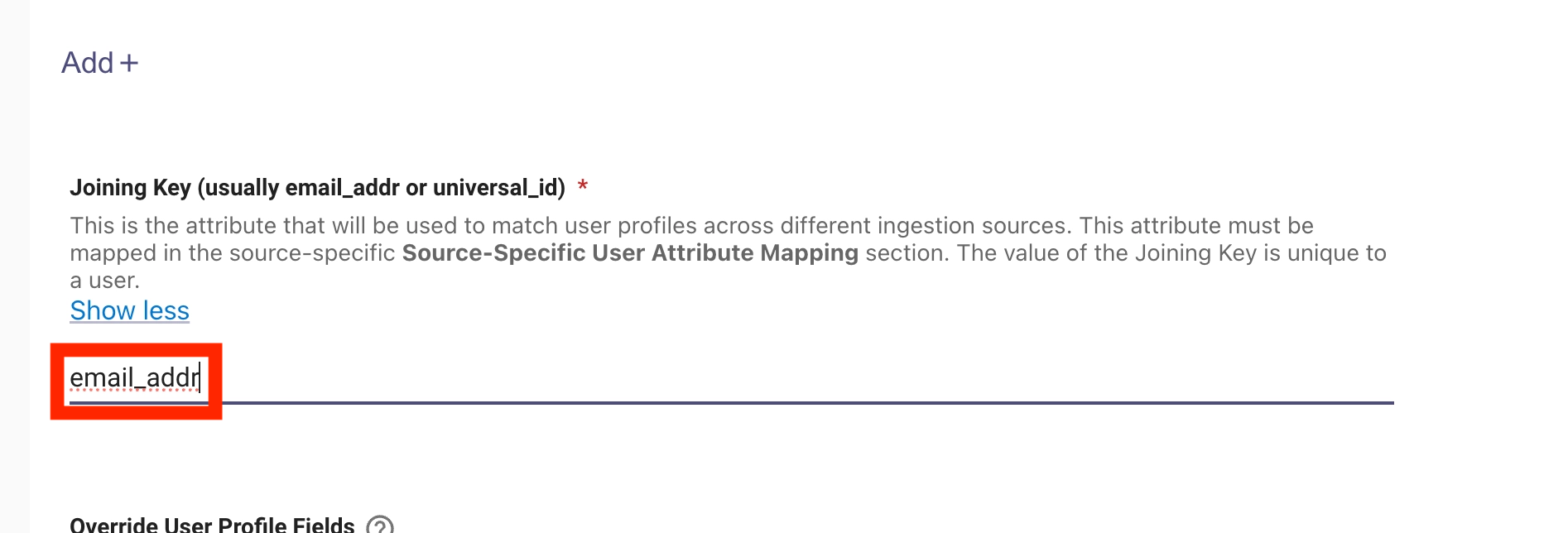
8. Set the **Joining Key** field to **`email_addr`**
**Note:** The `Joining Key` is the unique identifier linking a user's profile across all integrated systems (Chat, ITSM, HRIS, and IdP).
***
### **Why it Matters**
* **Identity Resolution:** Maps a chat user (e.g., Slack) to their backend records (e.g., ServiceNow).
* **Security:** Ensures sensitive actions like password resets are tied to a verified, authorized identity.
* **Data Integrity:** Prevents duplicate records during multi-source syncs.
### **Common Examples**
* **Email Address** (Most common)
* **Employee ID**
> **Requirement:** A `joining_key` must be **unique**, **immutable** (permanent), and **present** across all integrated systems.
9. Review your configuration, then scroll down to the bottom of the page and click **`Submit`**
***
### 1.2: Setup the Moveworks Service Account
**Note:** When configuring this for a new implementation, we will add the relevant information for each integration that the Moveworks AI Assistant has a service account within. See the [Moveworks Service Account Configuration Guide](https://help.moveworks.com/docs/service-account-configuration-guide) for more information on what a multi-system Moveworks Service Account looks like.
1. Navigate to the `Bot Account` page, and **add the corresponding information for the Moveworks Service Account user for each field**
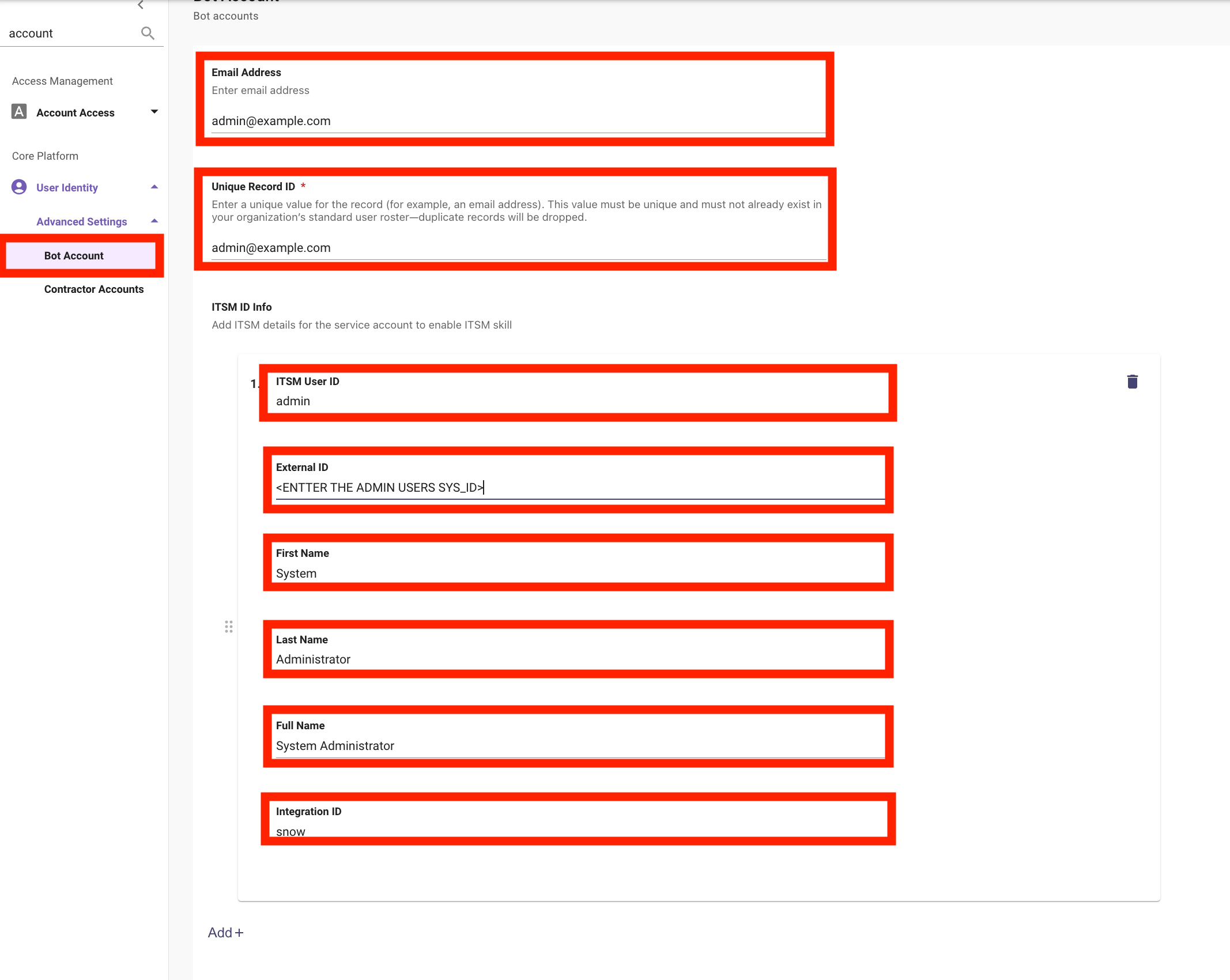
2. After you enter your configuration, **`Submit`** your changes
***
### 1.3: Set up Bot Access Rule
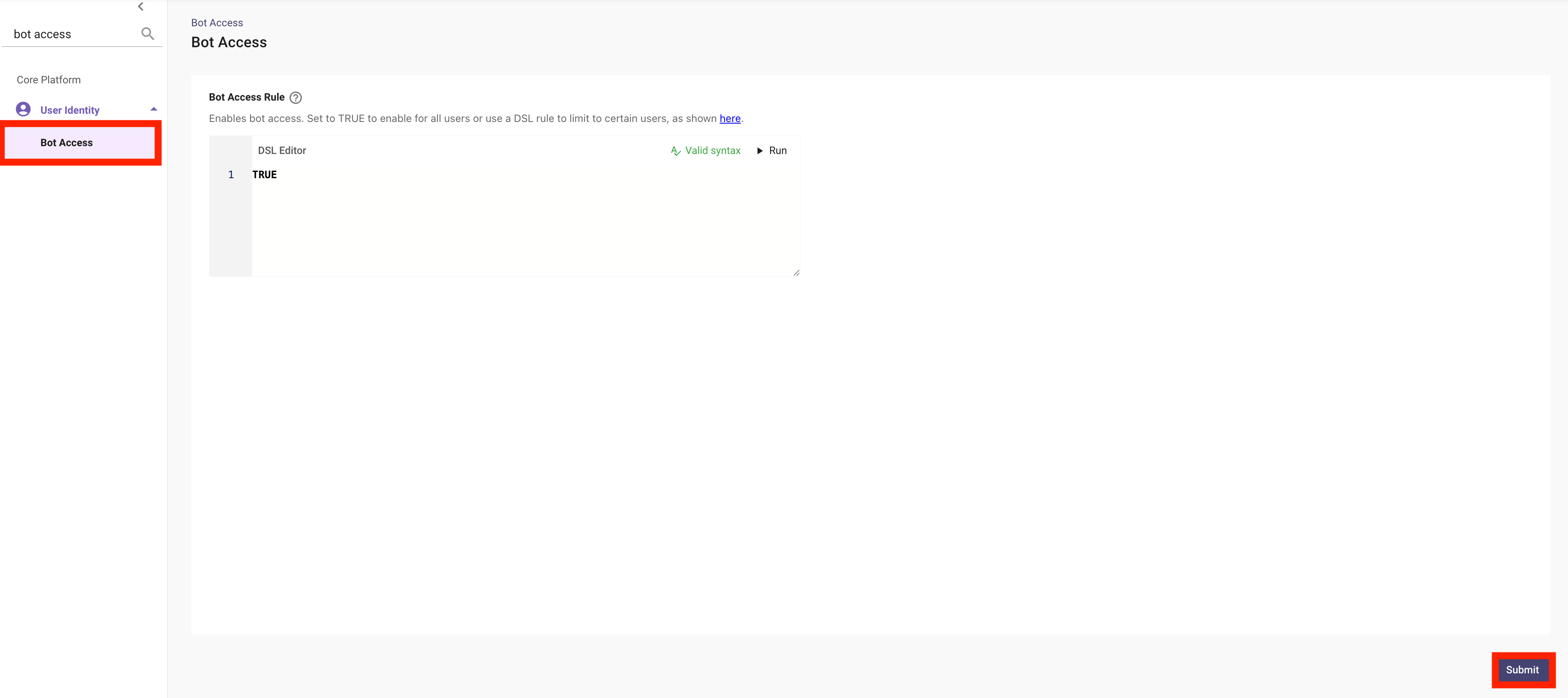
**Note:** Setting the `Bot Access Rule` to `TRUE` will give all users who are ingested into Moveworks access to interact with Moveworks, but they must also have access to Moveworks via one of the following methods:
* Integrated Chat Platform:
* Access to talk to the Moveworks application in Slack, Teams, etc
* My Moveworks Access:
* Ability to select a tile in their IDAM platform that allows them to interact with the Moveworks on Web Assistant
* Embedded AI Assistant:
* Access to a Moveworks Assistant that has been surfaced on a web page controlled by IDAM SSO. This includes platforms like ServiceNow, Sharepoint, FreshService, etc
1. Navigate to **`User Identity > Bot Access`**, set the **`Bot Access Rule`** to **`TRUE`**
***
## ✅ 2: Verification & Next Steps
1. **Wait for Processing:**
1. Now that we have configured the Moveworks User Identity Pipeline, **we will need to wait for the user ingestion cycle to complete**
1. In a typical environment, the user roster refreshes every 4 hours
2. If you are participating in a designated Moveworks Lab, your environment will refresh every 30 minutes.
2. **Confirm Completion:**
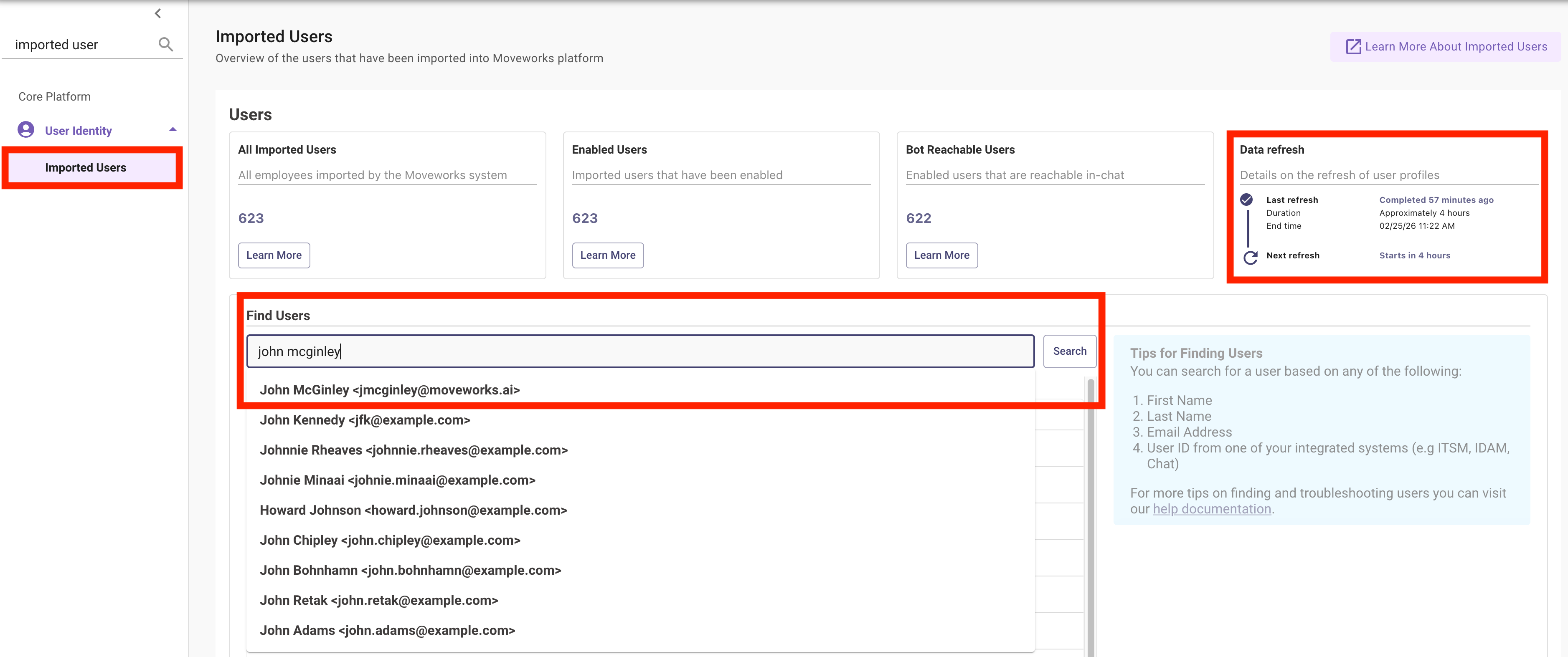
1. Check the `Imported Users` page, and confirm that:
1. You are able to find yourself in the user roster
2. The `Enabled Users` & `Bot Reachable Users` is greater than 0
3. You see when the ingestion cycle completed and when it is next scheduled to run
***
## 🪞 3: Reflecting on This Configuration
Through this guide, you've learned the following:
* How to configure Identity Sources within Moveworks
* How to configure specific fields for Moveworks to ingest
* How to leverage processors for resolving fields like password\_expiry, user managers, and timezone
* How to create the Moveworks Service Account user
* How to enable access to the Moveworks AI Assistant
* That Moveworks ingests users at a regular cadence, and you can see the currently ingested users + cadence in the `Imported Users` page
***
## ⚙️ 4: Configuration Details
Use the table below to fill in the required fields accurately.
| **Field Name** | **Action / Value to Enter** |
| ------------------------------------- | ----------------------------------------------------------------- |
| **Connector** | snow |
| **Processors to Apply** | User Timezone, Unified Resolve Manager Processor, Password Expiry |
| Import Users → Advanced Settings JSON | See JSON block above |
| Bot Access Rule | `TRUE` |