For AI agents: a documentation index is available at the root level at /llms.txt and /llms-full.txt. Append /llms.txt to any URL for a page-level index, or .md for the markdown version of any page.
Logo
DeveloperAcademyCommunityStatus
  • Getting Started
    • Welcome to Moveworks
    • Roadmap & Release Notes
    • Moveworks Best Practices
    • Labs
      • AI Assistant Lab
      • Agent Studio v1 Labs
        • Access and Login Guide
        • Lab Setup: Salesforce and JIRA Connectors
        • Lab Resources
        • Lab #1: Look up Salesforce Account
        • Lab #2: Add Case to Salesforce & Jira Ticket

        • Lab #3: Add User to Entra Group
        • Lab #4: SAP Concur - Lookup and Create Expense Reports
        • Lab #5: ServiceNow - Lookup Assets for a User
      • Salesforce Lab
      • ServiceNow Lab
      • Agent Studio v2 Challenges
    • Professional Services
    • Support
  • AI Assistant
    • AI Assistant Overview
    • Capabilities
    • Web Experiences
    • Analytics & Performance
  • Enterprise Search
    • Overview
    • Agentic RAG Overview
    • Content Ingestion Platform
    • Profile Boosting
    • Retrieval
    • Permissions Platform
    • Built-in Content Connectors
    • Build your own Content Connectors
    • Configure Search
    • Configure Enterprise Search
    • Vetted Content
    • Writing AI-Ready KB Articles
    • Document Chunking and Snippetization Overview
  • Productivity Boost
    • Overview
    • Configure Productivity Boost
    • Quick GPT
    • Calendar Management
    • Brief Me
DeveloperAcademyCommunityStatus
On this page
  • Scenario
  • Steps
Getting StartedLabsAgent Studio v1 Labs

Lab #2: Add Case to Salesforce & Jira Ticket

||View as Markdown|
Was this page helpful?
Edit this page
Previous

Lab #3: Add User to Entra Group

Next
Built with

Refer to the legend to help complete this guide.

Scenario

The first use case is a good start for Account Executives to quickly lookup account information using natural language within the Moveworks Assistant. Now we will expand this use case to deliver functionality to support and engineering teams.

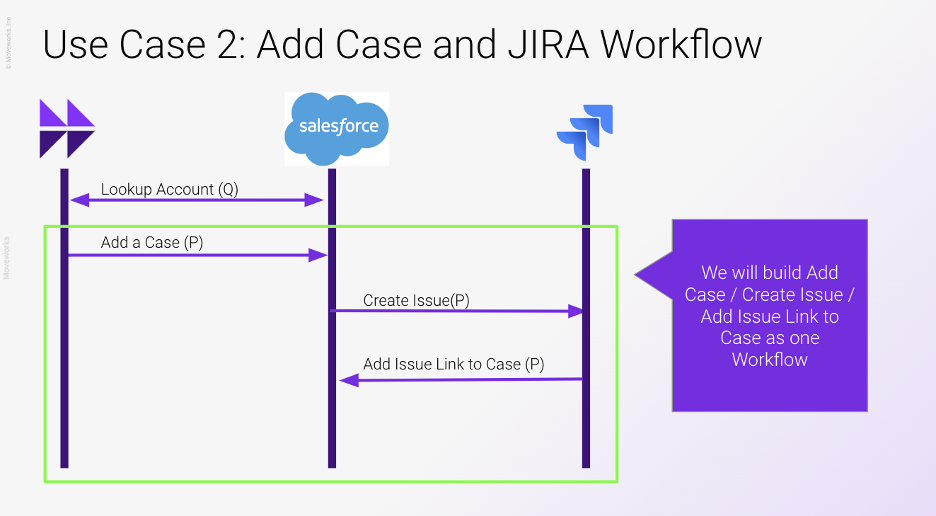
When a customer calls in with a case, support members will manually log the case in Salesforce and email the engineering team to start working on the support ticket. The engineering team logs this as an issue in JIRA with the details and emails the support team back with a link to the issue. The engineering team does not have access to Salesforce so maintaining one system of record for the case won’t work here. Let’s use Agentic Automation to orchestrate this process.

NOTE: You will need your JIRA instance for this. If you have not yet set this up refer back to Use Case Guide
Steps

We will need to build 3 different actions and tie them together as a workflow and eventually a plugin.

Visit the Developer Legend for details on how to make the following API requests.

👉 /ai-assistant/getting-started/labs/agent-studio-v1-labs/developer-lab-setup


  1. Add a case to the Salesforce account by receiving the “Subject” and “Description” from the user. The “account id” should be a required input to the action as well, but the assistant should be able to take care of that since it just did a lookup on the account by name.
  2. Add a JIRA issue using the subject and description to populate the summary and description respectively
  3. Update the newly created Case object with a comment that contains a link to the JIRA issue. HINT: the $CONCAT function will be helpful here. Please refer to theDSL Documentation for more info on this.

NOTE

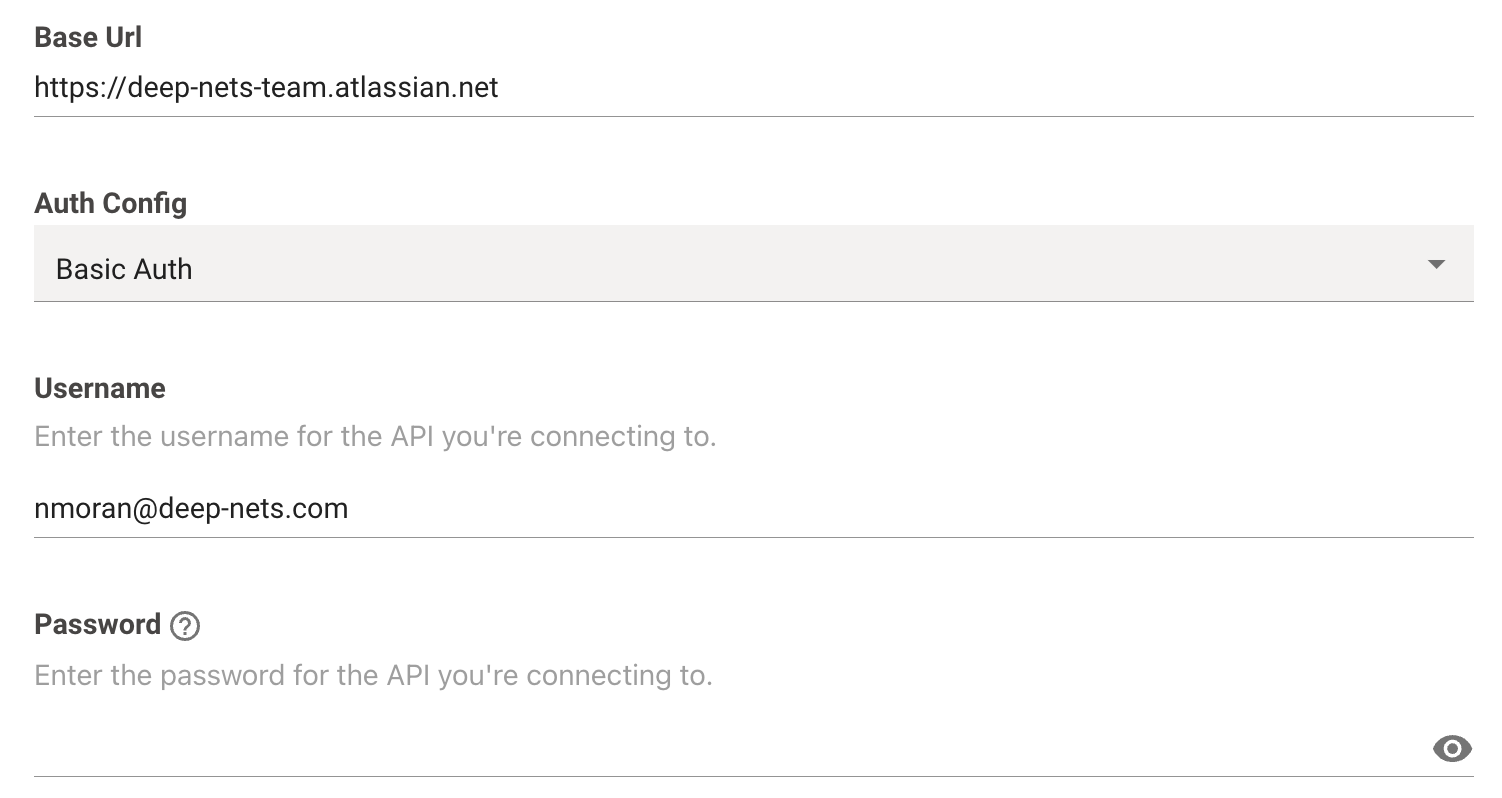
JIRA uses basic auth - meaning you should be able set up a JIRA connector using basic auth using your username login and API Token. The “Password” field here will be your API Token
When building plugins for operations that create, change, or update something in a system, it’s always advised to check the “User Consent Required” checkbox. This will ensure the bot has accurately captured all of the information before performing the action.
