***
title: 'Lab #6b: Moveworks Bender'
position: 8
deprecated: false
hidden: false
metadata:
robots: index
-------------
## Overview
* **Learning Objectives:** Understand how to leverage Moveworks Bender to configure attribute mappings for users and tickets. Use the DSL & Bender Mapper Playground to validate configurations before applying them.
* **Estimated Time:** 15 minutes
* **Prerequisites:**
* Lab 1 complete (snow connector with sys\_user access)
* Lab 2 complete (user identity configured — provides the Bender mapping to test against)
***
### Key Concepts
Bender is the transformation engine that sits between connected raw system data and the Moveworks UI. It is essential for formatting data correctly:
* **Bender Mapping:** The logic used to tell Moveworks how to display raw JSON values. For example, turning a technical "state" code into a human-readable word.
* **Display Value:** A ServiceNow-specific concept where `value` is a raw ID (e.g., a sys\_id) and `display_value` is the actual text shown to the user.
* **Fallback Logic:** The use of the `OR` operator (e.g., `phone.display_value OR ""`) to provide a default value and prevent the bot from breaking if a field is empty.
* **DSL & Data Mapper Playground:** A sandbox where you can paste raw JSON from the API Playground to test if your Bender mappings will work before applying them.
**Relevant Documentation:**
* [Moveworks Help: Bender Data Mapping](https://help.moveworks.com/service-management/core-platform/configuration-languages/moveworks-bender-language-reference)
* [Moveworks Help: DSL & Data Mapper Playground](https://help.moveworks.com/agent-studio/configuration-languages/dsl-and-mapper-playground)
* [Moveworks Agent Marketplace: Agent Architect](https://marketplace.moveworks.com/chat/new)
***
## 🛠️ 1: Walkthrough
### 1.1: Generate a Moveworks API Key via Agent Studio
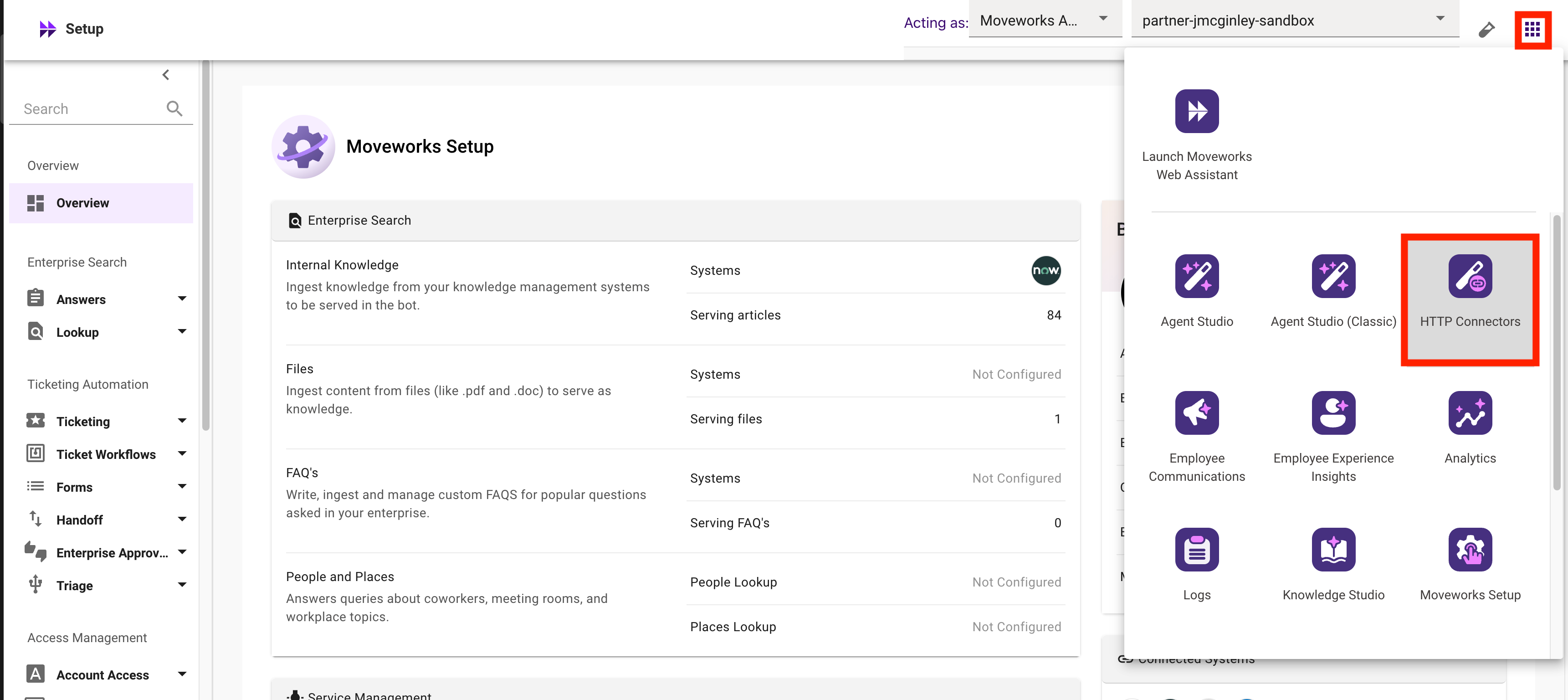
1. Navigate to the **`HTTP Connectors`** page via the Waffle Menu to generate a Moveworks API Key
2. Select the **`Credentials`** module
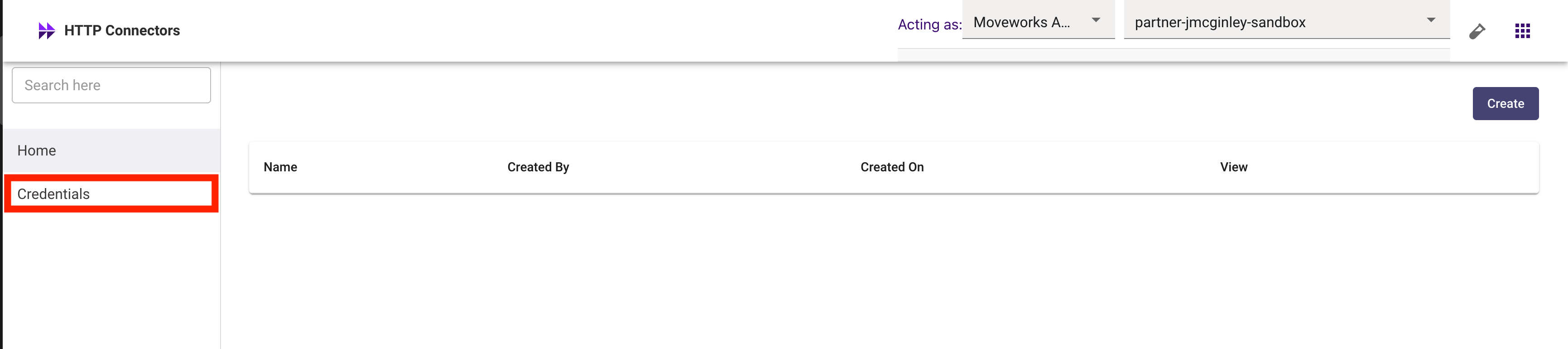
3. Click **`Create`**

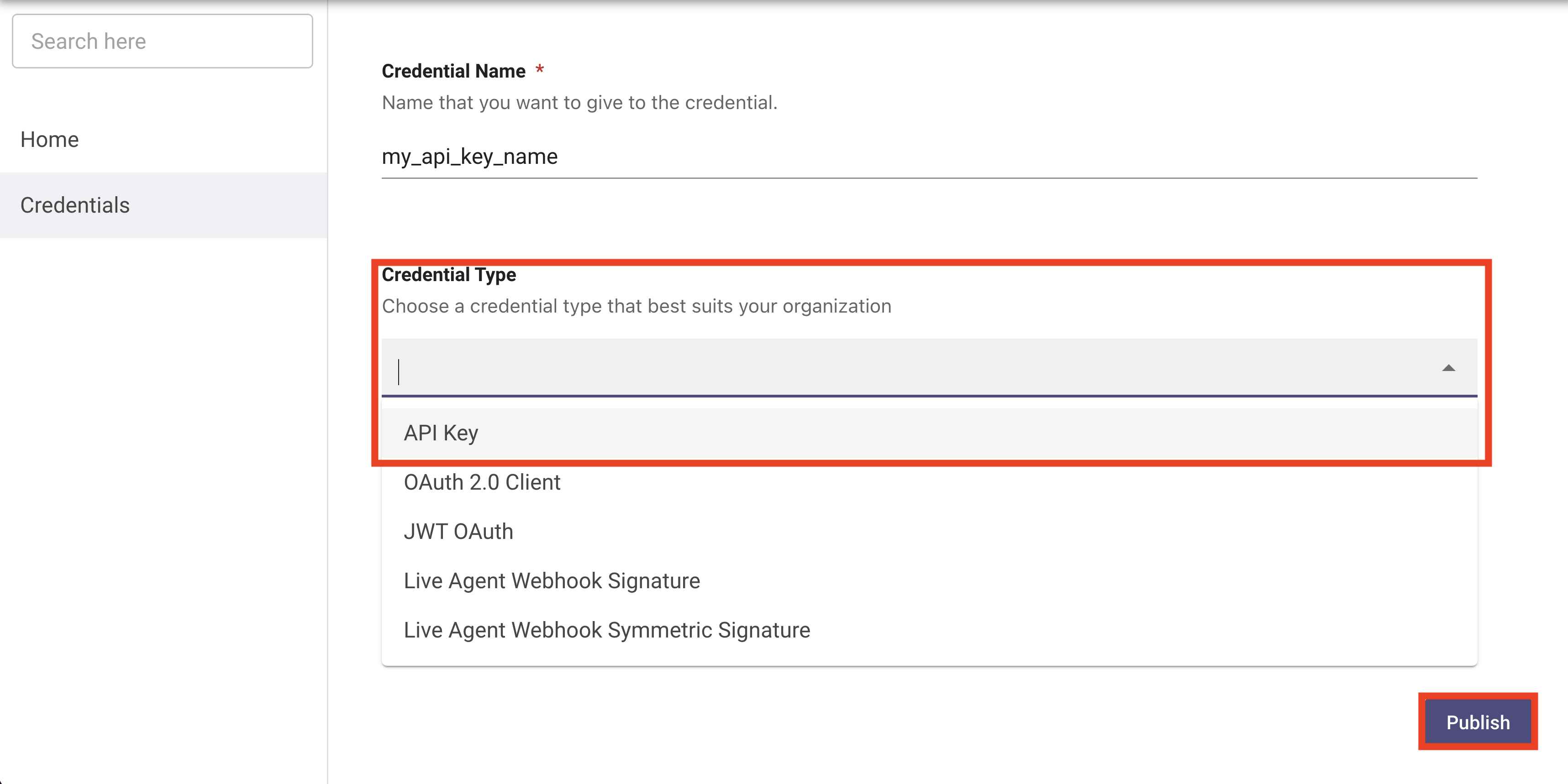
4. Give your credential a name, and generate it as an **`API Key`** and **`Publish`** it
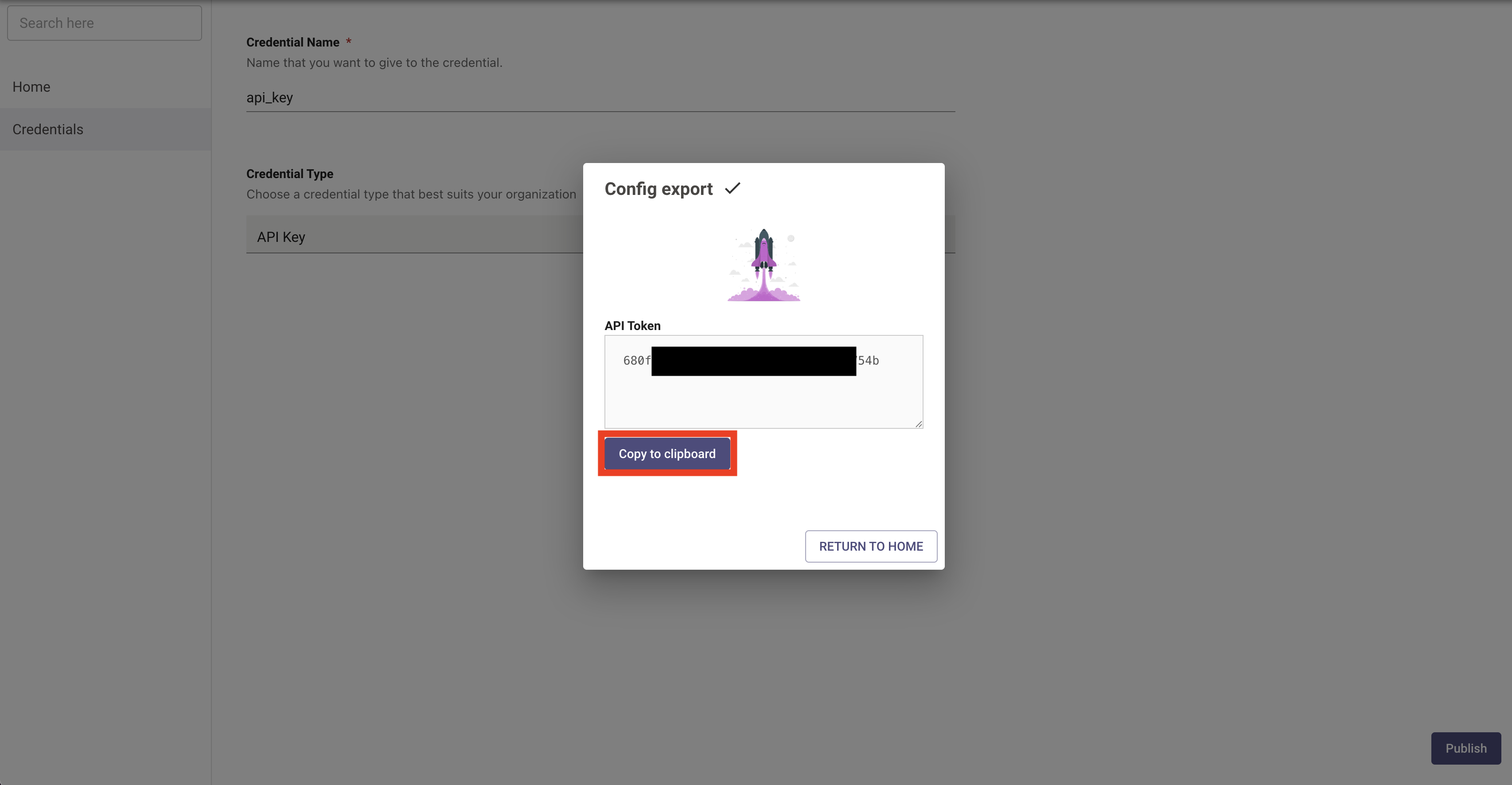
5. Select **`Copy to Clipboard`**, and store this API key on your machine.
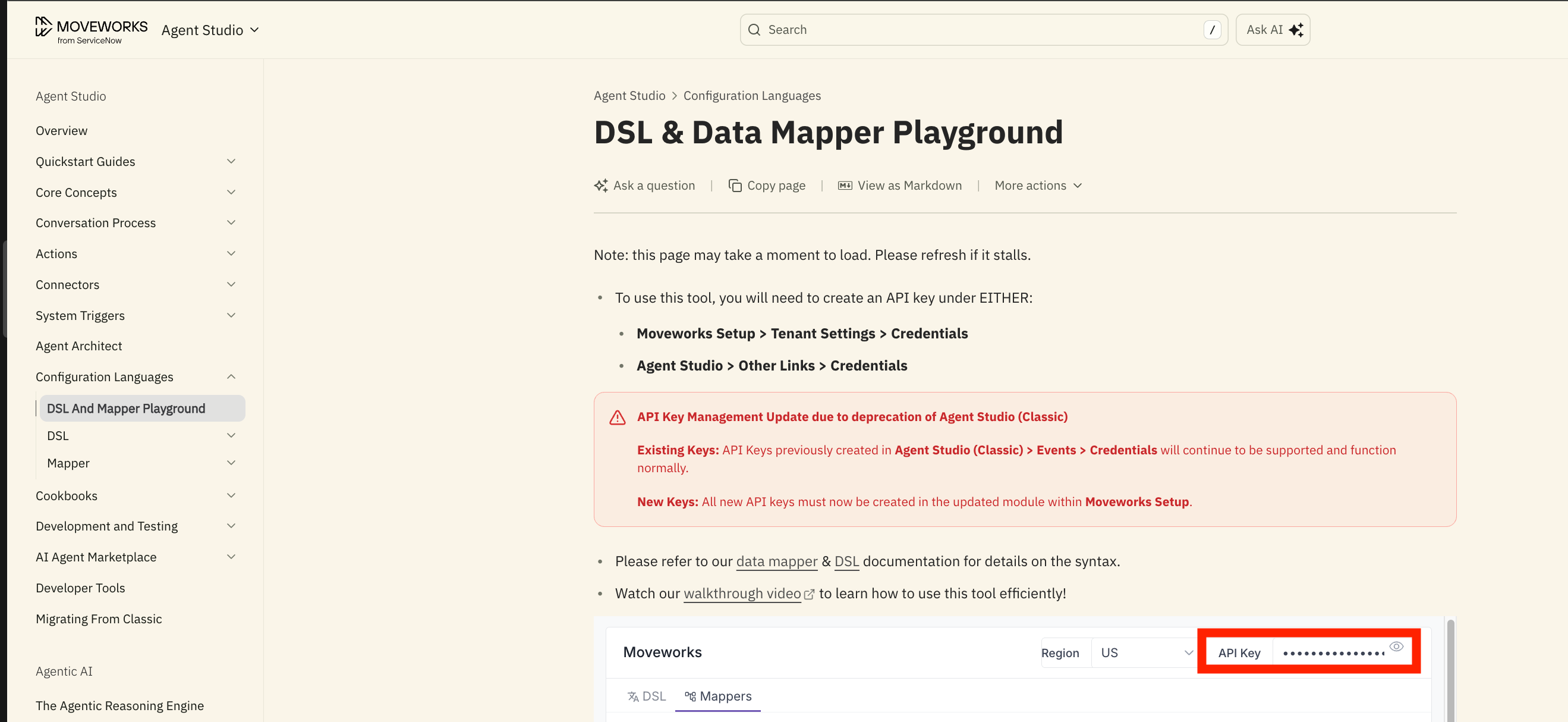
6. In a separate tab, navigate to the [Moveworks DSL and Data Mapper Playground](https://docs.moveworks.com/agent-studio/configuration-languages/dsl-and-mapper-playground). Enter your API key in the `API Key` section.
**Note:** If you receive an error that states that an on-prem agent cannot connect, try opening the page in an incognito browser window and try again
## 
### 1.2: Get the Default Bender Mapping for Moveworks ServiceNow User Identity
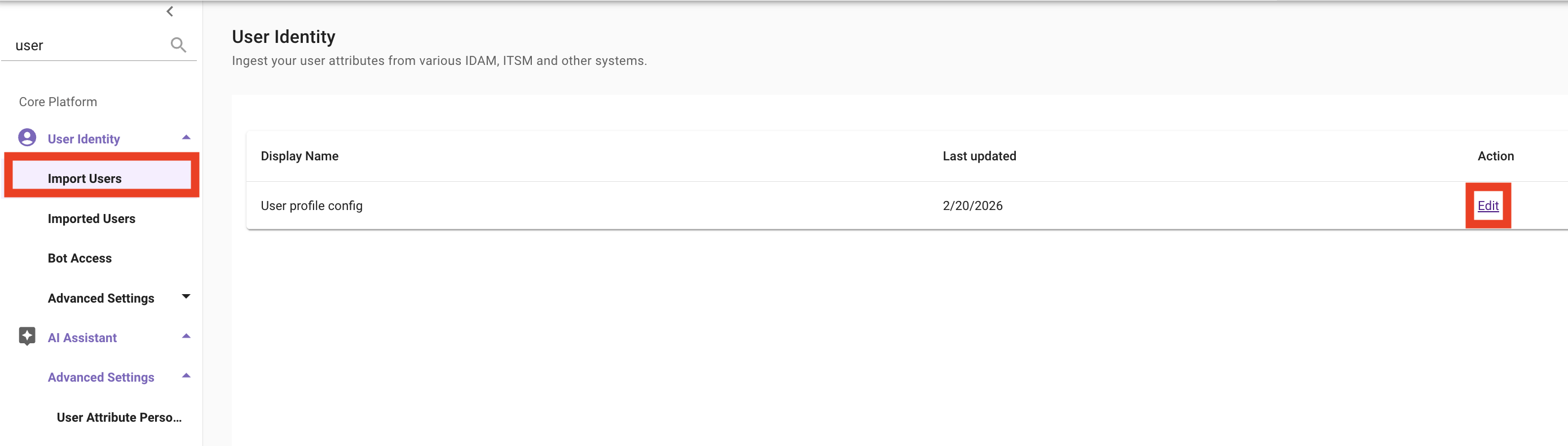
1. In **Moveworks Setup,** navigate to **`User Identity > Import Users > Edit`**
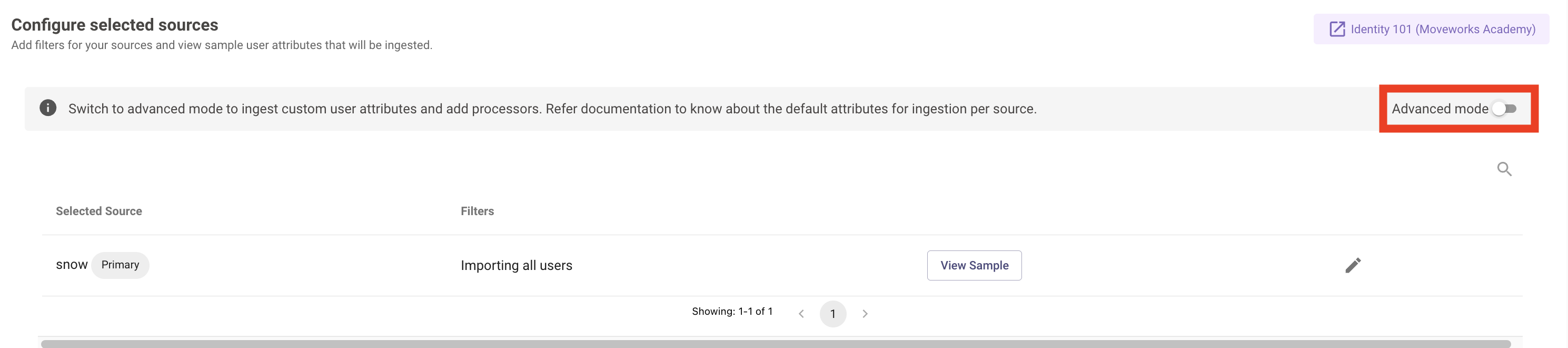
2. Now that we have confirmed we can see users, we will use the following configuration example in **`Advanced Mode`** to grab the JSON block representing the configuration for ingesting users from ServiceNow
3. Copy the JSON block that defines the ServiceNow User Ingestion Logic (Also available below)
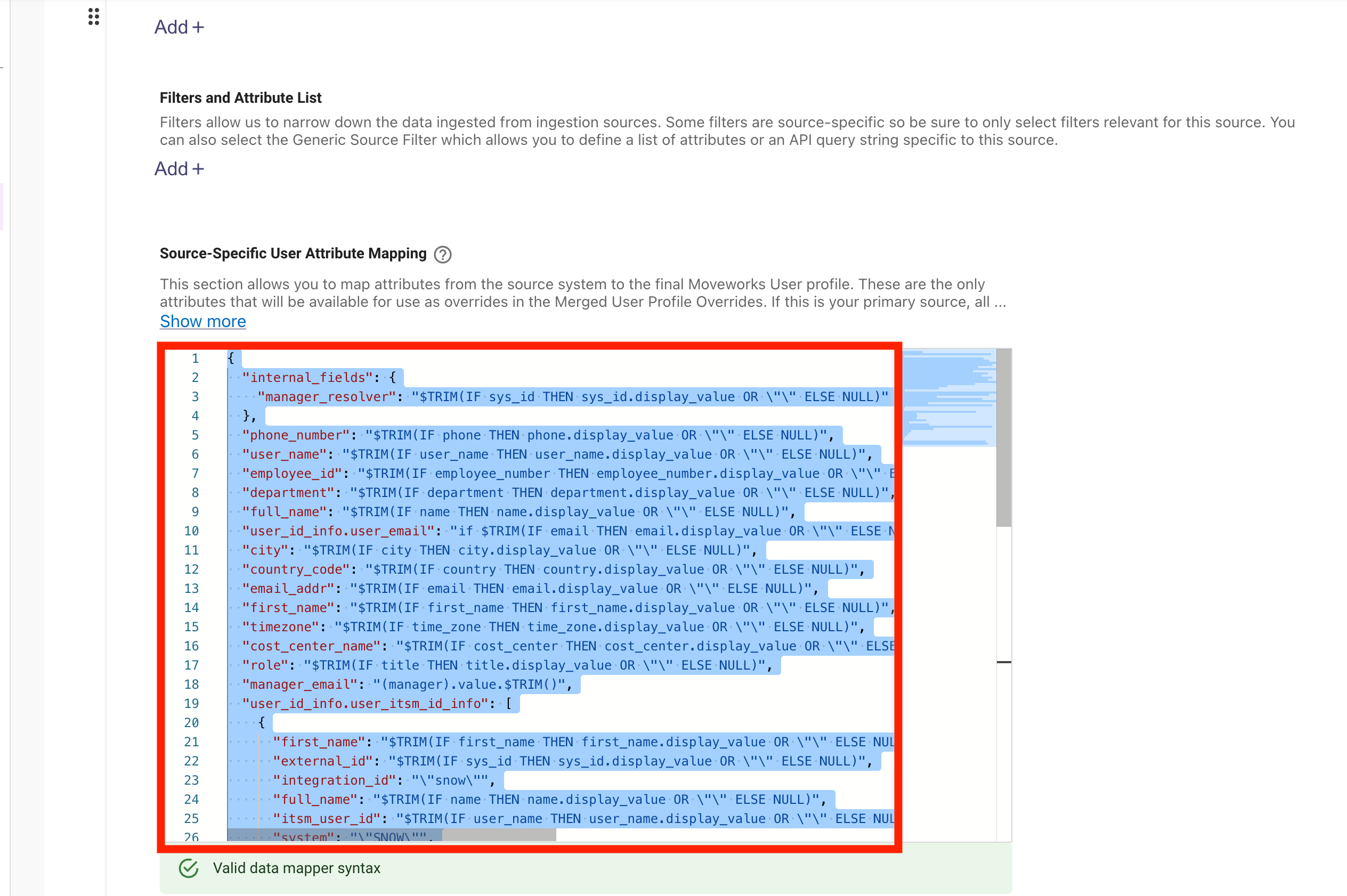
```json
{
"internal_fields": {
"manager_resolver": "$TRIM(IF sys_id THEN sys_id.display_value OR \"\" ELSE NULL)"
},
"phone_number": "$TRIM(IF phone THEN phone.display_value OR \"\" ELSE NULL)",
"user_name": "$TRIM(IF user_name THEN user_name.display_value OR \"\" ELSE NULL)",
"employee_id": "$TRIM(IF employee_number THEN employee_number.display_value OR \"\" ELSE NULL)",
"department": "$TRIM(IF department THEN department.display_value OR \"\" ELSE NULL)",
"full_name": "$TRIM(IF name THEN name.display_value OR \"\" ELSE NULL)",
"user_id_info.user_email": "if $TRIM(IF email THEN email.display_value OR \"\" ELSE NULL) then [$TRIM($TRIM(IF email THEN email.display_value OR \"\" ELSE NULL))] else []",
"city": "$TRIM(IF city THEN city.display_value OR \"\" ELSE NULL)",
"country_code": "$TRIM(IF country THEN country.display_value OR \"\" ELSE NULL)",
"email_addr": "$TRIM(IF email THEN email.display_value OR \"\" ELSE NULL)",
"first_name": "$TRIM(IF first_name THEN first_name.display_value OR \"\" ELSE NULL)",
"timezone": "$TRIM(IF time_zone THEN time_zone.display_value OR \"\" ELSE NULL)",
"cost_center_name": "$TRIM(IF cost_center THEN cost_center.display_value OR \"\" ELSE NULL)",
"role": "$TRIM(IF title THEN title.display_value OR \"\" ELSE NULL)",
"manager_email": "(manager).value.$TRIM()",
"user_id_info.user_itsm_id_info": [
{
"first_name": "$TRIM(IF first_name THEN first_name.display_value OR \"\" ELSE NULL)",
"external_id": "$TRIM(IF sys_id THEN sys_id.display_value OR \"\" ELSE NULL)",
"integration_id": "\"snow\"",
"full_name": "$TRIM(IF name THEN name.display_value OR \"\" ELSE NULL)",
"itsm_user_id": "$TRIM(IF user_name THEN user_name.display_value OR \"\" ELSE NULL)",
"system": "\"SNOW\"",
"last_name": "$TRIM(IF last_name THEN last_name.display_value OR \"\" ELSE NULL)"
}
],
"state": "$TRIM(IF state THEN state.display_value OR \"\" ELSE NULL)",
"user_tags": {
"FILTER()": {
"items": [
"\"BASIC_USER\"",
{
"CONDITIONAL()": {
"condition": "$LOWERCASE(((vip.value OR \"\"))) == $LOWERCASE((\"TRUE\"))",
"on_pass": "\"VIP\""
}
}
]
}
},
"location": "$TRIM(IF location THEN location.display_value OR \"\" ELSE NULL)",
"last_name": "$TRIM(IF last_name THEN last_name.display_value OR \"\" ELSE NULL)"
}
```
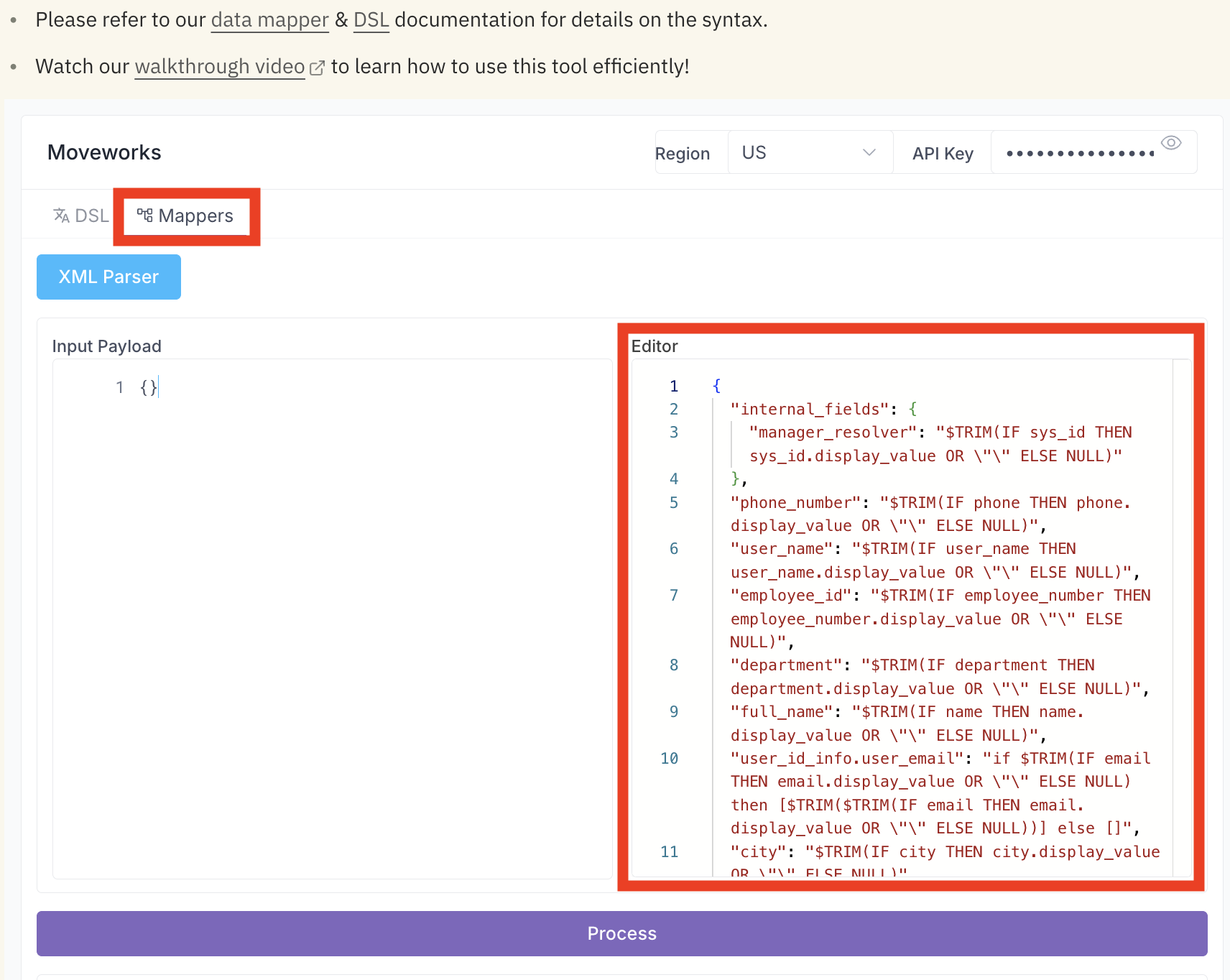
4. Paste it into the Mappers section of the DSL & Bender Playground
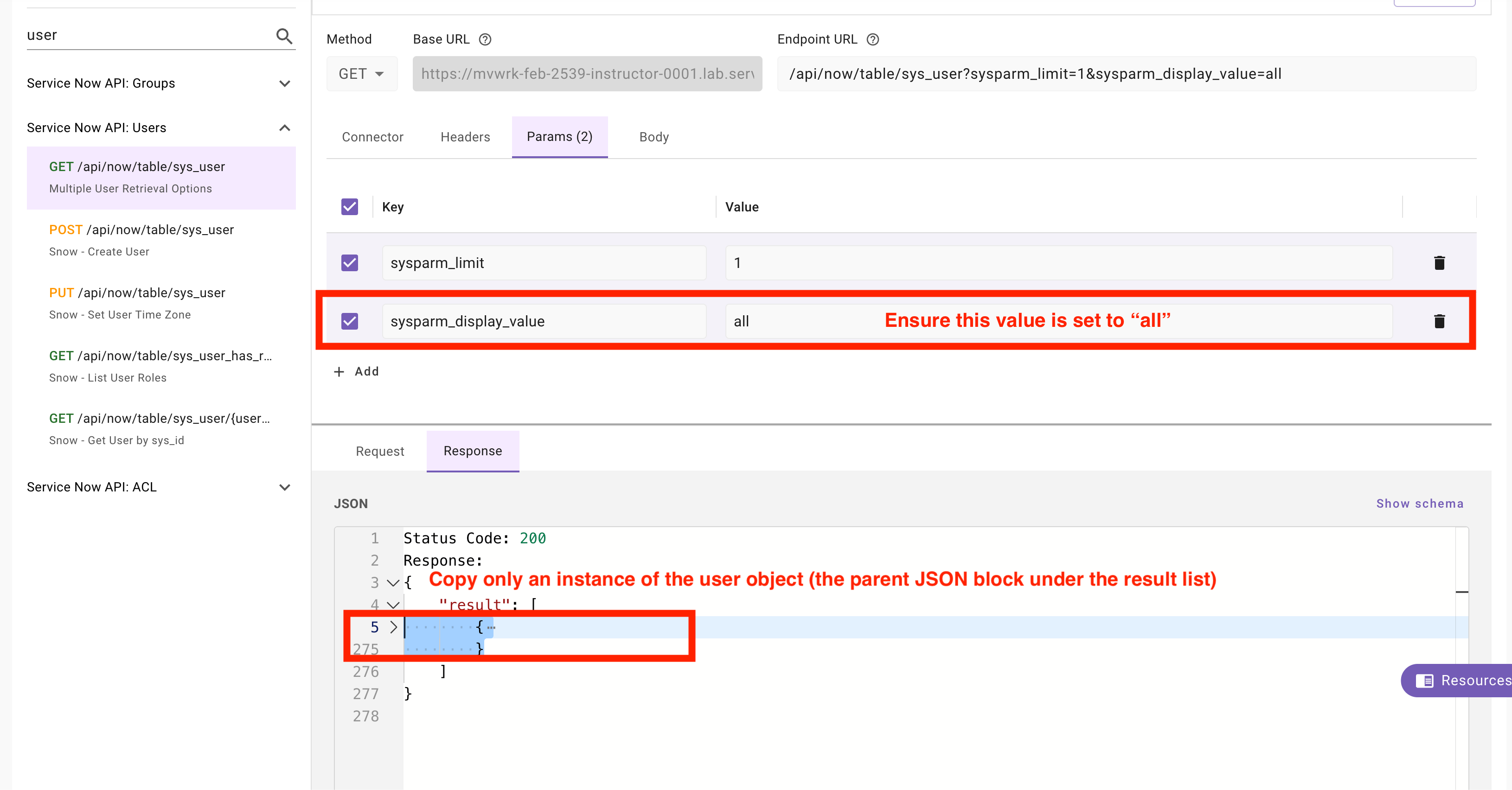
5. Navigate to API Playground, and query a user record, then copy an instance of the user record
**Note:** We’re using a single record here to mirror how Moveworks actually works. The system maps records one by one. Comparing your configuration against a single instance is the best way to preview how the data will look once it's ingested.
```json
{
"calendar_integration": {
"display_value": "Outlook",
"value": "1"
},
"country": {
"display_value": null,
"value": ""
},
"user_password": {
"display_value": "********",
"value": ""
},
"last_login_time": {
"display_value": "2019-04-05 22:16:30",
"value": "2019-04-05 22:16:30"
},
"source": {
"display_value": "",
"value": ""
},
"sys_updated_on": {
"display_value": "2025-12-29 10:39:30",
"value": "2025-12-29 10:39:30"
},
"building": {
"display_value": "",
"value": ""
},
"web_service_access_only": {
"display_value": "false",
"value": "false"
},
"notification": {
"display_value": "Enable",
"value": "2"
},
"enable_multifactor_authn": {
"display_value": "false",
"value": "false"
},
"sys_updated_by": {
"display_value": "system",
"value": "system"
},
"sys_created_on": {
"display_value": "2019-04-05 21:09:12",
"value": "2019-04-05 21:09:12"
},
"sys_domain": {
"display_value": "global",
"link": "https://mvwrk-feb-2539-instructor-0001.lab.service-now.com/api/now/table/sys_user_group/global",
"value": "global"
},
"state": {
"display_value": "",
"value": ""
},
"fax": {
"display_value": "",
"value": ""
},
"identity_type": {
"display_value": "-",
"value": "unclassified"
},
"vip": {
"display_value": "false",
"value": "false"
},
"sys_created_by": {
"display_value": "admin",
"value": "admin"
},
"zip": {
"display_value": "",
"value": ""
},
"home_phone": {
"display_value": "",
"value": ""
},
"time_format": {
"display_value": null,
"value": ""
},
"last_login": {
"display_value": "2019-04-05",
"value": "2019-04-05"
},
"default_perspective": {
"display_value": "",
"value": ""
},
"active": {
"display_value": "true",
"value": "true"
},
"sys_domain_path": {
"display_value": "/",
"value": "/"
},
"transaction_log": {
"display_value": "",
"value": ""
},
"cost_center": {
"display_value": "",
"value": ""
},
"phone": {
"display_value": "",
"value": ""
},
"name": {
"display_value": "survey user",
"value": "survey user"
},
"employee_number": {
"display_value": "",
"value": ""
},
"password_needs_reset": {
"display_value": "false",
"value": "false"
},
"gender": {
"display_value": null,
"value": ""
},
"city": {
"display_value": "",
"value": ""
},
"hr_integration_source": {
"display_value": "",
"value": ""
},
"failed_attempts": {
"display_value": "0",
"value": "0"
},
"user_name": {
"display_value": "survey.user",
"value": "survey.user"
},
"roles": {
"display_value": "",
"value": ""
},
"manager_hp1": {
"display_value": "/T1}C(",
"value": "/T1}C("
},
"title": {
"display_value": "",
"value": ""
},
"sys_class_name": {
"display_value": "User",
"value": "sys_user"
},
"sys_id": {
"display_value": "005d500b536073005e0addeeff7b12f4",
"value": "005d500b536073005e0addeeff7b12f4"
},
"federated_id": {
"display_value": "UU/OJDA/H2viaQb8VqlJIYSYKwmbkOCLoFDQkTPv7XM=",
"value": "UU/OJDA/H2viaQb8VqlJIYSYKwmbkOCLoFDQkTPv7XM="
},
"internal_integration_user": {
"display_value": "false",
"value": "false"
},
"ldap_server": {
"display_value": "",
"value": ""
},
"mobile_phone": {
"display_value": "",
"value": ""
},
"street": {
"display_value": "",
"value": ""
},
"company": {
"display_value": "",
"value": ""
},
"department": {
"display_value": "",
"value": ""
},
"first_name": {
"display_value": "survey",
"value": "survey"
},
"email": {
"display_value": "survey.user@email.com",
"value": "survey.user@email.com"
},
"introduction": {
"display_value": null,
"value": ""
},
"preferred_language": {
"display_value": null,
"value": ""
},
"u_password_expiry_date": {
"display_value": "",
"value": ""
},
"manager": {
"display_value": "",
"value": ""
},
"locked_out": {
"display_value": "false",
"value": "false"
},
"sys_mod_count": {
"display_value": "2",
"value": "2"
},
"last_name": {
"display_value": "user",
"value": "user"
},
"photo": {
"display_value": "",
"value": ""
},
"avatar": {
"display_value": "",
"value": ""
},
"middle_name": {
"display_value": "",
"value": ""
},
"sys_tags": {
"display_value": "",
"value": ""
},
"time_zone": {
"display_value": null,
"value": ""
},
"schedule": {
"display_value": "",
"value": ""
},
"u_coe_specialization": {
"display_value": "",
"value": ""
},
"correlation_id": {
"display_value": "",
"value": ""
},
"date_format": {
"display_value": null,
"value": ""
},
"location": {
"display_value": "",
"value": ""
}
}
```
6. Copy this JSON into the Input Payload for the DSL and Mapper Playground
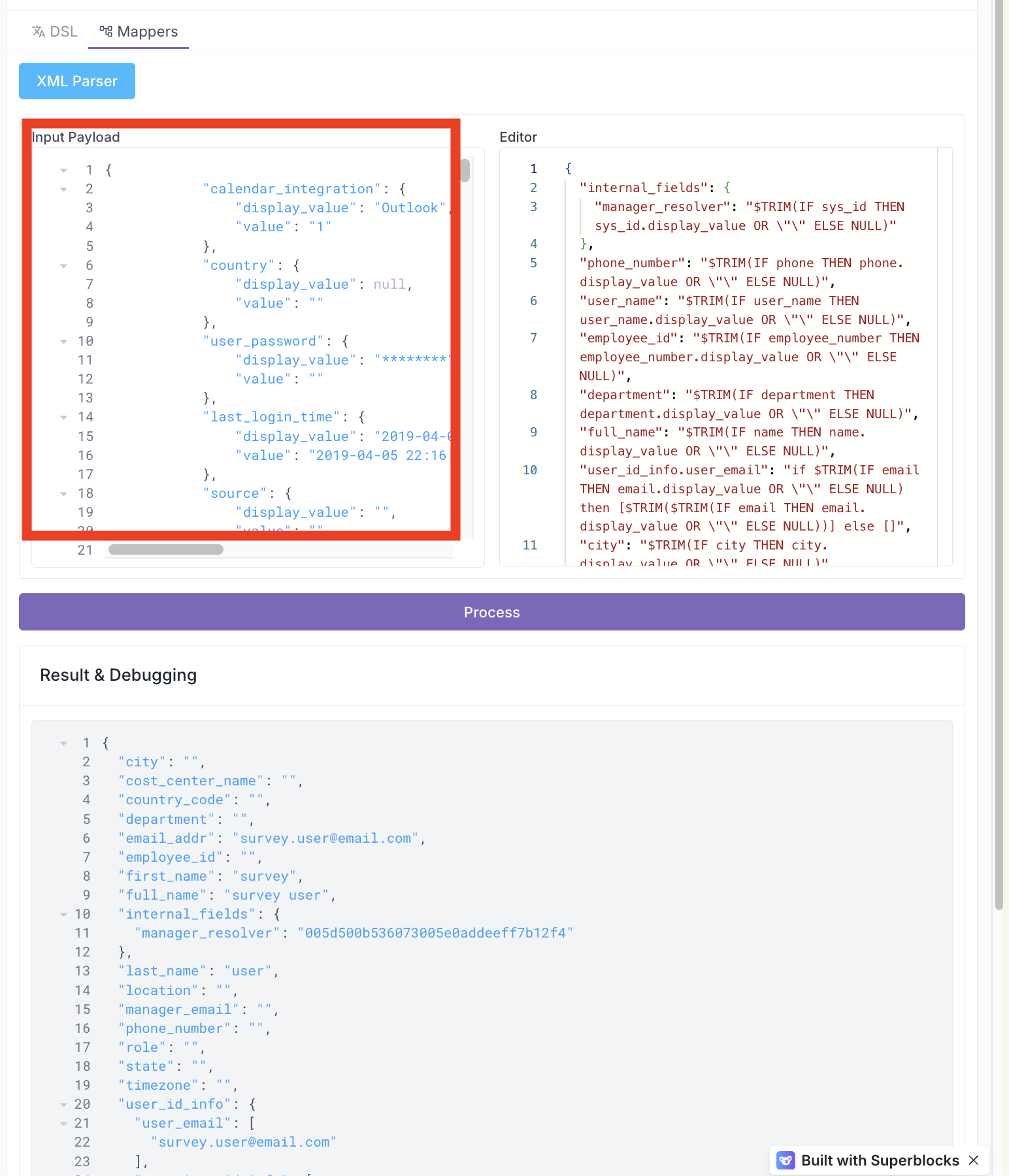
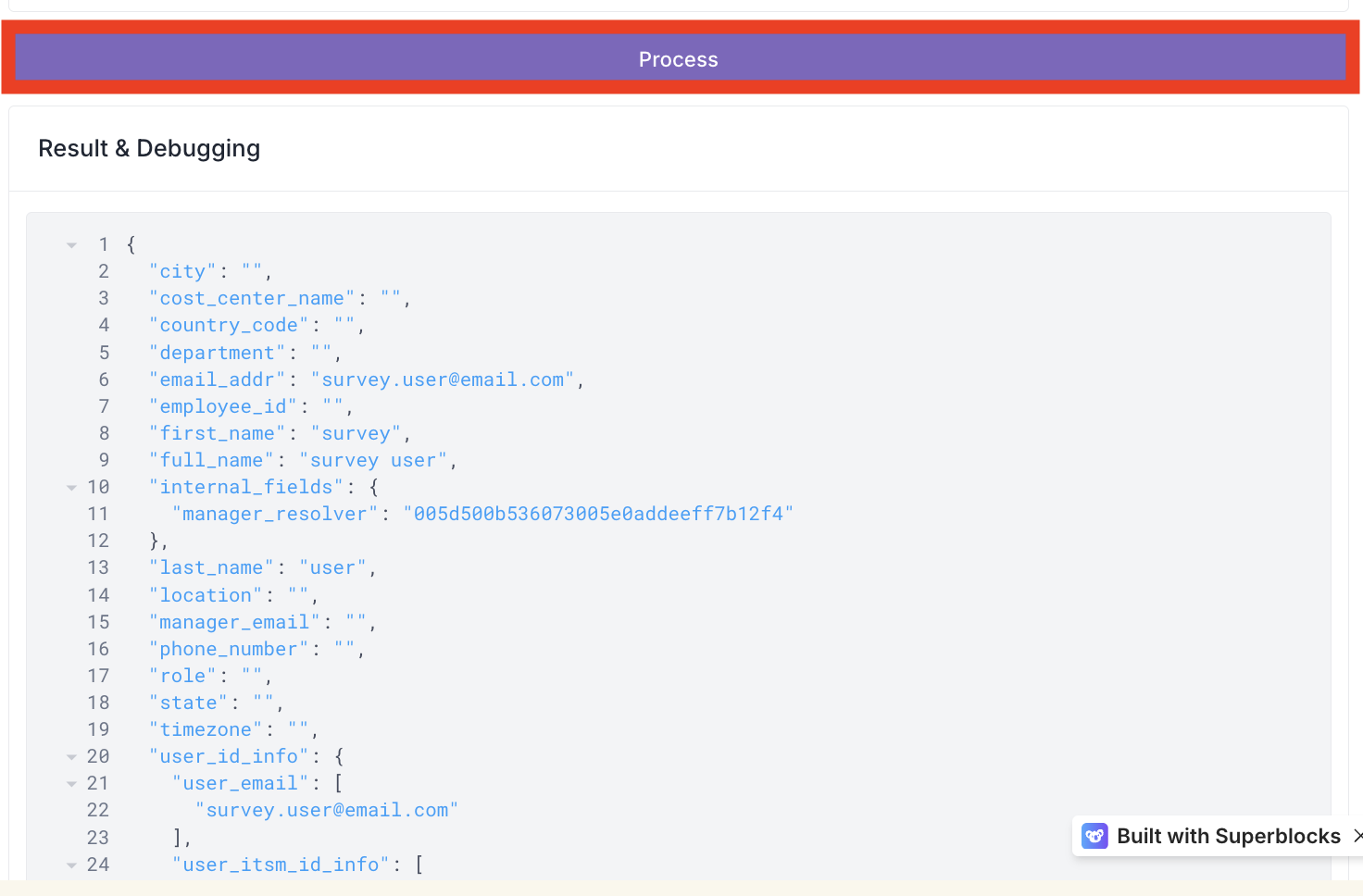
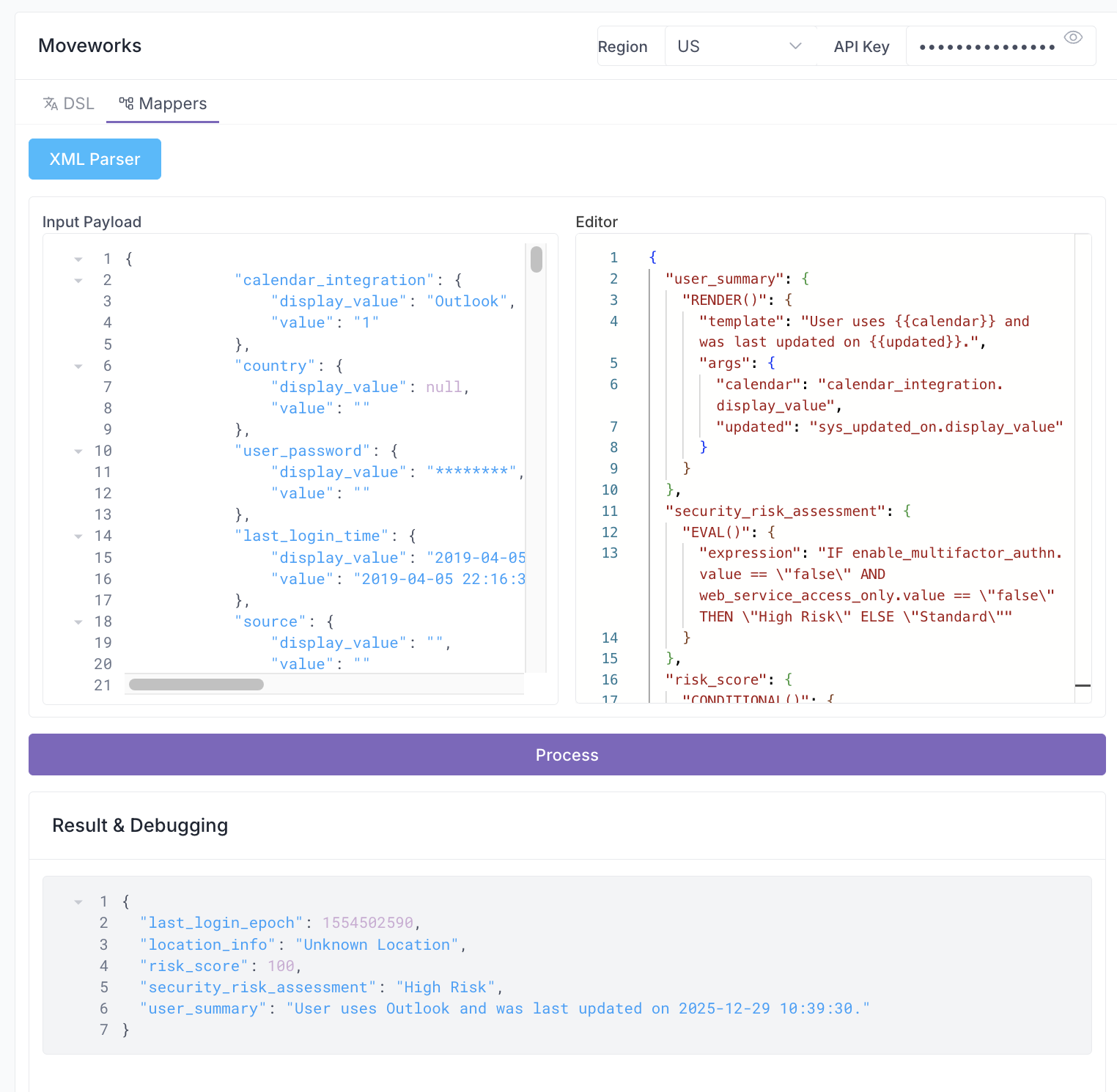
7. Click **`Process`** and see how the bender mapping is applied to the input payload!
**Note:** To ensure your Moveworks object representation is accurate, use this iterative process during the build phase. **Always verify that fields are populating exactly as intended** by following these steps:
* **Retrieve** a sample record from your external system.
* **Configure** the Bender to map your required fields.
* **Validate** the mapping results within the DSL and Data Mapper tool.
## 
### 1.3: Leverage Moveworks DSL Architect for Creating New Bender Mappings
**Note:** The Moveworks Agent Architect is an AI powered tool connected to Moveworks documentation. The DSL Architect can help you write DSL & Bender logic for all of your configurations!
1. Navigate to the[ Moveworks Agent Architect](https://marketplace.moveworks.com/chat) and select the DSL Architect
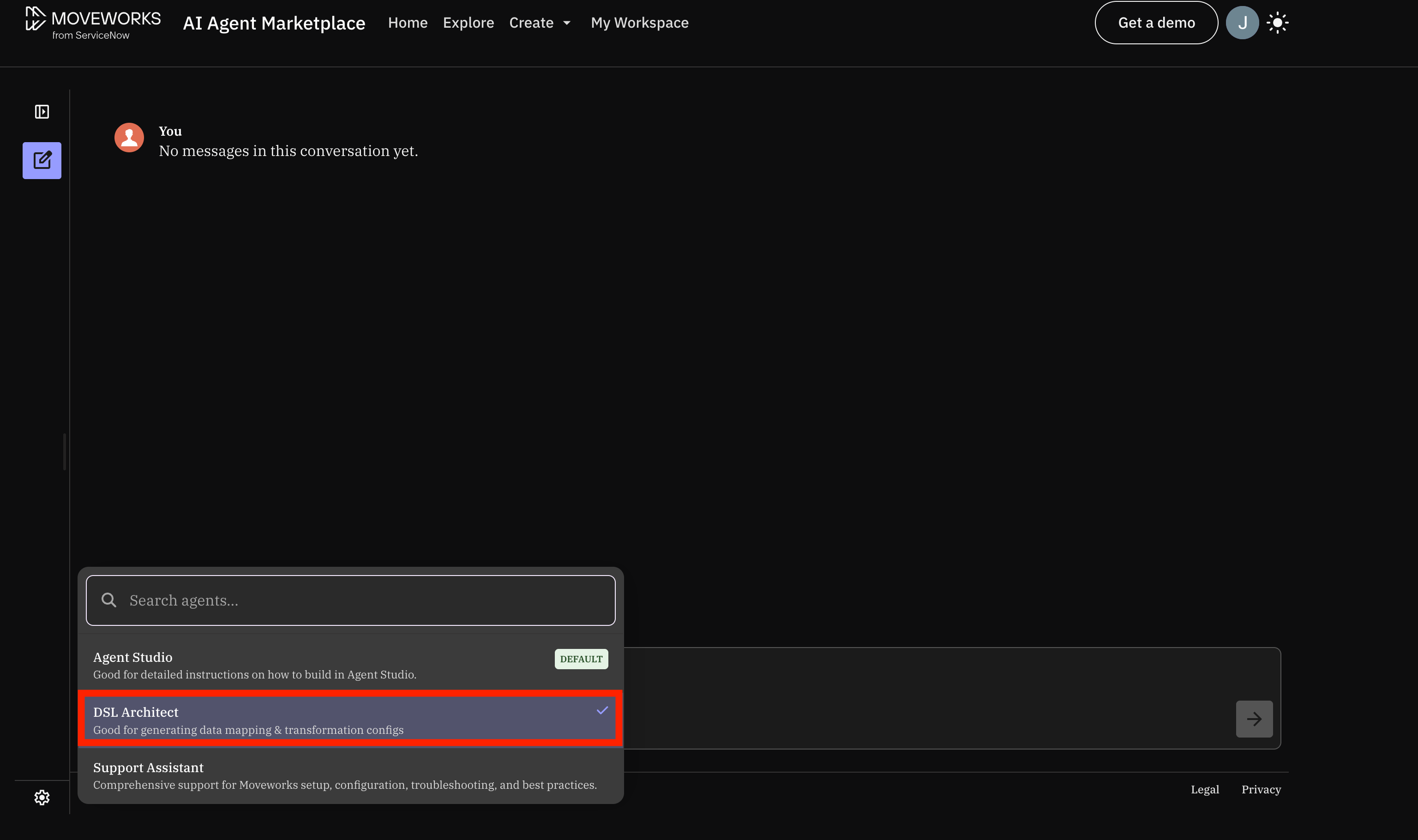
2. Provide the DSL Architect with the input mapping and what your stated goal is, leverage the following example
>
Based on the following input payload, please generate a complete, valid Bender mapping in both JSON and YAML formats. I am using this for a class, so please include a brief HTML introduction explaining the concepts covered.
Specifically, I need the following 5 complex data transformation examples included in the mapping:
1. String Templating (user\_summary): Use RENDER() to create a sentence combining calendar\_integration.display\_value and sys\_updated\_on.display\_value.
2. Conditional Logic (security\_risk\_assessment): Use EVAL() with an IF/THEN/ELSE statement to return ‘High Risk’ if both enable\_multifactor\_authn.value and web\_service\_access\_only.value are ‘false’, otherwise ‘Standard’.
3. Risk Score (risk\_score): Use the CONDITIONAL() operator to return 100 if enable\_multifactor\_authn.value is ‘false’, and 0 if it passes.
4. Time Parsing (last\_login\_epoch): Use EVAL() and \$PARSE\_TIME() to convert last\_login\_time.value into an epoch timestamp.
5. Data Fallbacks (location\_info): Use COALESCE() to return the first available value among building.display\_value, country.display\_value, or a hardcoded string ‘“Unknown Location”’.
Please ensure the JSON is fully closed and valid. Here is the payload:
```json
{
“calendar_integration”: { “display_value”: “Outlook”, “value”: “1” },
“country”: { “display_value”: null, “value”: “” },
“last_login_time”: { “display_value”: “2019-04-05 22:16:30”, “value”: “2019-04-05 22:16:30” },
“sys_updated_on”: { “display_value”: “2025-12-29 10:39:30”, “value”: “2025-12-29 10:39:30” },
“web_service_access_only”: { “display_value”: “false”, “value”: “false” }
}
```
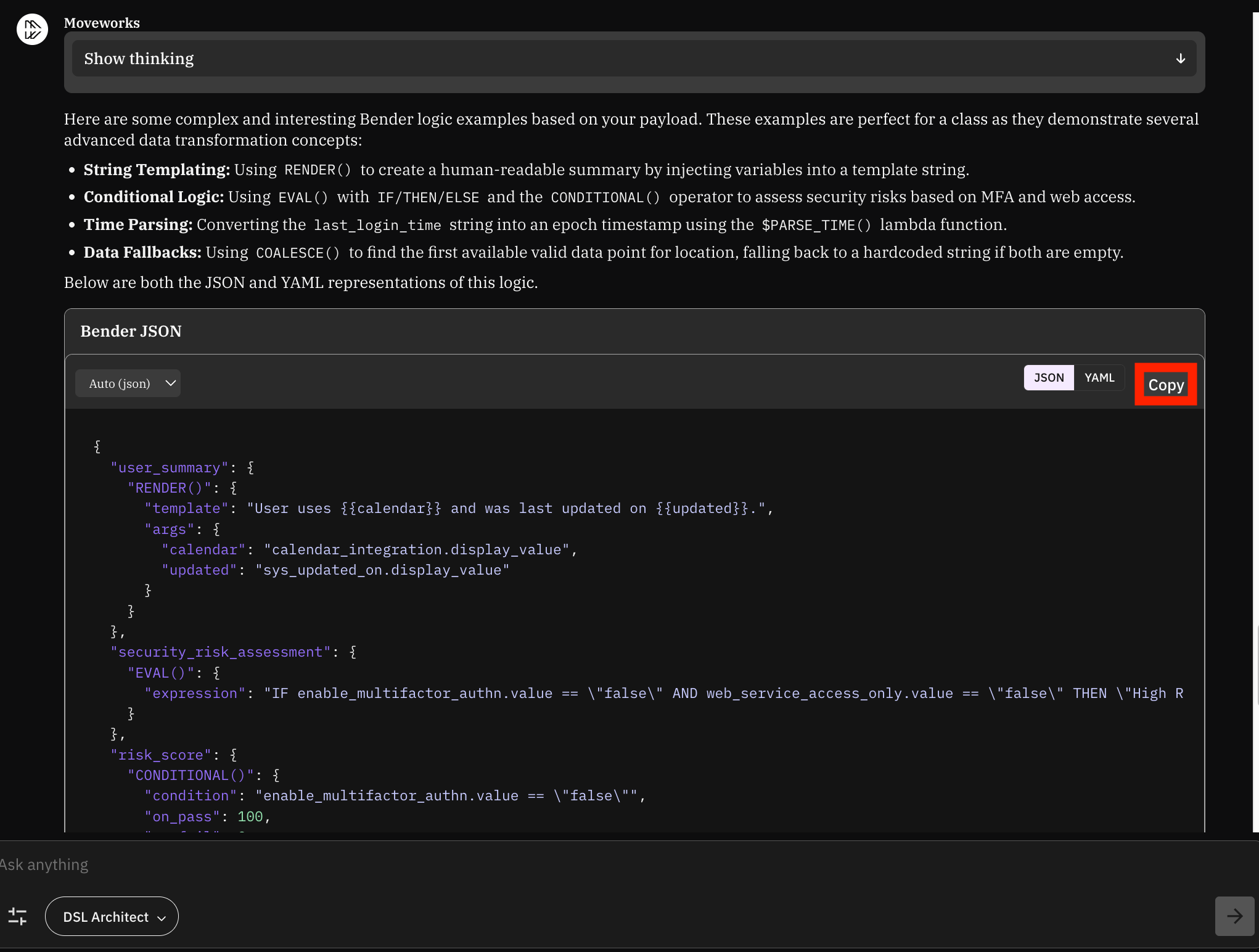
3. This will allow Agent Architect to give us an initial JSON construction for us to use in our mapping. Once it has provided it, we will want to **`copy`** the Bender JSON
4. And then we can paste it into the Editor section and see how how it would transform how our user is mapped within the Moveworks User Roster!
***
## ✅ 2: Verification & Next Steps
1. **Finalize:**
* Confirm that the JSON mapping processes successfully without errors.
2. **Inspect:**
* Analyze the functions and dot-walking logic used in the **Editor** section of the Data Mapping Playground. Review how these functions transform the input and why the resulting output appears the way it does.
3. **Experiment:**
* Modify the **Input Payload** and **Editor** values to see how the output changes. Try incorporating different logic or nested fields to test the limits of the mapping.
4. **Reference:**
* Consult the [Bender Guide on the Moveworks Help Site](https://docs.moveworks.com/agent-studio/core-platform/configuration-languages/moveworks-bender-language-reference) for a full list of available **Bender Functions** to expand your toolkit.
* Leverage the [Moveworks DSL Architect](https://marketplace.moveworks.com/chat) for advise on complex bender configurations that you want to do for an instance.
***
## 🪞 3: Reflecting on This Configuration
Through this guide, you’ve learned the following:
* How to leverage the DSL & Data Mapper Playground
* Where to pull existing configuration JSON values from to test how the configuration will be applied
* API Playground (Resource)
* User Identity or Ticketing Configuration (Bender Mapping)
* Where to find additional examples of the Moveworks Bender language & associated functions
* How to use the Moveworks Agent Architect to help write complex bender mappings
***
## 🧠 4: Knowledge Check: Lab #6b
**1. Based on the ServiceNow JSON structure, why do we use `.display_value` in our Bender mappings instead of just the field name?**
* **Answer:** ServiceNow stores data in objects where `value` is often a raw ID (like a sys\_id) or a code, while `display_value` contains the human-readable string.
**2. In the following Bender snippet from your lab, what is the purpose of the `OR ""`?**
`$TRIM(IF phone THEN phone.display_value OR "" ELSE NULL)`
* **Answer:** It provides a fallback to an empty string to prevent the mapping from failing or returning an error if the `display_value` property is missing.
**3. Which Moveworks tool should you use if you want to test how a specific user's raw ServiceNow data will look after being processed by your Bender configuration?**
* **Answer:** The **DSL and Data Mapper Playground**.
**4. True or False:** The `RENDER()` function is used for mathematical calculations like risk scores.
* **Answer:** **False.** `RENDER()` is used for string templating to create human-readable sentences. (Bonus: `CONDITIONAL()` or `EVAL()` would be used for scores).
***
## ⚙️ 5: Configuration Details
Use the table below to fill in the required fields accurately.
| **Field Name** | **Action / Value to Enter** |
| --------------------------------------------------------------- | --------------------------------------------------------------------------------------- |
| **Moveworks API Key** | Generated within Moveworks Setup → Waffle Menu (HTTP Connectors) → Credentials → Create |
| **API Key → Credential Name** | `any_value` |
| **API Key → Credential Type** | API Key |
| **Data Mapper Playground → Input Payload** | Copy the full JSON record from the code block above (Step 1.2) |
| **Data Mapper Playground → Editor** | Copy the Bender mapping JSON from the code block above (Step 1.2) |
| [Agent Architect](https://marketplace.moveworks.com/chat) Query | See the example prompt in the code block in Step 1.3 above |