***
title: 'Lab #5: Ticketing (Core)'
position: 6
deprecated: false
hidden: false
metadata:
robots: index
-------------
## Overview
* **Learning Objectives:** How to configure, modify, validate, and test ServiceNow IT Ticketing within Moveworks
* **Estimated Time:** 45 minutes
* **Prerequisites:**
* Lab 1 complete (snow connector configured)
* Lab 2 complete (users ingested into Moveworks)
* ServiceNow IT ticketing endpoint access (incident, sc\_request, sc\_req\_item)
***
### Key Concepts
Moveworks manages the full lifecycle of a ticket, from creation to resolution. The core ticketing configuration involves:
* **Table Mappings:** The configuration that tells Moveworks which tables to interact with (e.g., `incident` for breaks/fixes or `sc_req_item` for requests).
* **Routing Conditions:** Logic that directs a user's request to a specific workflow (e.g., routing a "Concierge" intent to a standard ticket generation flow).
* **Table Actions:** The specific capabilities enabled for the bot, such as the ability to "Query" (look up), "Update" (add comments), or "Resolve" a ticket.
* **Service Portal URL:** The base web address of your ITSM portal. Moveworks appends ticket IDs to this URL to provide users with direct "View in Portal" links.
**Relevant Documentation:**
* [Moveworks Help: Concierge & Ticketing Capabilities Overview](https://help.moveworks.com/service-management/concierge-assistant)
* [Moveworks Help: Configuring Ticketing for ServiceNow](https://help.moveworks.com/service-management/concierge-assistant/moveworks-setup-ticketing/new-ticketing-journeyconfigure-ticketing-for-servicenow)
* [Moveworks Help: Ticket Data Object](https://help.moveworks.com/service-management/core-platform/moveworks-data-objects#ticket)
* [Moveworks Help: Handoff Overview](https://help.moveworks.com/service-management/live-agent-handoff-assistant)
***
## 🛠️ 1: Walkthrough
### 1.1: Initial Setup
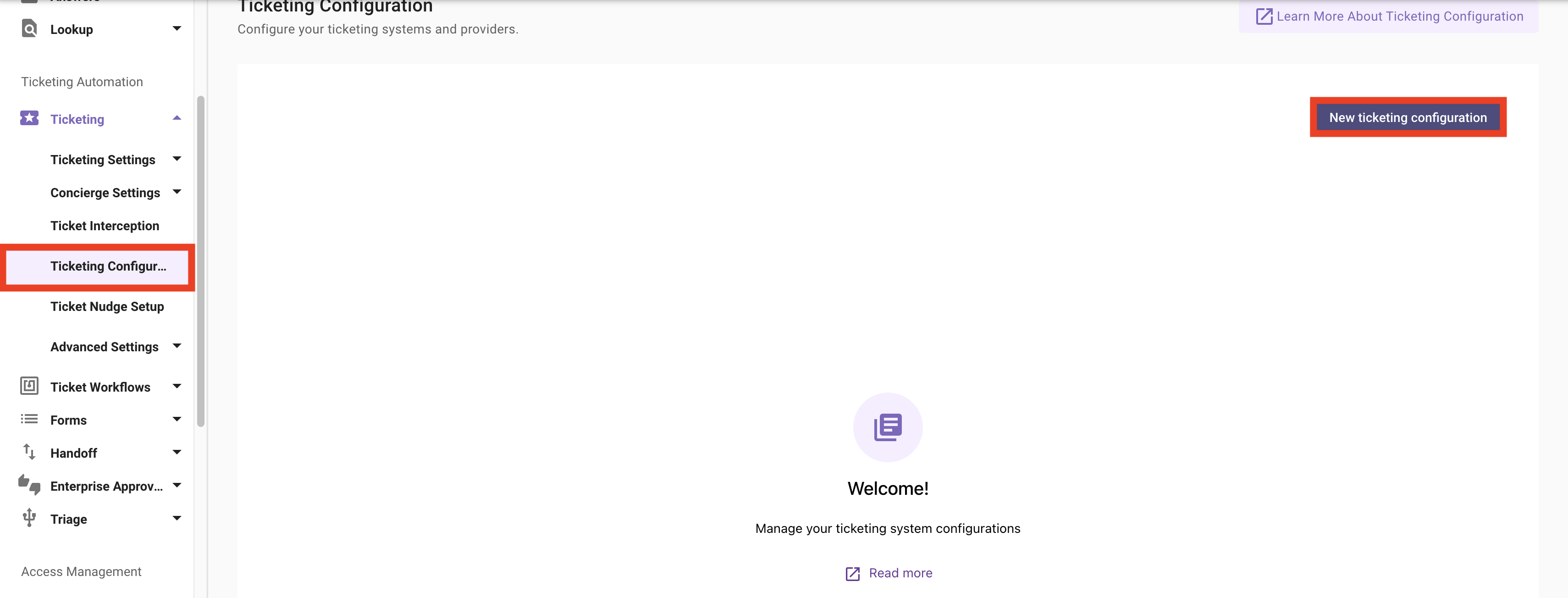
1. Navigate to **`Ticketing > Ticketing Configuration > New ticketing configuration`**
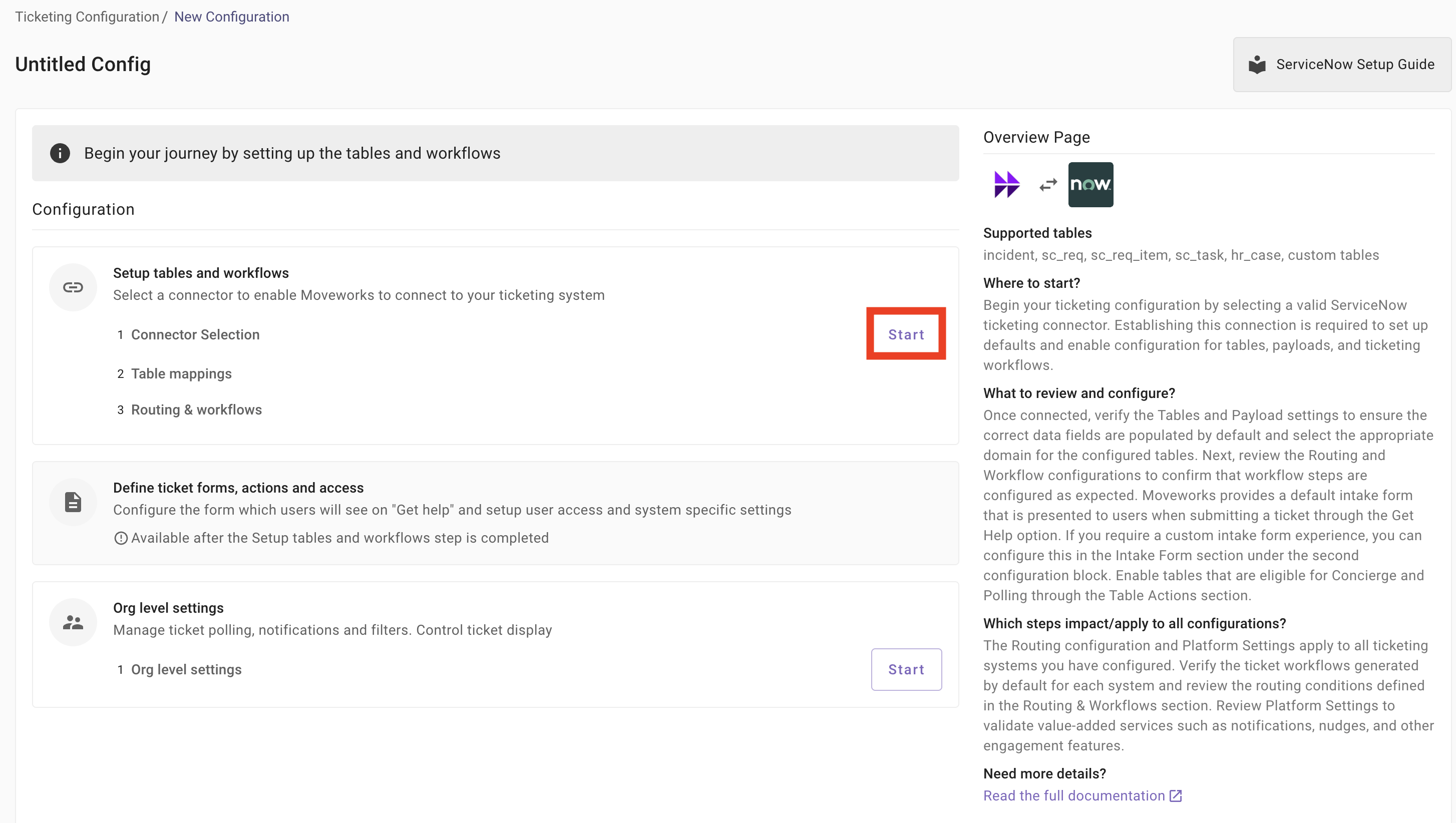
2. Start by selecting the **`Connector Selection`**
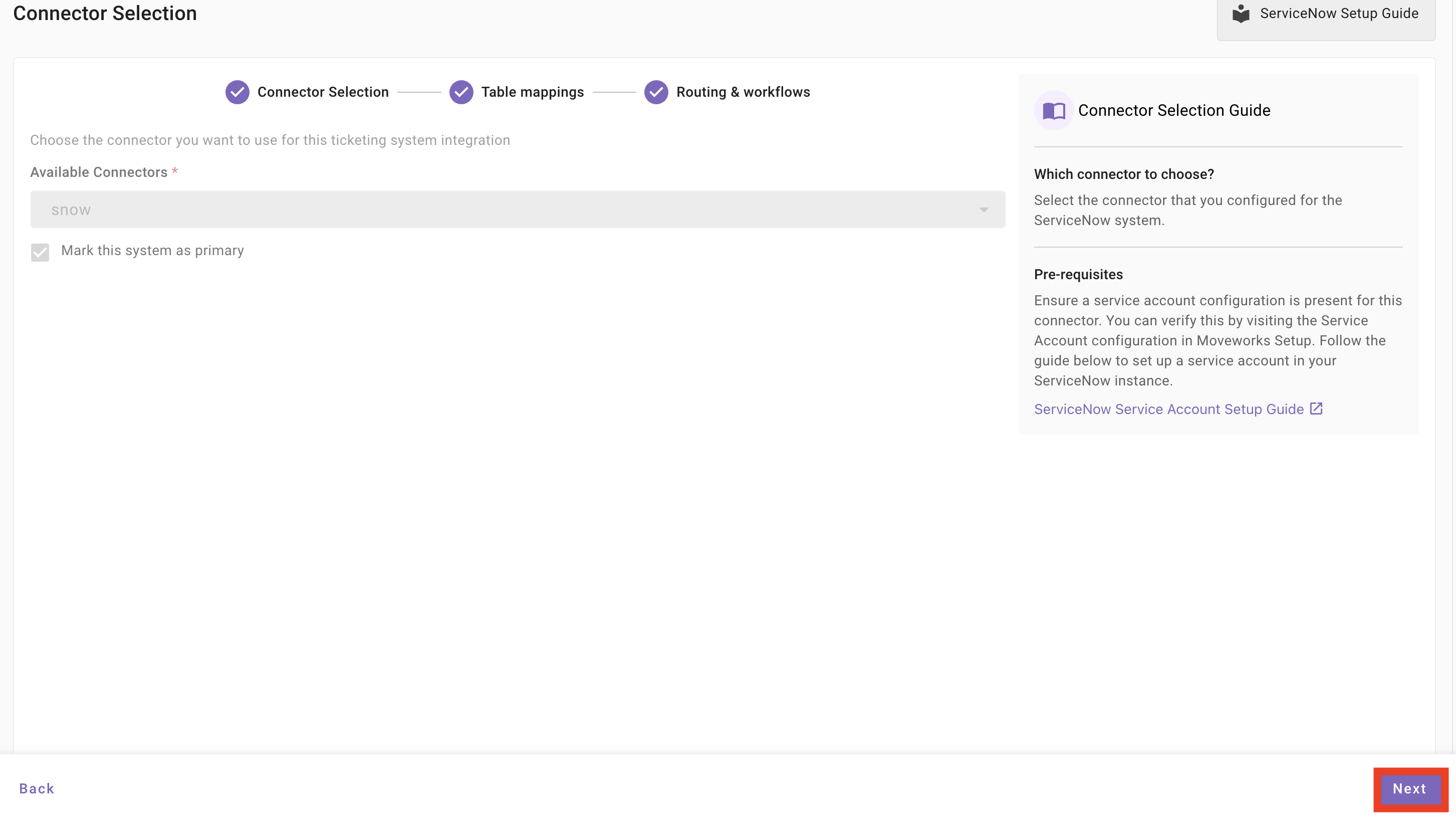
3. Select **`snow`** as the **`connector`** & **`primary system`**
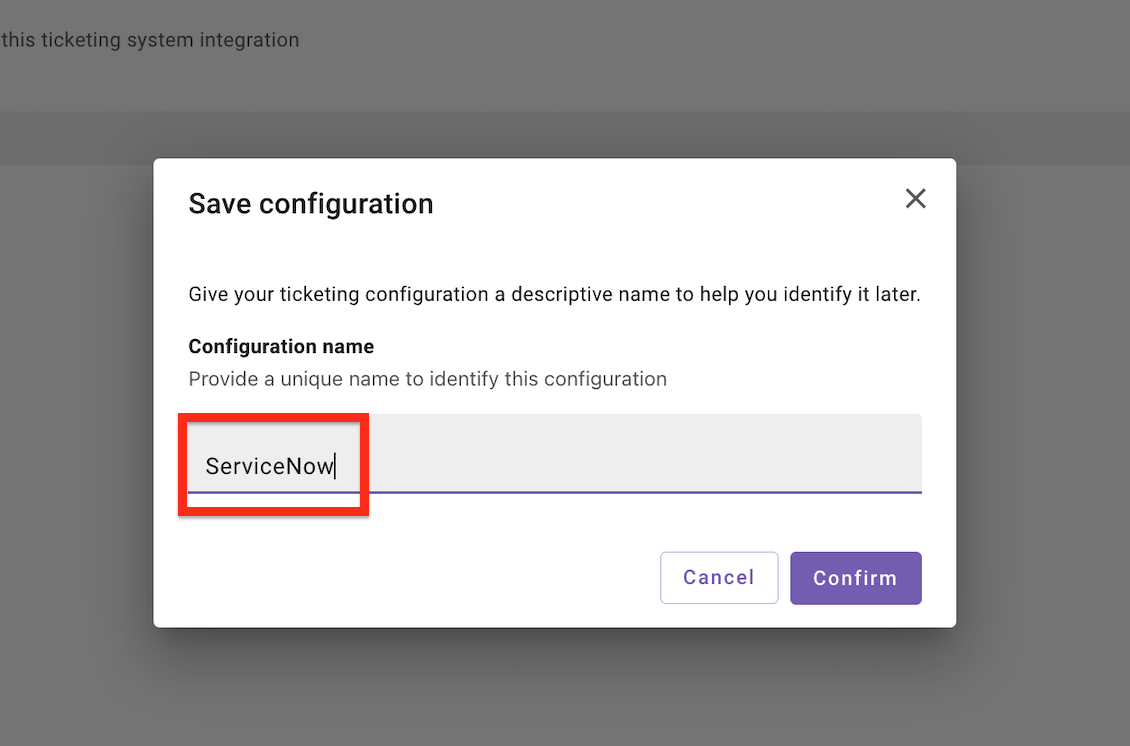
4. Give your configuration a name
5. Click the `Back` button in bottom left hand side, and click the **`Setup Defaults`** button at the top of the page to establish the pre-configured ticketing types.
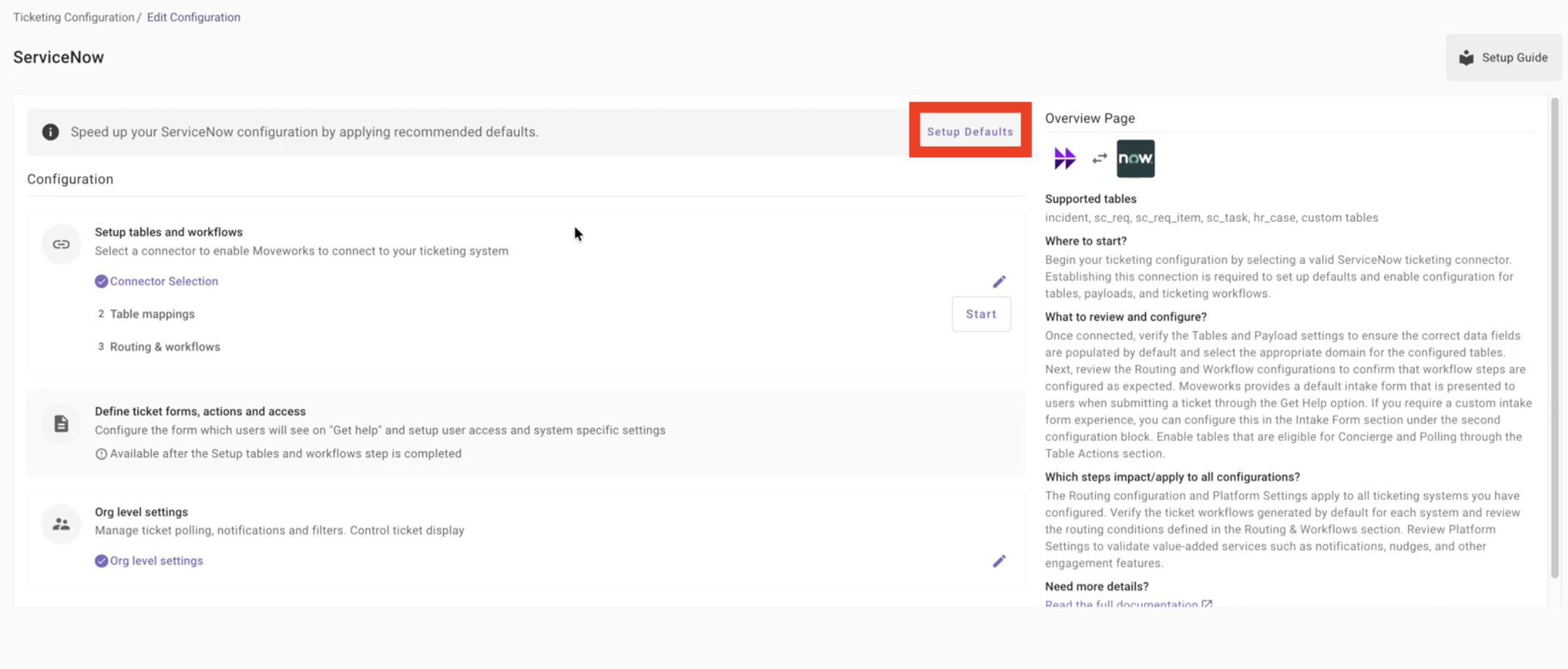
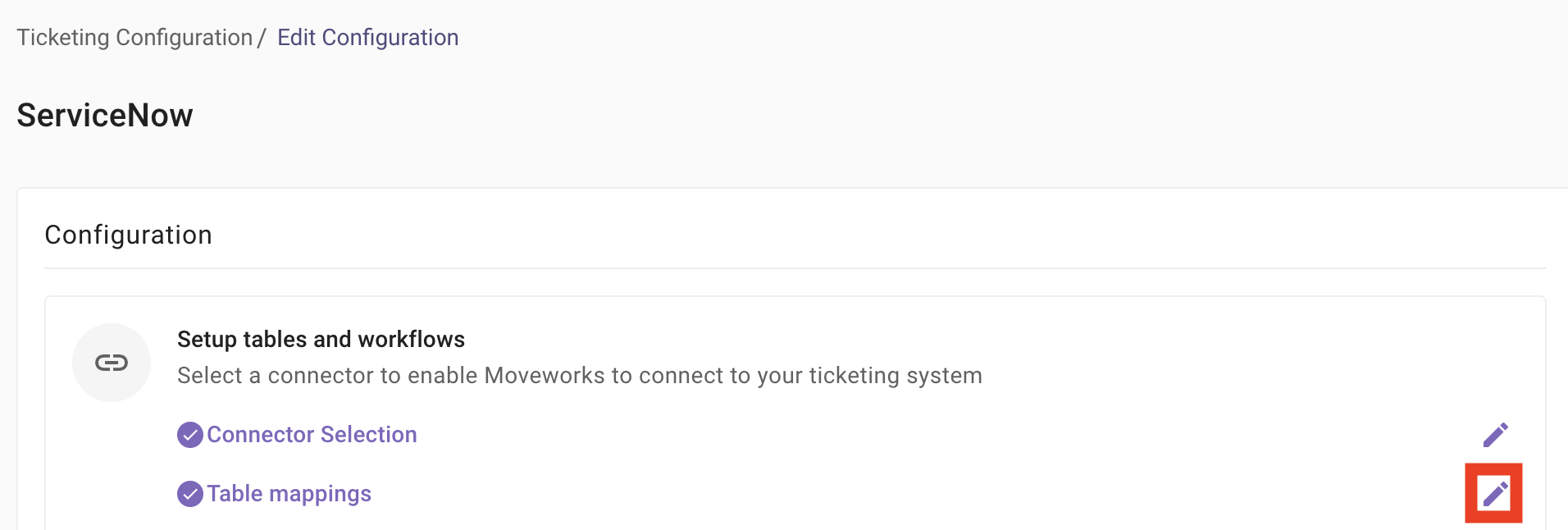
6. Navigate to the newly generated **`Table mappings`** page
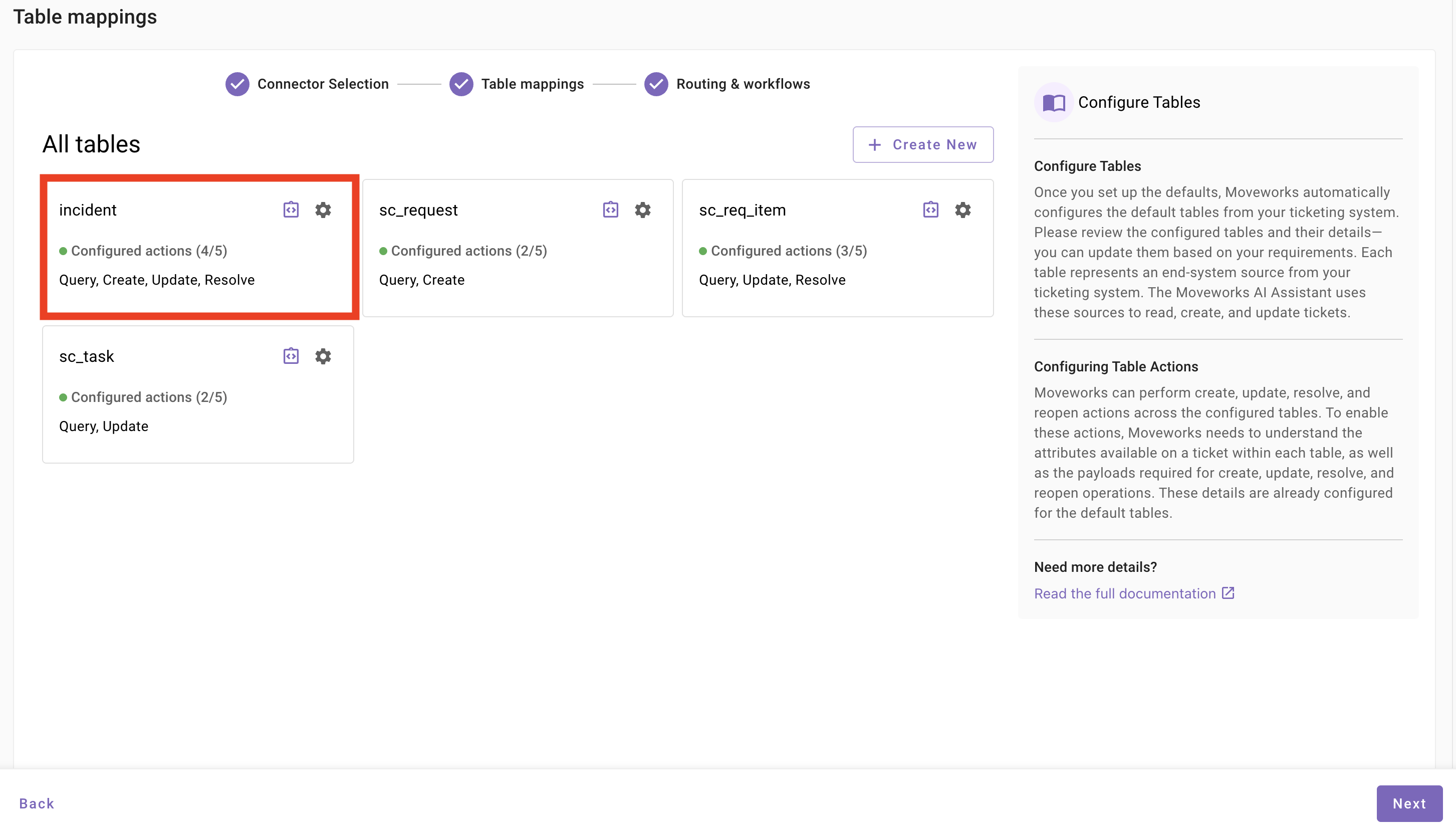
7. By default, Moveworks will be integrated with the following tables within a ServiceNow instance. Select the **`Incident`** table by clicking the UI box:
**Note:** Each ticket destination (table) will include a note at the bottom about what functionality is configured. For Incidents, we can see that the following functionality comes pre-configured:
* **Query:** Allows requestors to search for their existing tickets
* **Create:** Enables requestors to initiate new tickets
* **Update:** Permits requestors to add comments to active tickets
* **Resolve:** Grants requestors the ability to close their own tickets
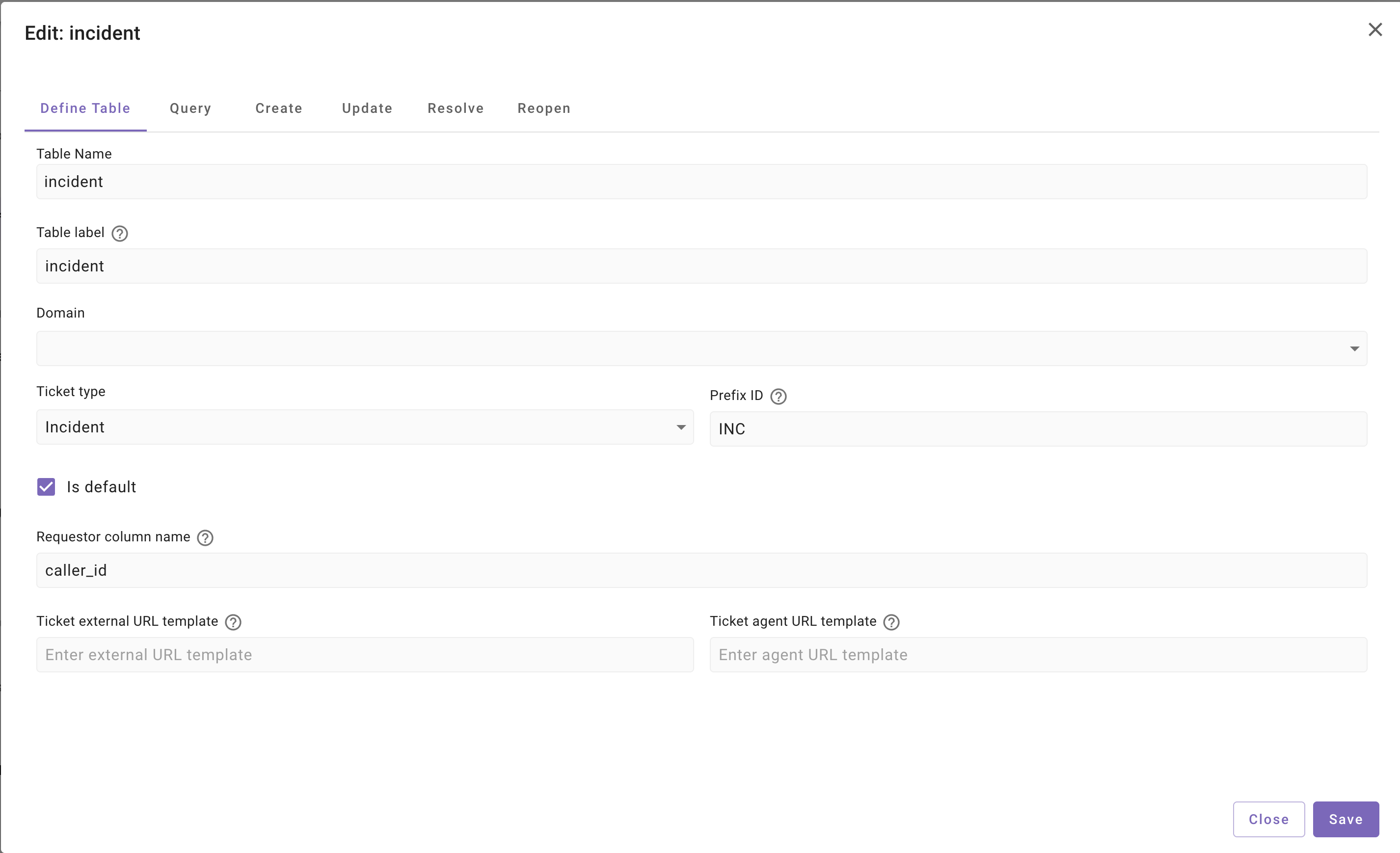
8. After clicking into the Incident section, we will see the table definition.
| Field Name | Use |
| --------------------- | ------------------------------------------------------------------------------------------------------------------------------------ |
| Table Name | Table name within the Moveworks UI |
| Table Label | Name of the table in the integrated ITSM |
| Domain | The associated enterprise domain that the ticket falls under (IT, HR, Finance, etc) |
| Ticket Type | The ticket type within Moveworks (Mirrors ServiceNow: Incident, Request, Request Item, Task, etc) |
| Prefix ID | Matches to the prefix within the target system (INC, REQ, RITM, etc) |
| Requestor Column Name | The associated ticket metadata field that represents the user who opened the ticket. often `caller_id`, `requested_for`, `opened_by` |
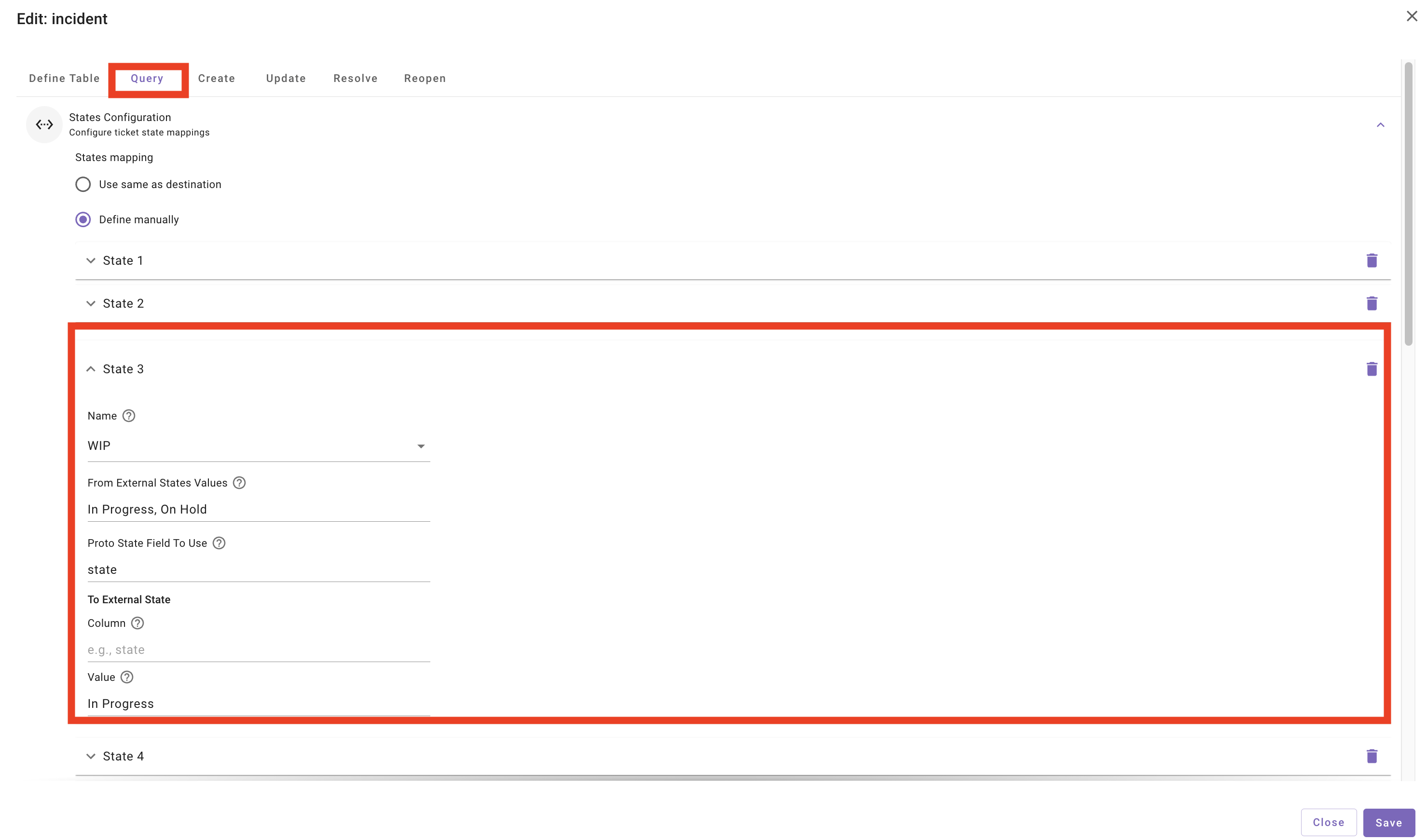
9. Navigate to the **`Query`** page and review the **`States Configuration`**
**Note:** The default State mappings within Moveworks will map to the defaults in the ServiceNow PDI environment. When integrating with a live environment, always ensure that you check the additional states in the source ITSM, and map any outstanding states into Moveworks.
10. Next, we will add **`custom_data`** fields to the **`Query`** mapping.
***
**Note:** When instantiating ticketing for an organization, the configuration will start with a list of default fields. If the client requires us to operate on fields that do not exist out of the box, we can add additional fields as `custom_data`. These can then be leveraged as reference values for downstream ticketing workflows.
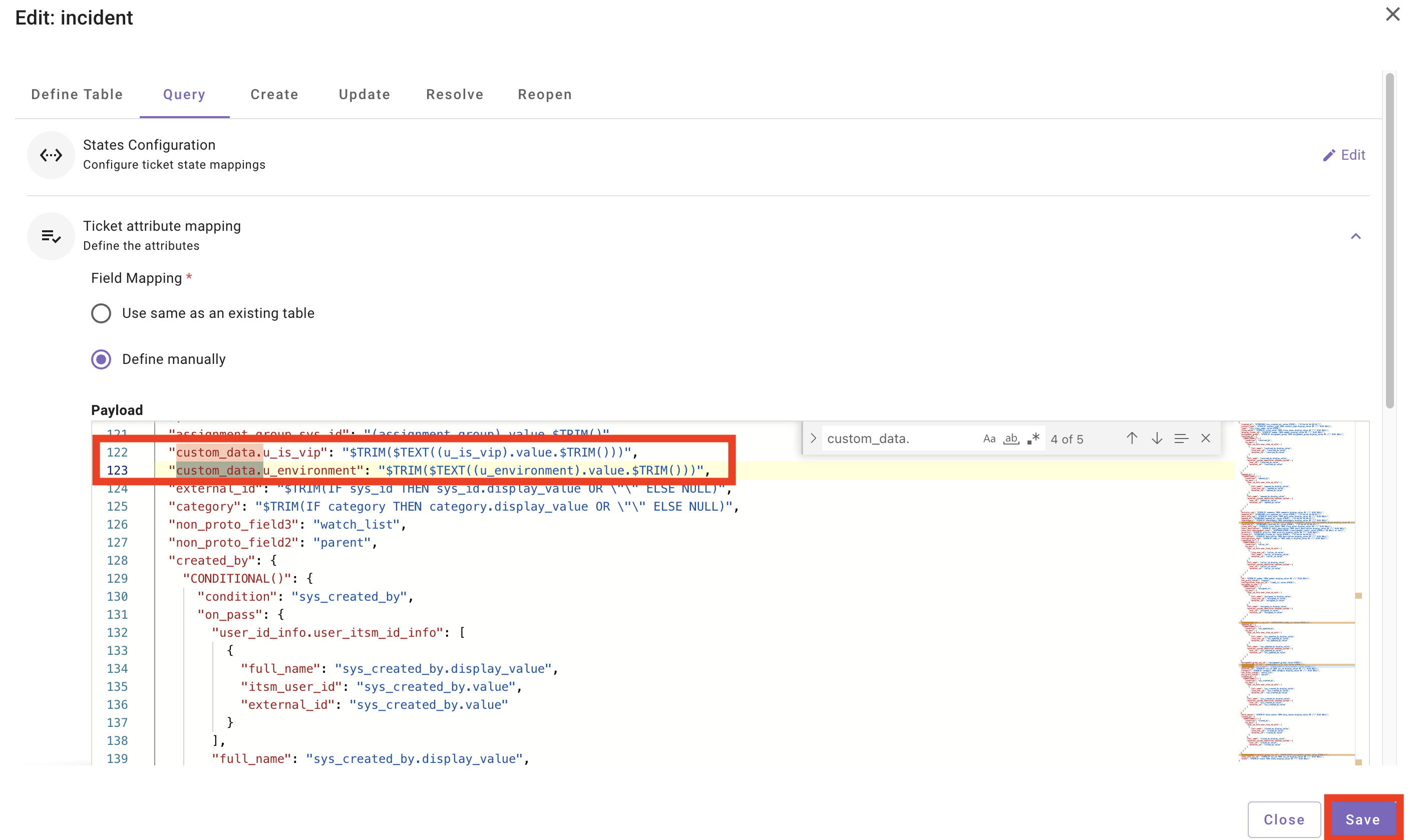
11. Based on our requirements, we will add the **`custom_data`** fields to the **`Query`** ticket mapping:
| Field Name | Value |
| ---------------------------- | ----------------------------------------------- |
| custom\_data.u\_vip\_support | `"$TRIM($TEXT((u_is_vip).value.$TRIM()))"` |
| custom\_data.u\_environment | `"$TRIM($TEXT((u_environment).value.$TRIM()))"` |
**Note:** In the **`Query`** configuration, all fields on the **left** are the Moveworks defined fields, while all fields on the **right** are the field name from the source system.
Reference the [Ticket Data Object](https://help.moveworks.com/service-management/core-platform/moveworks-data-objects#ticket) page on the Moveworks Help Site to understand all of the fields available on the Moveworks Ticket object by default.
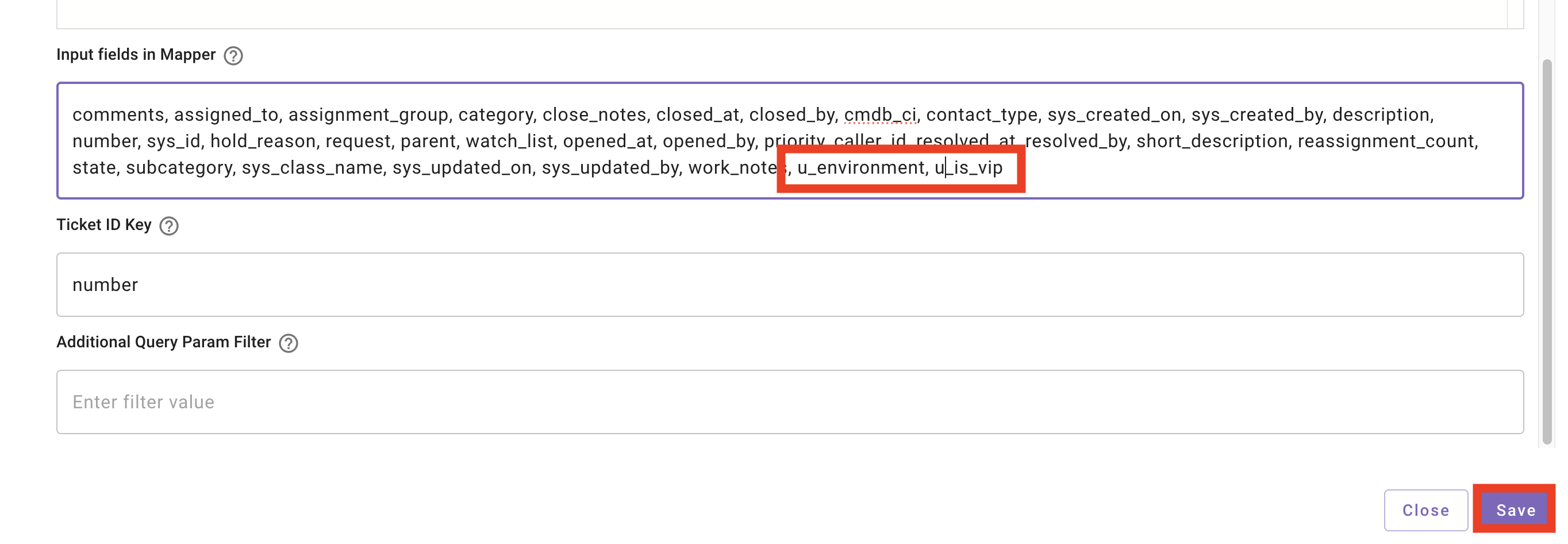
12. Scroll down to the **`Input fields in Mapper`** section and add the **`u_environment`** and **`u_is_vip`** fields
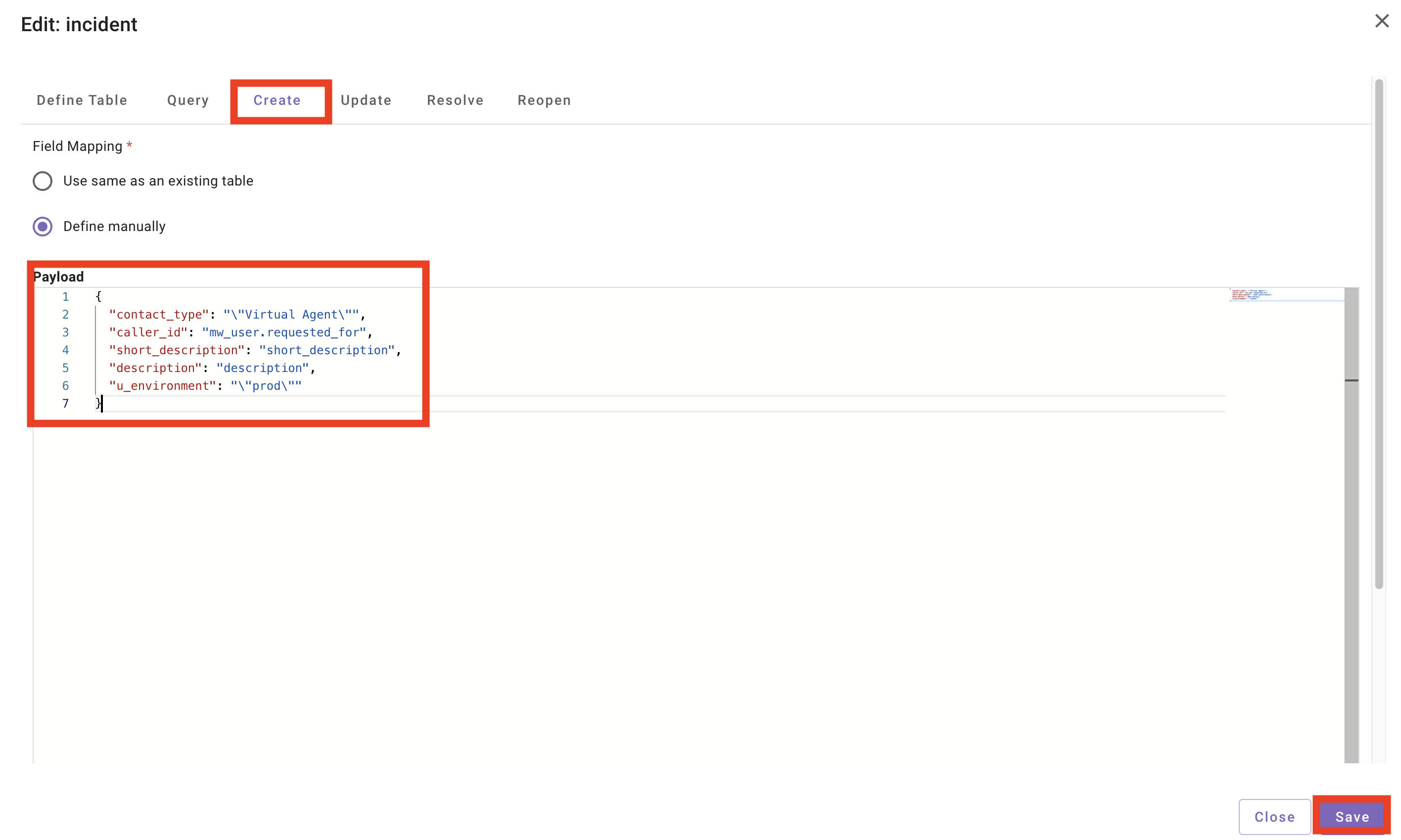
13. Add one of the **`custom_data`** fields as a default value that will be populated when Moveworks **`Creates`** an **`Incident`** ticket within **`ServiceNow`**
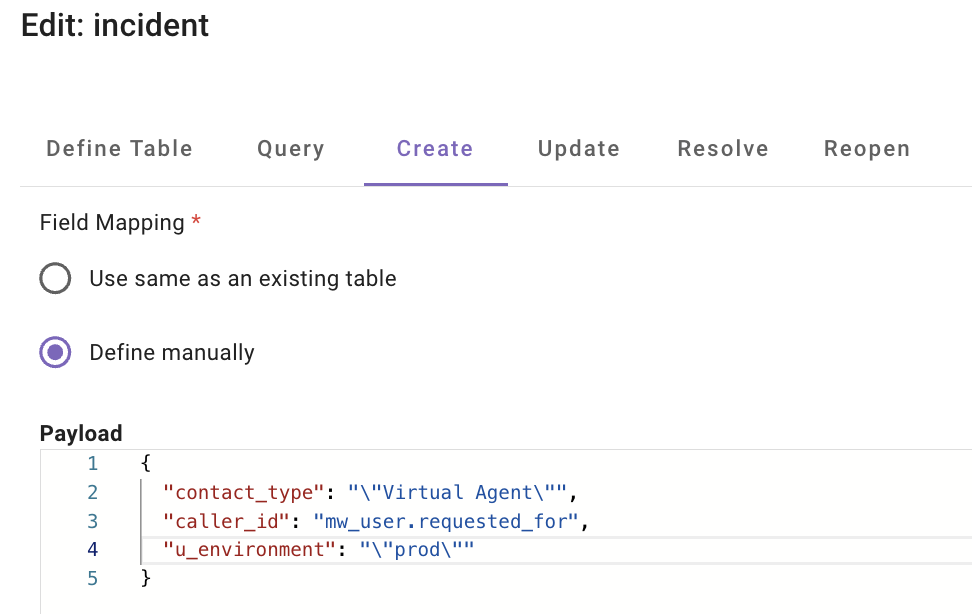
1. Select **`Create`** and add the field **`u_environment`** with the value **`prod`**, as shown below:
* `"custom_data.u_environment": "\"prod\""`
**Note:** When configuring **WRITE** tables (Create, Update, Resolve, Reopen), the formatting tells Moveworks whether to use a fixed value or a variable you've already defined in your query configuration.
### **1. Using Moveworks Variables**
To use data already stored in the Moveworks "data bank," use a **single pair of quotes**. The "value" on the right must match the "key" you defined in your ingestion script.
* **Syntax:** `"target_field": "stored_variable"`
* **Example:** `"assignment_group": "assignment_group"`
> *In this case, Moveworks looks at your ingestion code, finds the key **`"assignment_group"`**, and pulls the result of that **`$TRIM(IF...)`** logic.*
### **2. Using Static Raw Strings**
To write a specific piece of text that **isn't** a variable, you must **escape** the quotes.
* **Syntax:** `"target_field": "\"Fixed Value\""`
* **Example:** `"short_description": "\"New Ticket from Moveworks\""`
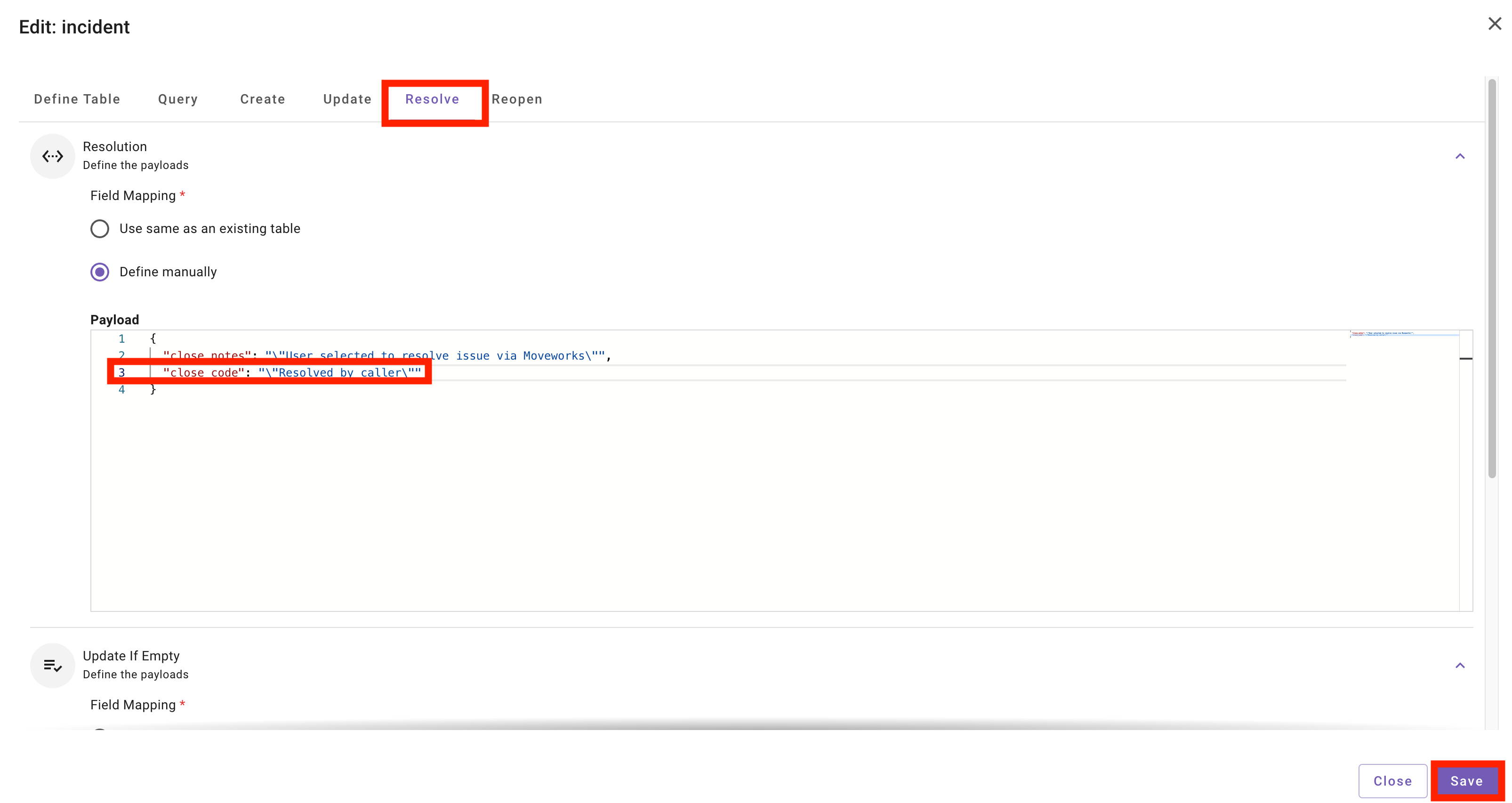
14. Next, navigate to the `Resolve` table, and update the **`close_code`** field that Moveworks will write to ServiceNow. Be sure to **`Save`**:
* `"close_code": "\"Resolved by caller\""`
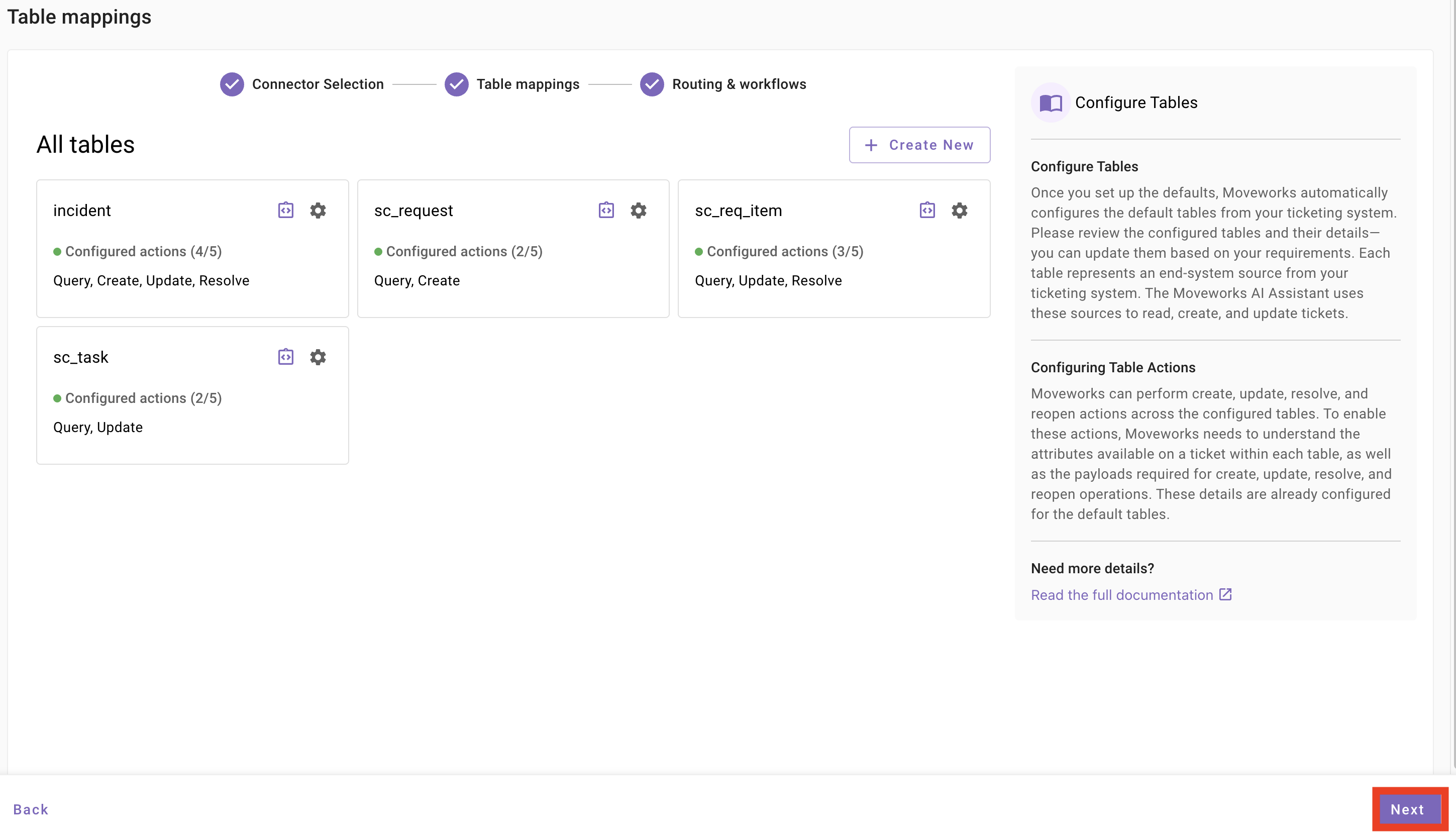
15. After saving, select **`Next`**, review the Routing & Workflow conditions (no updates needed at this time) and then **`Save`**
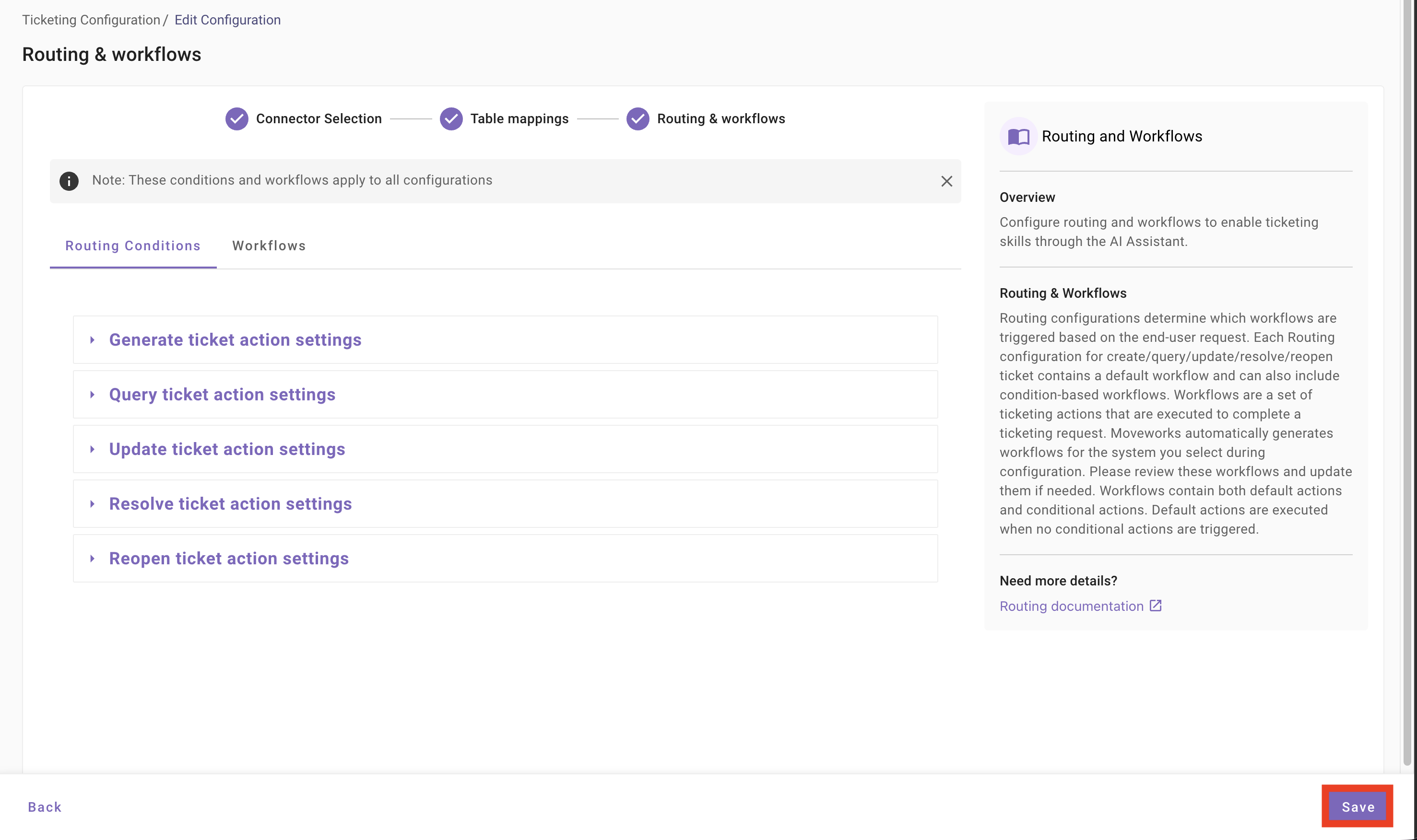
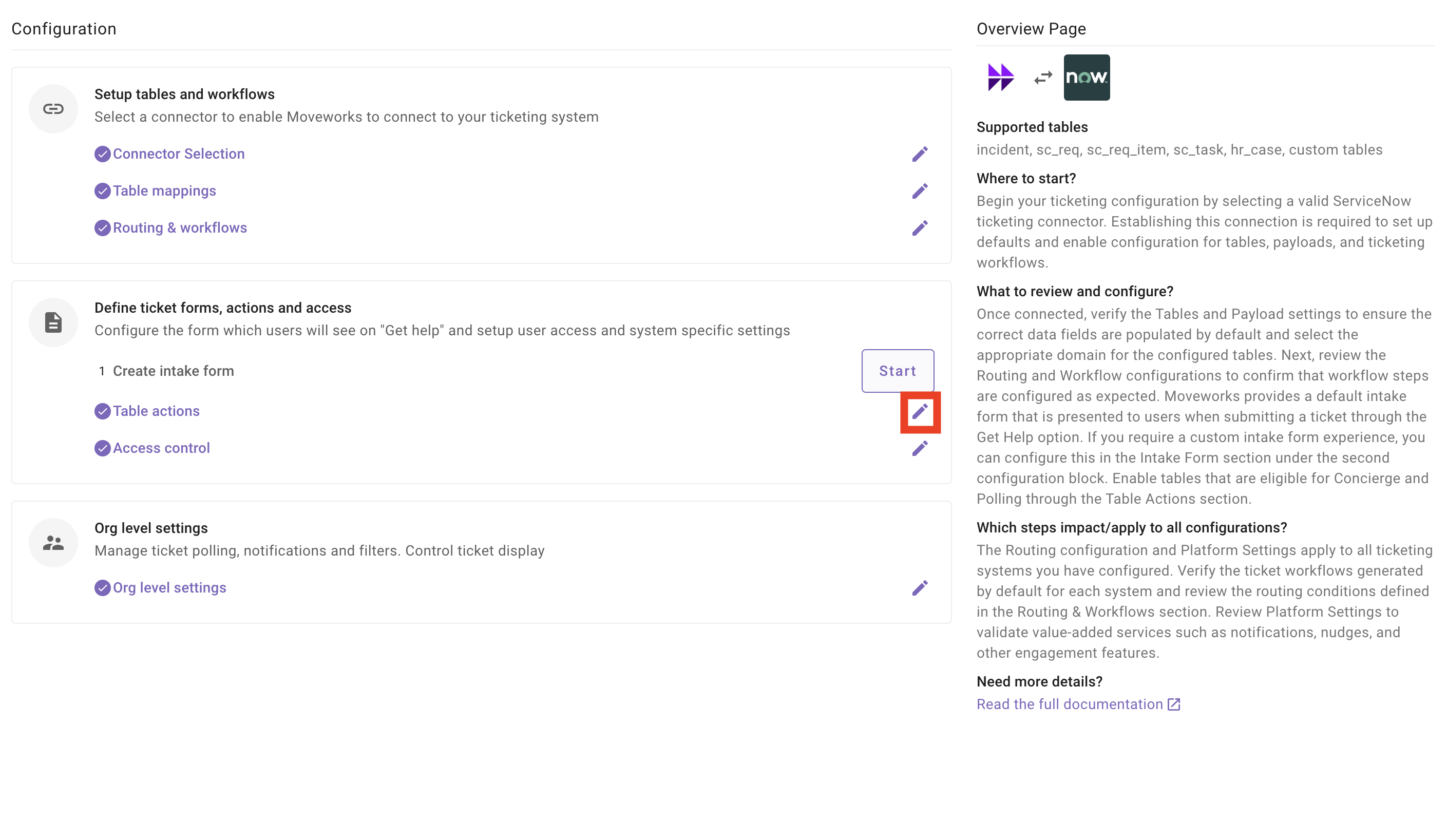
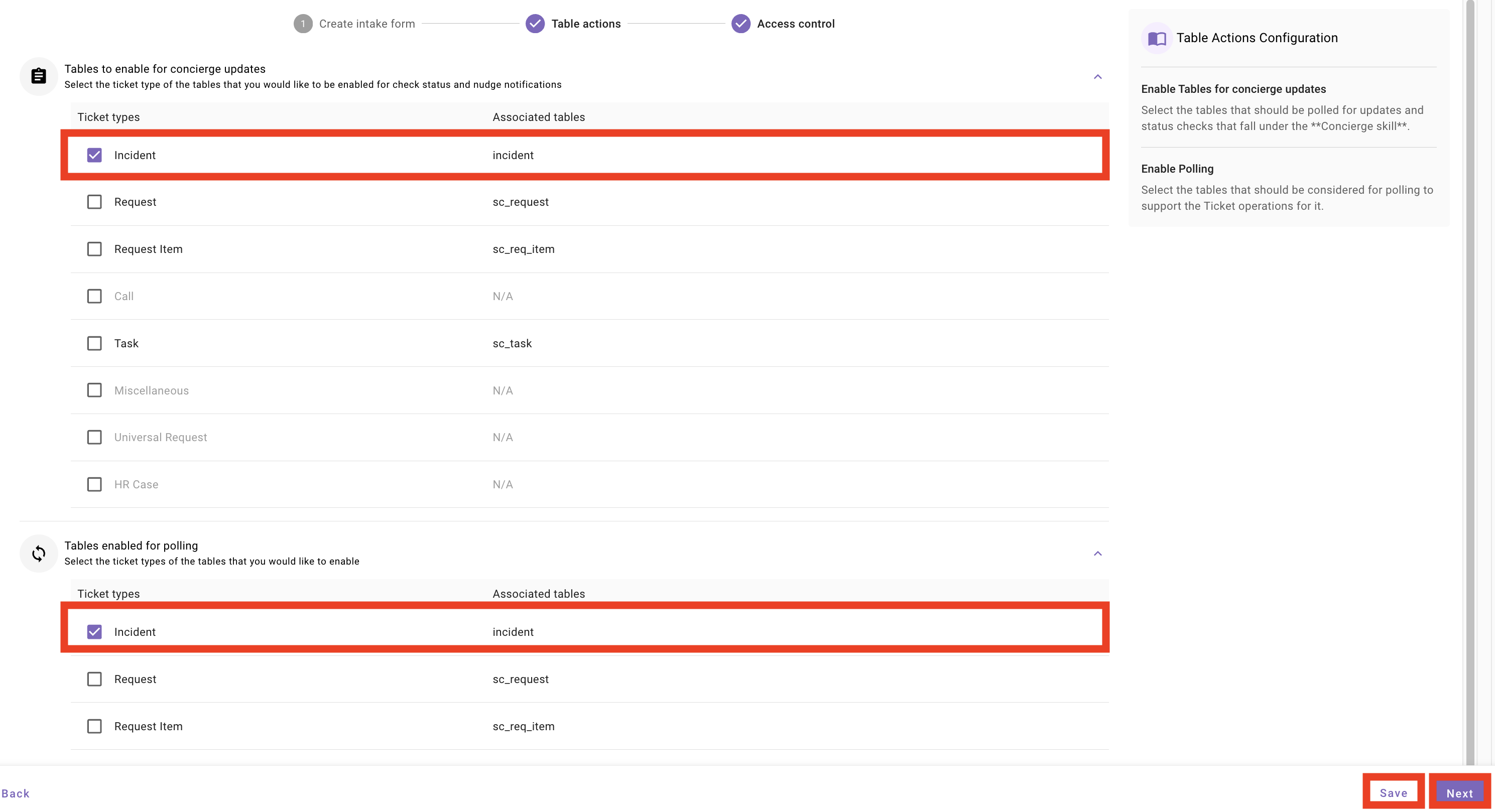
16. Navigate to the **`Table Actions`** and confirm that the **`Incident`** ticket type is enabled for Polling and Concierge Updates. Ensure you click **`Save`** before moving on
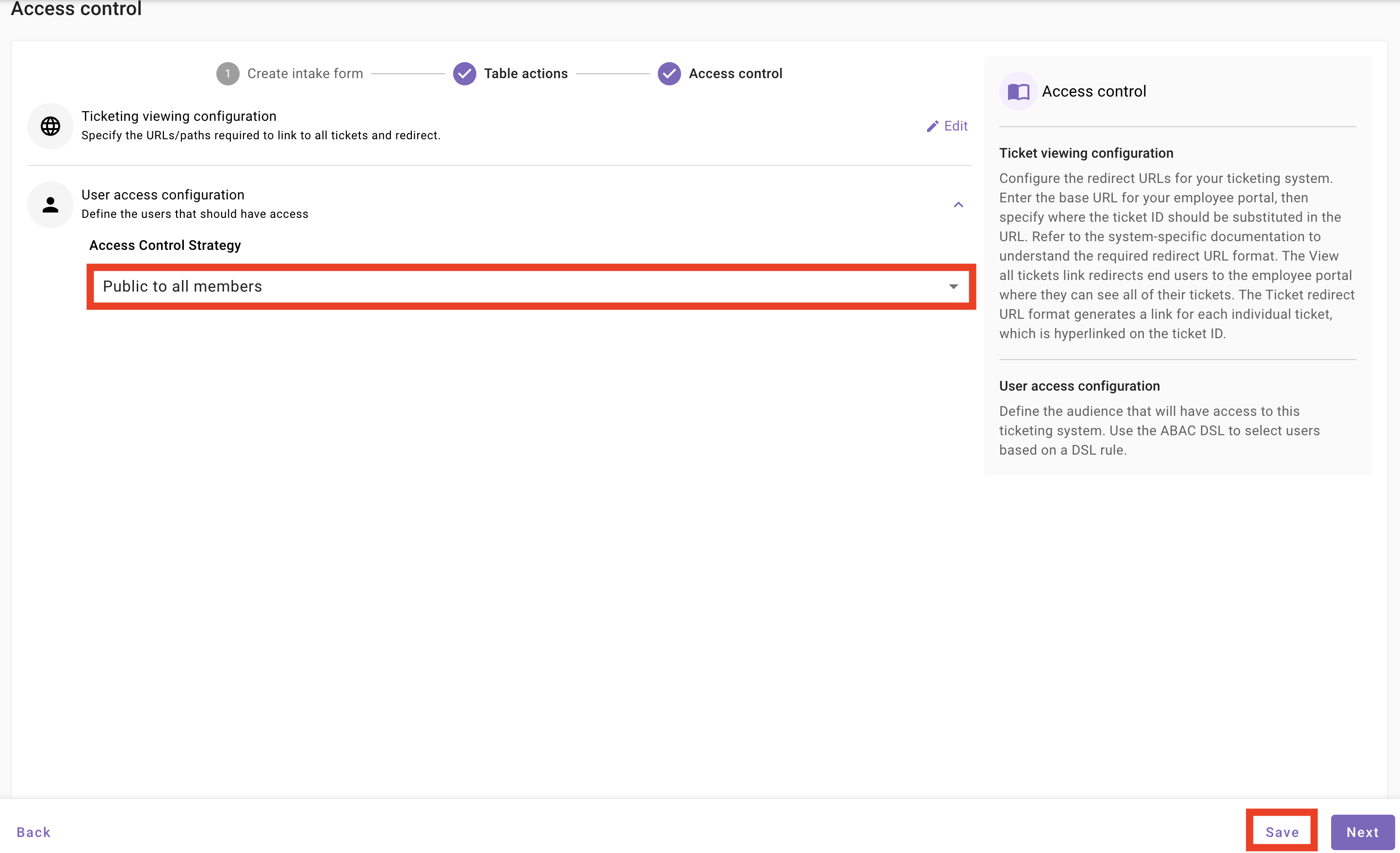
17. Ensure that the **`Access Control Strategy`** is set to **`Public to all members`**, and **`Save`** your configuration
**Note:** We will not need to modify the **Org level settings** for this lab, but you should be aware that these global configurations control the following behaviors across all ticket types:
* **Ingestion Control:** Determines how often Moveworks polls your ITSM (e.g., ServiceNow) for updates and how far back it looks for changes.
* **Notification Window:** Sets "Business Hours" and weekend rules to ensure users aren't pinged by the Assistant at 2:00 AM.
* **Nudge Logic:** Configures the "Inactivity Threshold" - the number of days a ticket sits idle before the bot automatically nudges the assignee.
* **User Display:** Toggles what the employee sees in chat, such as the ticket state, assignee info, or the ability to upload attachments directly through the bot.
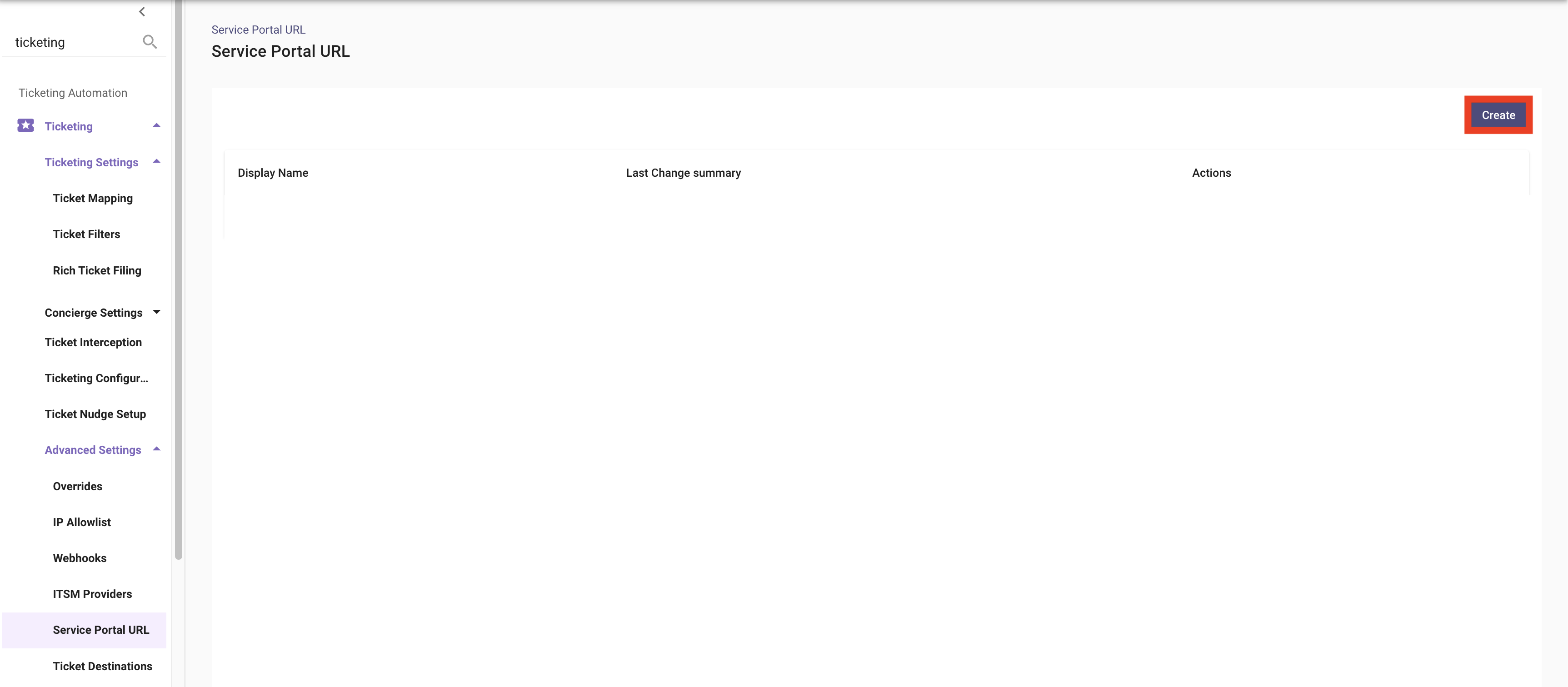
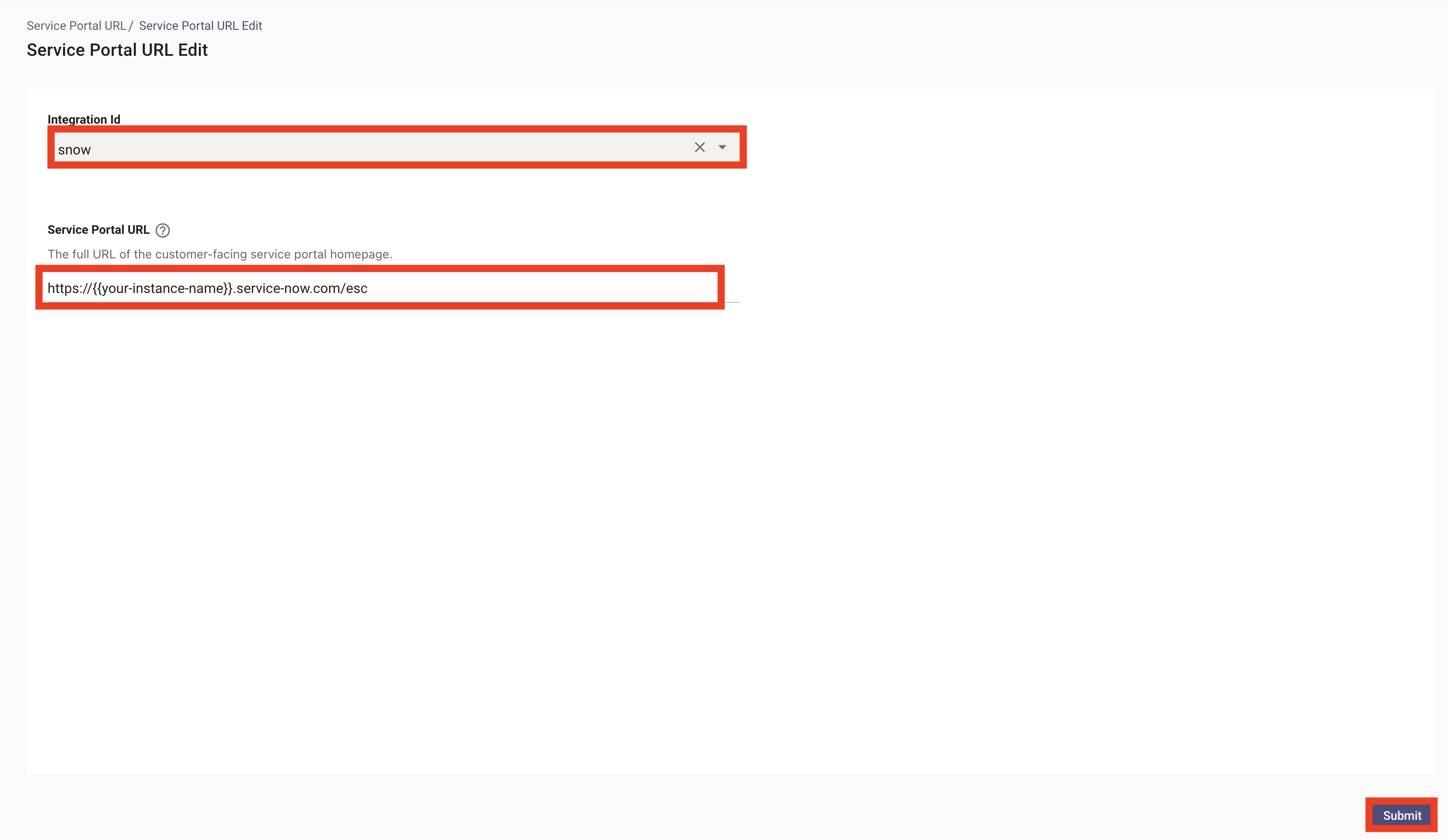
18. Navigate to the `Service Portal URL` and create a configuration, leveraging your `snow` connector and your portal URL
1. This configuration will control the redirect URL when a user clicks a hyperlink to a NOW ticket within Moveworks
19. You have completed the Ticketing configuration for Incidents, now file a Ticket with your Moveworks AI Assistant and test all of the functionality to ensure it is working!
***
## ✅ 2: Verification & Next Steps
1. **Finalize:** Confirm all configurations are saved
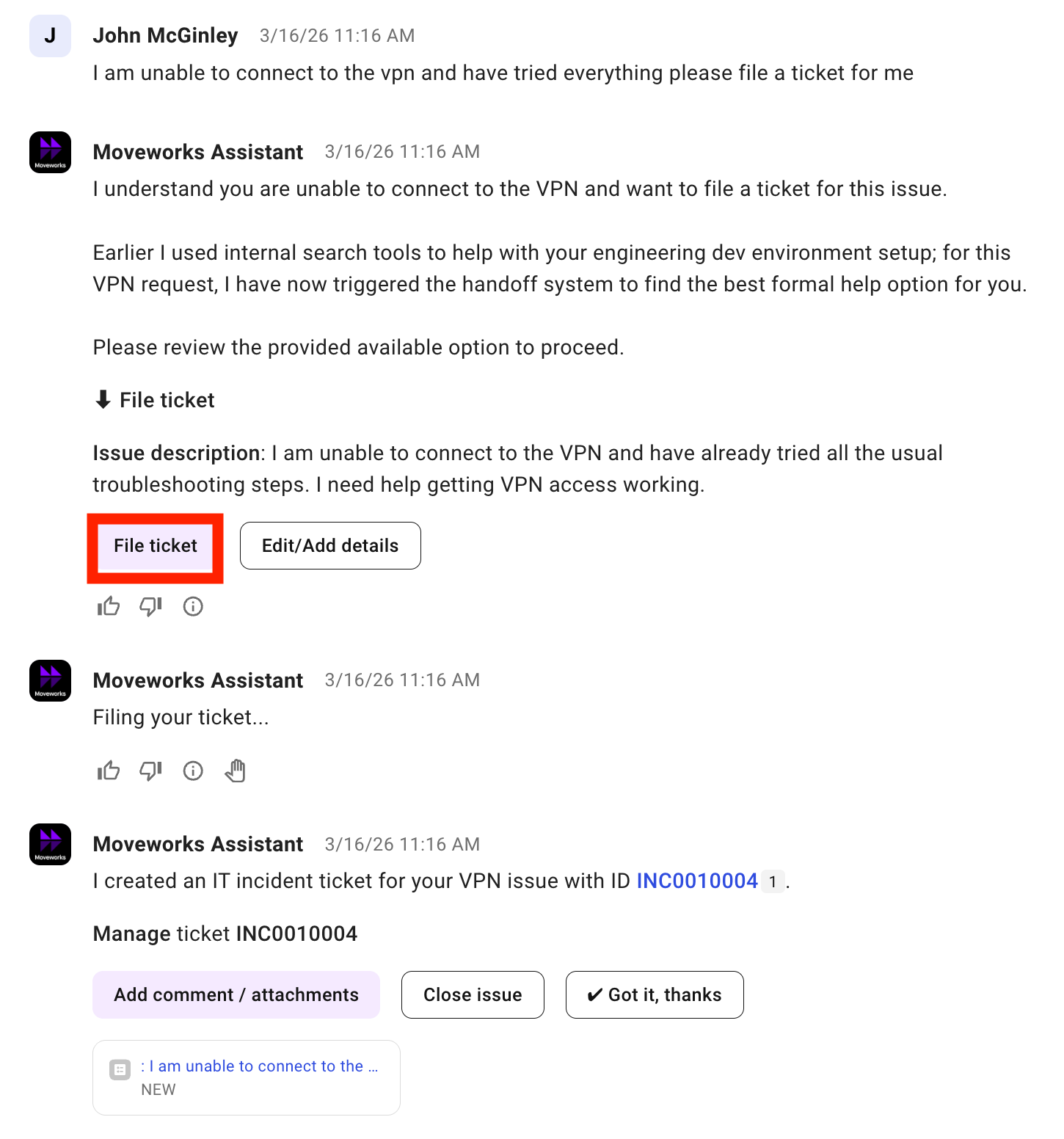
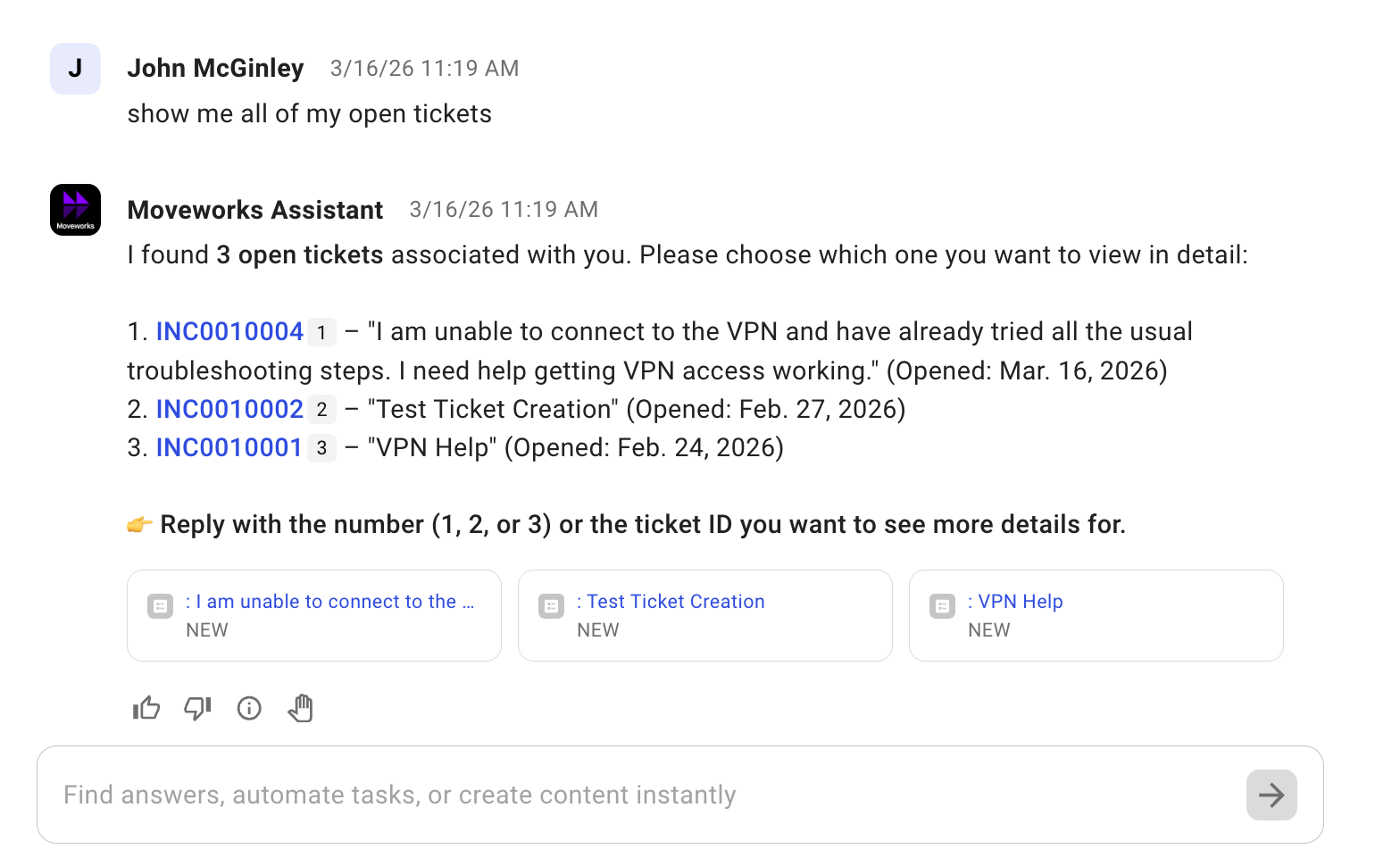
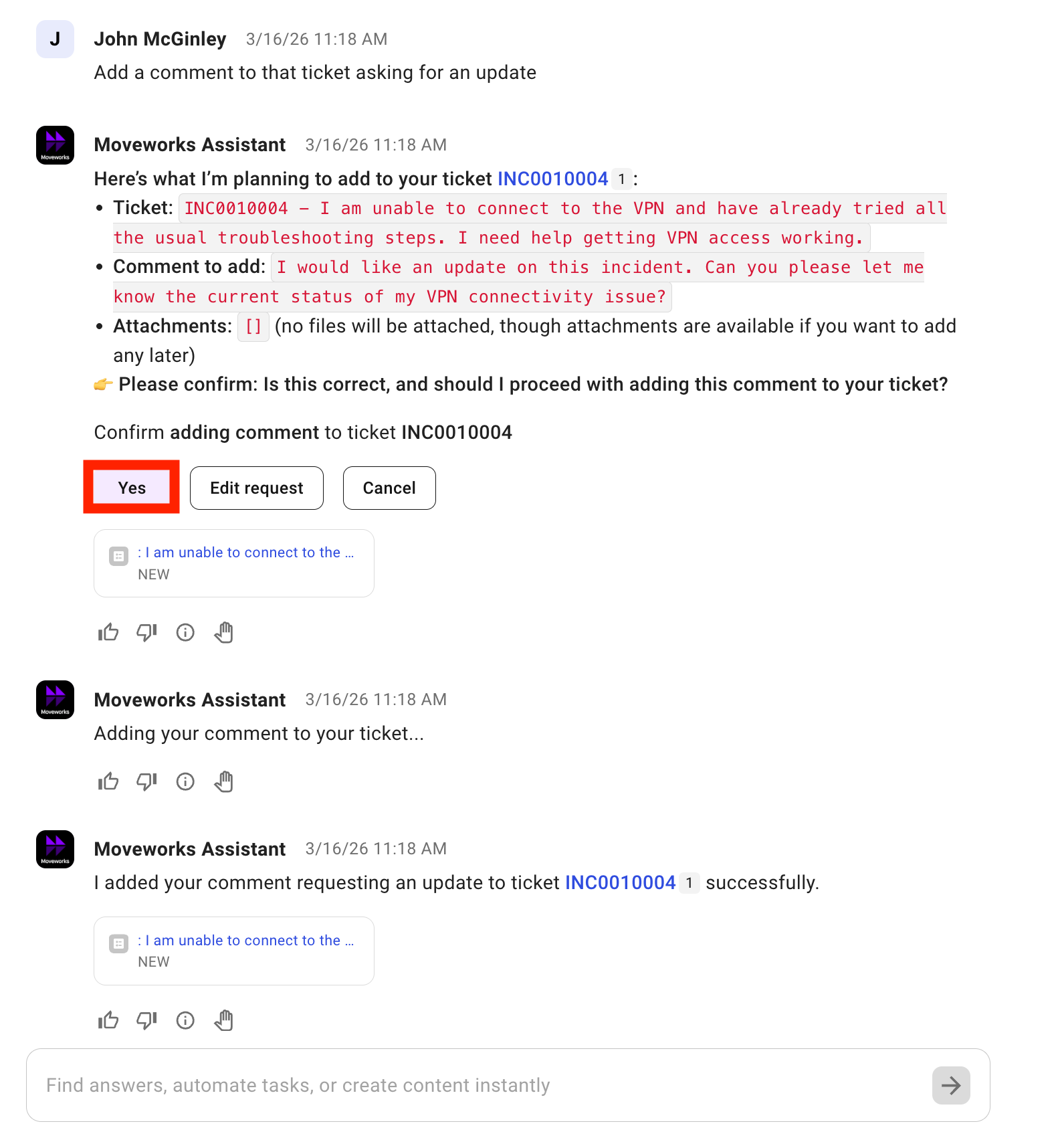
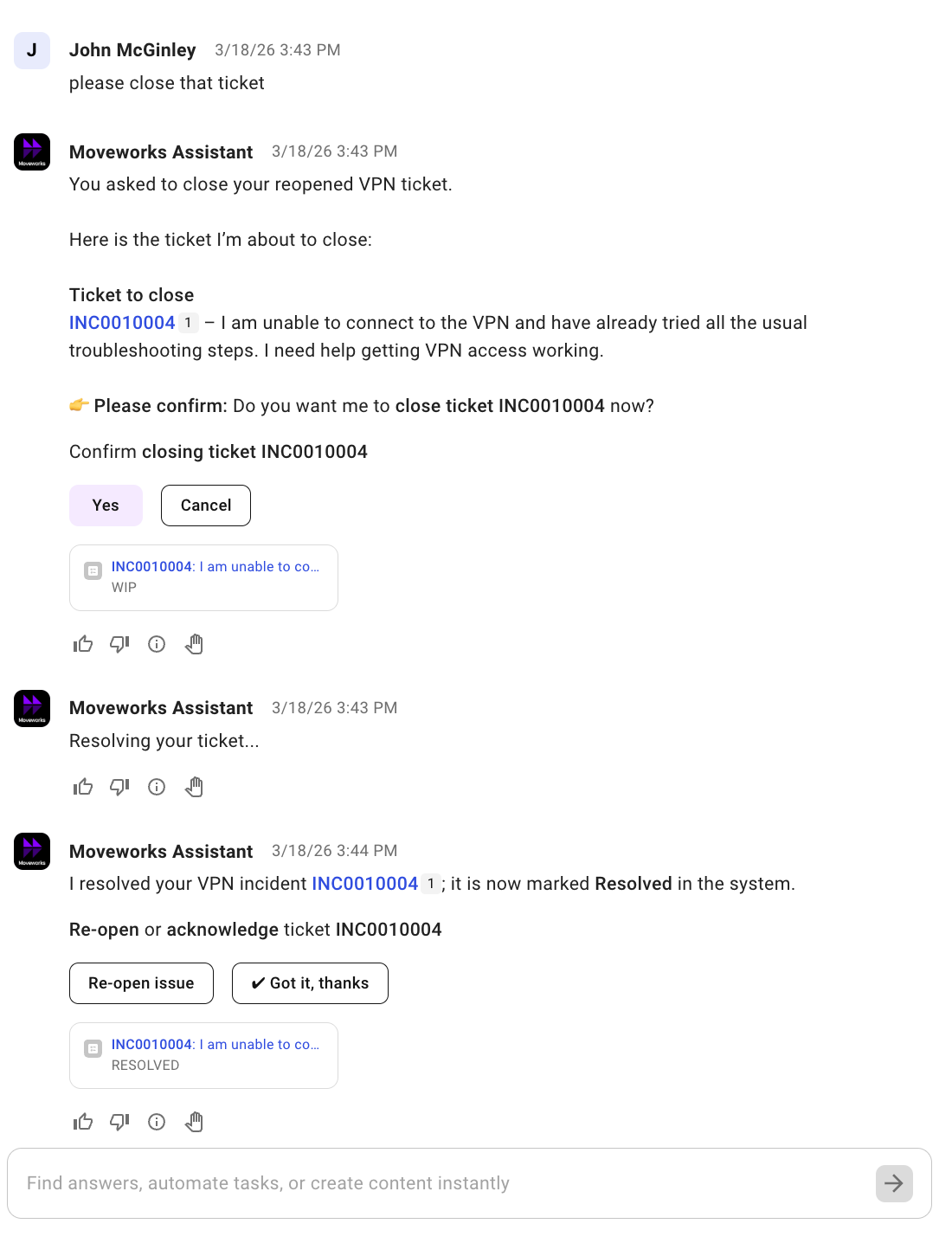
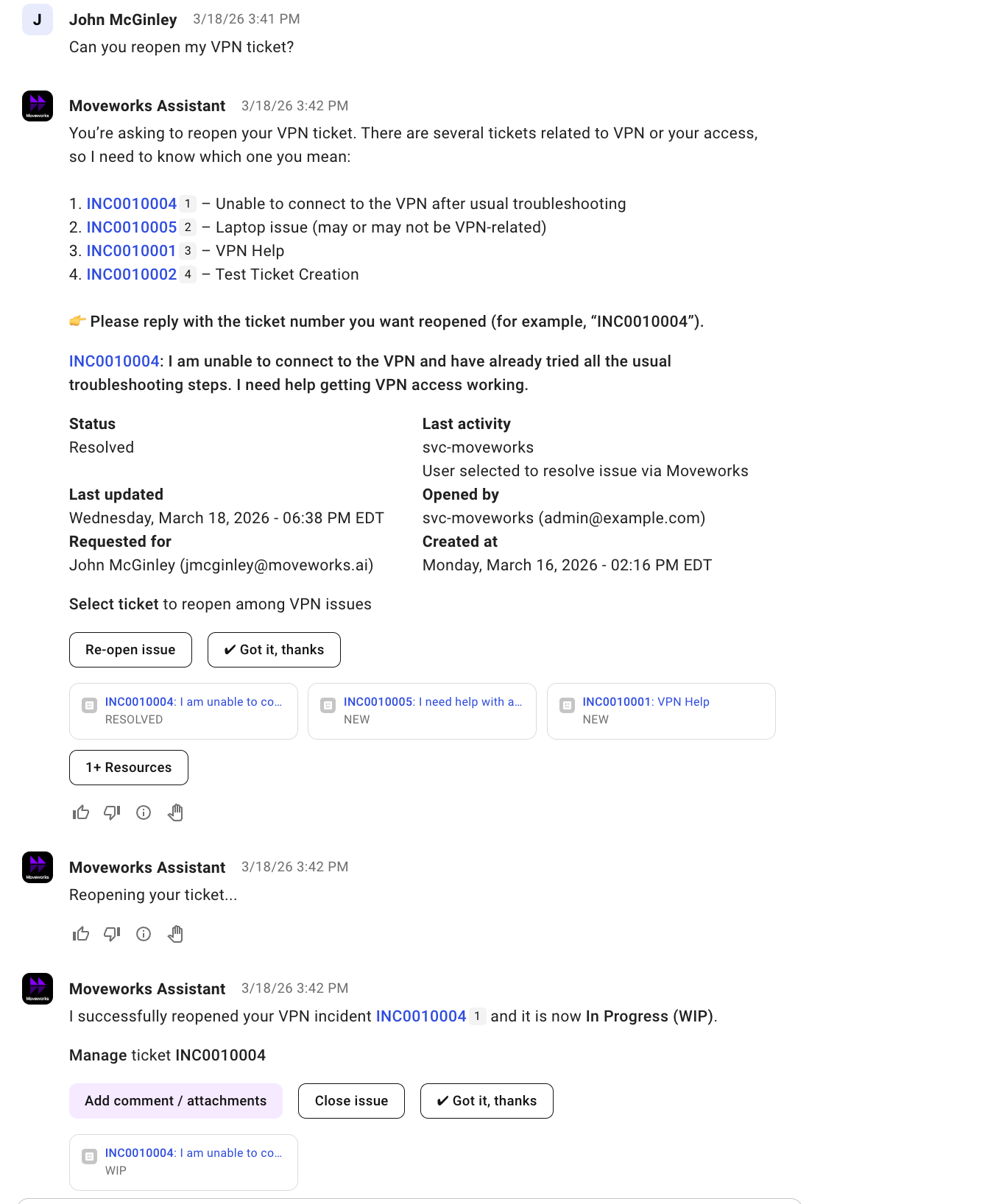
2. **Check Success:** Talk to Moveworks! Confirm you are able to do the following ticket actions:
1. File
2. Query
3. Update (Add Comment)
4. Resolve/Close
5. Reopen
***
## ❗ 3: Troubleshooting Triage: Why am I unable to Action on a Ticket?
When a user attempts to do a ticketing action within Moveworks, the action may fail if there is a misconfiguration between how Moveworks is creating or updating the ticket, and what the source system expects. We should go through the following troubleshooting flow if we are experiencing issues with ticketing.
### 3.1: Encountering a Ticketing Error — "Failure Identification"
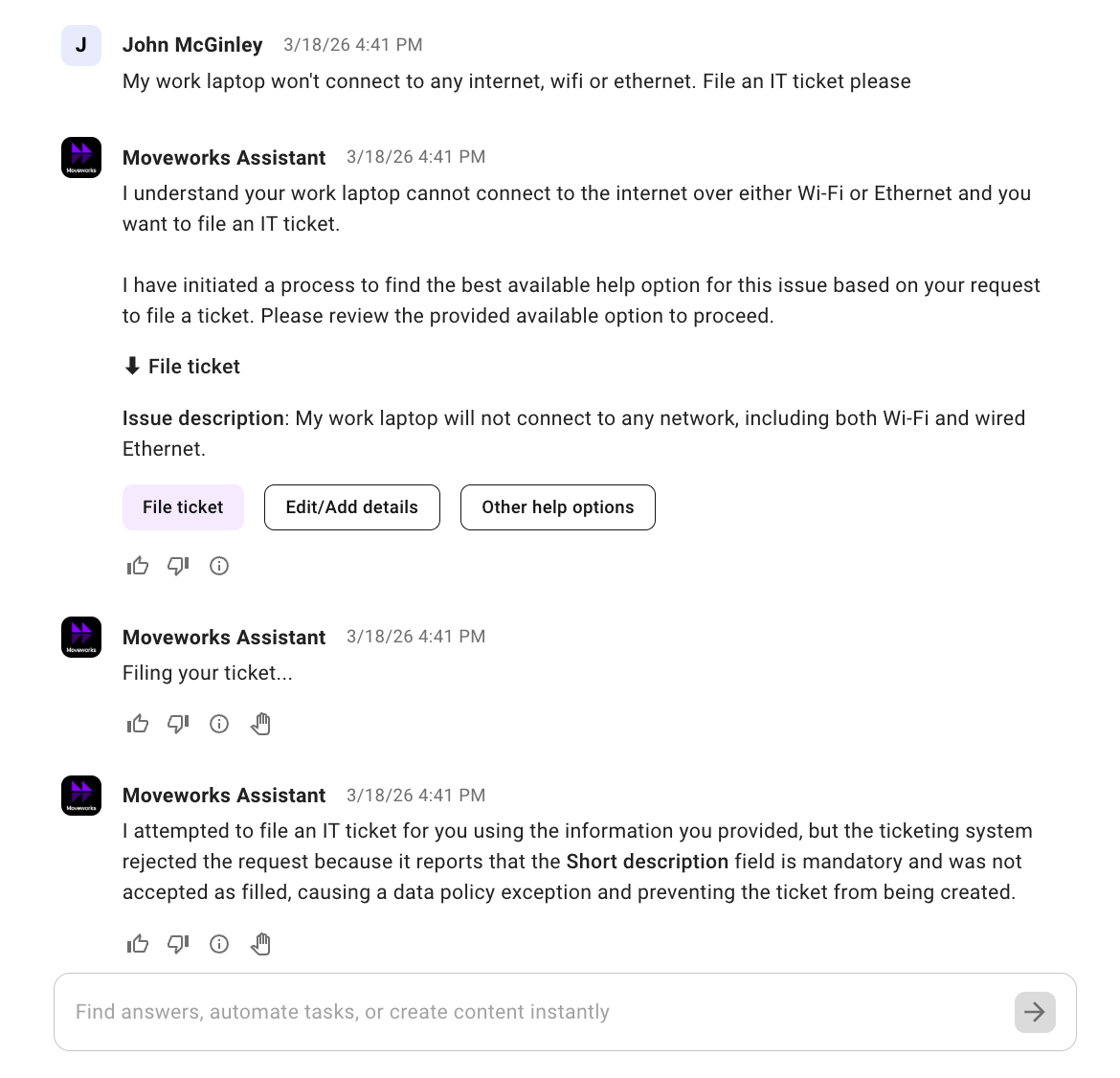
If the Assistant fails in a communication to the ticketing platform, it will state to the end-user that it failed to take the requested action.
The Assistant will often provide a short summary of what the occurring failure mode was. In the following case, we can see that Moveworks failed to create a ticket, and it looks like the issue may be related to a mandatory field not being included in the API request.
### 3.2: Check the API Logs — "What is Being Sent?"
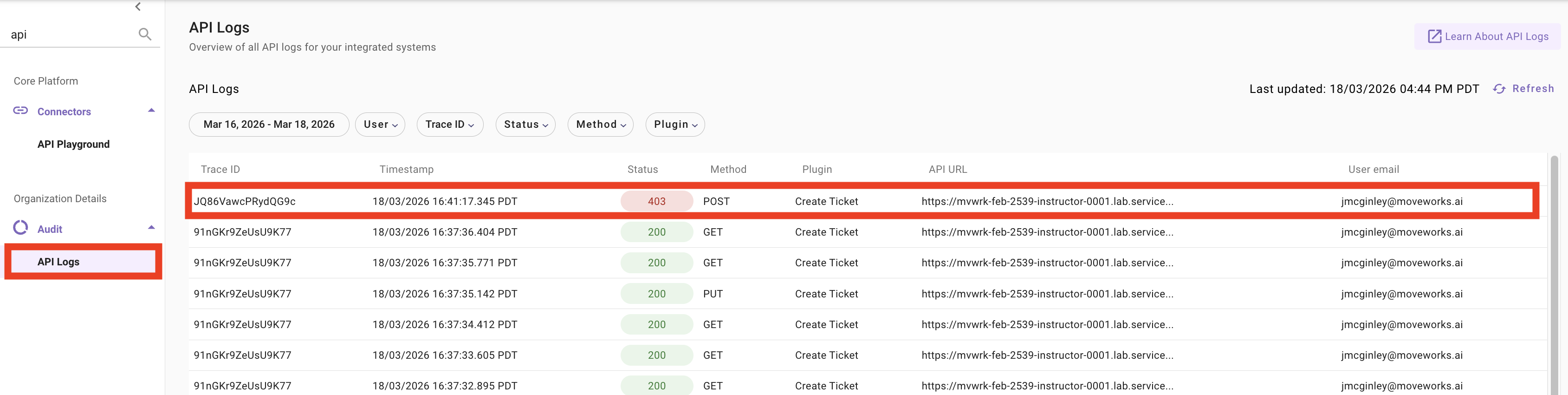
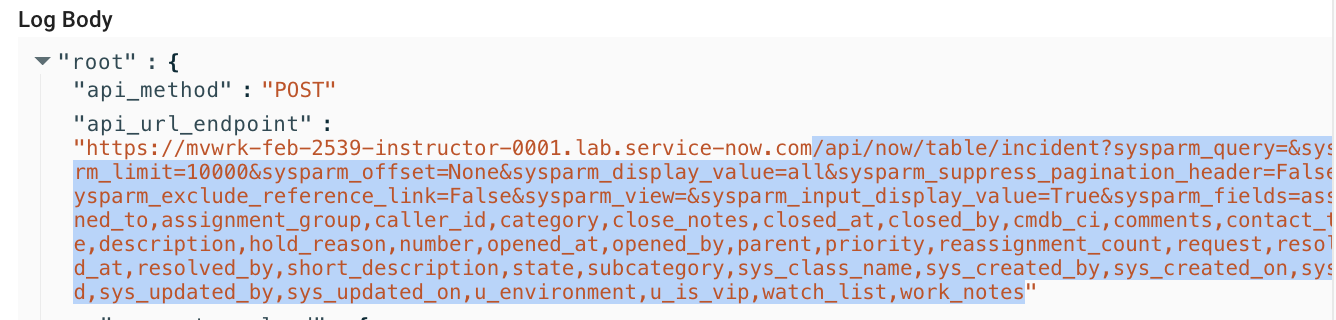
Within Moveworks Setup, we can check the `API Logs` module to see what Moveworks tried to send to the endpoint system and how it failed.
1. Identify the log that indicates the error. You can search by the requesting user, trace id, method, or plugin
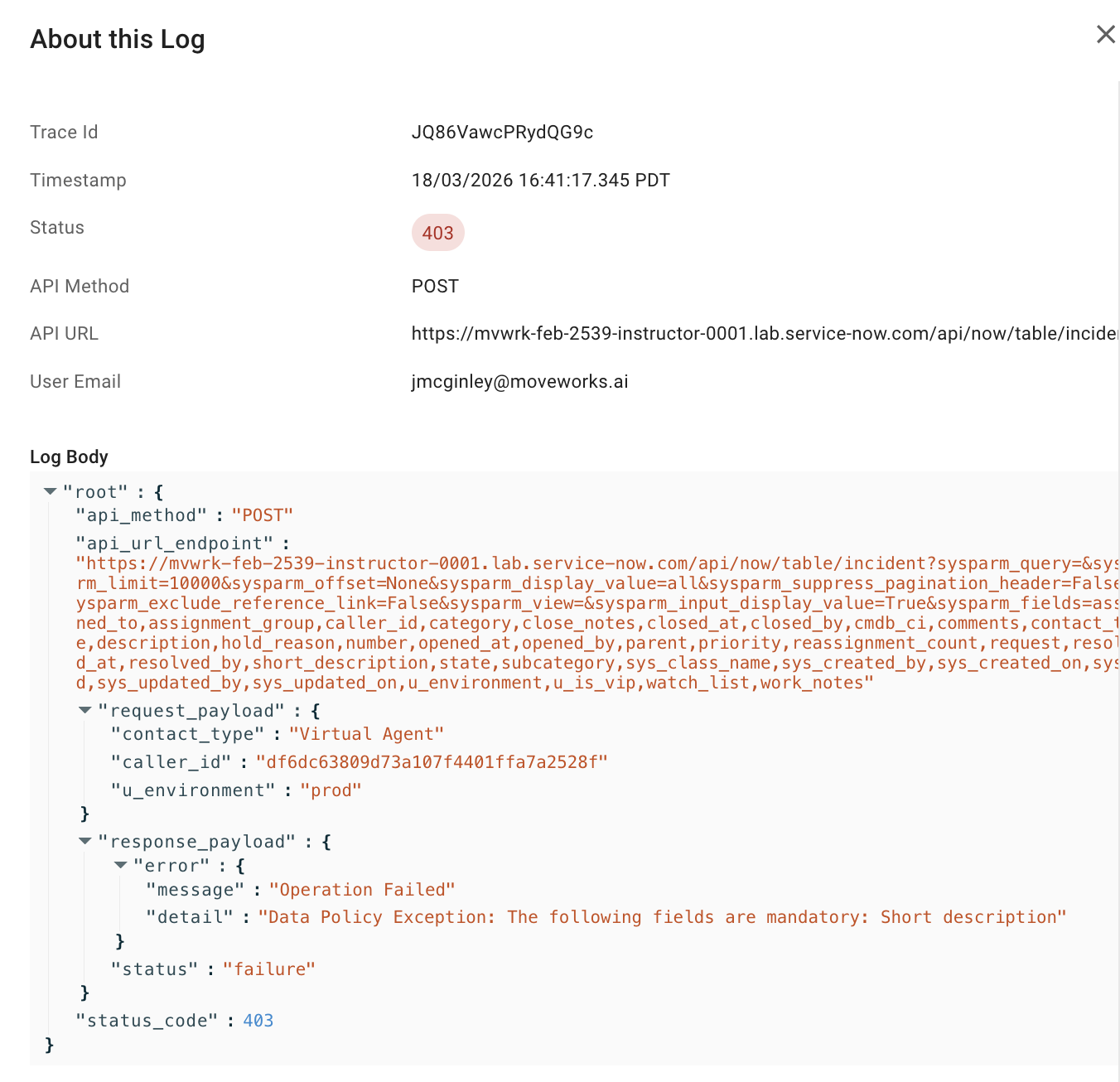
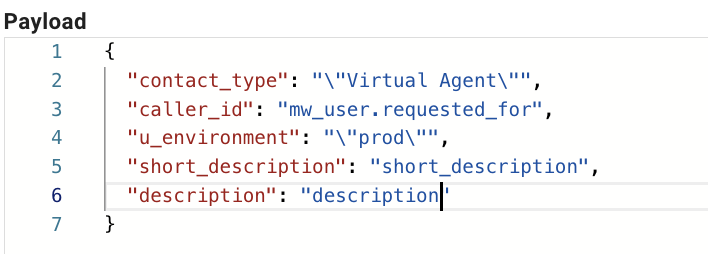
2. Analyze the error message. In this case we can see that our request payload is missing `short_description`, and the ServiceNow instance is stating that it is a required field
### 3.3: Constructing the Proper Payload in API Playground — "Solutioning"
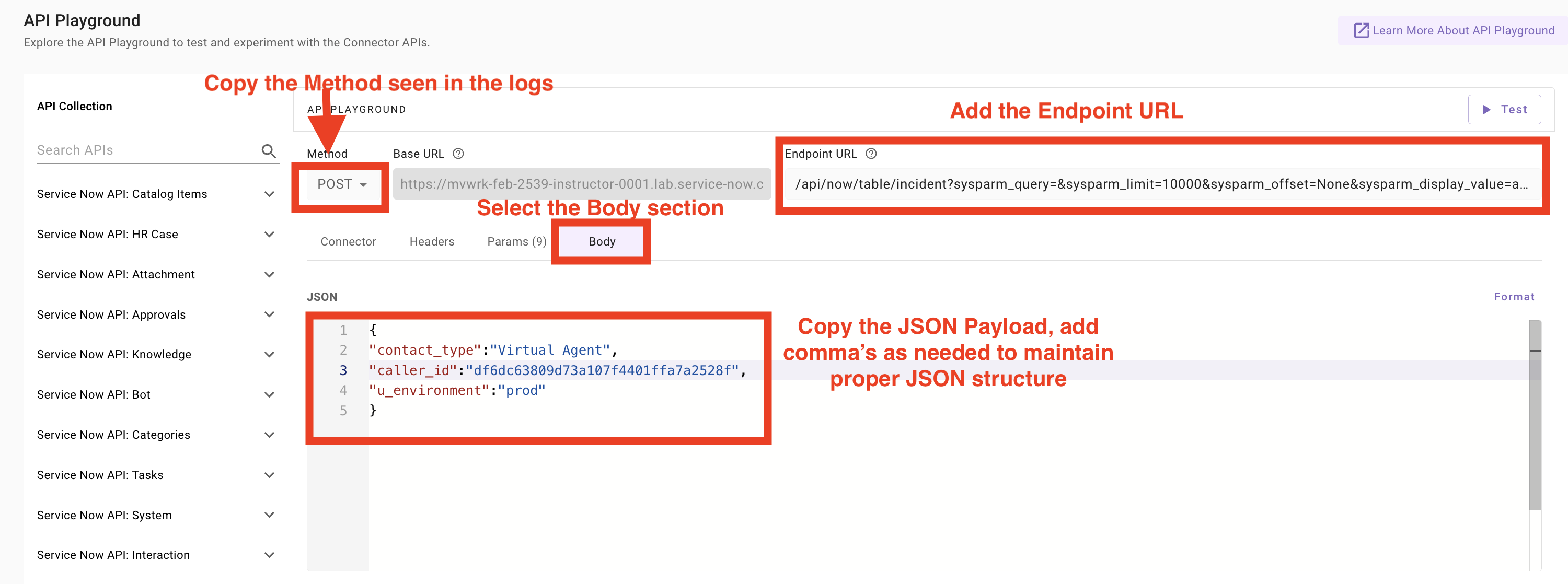
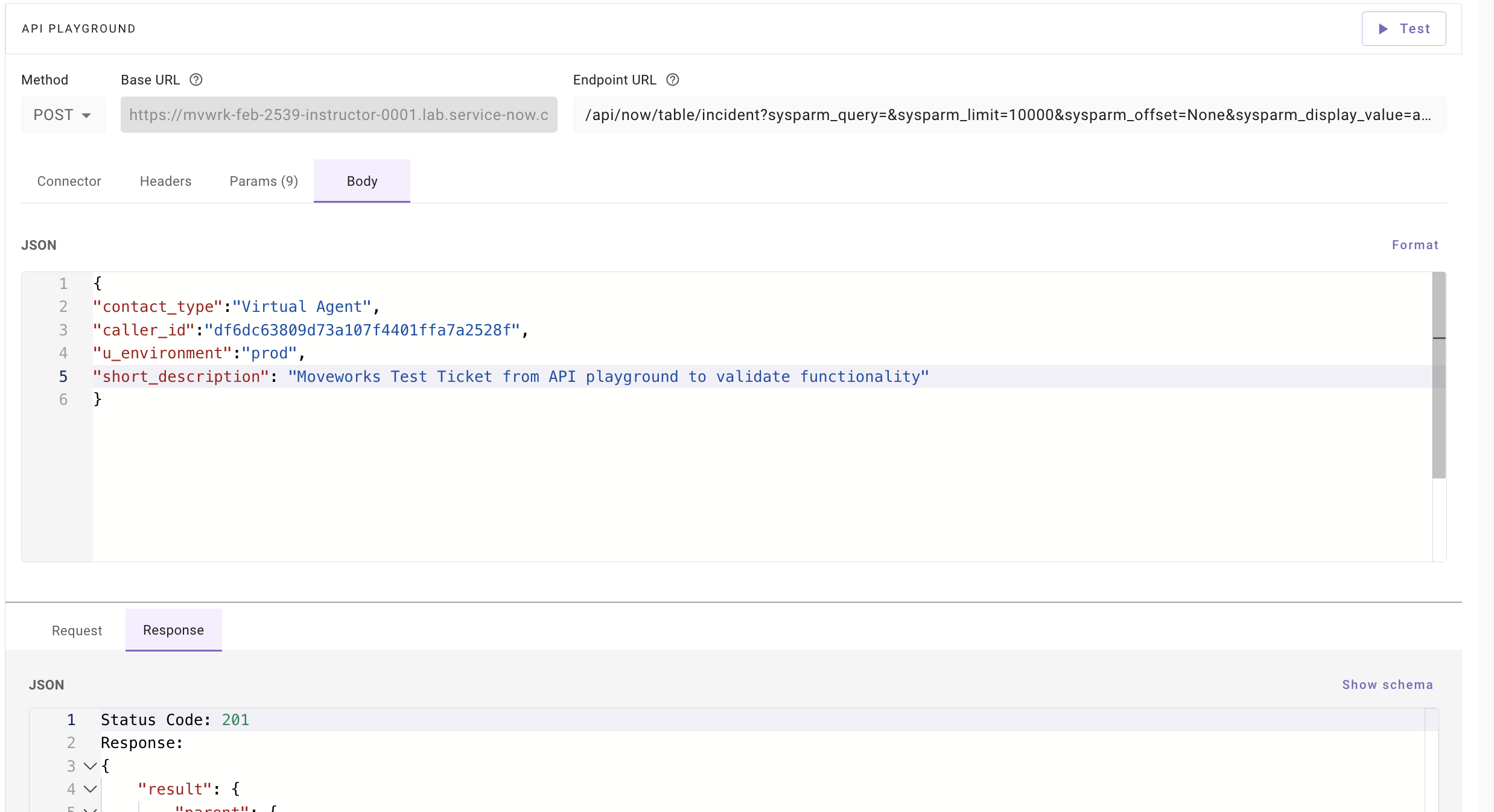
Within API Playground, we can take the following information from step 2, and reconstruct our payload until we get a success in the system. This may be an iterative process, and we may need to ask our client for more information if we cannot properly resolve some values during this step.
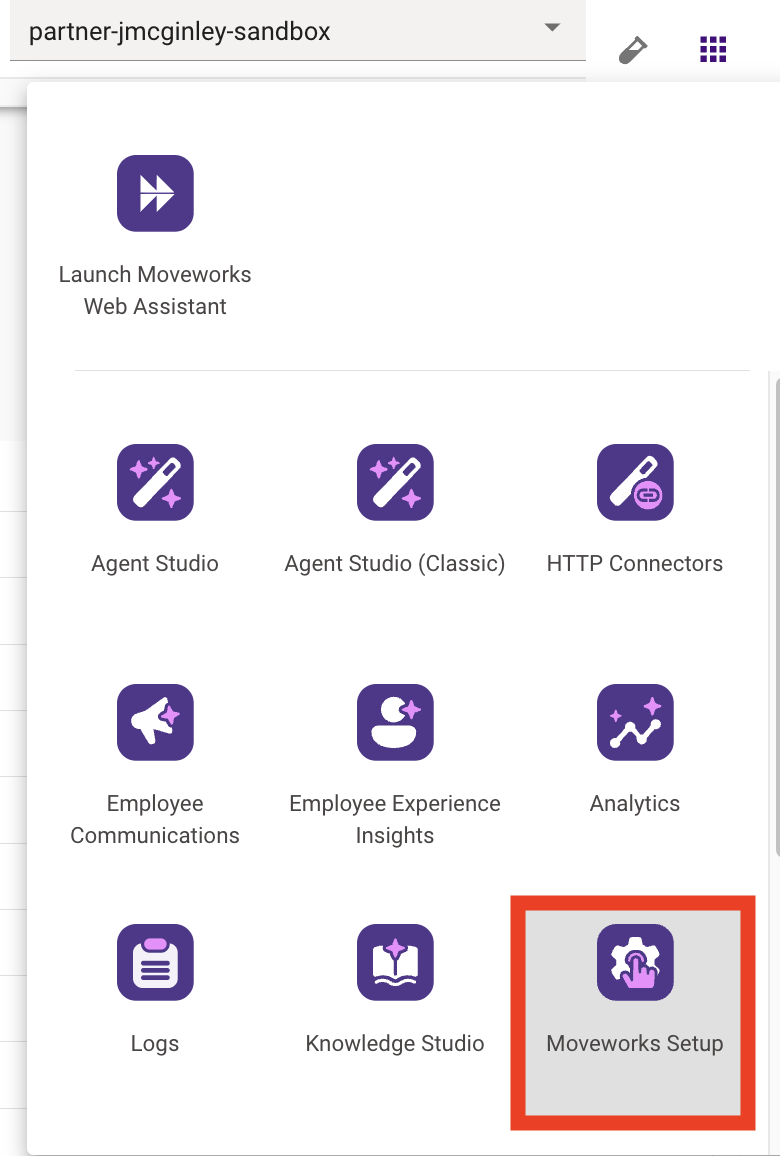
1. Open another Moveworks Setup tab & navigate to API Playground
2. Copy the `api_url_endpoint` & `request_payload`

3. Plug them into API playground and try creating a new payload & test it to get feedback from the system
4. Iterate on it until you get a working result
### 3.4: Updating the Associated Ticket Mapping — "The Fix"
Now that we understand the problem and have a working solution, we can navigate to the segment of our ticketing configuration that was causing the issue, add our fix, save it, and validate the Assistant is now working as expected.
### 3.5: Check the Moveworks Status Page
Validate that there have been no broader issues reported by the Moveworks team on the [Moveworks Status Page](https://status.moveworks.com/)
### 3.6: Escalate to Moveworks Support
Almost always, Moveworks ticketing issues are caused by a misconfiguration. This is often the Ticketing Configuration is not aligned with what the Source System is expecting. Ensure that you have synced with the ITSM System Administrator and can confirm that API calls to do the given ticketing action are working outside of Moveworks.
If we have validated the following, and are unable to diagnose the root cause, [we can open a ticket with the Moveworks support team](https://docs.moveworks.com/ai-assistant/getting-started/support) and include the following details related to the failure mode we are seeing:
1. The email of the user experiencing the issue
2. The action they are attempting to take
3. How the Moveworks Ticketing Plugin is failing
We always want to provide the Moveworks team with as much information as possible, to accelerate their ability to provide us support.
***
## 🪞 4: Reflecting on This Configuration
Through this guide, you've learned the following:
* How to complete the Ticketing Configuration
* How to add `custom_data` fields to the Ticket Query Mappings
* What ticketing actions Moveworks can take
* How to validate the actions are working as expected
* The thought process to follow when ticketing is not operating as expected
***
## ⚙️ 5: Configuration Details
Use the table below to fill in the required fields accurately.
| **Field Name** | **Action / Value to Enter** |
| ---------------------------------------------------------- | ------------------------------------------------------------------------------------------------------------------------------------------------------------- |
| **Connector Selection** | snow |
| **Mark System as Primary** | ✅ |
| **API Playground URL** | `/api/now/table/incident?sysparm_query=number%3D[example_inc_number]&sysparm_display_value=all&sysparm_offset=0&sysparm_fields=u_vip_support%2Cu_environment` |
| **Query custom\_data fields** | `"custom_data.u_vip_support": "$TRIM($TEXT((u_is_vip).value.$TRIM()))"`
`"custom_data.u_environment": "$TRIM($TEXT((u_environment).value.$TRIM()))"` |
| **Input fields in Mapper** | u\_environment, u\_is\_vip |
| **Create Field Mapping** | `"custom_data.u_environment": "\"prod\""` |
| **Access Control: Tables to enable for concierge updates** | Incident |
| **Access Control: Tables enabled for polling** | Incident |
| **Access Control: User access configuration** | Public to all members |
| **Service Portal URL: Integration Id** | snow |
| **Service Portal URL: Service Portal URL** | `https://[your-instance-name].service-now.com/esc` |