***
title: 'Lab #1: Connectors & API Playground'
position: 2
deprecated: false
hidden: false
metadata:
robots: index
-------------
## Overview
* **Learning Objectives:** Learn how to connect external systems to Moveworks and validate that they are working as intended
* **Estimated Time:** 30 minutes
* **Prerequisites:**
* Lab 0 complete (ServiceNow PDI claimed and running)
* ServiceNow admin username and password (from your PDI landing page)
***
### Key Concepts
Moveworks uses connectors to establish secure links with your enterprise systems. Understanding how to validate these connections is the first step in any implementation:
* **Connector Instance:** A unique configuration that stores the authentication credentials (e.g., Basic Auth or OAuth) and the Base URL for an external system like ServiceNow.
* **API Playground:** A built-in testing environment that allows administrators to execute real-time API calls to verify that Moveworks has the correct permissions to fetch data.
* **Response Payload:** The raw JSON data returned by the system. Reviewing this helps you identify the exact field names (e.g., `sys_id`, `user_name`) required for later mapping steps.
* **Status Codes:** Standard HTTP indicators (like 200 for success or 401 for unauthorized) used to diagnose connection or permission issues during setup.
**Relevant Documentation:**
* [Moveworks Help: Creating Connectors](https://help.moveworks.com/agent-studio/connectors/system-connectors)
* [Moveworks Help: Using the API Playground](https://help.moveworks.com/docs/api-playground)
***
## 🛠️ 1: Walkthrough
### 1.1: Instantiate your ServiceNow Connector
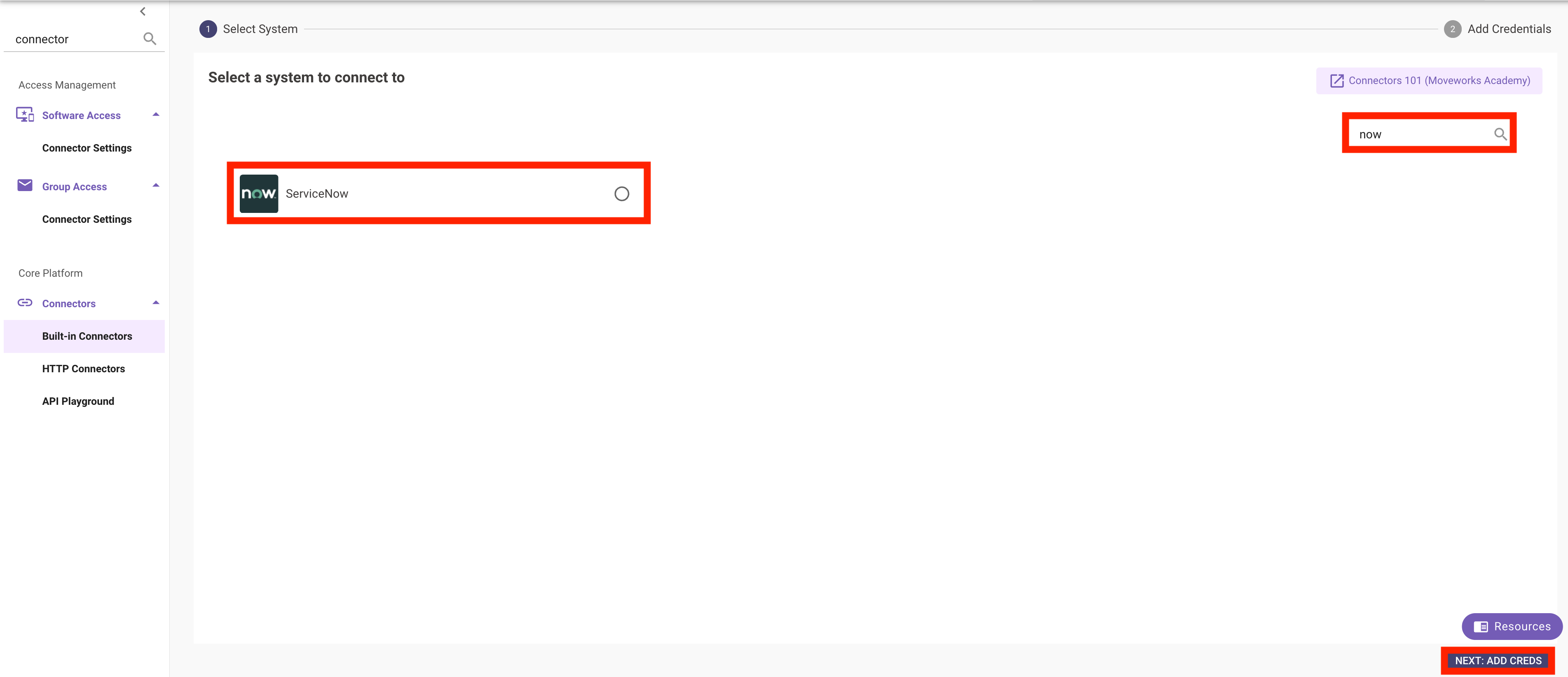
1. **Navigate** to **`Connectors > Built-in Connectors`** in **Moveworks Setup**
2. Click **`Create New`**

3. Use the Search Bar in the upper right hand side to find the ServiceNow connector & select it
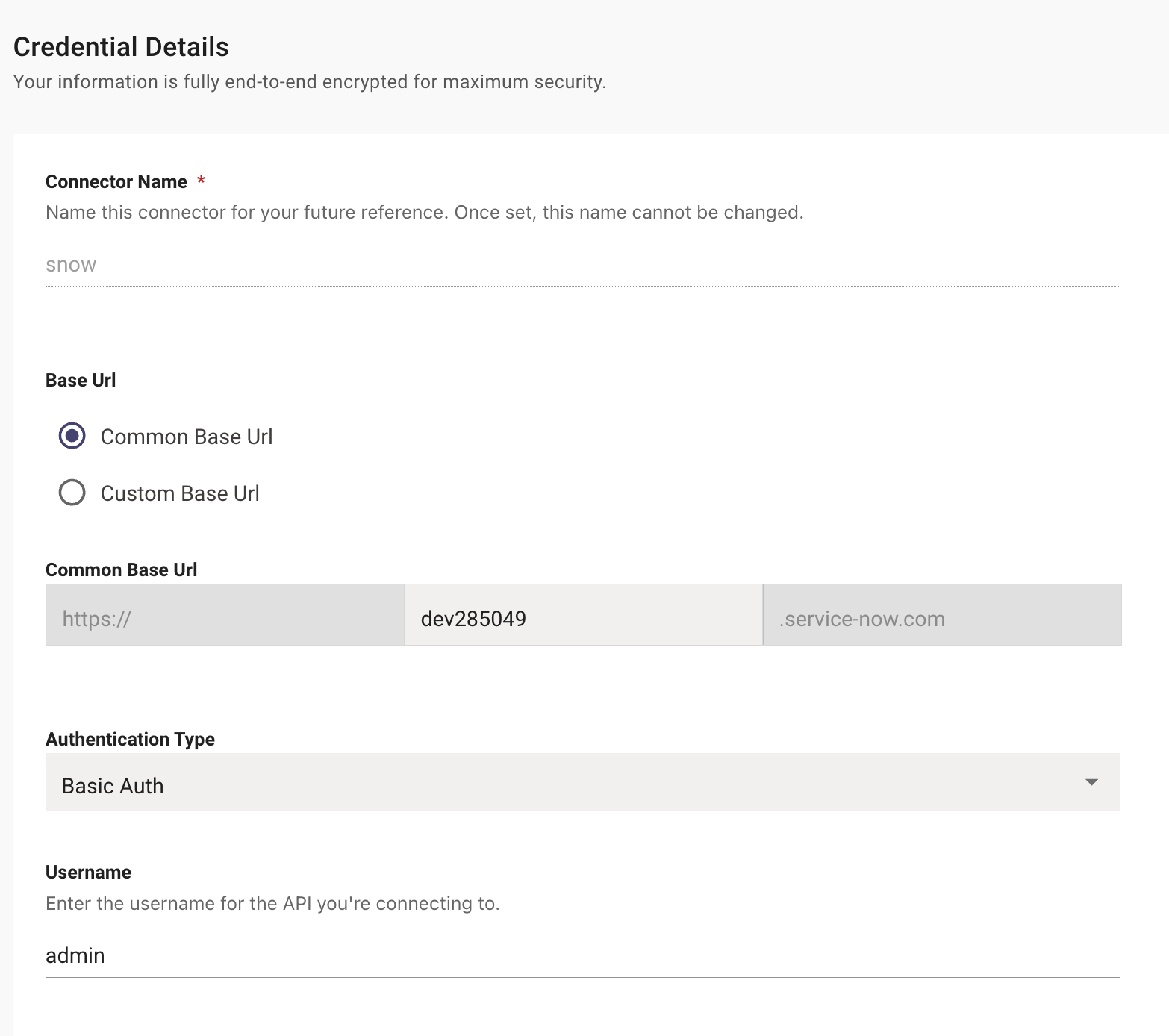
4. **Enter** the following values (everything else can remain blank)
> **ServiceNow** (`snow`)
* **Common Base URL**: Your PDI instance (ex. `dev######`)
* **Auth Type**: Basic Auth
* **Username**: `admin` (unless you changed it)
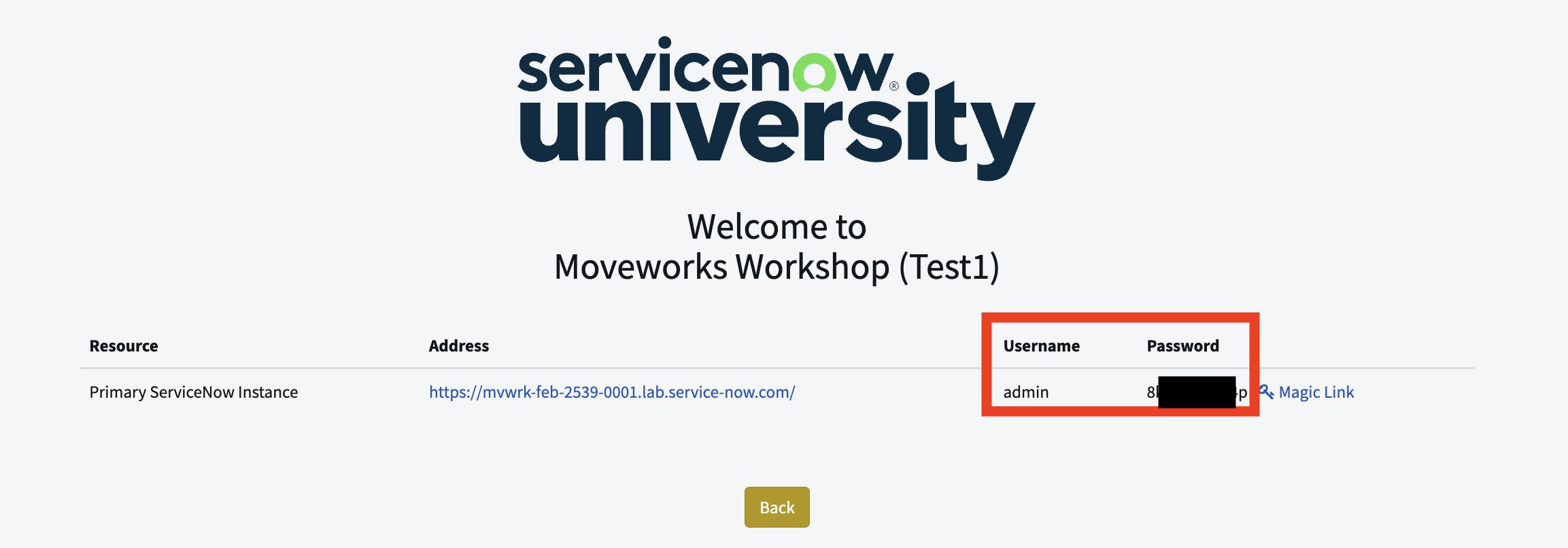
* **Password**: Your admin password
* You can find the admin password on the page you were brought to after signing up for your student instance in Lab 0, as shown in the below screenshot
### 1.2: Confirm Connection - API Playground
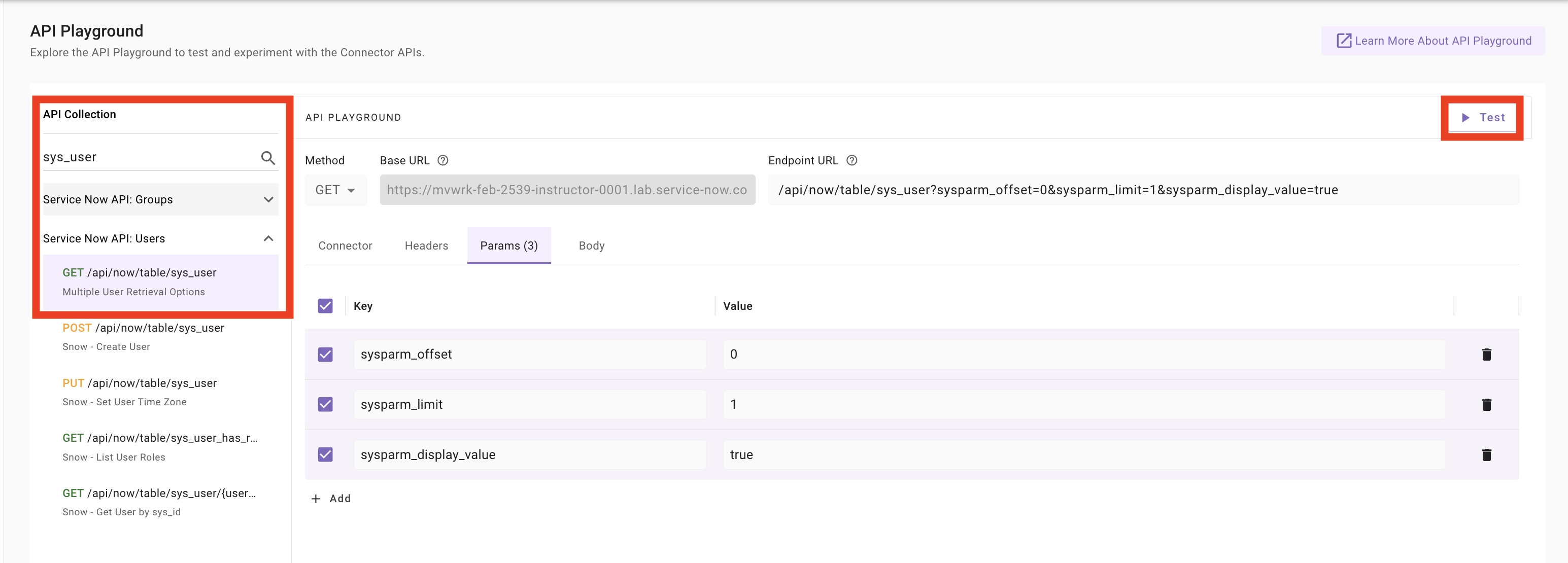
1. Navigate to **`Connectors > API Playground`**
2. Click **`Select Connector`**
3. Select the **`snow`** connector created in Part 1
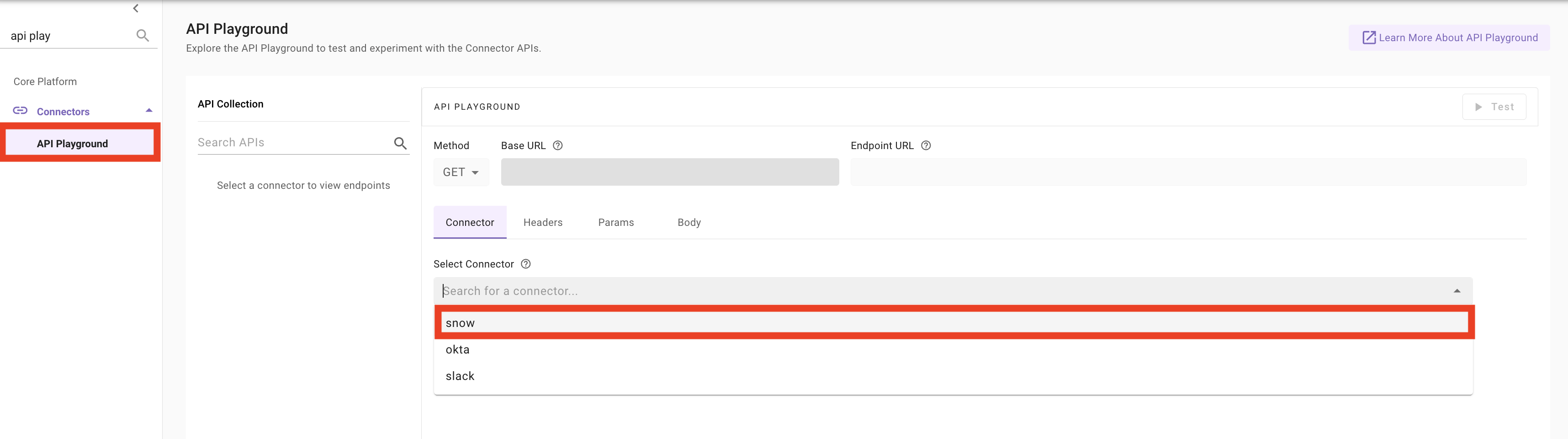
4. Click into the **`API Collection`** search bar on the left hand side and search for **`sys_user`**
5. Select the GET API query, and then click **`Test`** to validate that the connector is working as expected
***
## ✅ 2: Verification & Next Steps
**Confirm Access:**
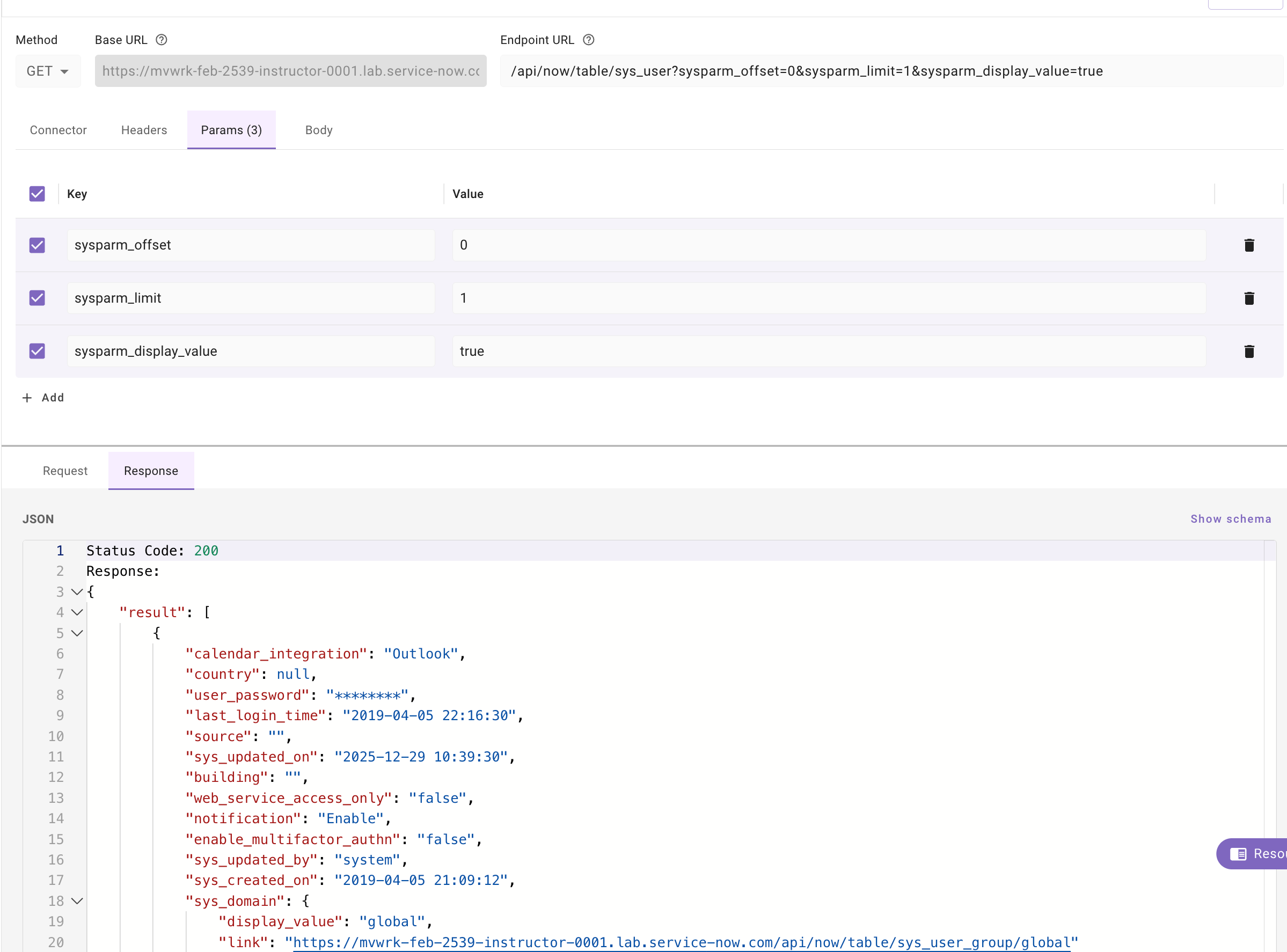
* Validate that when you click test, you are getting a `200 response` indicating that the ServiceNow instance is properly connected to Moveworks
**Note: Your response object will not have the exact same values as shown in the screenshot**. The purpose of this step is to confirm that you are able to successfully do a GET call to the user table within your connected NOW instance
## 
## 🪞 3: Reflecting on This Configuration
Through this guide, you've learned the following:
* How to connect an external system to Moveworks
* How to validate that connection using API Playground
How this will come up during live implementations:
* After creating a new connector, **always validate** that the connector has the permissions required to deliver the full integration capabilities IE Ensure the connector allows Moveworks to:
* Query the users in the environment
* For Knowledge
* Query the content
* Query the permissions for users and groups
* For Ticketing
* Query the tables/endpoints that Moveworks will support
***
## ⚙️ 4: Configuration Details
Use the table below to fill in the required fields accurately.
| **Field Name** | **Action / Value to Enter** |
| -------------------- | ---------------------------------------- |
| **Select Connector** | snow |
| **API Collection** | sys\_user → GET /api/now/table/sys\_user |