***
title: Embedded AI Assistant SSO Configuration - OneLogin (OIDC)
position: 8
deprecated: false
hidden: false
metadata:
robots: index
-------------
# Prerequisites
**OneLogin SSO Prerequisites**
* Have administrator access to OneLogin. You should be able to access your portal at `https://{{your_subdomain}}.onelogin.com/admin2`
# Configuration Steps
## Create OIDC Application
1. Go to **Applications > Applications** and click **Add App**
2. Search for **OpenId Connect (OIDC)** in the application search
3. Click **OpenId Connect (OIDC)** & fill out the details
* **Name**: `Moveworks Embedded AI Assistant`
* **Icon**:
* **Rectangular**
* **Square**

4. Click **Save**
5. Navigate to the **Configuration** page within the application you created and enter the following:
* **Redirect URI**: Choose the URL below that corresponds to your Moveworks Environment Region:
**Commercial Environment**: `https://webchat-kprod.moveworks.io/login/sso/oidc`
**GovCloud Environment**: `https://webchat.prod.am-usge1.moveworks.io/login/sso/oidc`
**EU Environment**: `https://webchat.prod.am-euc1.moveworks.io/login/sso/oidc`
**Canada Environment**: `https://webchat.prod.am-cac1.moveworks.io/login/sso/oidc`
* **Login URL**: Choose the URL below that corresponds to your Moveworks Environment Region:
**Commercial Environment**: `https://webchat-kprod.moveworks.io`
**GovCloud Environment**: `https://webchat.prod.am-usge1.moveworks.io`
**EU Environment**: `https://webchat.prod.am-euc1.moveworks.io`
**Canada Environment**: `https://webchat.prod.am-cac1.moveworks.io`
6. Navigate to the **SSO** page within the application settings and set **Token Endpoint Authentication Method**to **POST**
## Add SSO Configuration in MyMoveworks
1. Note down your OIDC Configuration Variables from OneLogin
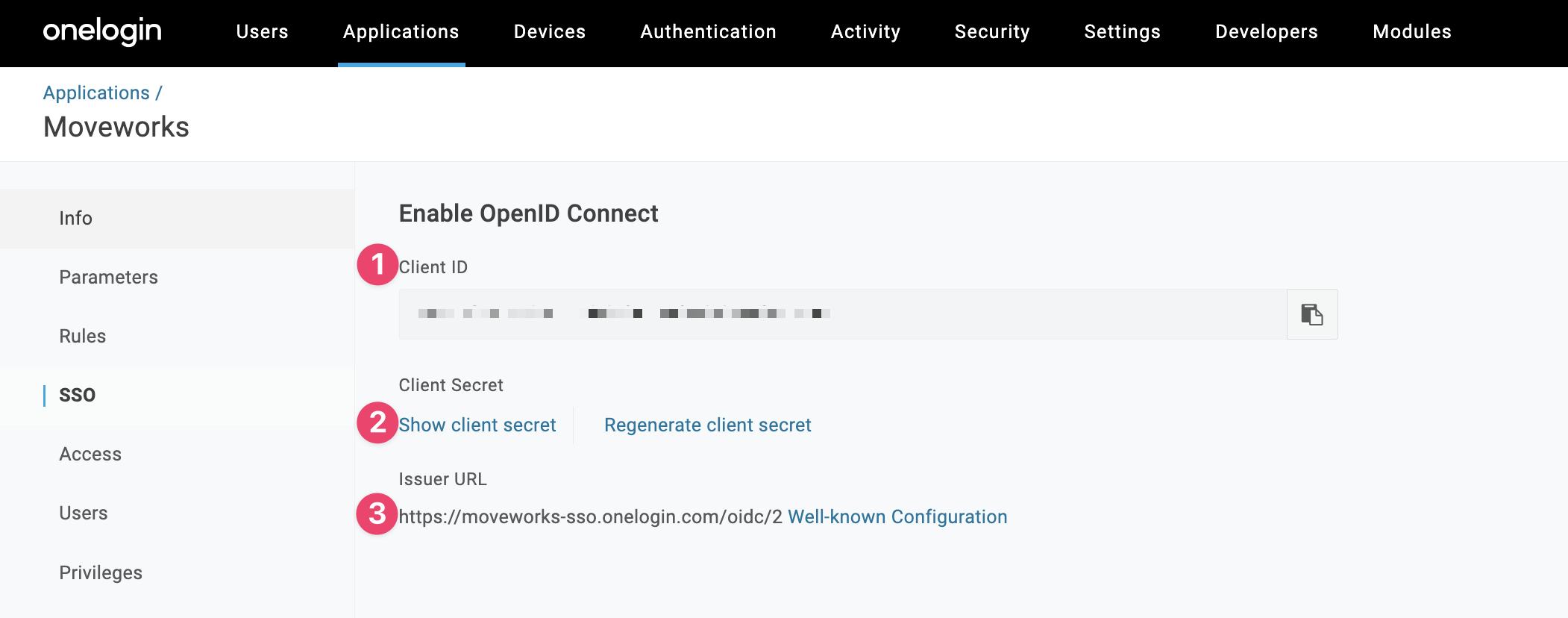
* **Client ID**: Record this value to populate the **Client ID** field in Moveworks Setup
* **Show client secret**: Click this to see your **Client Secret**
* **Issuer URL**: This is the value for the **IDP Issuer** field in Moveworks Setup
2. Navigate to SSO Settings in MyMoveworks
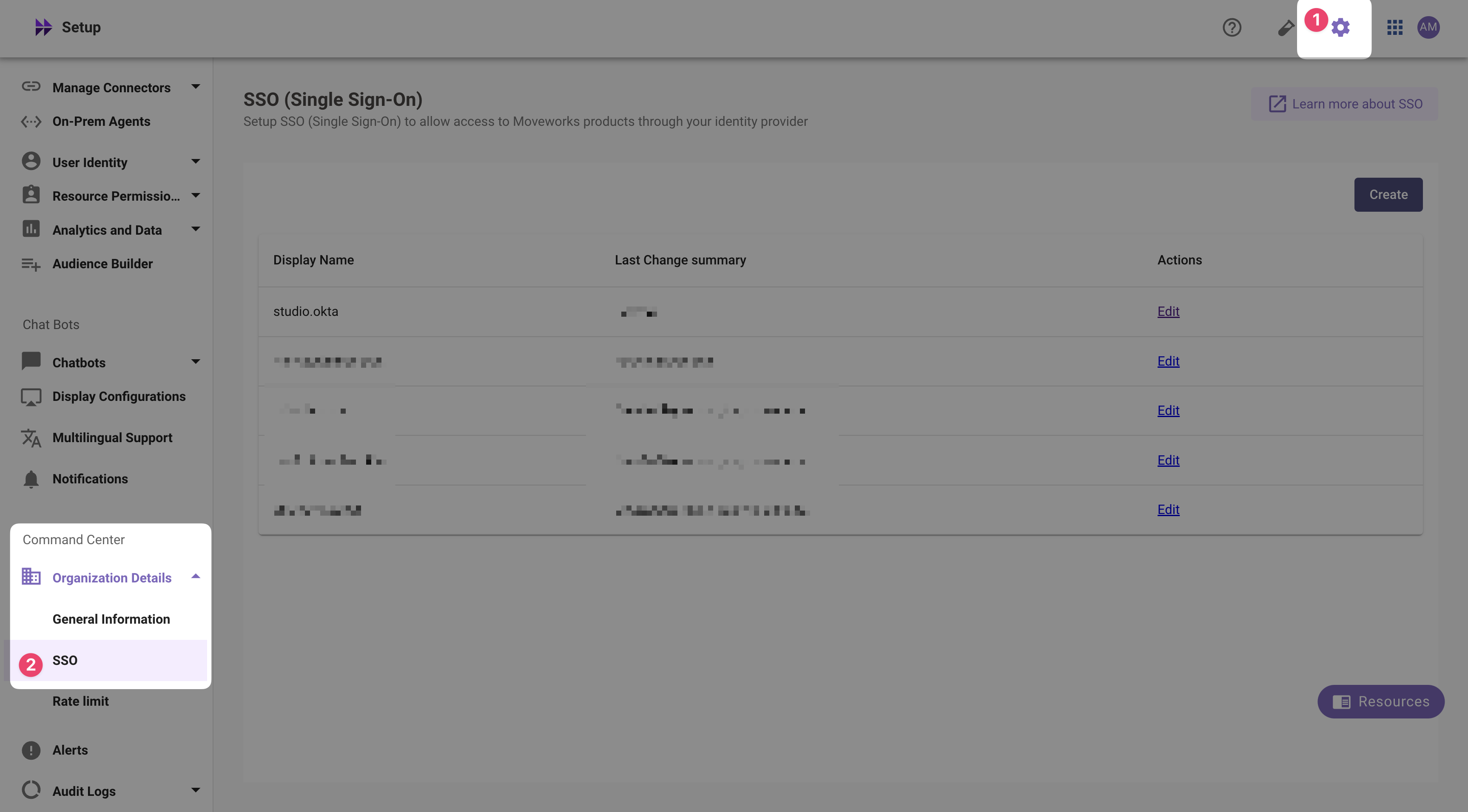
3. Click **Create**.
4. Add your configuration using the values you've noted above
* **Moveworks Product**: `Movewebchat`
* **Select Connector**: `Moveworks`
* **Authentication Protocol**: `OIDC`
* **IDP Redirect URL**: Input the Redirect URL you configured in step 5
* e.g. [https://webchat-kprod.moveworks.io/login/sso/oidc](https://webchat-kprod.moveworks.io/login/sso/oidc)
* **IDP Issuer**: `idp_issuer`(from Step 1)
* e.g. [https://acme.onelogin.com/oidc/2](https://acme.onelogin.com/oidc/2)
* **IDP Client Id**: `idp_client_id`
* **IDP Client Secret**: `idp_client_secret`
5. Leave the remaining fields empty to inherit the recommended default settings and click **Submit**
### Create Moveworks Setup Authentication Configuration
1. Within Moveworks Setup, Navigate to **Web Chatbot > Authentication** and click create to create a new authentication record
2. Set **Auth Config** to **Generic SSO**
3. Set **SSO Config** to the SSO configuration record you created in the previous section of this guide.
4. Set **Auth Key** to **default**for single SSO authentication setups. For setups where you have multiple SSO systems users use to authenticate, follow the [Multi SSO Configuration Guide](/ai-assistant/ai-assistant-web-surfaces/moveworks-for-web/embedded-ai-assistant-multi-sso-configuration-guide)
### Configure the Embedded AI Assistant
You will need to follow the [Embedded AI Assistant Configuration Guide](/ai-assistant/ai-assistant-web-surfaces/moveworks-for-web/embedded-ai-assistant-installation-guide) to complete the remaining setup steps if you have not done so already.