***
title: Adding Embedded AI Assistant to ServiceNow
position: 3
excerpt: ''
deprecated: false
hidden: false
metadata:
title: ''
description: ''
robots: index
next:
description: ''
---------------
# Installing Moveworks for Employee Center
The Moveworks Assistant can now be embedded on your ServiceNow Employee Center by simply installing a plugin! Learn more about the plugin on the [ServiceNow documentation site](https://www.servicenow.com/docs/r/employee-service-management/employee-experience-foundation/moveworks-for-employeecenter.html).
Follow the instructions below to ensure that you have the necessary Moveworks configuration and information to install the plugin.
## Prerequisites
Before installation of the plugin, we recommend that you have the following completed and/or available.
* [Embedded AI Assistant Installation Guide](/ai-assistant/ai-assistant-web-surfaces/moveworks-for-web/embedded-ai-assistant-installation-guide#create-a-chat-application-in-moveworks-setup).
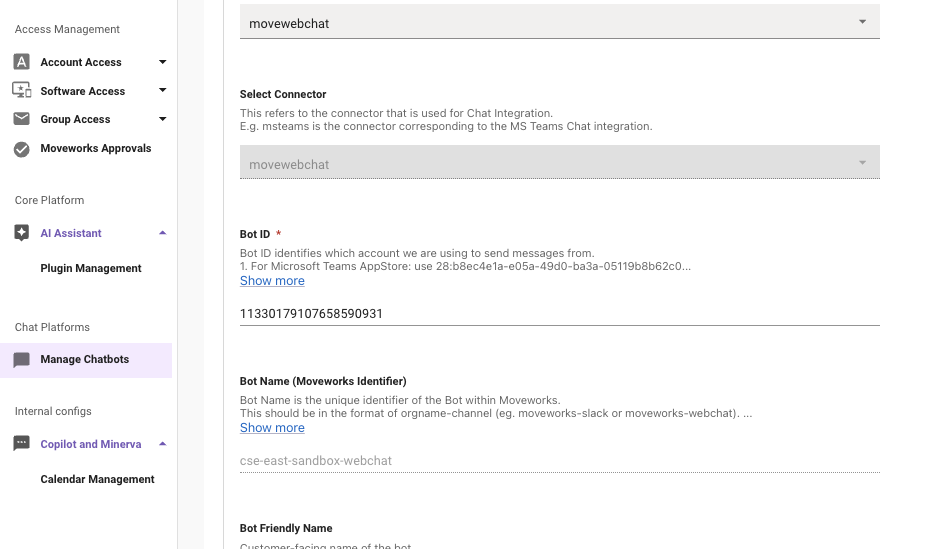
* Ensure that you have the **Bot ID** noted down. The Bot ID will be used during the [Configure bot ID and AI Assistant ](https://www.servicenow.com/docs/r/employee-service-management/employee-experience-foundation/mw-setup-botid.html)step.
* **Java KeyStore certificate and password.** - The JKS certificate and password will be used during the [Upload JavaKeyStore certificate](https://www.servicenow.com/docs/r/employee-service-management/employee-experience-foundation/mw-upload-jks-cert.html) step.
* To generate this, follow the steps below under **JWT Certificate Generation Guide (Mac & Windows)**.
* Reach out to Moveworks Support for any issues, and they can provide a cert.
## Installation
Once you have completed the prerequisites, follow the instructions here ([https://www.servicenow.com/docs/r/employee-service-management/employee-experience-foundation/moveworks-ec-getting-started.html](https://www.servicenow.com/docs/r/employee-service-management/employee-experience-foundation/moveworks-ec-getting-started.html)) to get started with the Moveworks Embedded Assistant.
The instructions above provide a walk through ow how to install Moveworks for Employee Center via the ServiceNow App Store.
## JWT Certificate Generation Guide (Mac & Windows)
## Overview
This guide walks you through generating a self-signed JWT certificate (valid for 2 years) for use with Moveworks for Web. The output is a `liveCERT.jks` file that you’ll upload into your ServiceNow environment.
***
## Mac
**Prerequisites:** `openssl` (pre-installed) and `keytool` (comes with Java/JDK)
Replace `YOURORG` and `YOURPASSWORD` with your values, then run:
```bash
ORG=YOURORG PW=YOURPASSWORD && \
openssl genrsa -aes256 -passout pass:$PW -out $ORG.key 4096 && \
openssl req -new -key $ORG.key -days 730 -passin pass:$PW \
-subj "/C=US/ST=CA/L=Mountain View/O=$ORG/OU=IT/CN=$ORG" \
-x509 -keyout liveOUT.key -out liveOUT.crt && \
openssl pkcs12 -export -in liveOUT.crt -inkey $ORG.key \
-passin pass:$PW -passout pass:$PW -certfile liveOUT.crt -out liveOUT.p12 && \
keytool -noprompt -importkeystore \
-destkeypass $PW -srcstorepass $PW -deststorepass $PW \
-srckeystore liveOUT.p12 -srcstoretype pkcs12 \
-destkeystore moveworks.jks -deststoretype JKS
```
**Output:** `moveworks.jks` — upload this file into your environment.
***
## Windows
### Option A: WSL (Recommended)
Install WSL (`wsl --install` in PowerShell as admin), then run the Mac commands above inside the WSL terminal.
### Option B: Native Windows
Install [OpenSSL for Windows](https://slproweb.com/products/Win32OpenSSL.html) and ensure Java/JDK is installed for `keytool`. Then run in PowerShell:
```powershell
$ORG="YOURORG"; $PW="YOURPASSWORD"
openssl genrsa -aes256 -passout pass:$PW -out "$ORG.key" 4096
openssl req -new -key "$ORG.key" -days 730 -passin pass:$PW `
-subj "/C=US/ST=CA/L=Mountain View/O=$ORG/OU=IT/CN=$ORG" `
-x509 -keyout liveOUT.key -out liveOUT.crt
openssl pkcs12 -export -in liveOUT.crt -inkey "$ORG.key" `
-passin pass:$PW -passout pass:$PW -certfile liveOUT.crt -out liveOUT.p12
keytool -noprompt -importkeystore `
-destkeypass $PW -srcstorepass $PW -deststorepass $PW `
-srckeystore liveOUT.p12 -srcstoretype pkcs12 `
-destkeystore moveworks.jks -deststoretype JKS
```
**Output:** `moveworks.jks` — upload this file into your environment.
# Installing Embedded AI Assistant using OIDC-Based SSO (Alternative)
First, follow the steps to configure an SSO application for authentication to the Embedded AI assistant in the guide related to the SSO system you are using (e.g. Azure, Okta, etc.).
Okta OIDC: [/ai-assistant/ai-assistant-web-surfaces/moveworks-for-web/moveworks-for-web-installation-okta-oidc](/ai-assistant/ai-assistant-web-surfaces/moveworks-for-web/moveworks-for-web-installation-okta-oidc)\
Azure OIDC: [/ai-assistant/ai-assistant-web-surfaces/moveworks-for-web/moveworks-for-web-installation-azure-oidc](/ai-assistant/ai-assistant-web-surfaces/moveworks-for-web/moveworks-for-web-installation-azure-oidc)
For additional SSO system guides, check the navigation menu on the left side of the page.
Once steps are complete and you have your code snippet, you can add it to your ServiceNow service portal.
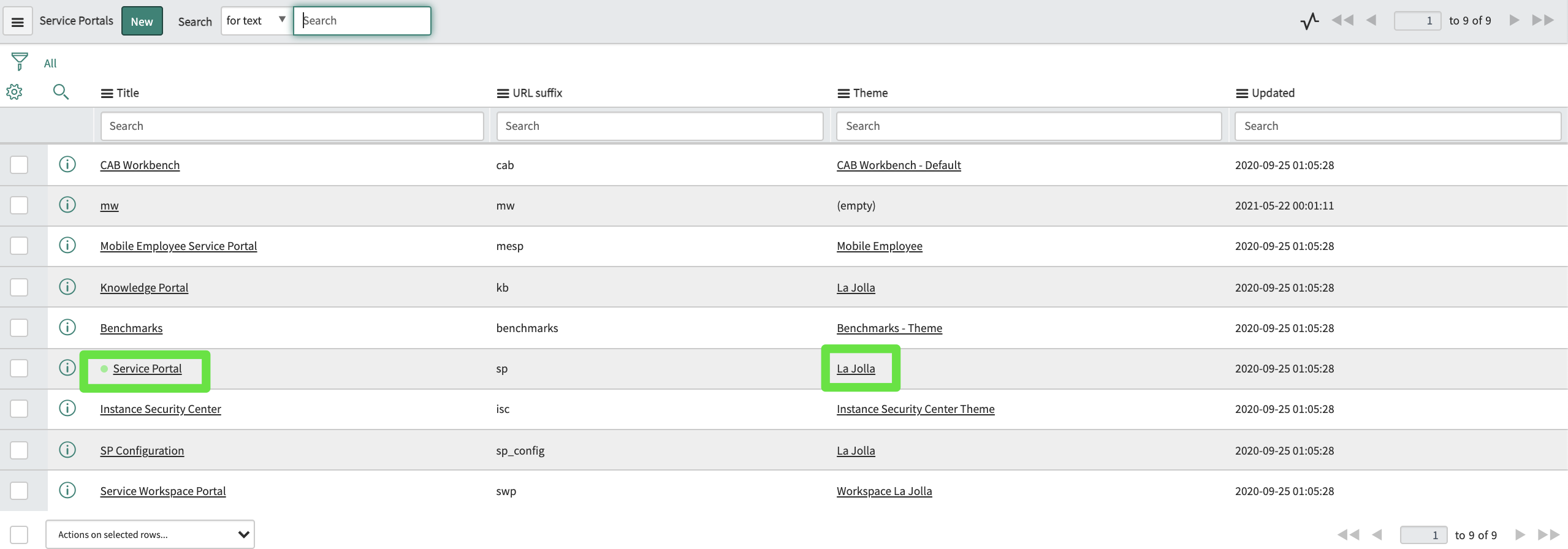
Navigate to the `sp_portal` table. Find the portal(s) on which you'd like to include the widget, and click into its Theme record.
Find the footer field:

If there is nothing there, use the magnifying glass to create a new footer record and navigate to it. If there is already a footer there, navigate to that record.
In the footer record, add the relevant snippet to the Body HTML template field. For example:
```
```
Ensure the footer is applied to your theme:

Now the widget is set to appear on any page using that theme, including your Service Portal.
Once Moveworks configuration is complete, and you have access to the web bot, navigate to your Service Portal to see the Moveworks web AI Assistant widget.
## FAQ
**Q: **How do I check the expiry of my cert?
**A: ** You can use one of the following commands to check the expiry of a cert:
**Check the .crt file directly: **`openssl x509 -in liveOUT.crt -noout -enddate` OR `openssl x509 -in liveOUT.crt -noout -dates`
**Check** **the** **.p12 (PKCS12)** **file: **`openssl pkcs12 -in liveOUT.p12 -passin pass:$PW -nodes | openssl x509 -noout -enddate`
**Check** **the** **.jks (Java** **KeyStore): **`keytool -list -v -keystore moveworks.jks -storepass $PW | grep "Valid from"`