***
title: Plugin Management
position: 2
excerpt: 'How to edit, delete, and manage your plugins in Agent Studio.'
deprecated: false
hidden: false
metadata:
title: ''
description: ''
robots: index
next:
description: ''
---------------
# Edit a Plugin
You can edit any plugin directly from Agent Studio.
1. Go to **Agent Studio** and select **Plugins** from the left-hand menu.
2. Select the plugin you want to edit.
3. Update any fields as needed: triggers, slots, activities, control flow, or conversation process configuration.
4. Continue through each step until you can **Save** or **Publish** the plugin.
5. Test your plugin to confirm it works as expected.
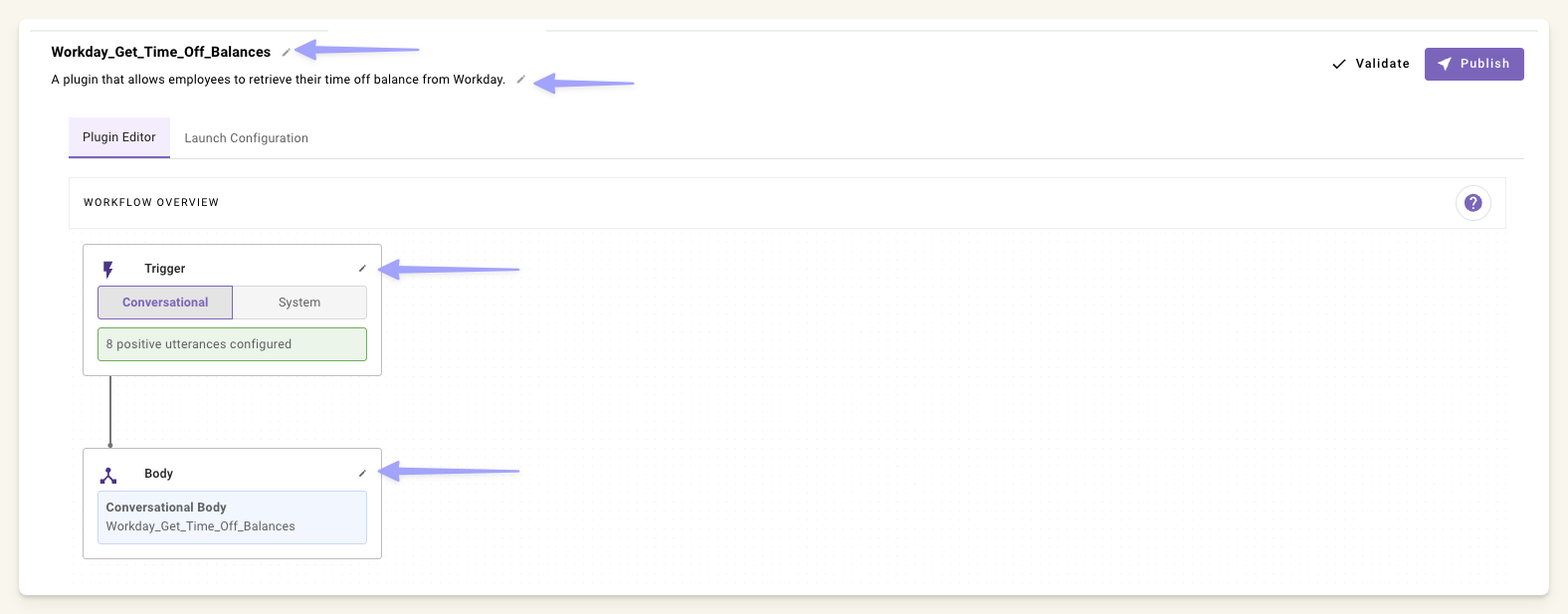
The execution logic for a plugin depends on the plugin type. Inside the plugin editor, the **Body** section shows the linked resource with a direct link to open it.
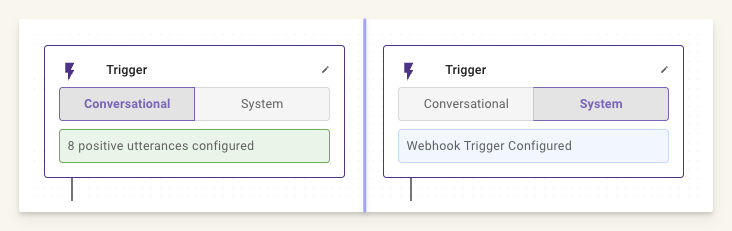
* **Conversational plugins**: Edit the associated **Conversation Process**.
* **System or ambient agent plugins**: Edit the associated **Listener** &**Compound Action**.
If you edit a plugin that is already launched to production, **your changes go live immediately once you save**. To avoid this, remove the plugin from production first, make your edits, then re-launch. Alternatively, use a sandbox environment.
# Delete a Plugin
1. Go to **Agent Studio** and select **Plugins**.
2. Find the plugin you want to delete.
3. Click the **three-dot menu** (⋮) on the right side of the plugin row.
4. Select **Delete**.
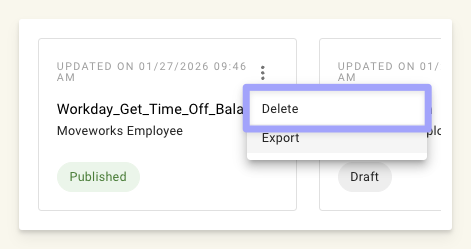
It may take up to 30 seconds for the plugin list to refresh after deletion.
# Launch and Remove from Production
## Launch to Production
1. Open your plugin in Agent Studio.
2. Use the [launch configuration settings](/agent-studio/development-and-testing/end-user-access-control/launch-configuration) to control who can access the plugin.
3. Launch the plugin to make it available to your selected audience.
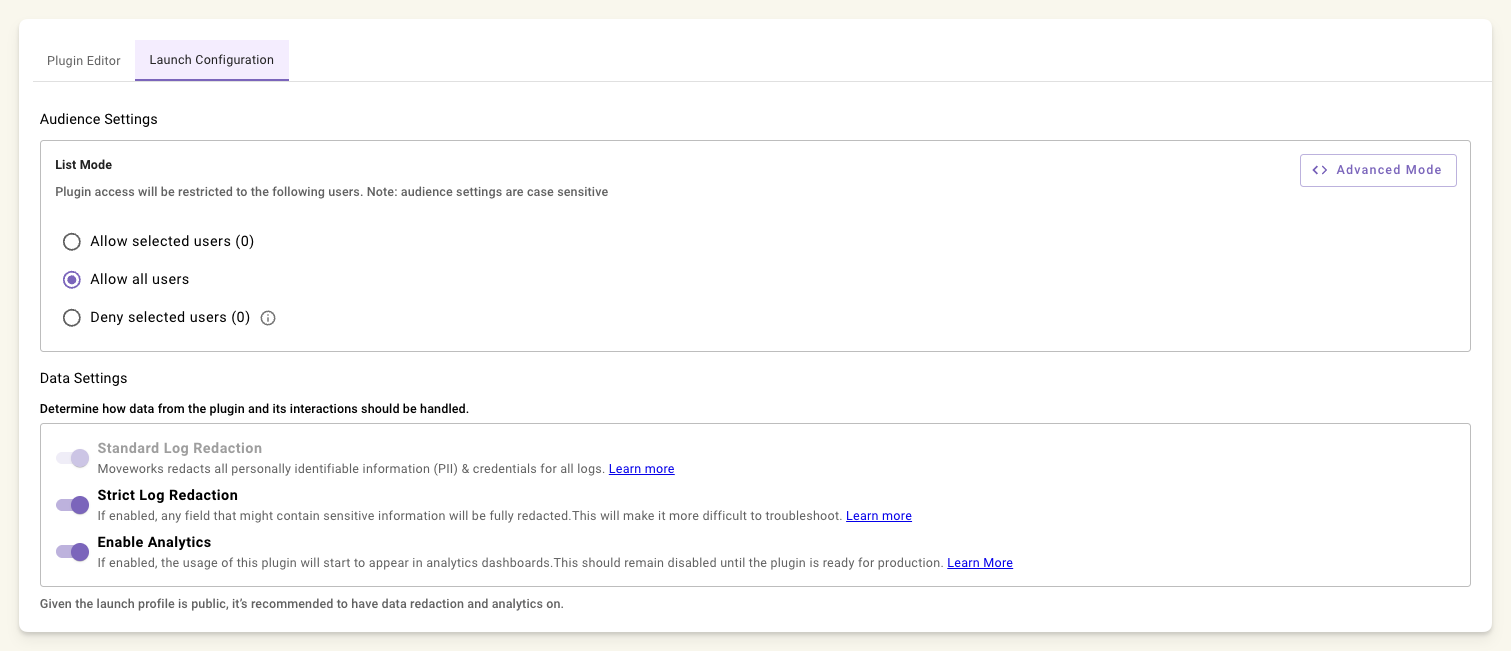
## Remove from Production
1. Open the plugin.
2. Go to launch configuration.
3. Remove the plugin from production. This stops it from being available to users, but does not delete it.
# Plugin Versioning
Agent Studio does not have built-in version control. To manage changes safely:
* **Use a sandbox environment** for testing before applying changes to production.
* **Export plugins** before making significant changes so you can restore them if needed (see [Plugin Promotion](/agent-studio/development-and-testing/managing-plugins/plugin-promotion)).
* **Document changes** in the plugin description or in your team's tracking system.