> For clean Markdown of any page, append .md to the page URL.
> For a complete documentation index, see https://help.moveworks.com/agent-studio/core-platform/moveworks-agent/moveworks-agent-configuration-guides/llms.txt.
> For full documentation content, see https://help.moveworks.com/agent-studio/core-platform/moveworks-agent/moveworks-agent-configuration-guides/llms-full.txt.
# On-Prem Agent Azure Key Vault
This guide is only needed if you are configuring the Moveworks On-Prem Agent to read credentials from Azure Key Vault. If you are not using an external secrets manager, the agent stores credentials locally using AES-256 encryption — see the [Installation Guide](/agent-studio/core-platform/moveworks-agent/moveworks-agent-installation-guide) to get started.
This document will outline the instructions to setup the following three resources in Microsoft Azure to run the Moveworks Agent VM, as well as an Azure Key Vault resource to securely access the secrets:
1. A Resource Group for the Agent VM
2. A VM Instance
3. A Key Vault
## Prerequisites
1. Access to Azure Admin Portal
2. Appropriate IAM permissions in Azure to create a new Azure Key Vault Resource.
3. Azure CLI installed on the server (or equivalent method to test Azure Key Vault access)
1. Instructions to install Azure CLI on Linux can be found here: [https://docs.microsoft.com/en-us/cli/azure/install-azure-cli-linux?pivots=dnf](https://docs.microsoft.com/en-us/cli/azure/install-azure-cli-linux?pivots=dnf)
## Instructions
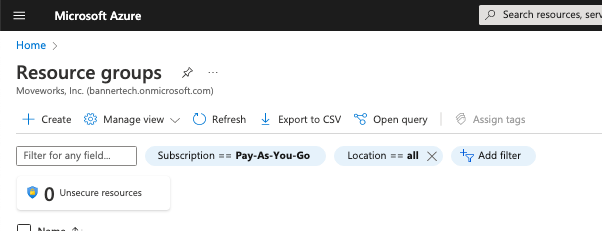
1. Navigate to Resource Groups section in Azure, select Create on the top left to create the Resource Group in Azure.\
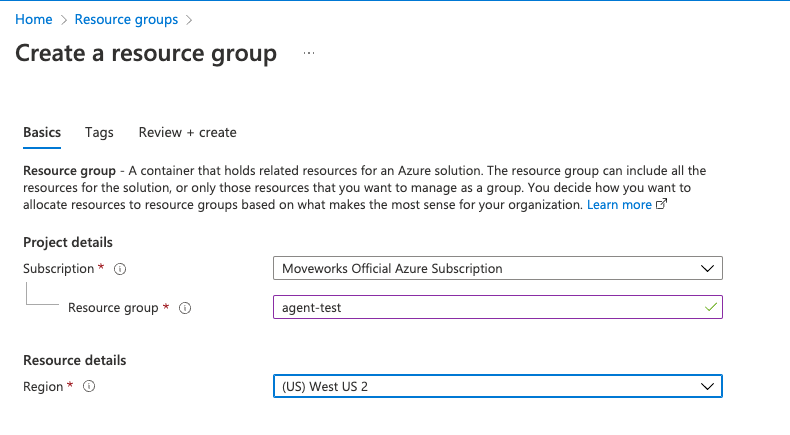
2. Enter in the relevant information to create the **Resource Group** in Azure.\
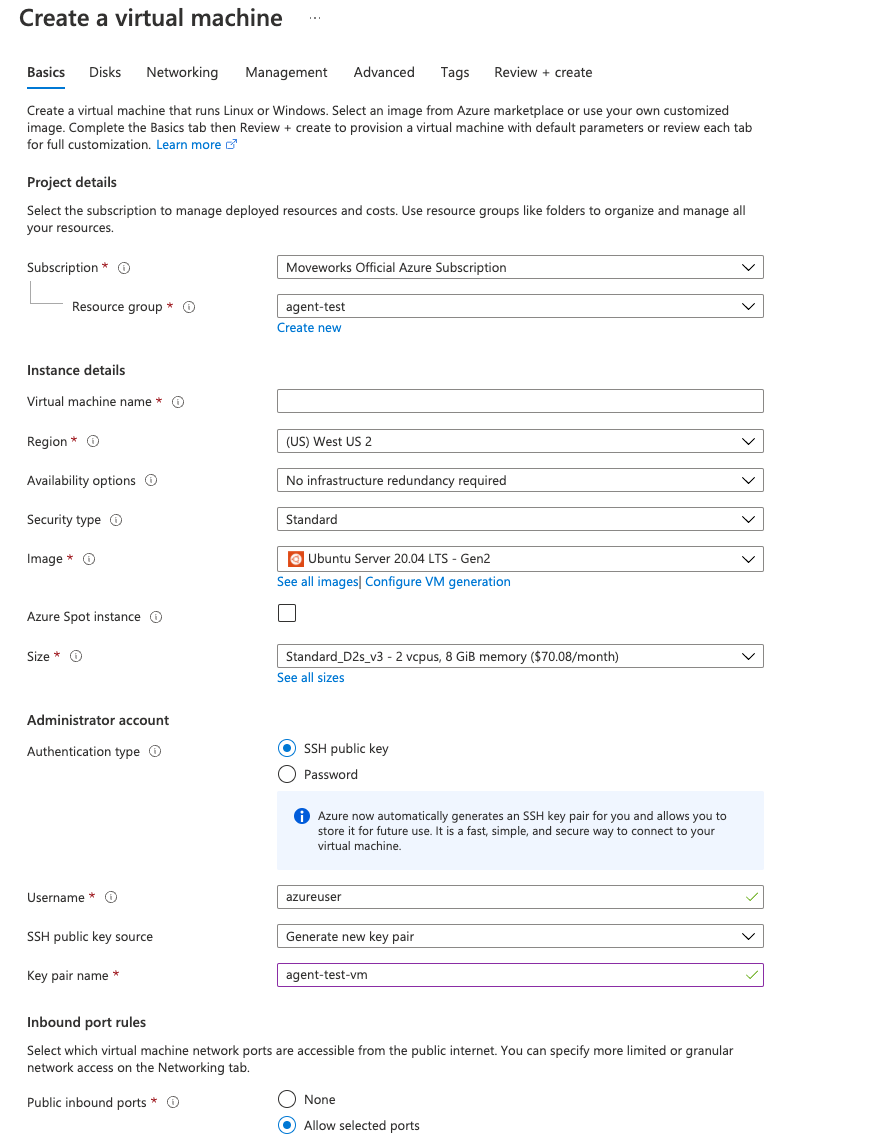
3. Create a VM and add it to the resource group.\
\
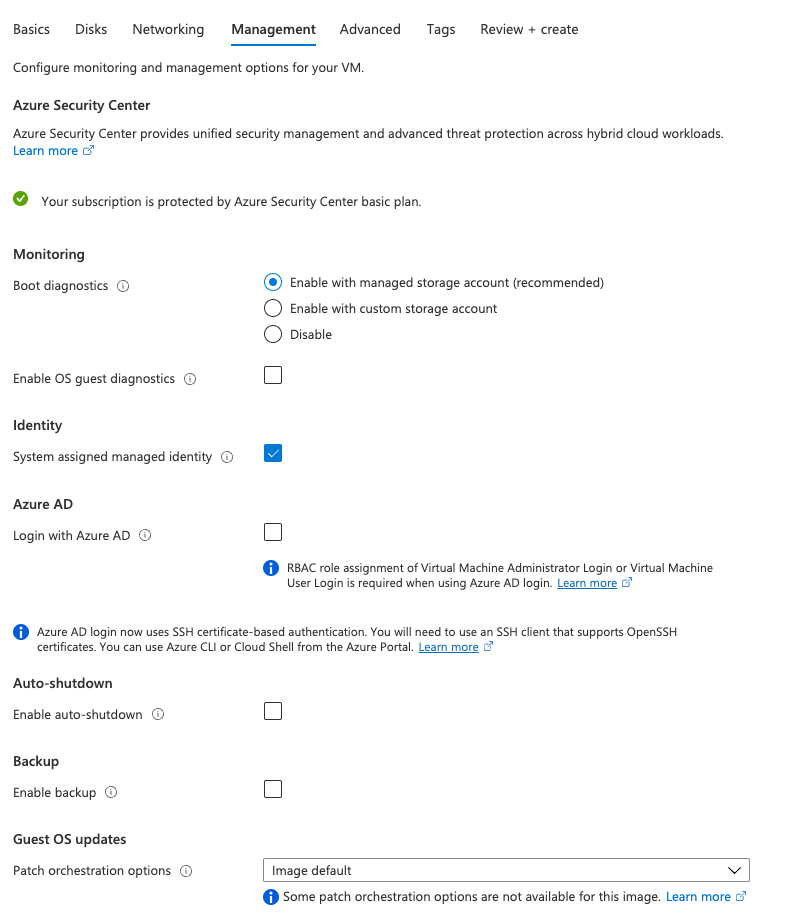
**Note**: Under management section → Identity, make sure to use `System assigned managed identity` — If you decided to generate a new key pair for ssh, be sure to save the `*.pem` file.\
4. Create a new key vault for agent and add it to the agent resource group.\

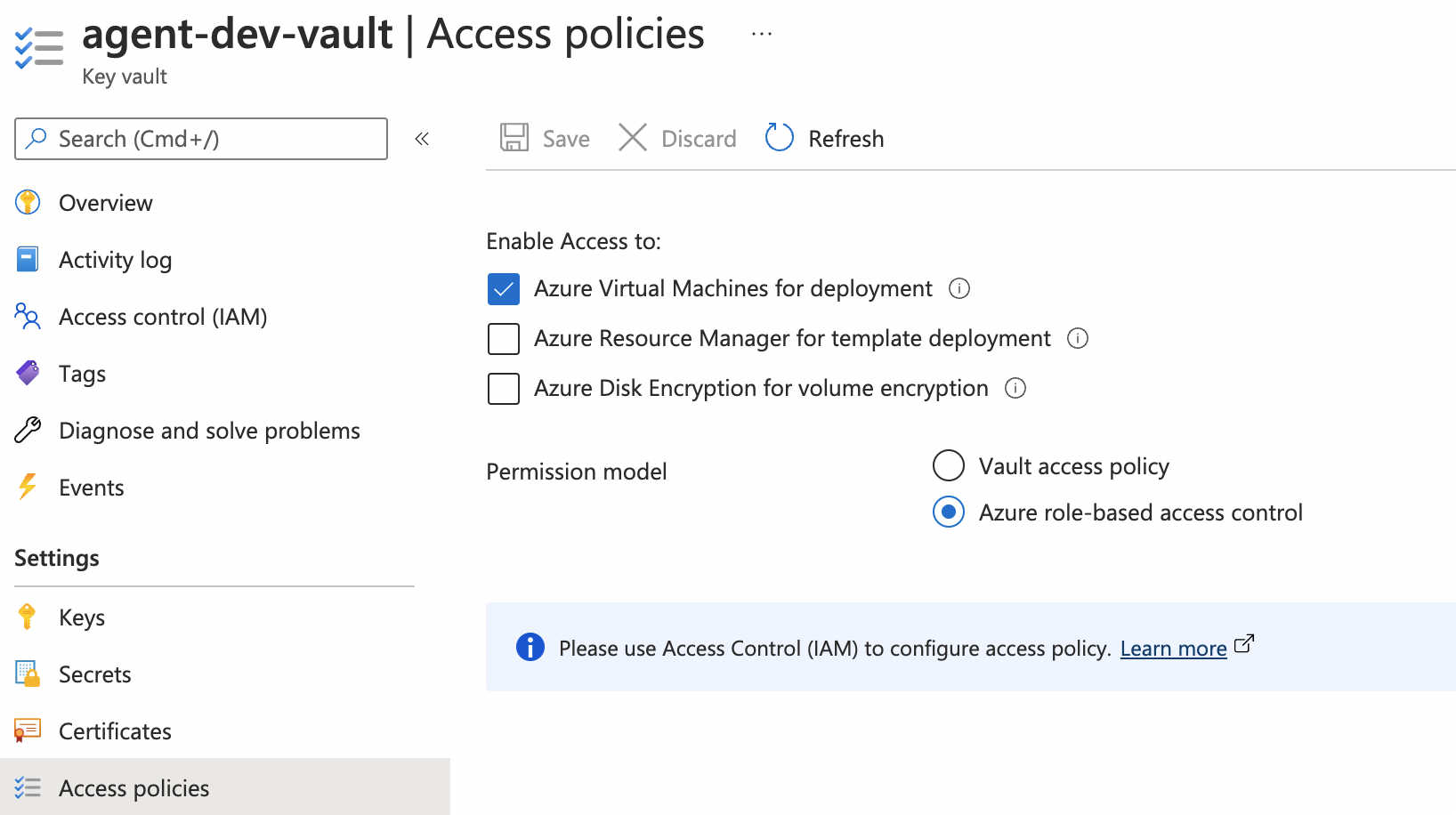
5. Enable **Azure role-based access control**.\
6. Test SSH-ing into the VM, ensure you have read-only access to the private key.
```
chmod 400 azureuser.pem
```
7. SSH into VM — E.g: `ssh -i azureuser@52.250.2.81`.
8. Install the Azure CLI, \[[Install azure cli on Linux](https://docs.microsoft.com/en-us/cli/azure/install-azure-cli-linux?pivots=apt)] by running the following command:
```
curl -sL https://aka.ms/InstallAzureCLIDeb | sudo bash
```
9. Login to Azure with Managed Identity \[[sign in with a managed identity](https://docs.microsoft.com/en-us/cli/azure/authenticate-azure-cli#sign-in-with-a-managed-identity)] by running the following command:
```
az login --identity
```
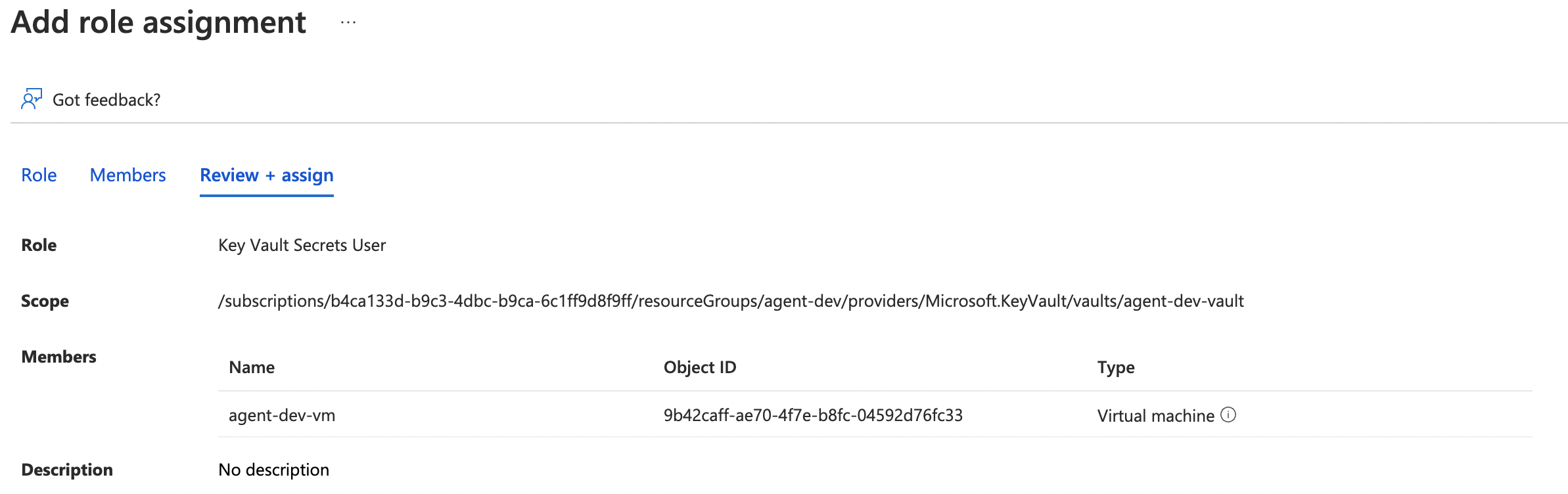
10. Grant permissions for the VM to read secrets from the key vault
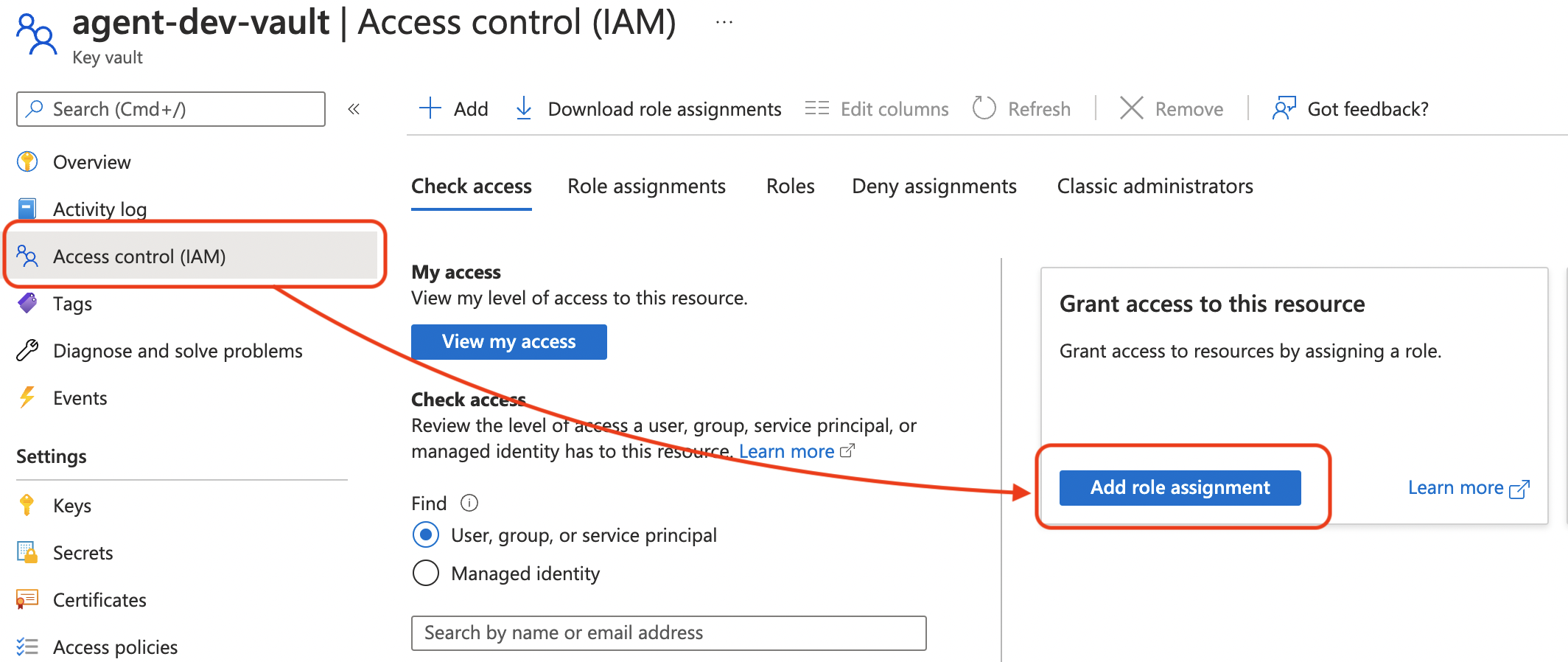
1. Navigate to key vault and select **Access Control → Add Role Assignment**.\
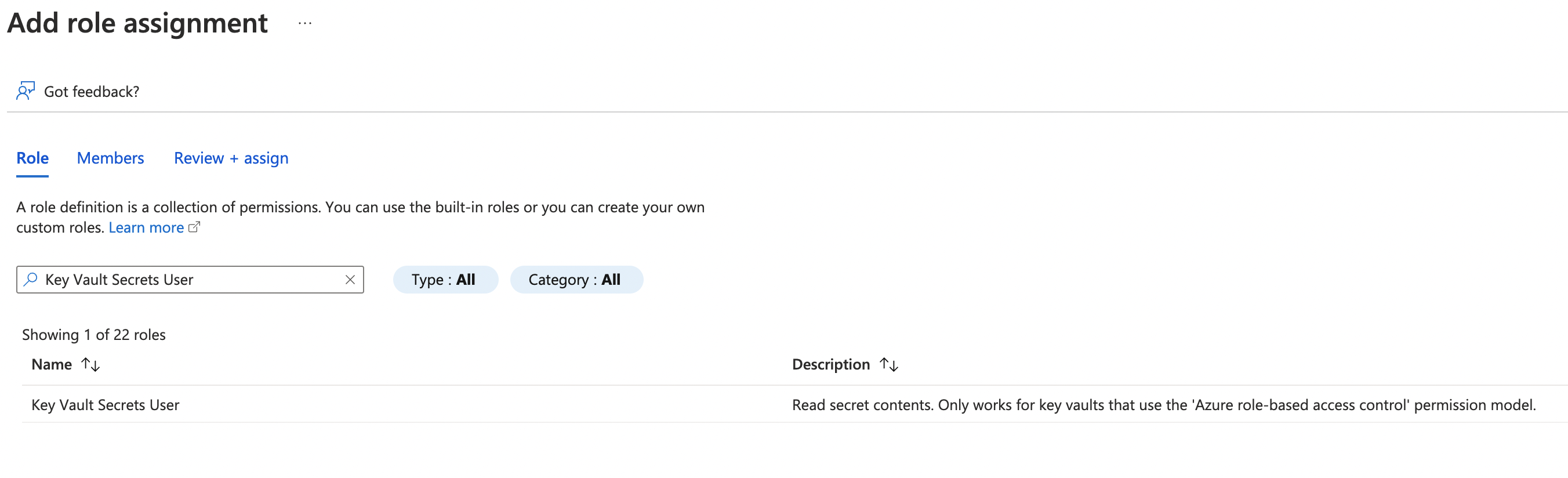
2. Select at least **Key Vault Secrets User**. This is the least amount of permissions to read the secrets. More permissions will be required if you want to write/update secrets from the VM.\
3. Select the VM’s managed identity.\
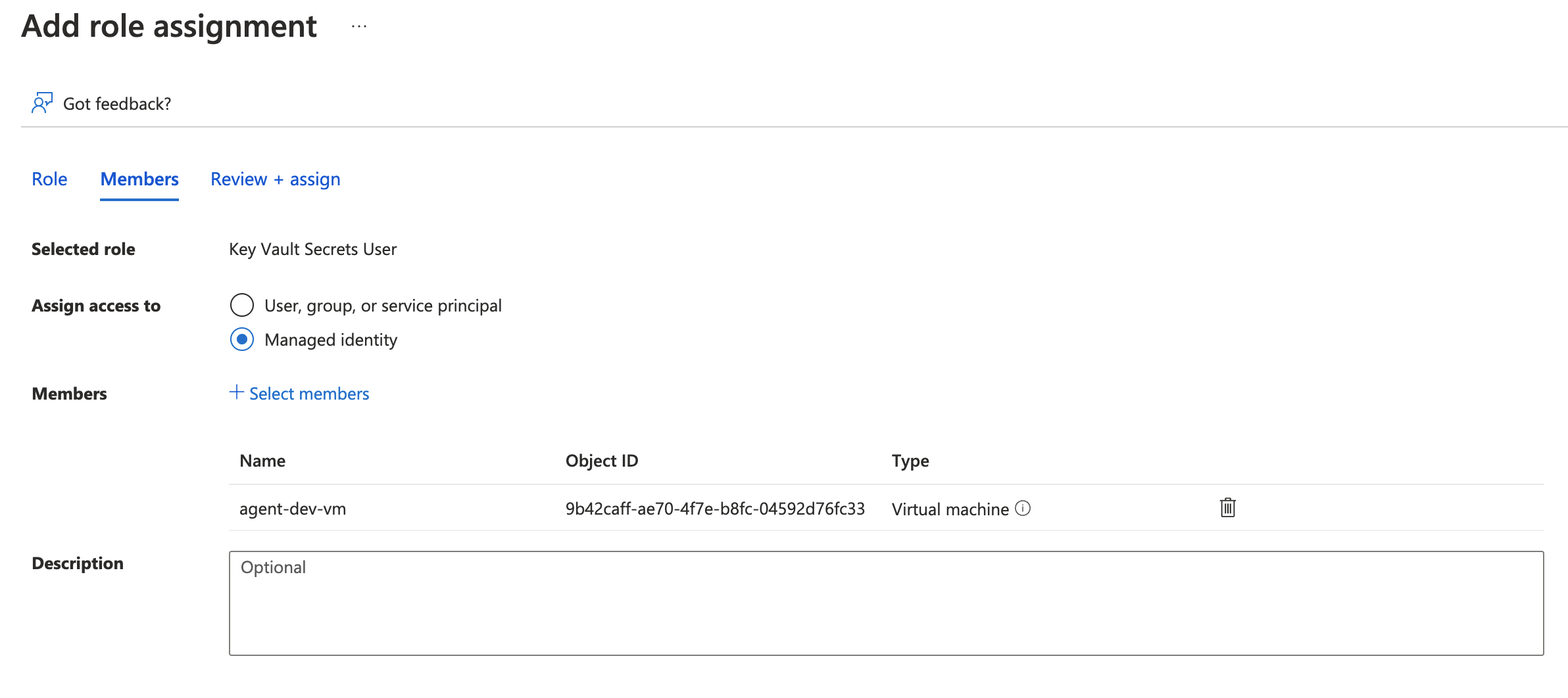
4. Assign the role to the VM’s managed identity.\
11. Once your Vault is created, you will need to add Secrets to the Key vault under Settings section on the left side navigation bar.\
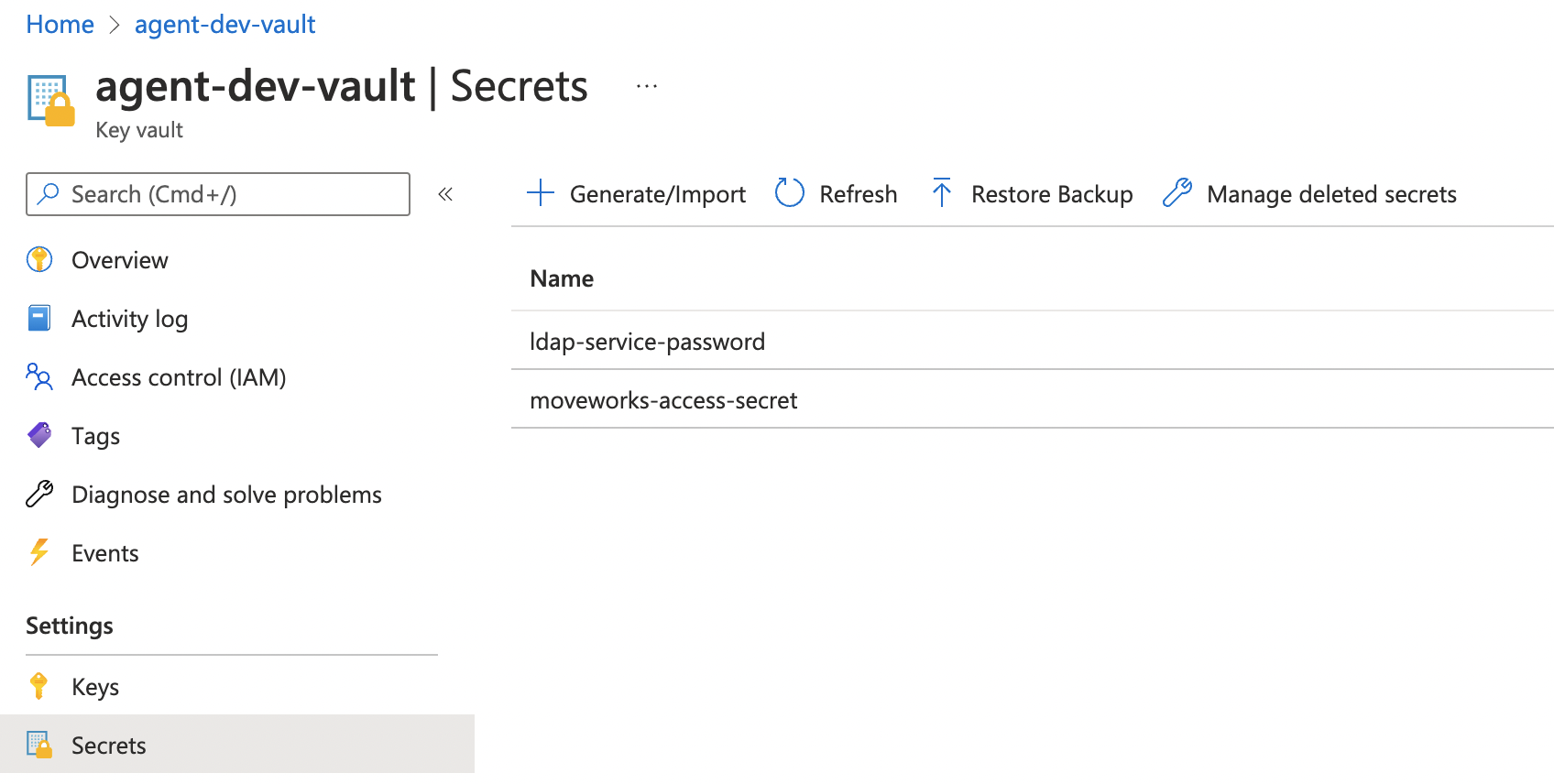\

12. Once you have added your secret, the next step is to check for key vault access from the VM, by leveraging the managed identity. Follow the Azure CLI test commands below to verify the key vault access works as expected from the VM:\
e.g: list secrets
```
az keyvault secret list --id=https://agent-dev-vaulxt.vault.azure.net/
```
**Note**: You can also check for access to specific secrets
```
az keyvault secret show --name ldap-service-password --vault-name agent-dev-vault
```
## Next Steps
Once you have verified access, reference your secrets in `agent_config.yml` using the `azure_entry` secret object. See the [Configuration File Reference — Secret Object](/agent-studio/core-platform/moveworks-agent/moveworks-agent-configuration-guides/configuration-file-reference#secret-object) for the full syntax.
```yaml
moveworks_access_secret:
azure_entry:
secret_name: my-secret-name
vault: https://agent-dev-vault.vault.azure.net/
refresh_time_sec: 3600
```
### Resources
* Managed Identities Overview: [https://docs.microsoft.com/en-us/azure/active-directory/managed-identities-azure-resources/overview](https://docs.microsoft.com/en-us/azure/active-directory/managed-identities-azure-resources/overview)
* Azure CLI reference: [https://docs.microsoft.com/en-us/azure/key-vault/secrets/quick-create-cli](https://docs.microsoft.com/en-us/azure/key-vault/secrets/quick-create-cli)